6. SKYVVA Integration Cloud ( SKYVVA App)
After installation and switch to the lightning version, you will land on Salesforce Manu. To be able to use the SKYVVA app you have to click on App Launcher, which is an app of Salesforce. Then you can search for SKYVVA Integration Cloud. When you click on this app, you will see SKYVVA Integration.

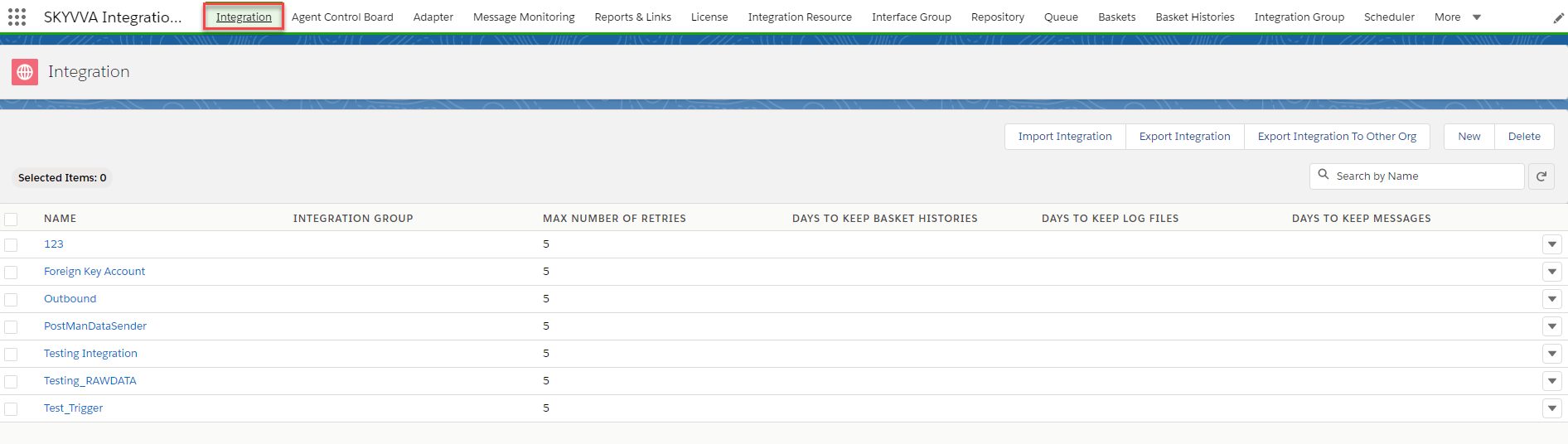
The Detail of each Cloud Tab Cloud Tab is very flexible since the most column is able to add, remove and sort dynamically. Integration Tab Integration Tab is used to monitor all the integrations that have been created. You can create a new integration, import Integration, export Integration, edit and delete integration.
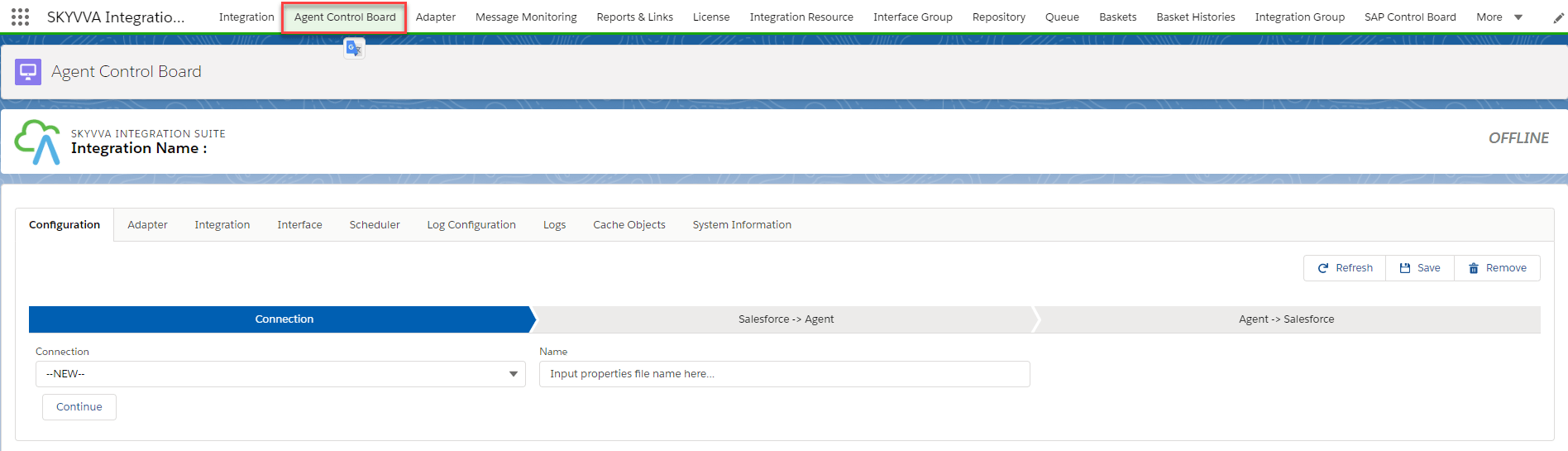
Agent Control Board Tab Agent Control Board Tab is used to set up integration property to be connected to Salesforce. You can either create an adapter and set a Scheduler to run an integration service. Likewise, it allows you to set up the Agent server credential for using SKYVVA Agent Control Board.
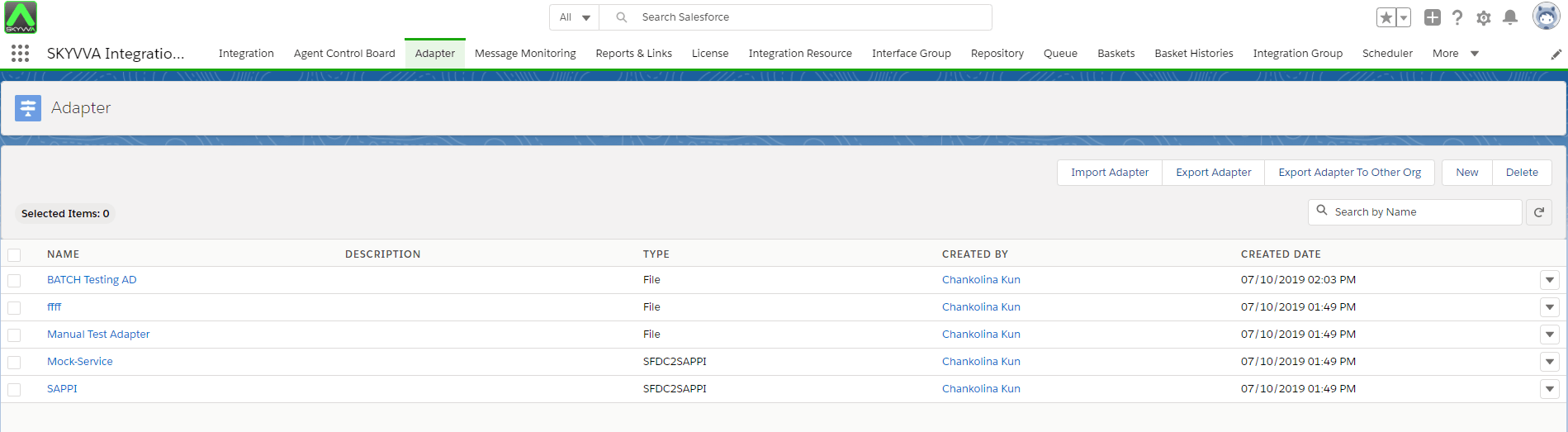
Adapter Tab This tab is no different from the integration tab, you can monitor all your adapters from A-Z letter, create the new adapter, import, export, edit and delete them.
Message Monitoring Tab Message Tab is working as the Message Monitoring Board which is located in Integration Tab. It is used to check the integration results after processing the Inbound or Outbound interface. The integration result includes Pending, Failed, Completed, Cancelled status and the reason why it failed. Likewise, you can filter the message by integration name, interface name, message name, creation date 9(From-To). Additionally, we can know the real sObject is integrated successfully with completed status. You can also see at any time the amount of space, you have used and how much more is available for your Data Storage (1) and your File Storage (2).


Repository This Tab uses to store Istructure Repository. You can search for them from A-Z. Likewise, you can also edit and delete them.


Reports & Link Tab This Tab is dividing into two sections SKYVVA Reports and SKYVVA Links. The first section contains three reports which are: All CDC Overview, All interfaces Overview, and Message Report. If you want to see the detail of each report you can click on each of them. The second section contains the link which is related to Change Batch Job Limit and Enables Bulk Delete Rest.

SKYVVA Reports Description
All CDC Overview All the CDC Records Status will be displayed here for you to monitor. Every CDC overview report available here.
All Interfaces Overview All the records of Interfaces will display here. This one is to report the overview of all interfaces in your organization.
Message Report It’s a place where you can view messages ( Failed, Cancelled, Pending, New) and can download it directly, or send it to email at any time or through the scheduler.
SKYVVA Link Description
Change Batch Job Limit To limit the batch job. The lesser, the better.
Enable Bulk Delete Rest To hard-delete the messages. It’s will delete only when the record is greater than 10000.
License Tab All active users are stored in this tab. You can use this tab to renew your license key which is expired. This tab shows the expiration date of your license key.

Integration Resource Tab This Tab uses to set the processing / reprocessing of Batch and CDT base on priority and free resources of each priority. There are three types of priorities such as High, Medium, and Low. it's divided into three parts which are: Processing/ Reprocessing Basket, Reprocess Message, and CDT. However, only the Processing/Reprocessing Basket and CDT are working.

Interface Group Tab Interface Group Tab is used to create a manual interface group and store all the interface groups both default and manually.

Queue Tab This Tab uses to monitor the batch queue and filters the queue base on Integration Name, Interface Group, Interface Name, and Queue Status. You can also delete them. These fields play an important role to hold information for monitoring purposes.

Basket Tab All the incoming baskets will store in both Batch Control Board’s Inbound processing tab and here, so you can monitor the baskets. However, this tab will only show the basket name. You still can edit and delete the basket you don’t want.

It is difficult to know the total number of the basket in the Basket monitoring overview page. The total numbers of the basket have added to make customers more easily see the backlog. The following screenshot display the Total number of baskets:

Basket History Tab All the baskets that done processed will be the move to Basket Histories. Basket Histories Tab is used to store all the processed baskets. If you want to delete them you can click Delete or Delete All button.

Integration Group This Tab is no different from the Interface group but this tab use to store and create an integration group. You can view or search base on the letter from A-Z.

Scheduler Tab Scheduler Tab is used to store all SKYVVA Scheduler. The scheduler screen layout divided into four sections to have the logical group as for Inbound, Outbound, Inbound/Outbound, and Others. The filter section is easy to use in order to filter any scheduler you want to search base on Integration Name, Interface Group, and Interface Name, Status, and Functional category then Set the schedule and start them easily. This filter section added to display all the overview list of schedulers. change the screen layout for the scheduler to have the logical group as Inbound, Outbound, Inbound/Outbound, and Others.

SKYVVA Trigger Tab SKYVVA Trigger tab uses to generate script trigger automatic for Button and Apex Trigger. It can generate two kinds of script such as Trigger Button and Trigger Apex.

Transport Route Tab “Transport Route” Tab use to create Transport Route to import and export from Source Organization to Target Organization. When we export Integration, we’ll also export some sObjects, such as Interfaces, adapters, iStructure, mapping, and iChain ... etc, which were parts of this Integration. You can also edit or delete them.

Metadata Provider Tab This Tab uses to store the MetaDAta Providers. When you create a new MetaData Provider, it stores here in this tab. You can edit and delete any time you want.

Interface Tab This Tab store all the interfaces you have in your organization. You can create, edit, and delete any interface as your desire.

CDC Tab CDC Tab is used to store all the change pointer which is detected by CDD. You can filter the change pointer by Integration Name, Interface Name, Status, filter by using Sort By the change pointer records by date (Creation Date and Modification Date) and from Ascending to Descending.

Fields Description
Integration Name The name of the integration
Interface Name The name of the interface
Status The status of the change pointer
Max. Number of Records Use this filter to limit the result in the CDC monitoring to prevent the time out due to many change pointers.
Application Ids Show change pointer records Ids
Date You can specify Creation or Modified date
From The from date
To The to date
Sort By You can specify Creation date, Modified date or change pointer Name
Order By Use to filter the change pointer in order by Ascending or Descending.
ILogs Tab With this tab, you can easily search all the error logs and error text that you wish to delete.

SAP Control Board
