1.2. How to use custom response using the response (outbound) interface to agent?
#### [su_highlight background="#00d9a6"]Release Version[/su_highlight]
Introduction:
- Our V4/integrate rest variant supports JSON and XML and therefore it is possible to pass the Rest envelope XML or JSON to the body of the v4/integrate. This means that for invoking the skyvva API we use only the rest variant ../services/apexrest/skyvvasolutions/v4/Integrate with either XML or JSON payload.
- In the URL of V4 API, the query parameter is added in URL only.
We have two type of response:
- standard response
- custom response using the response (outbound) interface to do the mapping
if we want to get data from the response interface then we need do mapping for response interface and link it to request interface. Only data send from input will return back as response. If we want other than the input data then we have to use VLOOKUP formulae in the response mapping.
Usecase:
Objective: custom response using the response (outbound) interface to do the mapping Pre-requisites:-
- Create an Integration

- Create Metadata Provider
- Create Repository.
- Create a Message Type.
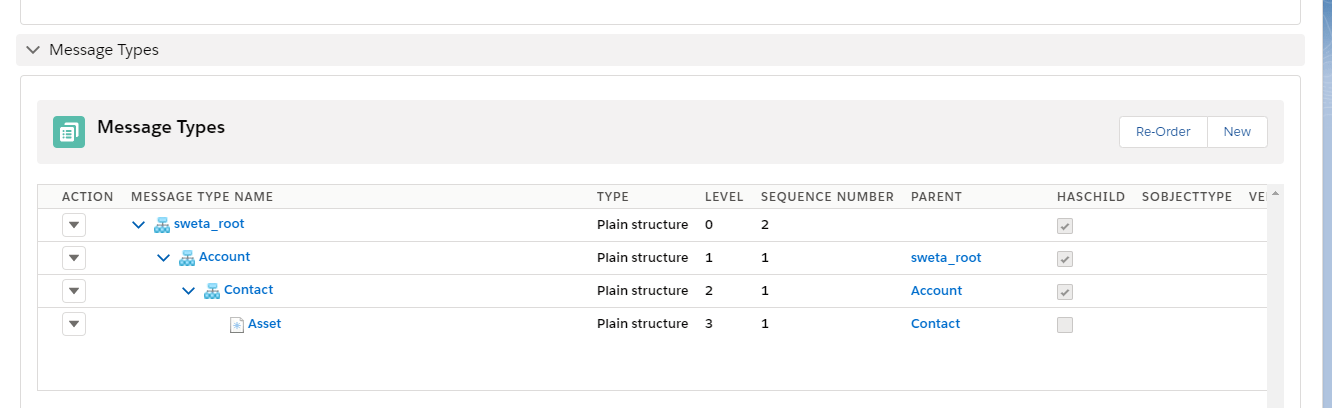
[su_box title="Note" box_color="#2a8af0" title_color="#000000"] Make sure that msg type structure should start with root node [/su_box]
- Outbound adapter(Here we are using SFDC2SAPPI adapter)
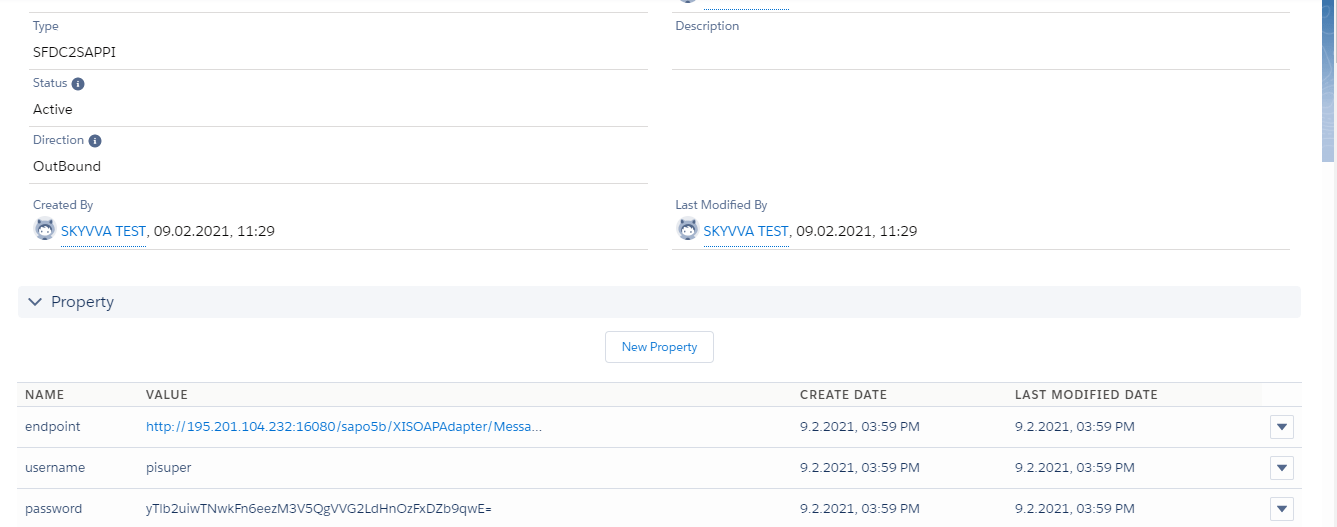
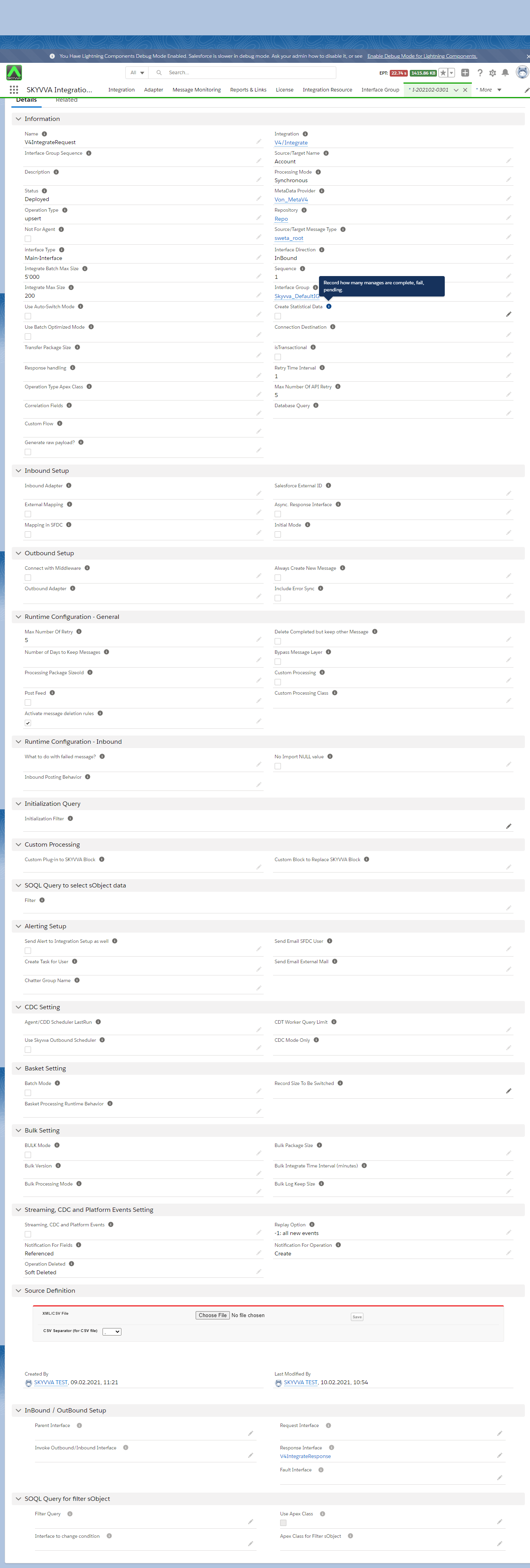
Steps: Step1: Create Inbound Interface as Request Interface. where We have to select:
- Metadata -Repository -> Message Type.
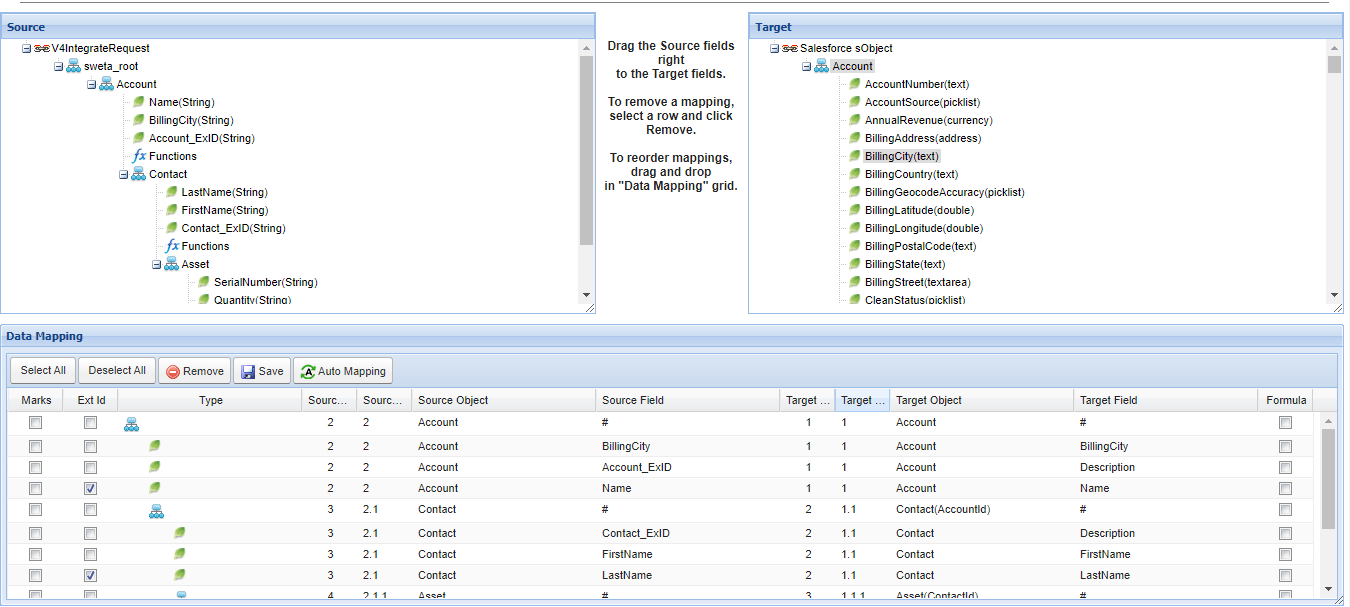
- Do mapping
Inbound mapping should looks like:
Step2: Create Outbound Interface as Response Interface. where We have to select:
- Metadata -Repository -> Message Type.
- Adapter
- Do mapping
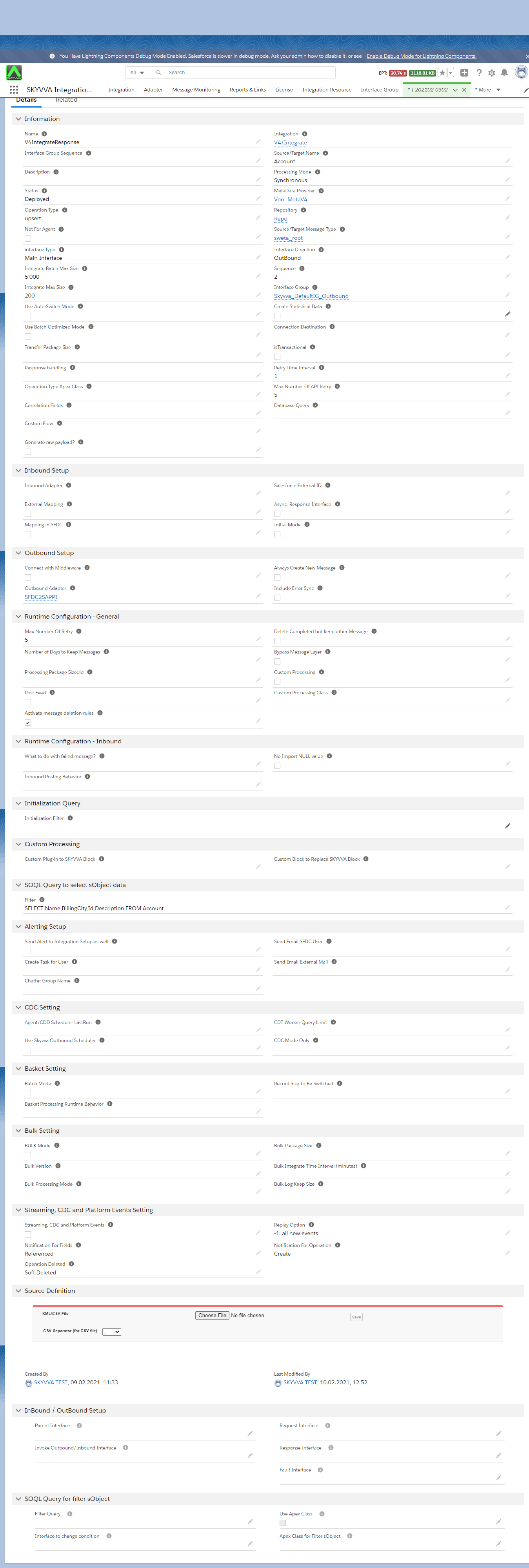
In mapping If formula is applied to add constant value. for example: IF(Name = "Mac", "Testmac",Name) When We post name= mac as input. In response(Outbound) it should show Testmac.
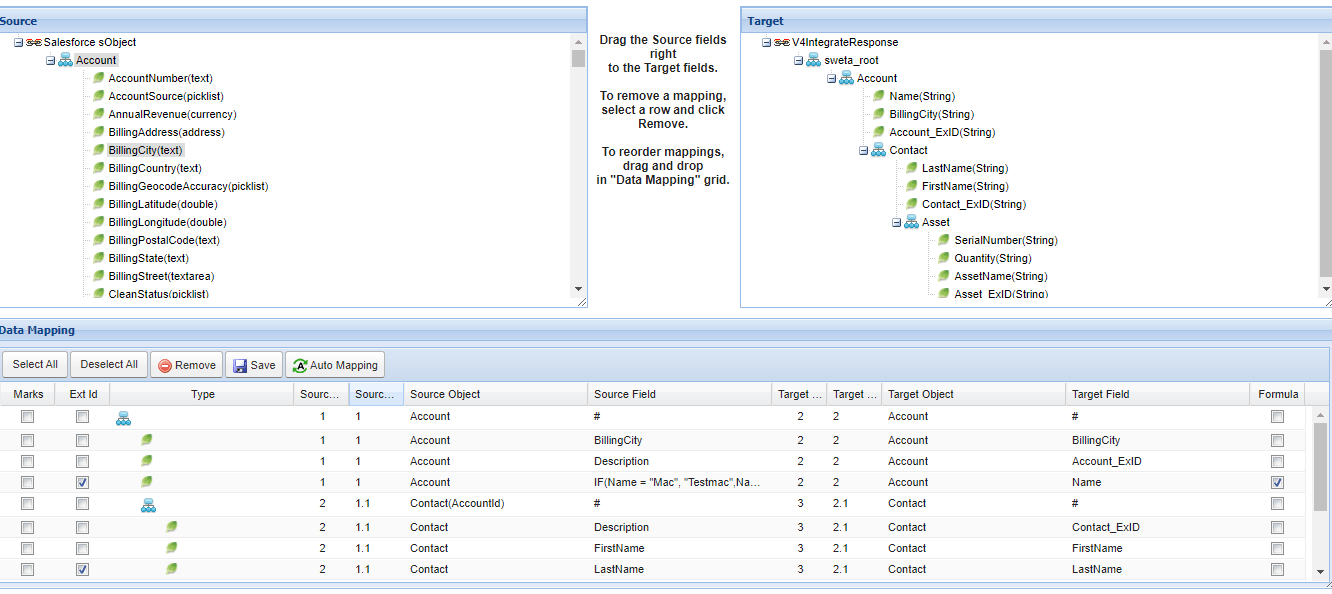
Step3: To get data from the response interface we need do mapping in same interface and link it to request interface(Inbound)

Step4: here we are using Postman for V4 integrate rest api.
- V4 API: V4 API pass Integration, Interface, mode, request-format, response-format parameter inside the URL query parameter.
2. The URL contains: URl contains following the details for V4integrate:
- Salesforce classic URL.
- Integration name.
- Interface name.
- mode.
- response-format.
- request-format.
All this details are nothing but the parameters.

[su_box title="Note" box_color="#2a8af0" title_color="#000000"] Please make sure there is no unwanted space after value inside query params[/su_box]
3. Authorization
- Authorization Type Select as No Auth.
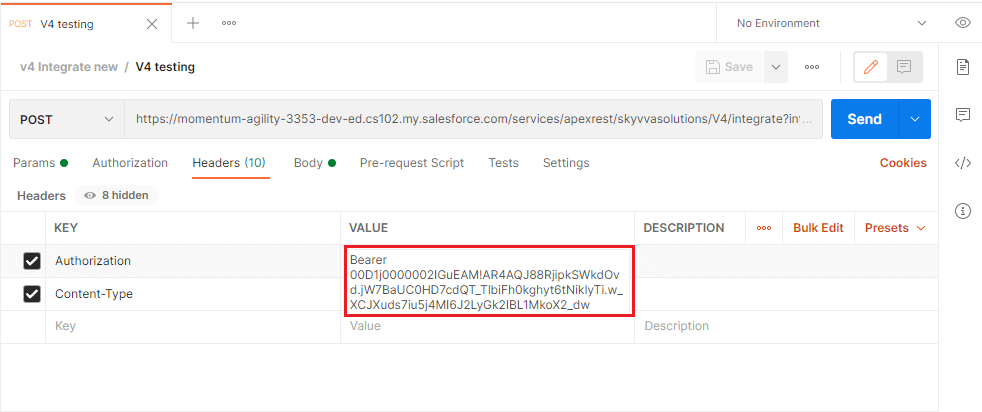
4. Header:-
- Enter "Bearer+Session ID".
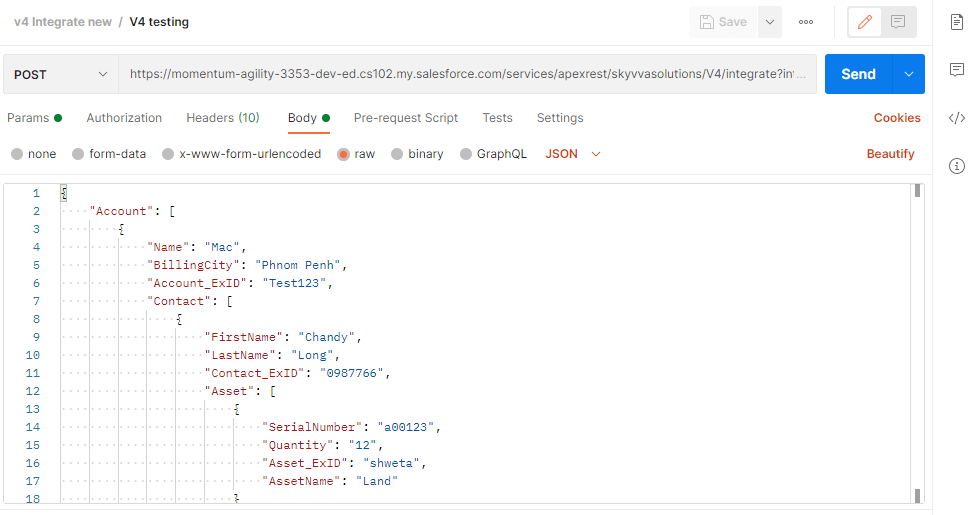
5. Body:
- Enter JSON or XML payload as per your message type which we have created earlier.
6. Send the Request:
- Click on send button.
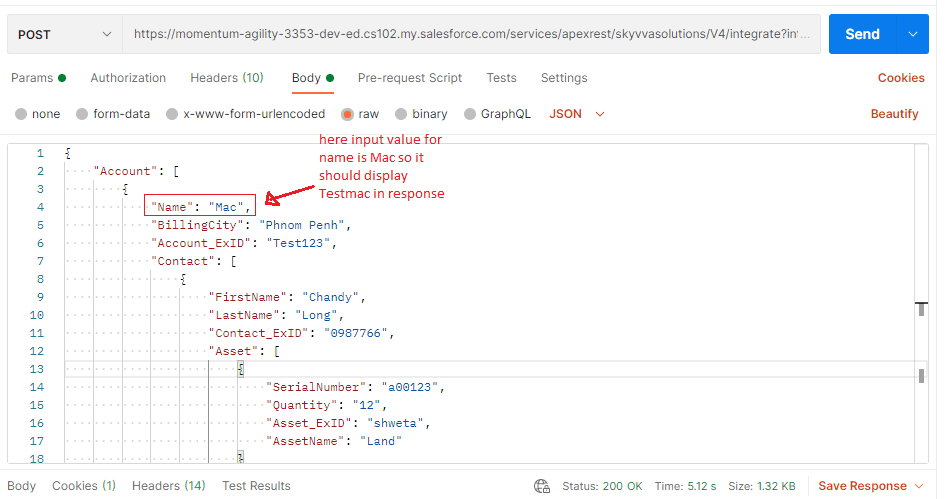
7 Check response for Outbound interface:

#### 8 Check Result on Message monitoring:
