1. How to create MessageTypes from CSV file payloads
Introduction
Skyvva's metadata engine supports integration scenarios where systems exchange data through structured CSV payloads. When a CSV file is uploaded, the engine analyzes its header columns and automatically generates MessageTypes and Field Entries based on the detected structure — whether flat or hierarchical.
CSV is a widely used format for data exchange due to its simplicity and compatibility. In Skyvva, CSV payloads drive metadata creation through the Open Editor, enabling you to quickly define the data structures needed for Inbound and Outbound integration interfaces.
While CSV is a commonly used format across many data exchange scenarios, this guide focuses specifically on CSV file payloads uploaded through the Open Editor. Other use cases that involve CSV data, such as API responses or external data streams, are not covered here.
This guide covers two key scenarios: uploading a flat CSV (all columns in one object) and uploading a hierarchical CSV (columns spanning multiple related objects such as Account and Contact). Both result in reusable MessageTypes that can power your integration configuration.

Scenario 1: Upload CSV — Flat Structure
This scenario applies when your CSV contains data from a single object — for example, a list of Accounts. All columns map to one flat MessageType with a linear sequence of Field Entries.
Step 1 – Upload Payload
Upload a CSV file containing flat data (e.g., Accounts only):
- Go to Repository details → click Open Editor
- Select file type: CSV, separator: , (comma)
- Paste your CSV payload (separator must match) → Click Next
AccNumber,AccName,AccBillingCity,AccCountry,AccDescription
A-2001,AccountTest1,Berlin,Germany,Test Description
- Set Root MessageType Name: AccountCSV, Data Structure: Flat

- Click Save to confirm metadata generation.
Step 2 – Metadata Generation Result
Once saved, the page refreshes and displays the generated MessageType in the list view. Field Entries are created with sequentially assigned sequence numbers, one per CSV column header.

Navigate into AccountCSV MessageType to verify the Field Entries

Note: The generated Field Entries are now ready to use in the next step of your Interface configuration.
Scenario 2: Upload CSV — Hierarchical (Parent-Child) Structure
This scenario applies when your CSV contains data from two related objects — for example, Account (parent) and Contact (child). Rather than treating all columns as one flat MessageType, you define a parent MessageType and add child MessageTypes to represent the relationship between data objects.
Key difference from Scenario 1: After uploading the payload, you use the Open Editor tree view to manually assign which fields belong to the parent and which belong to each child node.
Step 1 – Upload Payload
Upload a CSV file containing hierarchical data (e.g., Accounts with related Contacts):
- Go to Repository details → click Open Editor
- Select file type: CSV, separator: , (comma) → click Next
- Paste your CSV payload (separator must match) → click Next
AccNumber,AccName,AccBillingCity,AccCountry,Cont_FirstName,Cont_LastName,Cont_Email
2001,Test1,Berlin,Germany,First_Test1,Last_Test1,info@mymail.com
- Set Root MessageType Name: AccountParent, Data Structure: Hierarchical → click Next

Once the tree is displayed, AccountParent* is set as the root node. Click AccountParent → Edit on AccountParent to assign parent-level fields.
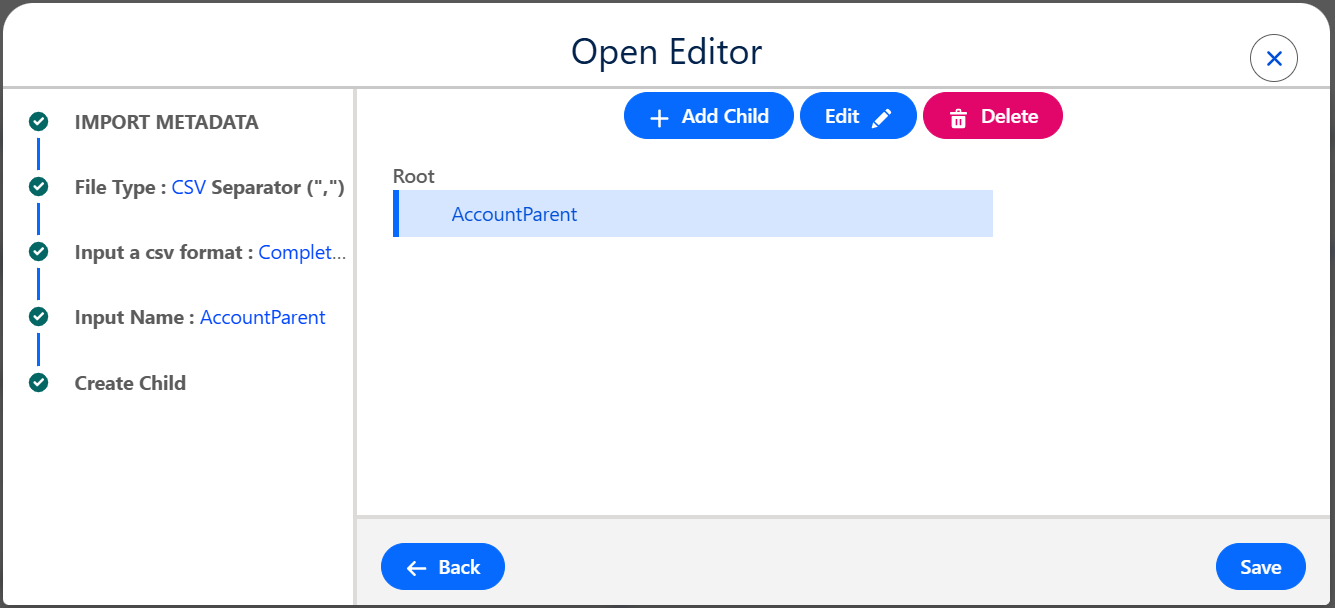
- Specify the field name, select the desired field, and click Save.

- The Editor tree refreshes
- Click Add Child to add a child node (Contact). Specify the field name, select the desired field, and click Save.
The Editor tree refreshes showing AccountParent and ContactChild configured. the form return to Editor tree

- Click Save to generate metadata.
Step 2 – Metadata Generation Result
Once saved, the Repository list refreshes and displays the parent and child MessageTypes:
- AccountParent at Level 0 (root, hasChild = true)
- ContactChild at Level 1 (child, Parent = AccountParent)

Navigate into each MessageType to verify the Field Entries:
- AccountParent
- ContactChild
Note: The generated Field Entries for both AccountParent and Contact are now ready to use in the next step of your Interface configuration.
Summary
- CSV payloads enable rapid metadata generation through the Skyvva Open Editor.
- Flat CSV files produce a single MessageType with one Field Entry per column header.
- Hierarchical CSV files (with data spanning multiple objects) require manual parent-child assignment via the Open Editor tree view.
- The resulting MessageTypes are structure-based and reusable — the same structure generated from CSV can be applied across Inbound and Outbound interfaces, and even reused when switching to other formats such as XML or JSON, as long as the field structure is consistent.
- No manual schema definition is required; the engine derives everything from the CSV payload automatically.