1. SkyvvaSalesforce Receiver Adapter — Patch Update (Micro) Guide
This guide updates an existing, working receiver connection. If you are new to CPI, follow the steps with the administrator who manages your integration environment. Have the flow name, adapter package and release file ready before starting.
Procedure at a glance: record and back up the working setup → upload and deploy the patch → keep the existing receiver channel → test processing. Experienced CPI users can start at Before you start and follow Update procedure, Test the result and Restore the previous setup if needed. Update Version is not a patch-installation step.
1. About this guide
Use this guide for a Patch Update (Micro) within the same minor release. The screenshots and file names illustrate 1.2.0 → 1.2.3; use your actual current and target releases in the steps below. In this example, the patch number—the last number—changes from 0 to 3, while 1.2 stays unchanged. Use the target adapter archive (.esa) and read its release notes to confirm the supported update path and included fixes. An integration flow (iFlow) is the process that sends data between systems. Its receiver channel is the connection line that sends data to Salesforce. A patch update keeps this connection and its settings.
Keep the authentication method already configured in the working receiver. The illustrated component offers Username-Password Credential and Client Credential; preserve the selection and aliases used by your own flow.
Update Version is not required for a patch update within the same component minor version. SAP's micro-version procedure updates the existing channel's screen definition (metadata) in place. Keep the receiver connection, upload and deploy the patch archive, then check the settings and test processing. The button’s availability depends on whether CPI offers a newer component version for the selected channel and runtime profile. It may still appear after a patch deployment; check its offered target before using it.
For new features that change the middle version number, such as 1.2.x → 1.3.0, follow the Minor Upgrade Guide.
The screenshots illustrate a receiver configured with OAuth2 Flow = Client Credential, Skyvva API Version = V3, Mode = Synchronous, and XML request/response formats. Synchronous means that the caller waits for the processing response. Keep your own working API version, mode and request/response formats during the update; the example values are not instructions to change them. If your flow uses another mode, agree the expected result with its owner before testing.
Terms used in this guide
SAP Cloud Integration is the integration service in SAP Integration Suite. This guide also calls it CPI. Your tenant is your organization's Cloud Integration environment, such as test or production.
| Term | Meaning here |
|---|---|
| Package / Artifacts | A package groups integration content. Its Artifacts tab lists items such as integration flows and adapters. The adapter and flow may be in different packages. |
Adapter / .esa file | The SkyvvaSalesforce software used to communicate with Salesforce. The .esa file contains the adapter release you upload. |
| Receiver channel / connection | The line from a processing step to the Salesforce Receiver box in the flow diagram. Select the line to open the adapter settings. |
| Component metadata version | The version of the channel's configuration screen and supported settings. It can differ from the full adapter release number. |
| Runtime profile | The compatibility setting that determines which components are available to a flow, such as Cloud Integration or Edge Integration Cell. Have the administrator confirm it if the expected adapter version is missing. |
| Save / Deploy | Save stores changes in Design. Deploy makes the saved adapter or flow available to run. Saving alone does not activate changes. |
| OAuth2 flow / credential alias | The sign-in method and the name of saved credentials. Security Material is where CPI stores credentials; copy their aliases into the channel, not their passwords. |
| Configure / externalized parameter | Configure maintains values outside the flow editor. A field such as {{LoginUrl}} refers to one of these values; record both the reference and its configured value. |
| SKYVVA Integration / Interface | Settings that identify the processing configuration in Salesforce. Preserve the values from your working receiver. |
How to read the adapter version in SAP CPI
SAP CPI uses the format Major.Minor.Micro. In this guide, Patch Version means Micro Version, and Version Upgrade means a Minor Version Upgrade.
For example, read adapter version 1.2.3 as follows:
| Version part | Position | Value in 1.2.3 |
|---|---|---|
| Major Version | First number | 1 |
| Minor Version | Middle number | 2 |
| Patch Version (Micro) | Last number | 3 |
- Patch Update (Micro): 1.2.0 → 1.2.3 changes only the last number.
- Version Upgrade (Minor): 1.2.x → 1.3.0 changes the middle number; x represents the starting Micro (patch) number.
Check the adapter's Version in Integration Adapter Details and compare the current and target versions using these positions. The package version and the version saved with Save as Version belong to the package and integration flow respectively; record the adapter version separately.
Updating the adapter file and updating a receiver channel are separate actions. Saving an integration flow version backs up its configuration; keep the previous adapter file separately.
The receiver connection's information icon shows its component metadata version, which can differ from the adapter archive release shown in Integration Adapter Details and Monitor → Manage Integration Content. For example, a connection displaying 1.2 does not independently identify archive release 1.2.0 or 1.2.3. The Update Version action concerns component migration, not uploading the patch archive.
2. Before you start
Before starting, prepare the following:
| Requirement | What you need |
|---|---|
| Source and target release | The exact current archive release, current receiver component version, and intended patch archive with its release instructions. The examples use 1.2.0 and 1.2.3. |
| SAP Integration Suite access | Permission to edit and save the integration flow, deploy the adapter and flow to make them available to run, and view logs. Ask your administrator to perform steps you cannot access. |
| Working configuration | The working Salesforce address, credential aliases (the names of saved credentials in Security Material), SKYVVA Integration and Interface, mode and data formats. Also record any values maintained outside the flow under Configure. Check that the credentials are deployed in Security Material. |
| Salesforce verification | Access to the intended Salesforce organization, SKYVVA processing results and resulting business records, or an administrator who can verify them. |
| Test request | Sample data, the expected Salesforce result, and a unique value that helps you find the same test in the logs and Salesforce. |
| Working test scenario | Confirm that a test succeeds before starting. The walkthrough uses V3 / Synchronous; for another mode, record how and where you will verify completion. |
| Recovery files | A saved version and downloaded backup of the integration flow, plus the previous adapter file. Create the flow backup in Update procedure. |
| Deployment method | An administrator who knows how to replace the existing adapter file in your SAP Integration Suite environment. |
Keep the existing OAuth2 flow during this patch update. Change the sign-in method separately, after testing the update.
Check bug fixes and new features on the SKYVVA website
On the SKYVVA website, open the release notes for the target version. Confirm that the entry applies to the SkyvvaSalesforce adapter running in SAP CPI and matches the version of the new adapter file.
Read the fixes, new features, supported versions and required setting changes. Also read the notes for any releases between your current and new versions. Choose tests that cover the changes you use.
If the notes for your adapter version are unavailable, ask SKYVVA support or the person supplying the adapter file. Check the notes for the CPI adapter, as the Salesforce SKYVVA package has separate release notes.
Use a test environment first. The deployed adapter software is shared by flows using it, so replacing it can affect more than the flow shown in this guide. Find all integration flows that use this adapter across packages, including any sender channels sharing the runtime, and agree a time for the change with their owners. Before replacing the adapter, follow the steps in Test the result to record a successful baseline: the working configuration, test request, CPI message ID, returned response and Salesforce result. Repeat equivalent tests after the update. Test the other affected flows too.
Deployment scope: deploy the patch archive once per tenant. All iFlows using that adapter share the updated runtime; you do not install a separate patch for each iFlow. Keep their existing channels, check each flow’s settings and test the affected scenarios. If an iFlow changes, save and deploy it individually. For unchanged iFlows, follow the release instructions for any required redeployment. Repeat the process separately in test and production tenants, using each tenant’s configured values and credential aliases.
3. Update procedure
3.1 Confirm the update scope
Check that the release notes cover your current-to-target patch update and the fix you need. This guide covers the receiver connection. A change listed only for the Sender does not confirm a change to the Receiver.
Confirm that the new release supports your existing receiver component and settings.
If the notes require new settings or describe new processing options, ask the release provider which upgrade procedure to use.
3.2 Save the current configuration
- Open Design, then open the package containing your integration flow. Some SAP Integration Suite layouts show this page under Design → Integrations and APIs. Open the flow in the editor and locate its SkyvvaSalesforce receiver connection.
The example below shows an HTTPS-to-Salesforce request/response flow. The receiver connection runs from CallSkyvvaSync to Salesforce. Component names may differ in your flow.
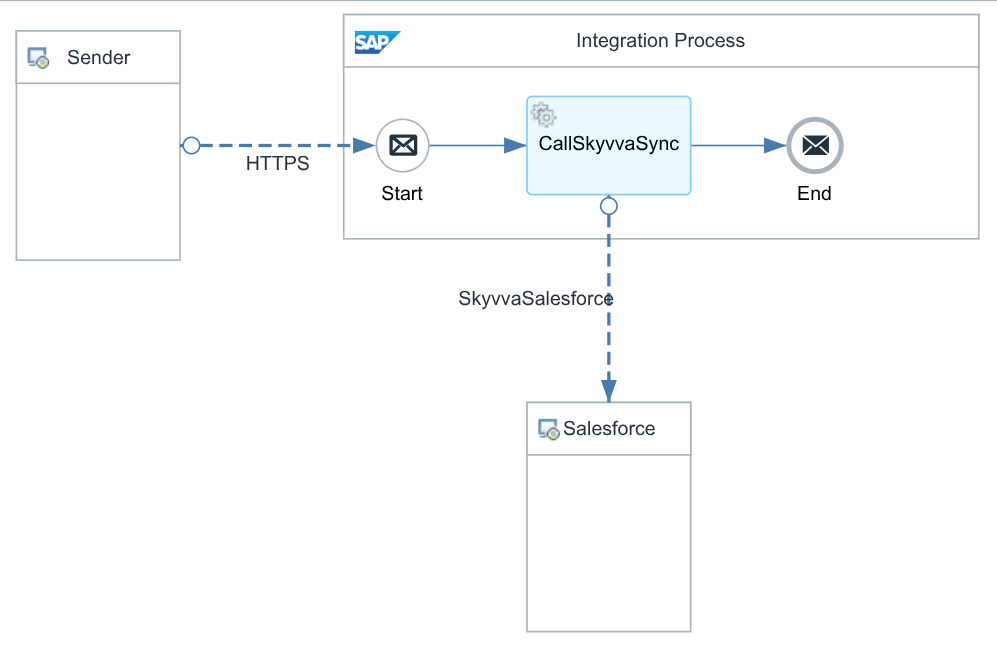
Figure 1. Example synchronous iFlow with an HTTPS sender and a SkyvvaSalesforce receiver connection.
- Select the SkyvvaSalesforce receiver connection and record the settings on each tab, including OAuth2 Flow. Use the values from your working flow; keep the existing API version, mode and data formats.
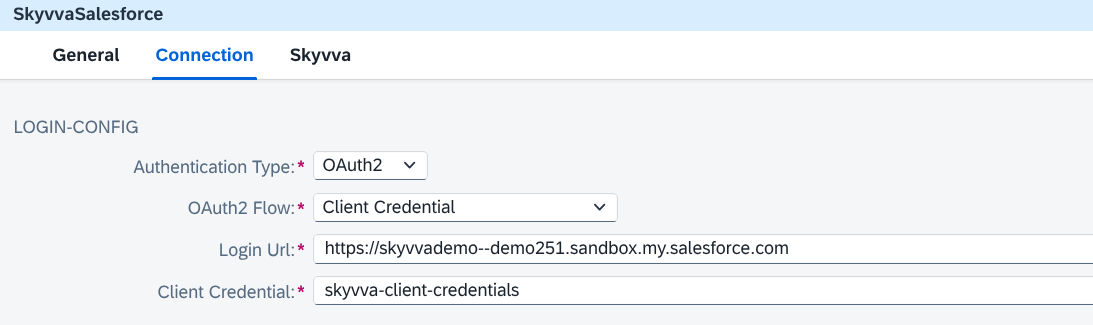
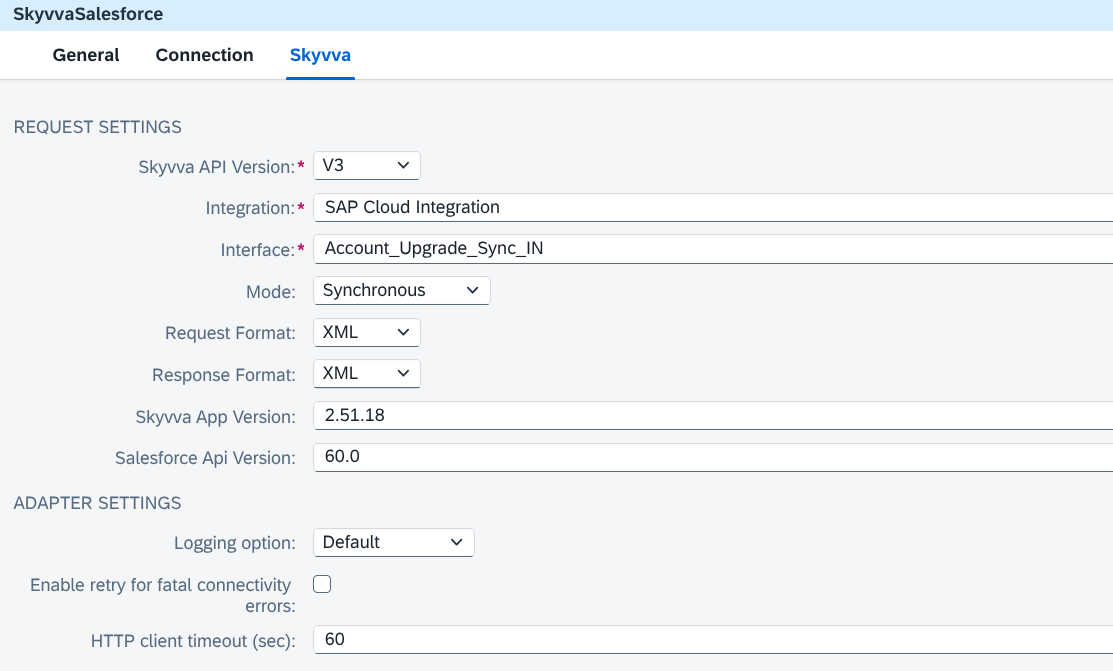
Figure 2. Connection and Skyvva settings before the patch update: OAuth2 Client Credential, V3, Synchronous, and XML request/response formats.
| Setting | Settings to record before the update |
|---|---|
| Login Url | Existing Salesforce login address. |
| OAuth2 Flow | Existing Username-Password Credential or Client Credential selection. |
| User Credential / Client Credential | Preserve both aliases for Username-Password Credential. For Client Credential, preserve the application alias; User Credential is hidden. |
| Integration / Interface | Existing SKYVVA Integration and Interface values. |
| Skyvva API Version / Mode | Record the existing values; this walkthrough uses V3 / Synchronous. |
| Request / Response Format | Preserve your existing formats; XML / XML is the example for this guide. |
| Skyvva App Version | Record the Salesforce SKYVVA package version actually installed. |
| Salesforce Api Version | Record the working Salesforce API version. |
| Logging / retry / timeout | Record the working values; the example defaults are Default / unchecked / 60 seconds. |
Also record values maintained under Configure and any field mapping used to prepare the request. Adapter version 1.2.3 does not replace the SKYVVA package version, V3 selection, or Salesforce API version.
- Open the package containing the adapter, select Artifacts, then choose the adapter row’s Actions → View Metadata to open Integration Adapter Details. Record the actual archive version; the example starts at 1.2.0. Also check the running version under Monitor → Manage Integration Content. If these differ, ask the administrator which release is active before continuing.
- Return to the integration flow. Choose Edit, then Save as Version and enter a comment such as Before patch update to 1.2.3. To confirm the saved version, return to the package’s Artifacts tab and click the flow’s version number to open Version History.
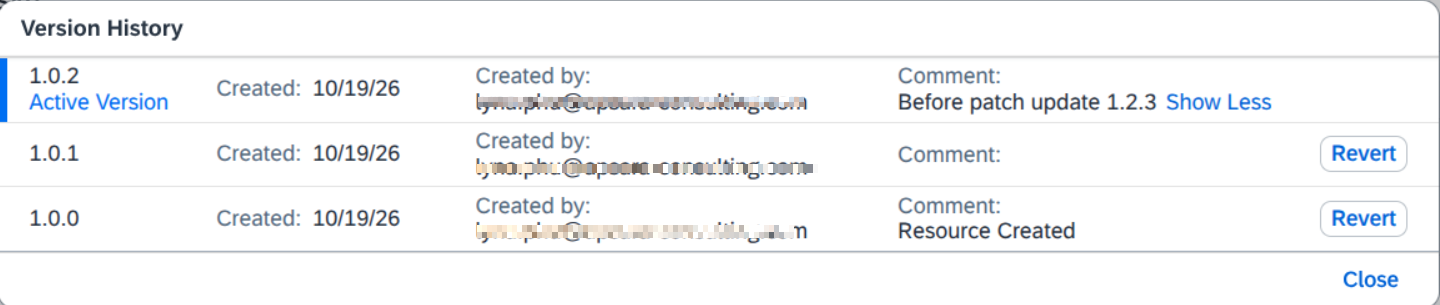
Figure 3. Saved integration flow version before the patch update. The iFlow version is separate from the adapter release.
Save as Version keeps a snapshot of the iFlow inside CPI, including its receiver connection, saved settings and resources. The iFlow version does not need to match the adapter version.
- Return to the package’s Artifacts tab and use the integration flow’s Download action to keep a ZIP backup. Ask your administrator to retain the previous adapter
.esafile separately.
3.3 Deploy the patch release
The adapter and integration flow may be in different packages. Update the existing adapter in its package.
- Open Design. In Integration Packages, open the package containing the existing adapter, then select Artifacts. On the SkyvvaSalesforce adapter row, open Actions (the three dots …) and choose View Metadata. Open the details for editing if needed. Ask your administrator if you cannot edit them.
- In the Integration Adapter file field, click the browse icon and select the intended patch archive, Skyvva-Salesforce-1.2.3.esa in this example. Check the selected file, the version read from it and the adapter ID, then click Save. This saves the uploaded file; it does not deploy it.
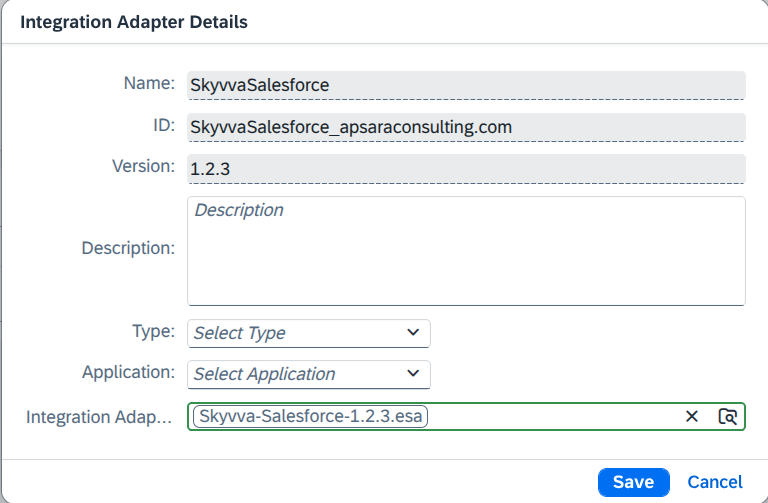
Figure 4. Integration Adapter Details with Skyvva-Salesforce-1.2.3.esa selected and Save available.
The Name, ID and Version fields are read-only. Check that the ID matches the existing adapter, then verify the resulting adapter version after saving.
If you see Add Integration Adapter with an Add button, cancel that fresh-installation dialog and return to the existing adapter’s Actions → View Metadata. If uploading reports that the adapter ID already exists, ask the administrator to check the existing adapter and replacement method before continuing.
- Return to the adapter row and click Actions → Deploy to make the saved adapter available to run.

Figure 5. SkyvvaSalesforce adapter version 1.2.3 with Deploy available in the Actions menu.
- Open Monitor → Manage Integration Content and find SkyvvaSalesforce. Confirm that the intended patch release (1.2.3 in this example) has status Started and that the deployment succeeded before testing the flows that use it.
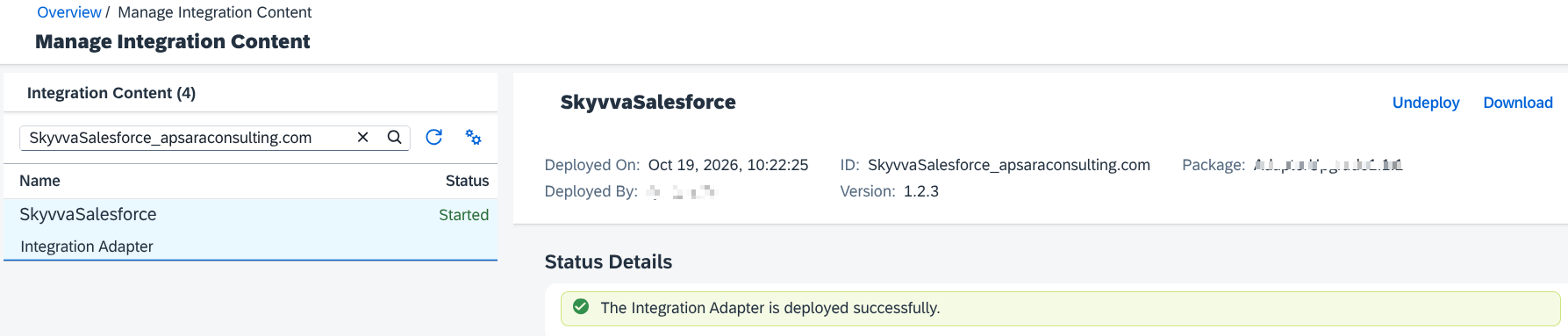
Figure 6. SkyvvaSalesforce adapter version 1.2.3 with status Started and a successful deployment message.
If deployment fails, open its error details and have the administrator resolve the failure before testing. Keep the previous adapter file for recovery.
3.4 Check the existing channel
Reopen the flow and select the same receiver connection. Compare its settings with those recorded before the update, including OAuth2 Flow. If the release notes describe a screen or field correction, check it here.
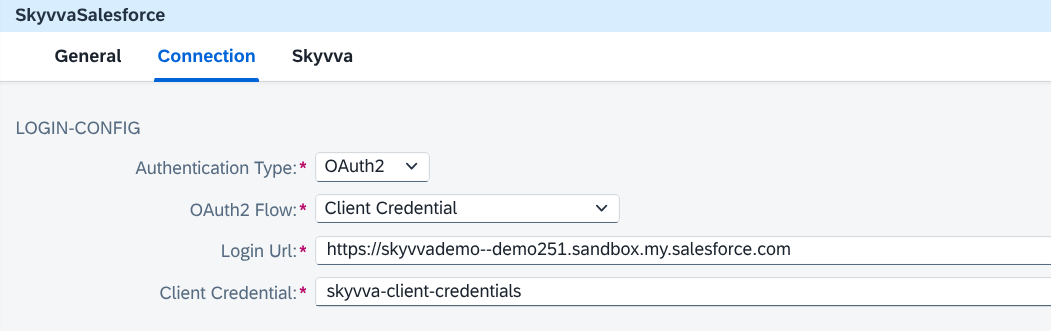
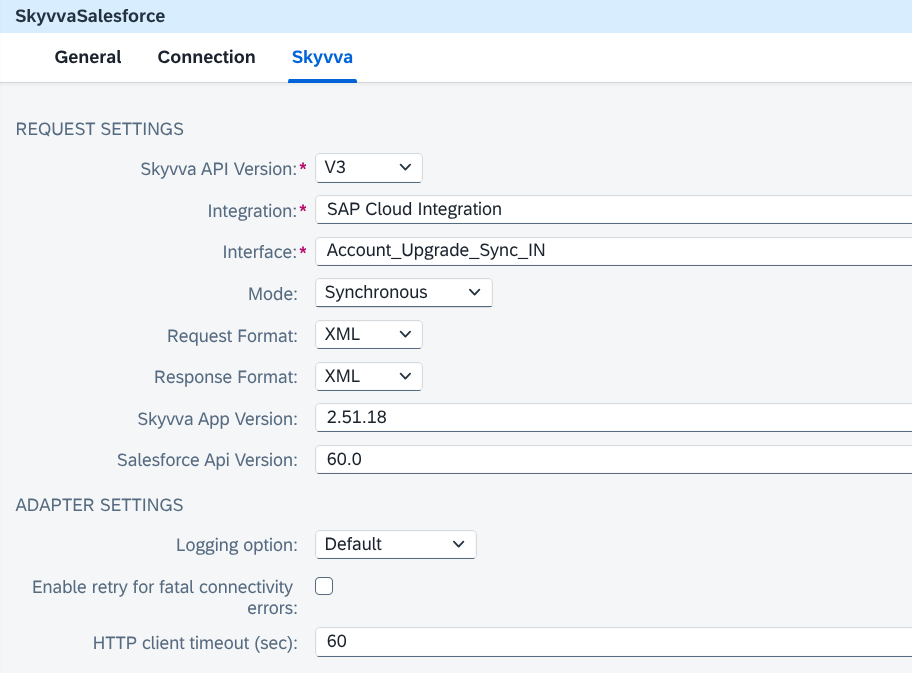
Figure 7. Connection and Skyvva settings after the patch update, retaining OAuth2 Client Credential, V3, Synchronous, and XML request/response formats.
Optional editor refresh: After confirming that the patch adapter is deployed, you can save any pending edits, reload the browser page and reopen the flow to refresh the displayed settings. Reloading is not required for every deployment.
Keep the existing receiver connection. For a compatible micro update within the same component minor version, Update Version and channel recreation are not required. An archive patch number alone does not prove that its packaged component metadata is a micro-only change; check the release notes.
When Update Version is needed
A micro update within the same component minor version updates the existing metadata in place. For example, a documented label correction can appear on the existing channel after the patch is installed. Keep that channel and verify the correction without migrating it to a different minor component version.
Check Integration Adapter Details and Monitor → Manage Integration Content for the deployed archive version, then follow Test the result. A channel still displaying 1.2 does not mean that the patch failed. If Update Version is offered, check its target: CPI may have a newer component version available for that channel. Migrating to a newer minor component version is a separate task from installing the patch archive. Follow the Minor Upgrade Guide and the release instructions for your current and intended target versions.
If an expected screen correction is missing, save your work and perform Empty Cache and Hard Reload. In Chrome, open Developer Tools (F12), right-click the browser's Reload button and choose Empty Cache and Hard Reload. Reopen the flow and confirm that the Receiver connection is selected and the intended patch archive is deployed. Check the adapter version in Integration Adapter Details. For fixes that affect processing, use the tests below to check the result. Ask the administrator whether the flow needs to be deployed again for the change to take effect.
3.5 Exception: Update Version reports incompatible changes
Skip this section for a normal compatible patch update. If you selected Update Version and CPI reports contains incompatible changes, it has blocked a channel migration. That message alone does not mean the patch archive failed to deploy.
- Keep the existing connection and backup. Record the message, the source and target component versions, and the deployed adapter release.
- Ask the release provider whether this is a compatible patch or whether the channel needs a newer component minor version.
- For a compatible patch with no channel migration, retain the receiver and continue with Test the result.
- If a minor migration is required, follow the Minor Upgrade Guide. Its Update the receiver channel version procedure covers automatic migration and the manual fallback when migration is blocked. Use a copy of the flow in a test environment first.
4. Test the result
Confirm the following results before using the updated adapter in production:
| Check | Expected result |
|---|---|
| Adapter release | The deployed archive matches the intended patch release; any documented UI correction is visible. |
| Release corrections | Tests for the bug fixes or corrections relevant to your scenario give the expected result. |
| Authentication | The previously selected OAuth2 flow and credential aliases still authenticate successfully. |
| Processing settings | Integration, Interface, API version, mode, data formats and values under Configure match the settings recorded before the change. |
| CPI result | The test message has no unexpected processing error. |
| Synchronous response | The response uses the expected format and reports the expected result. Check for errors for each record. |
| Salesforce result | SKYVVA shows the expected processing result. The expected Salesforce records and links between them exist. |
For this synchronous scenario, inspect the returned business result and confirm the Salesforce records as well as the CPI message status.
4.1 Validate and save any changes
Validate the flow and save any required channel changes.
4.2 Deploy saved flow changes
If you changed the flow, deploy it after the adapter deployment, then check its status in Monitor → Manage Integration Content. For an unchanged flow, follow any redeployment requirement in the release notes or confirmed by your administrator.
4.3 Send a test request and check CPI
- Send a test through the same source application or test tool used for the successful pre-update test. Use equivalent sample data and preserve the working request format and field mapping. Choose a unique test reference so you can find the result in both systems.
- In CPI, open Monitor → Monitor Message Processing. Filter by the integration flow and the time of your test, then open the matching message.
- Record the message ID, processing status and any error details. Compare them with the pre-update result. If no message appears, check with the flow owner that the request reached the intended flow.
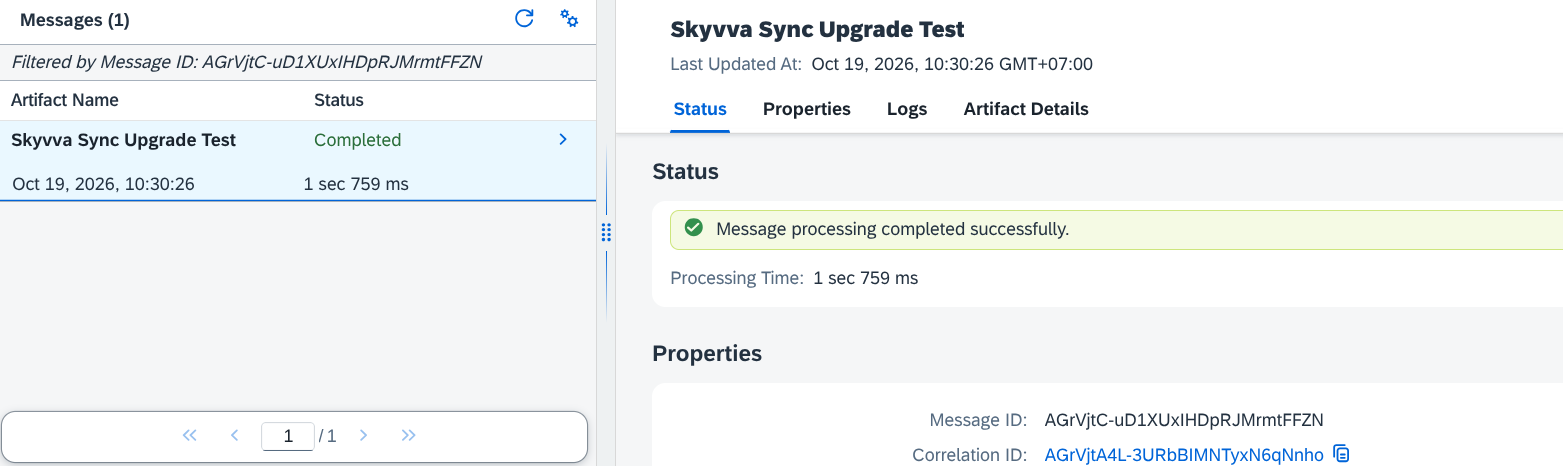
Figure 8. CPI message processing with status Completed after the patch update.
- Keep the response returned to the caller and use it for the Salesforce checks below.
4.4 Check Salesforce processing
- For this synchronous example, inspect the response returned to the caller. Check for errors for individual records, even if CPI reports successful delivery.
- In the target Salesforce organization, find the corresponding SKYVVA processing result using the test reference or identifiers returned in the response. Ask the Salesforce administrator to locate it if you do not have access.

Figure 9. SKYVVA message list showing the inbound request and Account processing entries after the patch update.
- Open the resulting business records, such as the test Account, and compare their field values and relationships with the expected result and the synchronous response. Record the result and any error details. The message list alone does not confirm the business result.
For other processing modes, use the completion check agreed with the flow owner before the update.
Confirm that authentication succeeds, the intended Integration and Interface receive the request, and the CPI log has no unexpected error. Compare response handling with the previous result.
Record the deployed adapter version, test message ID and test results. Confirm that the saved settings and response handling still work as expected.
5. Restore the previous setup if needed
If a test fails, save the error details and compare the settings with those recorded before the update.
Revert returns the iFlow to the saved configuration, including the receiver connection as it was at that time. For example, if you deleted and recreated the receiver after saving the version, reverting restores the earlier connection and its saved settings.
To restore the flow settings:
- Open the package’s Artifacts tab and click the flow’s version number.
- In Version History, select the version saved before the update and choose Revert.
- Compare Configure with the pre-update record and restore any changed parameter values. Validate, save and deploy the restored flow, then test again.
Reverting does not change the deployed adapter runtime or restore Security Material credentials. The restored flow needs a compatible adapter runtime and the referenced credentials. For full recovery, coordinate with the owners of all affected flows before the administrator restores and deploys the previous .esa. This restores the shared runtime for the tenant. Restore any changed iFlow configurations and their recorded Configure values as required, then deploy and test the affected flows with the restored runtime. Restoring the flow does not undo records already created in Salesforce.