11. How to Import file to create message type ?
Introduction
It is the process of the SKYVVA application managing message types and handling files in a repository. Where the user can provide some general information on how message types and import/export of metadata work in our SKYVVA application:
- Message Types: Message types are used in the context of data exchange between SKYVVA application components. In which users have to define the structure and format of the data that is sent or received. These can be simple data structures or complex data objects.
- Repository: In the SKYVVA application, a repository is a centralized location where various assets like configurations or data are stored and managed.
- Import Metadata: Importing metadata typically means bringing in information about data structures, schemas, or other artifacts into a repository. This metadata helps in understanding and working with the data.
- File Types: When users import metadata, they often have to specify the format or type of the file they are importing. The options you mentioned (Swagger 2.0/OpenAPI 2.0, OpenAPI 3.0, XSD, WSDL 1.1, and EDMX) are common file formats or standards used in the SKYVVA application:
Swagger 2.0/OpenAPI 2.0: These are specifications for defining RESTful APIs. They use JSON or XML format to describe API endpoints and their parameters.
- OpenAPI 3.0: A newer version of the OpenAPI specification with improved features and support for a wider range of API scenarios.
- XSD (XML Schema Definition): XSD is a language for defining the structure and data types of XML documents. It's commonly used for describing the structure of XML data.
- WSDL (Web Services Description Language) 1.1: WSDL is an XML format for describing web services and their operations. It's used in the context of SOAP-based web services.
- EDMX: Entity Data Model XML (EDMX) is used in the context of Entity Framework, a popular Object-Relational Mapping (ORM) framework for .NET applications. It defines the data model for an application.
[su_box title="Expectation:" box_color="#2a8af0" title_color="#000000"]The Import Metadata button appears on the screen. When we upload a file, this allows you to select the specific API in order to generate the message type.[/su_box]
Pre-required step:
- Create a metadata provider and repository.
- Select on repository then click the import metadata button.
- Select the file type and attach the upload file.
- You will get the API name.
- After choosing the API name and clicking the save button it will generate a message type.
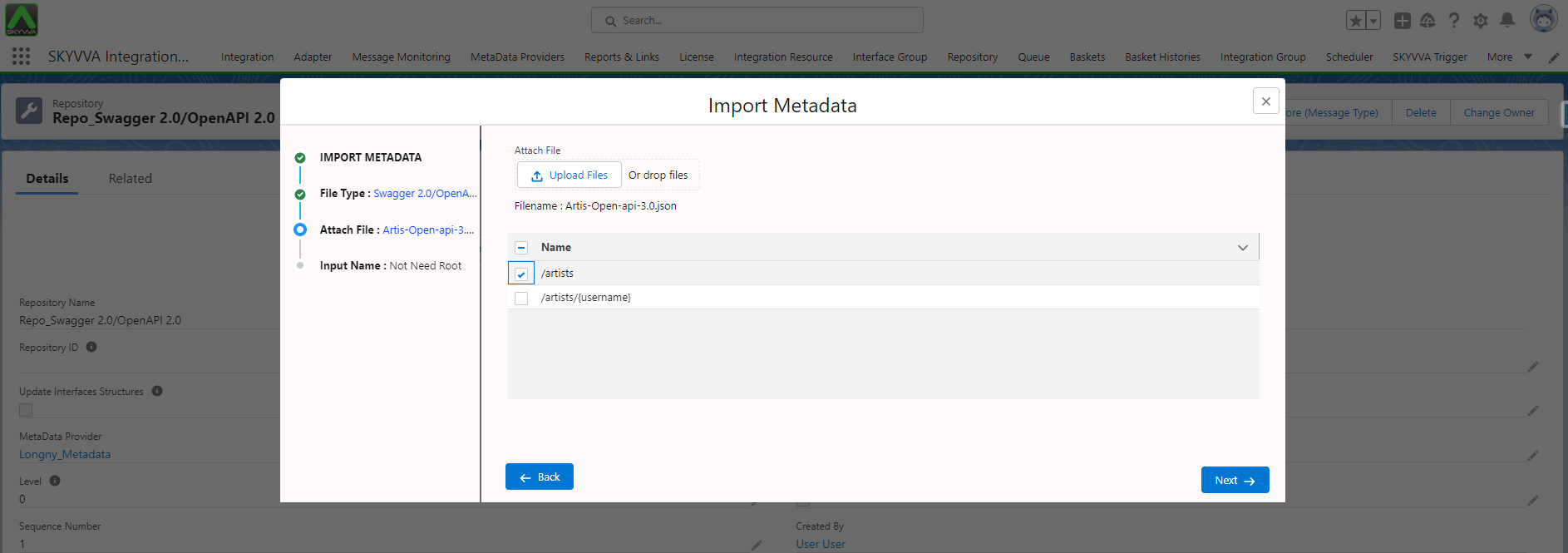
How to use the ‘Import Metadata’ button to create a message type.
Case 1: Swagger 2.0/OpenAPI 2.0 file types.
It is a process related to generating an API using Swagger 2.0/OpenAPI 2.0 files and storing message types. As per expectation after selecting the Swagger 2.0/OpenAPI 2.0 file type and attaching the file, an API is generated on the screen, and the user should have the option to choose an API to store message types. These steps are broken down into a series of steps:
- File Selection: The user anticipates that there will be an option to select the file type as 'Swagger 2.0/OpenAPI 2.0.'
- File Attachment: After specifying the file type, the user can expect to be able to attach the Swagger 2.0/OpenAPI 2.0 file to the system.
- API Generation: Once the file is attached, the user expects the system to automatically generate an API based on the contents of the Swagger 2.0/OpenAPI 2.0 file. This file-generated API will be displayed on the screen.
- Message Type Storage: After the API is generated, the user foresees being able to choose an API to store different message types. This implies that the system configurations define how message types are stored within the API.
[su_box title="Expectation:" box_color="#2a8af0" title_color="#000000"]After selecting the ‘Swagger 2.0/OpenAPI 2.0’ file type and attaching the file, the API will be generated on the screen, allowing us to choose an API to store the message type.[/su_box] Required step:
- Create metadata provider and repository.
- Go to the repository then click the Import Metadata button.

- Choose the file type as Swagger 2.0/OpenAPI 2.0 click the next button, then Attach the upload file.
- Choose the API Name.
- Click the Save button it will generate a message type.
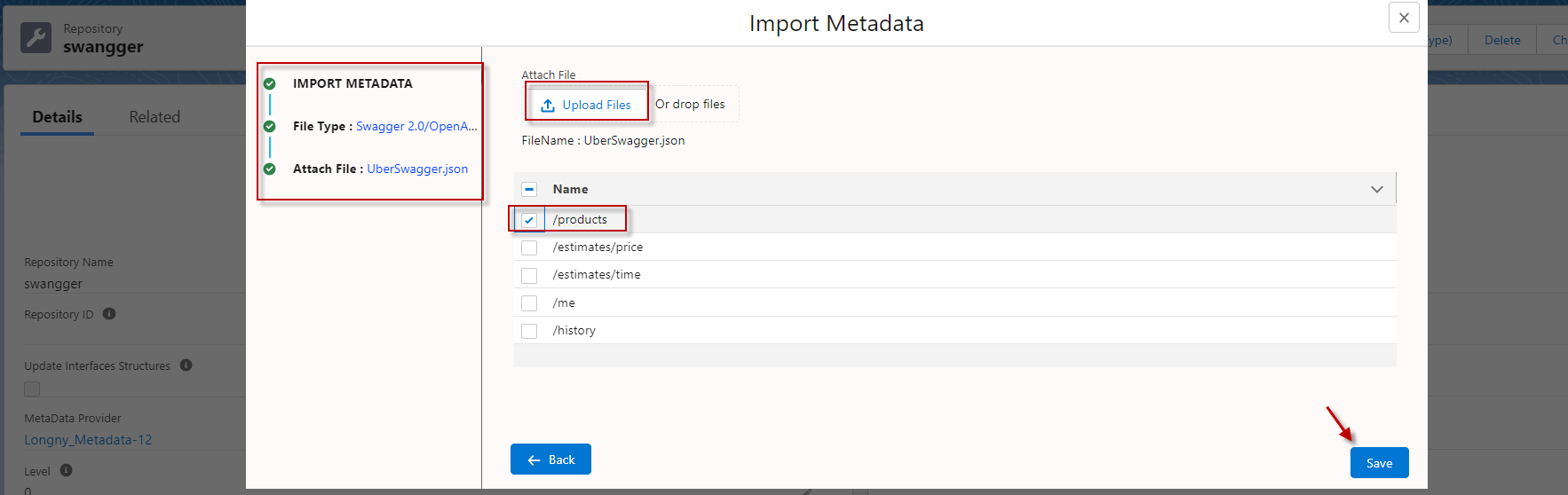
This is a process where a pop-up screen displays API information, including the API name and ReferenceObject, and then generates a REST template, including the Request and Response. Here’s a general outline of how users configure this:
- User Interaction: Create a user interface that allows users to input the API name and ReferenceObject. This interface of the SKYVVA application.
- Pop-Up Display: When the user inputs the API name and ReferenceObject, trigger a pop-up or modal dialog that displays this information.
- Generate REST Template:
Request: Based on the API name and ReferenceObject, dynamically generate the REST request template. This template should include the HTTP method (GET, POST, PUT, DELETE, etc.), the API endpoint, request headers, and request body.
- Response: Similarly, generate the REST response template. This should include the expected HTTP status codes, response headers, and response body structure.
- Display Templates: Display the generated request and response templates to the user within the format screen. Users can format these templates in a user-friendly way, such as JSON or XML, depending on the API and user preferences

[su_box title="Result:" box_color="#2a8af0" title_color="#000000"]It will show the pop-up screen below, displaying the API name and ReferenceObject. It will generate the REST template, including the Request and Response.[/su_box]
Case 2: OpenAPI 3. x file types.
This is the process using OpenAPI 3. x files to generate an API. OpenAPI is a specification for building APIs, and it's commonly used for describing RESTful APIs. To clarify the process describe the following:
- Select 'OpenAPI 3. x' File Type: The user has a file in the OpenAPI 3. x format, which is typically an XML or JSON file. This file contains a description of your API, including endpoints, request, and response types.
- Attach the File: The user needs to upload or attach this OpenAPI 3. x file to the SKYVVA application platform that can generate API code based on the specification.
- API Generation: Once the file is uploaded, the SKYVVA application processes it and generates the API code.
- Select API Message Type: After the API code is generated, the user will likely have the option to choose or configure the message type. This can include specifying JSON, XML, and data that the API sends and receives.
- Review and Store: Finally, the user can review the generated API code and make any necessary customizations. Once the user is satisfied, the user can proceed to store or deploy the API according to the business requirements.
[su_box title="Expectation: " box_color="#2a8af0" title_color="#000000"]After selecting the ‘OpenAPI 3. x’ file type and attaching the file, the API will be generated on the screen, allowing us to choose an API to store the message type.[/su_box]
Required step:
- Create a new repository.
- Go to the repository then click the Import Metadata button.

- Choose file type as OpenAPI 3. x and click the next button, then Attach the upload file.
- Choose the API Name.
- Click the Save button it will generate a message type.
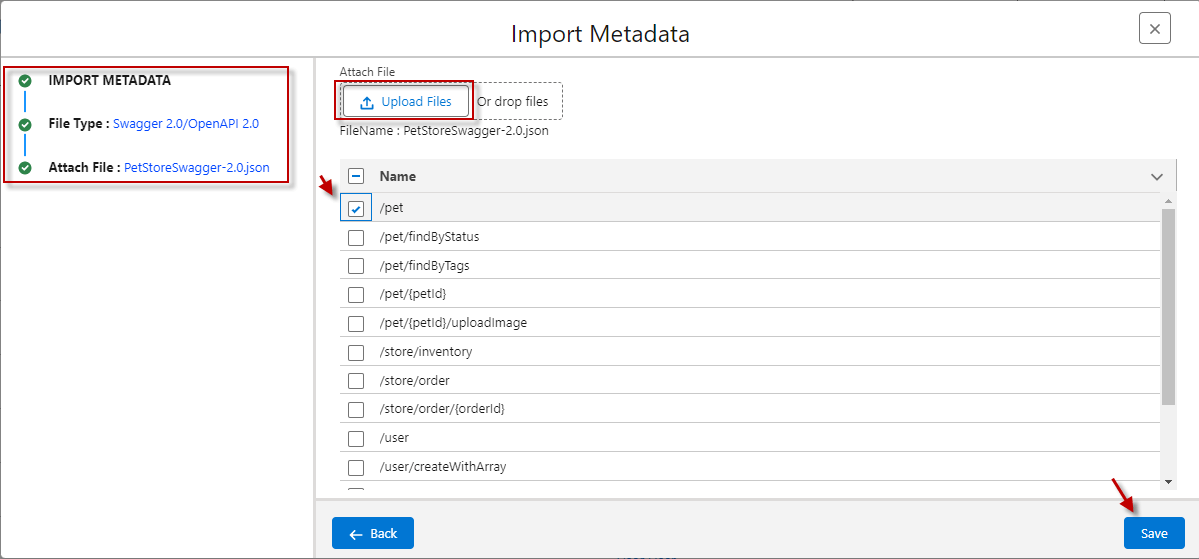
This is a process where a pop-up screen displays API information, including the API name, and then generates a REST template, including the Request and Response. Here’s a general outline of how users configure this:
- Pop-up Screen: After performing a certain action, a pop-up screen appears. This pop-up screen likely contains information related to an API.
- API Name: The pop-up screen displays the name of the API. This could be the title or identifier of the API being used.
- REST Template Generation: The process also involves generating a REST template. A REST template is typically used to structure and document RESTful API requests and responses. This template will help users understand how to interact with the API effectively.
- Request and Response: Within the generated REST template, there will be sections or fields for the Request and Response. These sections will provide details on how to structure requests to the API (e.g., HTTP methods, headers, parameters, and body) and what to expect in the API’s response (e.g.headers, and response data).
Overall, this process is a user interface element (the pop-up screen) that helps users access information about an API, and it streamlines the process of generating a REST template to work with that API, including guidance on how to structure requests and handle responses.

[su_box title="Result:" box_color="#2a8af0" title_color="#000000"]It will show the pop-up screen below, displaying the API name and ReferenceObject. It will generate the REST template, including the Request and Response.[/su_box]
Case3: WSDL 1.1 file types
This process is related to working with a WSDL (Web Services Description Language) file in the context of generating an API. These steps are broken down into a few steps:
- File Type Selection: The user selects the 'WSDL' file type. This suggests that users are dealing with a web service and want to generate an API from a WSDL file. WSDL files describe the structure of web services and their operations.
- File Attachment: The user attaches the WSDL file to the SKYVVA application. This is the initial step in the process.
- API Generation: After attaching the WSDL file, the user expects that an API will be generated on the screen. This API will likely represent the web service described in the WSDL file. It will contain information about the available operations, data types, and endpoints.
- API Configuration: The user anticipates that, after the API is generated, the user will have the opportunity to choose an API to store the message type. This step might involve configuring the generated API to determine how it will handle incoming and outgoing messages and data types.
Required step:
- Create a new repository.
- Go to the repository then click the Import Metadata button.
- Choose file type as WSDL and click the next button, then Attach the upload file.
- Choose the API Name
- Click the save button it will generate the message type

It is a process to import a message-type file in the context of Web Services Description Language (WSDL) 1.1. WSDL is an XML-based language used to describe the functionalities offered by a web service. Let us try to clarify some concepts for the user:
- WSDL 1.1: This is a version of the Web Services Description Language, used for defining the structure and functionality of web services. It defines how web services communicate with each other over the internet.
- Message Type: In the context of WSDL, a message is a definition of the data being exchanged between a client and a web service. It specifies the structure and types of the input and output parameters for the operations provided by the web service.
- complexType: In WSDL, complexType is often used to define complex data structures. It's a way to create structured types that can be used as elements in messages.
- API Name: API name typically refers to the name given to a specific function or operation within the web service API.
It appears the user wants to import a WSDL 1.1 file, and when the user does so, you expect it to generate a complexType for storing references to objects and message types along with API names. However, it's essential to clarify a few things:
- Importing a WSDL file into the SKYVVA application (e.g., using a tool like Apache or other SOAP libraries) will typically generate code or metadata structures that correspond to the service operations and data types defined in the WSDL.
- Whether or not a complexType is generated and how it's named will depend on the specifics of our SKYVVA application.
- The generation of API names is usually not part of the WSDL import process, as API names are more related to how you choose to expose or use the web service within our SKYVVA application.
[su_box title="Result" box_color="#2a8af0" title_color="#000000"] When we import the message type file WSLD 1.1, it will generate a message type name complexType to store the reference object and message type API name. It will create the message type and structure as below:[/su_box]
- Here’s the message type generated already.
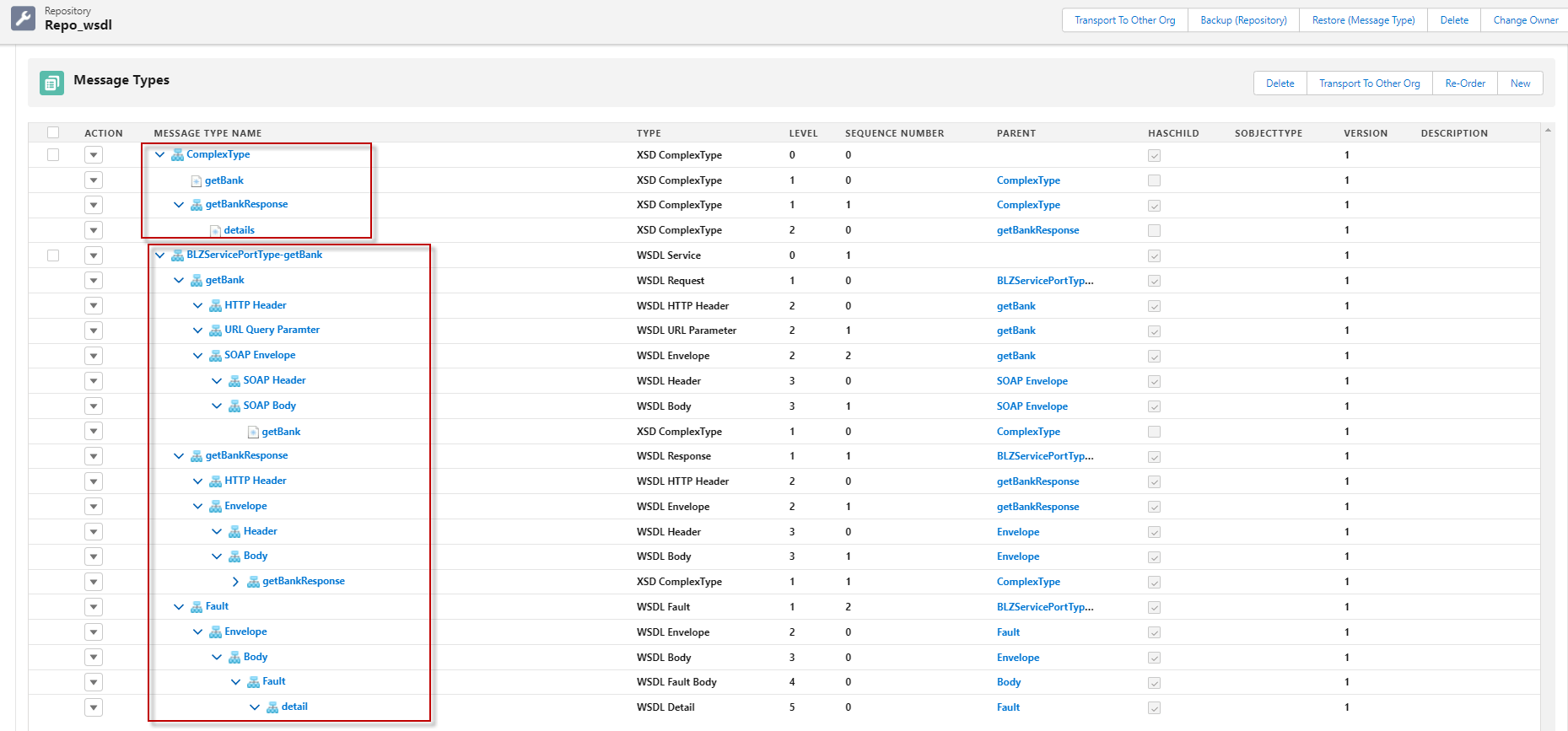
[su_box title="Result" box_color="#2a8af0" title_color="#000000"]It will show the pop-up screen below, displaying the API name and Complex Type. It generates the SOAP template, including the Request, Response, and fault.[/su_box]
Case 4: EDMX file types.
This process is related to working with an 'EDMX' file type to generate APIs with two template options: Rest template and Soap template. Here's a step-by-step breakdown of how this process might work:
` - **File Selection:** The user starts by selecting an 'EDMX' file, which is typically an Entity Data Model XML file used for modeling data in the context of the Entity Framework. - **Attach the File:** After selecting the 'EDMX' file, the user attaches it to the **SKYVVA** application you're using for API generation. This step may involve uploading the file to a specific field. - **Template Selection:** Once the 'EDMX' file is attached, users are presented with two template options: Rest template and Soap template. These templates are pre-defined configuration templates for generating APIs based on the data model described in the 'EDMX' file. - **API Generation:** After selecting one of the templates (either Rest or Soap), the **SKYVVA** application generates an API. This generated API includes endpoints and data structure components for interacting with the data carried in the 'EDMX' file. - **Message Type Selection:** As part of the API generation process, the user is given the opportunity to choose and store the message type for the specific API the user is creating. This step involves defining how the API will send and receive data, including the format and structure of messages. - **API Customization (Optional):** Depending on the complexity and flexibility of the system, the user might have the option to further customize the generated API. This involves defining additional endpoints and specifying authentication methods. [su_box title="Expectation:" box_color="#2a8af0" title_color="#000000"]After selecting the** ‘EDMX' **file type and attaching the file, you can choose between two templates: Rest template and Soap template. If you select one of them, the API will be generated on the screen, allowing us to choose and store the message type for a specific API.[/su_box] **Rest Template** - **EntitySet** **Select Function ‘EntitySet’**: After selecting the template, the user will need to specify the function the user wants to use. Choose the “EntitySet” function, which relates to a collection of entities in the **SKYVVA** data model. - **Choose File Type as EDMX**: Begin by selecting the file type as “EDMX” (Entity Data Model XML) in the **SKYVVA** application. This involves opening a dialog or interface for selecting file types. - **Click the Next Button**: After selecting the EDMX file type, click the “Next” button. This action should take us to the next step of the process. - **Manually Enter Values in the Box**: In the subsequent screen or dialog, you will need to manually enter values into one or more inputs. These values could be related to the **SKYVVA** data model, configuration settings, and parameters. The specific details of what users need to enter will depend on the **SKYVVA** Application and the context of user business requirements. - **Click the ‘Upload’ Button**: After entering the required values, locate and click the “Upload” button. This action will likely initiate the processing or validation of the information the user provided. - **Select Template ‘Rest Template’**: In the next step, the user will be prompted to select a template. Choose the “Rest Template” from the available options. This template defines the structure and behavior of the API users are generating. - **Click the API Name and ‘Save’ Button**: The user will now need to provide a name for the user API. After entering the API name, click the “Save” button. This action will trigger the generation of the message type or the creation of the API based on user selections and configurations ***Required step:*** - Create metadata provider and repository. - Go to the repository then click the Import Metadata button.  - Choose file type as EDMX and click the next button, then Attach the upload file. - Select template ‘Rest Template’, Select Function ‘EntitySet’ - Choose the API Name. - Click the Save button it will generate message type.  This is a process where a pop-up screen displays API information, including the API name, and then generates a REST template, including the Request and Response. Here’s a general outline of how users configure this: - **Pop-up Screen**: After performing a certain action, a pop-up screen appears. This pop-up screen likely contains information related to an API. - **API Name**: The pop-up screen displays the name of the API. This could be the title or identifier of the API being used. - **REST Template Generation**: The process also involves generating a REST template. A REST template is typically used to structure and document RESTful API requests and responses. This template will help users understand how to interact with the API effectively. - **Request and Response**: Within the generated REST template, there will be sections or fields for the Request and Response. These sections will provide details on how to structure requests to the API (e.g., HTTP methods, headers, parameters, and body) and what to expect in the API’s response (e.g.headers, and response data). Overall, this process is a user interface element (the pop-up screen) that helps users access information about an API, and it streamlines the process of generating a REST template to work with that API, including guidance on how to structure requests and handle responses. 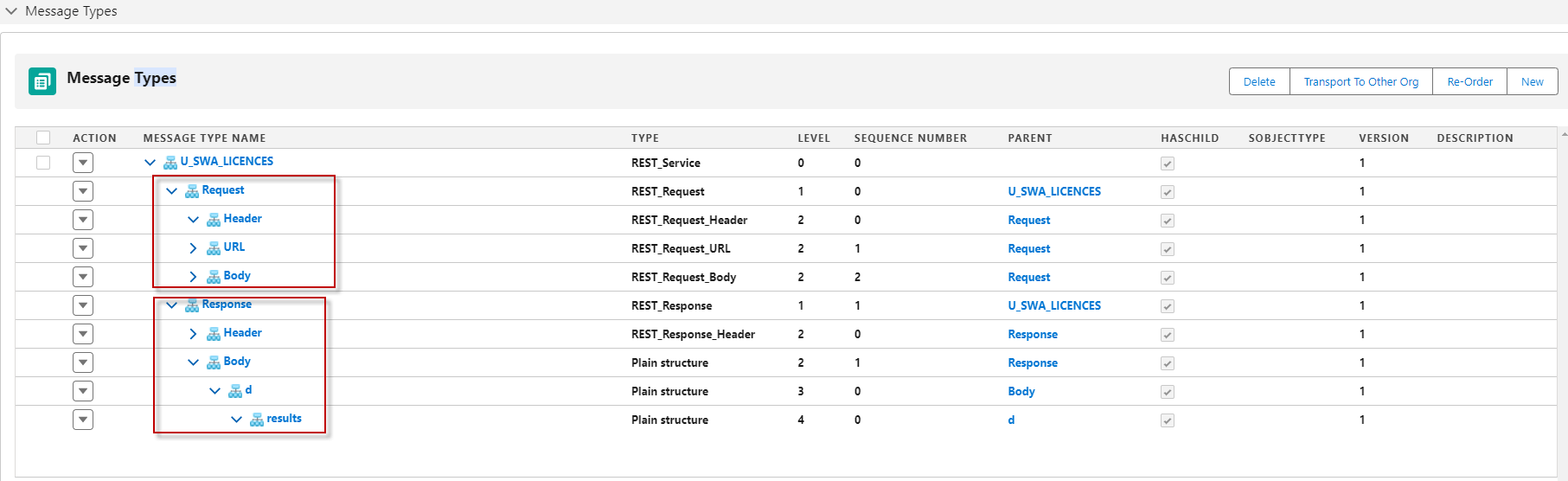 [su_box title="Result:" box_color="#2a8af0" title_color="#000000"]It will show the pop-up screen below, displaying the API name. It will generate the REST template, including the Request and Response.[/su_box] **Rest Template** - **FunctionImport** **Select template ‘Rest Template’, Select function ‘FunctionImport’**: It appears the user choosing a specific template (in this case, “Rest Template”) and a function (likely for defining a RESTful API endpoint or operation) as part of the configuration process. Based on the instructions the user provided, it appears to be related to configuring and setting up API or service using an EDMX file, likely in an environment. Here’s a general breakdown of the steps you’ve mentioned: - **Choose file type as edmx and click the next button:** This suggests that you are selecting a specific file type (EDMX, which is commonly used for Entity Data Model XML files) in some kind of software or tool. After selecting the file type, you’re clicking a “Next” button, which likely takes you to the next step in the configuration process. - **Manually enter the values in the box:** The user is expected to input certain values into some input fields. These values are related to configuring the EDMX file or setting up the API or service. - **Click the ‘Upload’ button:** Once the user entered the required values, you click an “Upload” button to submit the data or configuration. - **Click the API Name and ‘save’ button:** The user seems to be naming the API or specifying some kind of identifier for it. After providing the API name, the user clicks a “Save” button to finalize the configuration. - **It will generate the message type:** After completing the above steps, the **SKYVVA** application will automatically generate a message type, presumably related to the API or service user configuring. ***Required step:*** - Choose file type as EDMX and click the next button, then Attach the upload file. - Select template ‘Rest Template’, Select Function ‘FunctionImport’ - Choose the API Name. - Click the Save button it will generate message type.  This is a process where a pop-up screen displays API information, including the API name, and then generates a REST template, including the Request and Response. Here’s a general outline of how users configure this: - **Pop-up Screen**: After performing a certain action, a pop-up screen appears. This pop-up screen likely contains information related to an API. - **API Name**: The pop-up screen displays the name of the API. This could be the title or identifier of the API being used. - **REST Template Generation**: The process also involves generating a REST template. A REST template is typically used to structure and document RESTful API requests and responses. This template will help users understand how to interact with the API effectively. - **Request and Response**: Within the generated REST template, there will be sections or fields for the Request and Response. These sections will provide details on how to structure requests to the API (e.g., HTTP methods, headers, parameters, and body) and what to expect in the API’s response (e.g.headers, and response data). Overall, this process is a user interface element (the pop-up screen) that helps users access information about an API, and it streamlines the process of generating a REST template to work with that API, including guidance on how to structure requests and handle responses.  [su_box title="Result:" box_color="#2a8af0" title_color="#000000"]It will show the pop-up screen below, displaying the API name. It will generate the REST template, including the Request and Response.[/su_box] **Soap Template** - **Function: EntitySet** It describes a series of steps to perform a specific task related to working with an EntitySet Data Model (EDMX), SOAP templates, and function imports in a **SKYVVA** application. These steps are typically part of the configuration process in an **SKYVVA** application. Here’s a breakdown of the steps you mentioned: - **Select function ‘FunctionImport**‘: Users select a function import, which is a way to expose a function or method from your data model as a callable operation **SKYVVA** application. - **Choose file type as edmx:** This step involves selecting the file type as EDMX (Entity Data Model XML) when users are working with data models in an **SKYVVA** application. - **Click the next button:** This suggests that the user should proceed to the next step or screen in our **SKYVVA** application. - **Manually enter the values in the box**: This refers to filling in specific information or configuration settings in a dialog box or form within the **SKYVVA** application. The exact values to enter would depend on user-specific business requirements. - **Select template ‘Soap Template’**: This step involves choosing a SOAP (Simple Object Access Protocol) template as the basis for your development work. SOAP is often used for web services. - **Click the API Name and ‘save’ button:** It appears that the user is providing a name for your API and saving the configuration. This could be the name of the function import or some other API-related component. - **It will generate the message type:** After completing these steps, the **SKYVVA** application should generate a message type function import user configured. This message type can be used to send and receive data when working with SOAP web services. ***Required step:*** - Choose file type as EDMX and click the next button, then Attach the upload file. - Select template ‘Soap Template’, Select Function ‘EntitySet’ - Choose the API Name. - Click the Save button it will generate message type. 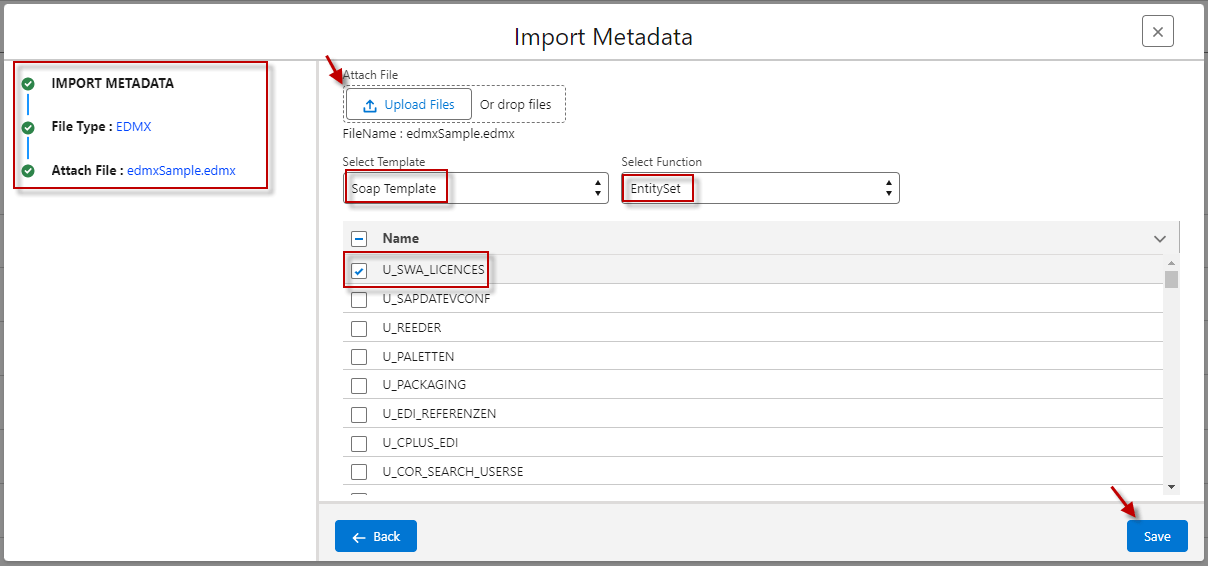 It describes a **SKYYVA** application feature or functionality related to working with APIs and SOAP (Simple Object Access Protocol). To provide more specific guidance or assistance, Here’s a general breakdown of the components you mentioned: - **Pop-up Screen**: This is likely a user interface element that displays information to the user. It could be a modal dialog or a pop-up window. - **API Name**: This is the name of the API you’re working with. It’s essential for identifying which API users want to use and generating a SOAP template. - **SOAP Template**: A SOAP template typically consists of the following parts: **Request**: This represents the structure and content of the data you send to the API as a request. It includes information like the method to call, input parameters, and data format. - **Response**: This outlines the expected structure and content of the data used received as a response from the API. - **Fault**: Describes the potential errors or exceptions that might occur during the API call and how they should be handled.  [su_box title="Result:" box_color="#2a8af0" title_color="#000000"]It will show the pop-up screen below, displaying the API name. It will generate the SOAP template, including the Request Response and Fault. [/su_box] **Soap Template** - **FunctionImport** **Select Function ‘FunctionImport’**: Choose an operation called ‘**FunctionImport**. This function is within the EDMX file or a function exposed by the SOAP service user working with it. - **Choose File Type as EDMX**: Select the EDMX file format within the **SKYVVA** application. Users may need to create a new EDMX file. - **Click the Next Button**: This suggests that there is a wizard or a series of steps you need to follow within the **SKYVVA** application. Clicking “Next” typically advances you to the next step in the process. - **Manually Enter Values in the Box**: The user will need to provide specific information, which includes data configuration settings. - **Select Template ‘Soap Template’**: The user should have the option to choose a template for the user project service. Select the “Soap Template” which is relevant to your business requirement. - **Click the API Name**: Locate the field where the user can define the API name. - **Click the ‘Save’ Button**: Save your configuration. This might generate a message type and perform the actions in ipmort MetaData. - **Generate the Message Type**: After saving, the **SKYVVA** application automatically generates a message type. ***Required step:*** - Choose file type as EDMX and click the next button, then Attach the upload file. - Select template ‘Soap Template’, and Select Function ‘Function’. - Choose the API Name. - Click the Save button it will generate message type. 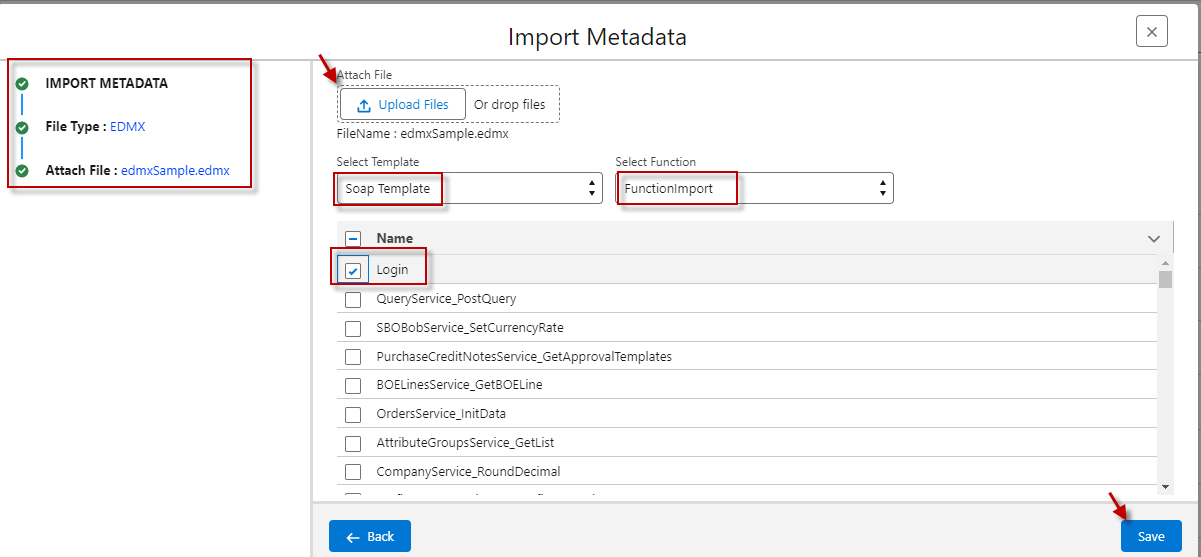 It describes the expected result of a process involving an API, particularly in the context of SOAP (Simple Object Access Protocol). To clarify, here’s a breakdown of the described result: - **Pop-up Screen**: A pop-up screen will appear. This screen serves as a user interface element to provide information options related to the API operation. - **API Name**: The pop-up screen will display the name of the API. This is important for users to identify which API they are working with, as there may be multiple APIs in a system. - **SOAP Template**: The result will include the generation of a SOAP template. SOAP is a protocol for exchanging structured information in the implementation of web services. The SOAP template will contain the following components: **Request**: This part of the template specifies how to structure the data and format the request that the client sends to the server. It defines the input parameters and data expected by the API. - **Response**: The response part of the SOAP template outlines the expected structure of the data that the server will send back to the client after processing the request. It includes details about the response format and content. - **Fault**: The fault describes how error or exception handling is structured in the SOAP message. It specifies how errors will be reported back to the client if something goes wrong during the API call. In summary, the described result involves a user-friendly pop-up screen displaying the API name and providing a SOAP template that includes sections for request, response, and fault handling. This setup is typical in systems that use SOAP-based APIs for communication between different SKYVVA application components.  [su_box title="Result:" box_color="#2a8af0" title_color="#000000"]It will show the pop-up screen below, displaying the API name. It will generate the SOAP template, including the Request Response and Fault.[/su_box] **Case5:**** XSD file type** - **Create the Message Type:** Define the data structure for the message type. This is a configuration or an interface. - Specify the properties or attributes that the message type should have. For example, if it's a message for properties like sender, receiver, and message content. - **Create the IStructure:** Define the IStructure interface, which typically represents data structure. - Specify the methods or operations that the IStructure should support. These methods could include adding data, retrieving data, updating data, and deleting data, depending on the business requirement of the IStructure. ***Required step:*** - Create metadata provider and repository - Go to the repository then click the Import Metadata Button - Select File Type as XSD and Attach the uploaded file - Click the Save button it will generate a message type  - Here’s the message type generated already.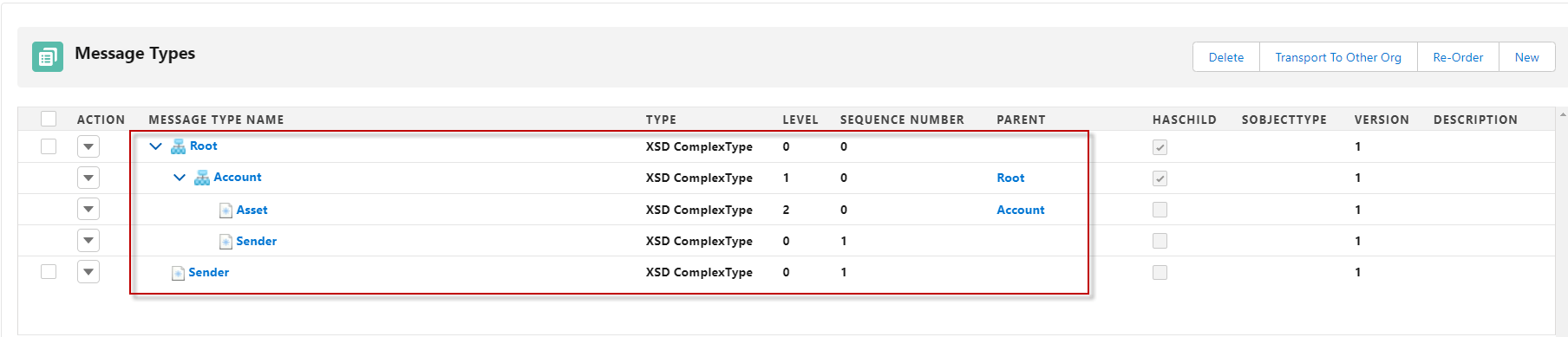 `
[su_box title="Result:" box_color="#2a8af0" title_color="#000000"] It will create the message type and IStructure as below: [/su_box]