123.3 How to use RabbitMQ Outbound Adapter with JSON Payload?
Rabbit MQ differs from Active MQ and other message brokers in a way that we need to post a message to an Exchange provided by it. This Exchange will then forward the message to a queue or topic based on the routing key property. This adapter supports 3 types of data formats i.e. CSV, XML, and JSON. [su_box title="Note" box_color="#2a8af0" title_color="#000000"] We can check JSon Data on RabbitMQ Server: Link:http://18.197.54.48:15672/#/queues. Where exchange will be automatically created once you callout code. [/su_box]
UseCase: Agent RabitMQ Adapter for JSON payload.
Objective: Test rabbitMQ outbound adapter for Json Format
Pre-requisite:
- Create Integration.
- Create Metadata Provider, IStructure Repository, and Create Hierarchical Message Type.
Example:
- Metadata Provider:Agent_ActiveMQ_RabbitMQ_JMS_Metadata
- IStructure Repository:RabitMQJSON
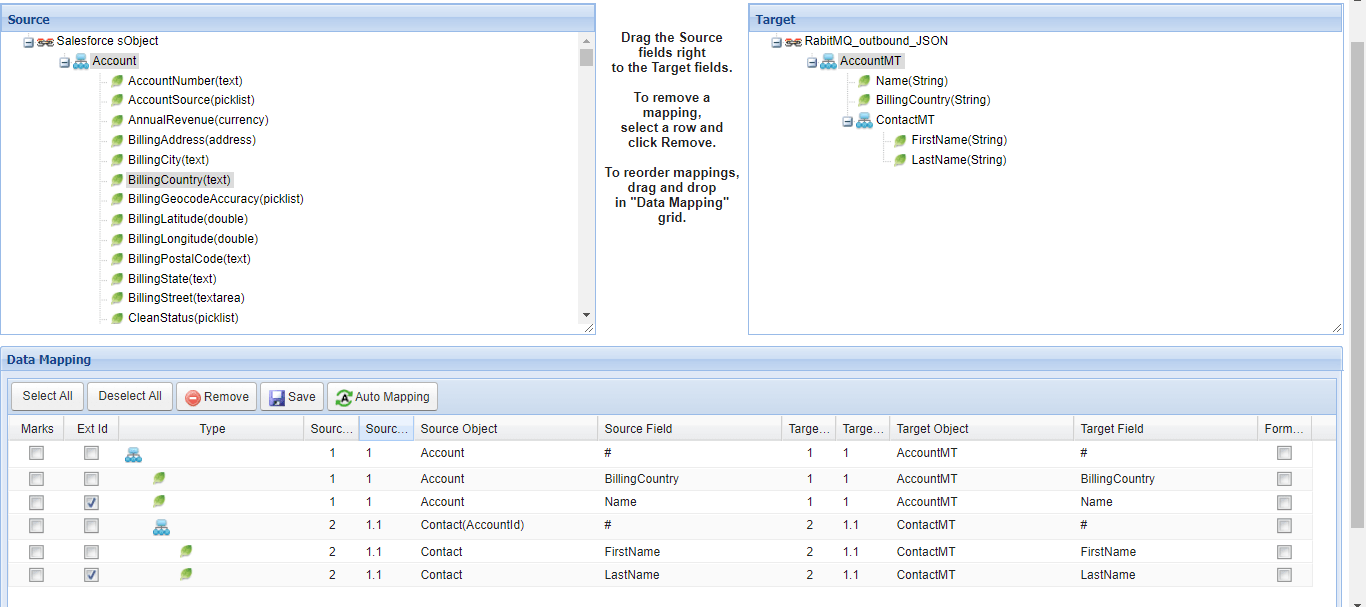
- Message Type:AccountMT

Steps:
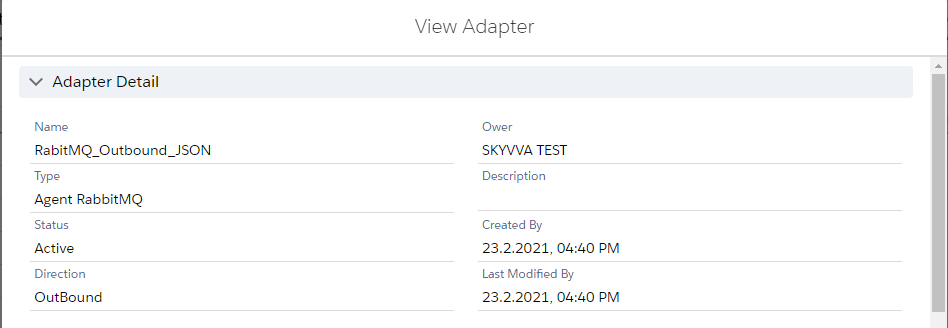
Step1:To Create Agent RabbitMQ JSONOutbound Adapter:
- Go to Integration (Example: Agent_RabbitMQ_Integration)
- Click on link AGENT Control Board.
- Go to Adapter Tab and Click on New Button.
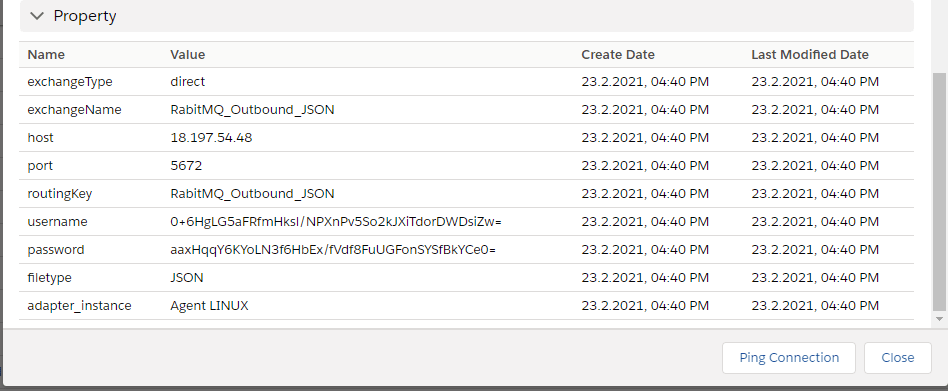
Input values for Mandatory Properties
- exchangeType - Direct
- exchangeName - It can be anything. For example: RabitMQ_Outbound_JSON
- host- String type. Denotes the IP address of the Rabbit MQ server.
- port- String type. Denotes the port number of the Rabbit MQ server.
- routingKey - String type. It can be anything.
Configure Agent RabbitMQ JSON Outbound Adapter: you need to enter adapter properties base on system requirement and Select Connection Destination (Example:AgentLinux). Step2: Create Outbound Interface:
- Integration: Agent_RabbitMQ_Integration
- Outbound Interface: RabitMQ_outbound_JSON

step4: Do mapping and save it.
Step5: Go to Developer console and callout: Callout: skyvvasolutions.CallOutControl c = new skyvvasolutions.CallOutControl(); c.returnJSONComplete=true; c.actionDoIntegrate=false; c.isCreateMessage=true; String[] ids= new String[]{'0011j000012KfGvAAK','0011j0000120pa3AAA'}; List
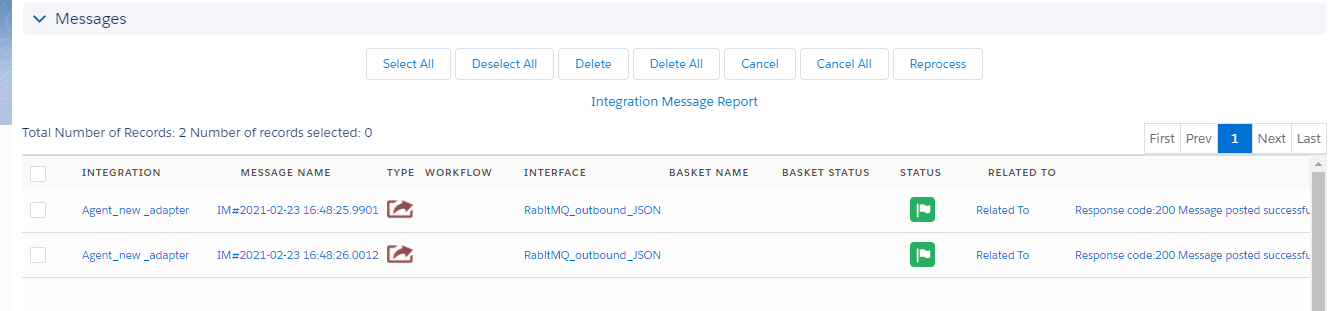
RabbitMQ Server:
Check JSON Data on RabbitMQ Server:
- Open Link:http://18.197.54.48:15672/#/queues
- Username: admin
- Password: admin
Go to Exchange After V3 Callout new Exchange is generated Example: RabitMQ_outbound_JSON (Note: RabitMQ_outbound_JSON Exchange name is coming from adapter configuration)

Click on the Exchange name, It will redirect you to the Exchange detail page.

Click on Queue -2129888673 It will navigate to the get the message section.

- Go to Get Messages block
- and click on Get Messages button.
