124.1 How to use RabbitMQ Inbound Adapter with CSV Payload?
Rabbit MQ differs from Active MQ and other message brokers in a way that we need to post a message to an Exchange provided by it. This Exchange will then forward the message to a queue or topic based on the routing key property. This adapter supports 3 types of data formats i.e. CSV, XML and JSON. [su_box title="Note" box_color="#2a8af0" title_color="#000000"] We can check CSV Data on RabbitMQ Server: Link:http://18.197.54.48:15672/#/queues. Where exchange will be automatically created once you strat route [/su_box]
UseCase: Agent RabitMQ Adapter for CSV payload.
Objective: Test rabbitMQ Inbound adapter for CSV Format
Pre-requiste:
- Create Integration.
- Create Metadata Provider, IStructure Repository and Create Flat Message Type.
- Metadata Provider:Agent_ActiveMQ_RabbitMQ_JMS_Metadata
- IStructure Repository: RabitMQCSV
- Message Type:Root

Steps:
Step1:To Create Agent RabbitMQ CSV Inbound Adapter:
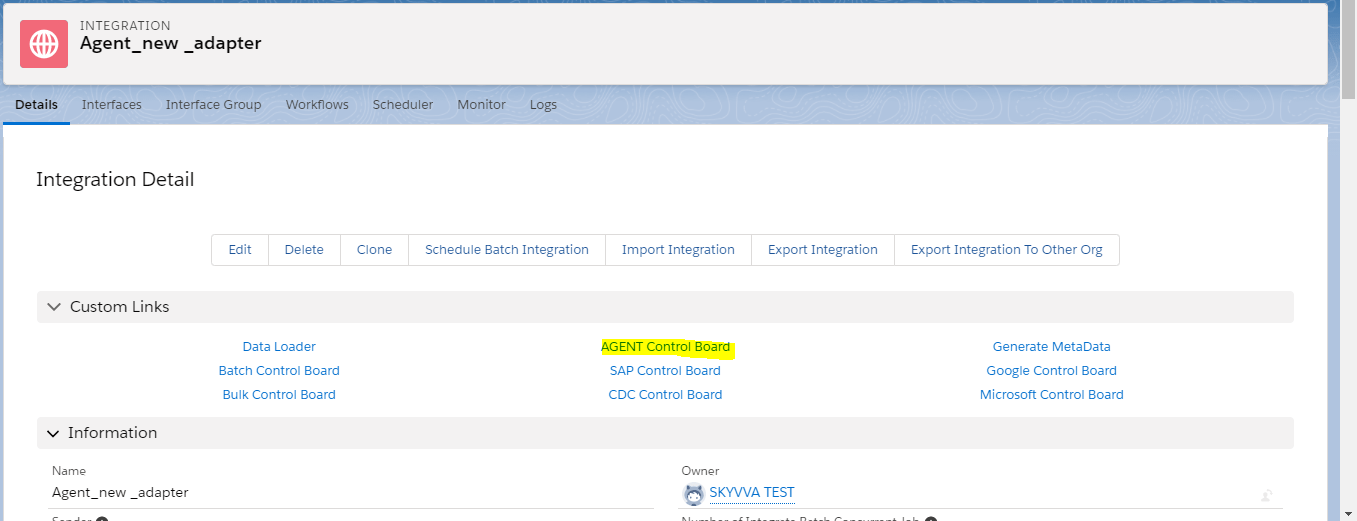
- Go to Integration (Example: Agent_new _adapter)
- Click on link AGENT Control Board.
- Go to Adapter Tab and Click on New Button.
Step2 How to Create Agent RabbitMQ CSV Outbound Adapter:
- Click on link AGENT Control Board.
- Go to Adapter Tab and Click on New Button.
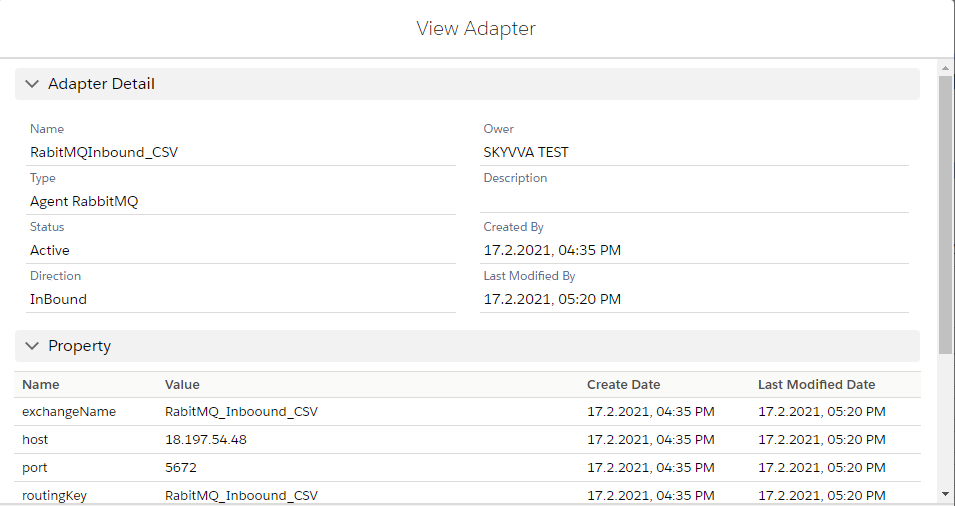
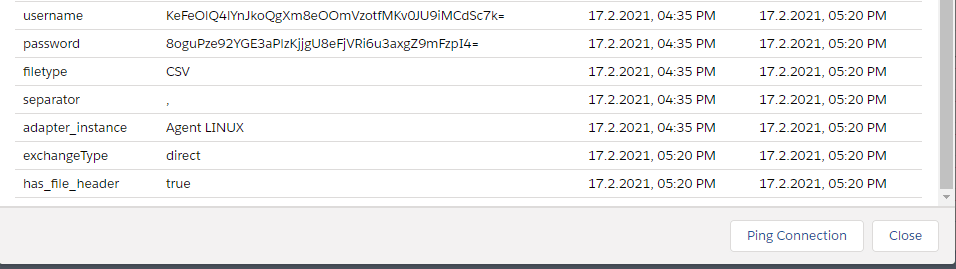
Configure Agent RabbitMQ CSV Inbound Adapter: you need to enter adapter properties base on system requirement and Select Connection Destination (Example:Agent LINUX). Step3: Create Integration and Inbound Interface:
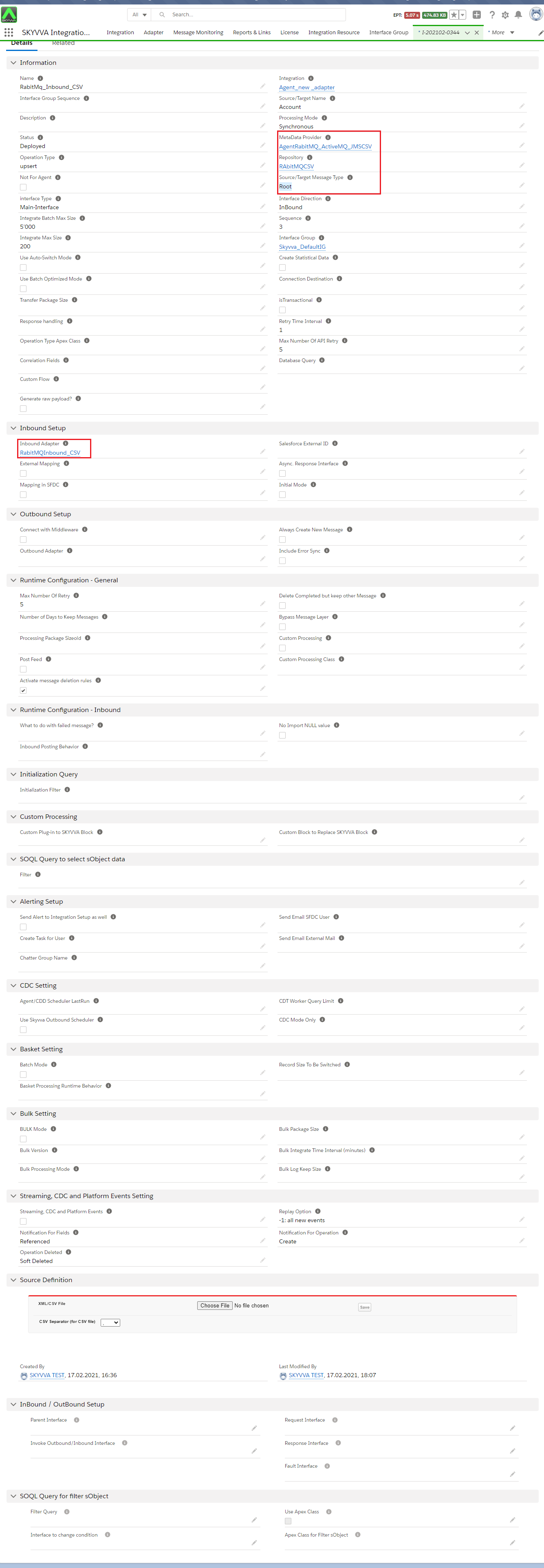
- Inbound Interface: RabitMq_Inbound_CSV
- Metadata: AgentRabitMQ_ActiveMQ_JMSCSV
- Respository:RAbitMQCSV
- MessageType:Root
- Adapter: RabitMQInbound_CSV
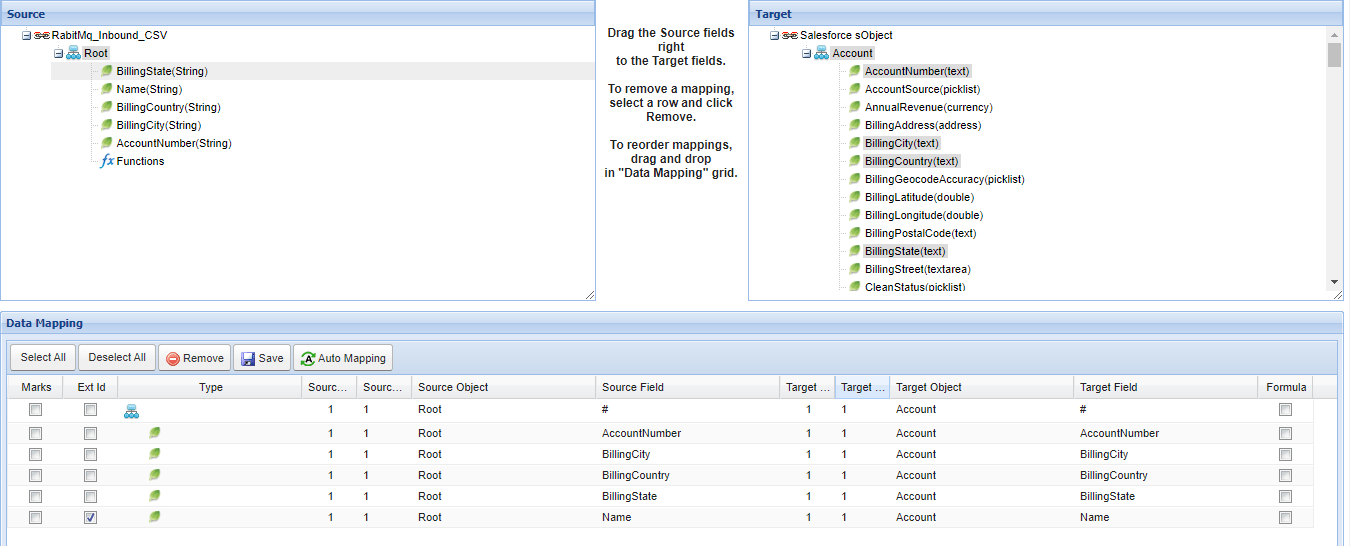
Step4: Do mapping
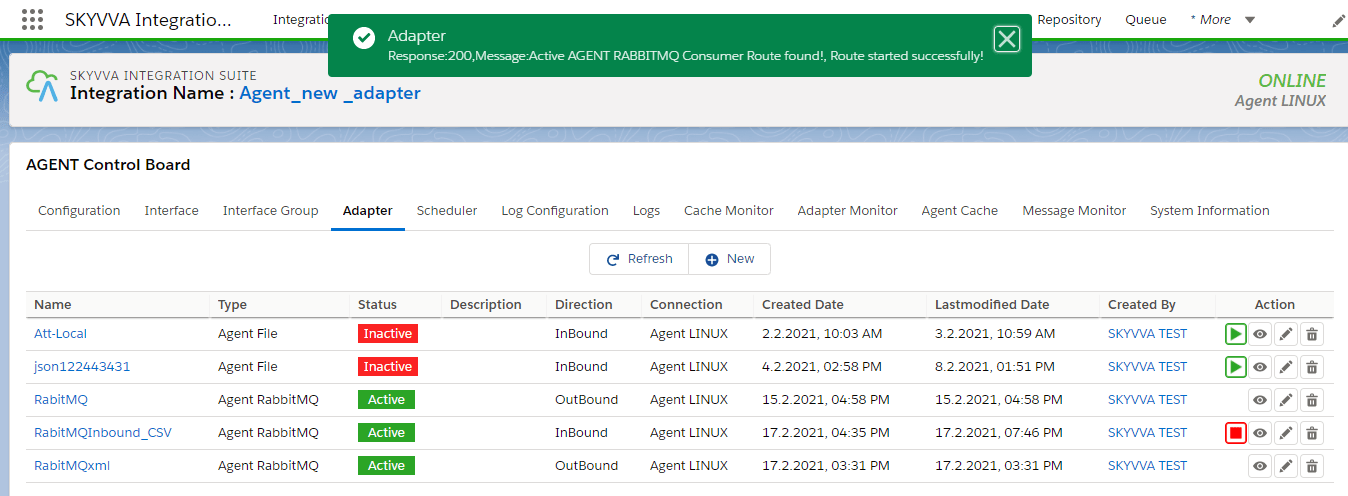
[su_box title="Note" box_color="#2a8af0" title_color="#000000"] In Inbound direction we don't need to execute any callout logic because you are sending data RabbitMQ server to Salesforce side. You just need to start route example: go to adapter tab => All adapter will display in list view and you just need to click on start button and your route will be start automatically or you can change adapter status inactive to active and it’s also start route automatically. If you will make any changes inside adapter property then you need to stop route and start again after your changes will reflect to server.[/su_box]

- click on action button to start route.
Step 5: To Send Data RabbitMQ Server to Salesforce side follow the given step: Check CSV Data on RabbitMQ Server:
- Open Link: http://18.197.54.48:15672/#/queues
- Username: admin
- Password: admin
Go to Exchange.
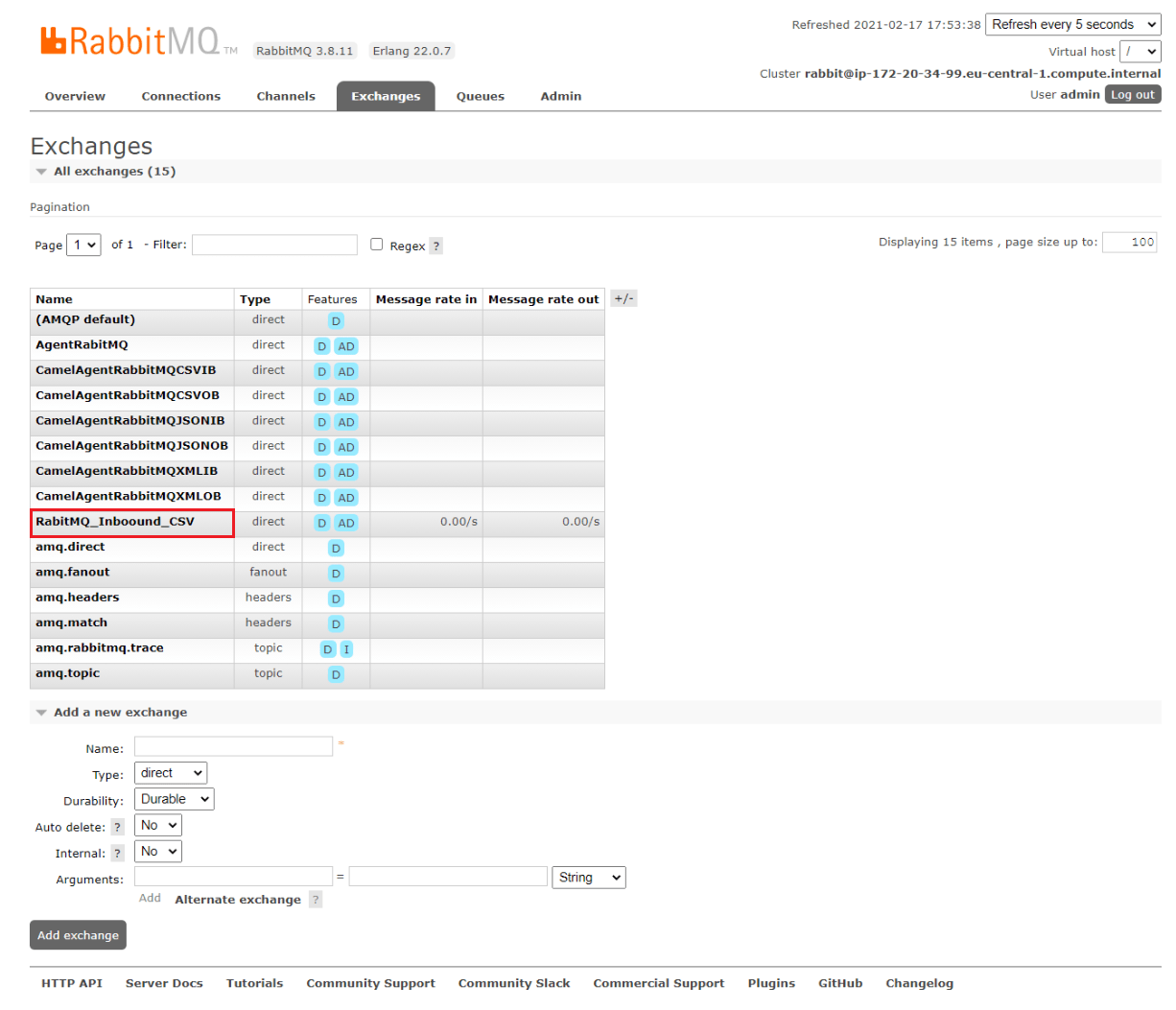
Click on Exchange name:RabitMQ_Inboound_CSV
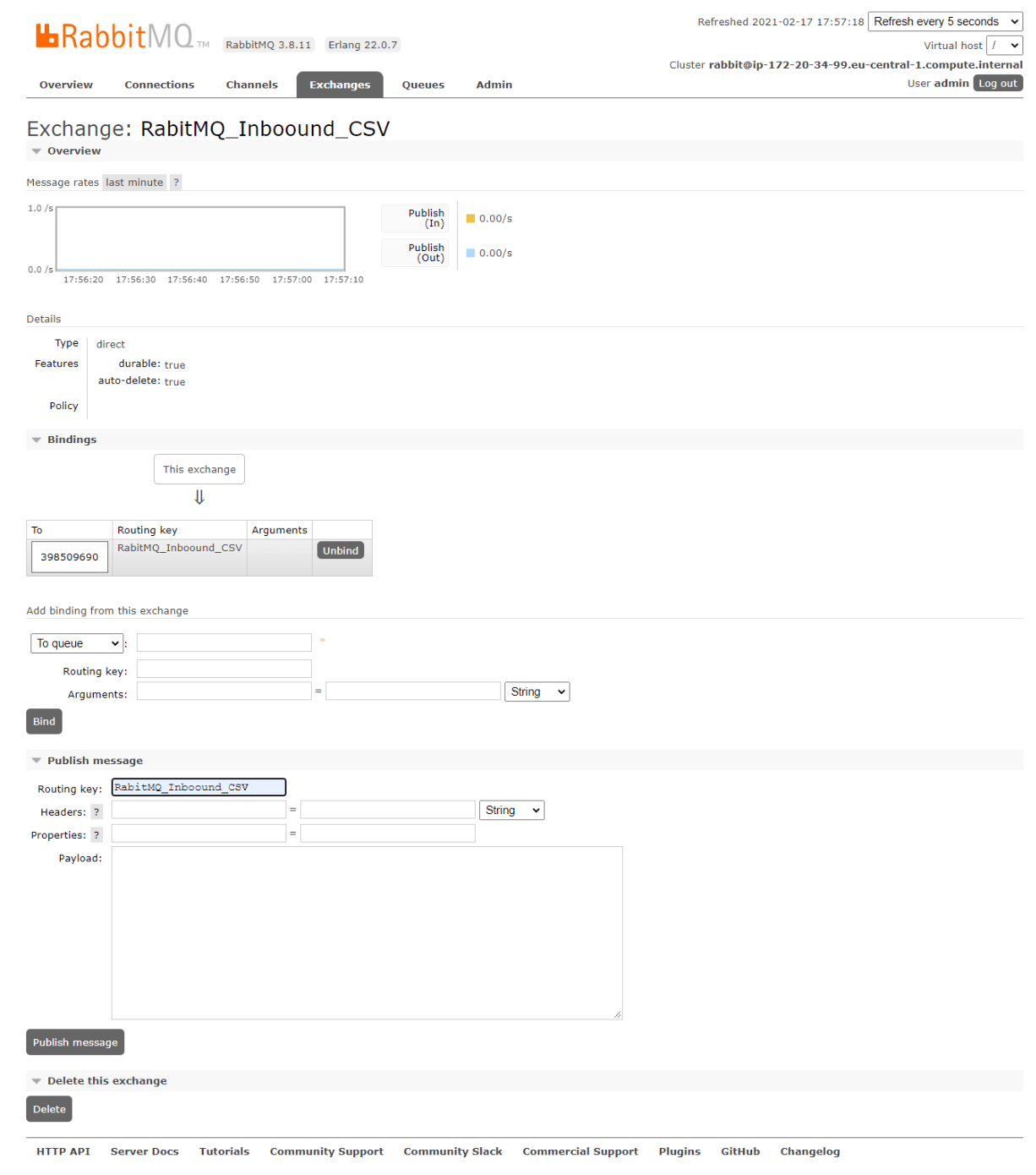
- Enter RoutingKey name same as configure inside adapter properties Example:RabitMQ_Inboound_CSV.
- Enter CSV data inside Payload textarea.
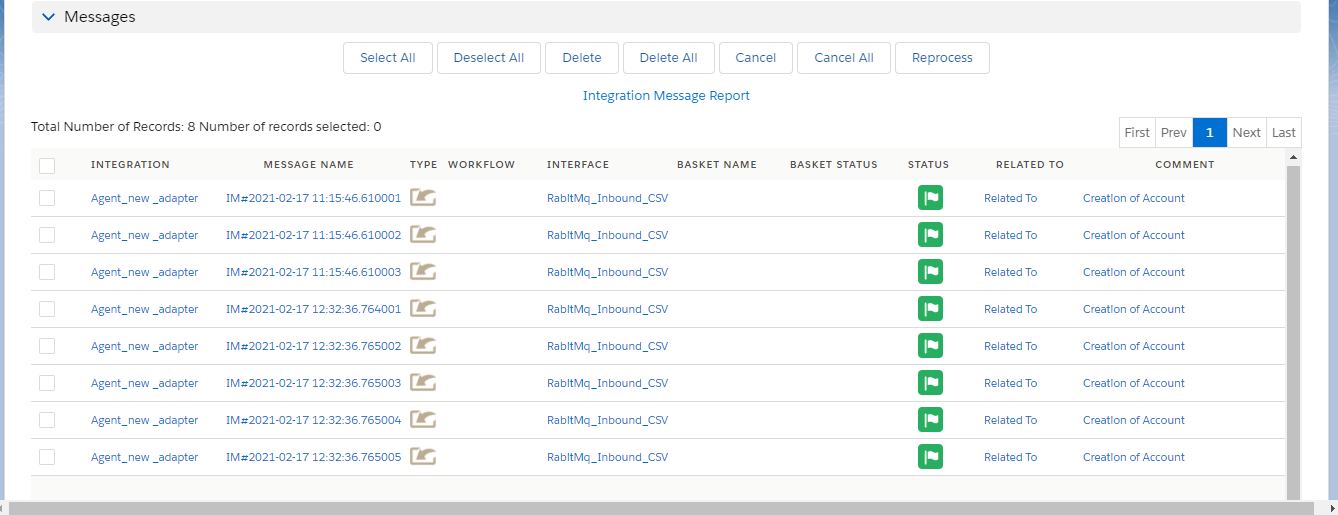
- Click on send button and check result on message monitoring.
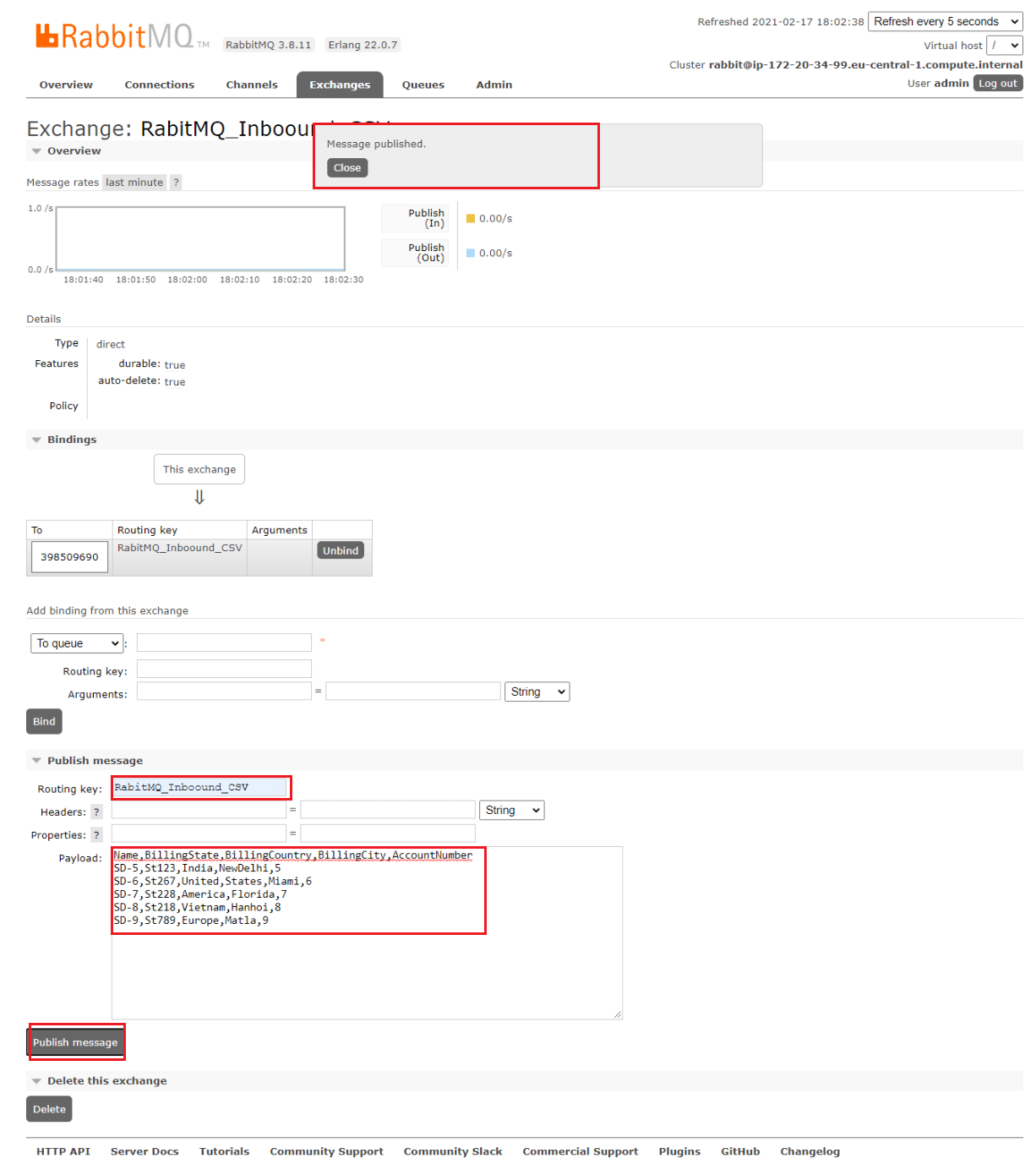
After data sent successfully, you will get Message Published notification on web page.