5. How to Query a single, list, and Execute the SQL Query of business object in SAP Business One?
Learning Objectives:- This unit describes:-
- How to Query a single business record and a list of Business Partners modules in SAP Business One?
Introduction:
This tutorial will learn How to Query a single record of the Business partners module in SAP Business one using operation GET in SAP business one Adapter. As we knew already, to GET the records of the Business Partner module in the SAP Business One Client Application, we still need to know the card code, and we need to use PATH Parameter to GET the record in Business Partner. For GET the record of BusinessPartner in SAP Business One, we need the request Interface and Response Interface. We can process data manually and scheduler to know details about How to run the outbound interface or scheduler manually. Would you please follow this link: #article/129-how-to-run-the-outbound-interface-through-the-manually-or-scheduler
Pre-required:
- Create Integration
- Create Connection destination on SAP Control Board.
- Generate SAP Business one Metadata by using Import SAP Metadata.
- Create Outbound Interface and Inbound Interface linked with Metadata SAP Business one.
- Create SAP Business one Adapter on SAP Control Board.
- #### How to query in a single record with BusinessPartner Module.
Step 1: Create Integration: To know detail about Integration, please follow this tutorial. What is Integration, and How to use it?
- Here's Integration

Step 2: Create Connection Destination SAP Control Board.
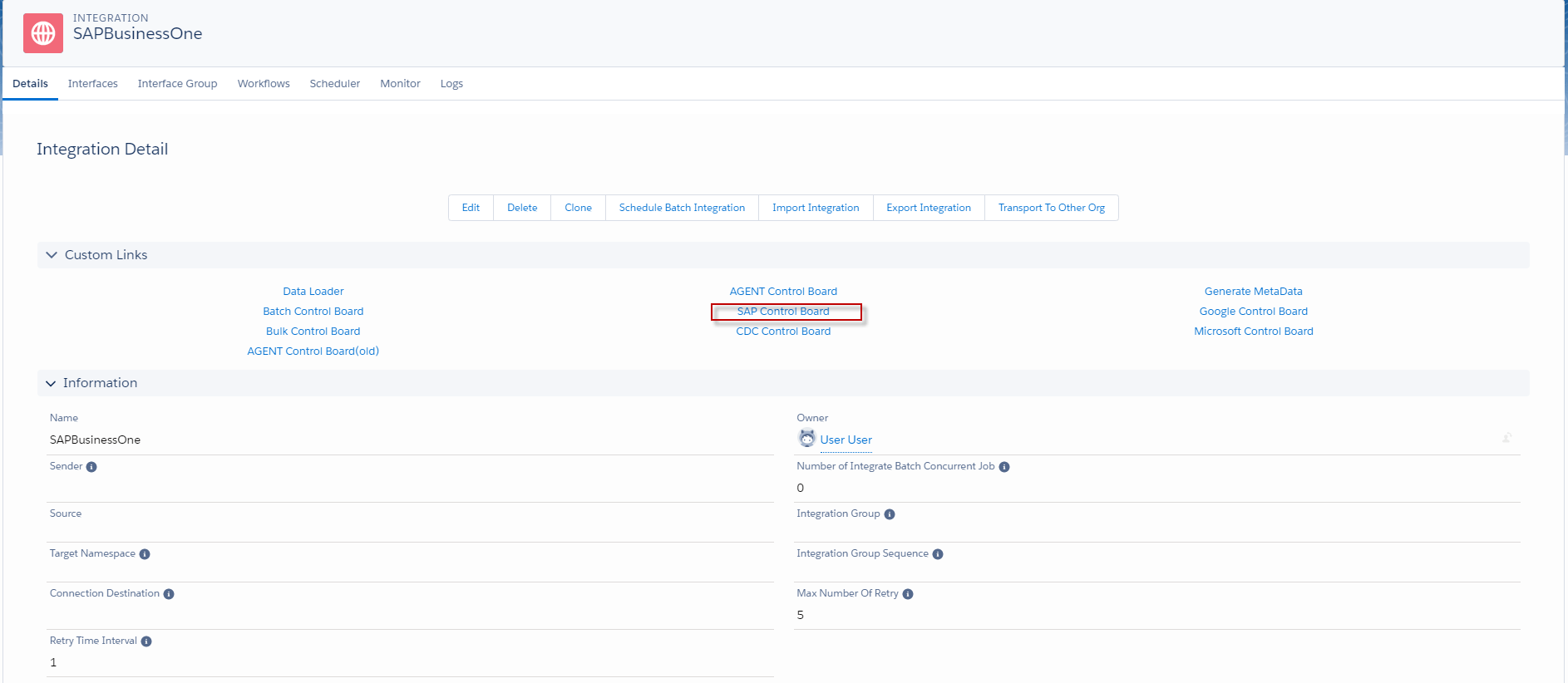
- Click SAP Control Board on Integration.
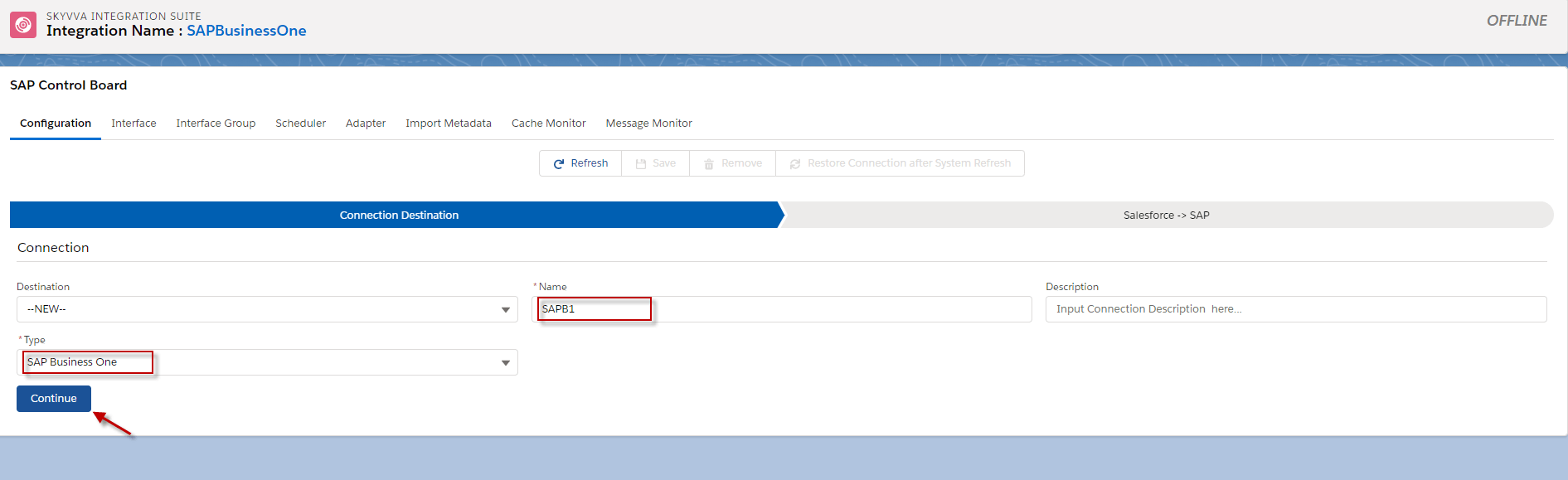
- Fill in name, choosing type SAP Business One and click Continue.
- Here’s an example.
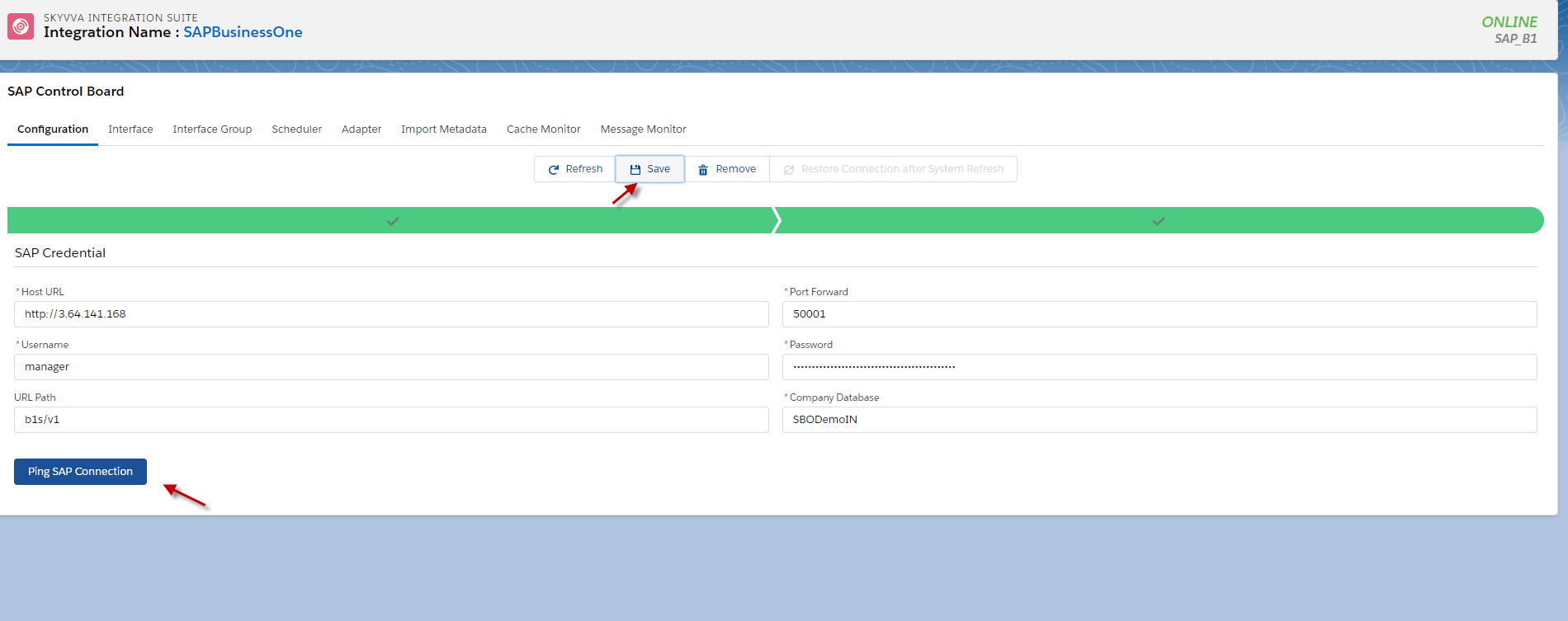
- Fill Host URL, Port Forward, Username, Password, URL Path, and Company Database of SAP Business one Application.
- Click ping SAP Connection and Click Save Button.
- Here’s Example.
Step 3: Create Metadata SAP by using SAP Import Metadata. [su_box title="Note" box_color="#2a8af0" title_color="#000000"] We need to create Metadata Provider and a Repository. [/su_box] Follow this link to see detail about How to use and create Metadata Provider and Repository.
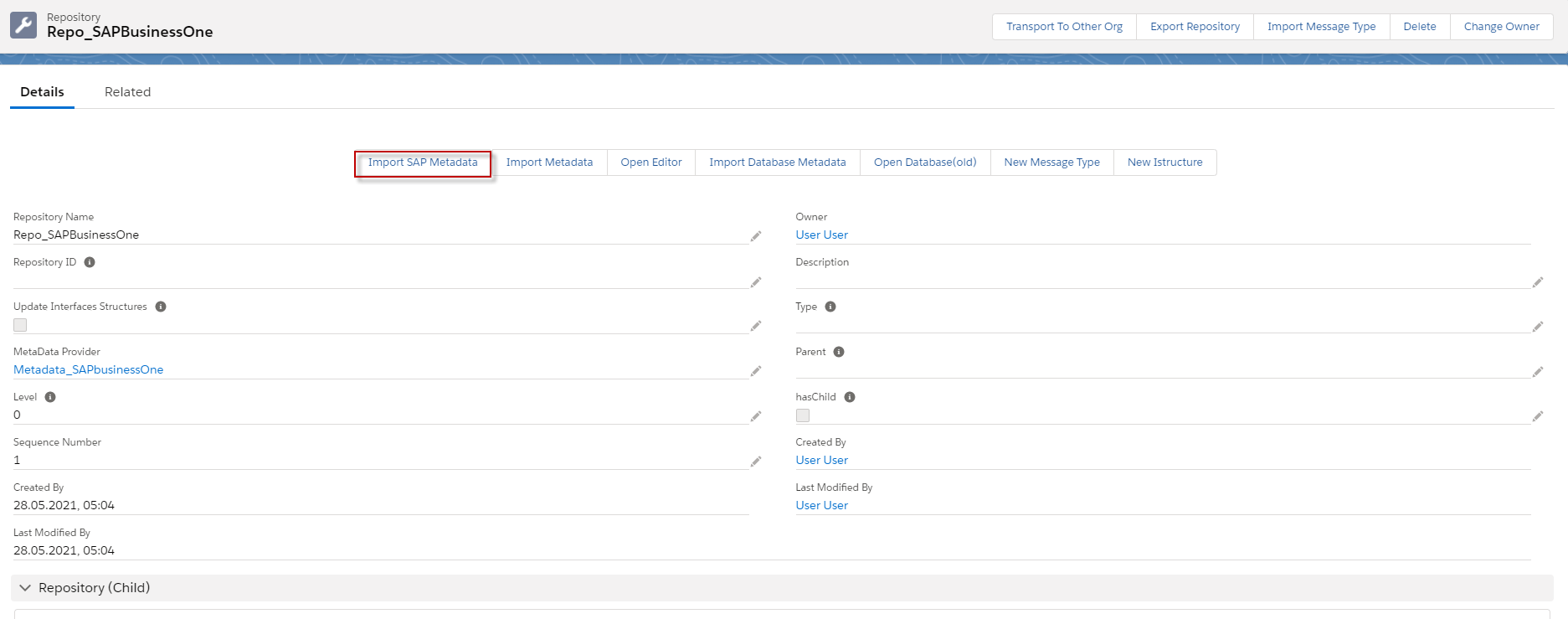
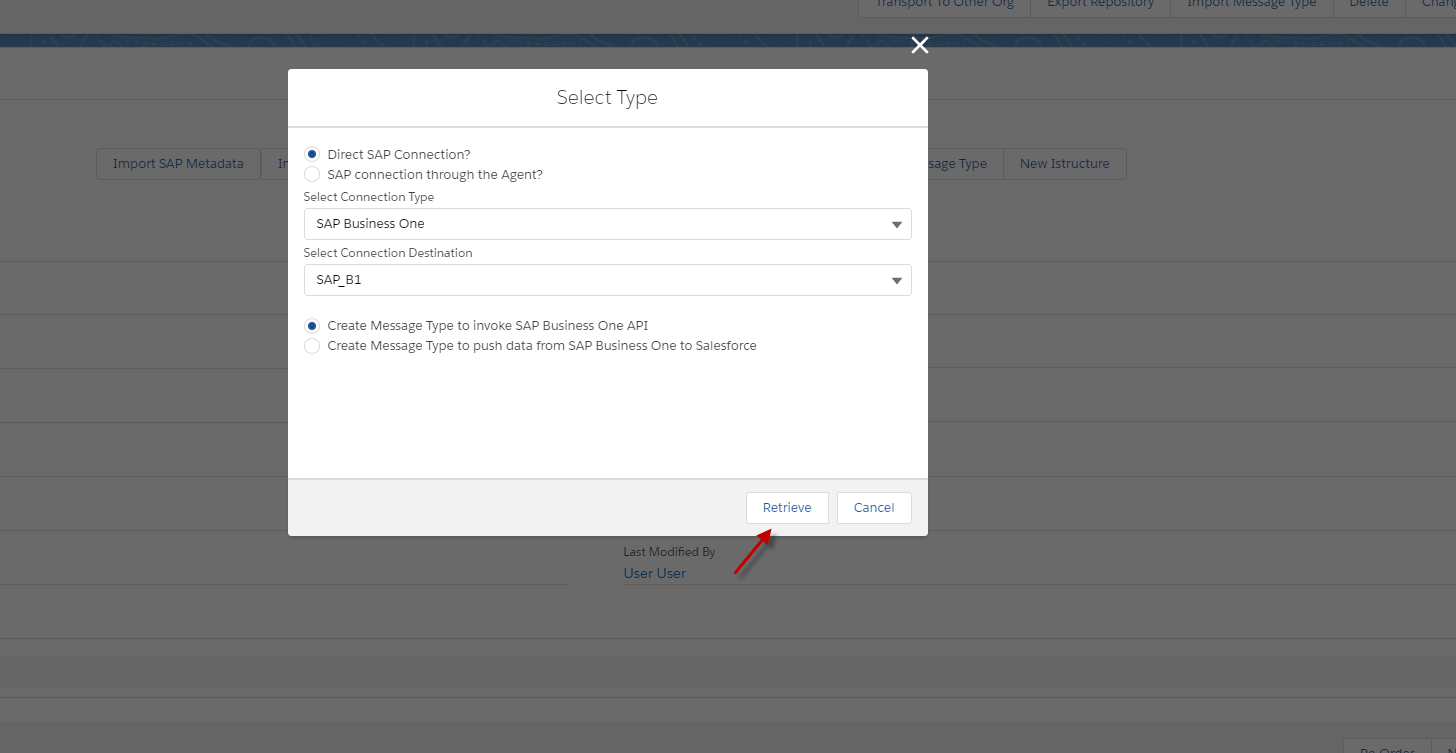
- Go to Repository and click Import SAP Metadata
- Choosing Direct SAP Connection?
- select Connection Type,
- Select Connection Destination,
- Choose to Create Message Type to invoke SAP Business One API
- click Retrieve.
- Search Metadata Name Business Partner, choose a business partner and click create Message Type.
Note: Copy the URL of module order that we choose for using in API endpoint on Adapter.

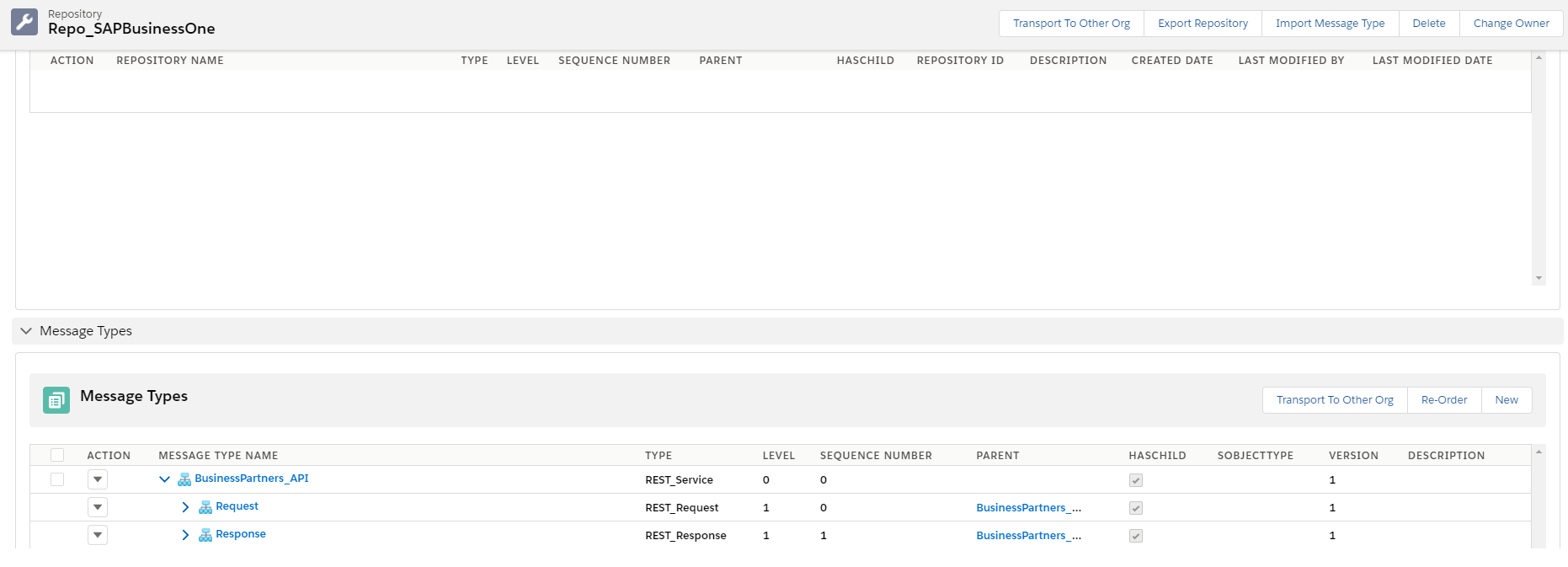
After that, we will see the message type object Business Partner.
- Here’s the message type of business Partner.
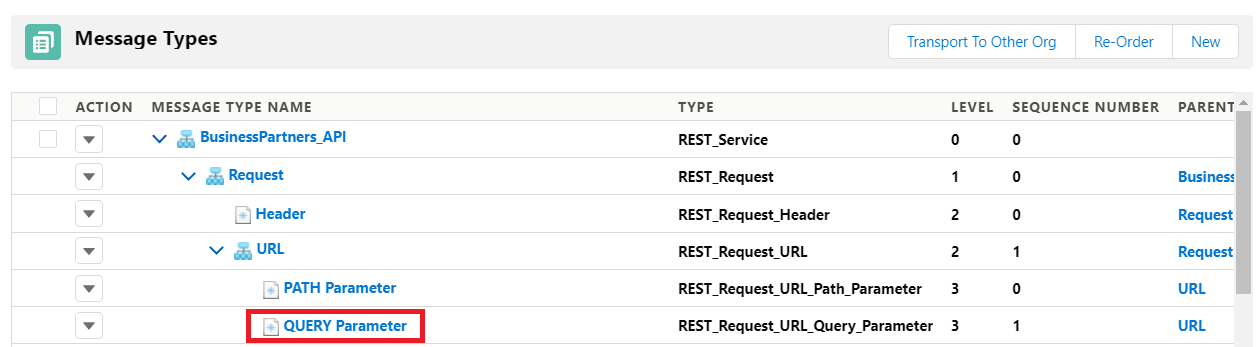
- We need to create field CardCode in QUERY Parameter Message Type.
Go to Query Parameter Message Type in the URL Message Type of Request Message Type and click Query Parameter. See the example below.
- Go to Related and Create Message Type Field Entry by clicking Button New. See the example below.
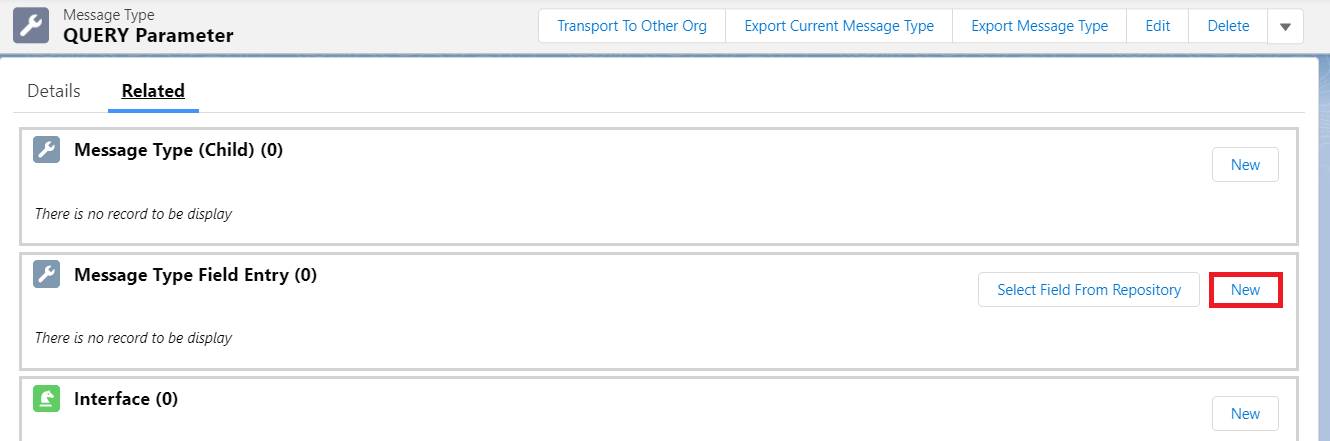
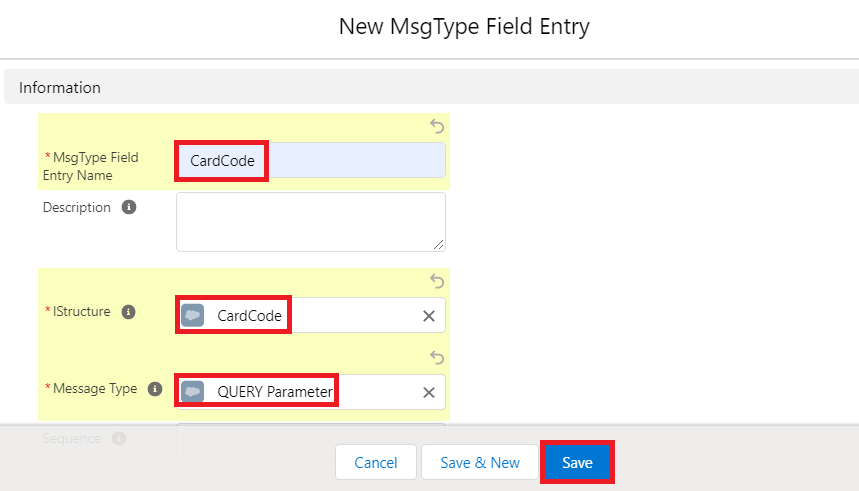
- Fill Message type Entry Name and Istructure. This section wants to Query the business partner record so we need to create CardCode Message Type field Entry as a QUery Parameter to Query the business partner record.
- We need to fill in Message type Field Entry Name and Istructure and click save Button. See the example below.
Step 4: Create Outbound Interface, Inbound Interface, and linked with Message Type that we generated.
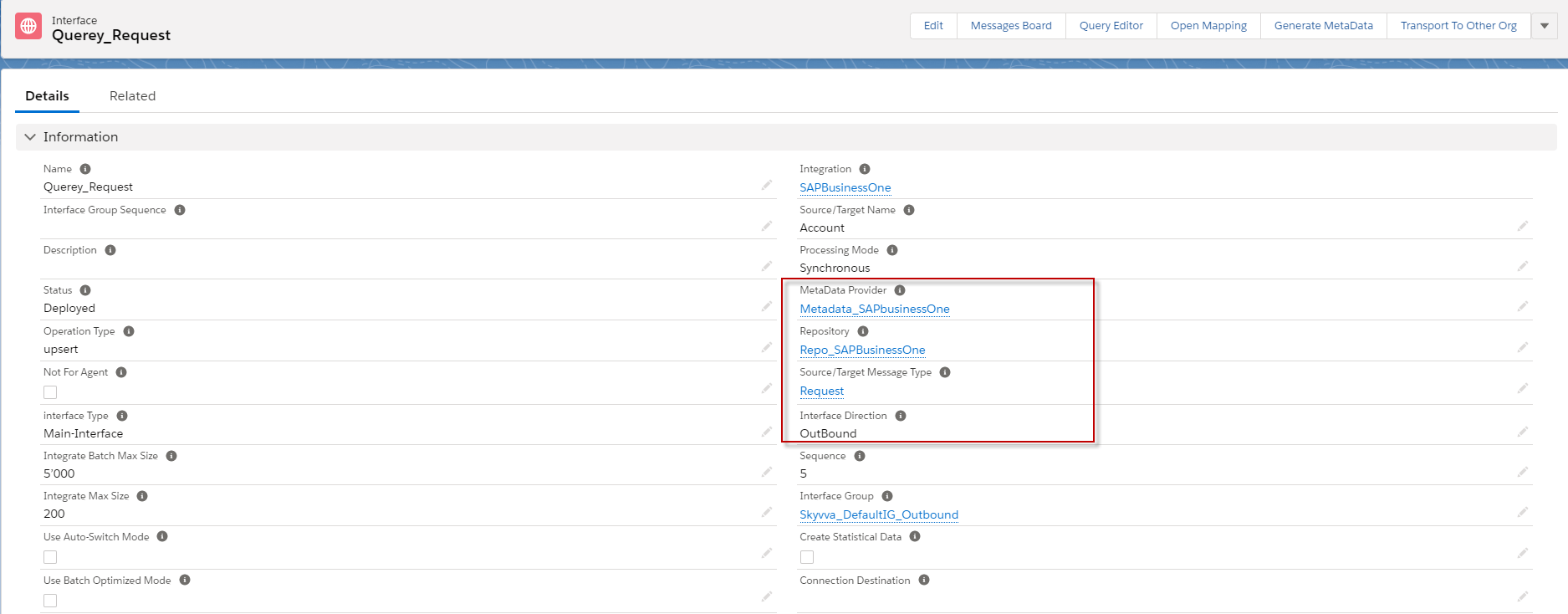
- Create Outbound Interface as a Request Interface and linked SAP BusinessParner message type.
- Here’s Request Interface.
- Do mapping and click save.

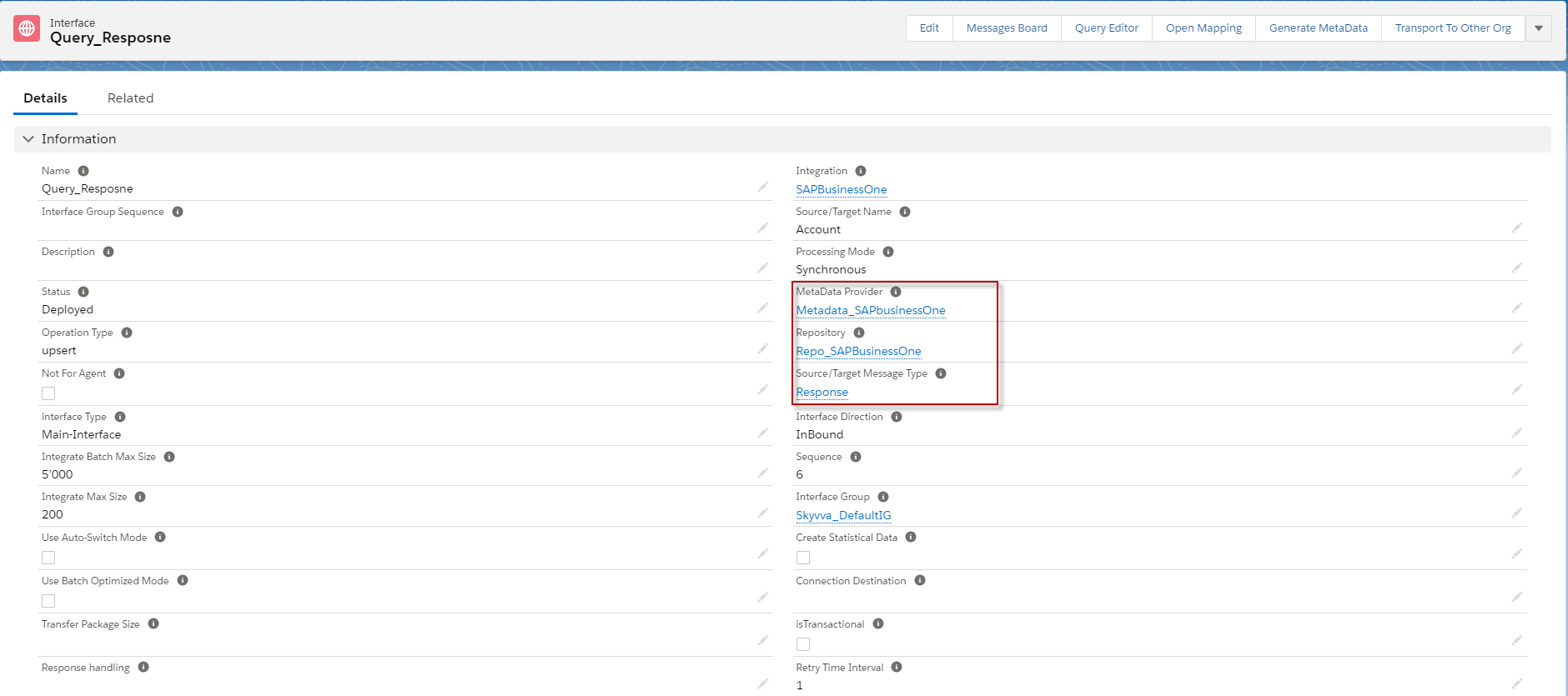
- Create Inbound Interface as Response Interface and linked SAP Business Partner message type.
- We are using operation Update to avoid creating a new record.
- Here’s Response Interface.
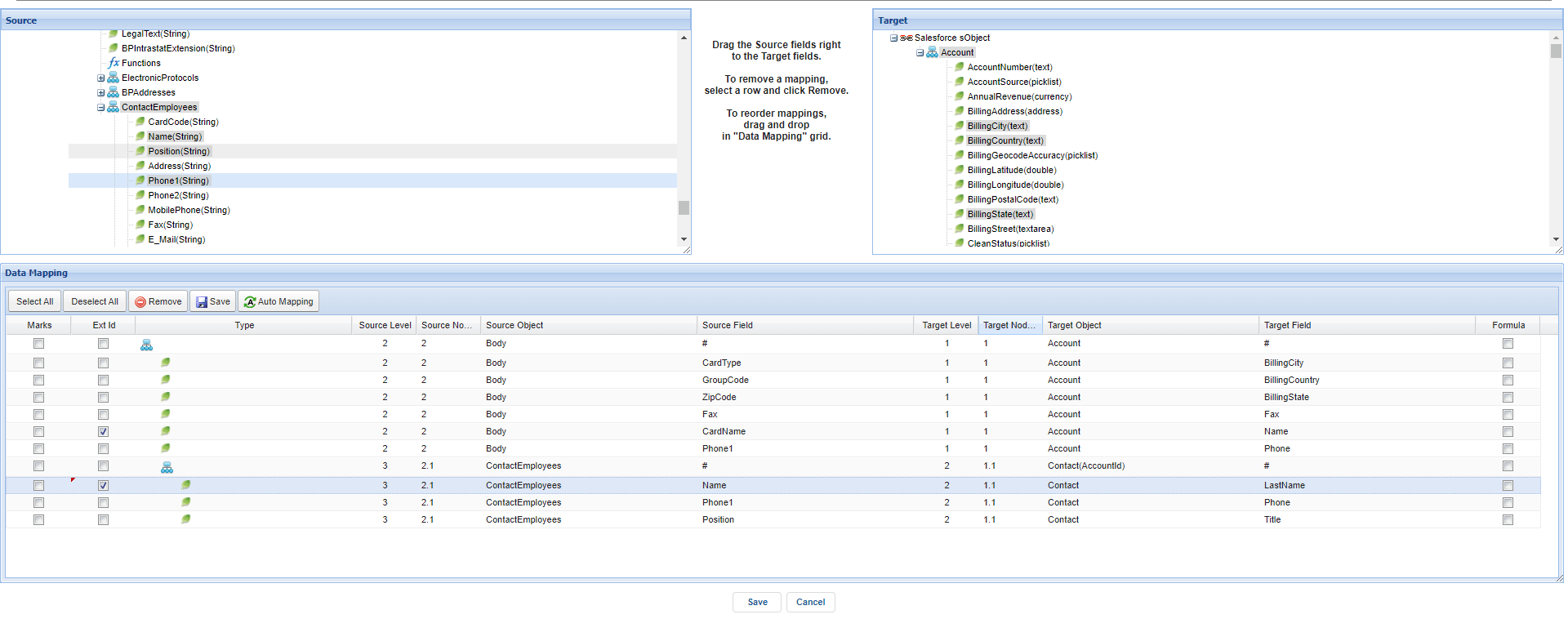
- Do mapping
Step 5: Linked Request and Response Interfaces.
- Linked Request Interface and Response Interface. We need to request Interface Detail and scroll down to see Inbound/Outbound set up.
- Put Response Interface in field Repone Interface by clicking the pencil and click the Save button.
- Here’s Example.

Step 6: Create SAP Business One adapter.
- Go to the SAP control board and click tap Adapter.
- Click New Button.
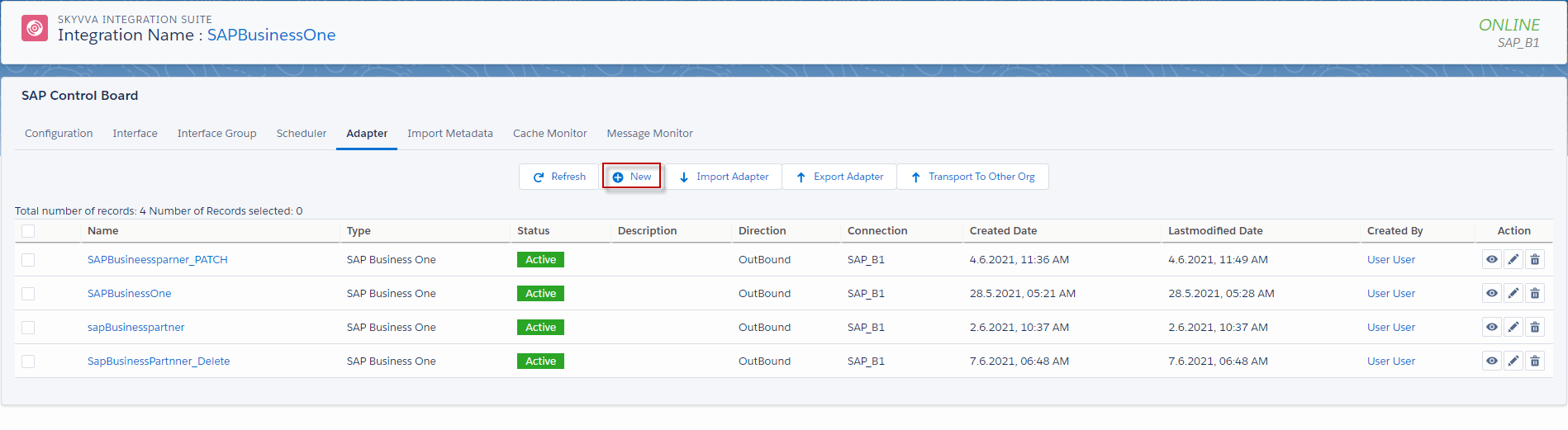
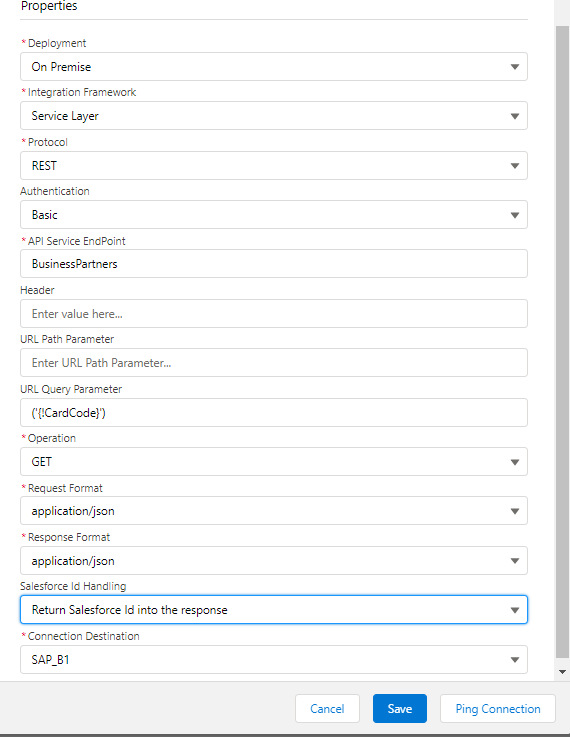
- Fill Name, Type: SAP Business one, Deployment: On Cloud, Integration Framework: Service Layer, Protocol: Rest, Authentication: Basic, Past the API endpoint that we copy from Create Metadata in the properties API service Endpoint URL, Choosing Operation GET, Request and Response Format Json, and choosing connection Destination.
- We need to put ('{!CardCode}') in fields URL Query Parameter.
- Click ping connection to make sure that the configuration adapter is successful.
- click save
- Here’s Example.
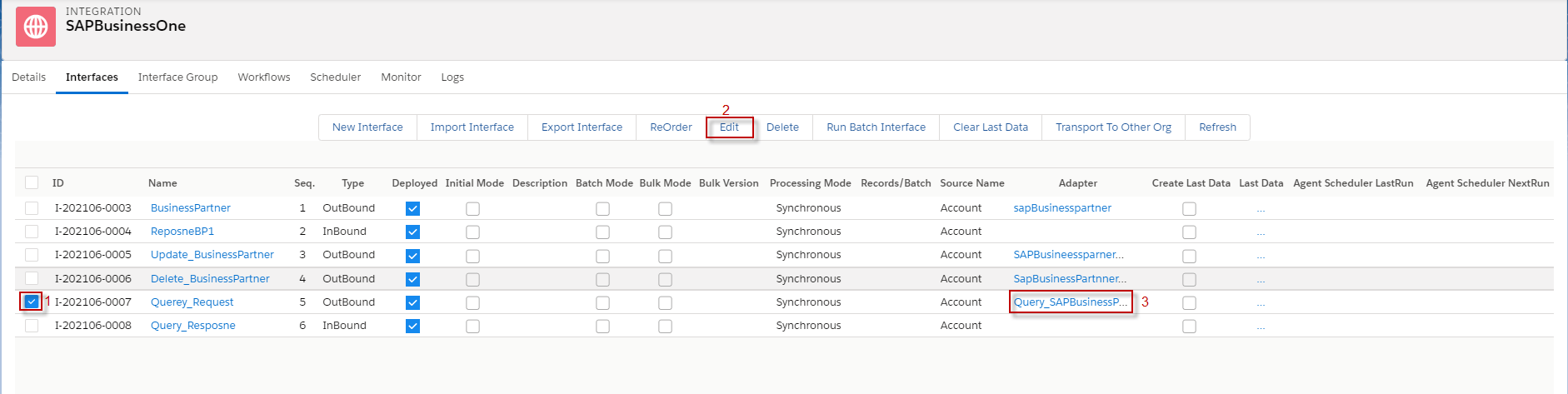
• Go to Request Interface and Linked this adapter. • Here’s an example.
Step7: Callout Data by using Manual Process.
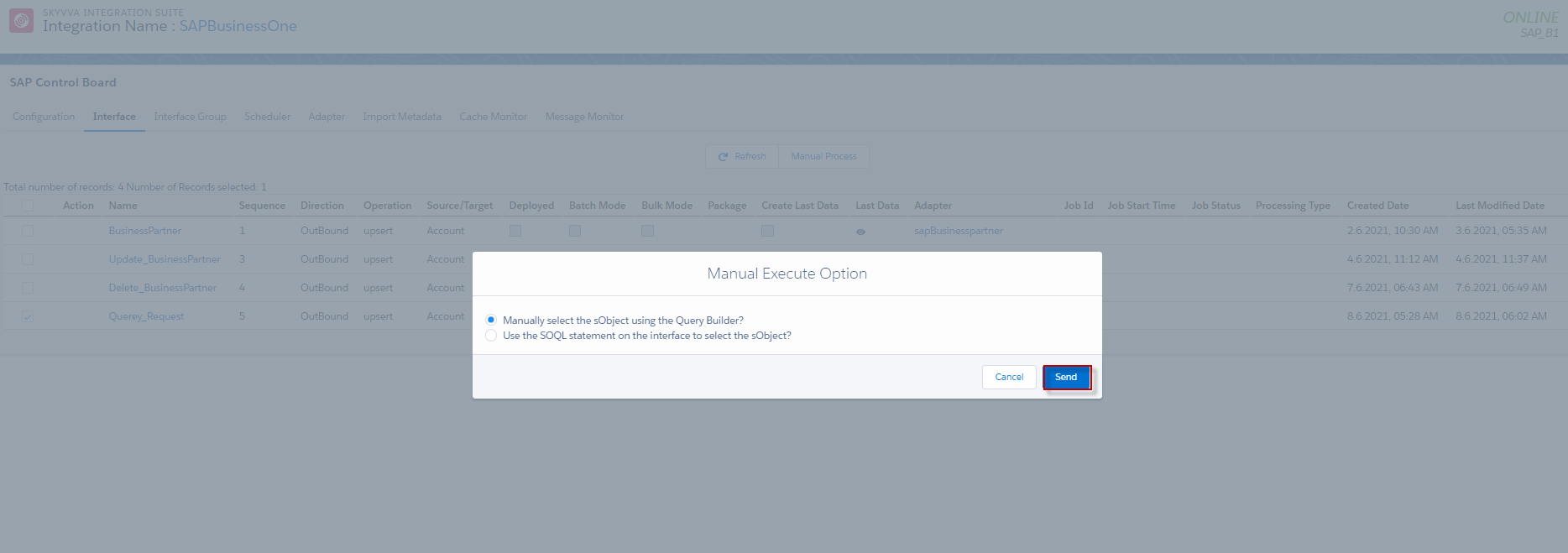
- Go to Interface, tap on SAP Control board, select Request Interface, and click Manual Process.
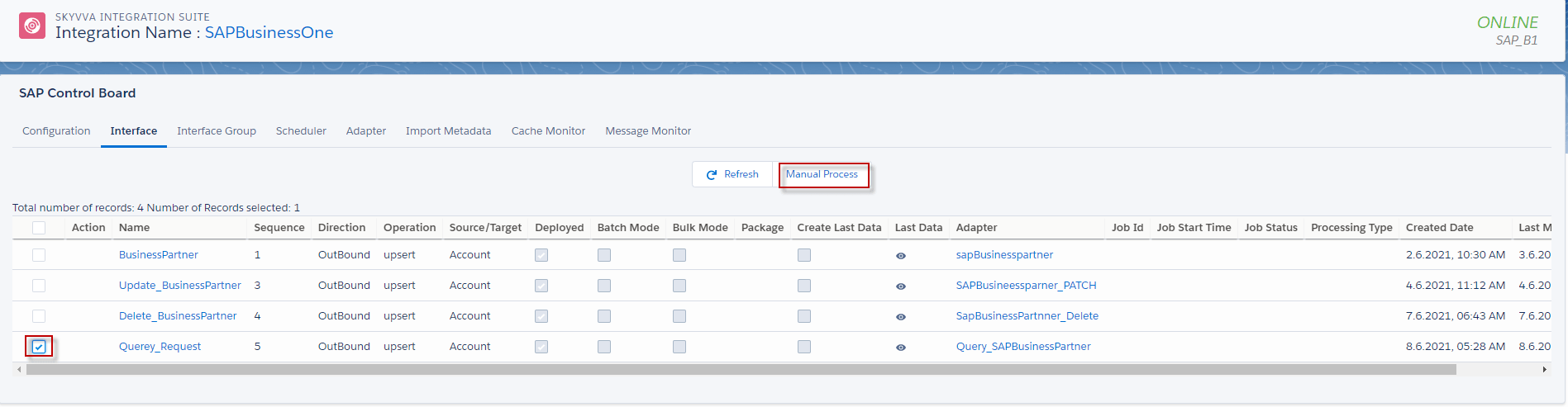
- Select Manually Select the subjects using the Query Builder and click Next.
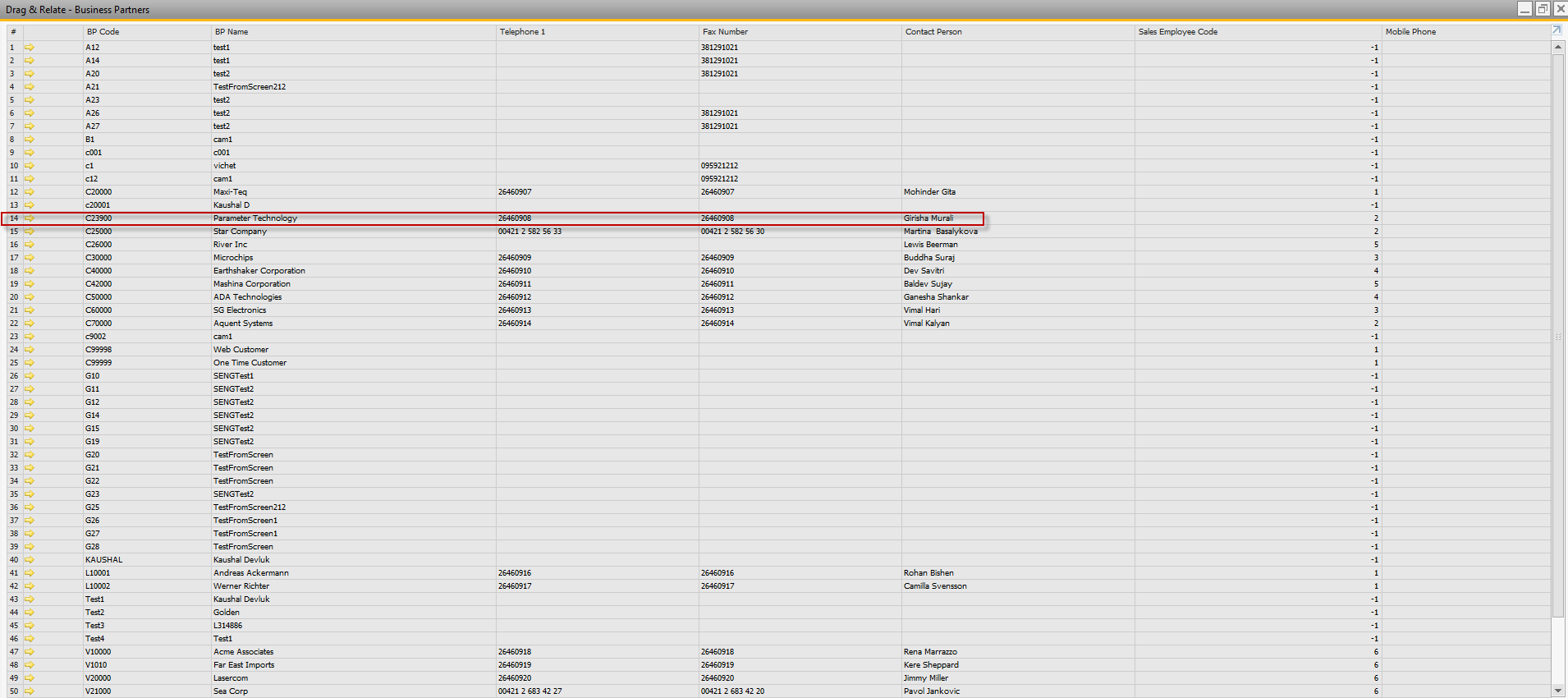
- Here's the data Business Partner in SAP Business One that we will query.
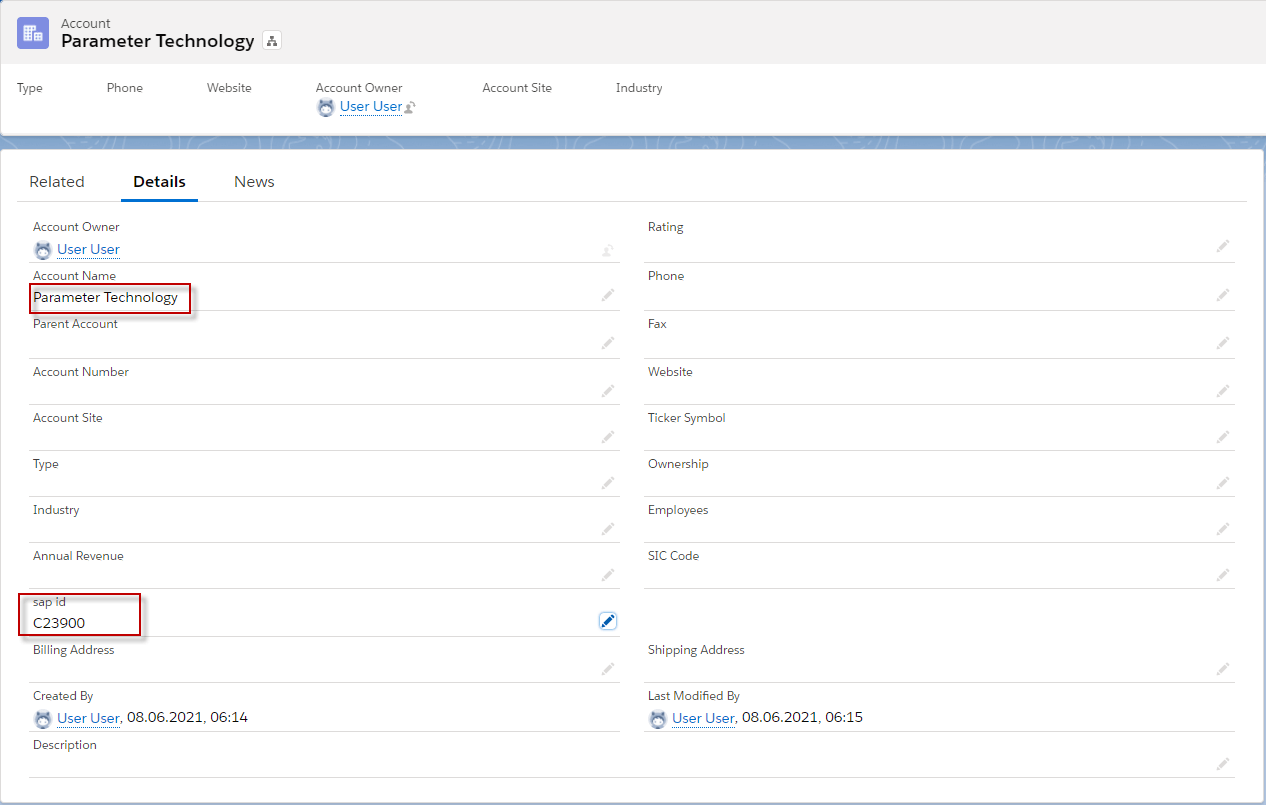
- Here's the record in Salesforce that has only name and card code.
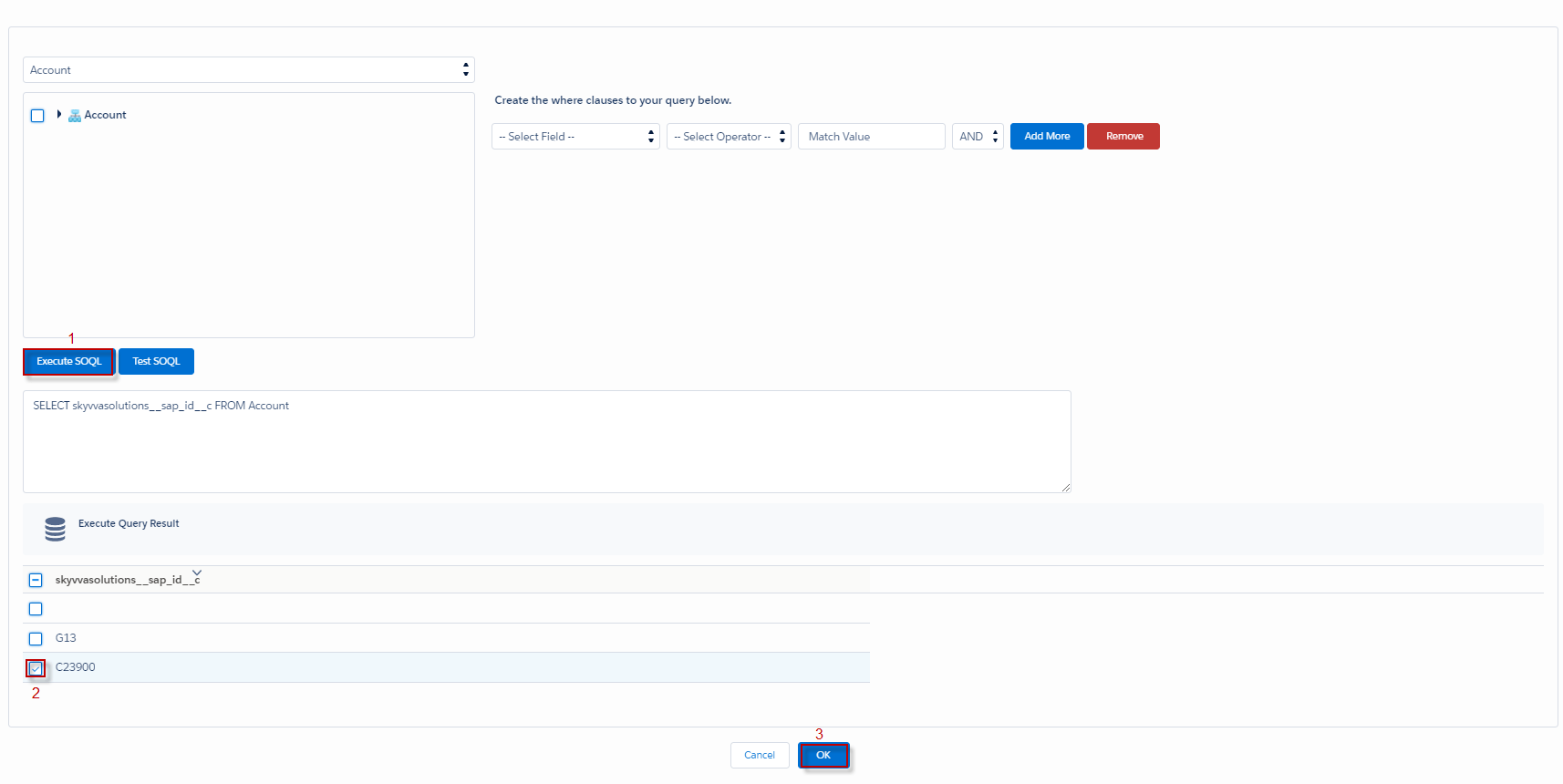
- Click Execute SOQL, a select record that we want to send to SAP business one, and click OK.
- Click Send.
- Go to Message Monitor to see the result.
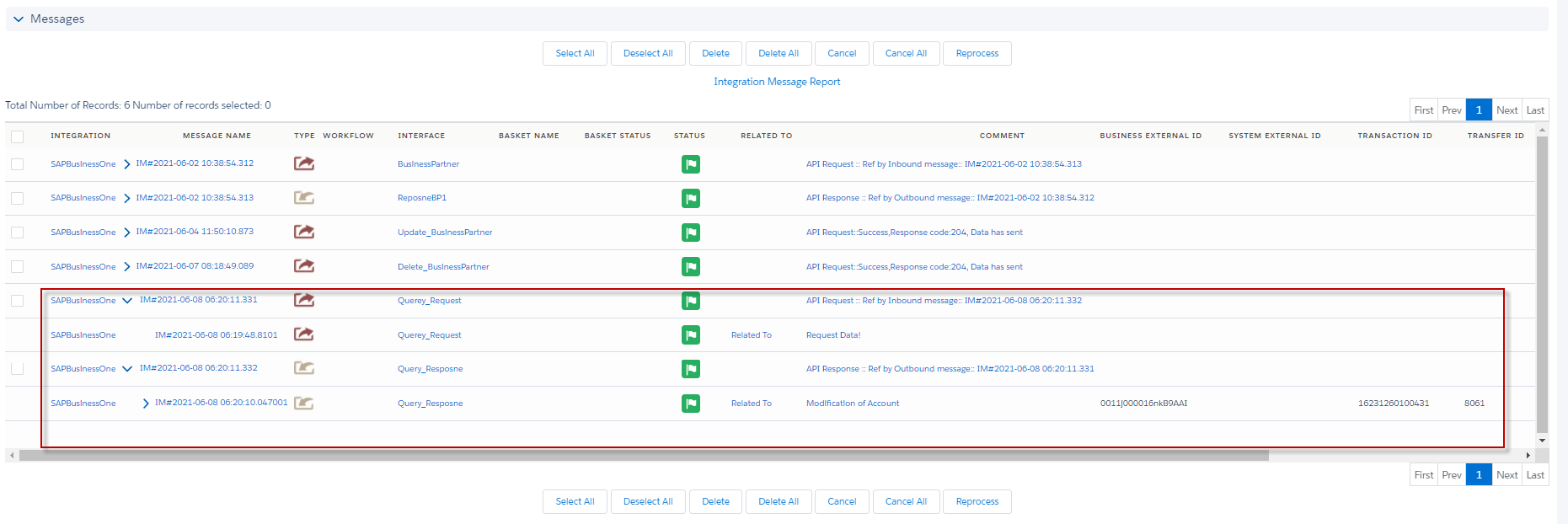
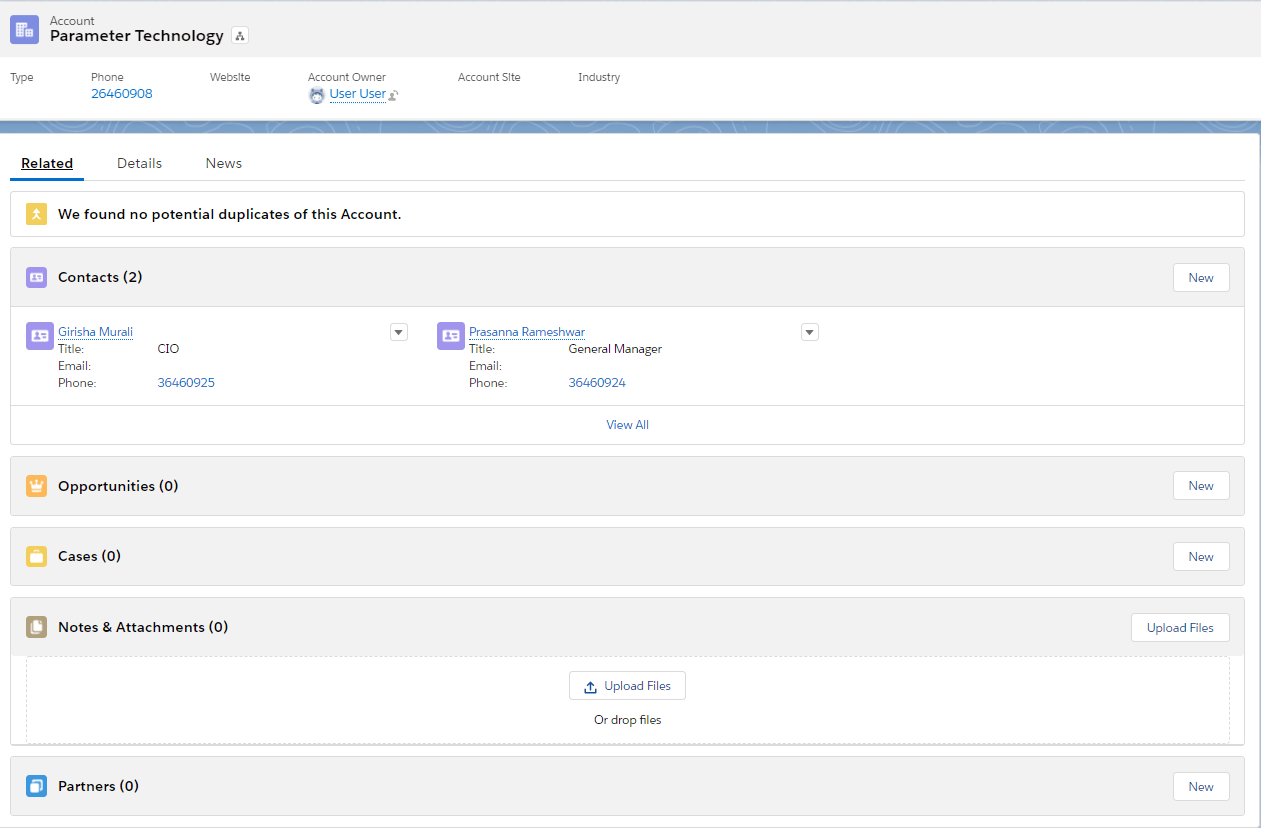
- Here’s the result in Salesforce after we query from SAP Business partner.

2. How to query in list of records with BusinessPartner Module.
Step1: We need to modify Message type Body of Response. We need to modify the Message type of Body response in the List value.
- Go to Repository of SAP Business Partners.
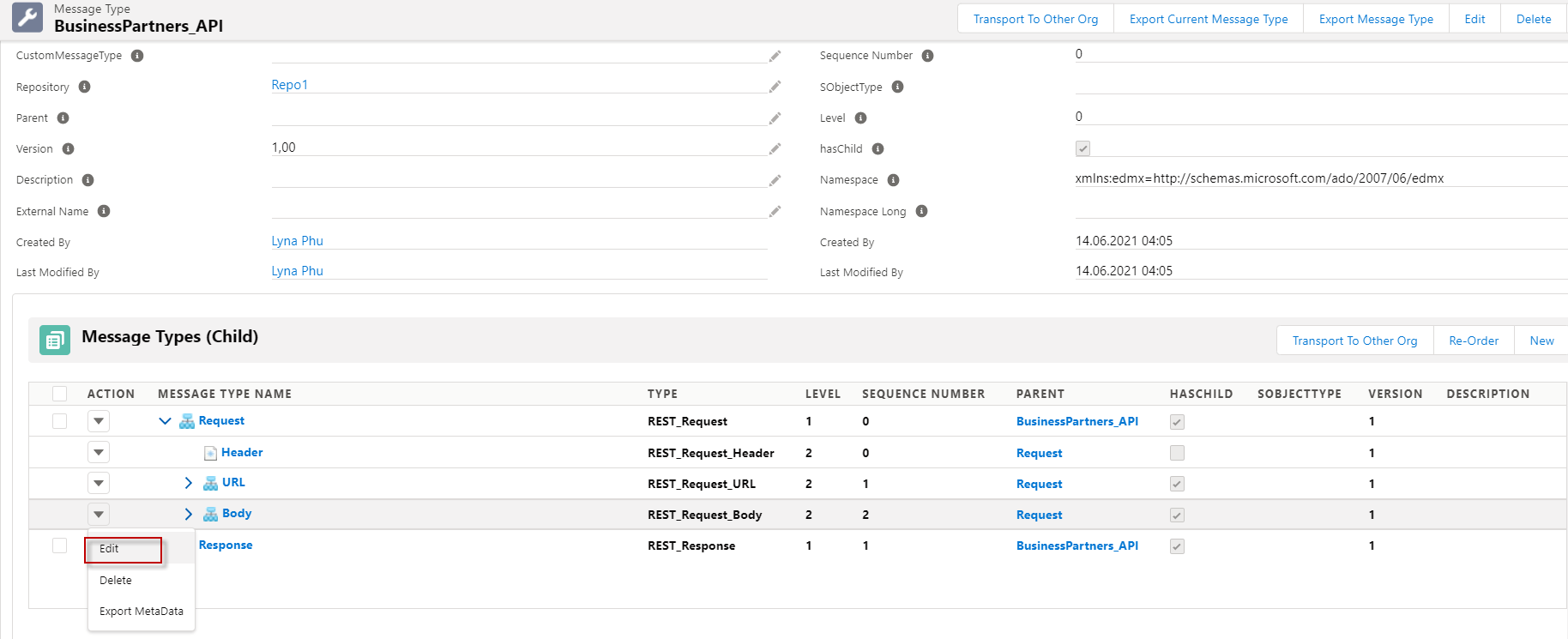
- Change type of body request from Rest Request Body to Plaint structure.
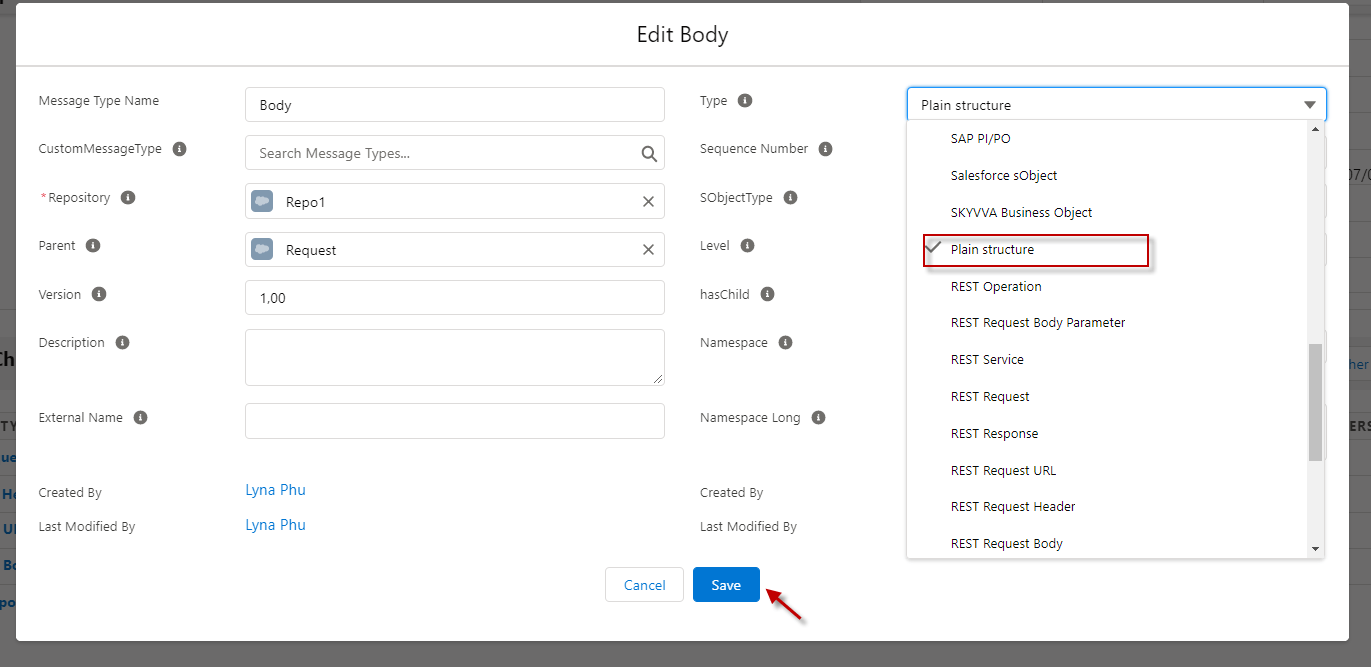
- After changing the type successfully we need to export metadata.
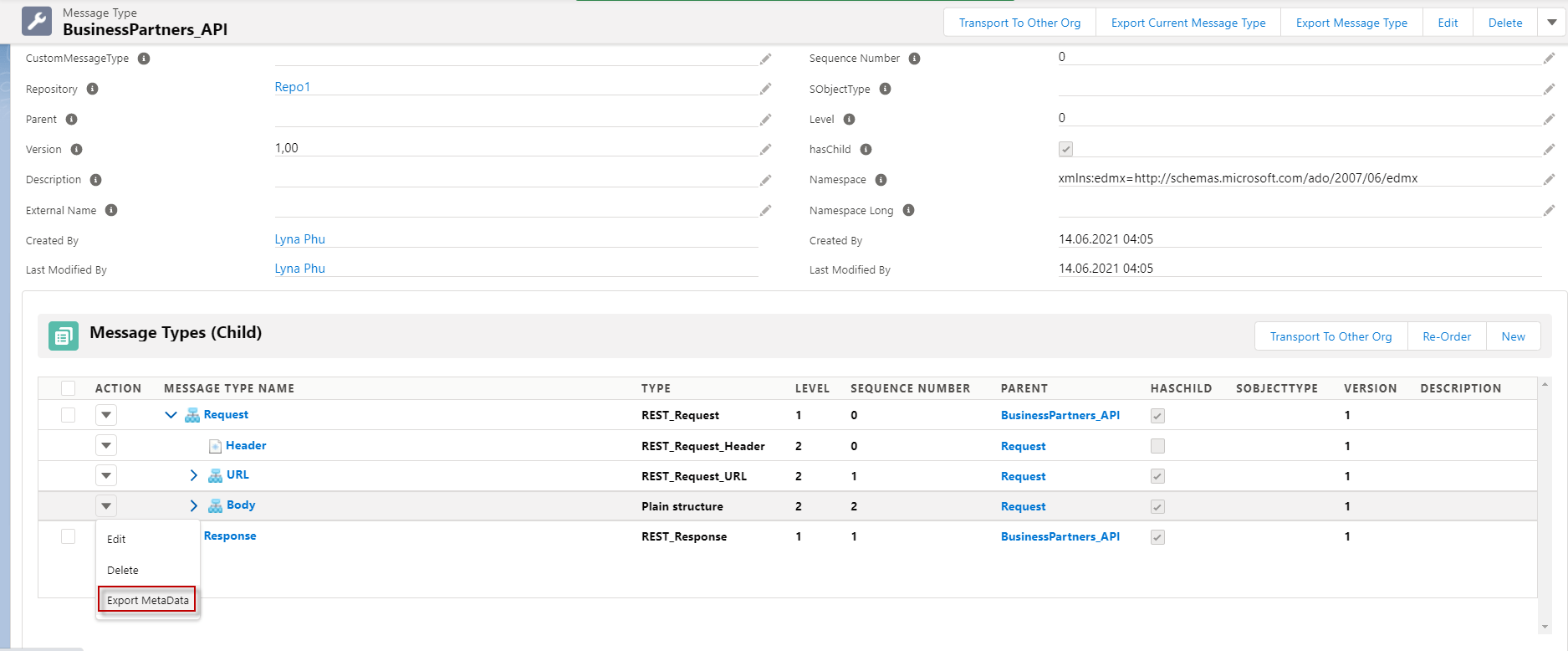
- Choose a format file XSD and click Export button.
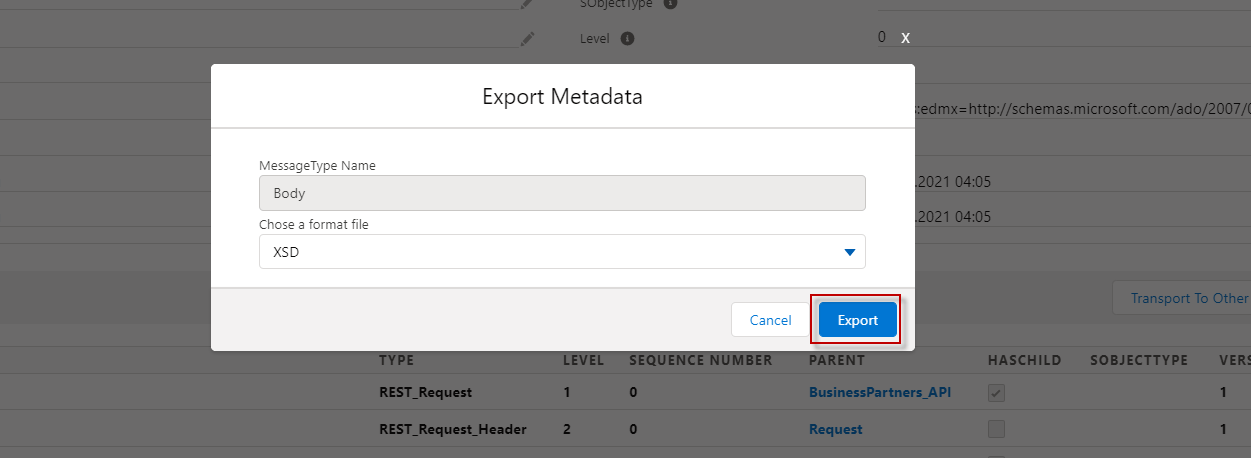
- Here's the file that we export.

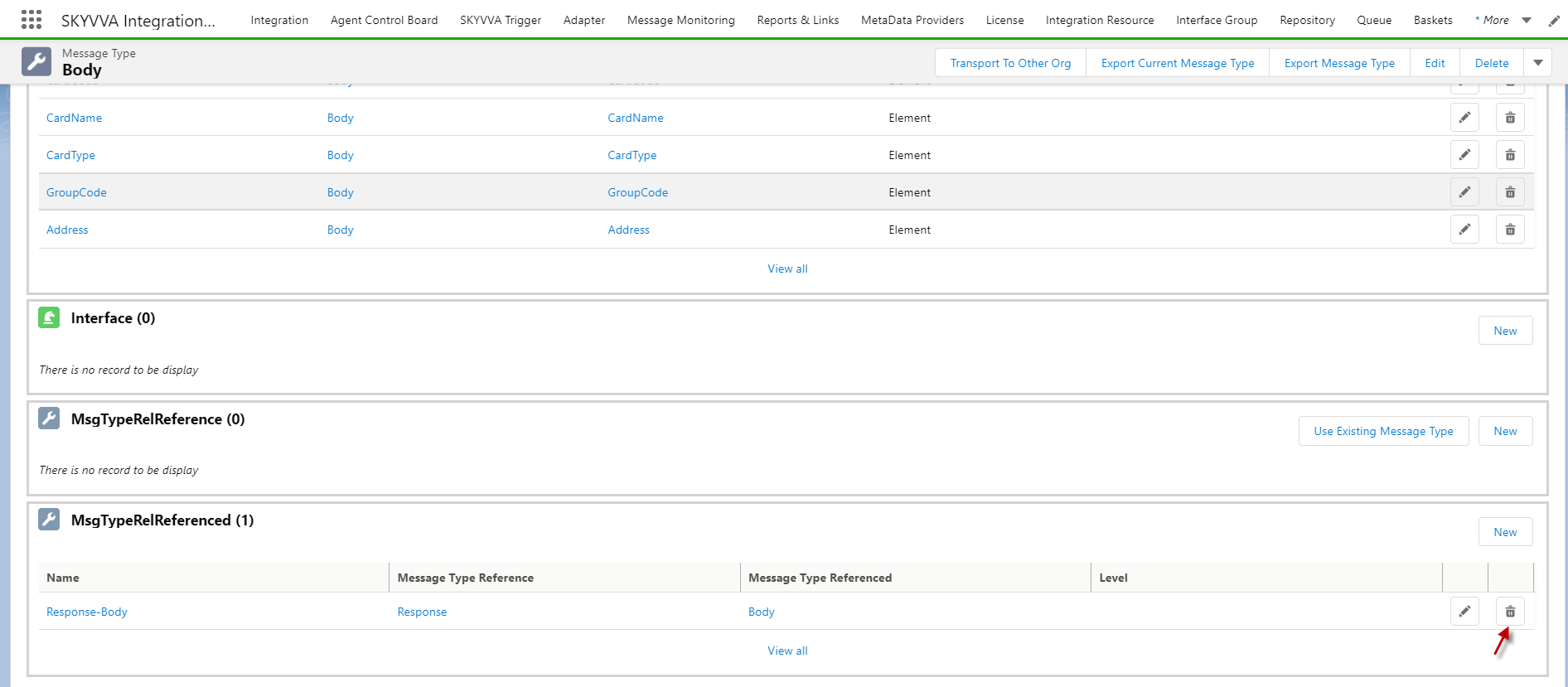
- Go to Body Message type for delete messageRel.
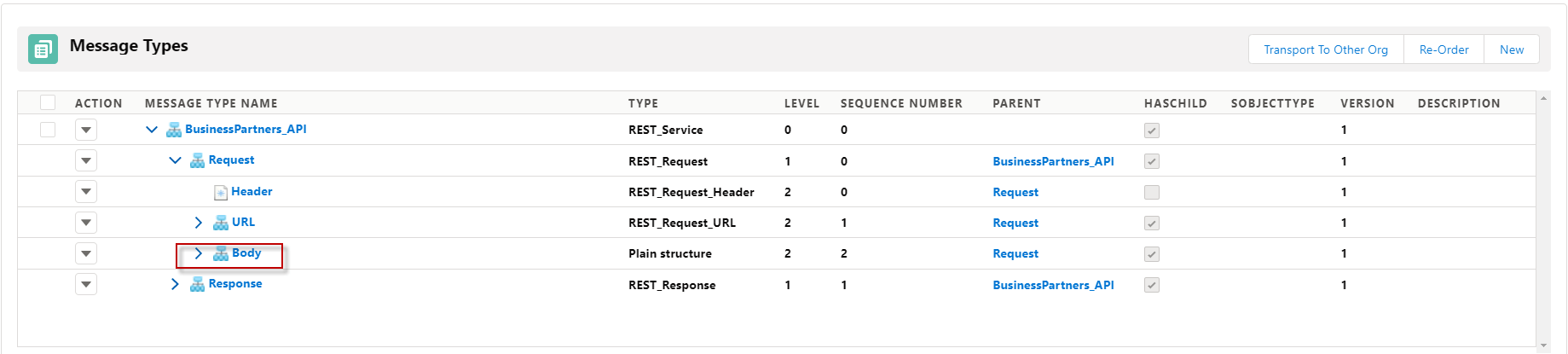
- Click related.
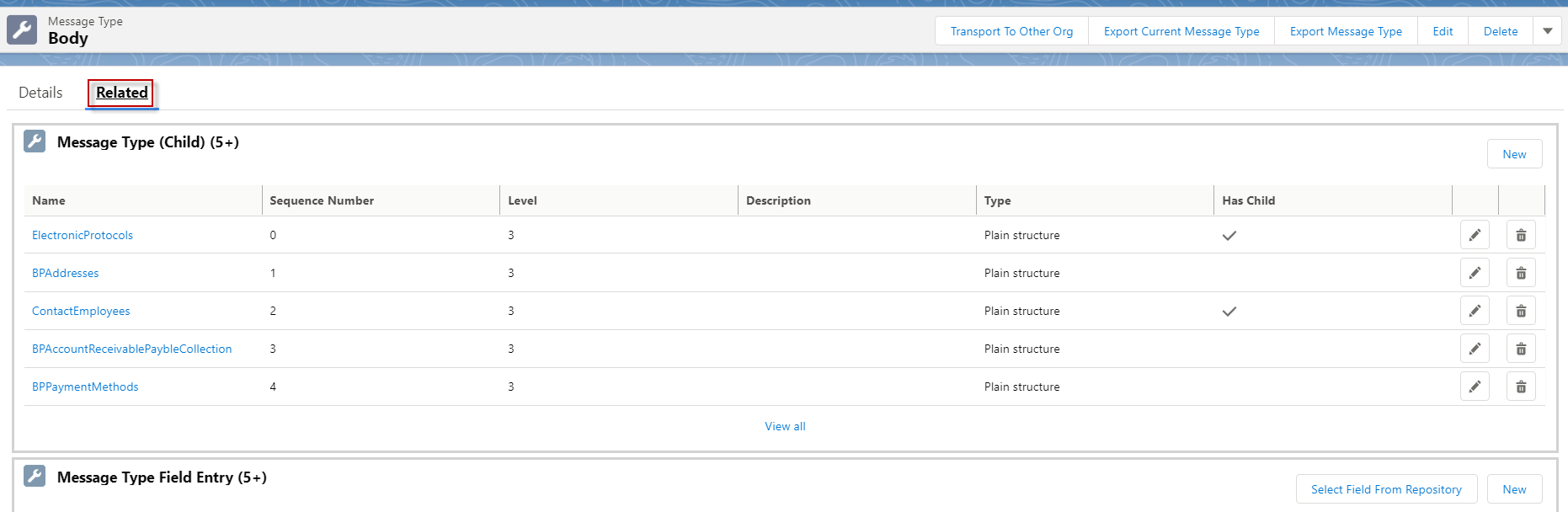
- Scroll down to find MsgTypeRelReferenced and click delete.
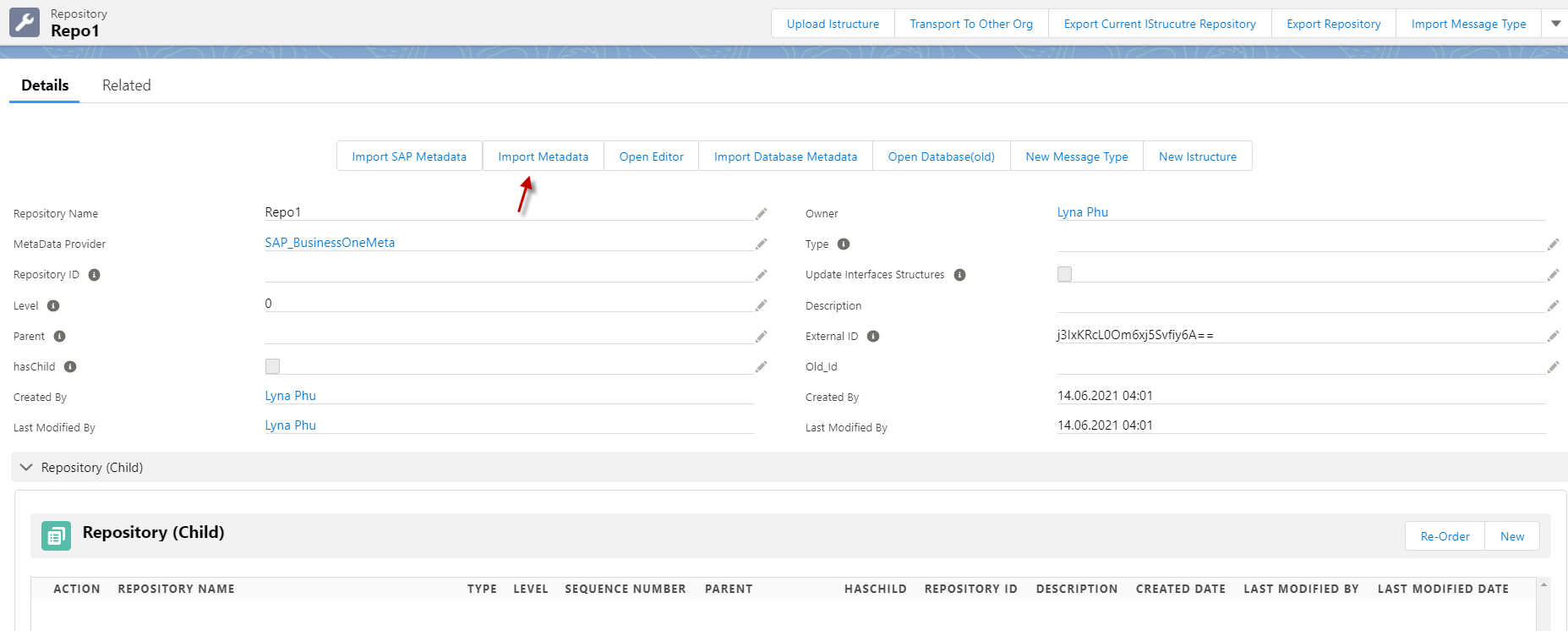
- Go back to Repository and click Import Metadata.
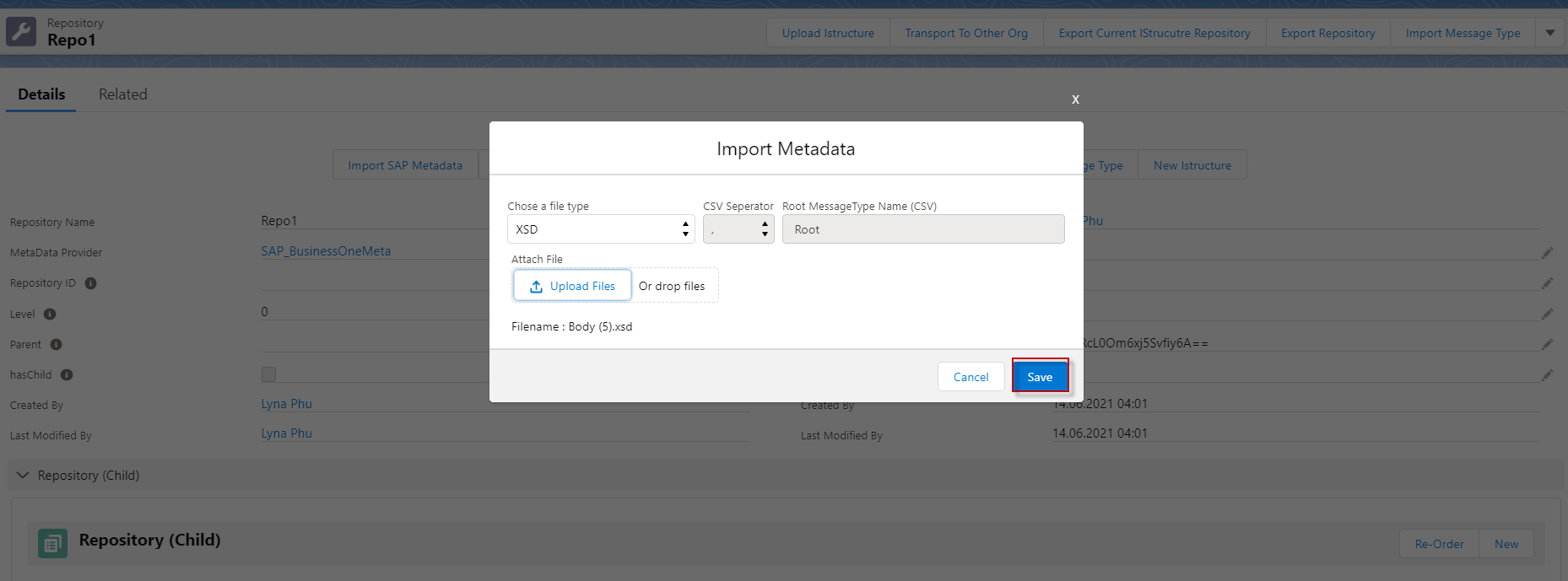
- Choosing type XSD and put the fule that we have exported.
- Now we have import sucessfully.
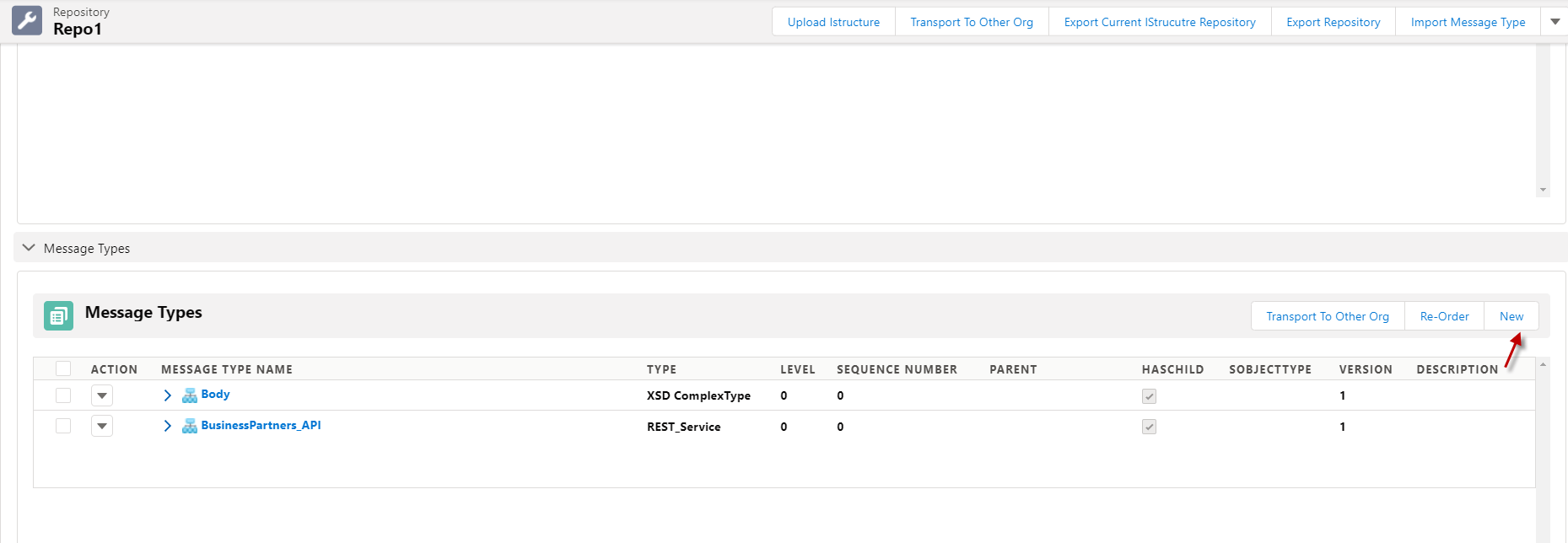
- Now go to create a New Message type.
- Fill the name, Type Rest response Body and put Response as a parent.

- Go to Body that we have import and click edit.
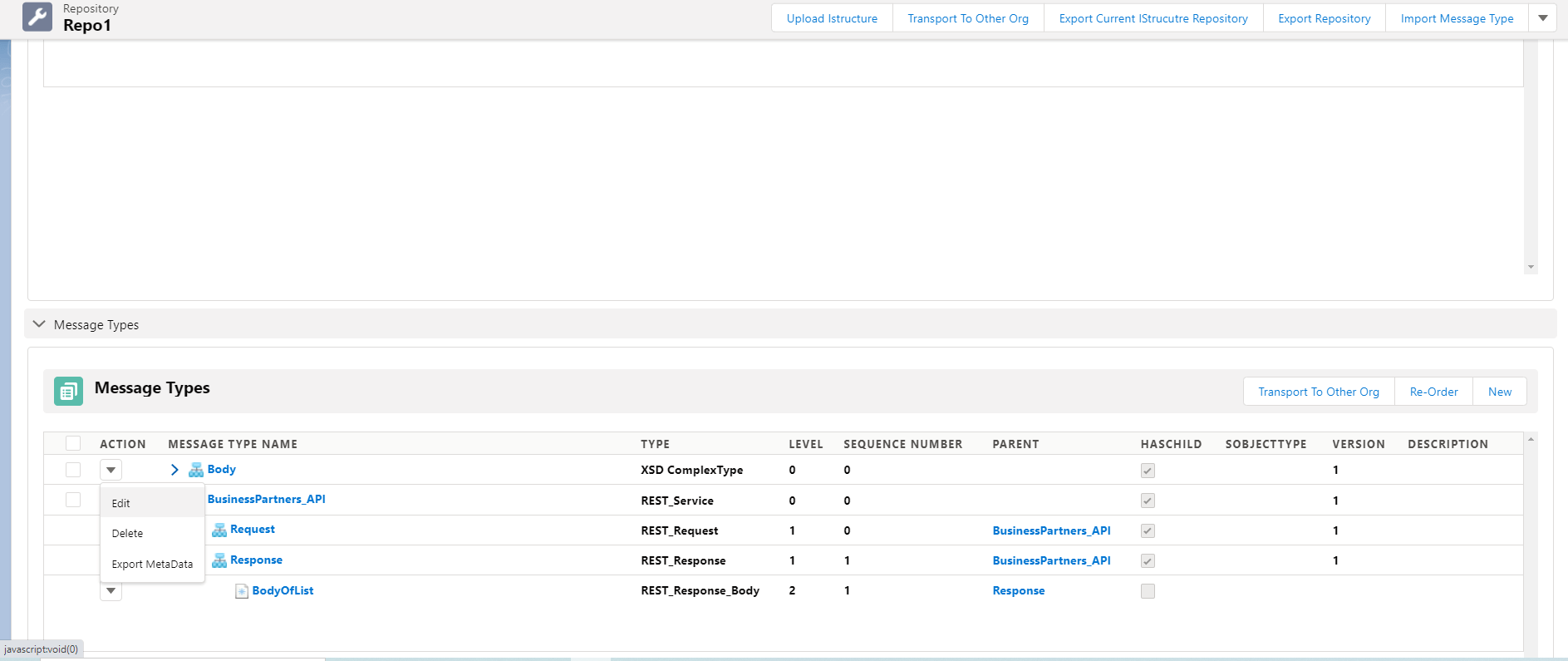
- Edit the name Body to value and put the parent is BodyOfList.

- Now we have Modify Response message type for the list already.
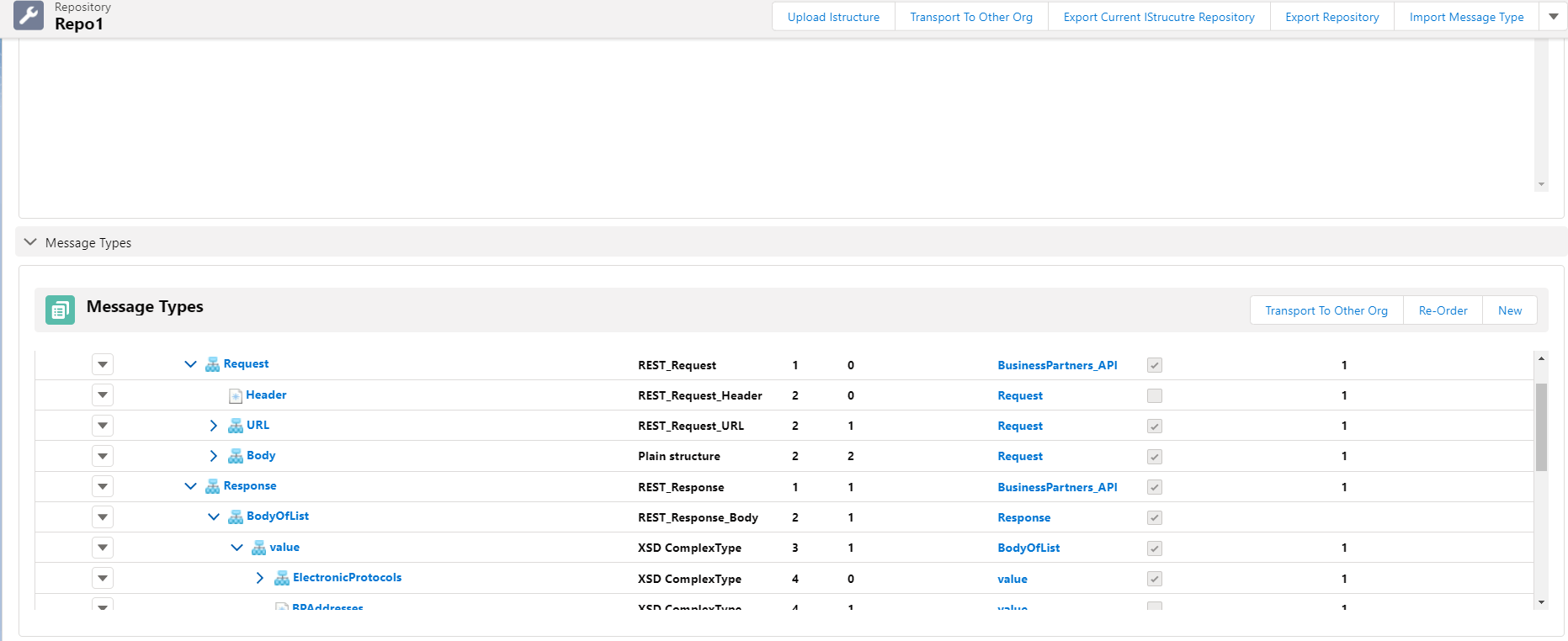
Step2: Create Outbound Interface and Inbound Interface. We need to link both Interfaces with Message Type that we modify.
- Here's Request Interface.
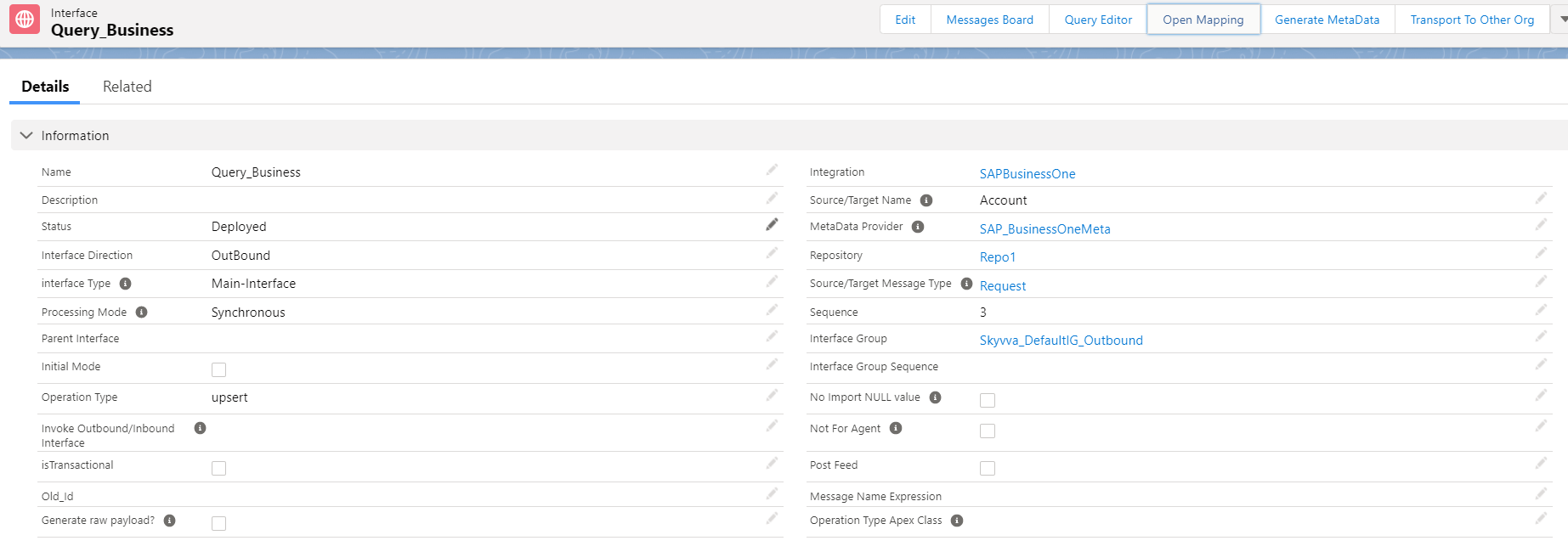
- Do mapping, we need one field of Salesforce to do callout.

- Here's Response Interface.
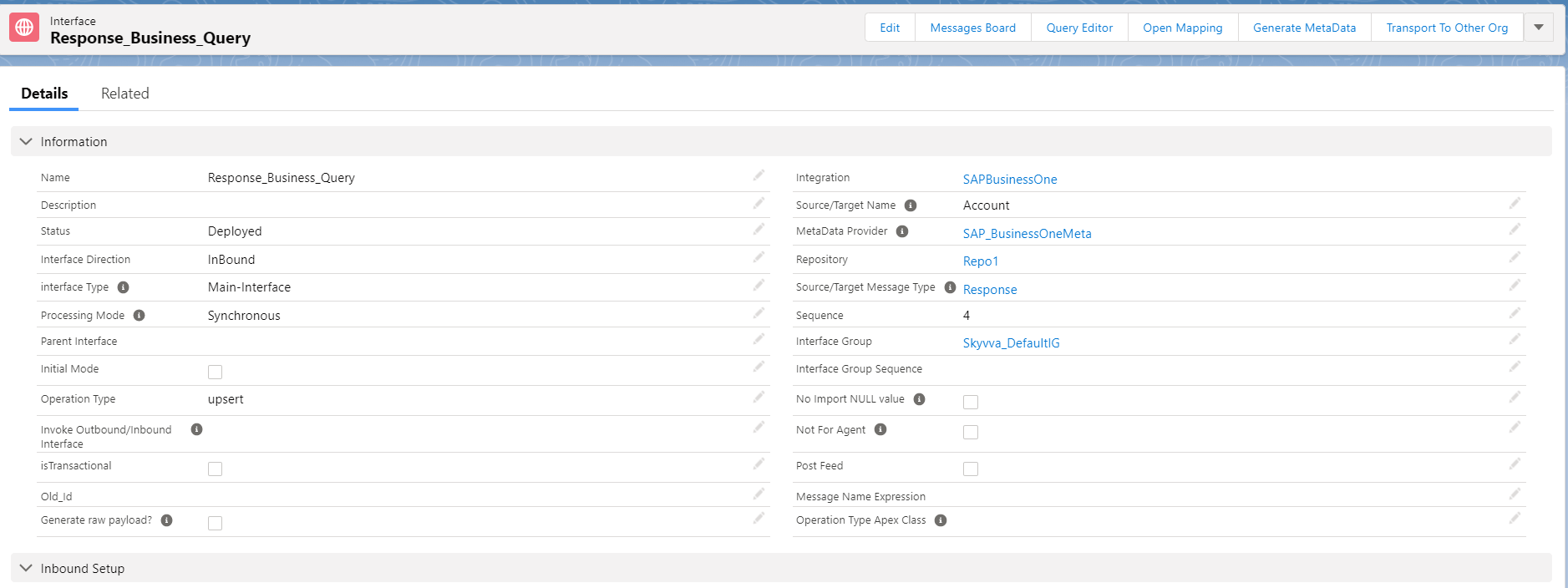
- Do mapping
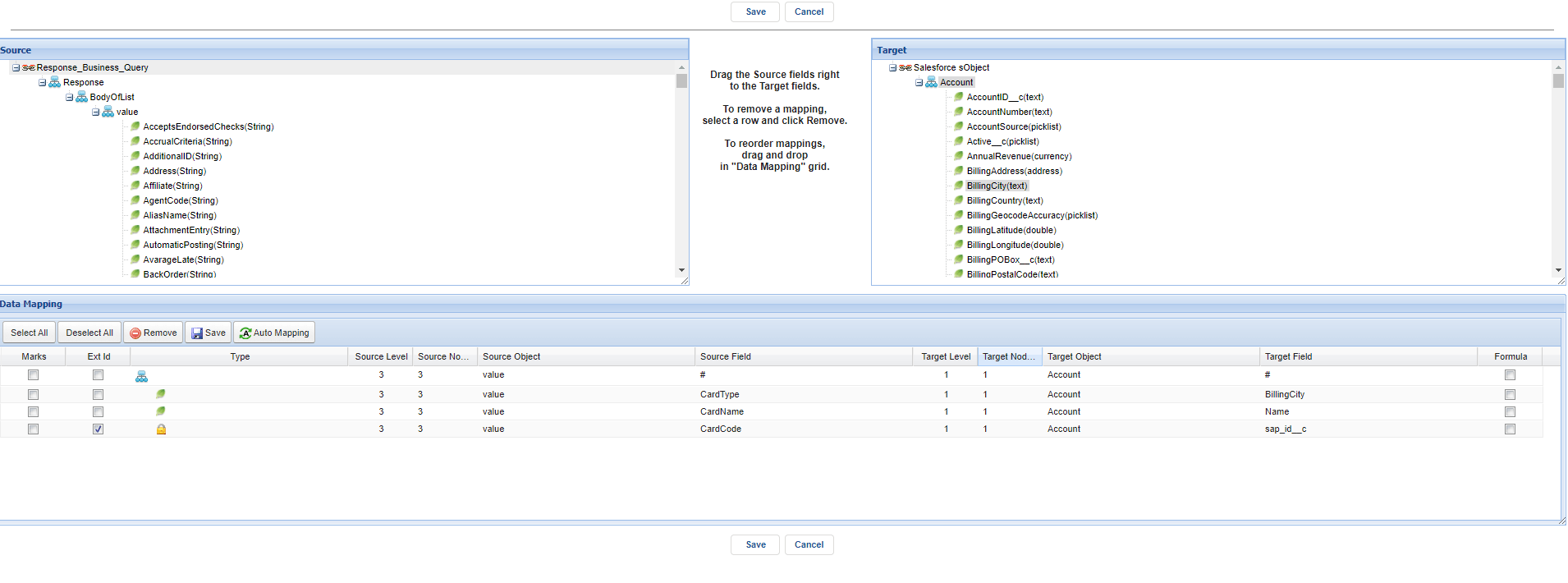
- Go to request and put the response Interface in field Response.

Step 3: Go to the SAP control board and create SAP Business One Adapter. We put BusinesssPartners in field API service Endpoint meaning that we query all records from Sap business Partner to Salesforce.
- Here's the Adapter.

Step4: link this Adapter with the Request Interface.
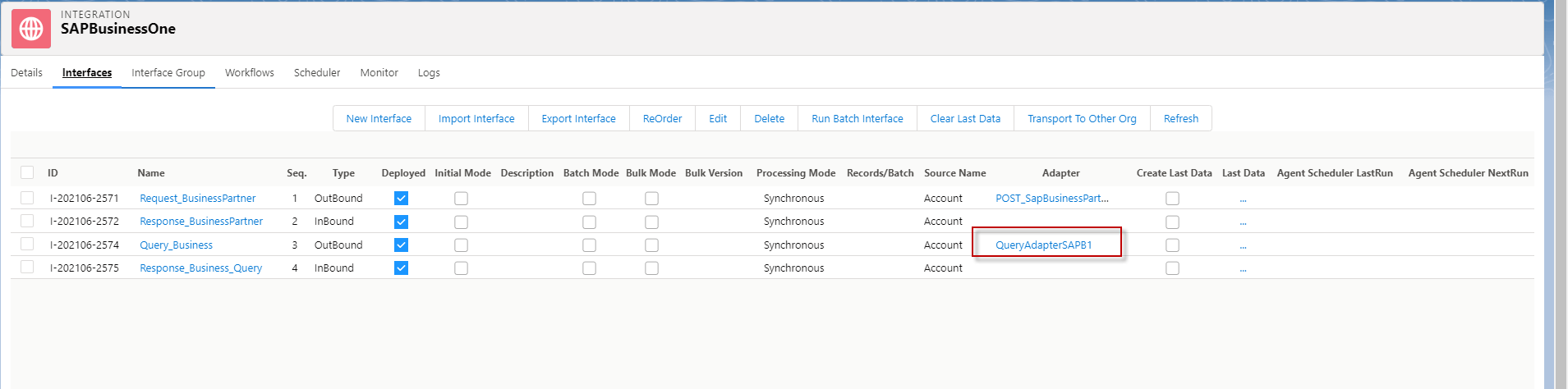
Step 5: Callout by using Manual process on sap control board.
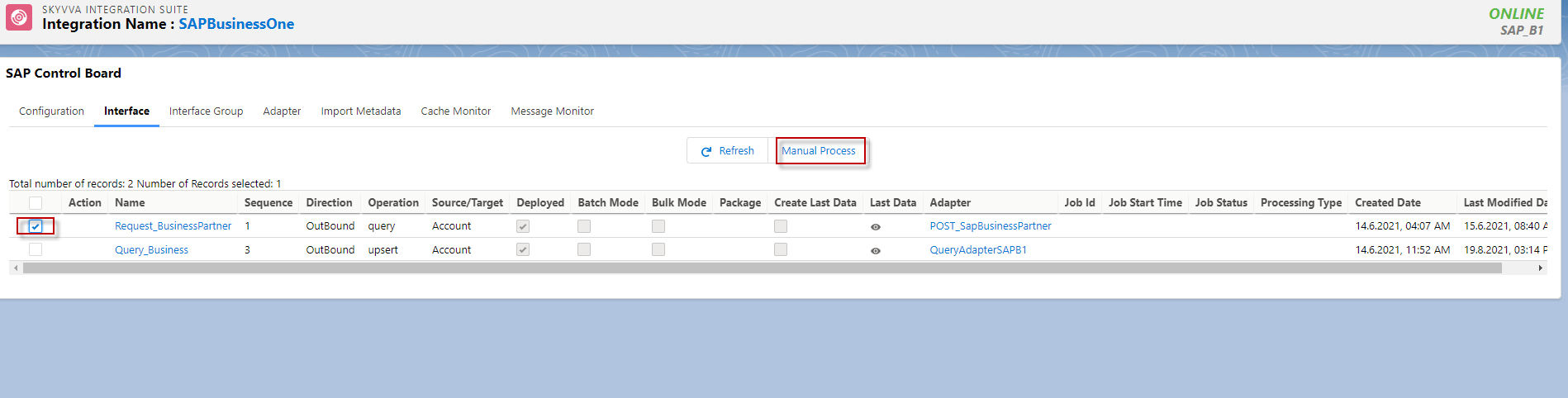
- Select one Account to Callout and click OK button.

- Click send button
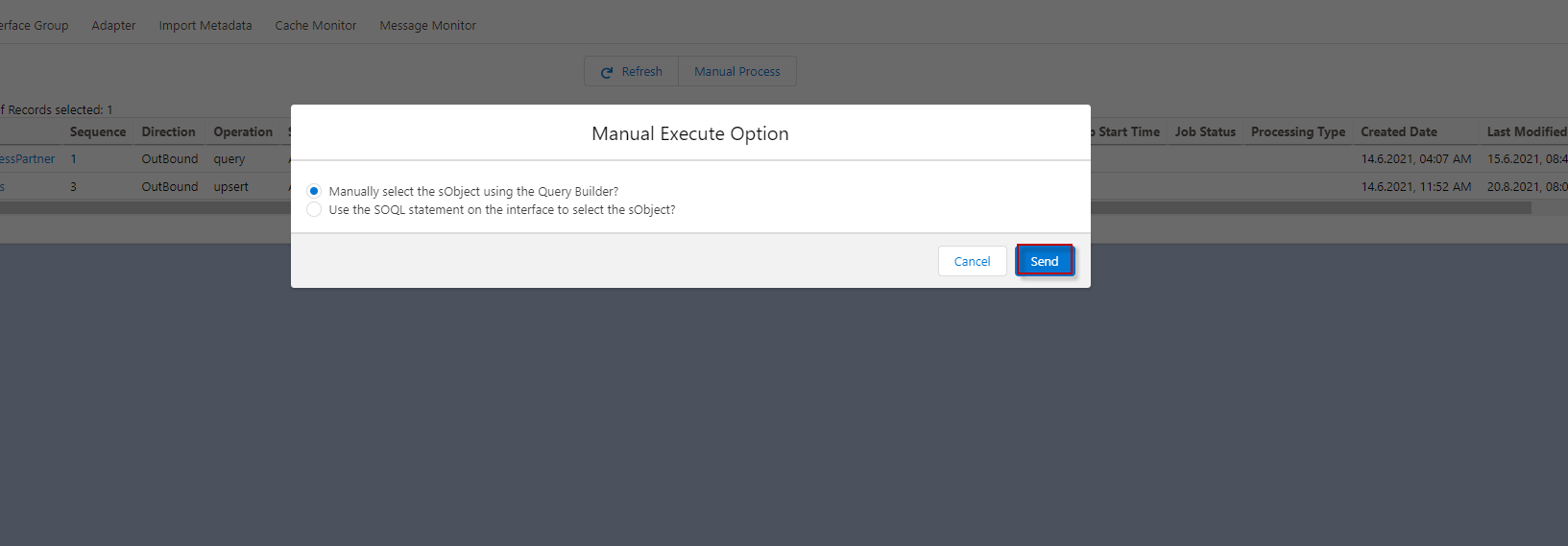
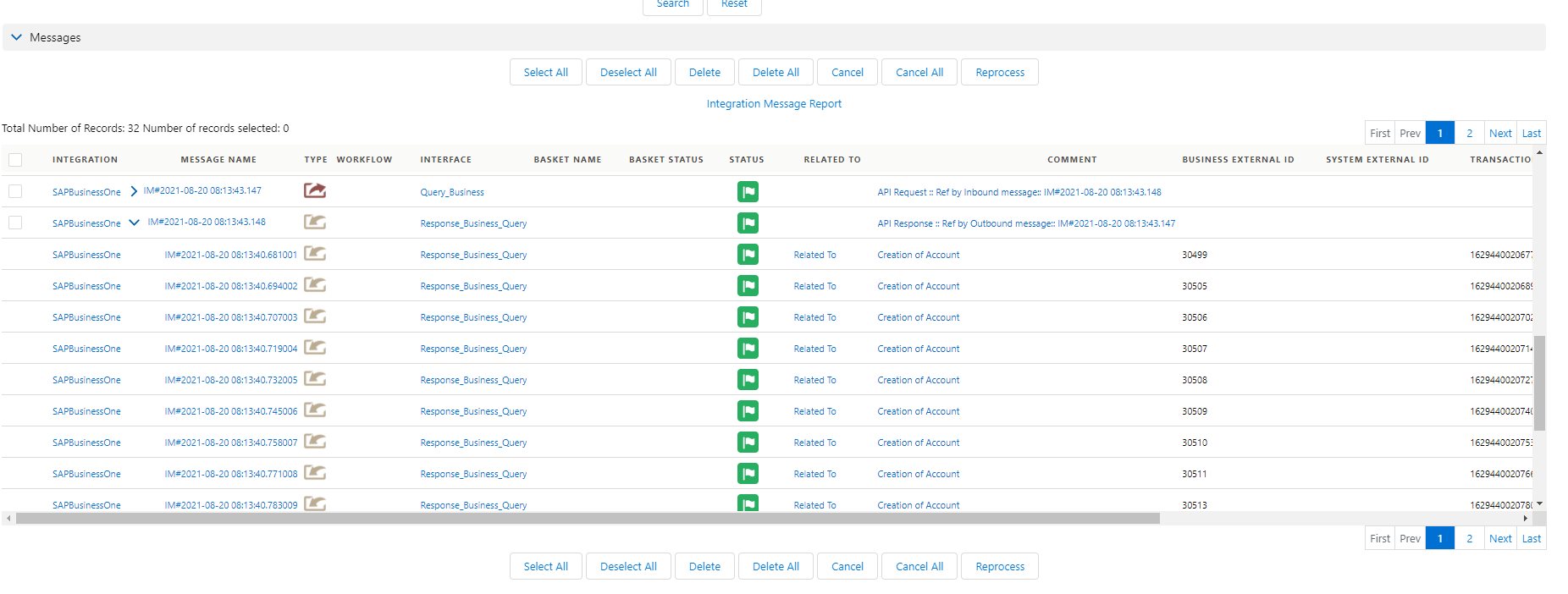
- Go to Message Monitor to see the result.
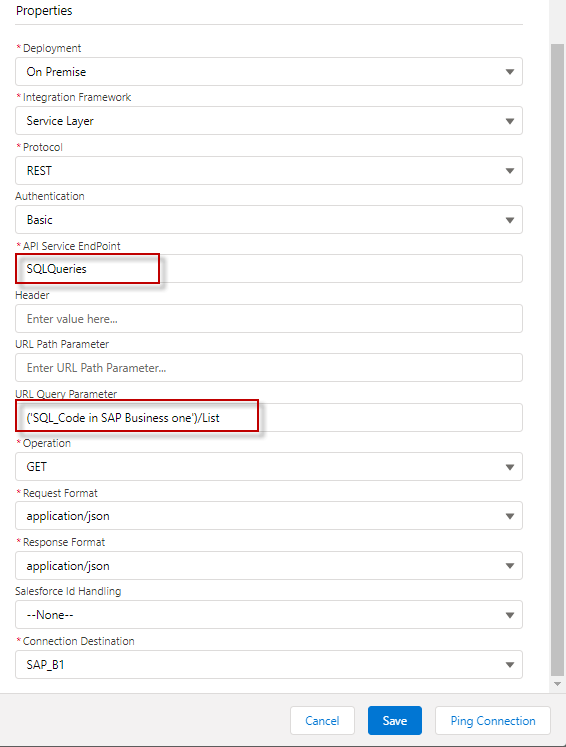
3. Query From SQL Query. We can query From SQL Query when we already create SQL Query in SAP Business One. For example, if we have Create SQL query from a Business partner so we need to Create Outbound and Inbound Interfaces that are linked with the Business partner's message type that has response message type in the list as the Topic Query in List, we do mapping as normal and then we just Put API service EndPoint to SQLQuery and we need to put the SQL code in SAP Business One that we have.
- Here's the adapter
We do in the same way as the case query in the list.
Summary
Finally, we have learned how to Query a single record and query all records from SAP Business One Application using operation Get in SAP Business one Adapter.