140.How to read data from OneDrive and push to Salesforce?
**Learning Objectives:- **This unit describes:-
- Overview of Microsoft OneDrive.
- How to read data and push data to Salesforce.
- Overview of Mapping.
Introduction: In this tutorial is to show how we can read data from OneDrive and push it to Salesforce using our new OneDrive connector. To create inbound adapter in Microsoft control board. And use to schedule functionality in control board.
Pre-required:
- Create Integration
- Create Adapter connection by using Microsoft control board.
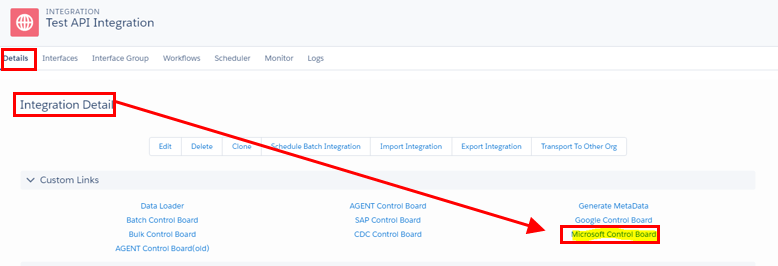
Create Integration: To know detail about Integration, please follow this tutorial. What is Integration, and How to use it? What is Adapter? SKYVVA Adapter is a connector/device which store the property configuration of external system. Adapter is important, without it you can’t transfer the data. It provides the interface between a computer and a network connection. Before creating Adapter you have to create Integration or interface. Below are the steps of How to read data from OneDrive and push to Salesforce. Step 1: Create new Adapter Go to Integration Detail Select Microsoft Control Board
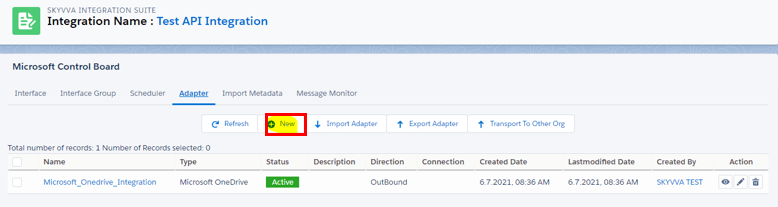
Go to Adapter Tab:

Select New as shown in below picture:
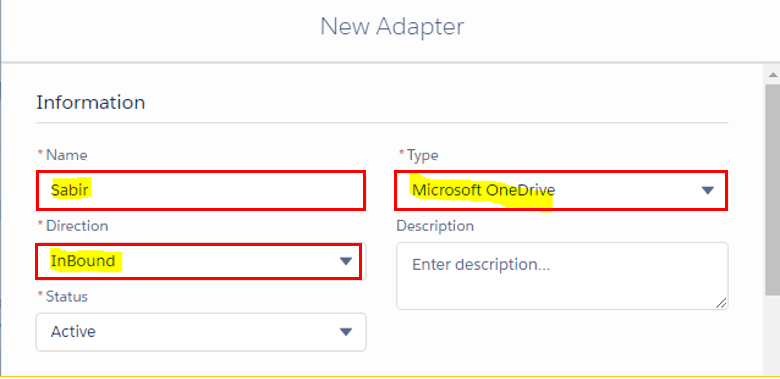
Fill the Information as shown in below picture

Save it. Link Outbound Adapter: MODrive_XML_Request_Adp

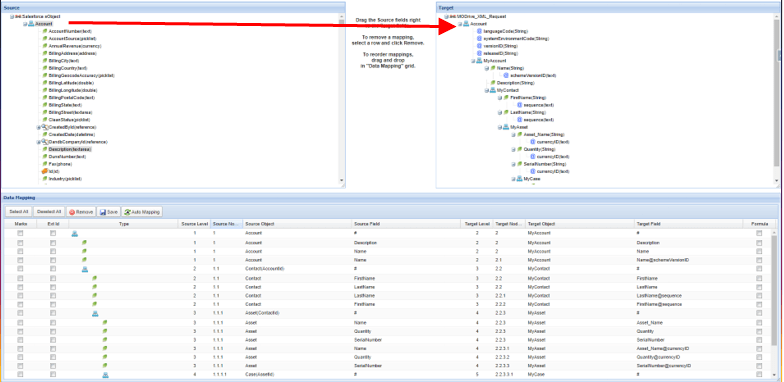
Mapping: SKYVVA’s Mapping tool is a tool to map other system objects and fields with the SFDC object field. A mapping is a collection of key-value pairs where each unique key maps to a single value. Here we will map source fields with target object fields. Source fields are nothing but our Istructure. We can create Istructure as:
- Manually.
- Uploading file in source definition.
- Using the Message type feature.
Callout: skyvvasolutions.CallOutControl c = new skyvvasolutions.CallOutControl(); c.returnJSONComplete=true; c.actionDoIntegrate=false; c.isCreateMessage=true; String[] ids= new String[]{'0011j000015ikjBAAQ','0011j000015ikjCAAQ'}; List

Check CSV Data on Microsoft One Drive Server:
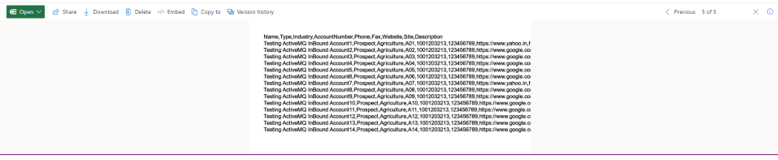
Note: when you are creating csv file then you can use , ; Tab And | operator with Microsoft one drive outbound adapter.