147.2 How to read data from Google drive and push to Salesforce?
Introduction
We can transfer data directly from Google Drive to Salesforce by using the SKYVVA Google connector. This connector, the Users be able to push data from Google Drive automatically or doing manually from our Google Control Board. The Users can push their data to Salesforce from any file format such as CSV, XML, and JSON, moreover, they can push files as an Attachment such as PDF, Image, or Video. Pre-required - Generate MessageType - Create Google Adapter for the inbound direction - Create Inbound Interface and do mapping - Manual process on Google Control Board
- Generate Message Type
For generating the MessageType, we should use the sample structure that is the same as the file that we need to push into Salesforce for generating as the MessageType. For example: if we would like to push XML files, so we should use that sample file structure for generating the MessageType. If the MessageType did not match with the file structure then the runtime will not work properly. Use the sample CSV below to generate the MessageType. We can also generate from the XML or JSON file format depends on your business file. Account_ID,Name,BillingCountry,Email,AccountNumber,Description 1001,TestAccountB11,CambodiaB11,Test1,A-001,Test description ACCOUNT object
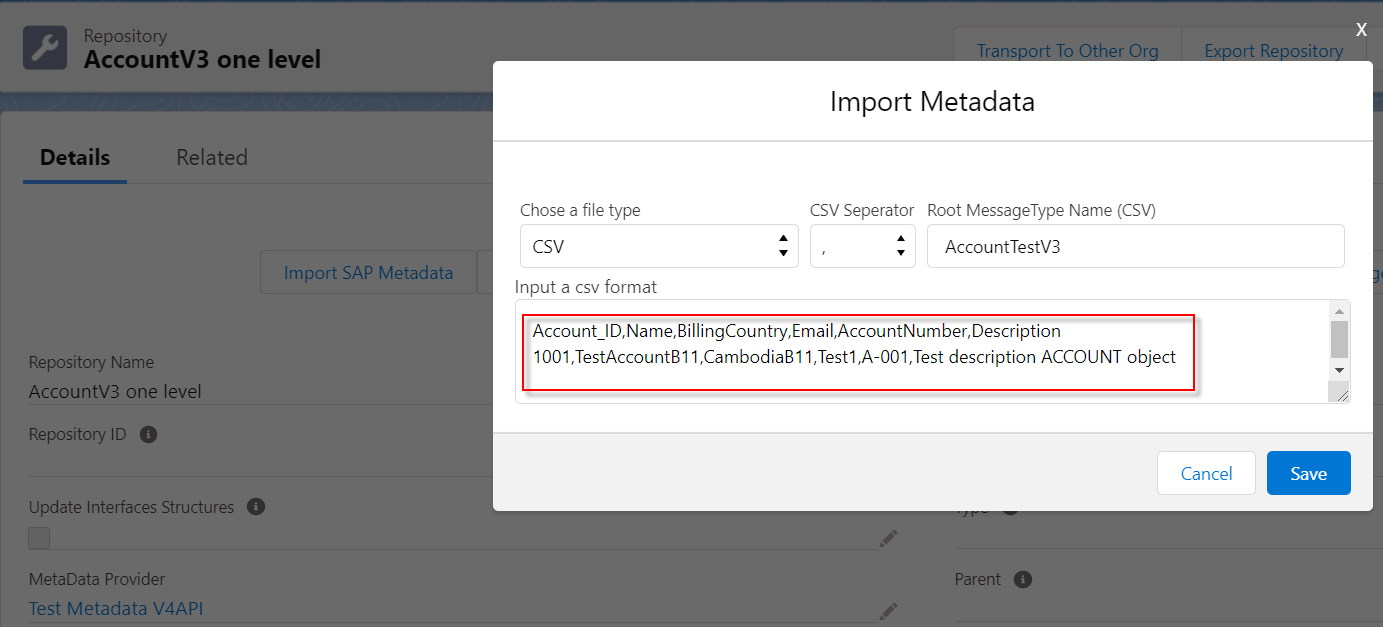
- Create an Adapter on Google Control Board
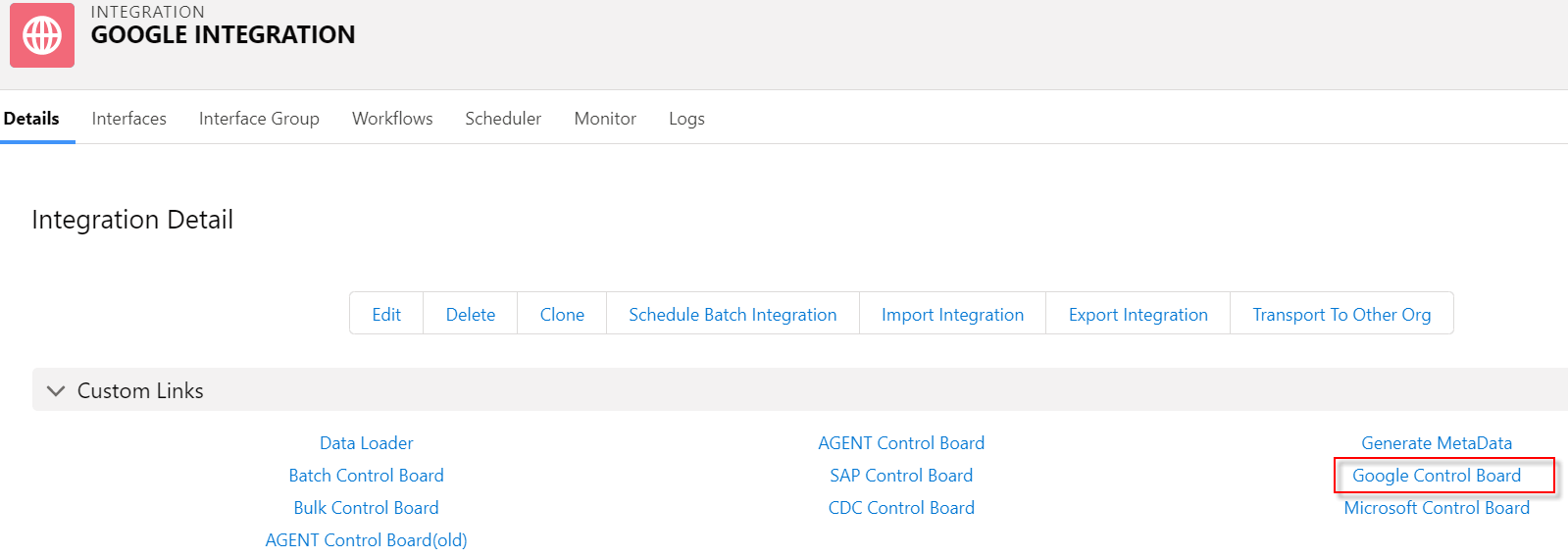
Navigate to the Google Control Board link
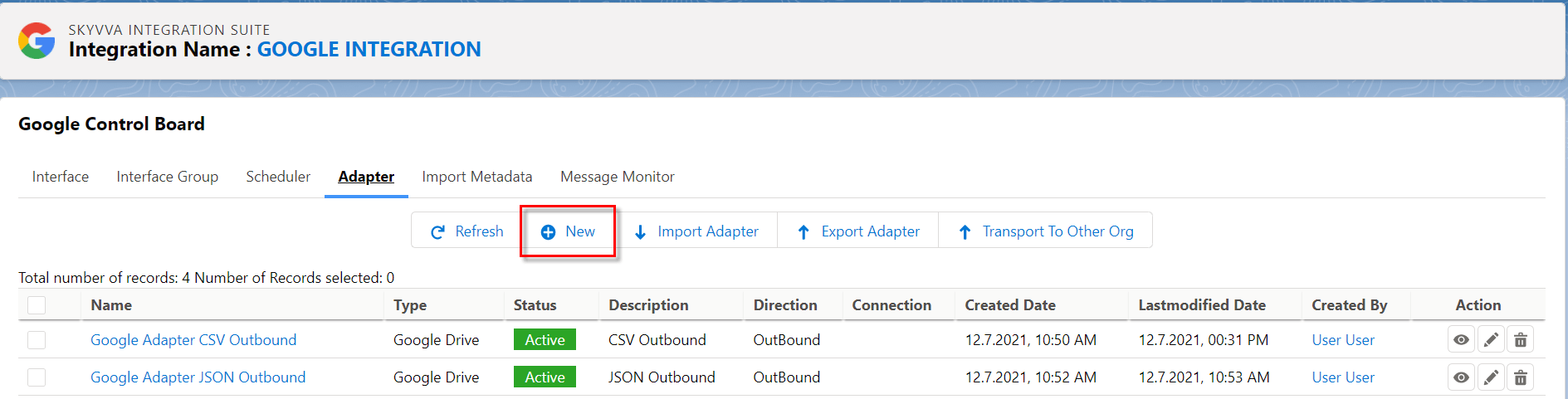
Go to Adapter tab then click New button for creating new Adapter
Create a new inbound Adapter with type Google Drive
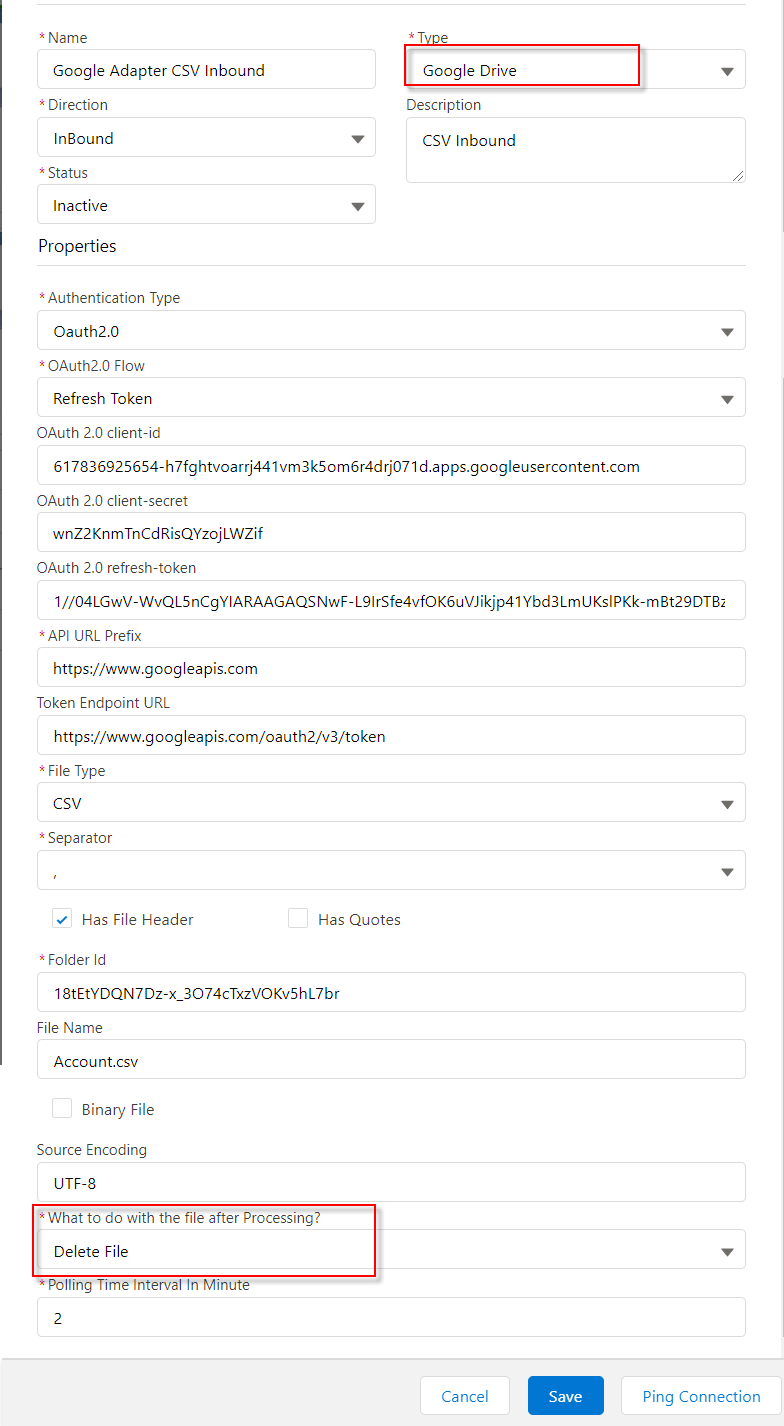
For getting Client ID, Client Secret and Token please follow this guide: #article/147-3-how-to-get-token-for-oauth2 [su_box title="Note" box_color="#2a8af0" title_color="#000000"] What to do with the file after Processing?
- Delete File: remove file after processing from the Drive. But we move this file to the Trash folder, we do the same behavior like the User delete file directly from the Drive so it will move to the Trash folder temporally.
- Backup File: keep the file after processing.
Polling Time Interval In Minute: Automatic calling the Google API to read data from the Drive after the User click button start route. It will be called in which every minute depends on the value that we put on this field. For example, if we put “5” then it will be read data every 5 minutes. The minimum should be “2”.[/su_box]
- Create Interface
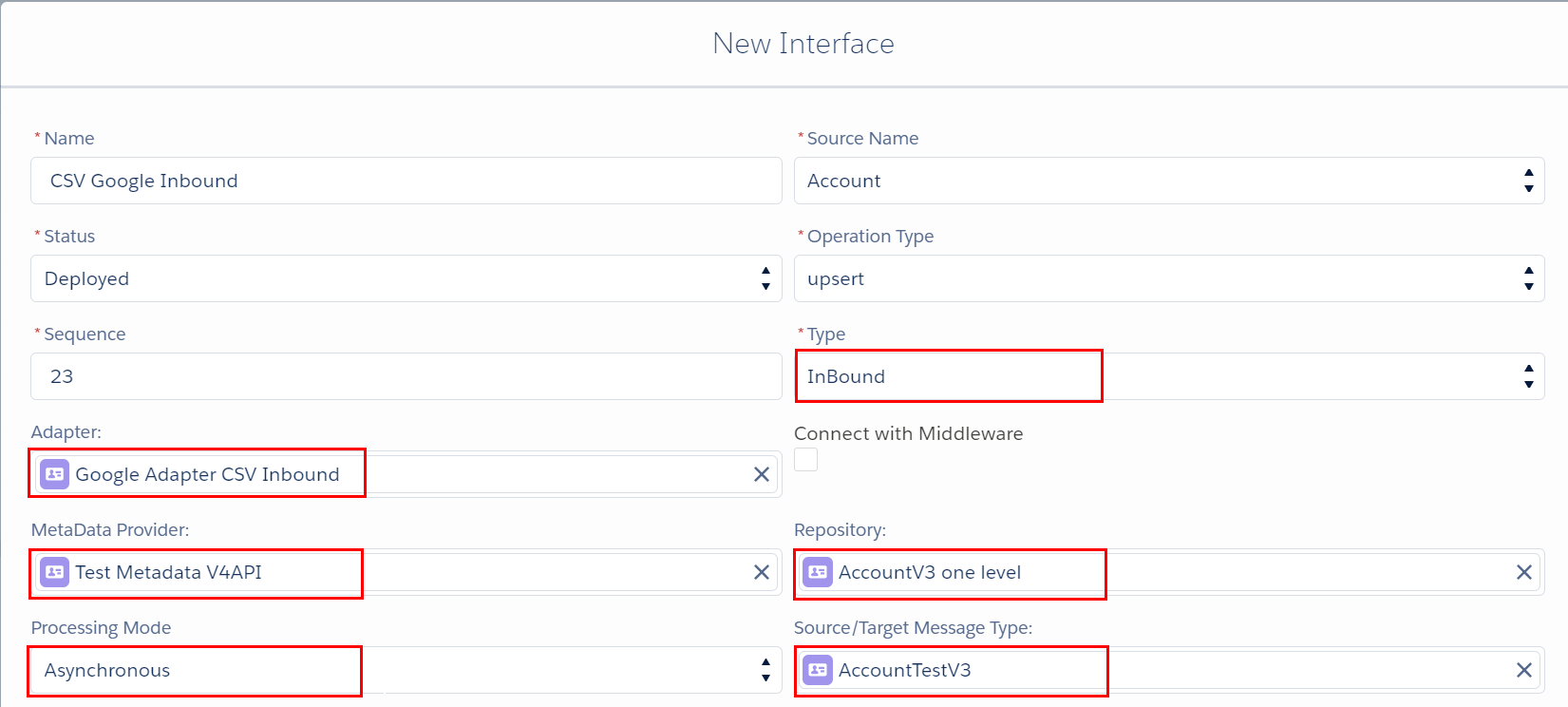
Create an inbound Interface for Asynchronous mode, operation (upsert), choose Adapter, Metadata Provider, Repository, and Message Type
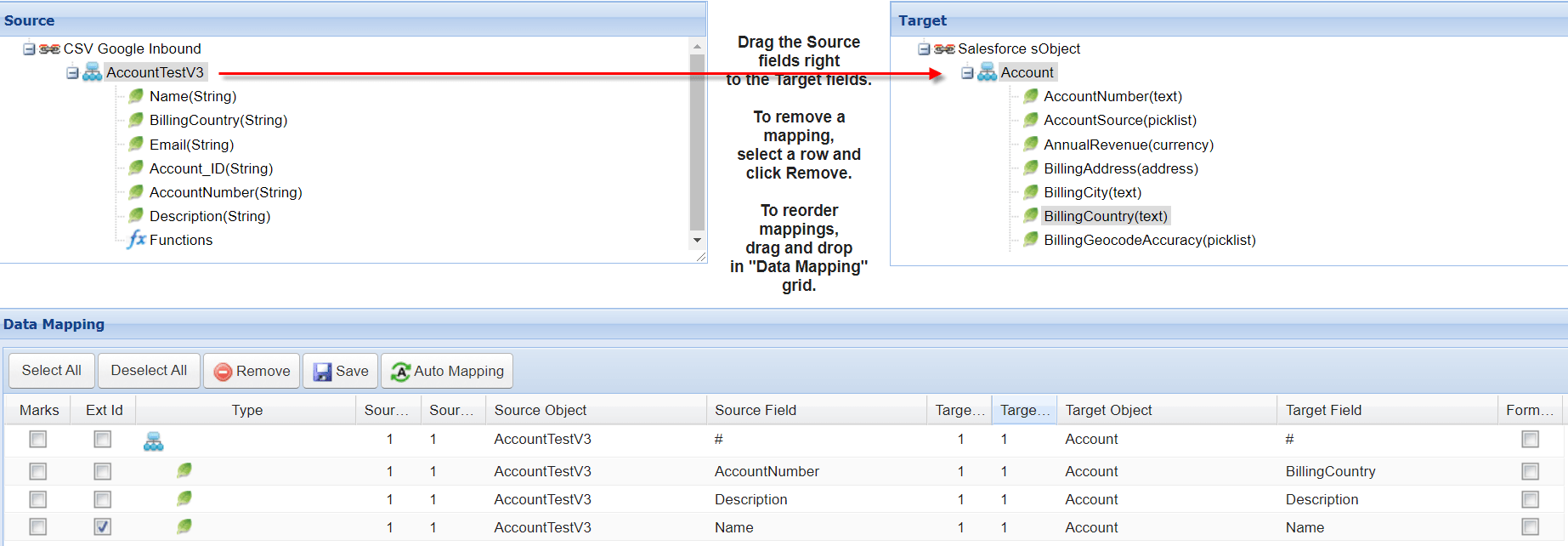
Do mapping
- Adding remote site
Navigate to Setup gear icon => Remote Site Settings=> New Remote Site Add this endpoint below into remote site https://www.googleapis.com
- Start consumer
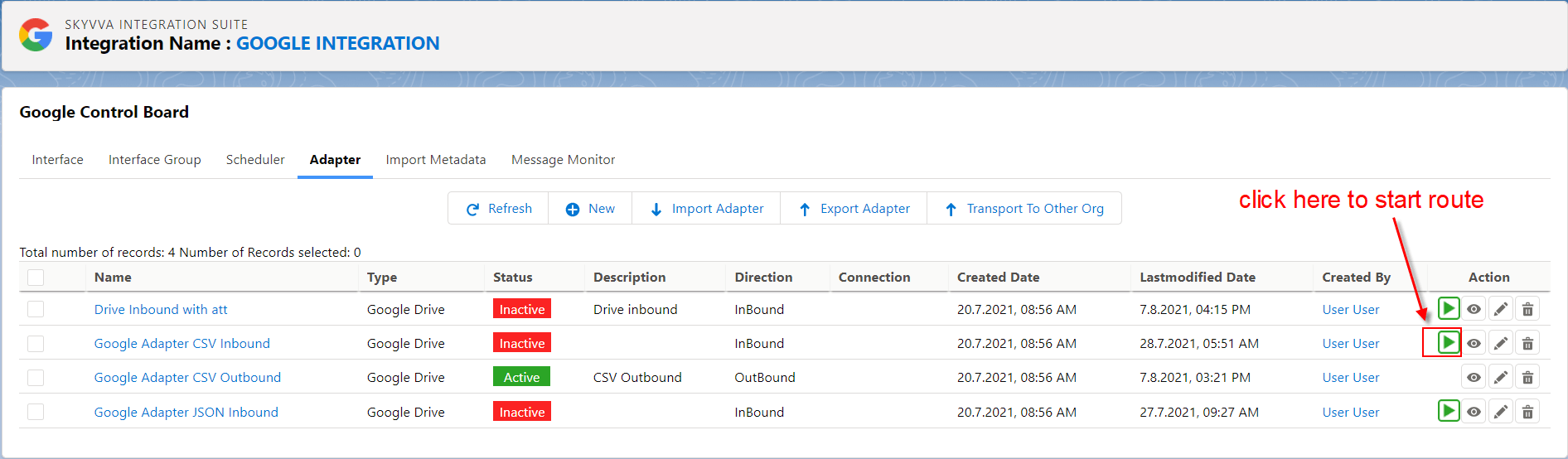
Go to Google Control Board then navigate to the Adapter tab.
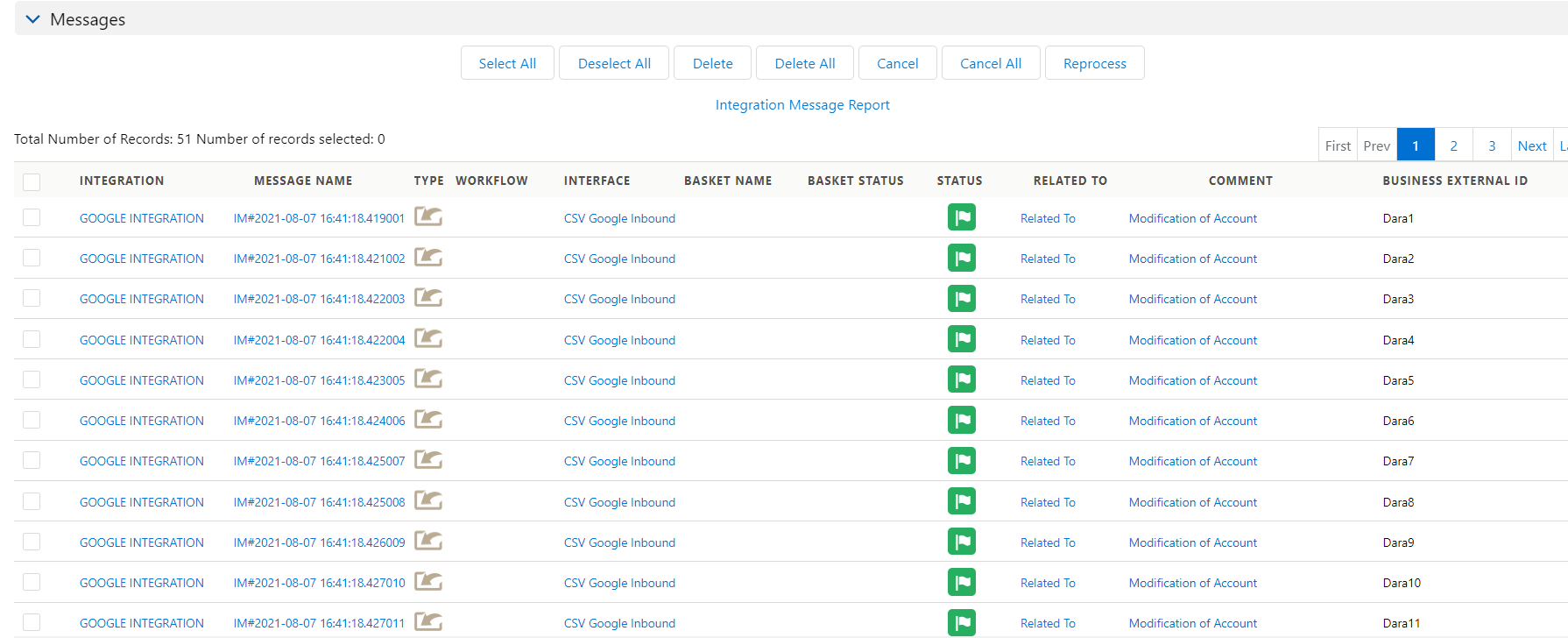
Navigate to the Message Monitor tab to check the result. The data from Google Drive has been push successfully.
Summary
Finally, we have learned how to read data from Google Drive. We have understood the MessageType generating from the file, Adapter creation, and understand the behavior of property after processing, create Interface, processing data, and checking results on Google Control Board.