15. How to Bulk Load Account and Contact Records via V4/integrateWithIMessage with the SkyvvaSalesforce Adapter
This tutorial shows how to load customer Accounts and their Contacts into Salesforce through SAP Integration Suite, using the SkyvvaSalesforce Receiver adapter with V4/integrateWithIMessage.
An ERP customer export contains different field names and structures from Salesforce. Message Mapping converts that export into Account and Contact data. SKYVVA then uses the configured inbound interfaces to upsert the records and link each Contact to its Account.
You will:
- Prepare the Account and Contact interfaces in Salesforce.
- Build an integration flow and map the ERP customer XML.
- Configure the receiver for
V4/integrateWithIMessage. - Send a test request from Postman and verify the records.
Context Before You Start
Use this approach for an initial customer migration or a batch update that includes Accounts and their related Contacts. External IDs let repeated loads match existing records, while SKYVVA message monitoring helps you check processing results and investigate failed records.
Prepare a Salesforce org with SKYVVA installed, an integration user with access to Account, Contact, and the required custom fields, and a Salesforce connection for the receiver. You also need access to SAP Integration Suite and credentials authorized to call the deployed HTTPS endpoint.
This example uses Integration LegacyERP, Account interface Account_CPI_V2BulkLoad_IN, and Contact interface Contact_CPI_V2BulkLoad_IN. Replace these names and the external ID fields with the values configured in your org.
How the Integration Flow Works
ERP customer XML / Postman
  → HTTPS Sender
  → Map ERP Customers to Accounts and Contacts
  → Request Reply: Load Accounts and Contacts
  → SkyvvaSalesforce Receiver (V2, V4/integrateWithIMessage)
  → SKYVVA Account and Contact interfaces
  → Salesforce Accounts with related Contacts
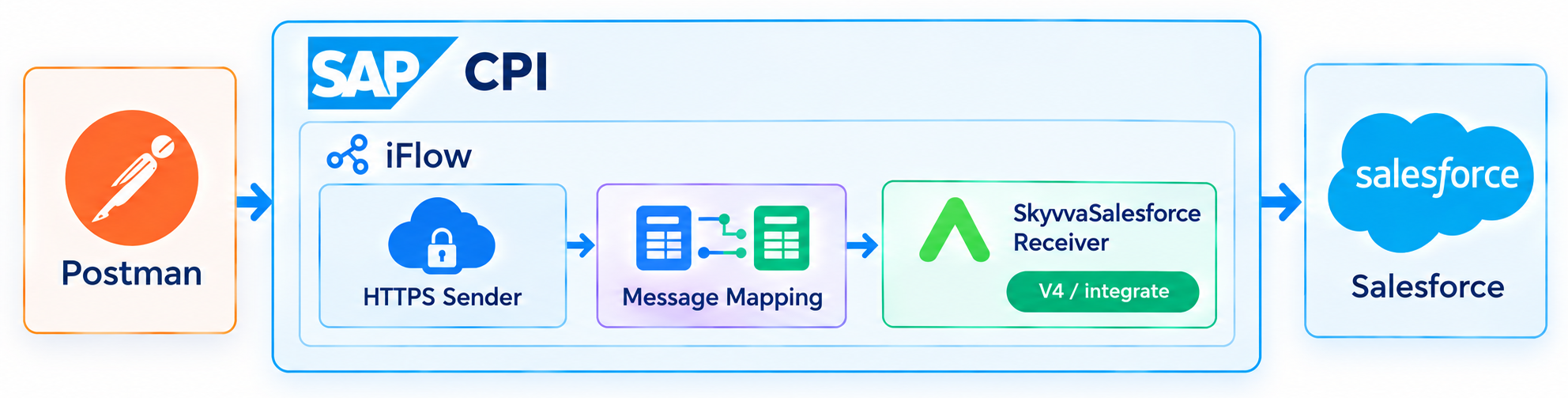
Figure 1. Account and Contact bulk load through SAP Integration Suite and SKYVVA.
2. Prepare the SKYVVA Interfaces in Salesforce
Create or open Integration LegacyERP. Configure two inbound interfaces under it: one for Account and one for Contact. The mapped payload identifies the Integration through fromSystem and the root Account interface through targetObject.
2.1 Account Interface
Configure the Account interface:
| Setting | Value |
|---|---|
| Interface Name | Account_CPI_V2BulkLoad_IN |
| Interface Direction | Inbound |
| Source/Target Name | Account |
| Processing Mode | Asynchronous |
| Operation Type | Upsert |
| External Mapping | Enabled |
| Salesforce External ID | skyvvasolutions__ERP_DEBTOR_ID__c |
The Account external ID holds the ERP customer number. External Mapping uses the incoming Salesforce field API names to populate the Account fields.
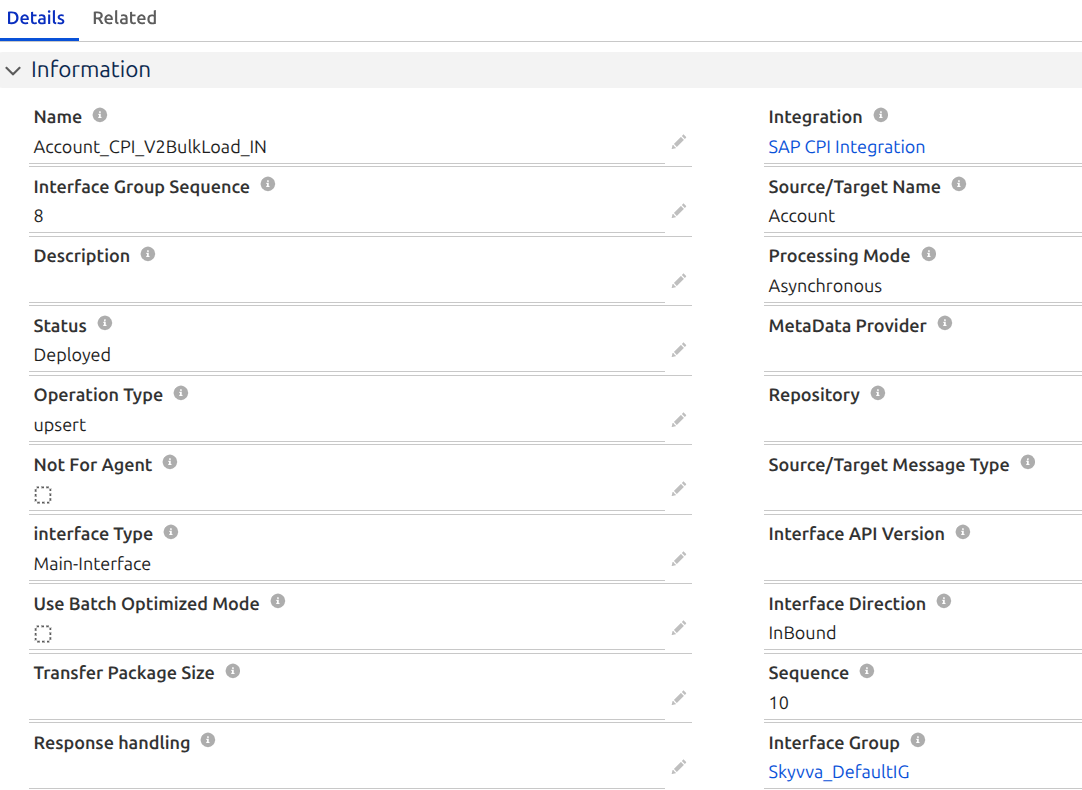
Figure 2a. Account interface for customer upserts.
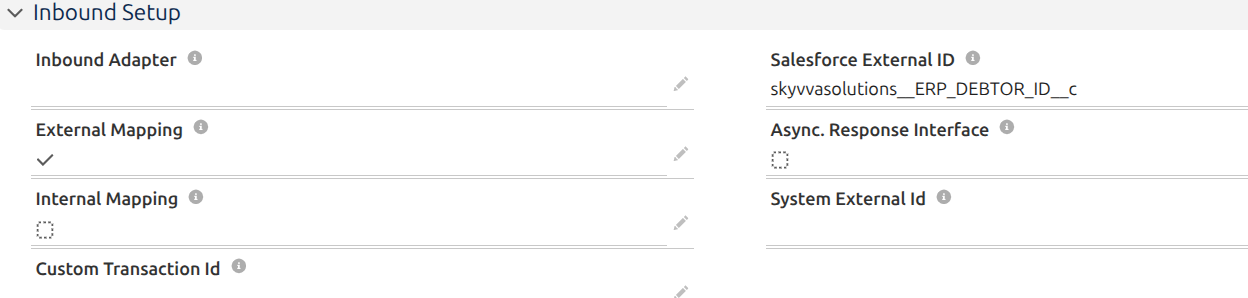
Figure 2b. Account external ID and External Mapping settings.
2.2 Contact Interface
Configure the Contact interface:
| Setting | Value |
|---|---|
| Interface Name | Contact_CPI_V2BulkLoad_IN |
| Interface Direction | Inbound |
| Source/Target Name | Contact |
| Processing Mode | Asynchronous |
| Operation Type | Upsert |
| External Mapping | Enabled |
| Internal Mapping | Enabled for the AccountId formula |
| Salesforce External ID | skyvvasolutions__ERP_CONTACT_ID__c |
Each Contact needs a stable external ID and the Salesforce ID of its parent Account. Use External Mapping for the Contact fields and a lookup formula to resolve AccountId from the ERP customer number.
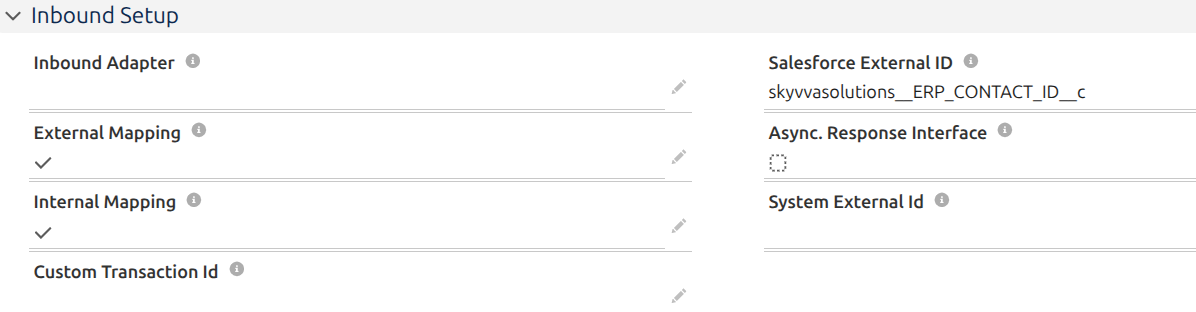
Figure 3. Contact interface with External Mapping and an internal AccountId mapping.
Open Data Mapping, map AccountId with the following formula, and save:
VLOOKUP(Account, Id, skyvvasolutions__ERP_DEBTOR_ID__c, Account.skyvvasolutions__ERP_DEBTOR_ID__c)
The lookup finds the Account by its ERP external ID and assigns its Salesforce ID to the Contact. Use your org's Account external ID field if it differs from this example.
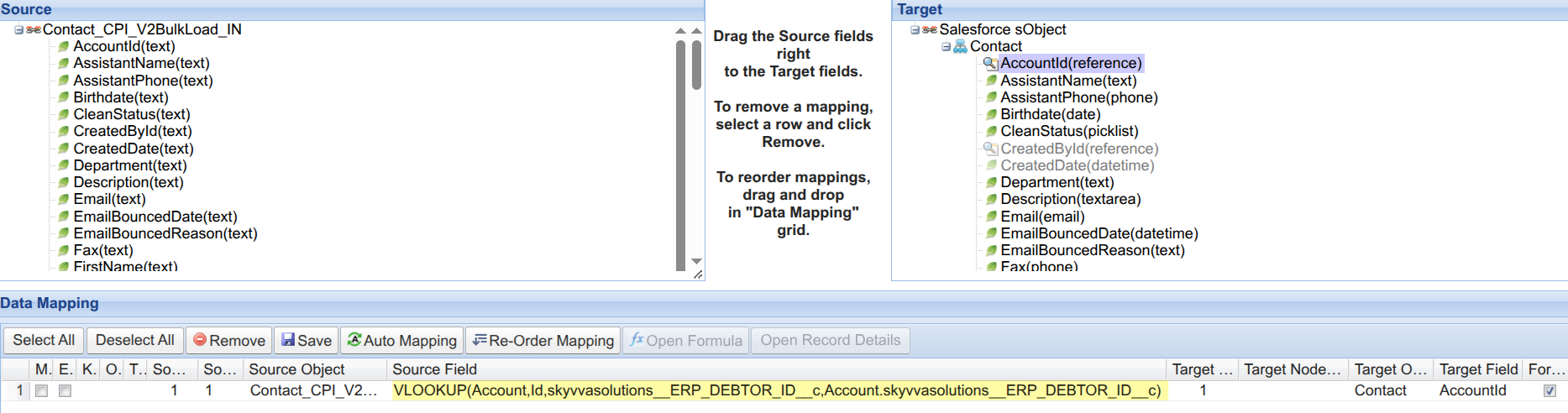
Figure 4. Resolve the Contact's AccountId from the ERP customer number.
2.3 Chain the Contact Interface
On the Contact interface, open InBound/OutBound Setup and set Parent Interface to Account_CPI_V2BulkLoad_IN. The Account interface is the entry point; its chained Contact interface processes the related Contact data after the Account.

Figure 5. Contact interface chained under the Account interface.
3. Create the Integration Flow
Create an integration flow named ERP Account and Contact Bulk Load. Add an HTTPS sender, Message Mapping, and Request Reply connected to a Salesforce receiver through the SkyvvaSalesforce adapter. Connect Request Reply to End so the caller receives the returned response.
Use Map ERP Customers to Accounts and Contacts for the mapping step and Load Accounts and Contacts for Request Reply.
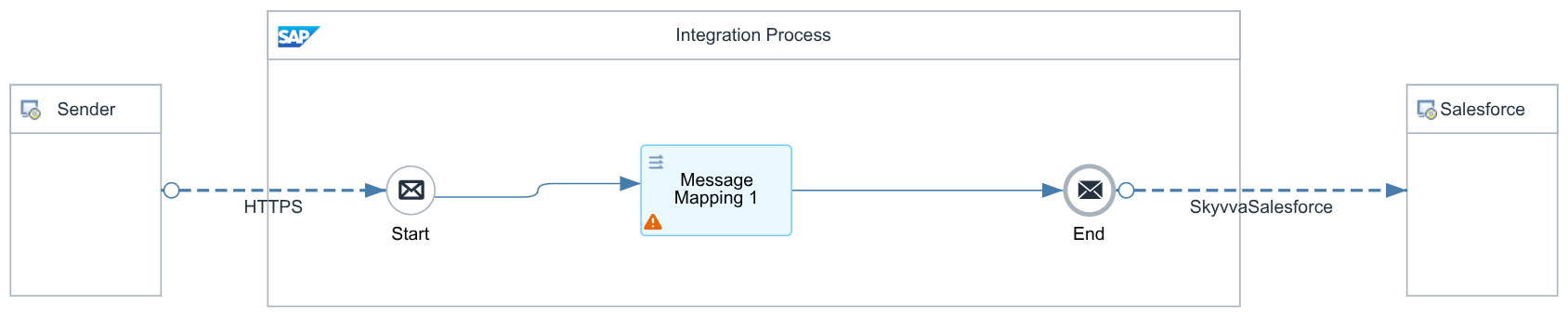
Figure 6. Integration flow for mapping and loading ERP Accounts and Contacts.
3.1 Configure Message Mapping
Open Map ERP Customers to Accounts and Contacts. Select DEBMAS06_Account_Contact.xsd as the source schema and tutorial15-istructure-account-contact.xsd as the target schema.
The source contains repeating IDOC elements. Each IDOC contains one customer segment, E1KNA1M, with repeating Contact segments, E1KNVKM. The target contains repeating Account elements, each with its own Contact elements.
Connect the repeating structures first:
| Source | Target |
|---|---|
IDOC | Account |
E1KNA1M/E1KNVKM | Account/Contact |
Constant LegacyERP | fromSystem |
Constant Account_CPI_V2BulkLoad_IN | targetObject |
Map the customer fields below. Source paths are relative to E1KNA1M; target paths are relative to Account.
| Source | Target |
|---|---|
KUNNR | skyvvasolutions__ERP_DEBTOR_ID__c |
NAME1 | Name |
STRAS | BillingStreet |
ORT01 | BillingCity |
PSTLZ | BillingPostalCode |
LAND1 | BillingCountry |
REGIO | BillingState |
TELF1 | Phone |
BRSCH | Industry |
Map the Contact fields below. Source paths are relative to each E1KNVKM; target paths are relative to its Account/Contact.
| Source | Target |
|---|---|
Parent customer's KUNNR + - + PARNR | skyvvasolutions__ERP_CONTACT_ID__c |
NAMEV | FirstName |
NAME1 | LastName |
TELF1 | Phone |
SMTP_ADDR | Email |
For the Contact external ID, concatenate the parent customer number and the Contact partner number, such as 0000100451-0001. Repeat the parent customer number for each Contact in that customer's context. This example assumes PARNR identifies a Contact within its customer; use your source system's stable unique key when its rules differ.
Keep customer numbers, Contact keys, and postal codes as strings to preserve leading zeros. Map country, state, and industry values to the values accepted by your Salesforce org when the source codes differ. Save the mapping.
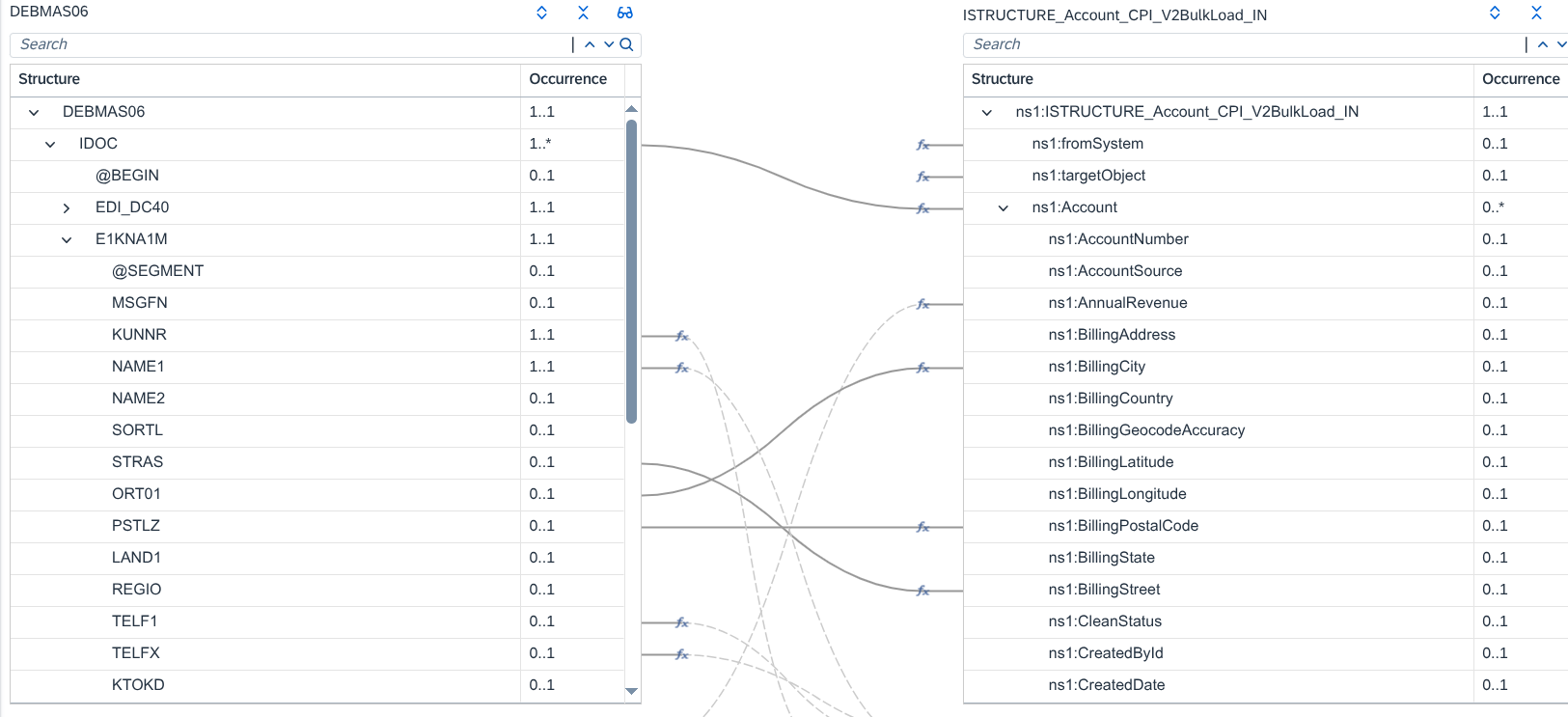
Figure 7. ERP customer and Contact fields mapped to the receiver's Account/Contact input.
4. Configure the HTTPS Sender
On General, confirm that the channel uses the HTTPS sender adapter.
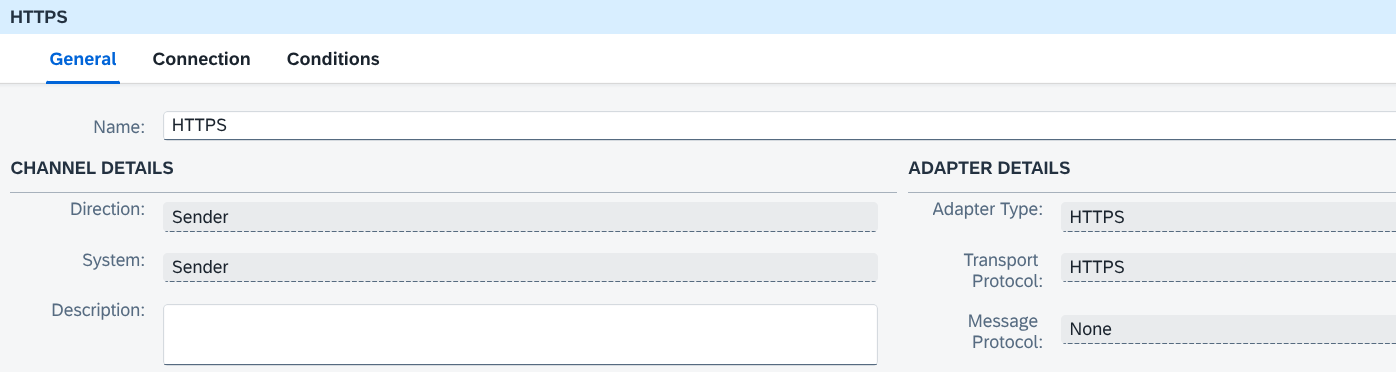
Figure 8. HTTPS sender channel.
On Connection, configure:
| Setting | Value |
|---|---|
| Address | /skyvva/erp/accounts-contacts/imessage |
| Authorization | User Role |
| User Role | ESBMessaging.send, assigned to the caller |
Keep the CSRF setting consistent with your tenant's authentication requirements. If CSRF protection is enabled, the caller must obtain and send a valid token.
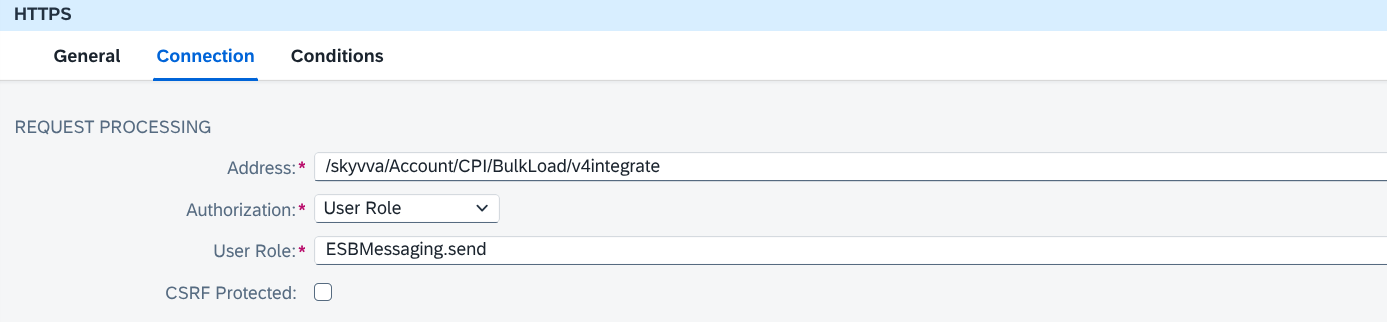
Figure 9. HTTPS address and authorization for the ERP load request.
For large loads, check Conditions → Maximum Message Size → Body Size (in MB) where available, together with any gateway request-size limits. Choose a batch size that fits those limits and the tested processing capacity of the receiving system.
5. Configure the SkyvvaSalesforce Receiver
5.1 Connection
On Connection, select Authentication Type = OAuth2. Select the OAuth2 Flow used by your Salesforce application, enter the Salesforce base Login Url, and select the deployed credential aliases.
For Username-Password Credential, configure both the user and client credential aliases. For Client Credential, configure the client alias and the org's My Domain Login Url. The client alias must refer to a User Credentials entry containing the Client ID in User and Client Secret in Password.
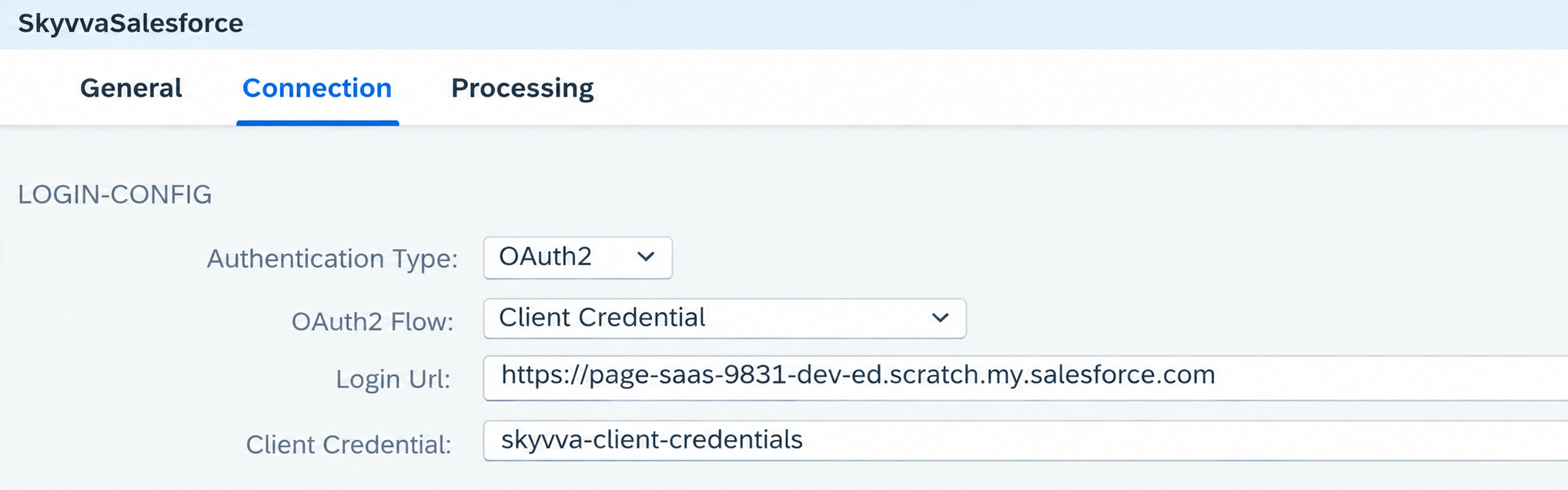
Figure 10. Salesforce connection and credential aliases.
5.2 Processing
On Processing, configure:
| Setting | Value |
|---|---|
| Processing Type | Skyvva |
| Operation | Skyvva Integration |
| Skyvva API Version | V2 |
| Skyvva API | V4/integrateWithIMessage |
| Apex Method | POST |
The Integration and root Interface come from the mapped fromSystem and targetObject values. Separate Integration, Interface, and Mode fields are not configured on this V2 screen. This example uses asynchronous processing through the interfaces prepared in section 2.
The mapped Account/Contact XML is the adapter input. The adapter prepares the message request for V4/IntegrateWithIMessage; Postman sends the ERP source XML to the iFlow.
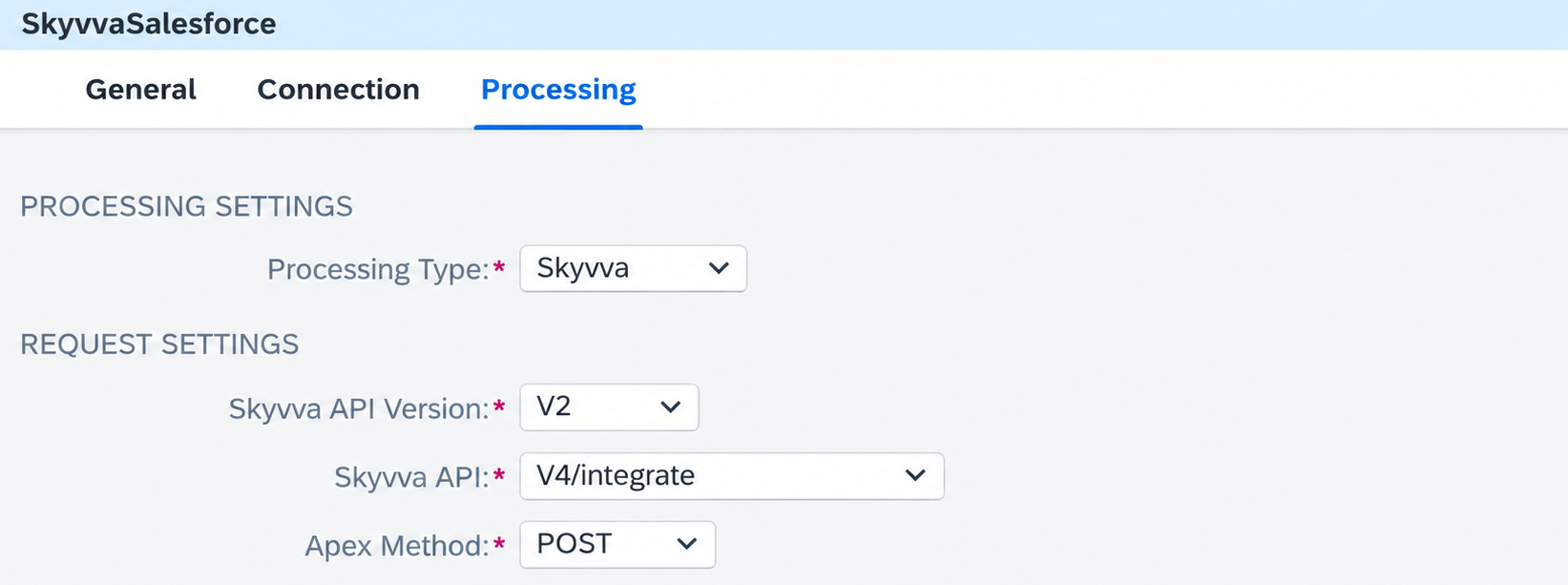
Figure 11. Receiver configured for V2 and V4/integrateWithIMessage.
5.3 Adapter Settings
| Setting | Value for the initial test |
|---|---|
| Logging option | Debug |
| HTTP client timeout (sec) | 300 as a starting value for the load test |
| Enable retry for fatal connectivity errors | Disabled |
Choose the timeout from the measured request duration. After the test, return logging to your normal operational setting. Before resending a failed or timed-out load, check whether Salesforce already received it.

Figure 12. Logging, timeout, and retry settings for the initial load test.
6. Deploy and Copy the Endpoint
Save and deploy the integration flow. Confirm that it has started.
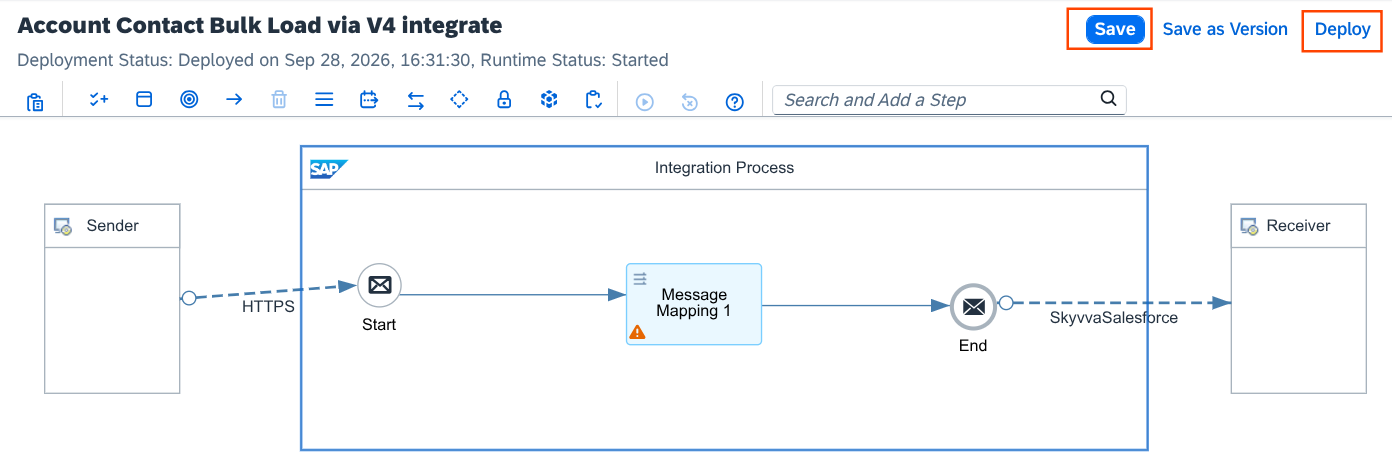
Figure 13. Account and Contact load flow deployed and started.
Open Monitor → Manage Integration Content, select the flow, and copy its HTTPS endpoint. Use that exact URL in Postman.
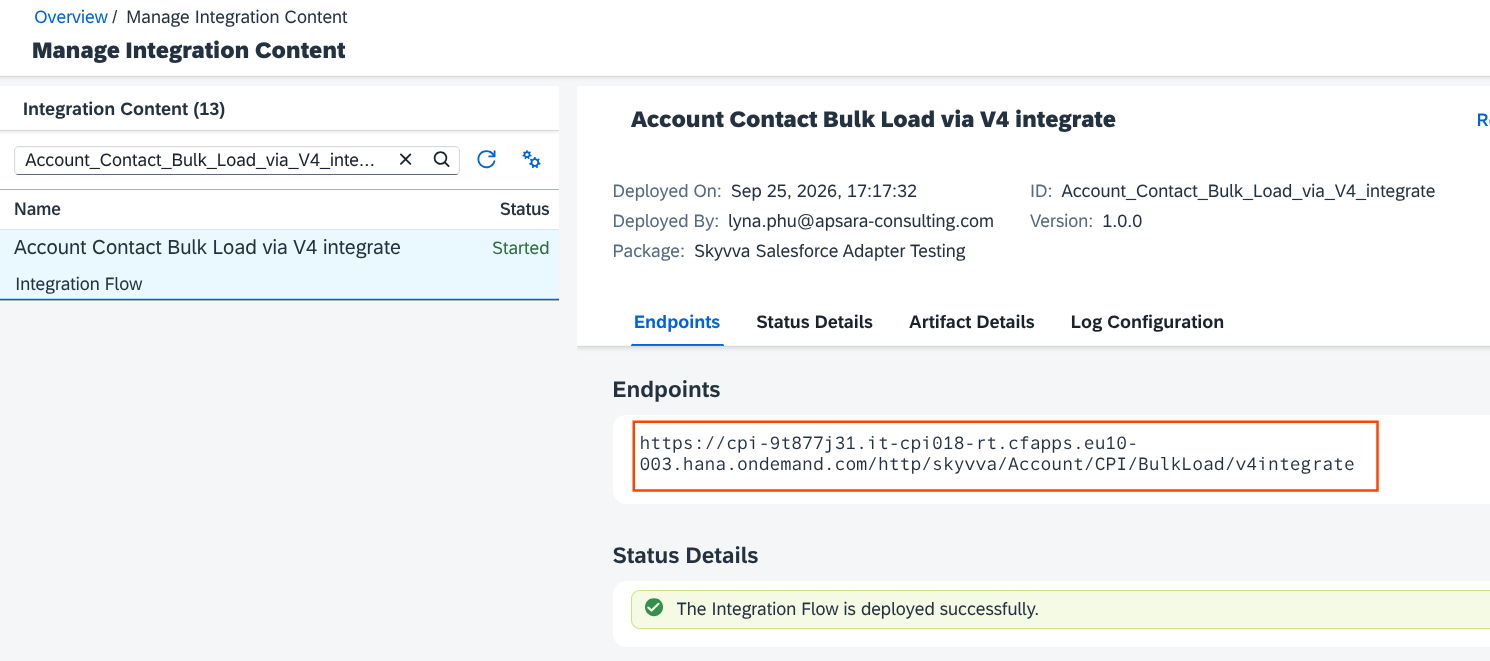
Figure 14. HTTPS endpoint for the deployed integration flow.
7. Test with Postman
7.1 Send the ERP Customer XML
Create a POST request using the endpoint copied in section 6. Configure the authentication required by the HTTPS sender and set Content-Type to application/xml.
Select Body → raw → XML and paste this complete request. It contains two customers and three Contacts:
<?xml version="1.0" encoding="UTF-8"?>
<DEBMAS06>
  <IDOC BEGIN="1">
    <EDI_DC40 SEGMENT="1">
      <DOCNUM>0000000000100451</DOCNUM>
      <IDOCTYP>DEBMAS06</IDOCTYP>
      <MESTYP>DEBMAS</MESTYP>
    </EDI_DC40>
    <E1KNA1M SEGMENT="1">
      <KUNNR>0000100451</KUNNR>
      <NAME1>Elbtal Baustoffhandel GmbH</NAME1>
      <STRAS>Musterstraße 18</STRAS>
      <ORT01>Dresden</ORT01>
      <PSTLZ>01067</PSTLZ>
      <LAND1>Germany</LAND1>
      <TELF1>+49 351 555 0451</TELF1>
      <E1KNVKM SEGMENT="1">
        <PARNR>0001</PARNR>
        <NAMEV>Anna</NAMEV>
        <NAME1>Weber</NAME1>
        <SMTP_ADDR>anna.weber@example.com</SMTP_ADDR>
      </E1KNVKM>
      <E1KNVKM SEGMENT="1">
        <PARNR>0002</PARNR>
        <NAMEV>Martin</NAMEV>
        <NAME1>Fischer</NAME1>
        <SMTP_ADDR>martin.fischer@example.com</SMTP_ADDR>
      </E1KNVKM>
    </E1KNA1M>
  </IDOC>
  <IDOC BEGIN="1">
    <EDI_DC40 SEGMENT="1">
      <DOCNUM>0000000000100452</DOCNUM>
      <IDOCTYP>DEBMAS06</IDOCTYP>
      <MESTYP>DEBMAS</MESTYP>
    </EDI_DC40>
    <E1KNA1M SEGMENT="1">
      <KUNNR>0000100452</KUNNR>
      <NAME1>Spreeblick Hotelbedarf GmbH</NAME1>
      <STRAS>Beispielstraße 27</STRAS>
      <ORT01>Berlin</ORT01>
      <PSTLZ>10115</PSTLZ>
      <LAND1>Germany</LAND1>
      <TELF1>+49 30 555 0452</TELF1>
      <E1KNVKM SEGMENT="1">
        <PARNR>0001</PARNR>
        <NAMEV>Julia</NAMEV>
        <NAME1>Schneider</NAME1>
        <SMTP_ADDR>julia.schneider@example.com</SMTP_ADDR>
      </E1KNVKM>
    </E1KNA1M>
  </IDOC>
</DEBMAS06>
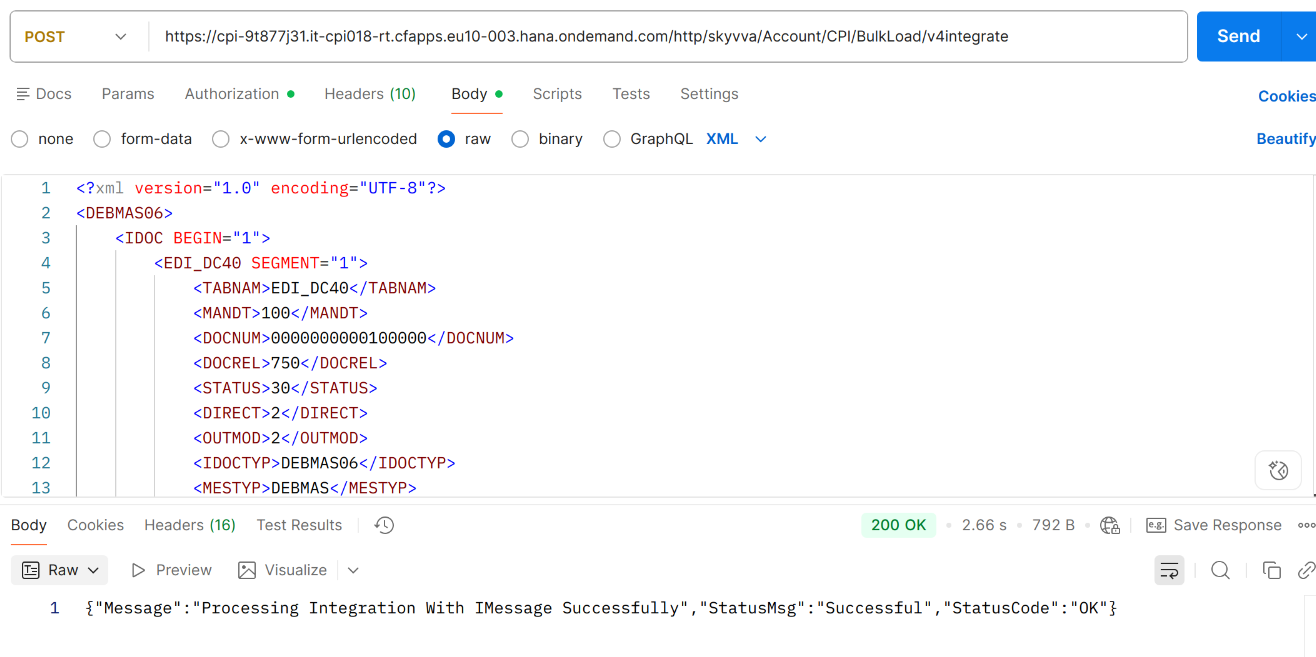
Figure 15. Postman sending ERP customer XML to SAP Integration Suite.
7.2 Check the Response and Increase the Batch Size
Send the request and inspect the returned HTTP status and response body. The response comes through Request Reply from the receiver call. Confirm the final Account and Contact results in SKYVVA monitoring and Salesforce before treating the load as complete.
After the small request succeeds, increase the number of customers gradually. Keep every customer's Contacts under its own E1KNA1M segment and retain stable external IDs across repeated loads.
Figure 16. Postman response from the Account and Contact load request.
8. Monitor the Load
8.1 SAP Integration Suite
Open Monitor → Monitor Message Processing and find the execution for this flow. Check its status, duration, and any reported error.
Figure 17. Account and Contact load execution in SAP Integration Suite.
For a failed call, open its message processing log and inspect the error details. When diagnostic logging is enabled, use the available request details to confirm that the expected Integration, root Interface, and operation were used.
Figure 18. Message processing log for the receiver call.
8.2 Salesforce and SKYVVA
Open SKYVVA Integration Suite → Message Monitoring and locate the messages for the Account and Contact interfaces. Check the processing results and investigate any failed messages.
Figure 19. Account and Contact processing results in SKYVVA Message Monitoring.
In Salesforce, find the Accounts by their ERP external IDs. Confirm the small test created or updated two Accounts and three Contacts: Anna and Martin belong to Elbtal, and Julia belongs to Spreeblick. Verify that a repeated request updates the same records using their external IDs.
Figure 20. Salesforce Account with the Contacts loaded from ERP.
9. Summary
The integration flow receives ERP customer XML, maps it to Account and Contact data, and calls V4/integrateWithIMessage through the SkyvvaSalesforce Receiver. Chained SKYVVA interfaces upsert the Accounts and Contacts, while external IDs identify records across repeated loads.
Start with a small request, verify the parent relationships in Salesforce, and then increase batch sizes using measured results.
Configuration Summary
| Component | Configuration |
|---|---|
| Integration | LegacyERP |
| Root Interface | Account_CPI_V2BulkLoad_IN, Account Upsert, External Mapping |
| Child Interface | Contact_CPI_V2BulkLoad_IN, Contact Upsert, AccountId lookup, Parent Interface set to the Account interface |
| Sender | HTTPS, POST to the deployed endpoint |
| Message Mapping | DEBMAS06 customer and Contact segments → Account/Contact XML with fromSystem and targetObject |
| Receiver | SkyvvaSalesforce, Skyvva Integration, V2, V4/integrateWithIMessage, POST |
| Processing | Asynchronous for this example |
| Verification | SAP Integration Suite message log, SKYVVA Message Monitoring, and Salesforce Accounts with related Contacts |