8. Monitoring of batch and the related message
Monitoring means to check the result of processing the Inbound or Outbound interface. So that we can know the real sObject is integrated successfully with completed status. Batch processing have different monitoring for different task. We have new monitoring like following:
- Basket Monitoring
- Basket History Monitoring
- Scheduler Monitoring
- Queue Monitoring
- Message Monitoring
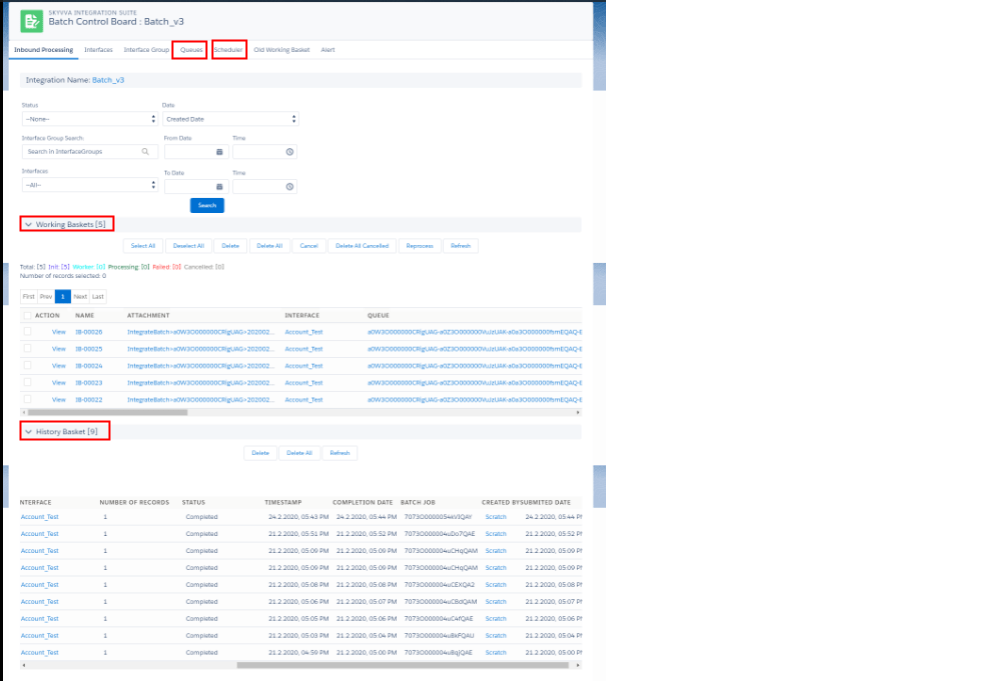
Basket Monitoring:
In the Basket monitor you can see the incoming attachment. You can customize the view e.g. the column to show in this monitor.
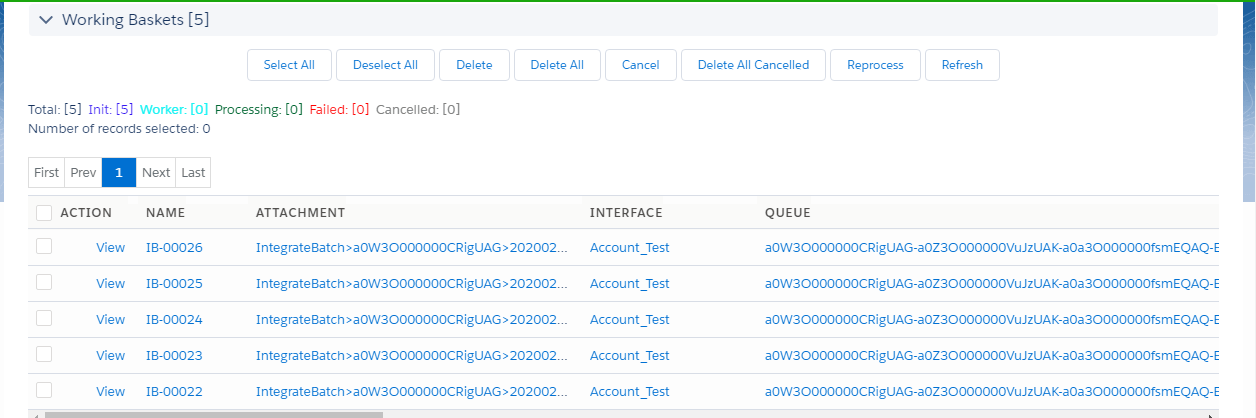
Here a set of useful screen to customize into the view.
Fields
Description
NAME Name of record in basket
ATTACHMENT The name of attachemnt
BATCH QUEUE The queue where the attachment will be processed
INTERFACE The Name of Interface
NUMBER OF RECORDS The number of records within an attachment
STATUS The status of the attachment
TIMESTAMP Creation time stamp of the attachment
COMPLETION DATE Date of completion
BATCH JOB The Batch job
CREATED BY Date of creation of the attachment
SUBMITED DATE Date of submission of the attachment
Basket History Monitoring
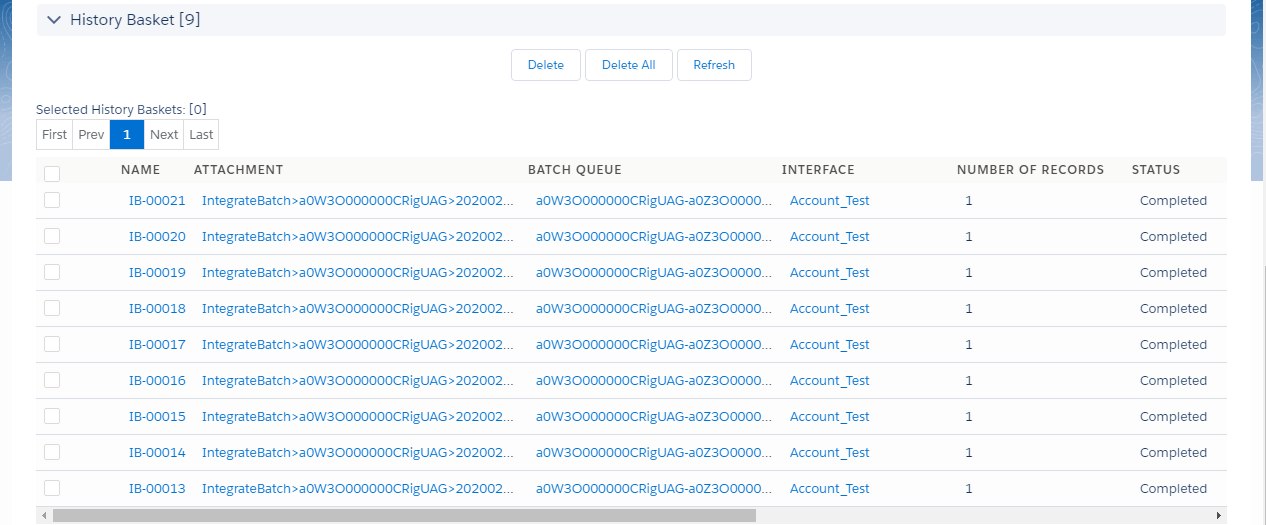
The basket history monitor or view hold the attachment which have been processed successfully and thus have been moved to here. It has almost the same look and fields.
Scheduler Monitoring
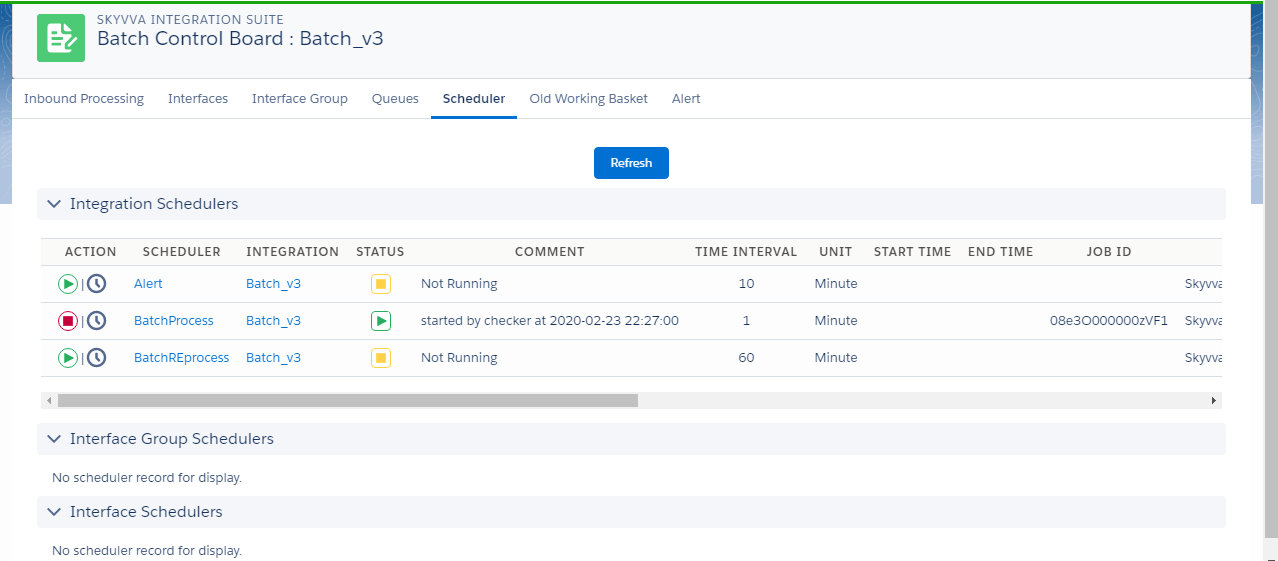
With this view you can see the different scheduler for different integration group. You can see when the next run will be.
Queue Monitoring
With the queue monitor you can see the status of the queue. It is important to see that all queue is running well and not stuck. If queue are stuck no message processing will be carried out.
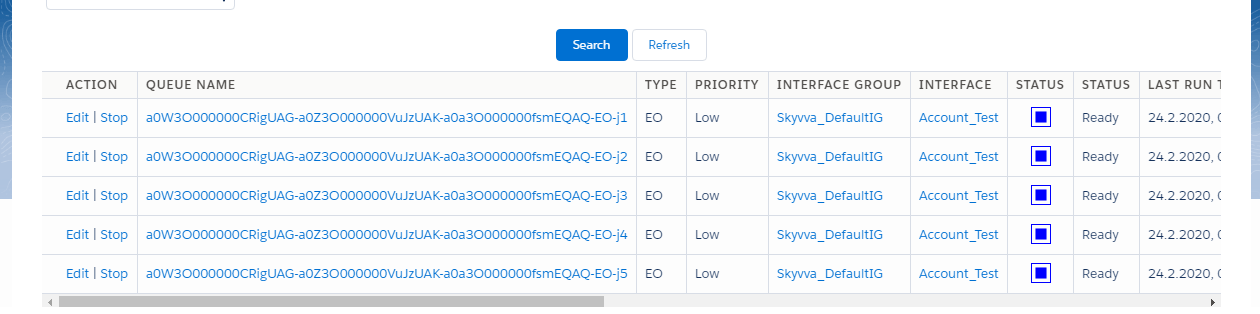
Fields Description
ACTION Action you can carry out e.g. Edit and Delete
QUEUE NAME The name of the queue
TYPE The queue processing type e.g. EO or EOIO
PRIORITY The priority assigned to the attachment
INTERFACE GROUP The name of the interface group
INTERFACE The name of Interfaces
STATUS The status of the attachment
LAST RUN TIME Date and time for the last processing of this queue
COMMENT Description of the queue action
BATCH JOB The Batch job
JOB STATUS Status of job. For eg. Completed
JOB DETAIL Description of job
SUBMITED DATE Date of submission of the attachment
COMPLETION DATE Date of completion of the attachment
LAST MODIFIED DATE Date of creation of the attachment
LAST MODIFIED BY Date of the last modification
Message Monitoring
Message Monitoring is used to check the integration result after processing the Inbound or Outbound interface. The integration result includes Pending, Failed, Completed, Cancelled status and the reason why it failed. Additionally, we can know the real sObject is integrated successfully with completed status. With the message monitor you can search for messages and see if it get posted or failed. You can see different status of messages e.g. green, red and grey. With the message monitor you can search over different criteria. For example you can search message by date e.g. the creation or modified date. You can sort the view and search message over its content.
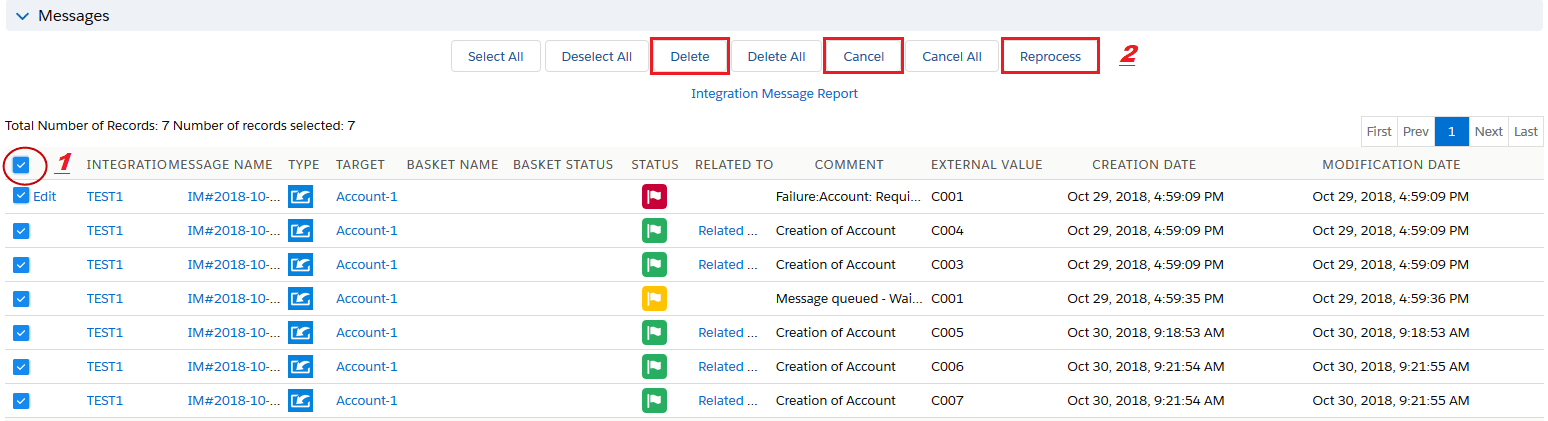
Following are the search criteria you can use:
Field Description
Integration Name The name of the integration
Interface Name The name of the interface
Message Name The key of the message
Message status The status of message e.g. Completed or Failed
Message Content The content of the message
Date You can specify Creation or Modified date
From The from date
To The to date
Sort By You can specify Creation date, Modified date or Message Name