17. SkyvvaSalesforce Sender Adapter — Salesforce Customers to Billing via SFTP
Overview
This tutorial configures a daily customer export at a specified time from Salesforce to a billing system using the SkyvvaSalesforce sender adapter and an SFTP receiver with Username-Password authentication. The SFTP receiver labels this method User Name/Password.
The flow retrieves Salesforce Accounts, maps them to the billing customer contract, and uploads JSON files to SFTPCloud for testing. SFTPCloud acts as the test destination for the billing folder. A real billing application imports the completed files when its import process is connected.
It covers the following steps:
- Prepare Salesforce and the SFTPCloud test credentials.
- Configure the scheduled sender, customer mapping, and JSON conversion.
- Deploy the flow and verify the delivered JSON files in SFTPCloud. Check the separate billing import result when connected to billing.
Context Before You Start
Use this guide when Salesforce owns customer names and billing addresses, while billing accepts customer updates as files through an SFTP folder. A customer address change in Salesforce must reach billing so the next invoice uses the correct details.
For this test, obtain the SFTP server address, port, username, password, and writable folder from your SFTPCloud setup. For production, the billing partner supplies these connection details. The Salesforce team supplies access to the Accounts and a SKYVVA Integration/Interface containing the export query. Agree on the JSON file contract, customer matching key, missing-address behavior, and import-result process before building the flow.
Why Use This Flow?
The scheduled sender retrieves customer data at agreed times without a manual export. Mapping changes Salesforce field names into the billing contract, and SFTP delivers the file to the billing application's existing import process.
Password authentication fits the assigned SFTP account in this example. Store the account details in a deployed User Credentials artifact; configure the receiver with that artifact's name.
When to Use This Guide
Use it for a daily file-based customer synchronization where billing supports the supplied JSON structure and the SFTP account accepts password login. A billing system that requires a different file format or an API needs a corresponding mapping and delivery design.
This query exports selected Accounts again on each run. The receiving system must match stable Salesforce IDs and update existing customers. It must treat each file as a customer group rather than a complete replacement customer list.
1. Business scenario
For example, the team changes Elbtal Baustoffhandel GmbH's billing address in Salesforce. The next successful export delivers that address in a file, and billing applies it during its next import.
This example uses SKYVVA adapter 1.3.0 and assumes billing imports JSON files with the supplied customer fields. Confirm this file format with the billing team. Each file contains up to 50 customers; billing matches customerReference to the Salesforce Id. Replace the example server, user, folder, and credential name with your actual SFTP setup.
The SFTPCloud test confirms file delivery and JSON content. Confirming a customer update requires a separate billing import result; uploading a file to SFTPCloud does not run a billing import.
iFlow design canvas
The flow reads Salesforce Accounts, maps them to billing customers, converts them to JSON, and delivers the files to the SFTPCloud test server.
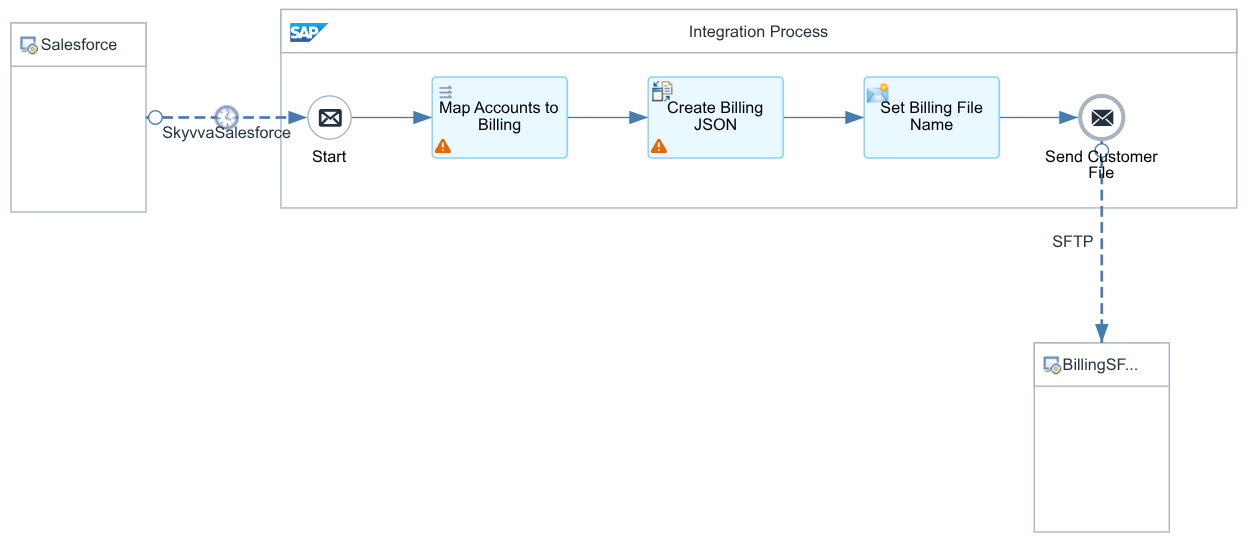
Figure 6. A daily scheduled flow that delivers Salesforce customer files to billing through SFTP.
2. Prepare the connections and credentials
Before building the flow, confirm that the SKYVVA adapter is installed and that the Salesforce user can read the SKYVVA Integration, Interface, Account records, and selected Account fields.
Use these names throughout the example:
| Item | Example value |
|---|---|
| Integration flow name | Skyvva Salesforce Adapter Testing |
| Integration flow ID | SkyvvaSalesforceAdapterTesting |
| SKYVVA Integration name | SAP Cloud Integration |
| SKYVVA Interface name | CustomerAccountsToBilling |
| Salesforce client credential name | skyvva-client-credentials |
| Test SFTP server | eu-central-1.sftpcloud.io:22 — use the assigned address if your SFTPCloud server differs. |
| SFTP user | The username assigned to your SFTPCloud account. |
| SFTP credential name | sftp_temp_credentials |
| Target directory | incoming/customers — create this test folder relative to the SFTP account's starting folder, or use an existing writable folder. |
Salesforce credentials
In Monitoring → Manage Security → Security Material, use the deployed User Credentials entry named skyvva-client-credentials. Reuse it if it is already configured for this Salesforce org; otherwise create and deploy it:
| Name | User | Password |
|---|---|---|
skyvva-client-credentials | Salesforce application Client ID (Consumer Key). | Salesforce application Client Secret (Consumer Secret). |
The Salesforce sender uses OAuth2 → Client Credential. Enable Client Credentials in the Salesforce OAuth application and configure the intended integration user as its run-as user. Give that user API access and read access to the SKYVVA Integration, Interface, Accounts, and selected fields. Keep the Client Secret in Security Material; this flow does not require a separate Salesforce username/password credential.
The deployed Salesforce entry must match the alias used on the sender connection.
Figure 1. Deployed Salesforce application credential entry for the scheduled sender.
SFTPCloud test access — Username-Password
Open https://sftpcloud.io/ and use your test SFTP server. Copy its connection hostname, port, and SFTP user credentials. The website URL is for managing the service; use the assigned SFTP hostname in the receiver's Address field. Enable SFTP and password login for the test user, and prepare a writable incoming/customers folder, or choose an existing writable folder.
This example uses User Name/Password authentication in the SFTP receiver. Prepare the account credentials and the server's trusted SSH host key:
- Use the server name, port, username, password, and target folder from your SFTPCloud setup. Confirm that the account can write and rename files in that folder.
- Open Monitoring → Manage Security → Security Material and choose Create → User Credentials.
- Enter Name =
sftp_temp_credentials, User = your assigned SFTPCloud username, and Password = the actual SFTP account password. Deploy the entry. - Obtain the SFTP server's complete host-key entry from the administrator, or retrieve it with Connectivity Tests → SSH and verify its fingerprint with the administrator. A fingerprint alone is not a known-host entry.
- Save the trusted entry in a plain-text known-hosts file and deploy it as SSH Known Hosts in Security Material. Match the actual host and port; preserve other trusted server entries if updating an existing artifact.
- In Connectivity Tests → SSH, enter the actual host and port, Proxy Type =
Internet, Authentication = User Credentials, Credential Name =sftp_temp_credentials, and Host Key Verification = Against Tenant. Older screens may use Check Host Key instead. Run the test and confirm that authentication and host verification succeed. - Confirm folder write and rename permissions separately: a successful SSH login does not prove the account can deliver a file. Use the SFTPCloud file browser or an SFTP client to inspect the test folder. When connecting a real billing importer, configure it to import completed
customers_*.jsonfiles, ignore.tmpfiles, and archive files after import.
The SFTP username and password come from sftp_temp_credentials. The SSH Known Hosts artifact establishes trust in the receiving server. Password authentication still requires server host-key verification.
Choose User Credentials, not OAuth2 Password Credentials: SFTP password login does not use a Token Service URL. No client SSH key pair or Private Key Alias is required for this password-only account. Salesforce's skyvva-client-credentials entry is a separate credential for the sender.
If you need to retrieve a server key with host verification temporarily Off in the SSH test, verify the returned fingerprint with the administrator before trusting it. Deploy the complete key entry, then repeat the test with verification Against Tenant before normal transfers. Do not treat a test with verification Off as proof of trusted connectivity.
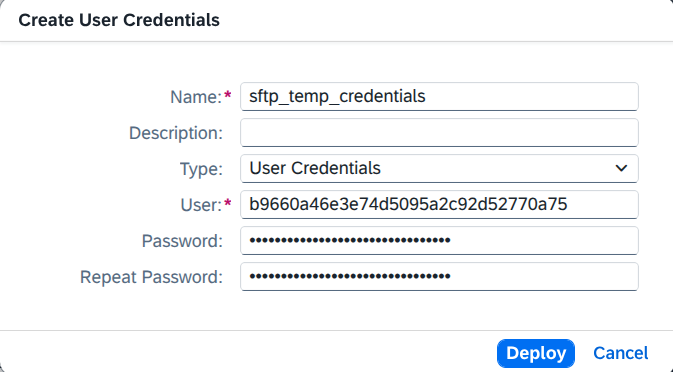
Figure 2. SFTP username and password stored in a User Credentials entry named sftp_temp_credentials.

Figure 3. Deployed SSH Known Hosts artifact used to verify the billing SFTP server.
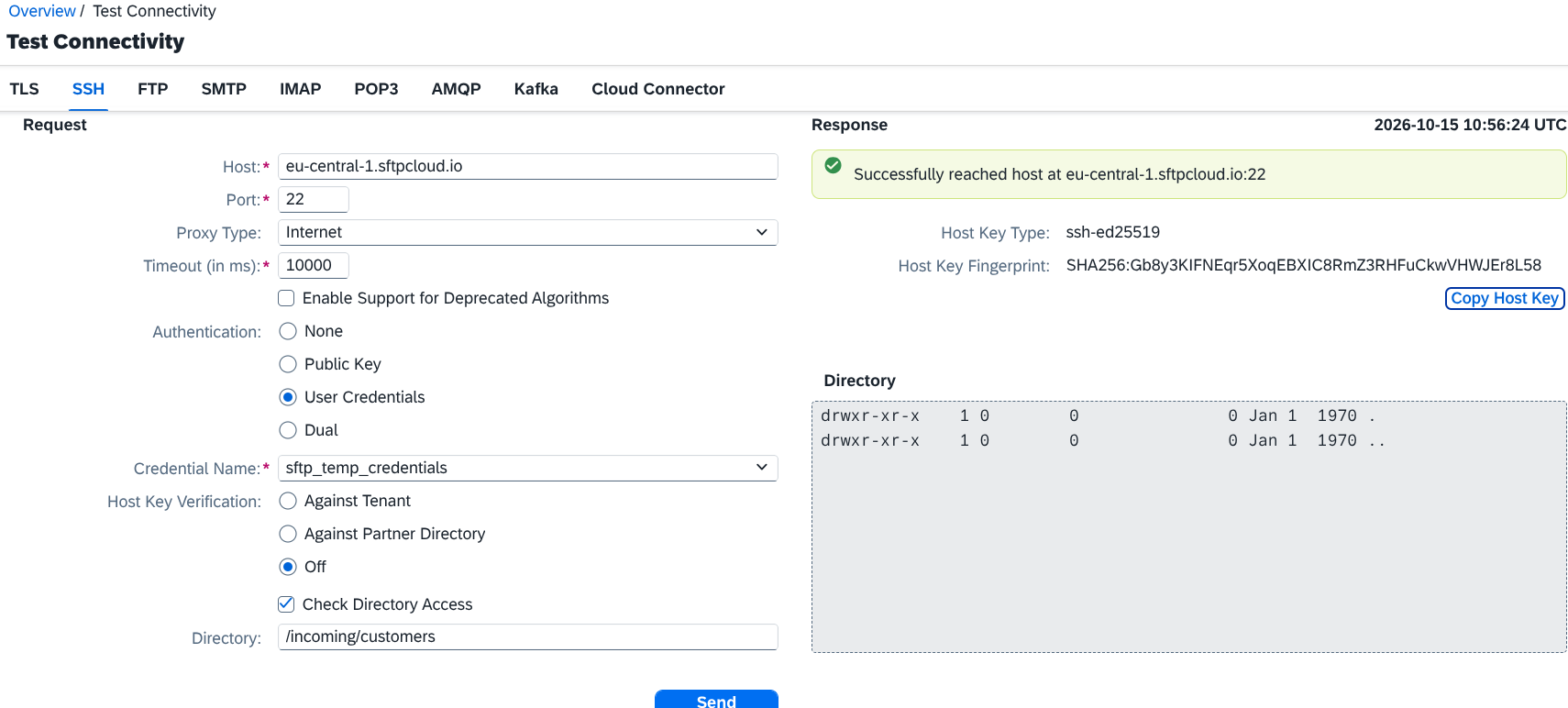
Figure 4. Successful password-based SSH test with the billing server verified against the tenant's trusted host keys.
3. Prepare the SKYVVA Interface in Salesforce
- Open or create a SKYVVA Integration named
SAP Cloud Integration. - Under that Integration, open or create an Interface whose Interface Name is
CustomerAccountsToBilling. Use the actual Interface name, rather than an automatically assigned record number. - Save the following Account query in the Interface's Query field. If your SKYVVA screen fills this field through the Data Mapping tool, save the required Account fields there and check the saved query.
   SELECT Id, Name, BillingStreet, BillingCity, BillingPostalCode, BillingCountry
   FROM Account
   ORDER BY Id
- Confirm that the query returns the Accounts you want. For a small first test, add a filter for the test Accounts before
ORDER BY Id. - Use these exact Integration and Interface names in the sender settings below.
The sender uses the query saved on this Interface. This example does not require a Salesforce outbound push schedule. Restart or redeploy the flow after changing the Interface query.
Figure 5. SKYVVA Interface containing the Account query used for the daily billing export.
4. Build the flow
Create an integration flow named Send Salesforce Customers to Billing. Arrange its components using the component order below. Use a Start Message event, the three processing steps, and an End Message event inside the integration process.
Connect the main steps in this order:
Receive Salesforce Customers → Map Accounts to Billing → Create Billing JSON → Set Billing File Name → Send Customer File
Connect Salesforce → Receive Salesforce Customers with SkyvvaSalesforce and Send Customer File → Billing SFTP with SFTP. The End Message event sends the prepared file. Do not add a separate Timer or Request Reply to this flow.
5. Configure the SkyvvaSalesforce sender
General tab
| Field | Value |
|---|---|
| Name | Read Salesforce Customers |
| Description | Retrieve Account billing details daily at the selected time, if available. |
| Direction | Sender — set automatically. |
| Adapter Type | SkyvvaSalesforce — set automatically. |
Connection tab
| Field | Value |
|---|---|
| Authentication Type | OAuth2 |
| OAuth2 Flow | Client Credential |
| Login Url | Your Salesforce My Domain base URL, for example https://your-domain--uat.sandbox.my.salesforce.com for a sandbox. |
| Client Credential | skyvva-client-credentials |
Use the actual My Domain base URL for your production or sandbox org, starting with https://. Do not append /services/oauth2/token; the adapter adds the token-service path.
Figure 7. Sender Connection settings for the Salesforce login.
Processing tab
| Area / field | Value |
|---|---|
| Processing Mode | Schedule Processing |
| Schedule Processing → Integration | CustomerBillingSync |
| Schedule Processing → Interface | CustomerAccountsToBilling |
| Schedule Processing → Operation | Query |
| Schedule Processing → Processing Package Size | Custom Package Size |
| Schedule Processing → Custom Package Size | 50 |
| Format → Payload Format | Application/XML |
| Format → Pretty Print | Enabled for this learning example. |
| Adapter Setting → Logging option | Default |
| Adapter Setting → Salesforce Api Version | 60.0 |
Each message contains up to 50 Accounts from one result page. The adapter retrieves all result pages, and an empty query result sends no customer message. Event Processing settings are not used in this example.
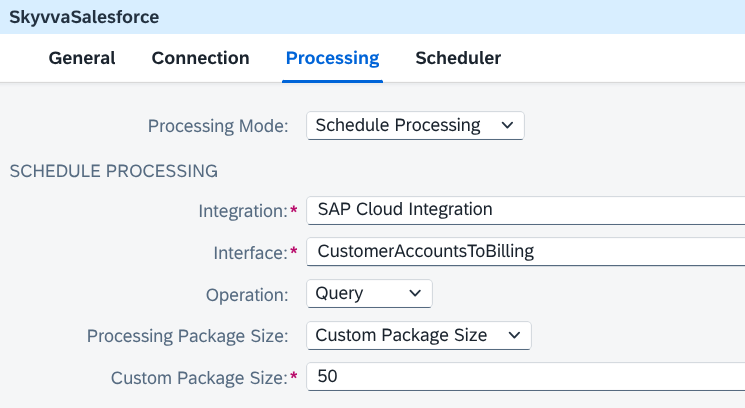
Figure 8a. Scheduled sender query settings and customer package size of 50.
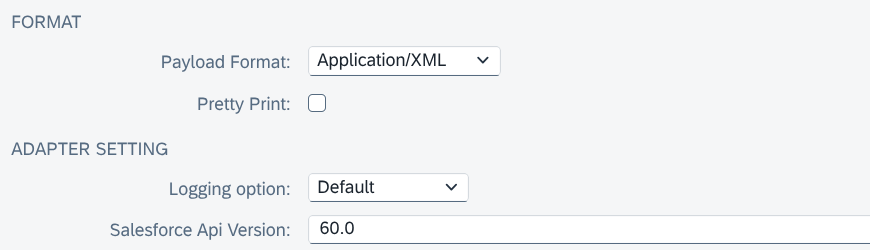
Figure 8b. XML output format and shared sender settings for the billing export.
Scheduler tab
On the SKYVVA sender's Scheduler tab, configure a daily run at your chosen time:
| Setting | Value |
|---|---|
| Schedule choice | Schedule to Recur |
| Recurrence pattern | Daily |
| Timing choice | On Time |
| Run time | Enter your chosen daily time in 24-hour format (HH:mm). |
| Time Zone | Central European Standard Time(Europe/Berlin) |
The flow runs once each day at the selected time in the Berlin time zone. Save and deploy the flow before the next scheduled time.
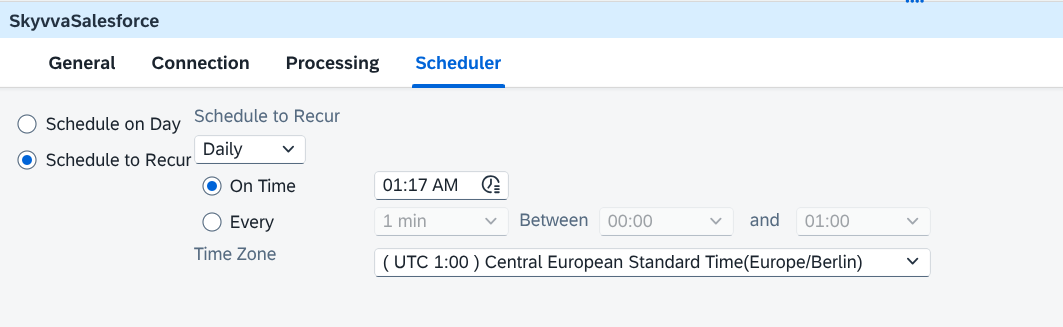
Figure 9. Sender Scheduler settings for a daily run at a specified time.
Incoming message
The source schema uses QueryResult/records/Account, because this is the XML produced by the scheduled sender. A simplified example is:
<QueryResult>
  <done>true</done>
  <records>
    <Account>
      <Id>001000000000001AAA</Id>
      <Name>Elbtal Baustoffhandel GmbH</Name>
      <BillingCity>Dresden</BillingCity>
    </Account>
  </records>
  <totalSize>1</totalSize>
</QueryResult>
The source schema must include the full selected fields. Field order can change, so allow the Account fields in any order. Some billing address fields can be empty or missing. totalSize describes the whole query result; count the Account elements to know how many records are in this message.
6. Configure Message Mapping
Prepare and select the schemas
Prepare a source XSD from the scheduled sender's Account query XML, or reuse a schema that matches that output. It must describe root QueryResult, its query-status fields, and repeating records/Account entries containing the fields selected in section 3. Allow missing address fields and varying Account field order. Keep IDs and postal codes as strings.
Prepare the target XSD from the customer file contract agreed with the billing team. For this example, use root billingRequest with one to 50 repeating customers entries. Each entry contains customerReference, customerName, street, city, postalCode, and country in that order, all as strings. This XML is the intermediate structure converted to JSON in section 7. Both schemas in this example have no target namespace.
- Upload your source and target XSD files to the integration flow's Resources area.
- Select Map Accounts to Billing. On Processing, create and assign a Message Mapping resource. If Reference Type is shown, choose Static.
- In the mapping editor, select the query XML schema with root QueryResult as the source and the billing customer schema with root billingRequest as the target.
Figure 10. Source and target schemas selected for AccountToBilling Message Mapping.
General and Processing tabs
| Tab / field | Value |
|---|---|
| General → Name | Map Accounts to Billing |
| Processing → Reference Type, if shown | Static |
| Processing → Mapping resource | The Message Mapping resource created above. |
Connect the fields
Expand QueryResult → records → Account on the source side and billingRequest → customers on the target side.
| Source | Target | Mapping |
|---|---|---|
Repeating Account | Repeating customers | Create one target customer for each source Account. Connect the repeating parent nodes. |
Account/Id | customers/customerReference | Direct connection. |
Account/Name | customers/customerName | Direct connection. |
Account/BillingStreet | customers/street | mapWithDefault with an empty-string default. |
Account/BillingCity | customers/city | mapWithDefault with an empty-string default. |
Account/BillingPostalCode | customers/postalCode | mapWithDefault with an empty-string default. |
Account/BillingCountry | customers/country | mapWithDefault with an empty-string default. |
For each address field, add Functions → Node Functions → mapWithDefault, set its default to an empty string, and connect source → function → target. Keep each field grouped under its own Account. A missing address value should create an empty target element; an already empty source value stays empty.
Leave totalSize, done, and nextRecordsUrl unmapped. The billing file contains customer details only. Keep postal codes as text so a value such as 01067 keeps its leading zero.
Figure 11. Mapping each Salesforce Account to one billing customer.
Figure 12. Mapping simulation for two Accounts, including an empty postal code for the second customer.
Save the mapping and confirm Map Accounts to Billing selects the saved resource.
7. Configure XML to JSON Converter
Select Create Billing JSON and use these settings:
| Tab / field | Value |
|---|---|
| General → Name | Create Billing JSON |
| Processing → JSON Output Encoding | UTF-8, if selectable. Otherwise keep from header or property with no different encoding set. |
| Processing → Namespace Mapping / Use Namespace Mapping | Disabled. Both schemas have no namespace. |
| Processing → Suppress JSON Root Element | Enabled. Removes the billingRequest wrapper from the JSON. |
| Processing → Streaming | Enabled. |
| Processing → XML elements represented as JSON arrays | Specific Ones |
| Processing → Absolute path for the repeated element | /billingRequest/customers |
Add /billingRequest/customers as an array path. Do not select All, because customer names and addresses must remain text values. This setting keeps customers as a list even when only one Account is received.
For one customer, the expected JSON begins like this:
{
  "customers": [
    {
      "customerReference": "001000000000001AAA",
      "customerName": "Elbtal Baustoffhandel GmbH",
      "street": "Musterstraße 12",
      "city": "Dresden",
      "postalCode": "01067",
      "country": "Germany"
    }
  ]
}
Compare the converter output with the supplied one-customer and two-customer JSON files. The outer billingRequest name should be absent, and customers should always use square brackets.
Figure 13. Converter settings that keep one or several customers in a JSON list.
Figure 14. Verified converter output retaining a customers array and a postal code with its leading zero.
8. Configure Content Modifier
This step creates a different filename for each message and keeps the JSON body from the converter.
General tab
| Field | Value |
|---|---|
| Name | Set Billing File Name |
Message Header tab
Create this row:
| Action | Name | Source Type | Source Value |
|---|---|---|---|
Create | CamelFileName | Expression | customers_${exchangeId}.json |
${exchangeId} gives each message its own identifier. For example, one run might produce customers_example-001.json and customers_example-002.json. The actual identifier will differ.
A query result with 120 Accounts can produce three files containing 50, 50, and 20 customers, subject to Salesforce result-page boundaries. A timestamp alone can repeat when several files are created quickly, so the name uses the message identifier.
Exchange Property tab
Leave the table empty. This example uses a fixed target folder and does not need extra stored values.
Message Body tab
Leave this tab unchanged, with no replacement body. The file must contain the actual customers produced by the converter.
Figure 15. Content Modifier settings for a unique customer filename.
9. Configure the End Message event and SFTP receiver
End Message event
| Setting | Value |
|---|---|
| General → Name | Send Customer File |
| Event choice | End Message |
| Receiver connection | Connect to Billing SFTP using SFTP. |
The SFTP connection writes the message body as a file. It does not wait for billing to finish importing customers or receive a billing import report.
SFTP receiver — General tab
| Field | Value |
|---|---|
| Name | Write Billing Customer File |
| Direction | Receiver — set automatically. |
| Adapter Type | SFTP — set automatically. |
SFTP receiver — Target tab
| Field | Value |
|---|---|
| Directory | incoming/customers — use the test folder prepared in SFTPCloud, or your chosen writable folder. |
| File Name | Leave blank. The receiver uses the CamelFileName header set in section 8. |
| Append Timestamp | Disabled. The filename already uses a unique message identifier. |
| Address | eu-central-1.sftpcloud.io:22 — use the assigned address if your SFTPCloud server differs. |
| Proxy Type | Internet |
| Authentication | User Name/Password |
| Credential Name | sftp_temp_credentials |
| Timeout (in ms) | 10000 |
| Maximum Reconnect Attempts | 3 |
| Reconnect Delay (in ms) | 1000 |
| Automatically Disconnect | Disabled. |
| Enable Support for Deprecated Algorithms | Disabled. |
Use a host and port in Address, without sftp:// or a directory path. Directory is relative to the account's starting folder; confirm where incoming/customers points on your server. Some editor versions group connection fields separately: enter the same values where the named fields appear.
Proxy Protocol, Proxy Host, Proxy Port, Proxy Credential Name, and Location ID are not used for this Internet route. The selected password login reads the username and password from sftp_temp_credentials; a separate Public Key User Name or Private Key Alias is not required. If your screen also shows User Name, keep it consistent with the saved credential. The known-hosts artifact prepared in section 2 supplies the trusted server key.
Keep Append Timestamp off when using the dynamic filename above. Reconnect settings cover initial connection attempts; they do not automatically restart a file transfer interrupted after processing begins.
SFTP receiver — Processing tab
| Field | Value |
|---|---|
| Change Directories Stepwise | Enabled. |
| Create Directories | Disabled. Create the target folder in SFTPCloud before the first run. |
| Flatten File Names | Disabled. The filename contains no directory path. |
| Prevent Directory Traversal | Enabled, if available on the channel version. |
| Use Fast Exists Check | Enabled; disable only if the server does not support it. |
| Handling for Existing Files | Fail |
| Use Temporary File | Enabled. |
| Temporary File Name | customers_${exchangeId}.json.tmp |
The adapter uploads using the .tmp name and then renames the completed file to its final .json name. Billing must ignore .tmp files and import only final .json files. Confirm that the account has rename permission.
Fail prevents an existing file with the same name from being replaced silently. Do not append JSON messages to an existing file: that would not match the supplied JSON structure. If a transfer fails, check for final and temporary files before repeating it.
Figure 16. SFTP receiver settings for the billing customer folder.
Figure 17. SFTP processing settings for temporary upload and completed-file delivery.
10. Save, deploy, and check the result
- Confirm that the mapping resource and schemas are saved,
skyvva-client-credentialsandsftp_temp_credentialsare deployed, and SSH Known Hosts contains the trusted entry for the actual SFTP host and port. - Enter your SFTPCloud host and port, save its assigned username/password in
sftp_temp_credentials, and select the prepared test folder. Confirm the SSH test succeeds with User Credentials =sftp_temp_credentialsand host verification Against Tenant, and confirm the folder exists with write/rename access. - Complete both mapping tests and check the converter's one-customer and two-customer JSON output.
- Save and deploy the flow. Confirm that it starts successfully.
- Wait for the selected daily run time in the Berlin time zone. For a test, choose an upcoming time, save and deploy before it occurs, then restore your intended daily time after testing.
- In Monitoring → Monitor Message Processing, open the run and check the SFTP result. Where available, ProducedFile identifies the delivered file.
- In the SFTPCloud file browser or an SFTP client, locate the final
customers_...jsonfile in the configured folder. Open or download it and confirm that the customer data matches the Salesforce Accounts, including the expected address and postal code. A.tmpfile alone does not confirm final delivery. - Run again and confirm that another uniquely named JSON file arrives with the expected customer data. This completes the SFTPCloud transfer test.
- When connected to a real billing importer, also check its import result, confirm the expected customer address, and verify that repeated exports update existing customers rather than create duplicates.
For a connected billing application, an illustrative import report for two customers is:
{
  "fileName": "customers_example-002.json",
  "status": "imported",
  "processed": 2,
  "failed": 0
}
This report is an example of a separate billing result, not a response returned by the SFTP adapter. Billing may provide its result through an import log, another file, or its own user screen. Agree that process with the billing team; automatic report collection is outside this flow.
The supplied files are groups of customers, so billing should process each independently and archive it after import. Sending a customer again should update its existing record using customerReference. This flow does not export Account deletions or provide an automatic failed-file recovery process.
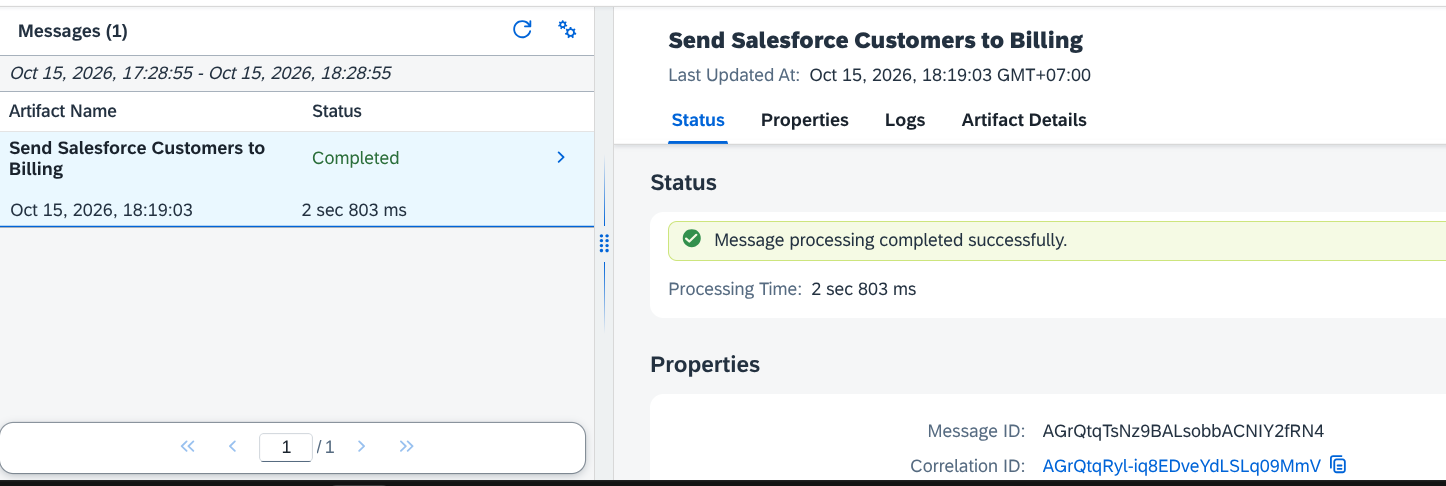
Figure 18. SAP Integration Suite message-processing result for a completed customer-file transfer.
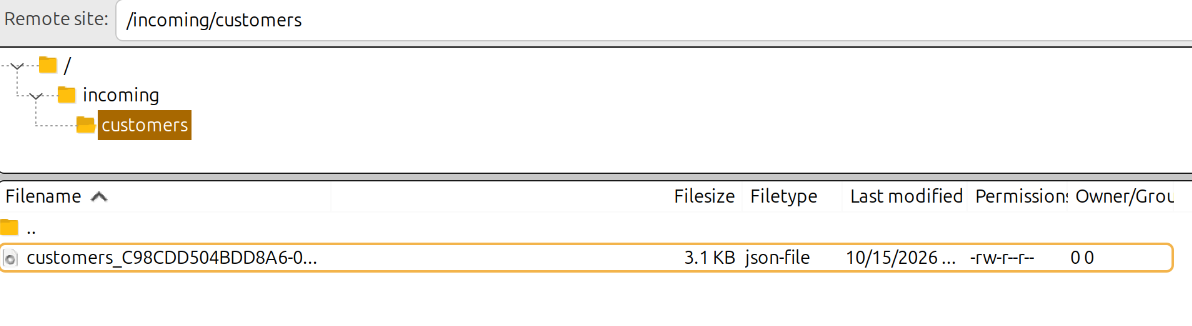
Figure 19. Completed customer JSON file delivered to the billing SFTP folder.
Figure 20. Billing import evidence confirming that the delivered file updated the customer.
11. Summary
The sender signs in to Salesforce, finds the named SKYVVA Interface, and runs its saved Account query daily at the selected time. It creates XML messages containing up to 50 Accounts each. Message Mapping uses the query XML and billing customer schemas to turn each Account into one billing customer. Missing address values become empty text, and customer Ids and postal codes remain text.
The converter removes the XML wrapper and keeps customers in a JSON list, including when there is only one customer. Content Modifier creates a unique filename and preserves the customer body. The End Message event uses the SFTP receiver with User Name/Password authentication and Credential Name sftp_temp_credentials to write each message as a separate file. SSH Known Hosts verifies the receiving server. A temporary filename keeps incomplete uploads out of billing's final-file import pattern.
For this test, verify that SFTPCloud contains the completed JSON files with the expected customer data. When a billing importer is connected, it matches customers by their Salesforce Id. Check its separate import result before confirming a customer update; repeated exports should update existing customers rather than create duplicates.
Configuration Summary
| Component | Configuration |
|---|---|
| Sender | Schedule Processing → Query |
| Integration / Interface | CustomerBillingSync / CustomerAccountsToBilling |
| Schedule / Group size | Daily at the selected time in Europe/Berlin / up to 50 Accounts per group |
| Delivery | JSON to the assigned SFTPCloud test server; User Name/Password; sftp_temp_credentials |