171. How to applying SKYVVA global settings license for Salesforce System Automations?
Introduction
When designing enterprise integrations using SKYVVA, relying solely on individual user license assignments introduces a major architectural vulnerability. Salesforce includes several native background engines that intentionally drop the active human user's session token and shift execution context to system identities like the Automated Process User or Default Workflow User.
Because these headless system accounts do not have accessible user detail pages where a license can be manually assigned, any background integration step will instantly crash with a license validation error. This tutorial provides a comprehensive guide to identifying these system context tools and applying a global SkyvvaSetting configuration to ensure uninterrupted execution of your integration pipelines.
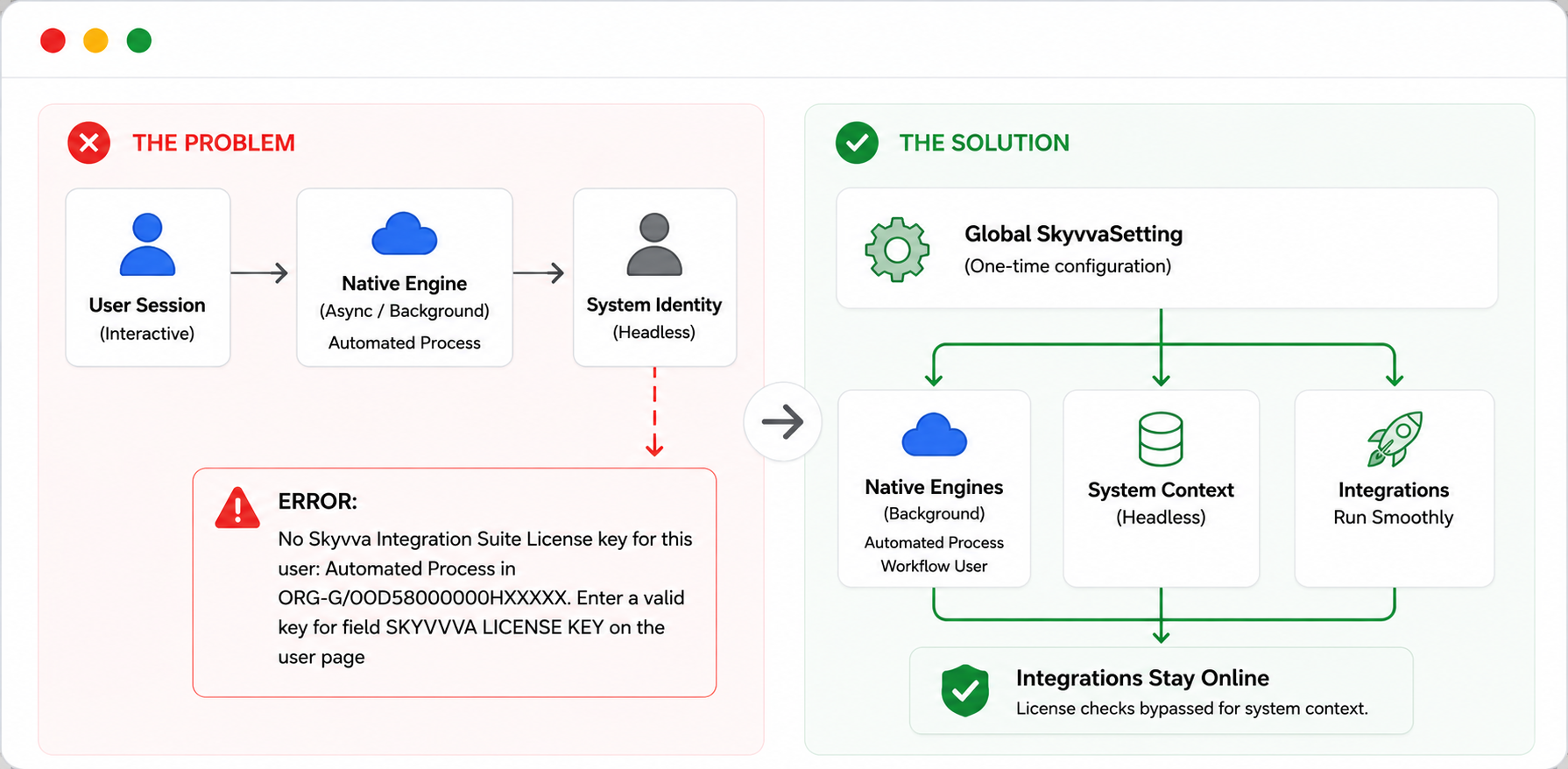
Table of Contents
- The General License Error Pattern
- Salesforce Automation Tools Using System Contexts
- Summary Table of System Context Tools
- Step-by-Step Implementation Guide
- Troubleshooting
Section 1: The General License Error Pattern
When any background tool transitions execution away from a standard human profile, it hits a licensing wall if credentials are only stored at the individual user level. The SKYVVA package rejects the transaction and the failure surfaces in two places: in the Message Monitoring, and the Salesforce debug logs.
On the SKYVVA Message Monitoring
The failed integration record will show the following error in its Message Comment column:
ERROR: No Skyvva Integration Suite License key for this user: Automated Process in <YOUR_ORG_NAME>/<YOUR_ORG_ID>. Enter a valid key for field SKYVVA LICENSE KEY on the user page
This error will also appear in the Salesforce debug log.
Depending on the specific platform feature invoked, the identity flagged will be Automated Process, Default Workflow User, or Platform Integration User.
Important: The error message instructs you to Enter a valid key for field SKYVVA LICENSE KEY on the user page. This guidance is misleading for system context failures. The Automated Process user does not have an accessible user detail page, so setting the key at the user level is impossible. The correct fix is to apply the license key at the Default Organization Level Value in SkyvvaSetting, as described in Section 4.
Section 2: Salesforce Automation Tools Using System Contexts
The following native Salesforce mechanisms drop the active human session and hand execution over to background system users, making them susceptible to this licensing failure:
1. Platform Event Triggers
- The Mechanism: An external middleware system or internal Apex process publishes a message event to a high-volume event bus.
- The Context: The asynchronous subscriber trigger designed to catch this event executes entirely under the Automated Process User.
2. Change Data Capture (CDC) Triggers
- The Mechanism: When a record changes, Salesforce automatically streams a data change event.
- The Context: Any Apex trigger written to subscribe to these streaming updates runs exclusively under the Automated Process User.
3. Salesforce Flow Asynchronous Actions
- The Mechanism: Lightning Flows configured with an Asynchronous Path (Run Asynchronously) split the execution thread to run later.
- The Context: The initial transaction runs as the logging user, but the secondary asynchronous path is picked up and executed by the Automated Process User.
4. Salesforce Flow Pause Elements
- The Mechanism: When a flow hits a Pause element (waiting for a time duration or an external signal), the user session terminates.
- The Context: When the pause condition is met and the flow resumes, it wakes up under the background context of the Automated Process User.
5. Time-Dependent Actions (Workflow Rules & Process Builder)
- The Mechanism: Automation rules scheduled to execute at a delayed offset.
- The Context: When the time queue processes the task, the engine fires the transaction under the Default Workflow User.
6. Salesforce Omni-Studio & Cross-Cloud Core Engines
- The Mechanism: Automated background tasks driven by Einstein features or native cross-cloud synchronization packages.
- The Context: These platform mechanisms execute operations under the Platform Integration User.
Section 3: Summary Table of System Context Tools
| Salesforce Automation Tool | Specific Feature/Trigger | Execution Context Identity | Impact on SKYVVA |
|---|---|---|---|
| Platform Events | Inbound/Outbound event triggers | Automated Process User | Fails with License Error |
| Change Data Capture | Event-driven change triggers | Automated Process User | Fails with License Error |
| Lightning Flows | Asynchronous Paths | utomated Process User | Fails with License Error |
| Lightning Flows | Pause / Wait Elements | Automated Process User | Fails with License Error |
| Workflow Rules | Time-Dependent Actions | Default Workflow User | Fails with License Error |
| Process Builder | Scheduled Actions | Default Workflow User | Fails with License Error |
| Cross-Cloud Sync | Einstein / Cloud Connectors | Platform Integration User | Fails with License Error |
Section 4: Step-by-Step Implementation Guide
To resolve these errors, you must establish an organization-wide license key by applying the SKYVVA license key at the global level:
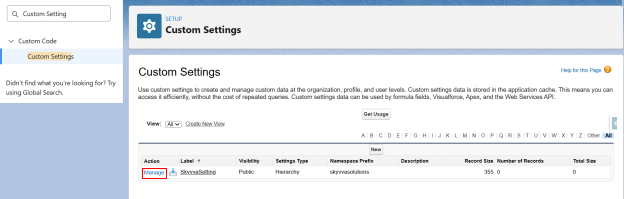
Step 1: Navigate to SkyvvaSetting
- Log into your Salesforce environment as an administrator.
- Click the Gear Icon in the top right and select Setup.
- In the left-hand Quick Find box, type "Custom Settings" and select it from the results. Alternatively, navigate to Custom Code ➔ Custom Settings. Using the Quick Find search is the most reliable method, as the exact menu path may vary depending on your org configuration.
- Scroll through your list of custom settings to find SkyvvaSetting.
- Click the Manage link located directly to the left of SkyvvaSetting.
Step 2: Initialize Default Organization Level Value
- Look at the top section labeled Default Organization Level Value.
- Click the New button located right above the organizational data table.
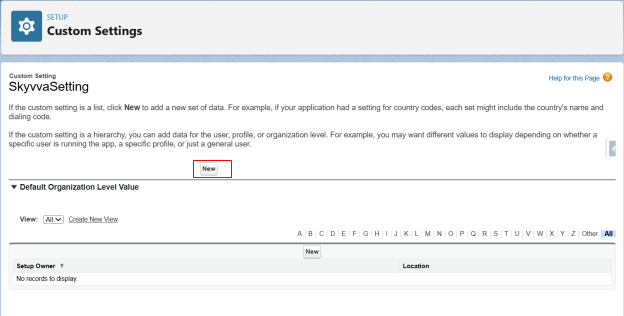
Note: Do not use the lower "New" button in the list section. That section targets specific profiles or users, and since you cannot select the hidden Automated Process system user from a standard user lookup field, user-level targeting will fail.
Step 3: Populate and Save the License Value
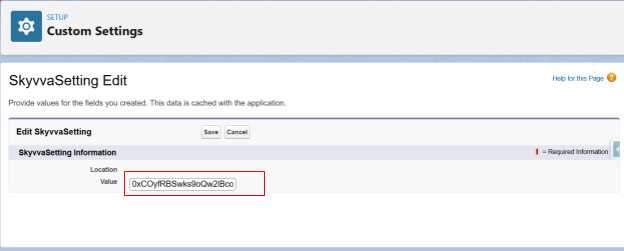
- On the SkyvvaSetting Edit configuration page, locate the Value entry box.
- Paste your corporate SKYVVA license key directly into this field. If you do not have your key, contact SKYVVA support or retrieve it from your organization's SKYVVA admin portal.
- Click the Save button to commit your configuration changes to the application cache.
Section 5: Troubleshooting
If errors persist after applying the global license key, use the following checklist to diagnose the issue:
- Confirm the key was saved in the Default Organization Level Value section — not in the user-level or profile-level section below it.
- Verify there are no leading or trailing spaces in the key value. Paste it directly from your SKYVVA admin portal or vendor-provided credentials document without reformatting.
- If you do not yet have a license key, contact SKYVVA support or your organization's SKYVVA administrator to obtain one before attempting the configuration.
- If the error names a different identity (for example, Platform Integration User instead of Automated Process User), the same global fix applies — the Default Organization Level Value covers all system context identities.
- After saving, re-trigger the automation and check both the SKYVVA Monitoring page Message column and the Salesforce debug log to confirm the license error no longer appears.
Summary
You have now configured a global license key in SkyvvaSetting that covers every background execution context in your Salesforce org. Platform Events, Change Data Capture triggers, asynchronous Flow paths, Pause elements, time-dependent Workflow actions, and Cross-Cloud synchronization engines will all resolve the license correctly without requiring any changes to individual user assignments.
To verify the configuration is working, trigger one of the automation types listed in Section 2 and confirm that no license exception appears in your Salesforce debug logs. If errors persist, refer to Section 5 for a full troubleshooting checklist.