2. How to create hierarchical interface using VLOOKUP
Learning Objective:- This unit describes:-
- Describe what is the hierarchical interface.
- Comfortably use a hierarchical interface to process hierarchical data.
Introduction
To create a hierarchical interface using the VLOOKUP formula, we need to arrange the interface in a specific order. One interface is the parent interface and another is its child where the child interface inherited External ID from its parent's interface. We use the VLOOKUP formula which will search an object for a record where the specified field matches the specified lookup value. If a match is found, return another specified value.
What is a hierarchical interface?
- To arrange interfaces in order means a hierarchical interface. It is a structure in which interfaces are ranked according to levels of importance.
- In hierarchical Interfaces, one interface is a parent’s of another interface. It means that the child interface inherited External ID from its parent's interface. For example, the Account interface is the parent’s contact interface because of Contact inherited External ID from Account.
- Also, One parent interface can have many child accounts but the child interface has only a single parent interface. eg. one Account can store many Contacts, but one Contact can’t store many Accounts.
How to create Hierarchical Interfaces?
Follow the given steps to create a hierarchical interface using VLOOK UP. [su_box title="Note" box_color="#2a8af0" title_color="#000000"] We have to create a message type for Istructure. We can easily get a hierarchical Istructure using message type. Also, It is reusable in another interface.[/su_box] Step 1: Open the metadata provider, Click on the New button.

- Enter a "Name" and save it.

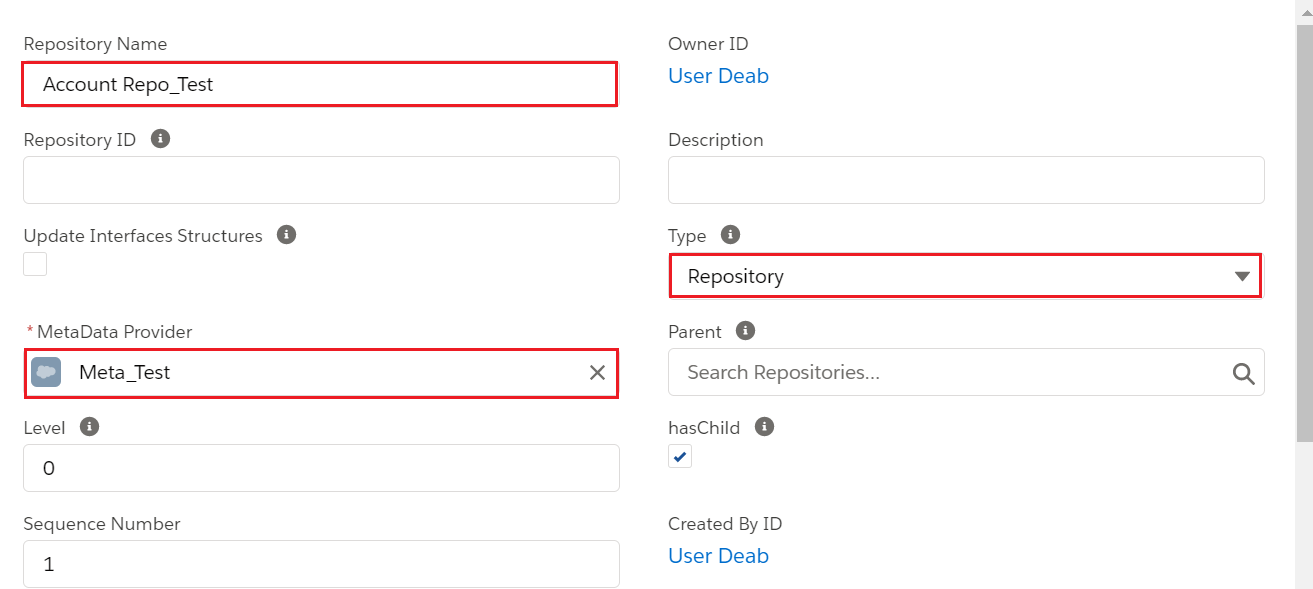
Step2: Create Istructure Repository in created metadata. The purpose of Istructure is An Interface for a structure that contains the metadata of a structure.
- We have click on the related tab then click on the new button to create Istrutcure repository.

- Fill all the required fields of Istructure repository.
Step 3: We have to create a message type.
- Open Istructure Repository detailed page.
- Click on the Upload File button
- Choose the file and Save.

- Click on the related tab to check the created message type.
Step4: Create Integration. Step5: Create Account Interface where we need to add:
- Metadata
- IstructureRepository
- Message Type
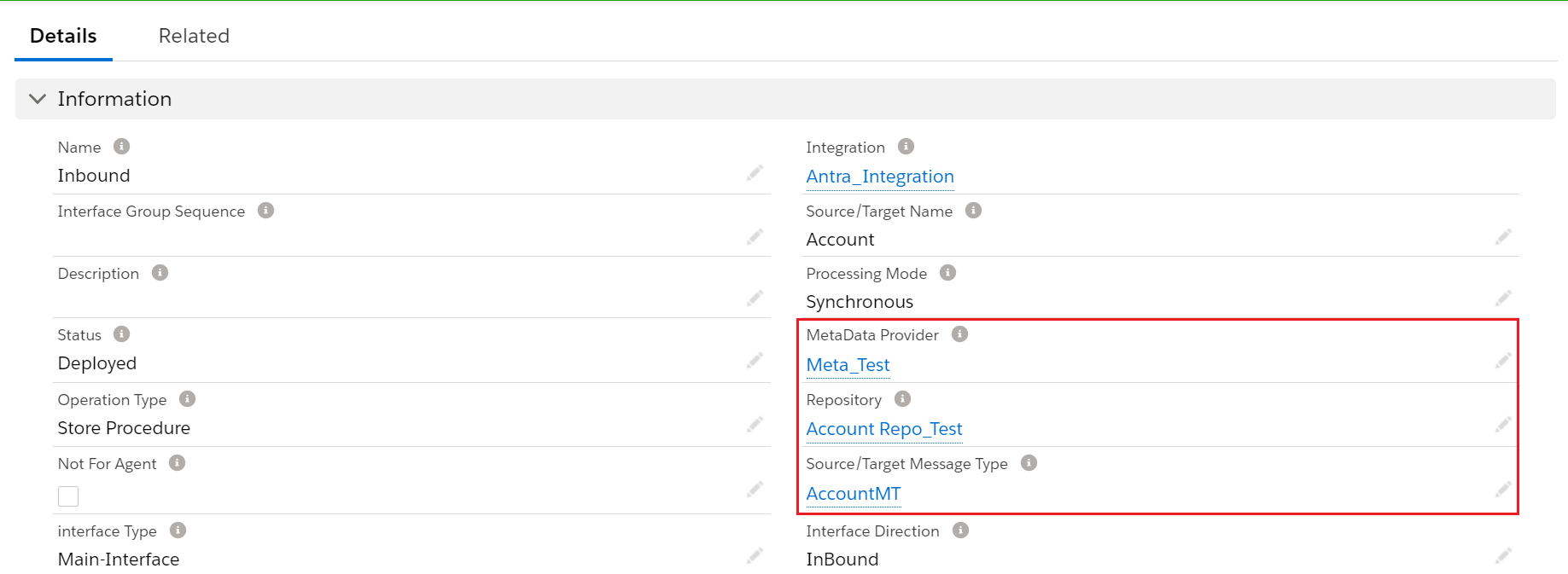
- Click on "Open Mapping" on the interface page.

Create VLOOK Up Formula: To open the expression formula window we have two options:
- Drag and drop Function field from source to target(to the field on which we want to apply formula)
- Select checkbox to any field and double click on the same row.
For Example: Formula: VLOOKUP(account,Id,AccountNumber,Id) The Expression means we find Account that has External id on Target Account name is AccountNumber and mapping on Source AccountNumber is Id. Here is the syntax of VLOOKUP: “VLOOKUP(Standard/CustomObjectName,FieldToRetrieve,FieldCondition1,Condition1,FieldCondition2,Condition2,...)” The popup window will show a window where to add Formula and Expression.
- Choose function = VLOOKUP then click Insert Select Function button
- Enter the values
- Clicks on Test Formula to see output if it is true or failed than Save.
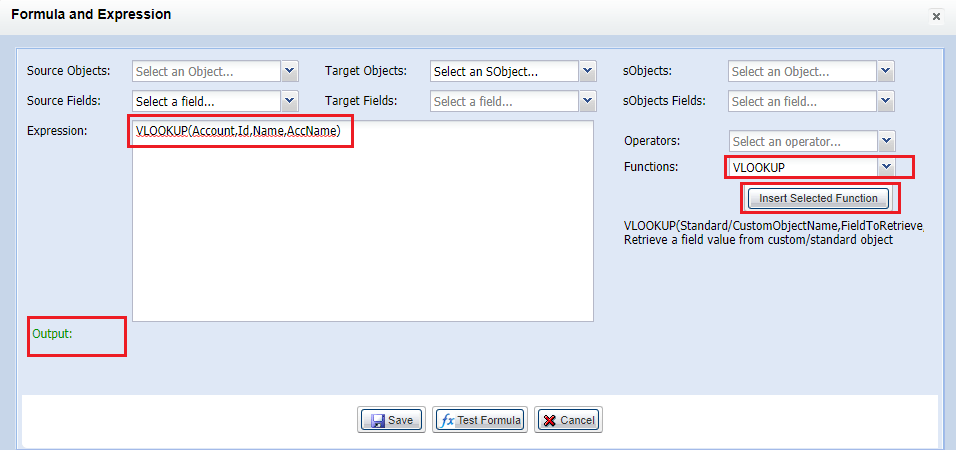
[su_box title="Note" box_color="#2a8af0" title_color="#000000"] If the output is failed, it means that your formula is incorrect. In conclusion, after you map all fields, do the formula and choose the External ID, please save. Just in case you forget to save, all your Data Mapping will be lost.[/su_box]
- Manually upload data using a manual load. Do configuration as shown below and upload the file.
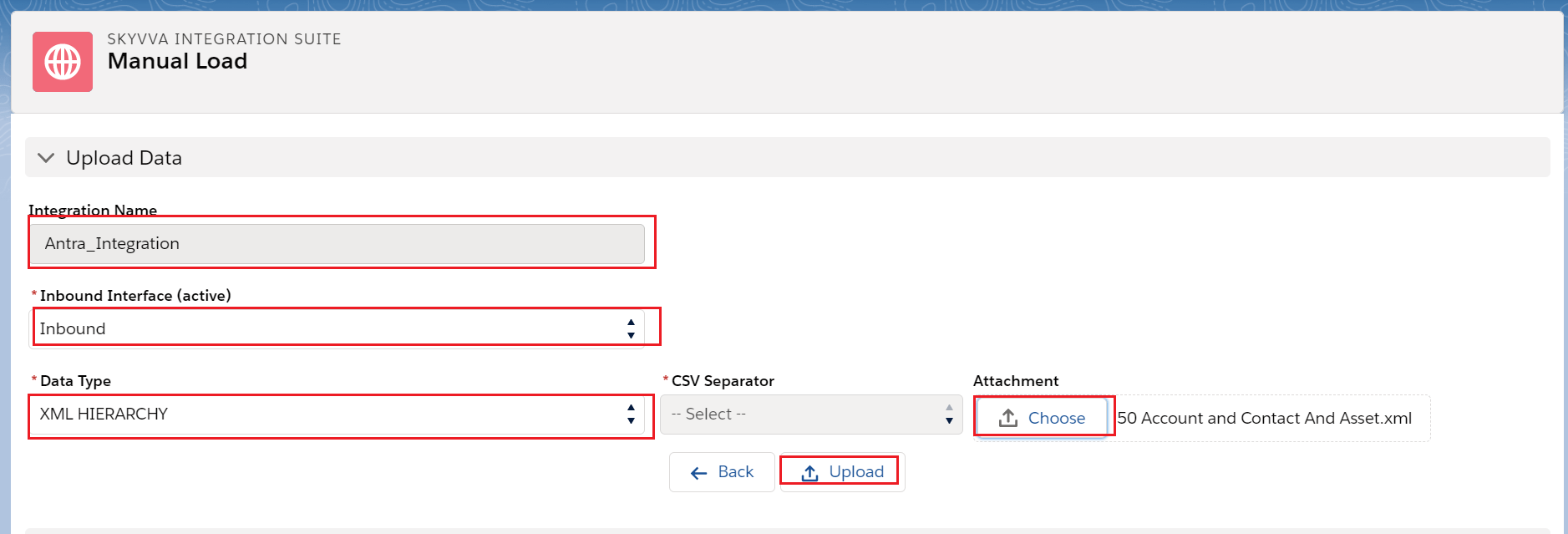
- Select all and Push the file as shown below:-

[su_box title="Note" box_color="#2a8af0" title_color="#000000"]Remove Export field if we get error that the file we uploaded is different to the file in the mapping. [/su_box]
- Check the result on message monitoring.
