2. How to use Scheduler Do-Alert when not running?
Introduction:-
In this tutorial, you will learn how to use the DoAlert
How to use Scheduler Do-Alert when not running?
to alert and provide notifications when a scheduler has not run for a certain time. The DoAlert Scheduler is a functionality that allows the user to configure email notifications based on their preferences in the interface or integration. It provides two distinct options for triggering alerts: when messages fail during processing and when the scheduler has not been run since xxx. The first option triggers alerts whenever messages fail during processing. This ensures that you are promptly notified of any message errors or issues encountered, enabling quick resolution. The second option triggers alerts when the scheduler unexpectedly stops running. This functionality is beneficial as it provides users with alerts or notifications, informing them that the scheduler has not been run since xxx. This ensures that users are promptly notified of disruptions in the scheduler's operation.
What is Scheduler DoAlert When Not Run?
The DoAlert Scheduler is a feature that sends notifications when the scheduler crashes or stops running. It sends email notifications to the user's email address, informing them that the scheduler has not been running since a certain time (xxx). This feature can be configured in the Integration, Interface Group, Interface, Scheduler, and Alert Configuration settings.
Pre-Requisite:
The DoAlert on the scheduler supports the scheduler's daily frequency:
- Run at: If you choose this option, it means you want the scheduler to run once a day but at a specific time.
- Run every: The scheduler can be configured to run every hour or every minute, depending on how you set it up. If you want the scheduler to run every X hours, then you must choose the 'Hours' option. However, you will also need to specify the starting time and the ending time for when you want the scheduler to run.
- When starting the scheduler on Salesforce, it will create the Interface Control Runtime Record Type:
- Alert When Not Run
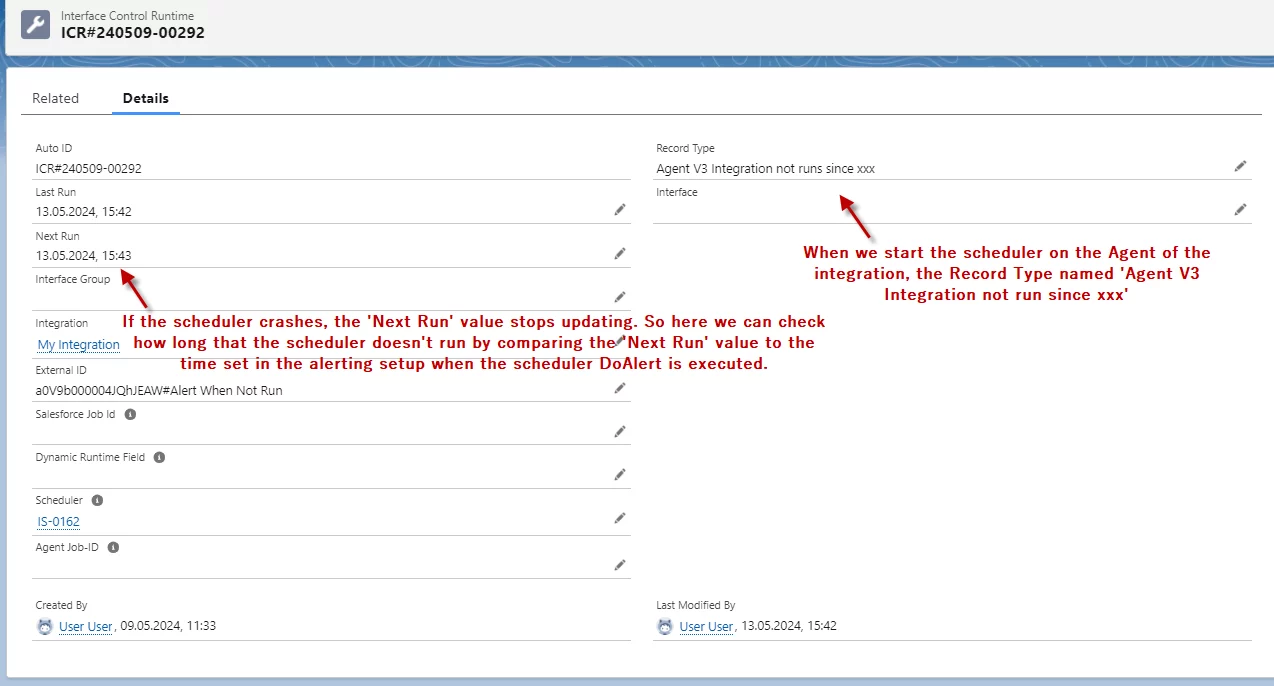
- When start the scheduler on Agent, it will create Interface Control RunTime specific Record Type:
-Agent V3 Integration not runs since xxx
- Agent V3 Interface Group not runs since xxx
- Agent V3 Interface not runs since xxx
All Warning:
Adding Several picklist values while upgrading the new version
In general picklist values from the package will not be added automatically when you upgrade the package. Therefore you must add them manually after the upgrade. Note that for a new installation, this problem will not arise.
Add picklist of Record_Type in InterfaceControlRunTime for the alert when not run feature. Please add these 4 picklist:
- skyvvasolutions__RecordType__c: Alert When Not Run
- skyvvasolutions__RecordType__c: Agent V3 Interface not runs since xxx
- skyvvasolutions__RecordType__c: Agent V3 Interface Group not runs since xxx
- skyvvasolutions__RecordType__c: Agent V3 Integration not runs since xxx
We need to configuration:
Before we can start using the scheduler DoAlert, please create the integration and then the interface. After that, we can set up the alerting function.
- Set up Alert Configuration: we can set up the Alert Configuration for anywhere, such as Integration, Interface, Interface Group, and Scheduler.
- Start Scheduler DoAlert on Integration.
- Start the scheduler on Integration, Interface, Interface Group, and Scheduler.
1. Set up Alert Configuration on Integration.
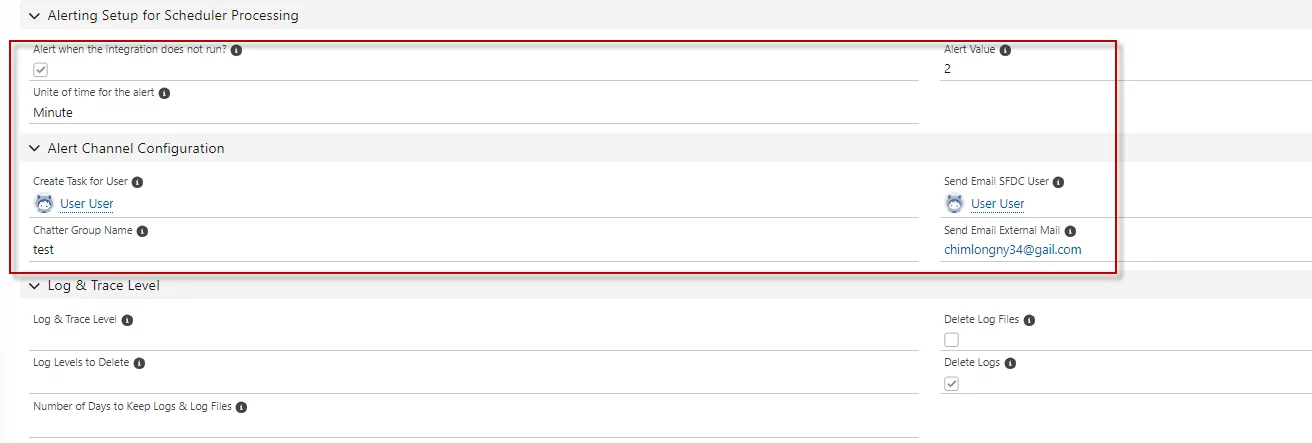
Setting Alert Setup for scheduler processing on integration detail:
- Tick box ‘Alert when the interface does not run?’
- Set the Unite of time for the alert as the minute
- Input the ‘Alert value’
- Create a Task for the User
- Chatter Group Name
- Send Email SFDC User
- Send Email External Mail
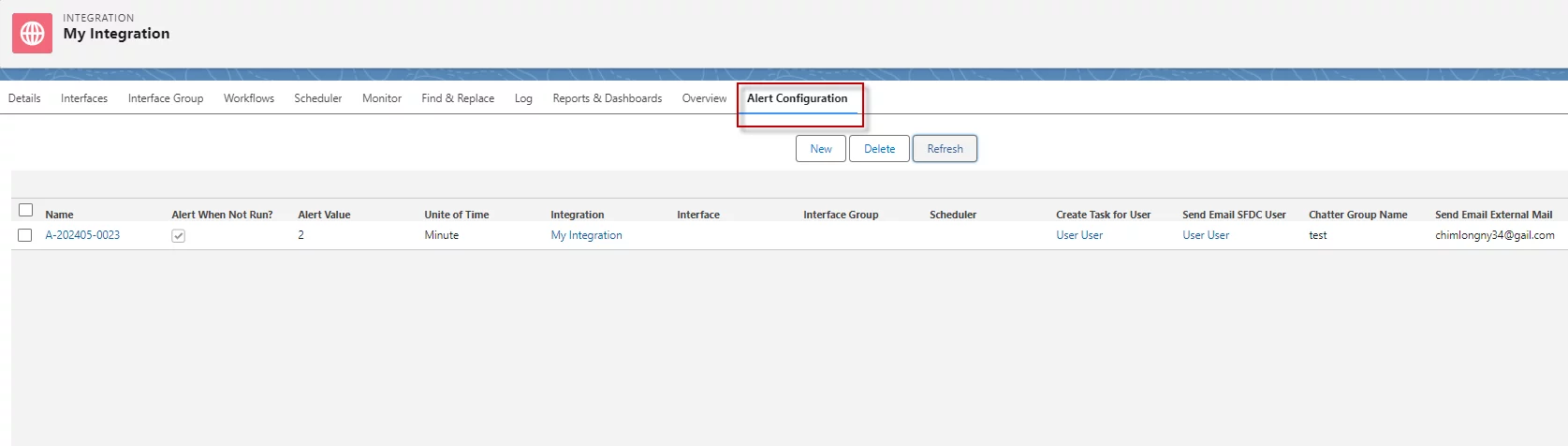
- After Setting Alert we have record on Alert Configuration tab
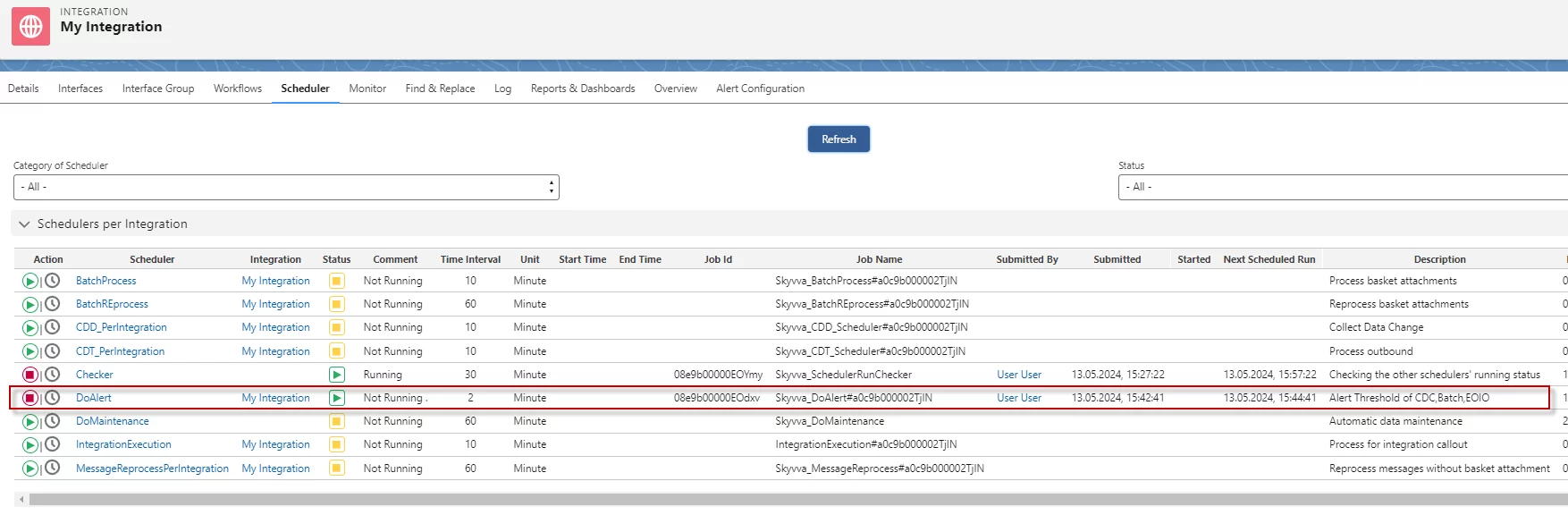
- Start the Scheduler 'DoAlert' to Get Alerting Notification.
- Start the Scheduler 'Integration' on Agent Control Board.
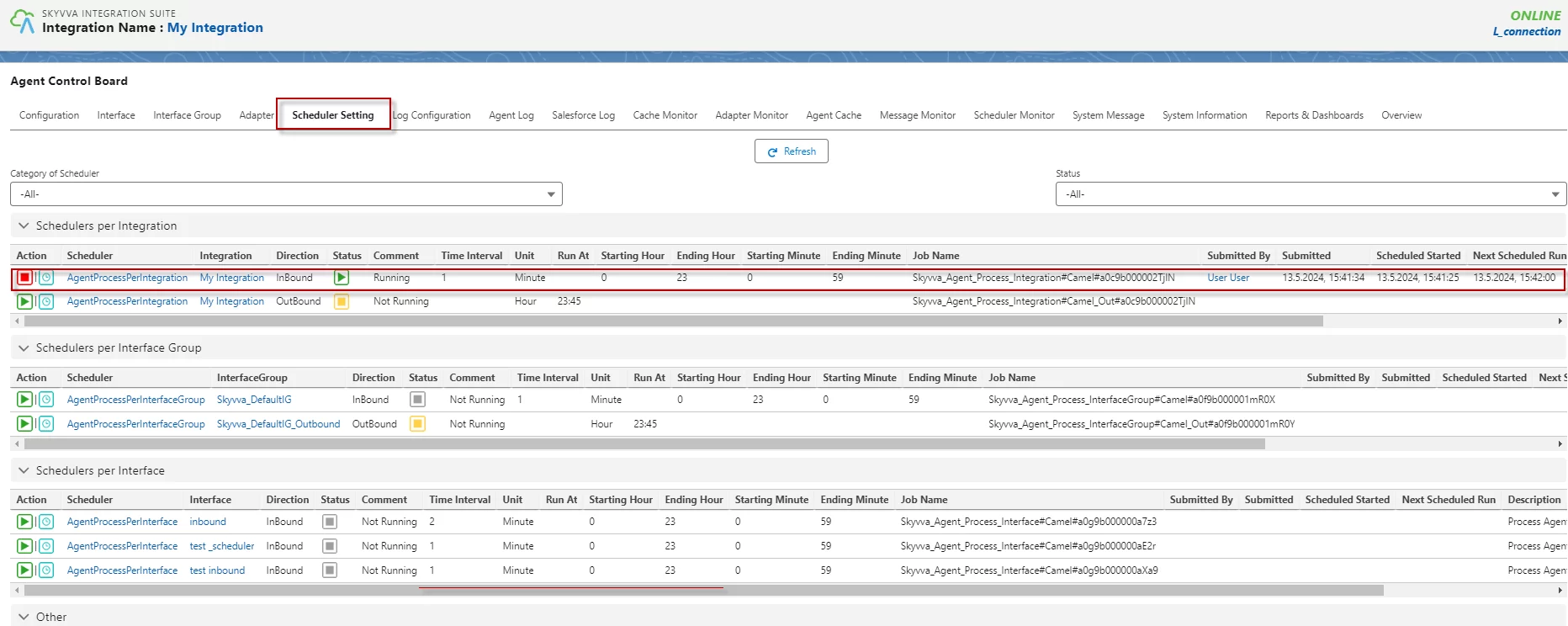
- When start the scheduler on Agent, it will create the Interface Control Runtime of those integration.
This is just an example: Currently, my scheduler crashed on the next run at 13:43 when compared with the time alert configuration. As a result, the 'Scheduler doAlert' was executed, and a notification will be sent to my email.
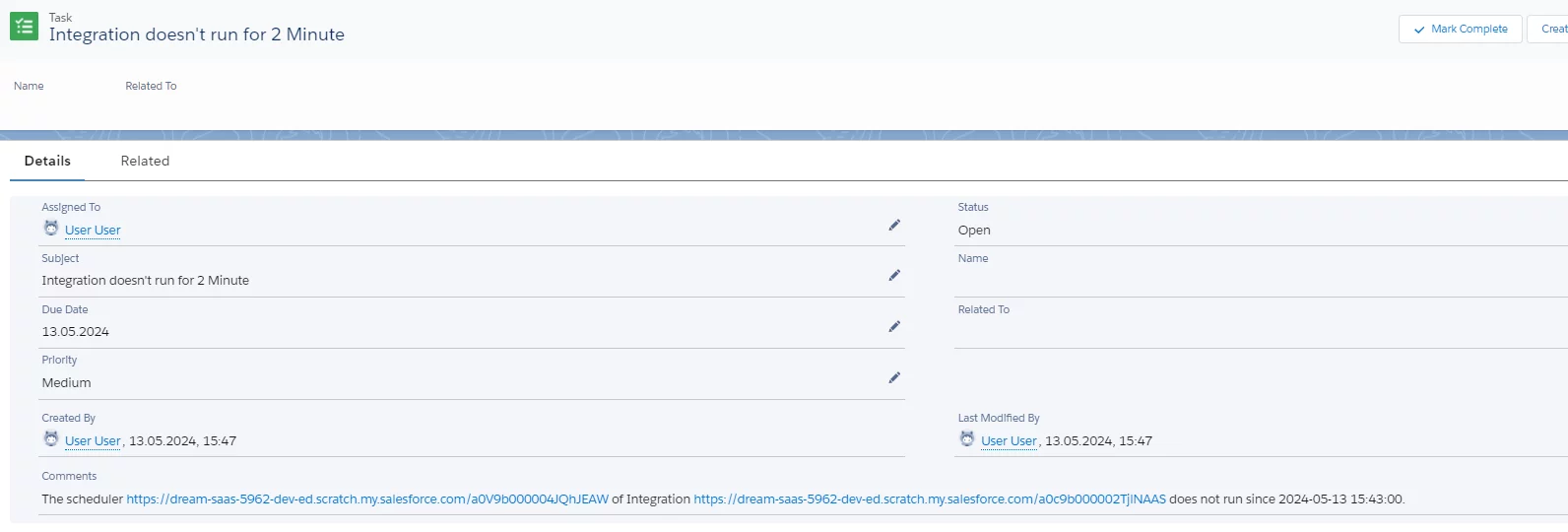
- Here's the alerting that creates a task for the user.
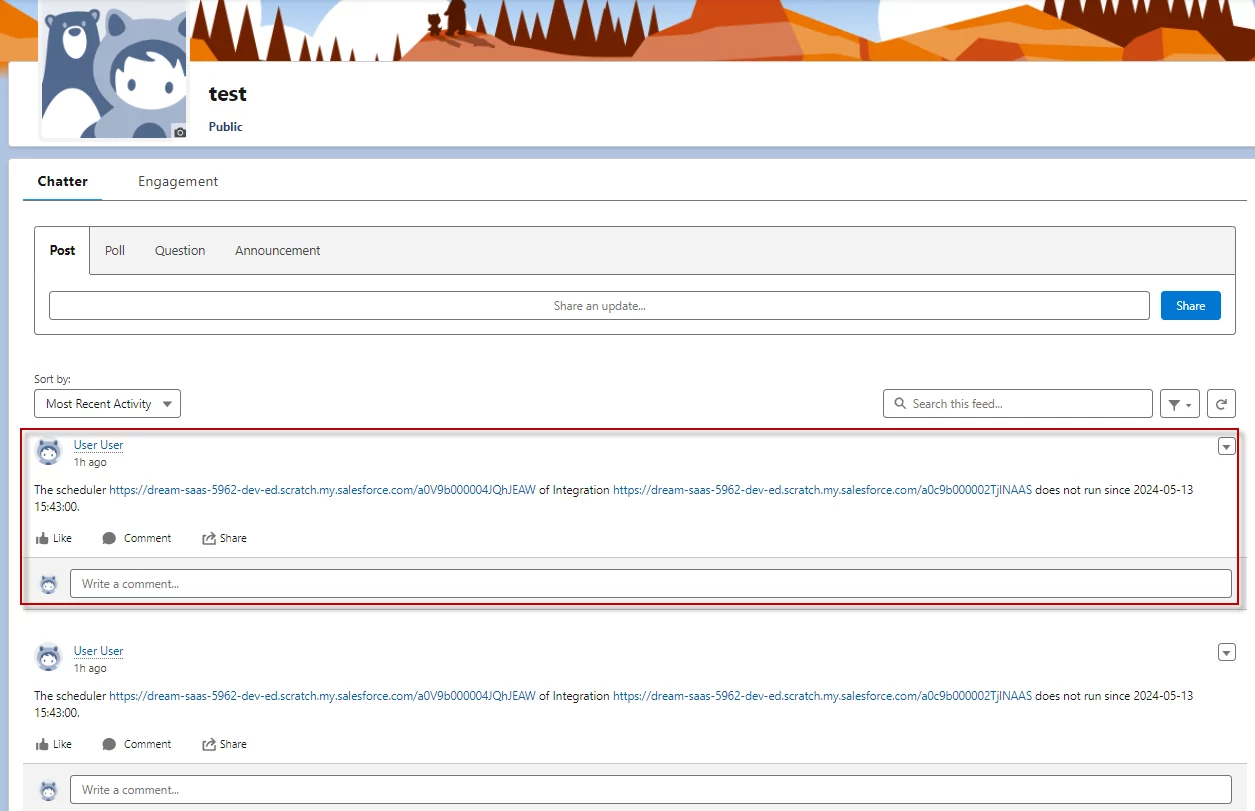
- Chatter Group.
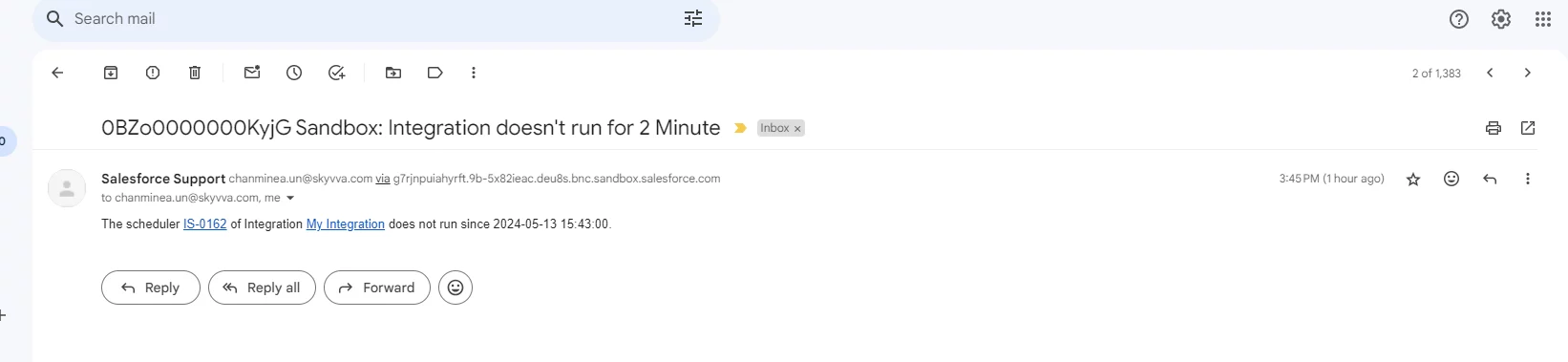
- Send Email SFDC User, Send Email External Mail.
Finally, the 'Scheduler DoAlert' is very user-friendly, providing notifications when a scheduler has not run for a certain period of time.