Inbound Mapping
It is the feature of the inbound mapping functionality of a SKYVVA application, an integration tool. Here's a breakdown of what we have mentioned:
- Source Panel: This is where users can input or modify a template. The template appears to be provided in a format compatible with CSV, XML, or JSON.
- Supported Formats: Users can work with data templates in three formats: CSV, XML, and JSON. This flexibility allows users to manipulate data in the format they prefer or that suits their business requirement integration needs.
- Data Entry: Users can enter data into the provided template. This suggests that the SKYVVA application allows users to customize the template according to their business requirements.
- Mapping: After entering data into the template, users can execute a mapping process. This mapping transformations to the data as per the mapping configuration.
- Mapping Result Display: The mapping results are displayed in a table tree view on the left panel. This view provides a structured and organized representation of the mapped data.
- Result Format: The mapping results are not displayed as CSV, XML, or JSON, which means that the output is presented in a structured, tabular format. This format is more user-friendly and suitable for analysis.
- Subject Field Names: The mapping result includes sObject field names. These field names likely correspond to the data elements in the template or have been generated as part of the mapping process.
- Debugging and Analysis: The mapping results are primarily intended for debugging purposes and analysis. This suggests that users can review and assess the mapped data to identify any issues or discrepancies in the mapping process.
- No Real Posting: The SKYVVA application performs data transmission. It focuses solely on the mapping aspect, preparing data in the desired format for further integration.
[su_box title="Inbound Mapping" box_color="#C0C0C0" title_color="#000000"]Inbound Mapping feature within a tool designed to facilitate the mapping and transformation of data from one format to another, with a focus on ease of use, flexibility, and providing clear, structured results for users friendly to experience.[/su_box]
Case1: Test Mapping with Inbound Interface
A "Mapping Button" for an inbound interface is a feature used in integration tools to facilitate testing and debugging of data mappings. It allows users to execute or test the payload by applying a specific mapping to convert data from one format to another. This is particularly useful when dealing with different data formats like CSV, XML, and JSON.
Here's how it typically works:
- Select Source Data: The user starts by selecting the source data that needs to be transformed. This could be a file or a message type.
- Choose Mapping: The user then selects to specify the mapping rules that define how the source data should be converted into the desired format (e.g., CSV to XML, XML to JSON, etc.). This mapping can be predefined or customized based on user integration business requirements.
- Execute/Test: After configuring the source data and mapping rules, the user uses the "Mapping Button" to test the mapping process. The SKYVVA application tool applies the mapping rules to the source data, transforming it into the target data.
- View Mapping Results: Once the mapping is complete, the user can view the results to ensure that the data transformation was successful. This would involve viewing the transformed data in the desired format (e.g., CSV, XML, JSON) or checking for errors and discrepancies by pop-up dialogue screen.
This capability is crucial in integration business scenarios where data from different sources and in different formats need to be harmonized or translated to be compatible with the target data of our SKYVVA application. It allows users to quickly verify that the mappings are working correctly and to troubleshoot any issues that may arise during the data Mapping.
[su_box title="Expectation:" box_color="#2a8af0" title_color="#000000"]The Test Mapping Button for Inbound Interface is used to Execute/Test the payload in different formats, such as CSV, XML, and JSON, in order to check/view the mapping results.[/su_box]
Required step:
- Create an Integration
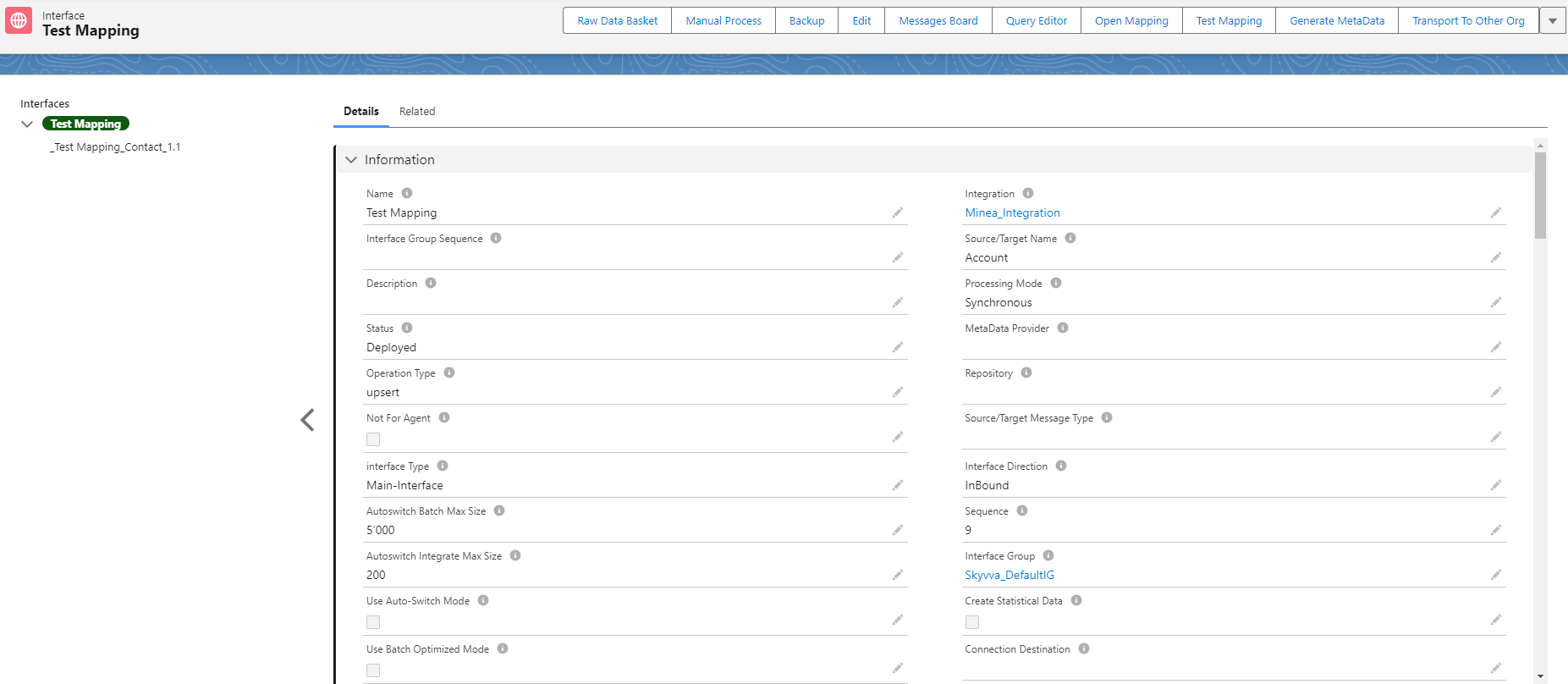
- Create an Inbound Interface -> Set Interface API Version: V3
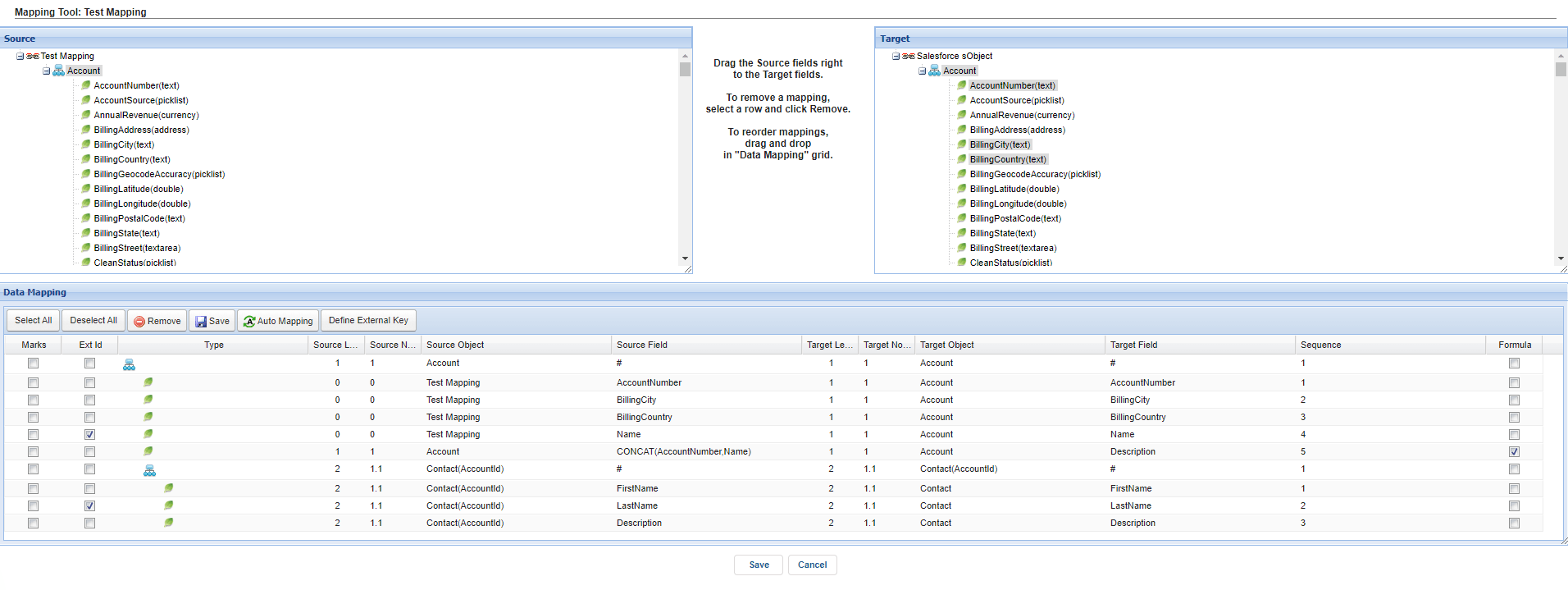
- Do Mapping
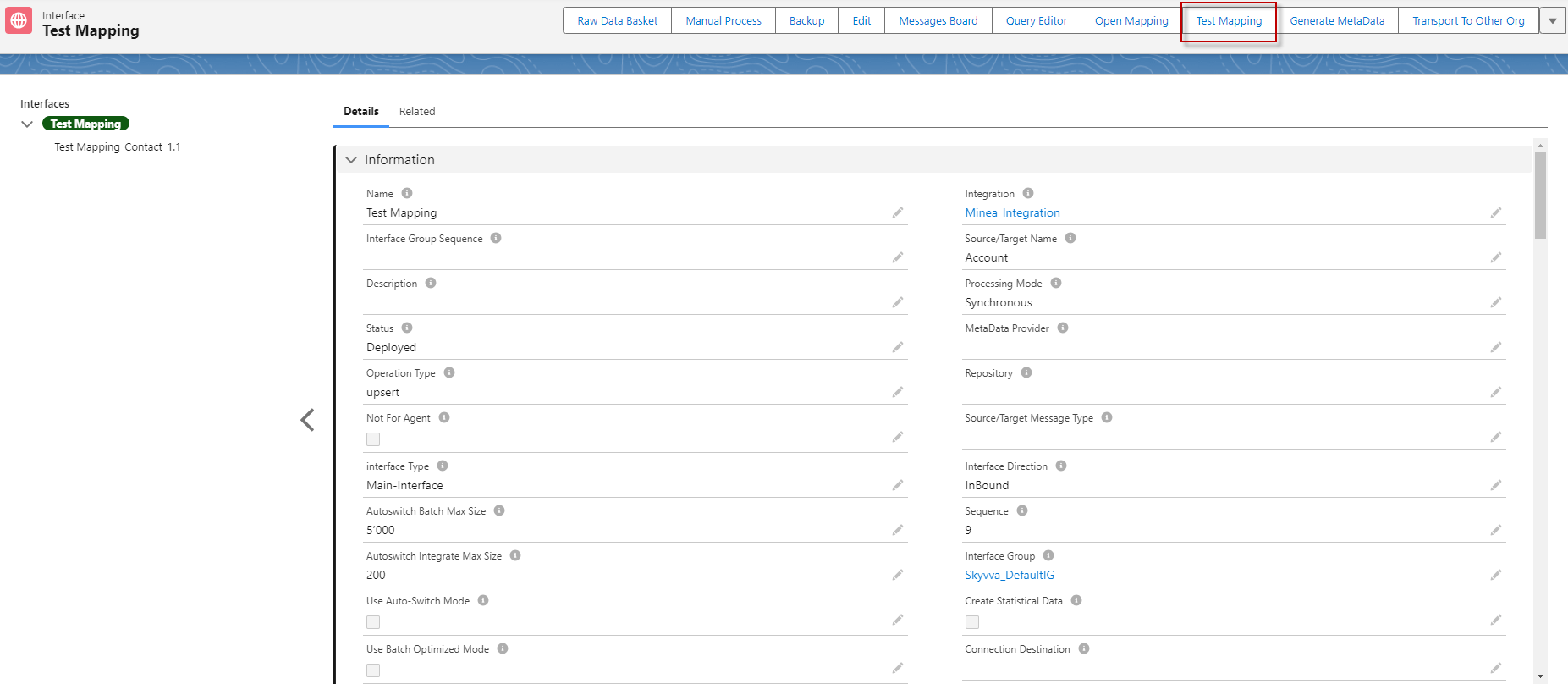
- Go to Interface -> click on Button Test Mapping
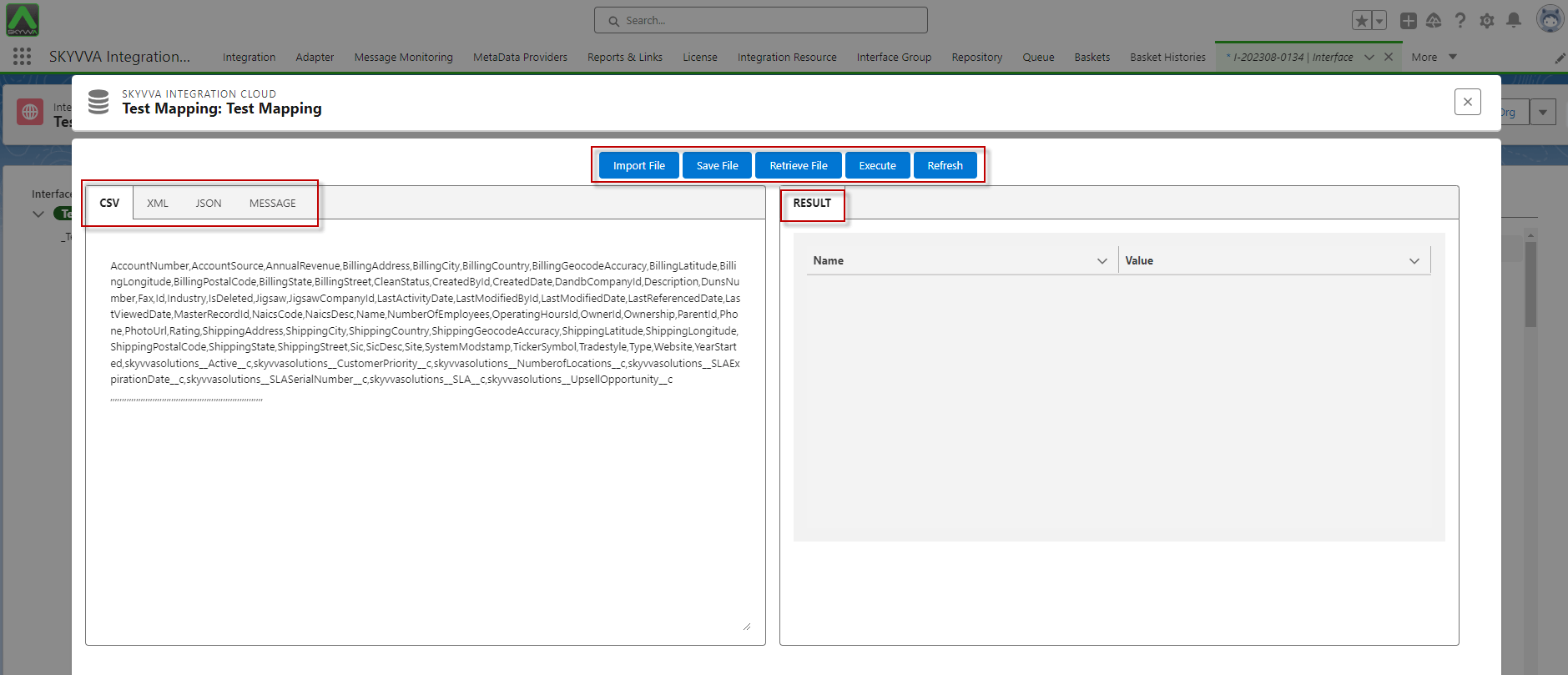
- After click on the Test Mapping -> we can see the pop-up screen Test Mapping as below:
[su_box title="Note" box_color="#2a8af0" title_color="#000000"]
- The left box is used to input the payload in different formats such as CSV, XML, and JSON. It also allows you to select an existing message to execute/test the mapping and view the mapping results.
- The right box is used to check the mapping results after the payload has been executed from the left box.
- If you use Interface V3, the left column shows 4 tabs (CSV, XML, JSON, Message)
- If you use Interface V2, the left column shows 2 tabs (CSV, Message)
[/su_box]
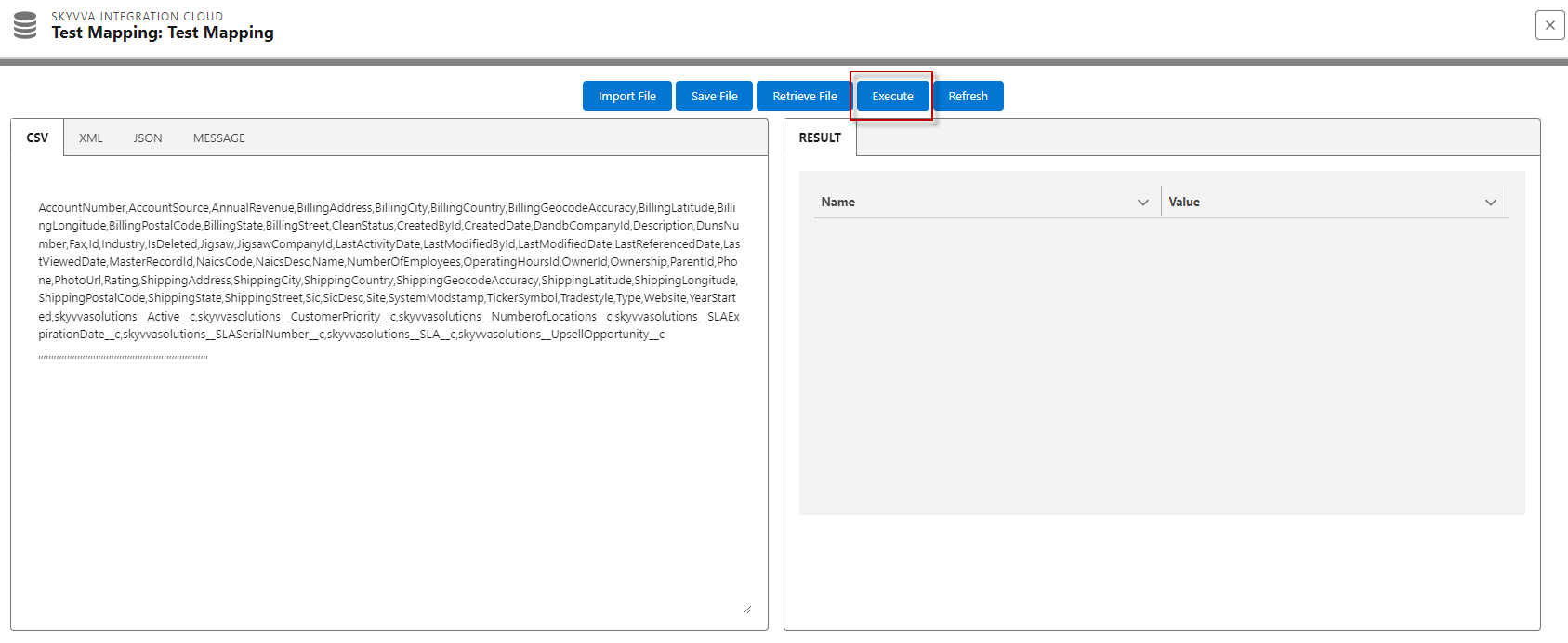
"Inbound Interface" with five buttons, and one of those buttons is the "Execute Button." The purpose of the "Execute Button" is to trigger the execution of a payload in order to test the mapping of the result.
Here's a breakdown of its functionality:
- Execute Button: This button initiates the execution of a payload. It sends the payload to a specific destination or service and then waits for the results to be returned. This is useful for testing the configuration and ensuring that data is being processed correctly.
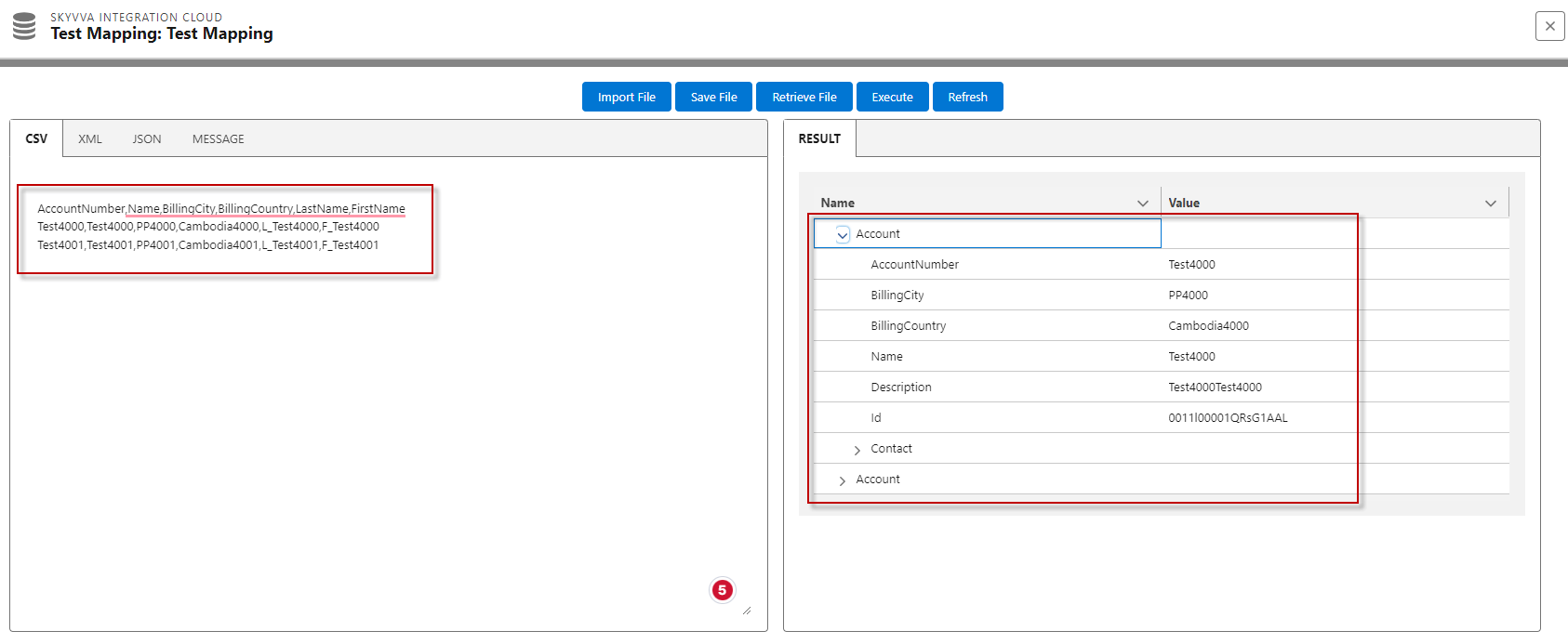
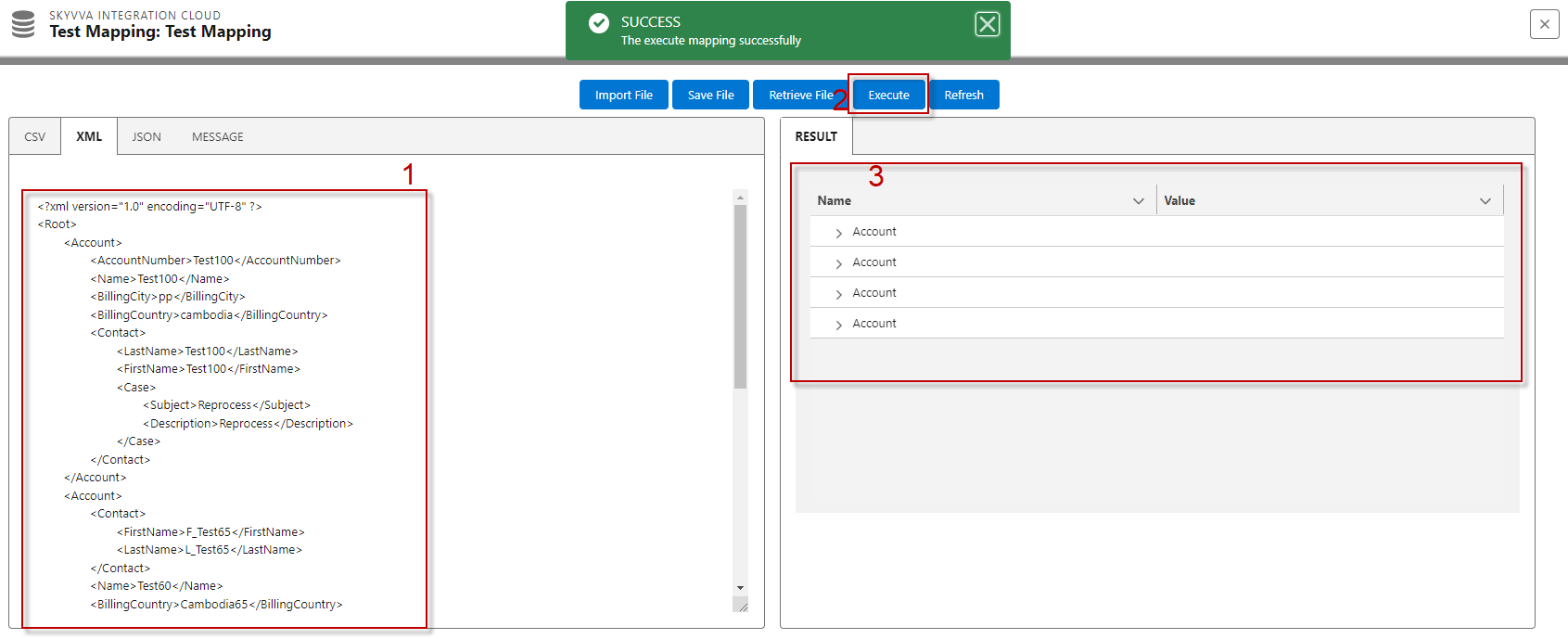
- This is used to execute the payload to test the mapping of the results
Before clicking the Execute Button:
- After Executed, we got the result as below
The "Refresh" button is a common user interface element in the SKYVVA application that serves to update or reload content, which can include payloads and results, to ensure that users have access to the most current information or data available. The specific behavior and functionality of the "Refresh".
Refreshing a Payload: In APIs (SKYVVA Application Interfaces) or web services, a "Refresh" button is used to resend a request with the same or updated parameters to retrieve a new payload or response from the server.
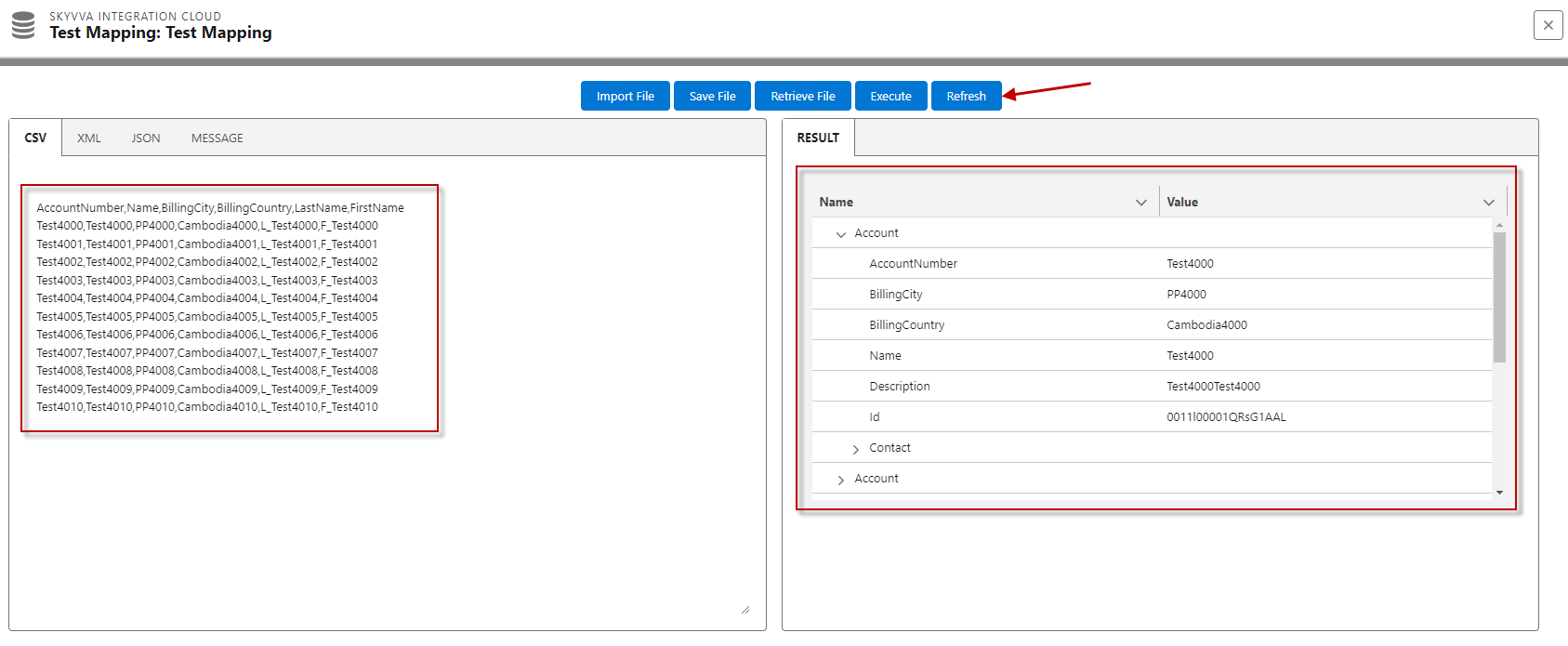
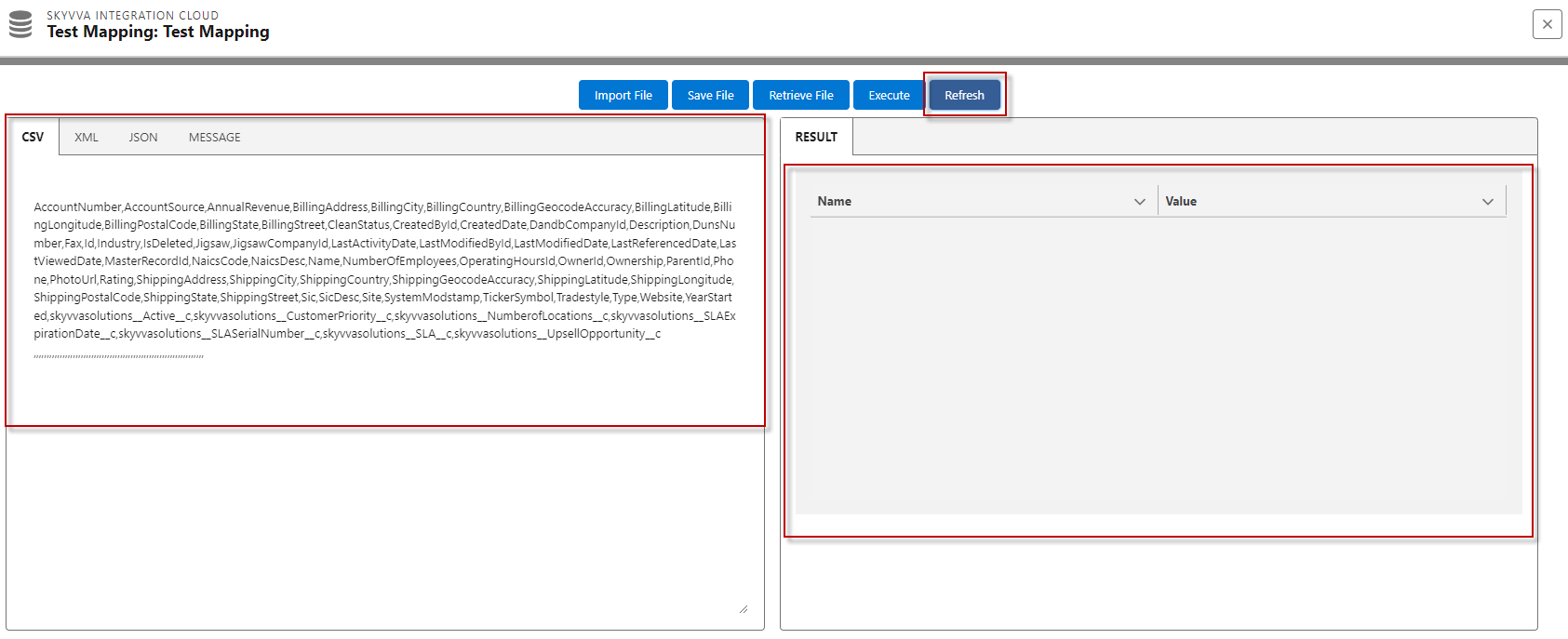
- Refresh Button: is used to refresh the Payload and the Results
Before clicking the button Refresh
- After clicking the Refresh button
The "Import File Button" is a feature or component in a SKYVVA application that allows users to bring external files into the system. It has the following functionalities:
- File Type Selection: The user can choose the type of file they want to import. It supports file types such as CSV, XML, and JSON. This means that users can specify the format of the file they are importing.
- Mapping: The import process involves mapping the data in the external file to the data structure or schema within the SKYVVA application. "Defined mapping," which recommends that the SKYVVA application might have predefined mappings for certain file types. For example: if the mapping is flat (i.e., a one-to-one mapping of fields), it would work for CSV files. More complex mappings might be needed for other file types like XML or JSON.
- File Import: After selecting the file type and mapping (if necessary), the users can initiate the import process. The SKYVVA application reads the selected external file and extracts the relevant data according to the mapping rules.
Click on the Import File button, and its alert pop-up screen Import File has chosen a file Type and Upload Files button
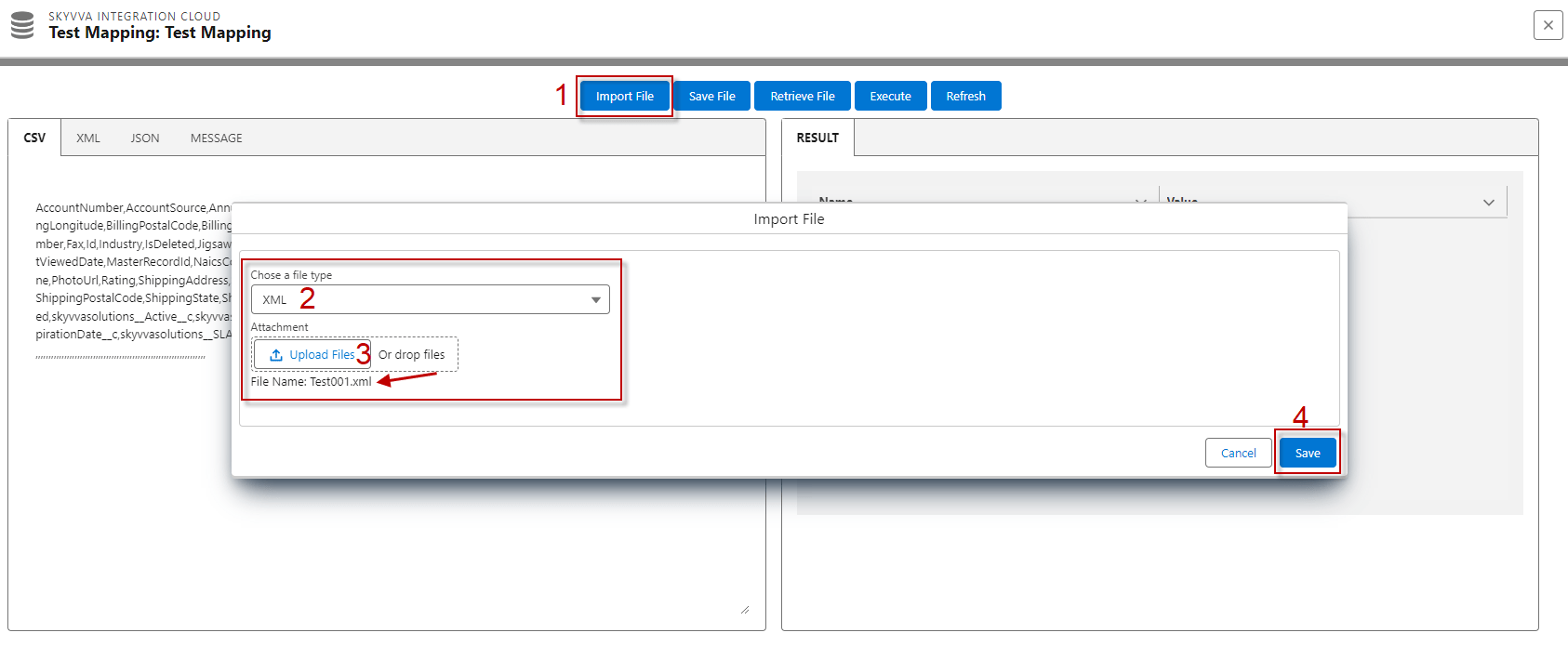
- After clicking on Save, it reads the payload from a file and writes it onto the screen then when clicks on the Execute
"Save File" is an option in the SKYVVA application, that allows users to save the content displayed on the screen into a file. This action involves taking the information or payload currently visible on the screen and writing it to a file on the storage system.
Here's how it generally works:
- User Action: The user, initiates the "Save File" action by selecting it from the SKYVVA application menu.
- Dialog Box: After selecting "Save File," the SKYVVA application usually opens a pop-up screen that allows the user to specify various options for saving the file. This may include choosing the file name, file format (e.g., CSV, JSON, XML), location on your computer, and another system.
- Saving the Payload: Once the user has configured the settings in the dialog box, the user confirms. The SKYVVA application then takes the content currently displayed on the screen (the payload) and writes it to the specified file on the computer.
- File Saved: After the file is successfully saved, the user can access it at the specified location on the computer for future reference.
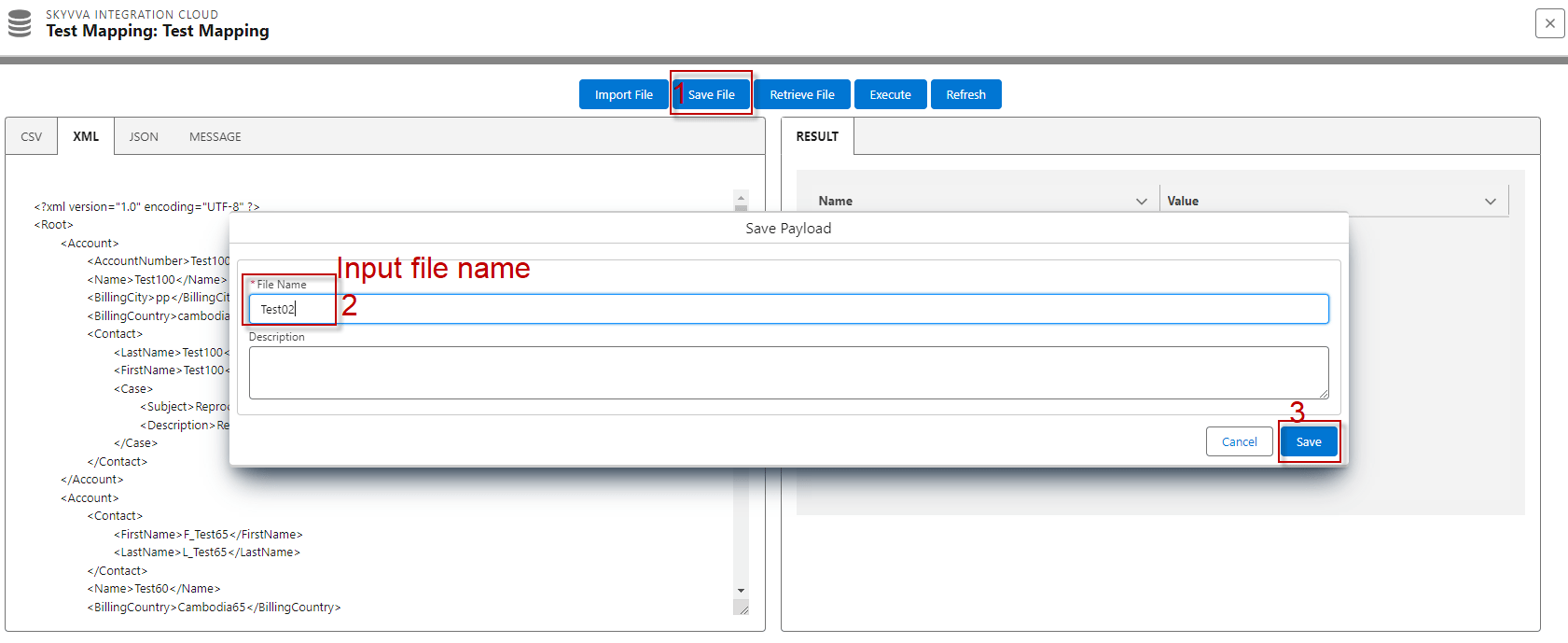
After clicking on the Save File button, the alert ‘Save Payload’ pop-up screen, you have to input File Name -> Save
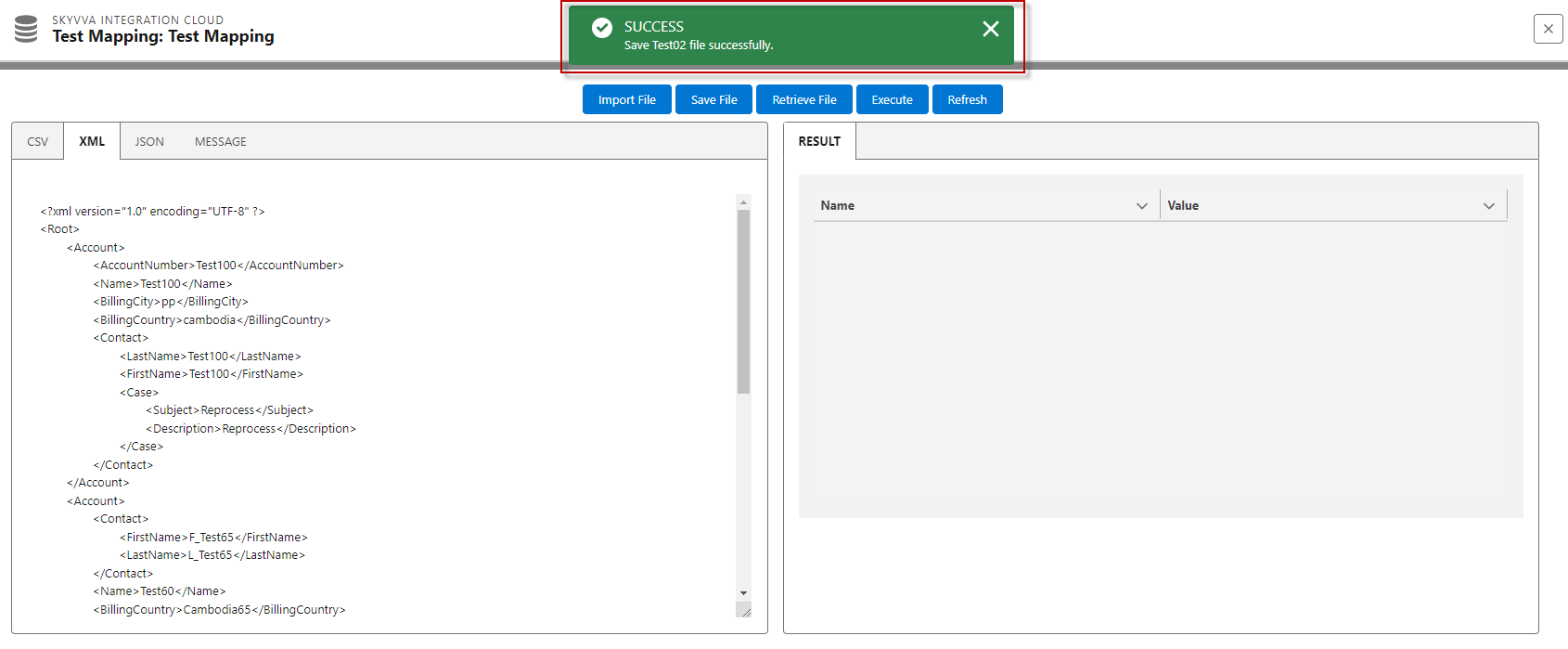
- After Saved, it will alert message [SUCCESS: Save Test02 file successfully
Retrieve File is a feature related to handling payload files, in a SKYVVA application. Here's a breakdown :
- Payload File: The file that contains data that needs to be processed within an SKYVVA application.
- Save and Read: This is a process where the user first saves the payload data to a file and then later reads it from that file. This is an approach for working with data in the SKYVVA application.
- Write it onto the Screen: After reading the payload from the file, the user intends to display it on a screen.
- Retrieve File: This is a feature in your SKYVVA application that deals with handling the payload file. It has two actions:
Download: This action allows users to download the payload file, which is useful if they want to keep a copy of it for reference.
- Delete: This action allows users to delete the payload file, which is useful for managing storage space or for privacy/security reasons.
After clicking on the Retrieve File button, we can see that the pop-up screen Retrieve File has stored the file type (CSV/XML/JSON) we have saved before
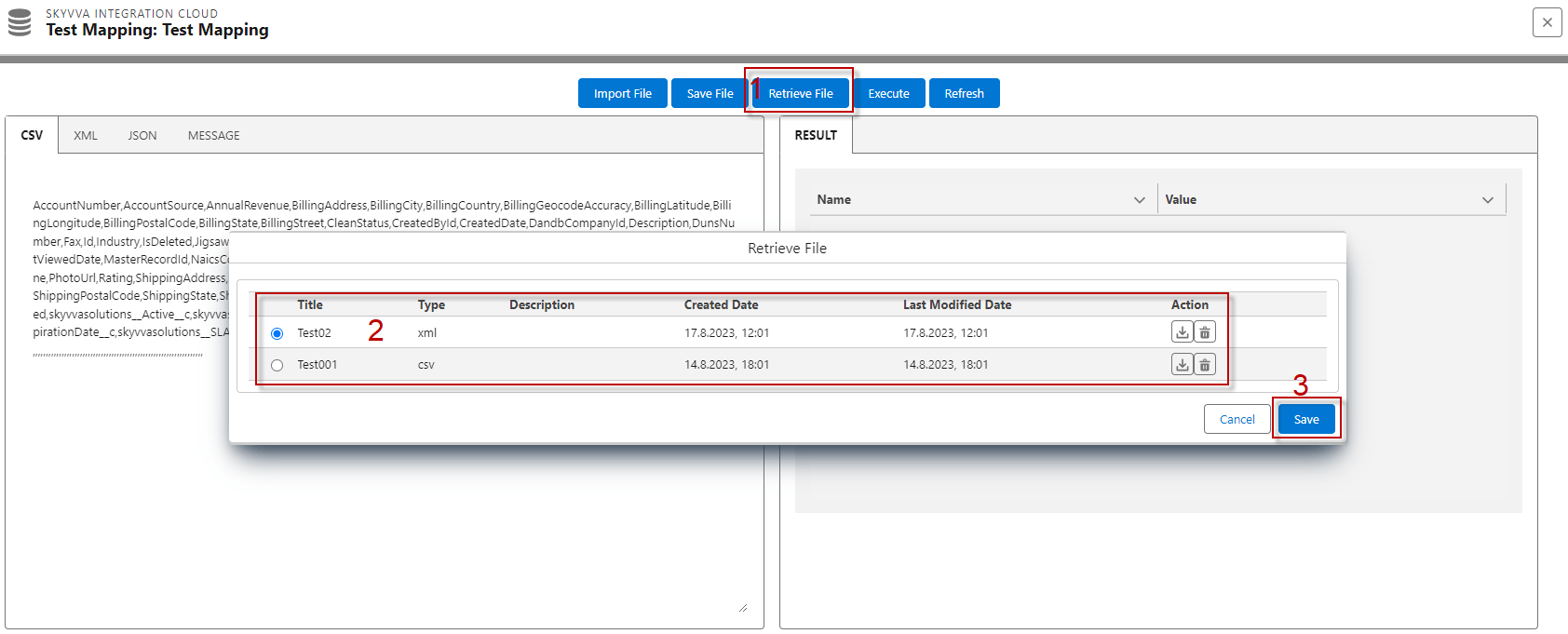
- After selecting the File -> Save, it will take that value file to show on the screen.
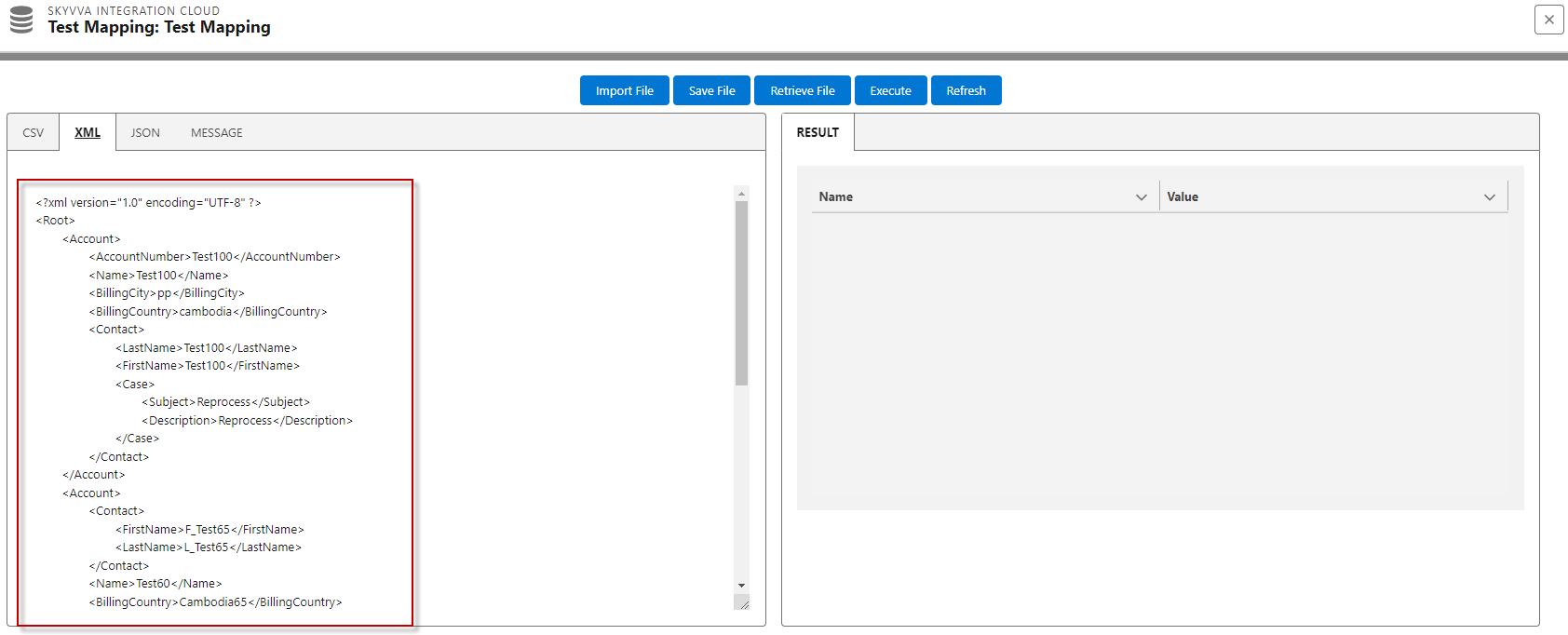
[su_box title="Result:" box_color="#2a8af0" title_color="#000000"]The Test Mapping Button is used to execute/test the payload in different formats, such as CSV, XML, and JSON, in order to check/view the mapping results.[/su_box]
[su_box title="Note:" box_color="#2a8af0" title_color="#000000"]
- Interface API Version V2: On the Test Mapping Button, the structure of the payload will be described based on the source sObject definition. For V2, only CSV is available because it is a flat format.
- Interface V2: If you upload a structure from a file, it will retrieve the structure payload from the imported file in the source interface.
- Interface API Version V3: The Interface without specifying a message type, On the Test Mapping Button, the structure of the payload will be described based on the source sObject definition. For V3, CSV, XML, and JSON are available as they can handle hierarchical payloads.
- Interface V3: If the interface is linked with a Message Type, the Test Mapping Button fields will be retrieved via the Message Type link with the interface.
[/su_box]