2. SkyvvaSalesforce Sender Adapter in SAP Integration Suite
The SkyvvaSalesforce Sender Adapter brings data from Salesforce into SAP Integration Suite. Choose Event Processing to receive Salesforce events, or Schedule Processing to retrieve records at set times.
This settings guide covers adapter version 1.3.0 and explains how the selected processing mode changes the available fields.
The sender connection brings Salesforce data into the flow. Follow the connection to the start of the flow, then follow the arrows through the steps that process and send the data onward.
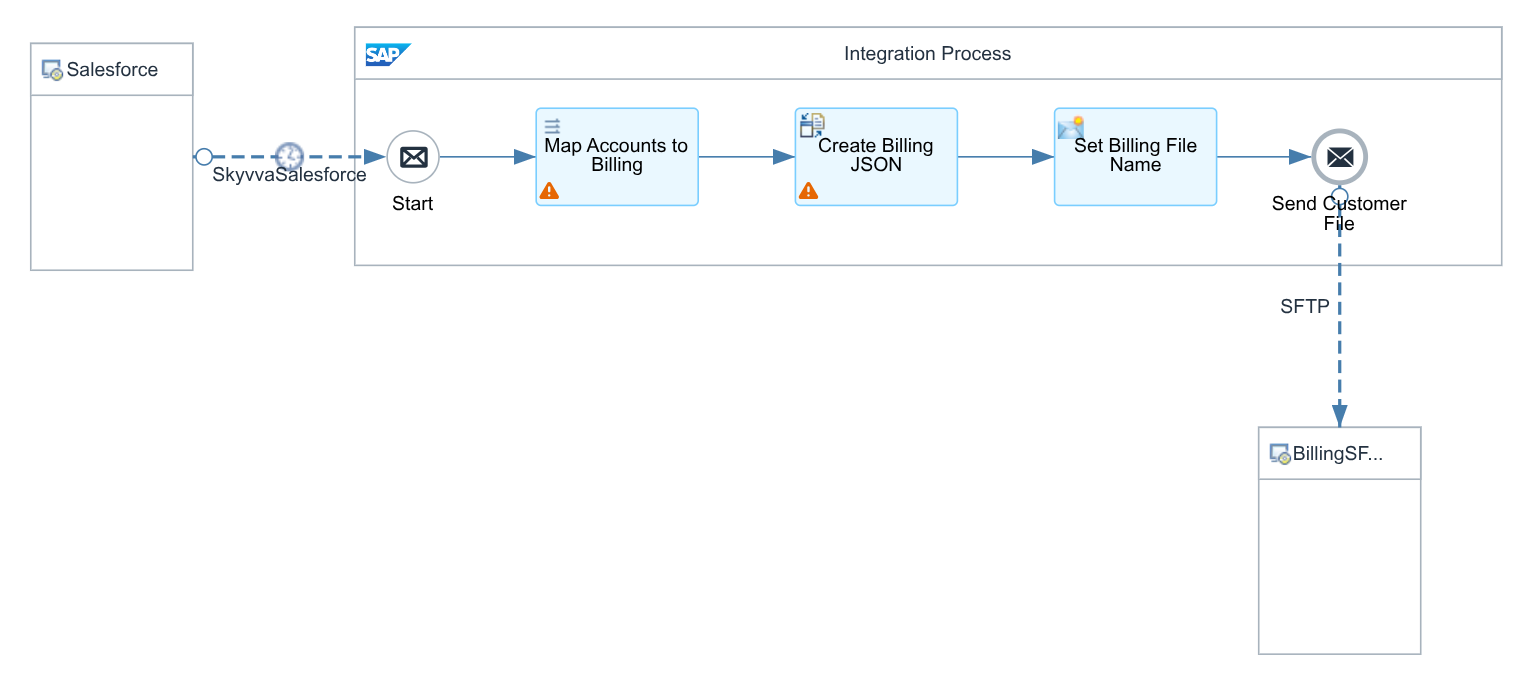
Figure 1. How Salesforce data enters an integration flow through the SkyvvaSalesforce sender adapter.
Context Before You Start
Use this guide when configuring how Salesforce data enters an integration flow. Event Processing suits notifications and record changes as they occur; Schedule Processing suits periodic exports selected by a saved query. Choose according to the receiving system's required timing and recovery process.
Prepare a deployed SkyvvaSalesforce sender adapter, Salesforce OAuth credentials, and an integration user with API access and the required event or record permissions. For scheduled retrieval, prepare the SKYVVA Integration and Interface with its saved query. For event processing, prepare the channel or managed subscription in Salesforce. The current designer does not configure a PushTopic definition for you.
Platform Events and Change Data Capture use Salesforce Pub/Sub and require network access to api.pubsub.salesforce.com:7443. PushTopic and Generic Events use CometD. Check the target system's duplicate-handling and recovery requirements; receiving an event or retrieving a record does not by itself confirm target processing.
Why Use This Adapter?
The adapter brings Salesforce sign-in, event subscriptions, and scheduled record retrieval into one sender connection. It supplies the received data to your integration flow so you can map it and deliver it to the target system.
When to Use This Guide
Use this guide to understand the settings before configuring your sender connection. Choose the event or query settings that match your source data and required timing. For step-by-step business examples, see section 11.
How This Guide Is Organized
Follow the tabs in order: General → Connection → Processing. Then read the section for your chosen processing mode:
- Section 5: Event subscriptions, replay, polling, and managed commits.
- Section 6: Scheduled record retrieval through a SKYVVA Interface query.
- Sections 7–8: Message format, logging, and Salesforce API version.
- Section 9: Scheduler settings for scheduled queries and event polling.
Only fill in the fields displayed for the mode and operation you select. Continuous Topic - Subscribe does not use the Scheduler tab.
2. Sender Adapter Configuration
In your integration flow, select SkyvvaSalesforce on the sender connection.
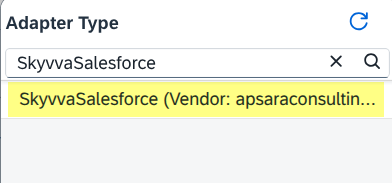
Figure 2. Choosing SkyvvaSalesforce for the incoming connection.
The adapter has four tabs:
| Tab | What to configure |
|---|---|
| General | Enter a name and an optional description for the sender connection. |
| Connection | Choose how to sign in to Salesforce and select the saved credential aliases. |
| Processing | Choose Event Processing or Schedule Processing and configure the displayed fields. |
| Scheduler | Set when scheduled queries or Topic - Polling run. Topic - Subscribe ignores these settings. |
The Name helps you identify this connection in the flow. The optional Description explains its purpose, for example “Receive Account changes.” Check that Direction is Sender and Adapter Type is SkyvvaSalesforce.
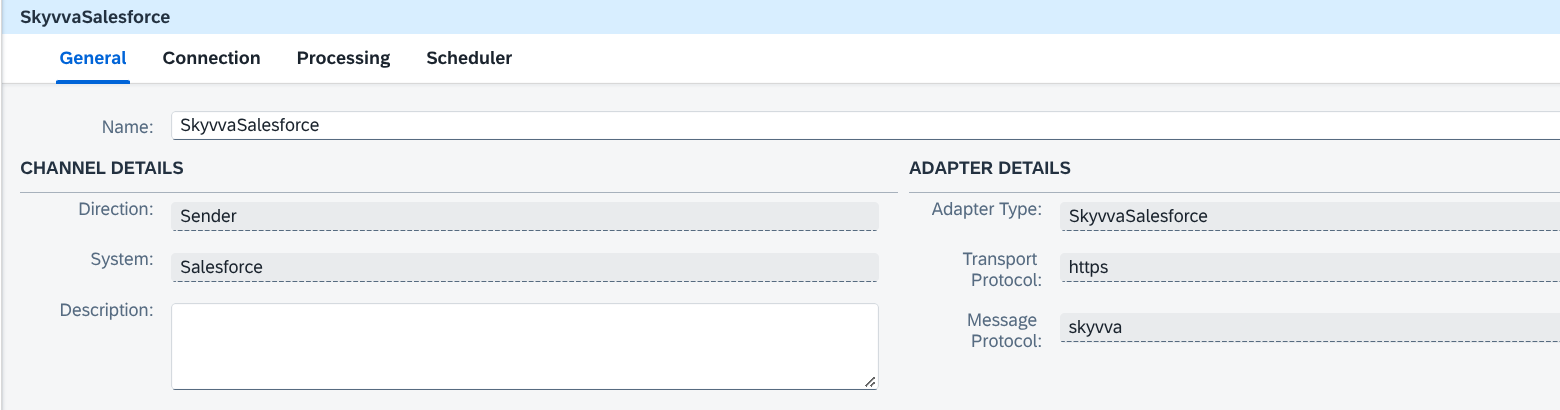
Figure 3. General tab: name the connection and check that it uses the SkyvvaSalesforce sender adapter.
3. Connection Tab
Use the Connection tab to set up access to Salesforce.
These settings tell the adapter which Salesforce organization to access and how to sign in. For the default Username-Password Credential choice, enter the Login URL and the names of both saved credential entries. The credential fields contain saved names, such as SalesforceUser and SalesforceClient.
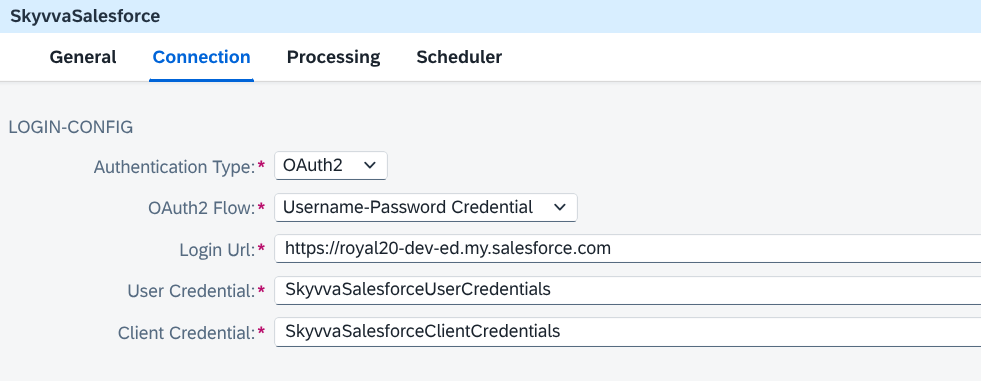
Figure 4. Connection tab: choose the Salesforce login and the saved credentials.
3.1 Authentication Type
The Authentication Type is fixed to OAuth2.
3.2 OAuth2 Flow
Choose how to sign in:
| OAuth2 Flow | Credentials to enter |
|---|---|
Username-Password Credential | Default. Enter both User Credential and Client Credential. |
Client Credential | Enter Client Credential only. |
3.3 Login Url
Enter the Salesforce base address without /services/oauth2/token; the adapter adds the token path. For Client Credential, use the org's My Domain address and configure the Salesforce application's Client Credentials flow and run-as user. The shared sandbox/production login addresses below apply to Username-Password Credential where permitted by your org.
Examples:
| Environment | Base address |
|---|---|
| Sandbox | https://test.salesforce.com |
| Production | https://login.salesforce.com |
| My Domain | Your Salesforce My Domain URL |
3.4 User Credential
Shown when OAuth2 Flow is Username-Password Credential.
Create a User Credentials entry under Monitoring → Manage Security → Security Material, then enter its name here. Store the Salesforce username in User and the password in Password. If a security token is required, add it to the end of the password.
3.5 Client Credential
Required for both sign-in choices. Create a User Credentials entry under Monitoring → Manage Security → Security Material, then enter its name here.
- User: the Salesforce app’s Consumer Key.
- Password: the Salesforce app’s Consumer Secret.
Deploy the entry before using its alias in the channel. This adapter reads a User Credentials artifact for the client alias; select the saved alias rather than entering the secret in the channel.
4. Processing Tab
Choose Processing Mode:
| Choice | Purpose |
|---|---|
Event Processing | Default. Receive events from Salesforce. |
Schedule Processing | Retrieve records at set times using the query saved on a SKYVVA Interface. |
Format and Adapter Setting apply to both choices.
Changing Processing Mode changes the fields shown below it. This sender has no receiver-style Salesforce / Skyvva Processing Type selector. A SKYVVA Integration and Interface identify the scheduled query; event subscriptions use their channel or managed subscription name.

Figure 5. Processing Mode: choose events or scheduled record retrieval.
5. Event Processing
Choose Event Processing to receive Salesforce events. The fields below appear according to the event type and subscription choices.
For an existing PushTopic named Account, choose PushTopic Events, enter /topic/Account as Channel Name, and select Topic - Subscribe. To start with new events, select Events from latest position (Latest) and Replay from UI configured value. A saved replay position can otherwise take precedence (§5.10). PushTopic is a legacy Salesforce event option; use it for an existing feed and consider Platform Events or Change Data Capture for new integrations.
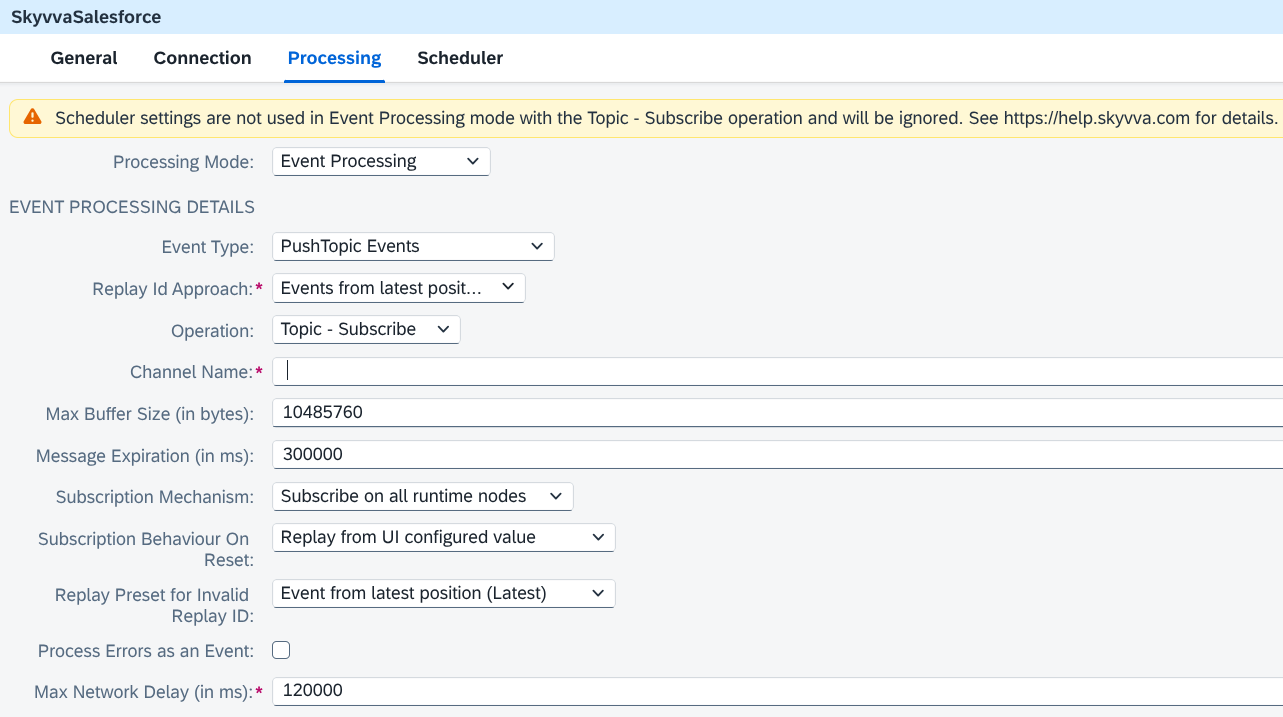
Figure 6. Event Processing Details: an example that continuously receives new Account PushTopic events.
5.1 Event Type
Choose the events to receive:
| Event Type | Description |
|---|---|
PushTopic Events | Default. Record changes covered by an existing PushTopic; uses CometD. |
Generic Events | Notifications sent through a Salesforce notification channel; uses CometD. |
Platform Events | Published business notifications, individually or through a grouped channel; uses Pub/Sub. |
Change Data Capture Events | Automatically generated changes for enabled Salesforce objects; uses Pub/Sub. |
5.2 Replay Id Approach
Choose the initial event position when no saved replay position takes precedence. This field is hidden for Salesforce-managed subscriptions. Use §5.10 to control whether a restart uses the saved position or the configured choice.
| Choice | Events received |
|---|---|
Events from latest position (Latest) | Default. New events after the connection starts. |
Events from earliest position (Earliest) | All events still available in Salesforce. |
Events from a specific position (Custom) | Events after the Replay Id entered below. |
5.3 Replay Id
Shown when Replay Id Approach is Events from a specific position (Custom).
Enter the replay ID reported by this sender for a previously received event, for example 9. Pub/Sub replay text can also use a base64: prefix. Copy the complete reported value; do not calculate the next ID or use it as a customer/business key. The adapter receives available events after that position.
Platform Events and Change Data Capture events have a 72-hour retention window. Replay cannot recover older events; use retained source data or reconciliation for a longer outage.
5.4 Operation
| Operation | Description |
|---|---|
Topic - Subscribe | Default. Keep receiving events while the flow is running. Scheduler settings are ignored. |
Topic - Polling | Receive events for a limited time on each scheduled run. Set the time below and configure the Scheduler tab (§9). |
5.5 Poll Wait Time (in ms)
Shown for Topic - Polling. Set how long each run receives events before disconnecting.
Default: 30000 milliseconds (30 seconds).
This bounds the subscription window, not the total time for every downstream call to finish. Each event enters the flow separately. Polling can receive retained events published between runs when the replay position permits it; initial Latest can exclude events published before the first subscription starts.
5.6 Channel Name
Enter the Salesforce channel name exactly, including capital letters and the starting text shown below. For Salesforce-managed subscriptions, enter Managed Subscription Name instead (§5.12).
| Event Type | Channel Name prefix | Example |
|---|---|---|
PushTopic Events | /topic/ | /topic/Account |
Generic Events | /u/notifications/ | /u/notifications/ExampleUserChannel |
Platform Events | /event/ | /event/TestEvent__e or /event/OrderChannel__chn |
Change Data Capture Events | /data/ | /data/AccountChangeEvent, /data/ChangeEvents, or /data/SalesEvents__chn |
5.7 Max Buffer Size (in bytes)
Shown for PushTopic and Generic Events. Sets the maximum CometD response size the adapter accepts. It does not set the Pub/Sub Request Batch Size or the number of records in a scheduled message.
Default: 10485760 (10 MB). Increase it if the response is too large.
5.8 Message Expiration (in ms)
Sets how long the adapter remembers event IDs to avoid processing the same event again.
Default/minimum: 300000 milliseconds (5 minutes). This does not change Salesforce retention or provide business-level duplicate protection. The target should still recognize repeated business keys beyond this adapter window.
5.9 Subscription Mechanism
| Choice | Description |
|---|---|
Subscribe on all runtime nodes | Default. Each worker can subscribe, increasing subscription usage and duplicate-delivery exposure. |
Subscribe on one runtime node | Uses tenant cluster coordination to select one subscribing worker. Use for a dedicated Salesforce-managed subscription. |
5.10 Subscription Behaviour On Reset
Choose where to resume after the flow restarts. Hidden for Salesforce-managed subscriptions.
| Choice | Description |
|---|---|
Replay from last processed message | Continue after the last saved event ID. The ID is saved before the flow processes the event, so a failed event may not be sent again. |
Replay from UI configured value | Default. Use Replay Id Approach when the flow starts again. |
Reconnections during normal operation and later polling runs continue from the saved position. Replay from UI configured value resets that stored position once at consumer startup, rather than on every reconnect or polling cycle. With a saved position retained, it takes precedence over Replay Id Approach.
The saved client-managed replay position records receipt before the integration flow finishes. It is not a target-success checkpoint; failed target work needs an explicit storage/resend or reconciliation process.
5.11 Max Network Delay (in ms)
Default: 120000 milliseconds (2 minutes).
Keep the default for the current sender. Changing this field does not change its effective subscription wait, and it does not set a Pub/Sub or downstream receiver timeout.
5.12 Subscription Model, Managed Subscription Name, and Commit Strategy
Subscription Model is shown for Platform Events and Change Data Capture. Managed Subscription Name and Commit Strategy appear only after selecting Salesforce-managed. Salesforce currently labels Managed Event Subscriptions as Beta; confirm availability and permissions in your org. Use a dedicated subscription rather than sharing it with another consuming application.
| Subscription Model | Setup and behavior |
|---|---|
Client-managed (Subscribe) | Default. Enter Channel Name and replay settings. A failed event is not automatically sent again. |
Salesforce-managed (Managed Event Subscription) | Enter the developer name in Managed Subscription Name. The subscription must already exist in Salesforce and be set to Run. Salesforce stores where to resume; events that fail in the flow can be sent again. Channel Name and replay settings are hidden. |
For Salesforce-managed subscriptions, choose Commit Strategy:
After each event(default): commit the latest delivered position when all delivered events currently in flight have completed successfully. Concurrent events can therefore be confirmed together.After each batch: wait for at least Request Batch Size successful events and no events still in flight before committing. Successful remaining work can also be committed on keep-alive or subscription close.
An error handled successfully by the flow counts as processed. If failed work must remain eligible for redelivery, keep its failure visible, for example by ending an Exception Subprocess with Error End. Events can repeat after reconnect, polling-window close, or an unconfirmed commit; the receiving system must handle repeats.
The managed subscription supplies its topic, initial position, and invalid-replay recovery policy. Stopping the iFlow is different from changing the Salesforce subscription's state to STOP, which clears its committed replay position.
Figure 6a. Salesforce-managed subscription and commit settings for Platform Events or CDC.
Figure 6b. Bounded event polling with the selected subscription model.
5.13 Request Batch Size
Shown for Platform Events and Change Data Capture in both subscription models. Enter how many events to request at a time: 1–100, default 100. Each event is sent into the flow separately. The setting also supplies the managed After each batch commit threshold; it does not combine events into one business payload.
The system running the flow must be able to connect to api.pubsub.salesforce.com:7443.
5.14 Replay Preset for Invalid Replay ID
Choose where to resume if Salesforce no longer accepts the saved event ID. Hidden for Salesforce-managed subscriptions.
- Event from latest position (Latest) (default): receive new events; earlier events are skipped.
- Event from earliest position (Earliest): receive all events still available; some may be received again.
5.15 Process Errors as an Event
Default: off. Errors while receiving events are recorded in the logs.
Enable this option to also send subscription, connection, replay, decoding, and polling errors into the flow. Check CamelSalesforceErrorEvent=true before processing a message as business data. The body contains error details in the selected format. Route those diagnostics to your logging/notification process; enabling the option does not itself correct or resend failed business records. Errors from later steps are handled by the flow itself.
6. Schedule Processing
Choose Schedule Processing to retrieve Salesforce records at set times. Configure the fields below and the Scheduler tab (§9).
The Integration and Interface names identify the SKYVVA Interface whose saved query selects the records. For example, select Query and Custom Package Size, then enter 50 to send groups of up to 50 records from each result page. The Scheduler tab sets when this runs.
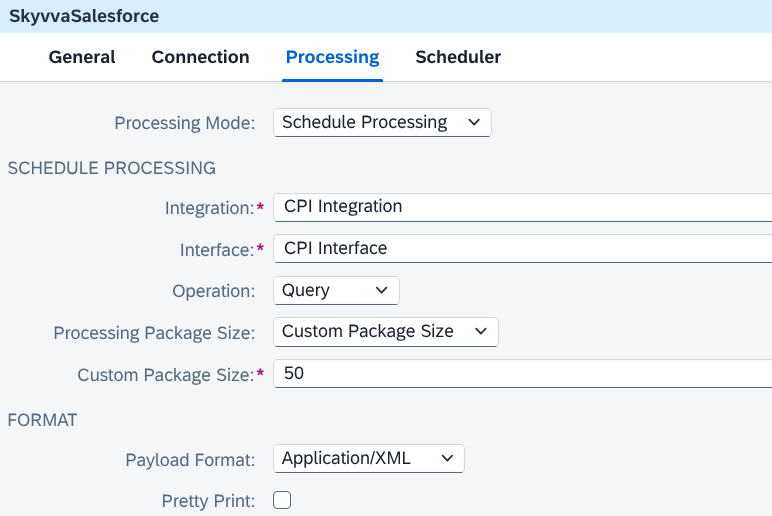
Figure 7. Schedule Processing: choose the SKYVVA Interface and how many records to send in each message.
6.1 Integration
Enter the name of the SKYVVA Integration record in Salesforce that owns the Interface to be polled.
6.2 Interface
Enter the SKYVVA Interface name. It must belong to the Integration selected above. The adapter uses the query saved on that Interface in Salesforce.
Restart or redeploy the flow after changing the Interface query so the adapter refreshes its cached metadata. Give the integration user read access to the Integration, Interface, queried objects, and selected fields. This mode reads the saved query; it does not depend on a Salesforce-side outbound push schedule.
6.3 Operation
Choose which records to retrieve:
| Operation | Description |
|---|---|
Query | Default. Returns active records only. |
Query All | Also includes available deleted and archived records where applicable; it respects query filters and user access. |
6.4 Processing Package Size
Select how the records from a scheduled run are grouped into messages:
| Processing Package Size | Description |
|---|---|
None | Default. Each Salesforce result page is sent as a separate message. |
Custom Package Size | Each result page is split into groups of up to the custom size. Each group stays within one page — see §6.5. |
The adapter follows Salesforce result pages and emits one message per page or group. An empty successful query sends no business message. Each scheduled run executes the Interface query again; filters control the selected data. A date lookback is a repeated selection, not an automatically saved last-successful watermark.
Group delivery does not provide a whole-run target acknowledgement or automatic retry queue. Monitor acquisition failures and target failures separately, and arrange storage/resending where required. Do not treat missing records or an empty run as proof of deletion.
6.5 Custom Package Size
Shown only when Processing Package Size = Custom Package Size.
Enter the largest number of records to include in each message. Use a number greater than zero. The last group of each page may be smaller.
Default: 50
7. Format
These settings apply to both processing modes.
7.1 Payload Format
Select the format of the message body:
| Payload Format | Description |
|---|---|
Application/XML | Default. |
Application/JSON |
Message structure
Event messages include channel and event details under data. Platform Events and Change Data Capture carry business fields under data.payload; PushTopic records use data.sobject. CDC updates are partial: inspect ChangeEventHeader.recordIds, changedFields, and nulledFields, including explicit field clears. Do not assume one CDC event always identifies only one record.
Scheduled JSON uses the object name as the array key, such as QueryResult.Account. Scheduled XML uses QueryResult/records/Account. Salesforce attributes metadata is removed. For example, these are illustrative representations of one final Account group:
{
  "QueryResult": {
    "totalSize": 1,
    "done": true,
    "Account": [
      {"Id": "001000000000001AAA", "Name": "Example Customer"}
    ]
  }
}
<QueryResult>
  <totalSize>1</totalSize>
  <done>true</done>
  <records>
    <Account>
      <Id>001000000000001AAA</Id>
      <Name>Example Customer</Name>
    </Account>
  </records>
</QueryResult>
totalSize describes the whole query, not this group's record count. done and any nextRecordsUrl describe query/group progress; they do not confirm every downstream write succeeded. The record ID above is a placeholder. Capture a real message before defining the mapping for your selected event or query.
7.2 Pretty Print
Enable to make the message easier to read.
8. Adapter Setting
These settings apply to both processing modes.
8.1 Logging option
Use Default for normal operation. Other choices are Trace level, Debug level, Info level, Warning level, and Error level. Use Trace or Debug when investigating a problem.
8.2 Salesforce Api Version
Specifies the Salesforce API version used for requests made by this channel.
Example: 53.0
Note: The sender channel requires the configured Salesforce API version to be 52.0 or higher, regardless of Processing Mode.

Figure 8. Format and Adapter Setting: choose the message format, readability, logging, and Salesforce API version.
9. Scheduler Tab
Choose Schedule on Day or Schedule to Recur to set when the flow retrieves data.
| Processing Mode | Operation | Scheduler tab used? |
|---|---|---|
Schedule Processing | — | Yes. Retrieve records at the set times (§6). |
Event Processing | Topic - Polling | Yes. Receive events for the set time on each run (§5.4/§5.5). |
Event Processing | Topic - Subscribe | No. Events are received while the flow is running; Scheduler settings are ignored. |
Check the selected time and time zone. The sender's Scheduler drives scheduled queries and event polling; do not add a separate Timer to start the same sender flow. For polling, allow for the listening window and downstream processing when choosing the interval.
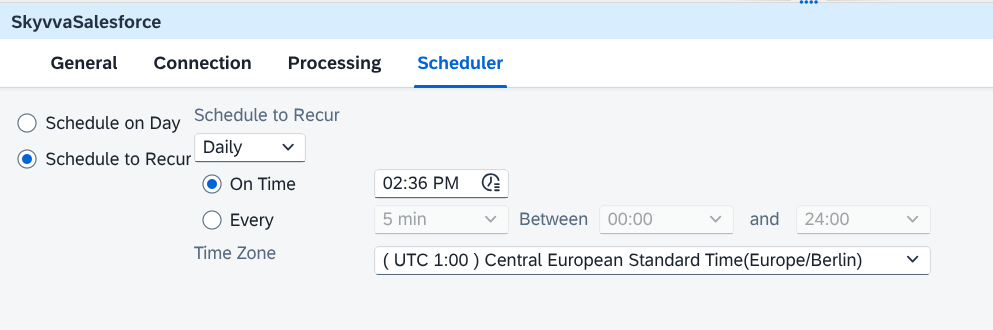
Figure 9. Scheduler tab: set when scheduled record retrieval or event polling runs.
10. Summary
The SkyvvaSalesforce Sender Adapter brings Salesforce events and records into SAP Integration Suite. Use the following settings to choose how data enters your integration flow:
| Configuration area | What to configure |
|---|---|
| Connection | Choose how to sign in and enter the names of the saved credentials. Client Credential is required for both sign-in choices. |
| Event Processing | Choose the event type and channel. Receive events continuously with Topic - Subscribe, or at set times with Topic - Polling. |
| Replay settings | Start with new events, all available events, or events after a saved ID. Choose where to resume after a restart or when an ID is no longer accepted. |
| Subscription Model | Platform Events/CDC: Client-managed saves receipt position; Salesforce-managed commits completed work and can redeliver failed route work. Both need target duplicate/recovery handling. |
| Schedule Processing | Enter the SKYVVA Integration and Interface names. The adapter retrieves records using the query saved on that Interface. |
| Processing Package Size | Send each result page as one message, or divide it into smaller groups of records. |
| Format | Choose XML or JSON. Enable Pretty Print to make messages easier to read. |
| Adapter Setting | Set the logging choice and Salesforce API version. The API version must be 52.0 or higher. |
| Scheduler | Set when records or events are retrieved. This tab applies to Schedule Processing and Topic - Polling. |
Before using the flow, check that the credentials are saved and that the channel or SKYVVA Interface names match those in Salesforce. For scheduled records, make sure the Interface query selects the records you need. Restart or redeploy the flow after changing that query.
Choose the event delivery settings with care. With client-managed subscriptions, failed events are not automatically sent again. Salesforce-managed subscriptions can resend events, so the receiving system should handle repeated events. Use Process Errors as an Event if the flow needs to act on errors that occur while receiving Salesforce events. Keep error diagnostics separate from business payloads and reconcile source data with target acceptance where completeness matters.