20. Move ERP Customer Integration from SAP PO to CPI with SKYVVA V2
Overview
Move an existing ERP → SAP PI/PO → Salesforce customer integration to SAP Cloud Integration (CPI) while reusing its SKYVVA V2 interface. Preserve the V2 target schema, customer matching key, and agreed business rules so Salesforce continues receiving the same customer information.
The SKYVVA interface stays V2. In the CPI SkyvvaSalesforce receiver, select Processing Type = Skyvva, Skyvva API Version = V2, and Skyvva API = V4/integrate. The V4 name identifies the adapter operation/endpoint used to process the V2 request; it does not require an interface version conversion.
Keep the Message Mapping step because ERP still sends its original customer structure. Move its supported transformation rules into CPI and retain the V2 routing fields fromSystem and targetObject in the receiver input.
The DEBMAS06 Account example uses illustrative names and values. Obtain the existing mapping, schemas, dependencies, and a sanitized ERP request with its actual PO result from the interface owner, then validate the migration in a sandbox.
Before You Start
Start by obtaining the existing interface definitions and a sanitized request/result pair from the PO owner in section 1. If you cannot access PO/ESR directly, use a CPI mapping prepared by a developer, or have the developer recreate the mapping from its approved schemas and complete rules in section 4.2. Skip section 4.3 for those routes. Complete sections 2–10 in a sandbox before the production checks in sections 10.1–12.
Have the administrators prepare:
- CPI: a compatible SkyvvaSalesforce adapter, package edit/deploy and monitoring access, and inbound caller authentication for Postman.
- Salesforce/SKYVVA: a sandbox, the Account matching field and V2 interface in section 2, and permission to view processing results and Accounts.
- Receiver authentication: the Salesforce OAuth application/run-as user and CPI credential alias in section 5.2.
If you lack permission, ask the responsible administrator or developer to perform that step and return its result. The inline values illustrate the procedure; use your approved interface artifacts and actual execution results to validate the migration.
Customer Integration Example
Example Manufacturing distributes customer master data using DEBMAS06 IDocs. The example PO message mapping is named MM_Account_DEBMAS06, with a DEBMAS06 source and an Account target. The name is illustrative; obtain the actual executable mapping from the PO owner for a real migration. For this exercise, map KUNNR, NAME1, ORT01, and TELF1 into Salesforce Account fields; inspect the actual mapping to confirm its rules before migration. A standard SKYVVA V2 interface applies Upsert using the ERP customer number.
Obtain one sanitized DEBMAS06 customer request and the output produced by the working PO mapping for that same request. Ask the PO developer for the source/target schemas and all referenced resources. The example below focuses on one Account; if your production mapping also processes Contacts, preserve and validate those relationships separately.
Current:
DEBMAS06 IDoc → PO Message Mapping → Legacy V2 Account XML
               → SKYVVA PO adapter → Salesforce

Target:
DEBMAS06 IDoc → CPI Message Mapping (imported or recreated) → Legacy V2 Account XML
               → SkyvvaSalesforce V2 / V4/integrate
               → Existing SKYVVA interface → Salesforce Accounts
| Item | Migration baseline |
|---|---|
| Production sender | ERP IDoc delivery through a configured CPI IDoc sender |
| Isolated payload replay | Separate HTTPS test iFlow using the same deployed Message Mapping |
| Source payload | DEBMAS06/IDOC/E1KNA1M in this illustrative contract |
| Existing PO mapping, example name | MM_Account_DEBMAS06 |
| Target payload | ISTRUCTURE_Account with fromSystem, targetObject, and one Account |
| Existing SKYVVA integration | ERP_Customer_Migration |
| Existing SKYVVA V2 interface | Account_ERP_V2_In; keep the existing interface version and design |
| Salesforce processing | Standard Account Upsert with External Mapping |
| Matching field | ERP_Customer_ID__c, Text, External ID, Unique |
| CPI receiver | SkyvvaSalesforce, Processing Type Skyvva, API Version V2 |
| CPI receiver operation for V2 processing | V4/integrate |
| Processing mode | Asynchronous selection; final V2 execution timing confirmed with the SKYVVA administrator |
This baseline covers normal V2 integrate processing. If the PO channel uses batch/bulk flags, automatic switching, ordered delivery, or other receiver-module behavior, evaluate those separately before selecting V4/integrate. Reusing the mapping alone does not migrate those capabilities or PO delivery and ordering guarantees.
Use the source/target definitions exported from your actual PO mapping. Confirm that the source XML matches their roots, namespaces, and structures before preparing the CPI mapping.
An HTTPS replay of raw IDoc XML tests the mapping and receiver. It does not test IDoc protocol handling, ERP destinations, acknowledgements, or delivery guarantees. Actual ERP IDoc delivery needs the separately configured IDoc sender; a PO tRFC destination cannot simply be pointed at the HTTPS replay URL.
Terms Used in This Guide
| Term | Meaning in this migration |
|---|---|
| ESR — Enterprise Services Repository | The PO design repository containing mapping and interface definitions |
| ICO — Integrated Configuration Object | A PO configuration connecting the sender, receiver/routing, and relevant mapping settings |
| Message Mapping | The business transformation from ERP customer fields to the agreed target fields |
| Operation Mapping | The PO design object referencing the mapping programs for service operations; it can define a sequence of transformations |
| Source/target definitions | The message structures, such as XSD or WSDL resources, used by the mapping |
| XML | A text file containing the actual customer data sent or returned |
| XSD | A schema file describing which XML elements and data types a mapping can use |
| Mapping artifact | A saved CPI mapping with a name and unique ID; the iFlow uses this ID to select the mapping |
| Upsert | Create a customer record when the configured key is new; update the matching record when it already exists |
| External ID | The agreed customer identifier used for matching; here, the ERP customer number |
| Asynchronous processing | Submission and final business completion are checked separately |
The additional mapping-dependency terms are explained in section 4.1. The PO/CPI developer performs those checks; the business owner confirms that customer data and processing outcomes remain correct.
1. Document the Working PO Interface
Ask the PO developer for the evidence below. You do not need PO screen access yourself; the owner can provide the artifacts and written settings.
The developer identifies the ICO, sender/receiver channels, Operation Mapping, and the Message Mappings it executes in order. The single PO screenshot below illustrates the original mapping; request the remaining settings and dependencies as text or files.
Identify the existing interface style from the target schema. This guide uses V2, whose routing fields are fromSystem and targetObject. The V3 target shown in the separate V3 scenario uses Integration and Interface. Keep the actual target root, namespaces, business records, and field names; the source structure alone does not identify the SKYVVA interface style.
Collect this evidence before changing the design:
| Evidence | Why it is needed |
|---|---|
| Original ERP request before mapping | Input for a comparable CPI test |
| PO Message Mapping names and versions | Identifies the actual business transformation to reuse |
| Source/target schemas and namespaces | Defines the payload contracts |
| Mapping output sent to the PO receiver | Expected customer fields and routing information |
| UDFs, libraries, lookups, value mappings, parameters | Identifies runtime dependencies requiring migration |
| Receiver module settings and routing values | Reveals behavior performed outside the mapping |
| Final SKYVVA result and Account values | Establishes business equivalence |
| Queue, retries, ordering, and operational ownership | Defines cutover and recovery requirements |
| Existing processing settings and message volumes | Establishes the behavior and capacity to validate after migration |
Retain the original PO design using its approved transport/export procedure. Do not assume the resulting PO archive can be uploaded as a CPI mapping ZIP.
In a PO receiver module configuration, interface routing can come from targetObject, while the integration can come from channel/module settings. The CPI V2-through-V4 bridge reads both fromSystem and targetObject from its input XML. Compare the actual payload and module settings. If the old mapping omitted a routing value, add the agreed value through an explicit mapping/envelope adjustment and test it; do not assume an unchanged PO mapping always supplies the complete CPI contract.
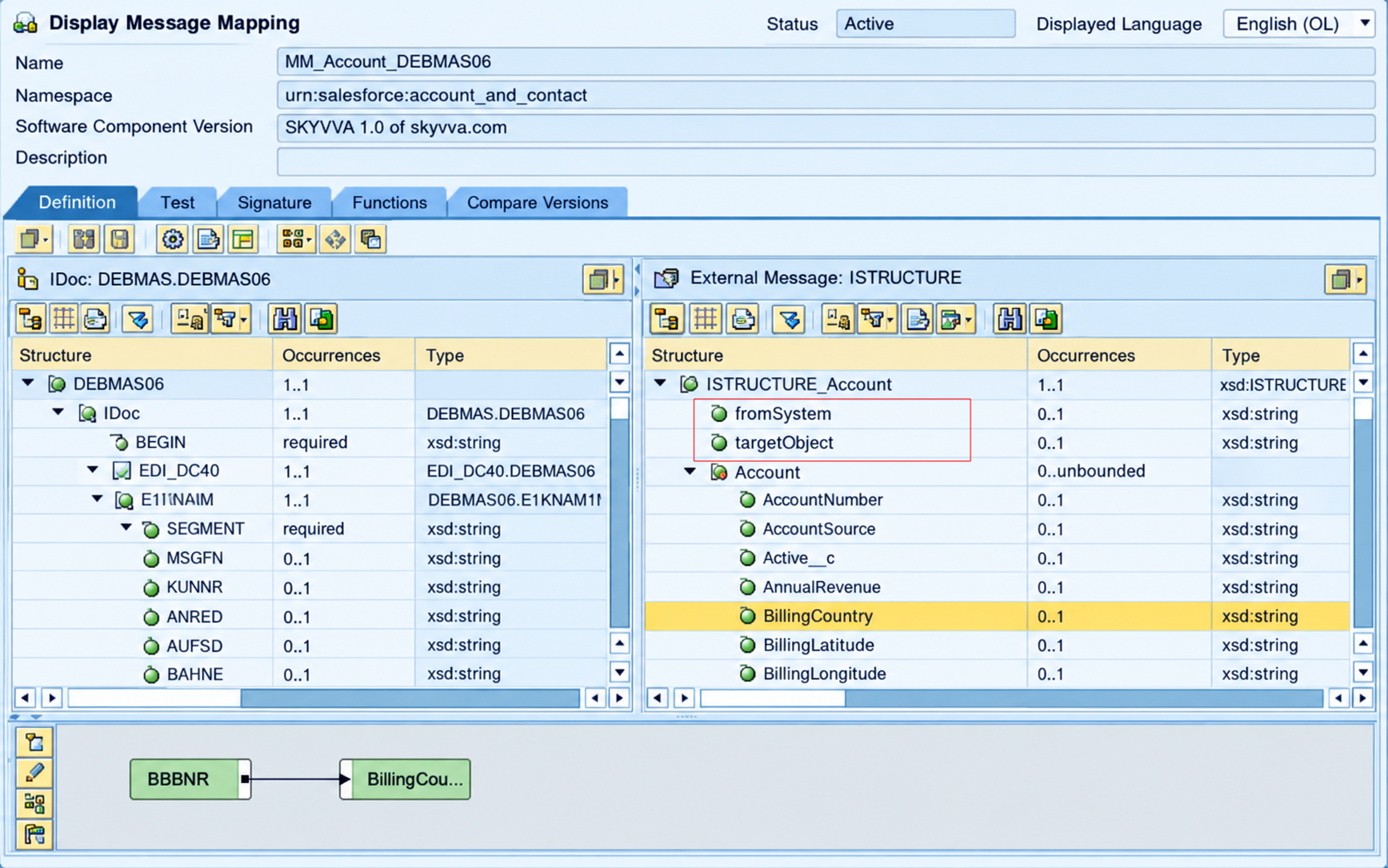
Figure 1. Existing SAP PI/PO mapping with the SKYVVA V2 target fields fromSystem and targetObject.
2. Verify the Existing SKYVVA V2 Configuration
Reuse the existing V2 interface and its proven customer matching behavior. Verify its configuration in the sandbox before redirecting production traffic. The field and interface names below belong to the fictional migration baseline; substitute the actual existing values consistently.
2.1 Verify the Account Matching Key
In Salesforce → gear icon → Setup → Object Manager → Account → Fields & Relationships, verify the existing field or ask the Salesforce administrator to create it in the training sandbox:
| Field | Definition |
|---|---|
ERP_Customer_ID__c | Text(30), External ID, Unique |
Name | Standard Account field |
Phone | Standard Account field |
BillingCity | Standard Account field |
For a new training field, choose New → Text, enter Field Label ERP Customer ID, Length 30, and Field Name ERP_Customer_ID (Salesforce adds __c). Enable External ID and Unique, complete field visibility for the integration user, and save. Confirm the saved API name is ERP_Customer_ID__c. If you cannot access Setup, ask the administrator to return these saved details.
Keep the ERP number as text to preserve leading zeros. Account Name is descriptive data; it is not the matching key.
Give the integration user API access, Account read/create/update permissions, and access to these fields. Check required fields, record types, duplicate rules, and validation rules in the sandbox.
For a first-run create test, confirm customer key 0000006000 is unused. For an update test, create or locate one sandbox Account with that key, then record its Salesforce ID and initial values before sending the IDoc. The expected input values are listed in section 8.
Use the existing agreed External ID field consistently across the mapping output and interface matching configuration. ERP_Customer_ID__c is the example name used here; keep your actual field name if it differs.
Existing production Accounts without their ERP customer key must be reconciled before cutover, otherwise Upsert can create additional Accounts.
[Insert screenshot for Figure 2 here.]
Figure 2. Salesforce Account field used to match the ERP customer number.
2.2 Verify the Existing V2 Interface
Reuse the existing V2 interface and its working configuration. No interface version conversion is part of this migration.
For the sandbox validation, ask the SKYVVA administrator to prepare the sandbox Integration ERP_Customer_Migration and its child Interface Account_ERP_V2_In using the settings below. Do not proceed to sending requests until the administrator confirms that both are saved and ready. Existing interface records are prerequisites, not artifacts created automatically by deploying CPI.
In Salesforce → App Launcher → SKYVVA, open the Integration and Interface used by the working PO flow. For the illustrative scenario, these are ERP_Customer_Migration and Account_ERP_V2_In. Review their saved settings. Create equivalent sandbox records only if you are preparing a separate training environment.
Verify that the sandbox baseline matches the following configuration. Treat a difference in the existing production interface as a migration decision to review, rather than changing it automatically:
| Interface field | Value |
|---|---|
| Name | Account_ERP_V2_In |
| Direction | InBound |
| Source Name | Account |
| Status | Deployed |
| Operation Type | Upsert |
| Processing Mode | Asynchronous |
| Interface API Version | V2 |
In the interface's Inbound Setup, verify External Mapping is enabled for this baseline. When creating the sandbox equivalent, enable it. If the creation screen requires Connect with Middleware to expose that option, enable it for that setup, then save the interface. That checkbox is not the CPI connection or authentication configuration.
Verify that the interface's Salesforce External ID contains ERP_Customer_ID__c for this baseline. Set it when creating the sandbox equivalent. This selection tells the standard external-mapping processing which field identifies an existing Account; merely creating the field on Account is insufficient.
Preserve the existing working V2 processing configuration unless a change has been agreed with the SKYVVA administrator. Have the administrator confirm whether this interface finishes processing during the call or defers it to background work. Selecting V4/integrate alone does not guarantee deferred V2 processing. In either case, confirm the final SKYVVA result and Account values.
The XML already uses Salesforce API field names. With External Mapping enabled, standard SKYVVA processing can derive mappings from these names:
| Mapped XML field | Salesforce Account field |
|---|---|
Account/ERP_Customer_ID__c | ERP_Customer_ID__c, used for matching |
Account/Name | Name |
Account/Phone | Phone |
Account/BillingCity | BillingCity |
For this sample, CPI performs the four field assignments in section 3.2. Have the SKYVVA administrator confirm that the interface does not apply an additional transformation that changes these expected values. Preserve any existing production transformations and include them in the migration comparison.
External Mapping means that the business field mapping is performed outside Salesforce. It can be performed by the migrated Message Mapping in CPI. The checkbox does not mean that raw ERP data can bypass the required transformation.
[Insert screenshot for Figure 3 here: the saved SKYVVA interface and its Inbound Setup.]
Figure 3. SKYVVA V2 Account interface and inbound matching settings.
3. Compare the Source and Target Contracts
3.1 DEBMAS06 Request Before Mapping
Open the sanitized ERP request provided by the ERP/PO owner in a text editor. Use its complete XML body, including control records and any nested segments. The following values illustrate a single customer; record the actual values from your request for the later comparisons:
Source path under /DEBMAS06/IDOC/E1KNA1M | Value |
|---|---|
KUNNR | 0000006000 |
NAME1 | Global Tech Solutions GmbH |
ORT01 | Munich |
TELF1 | +49-89-1234567 |
Keep this file unchanged for the initial replay in section 7; do not send it yet.
Select the actual source root from the exported schema; this example uses DEBMAS06. The nested E1KNVKM segments hold Contacts; do not map their NAME1 or TELF1 into the parent Account. Control-record fields in EDI_DC40 are not the customer matching key or the SKYVVA integration/interface names.
Start with one approved customer request. If it contains nested Contacts, verify Account fields come from the parent customer segment. Do not change the XML envelope to match the example if your interface uses a different contract.
3.2 Expected Output of the Account Mapping
The V2 target XML contains fromSystem for the SKYVVA Integration and targetObject for the Interface, alongside the business records. The adapter reads both fields from the mapped XML when using the V2 V4/integrate route. Keep their actual names, case, namespaces, and values aligned with the existing V2 contract.
Use the output captured from the working PO mapping for the same input as your comparison reference. The following XML illustrates the Account-only output shape; it is not a captured customer result:
<ns1:ISTRUCTURE_Account xmlns:ns1="http://soap.sforce.com/schemas/class/skyvvasolutions/IServices">
  <fromSystem>ERP_Customer_Migration</fromSystem>
  <targetObject>Account_ERP_V2_In</targetObject>
  <Account>
    <ERP_Customer_ID__c>0000006000</ERP_Customer_ID__c>
    <Name>Global Tech Solutions GmbH</Name>
    <Phone>+49-89-1234567</Phone>
    <BillingCity>Munich</BillingCity>
  </Account>
</ns1:ISTRUCTURE_Account>
| Source | Target path under ISTRUCTURE_Account |
|---|---|
/DEBMAS06/IDOC/E1KNA1M | Account |
/DEBMAS06/IDOC/E1KNA1M/KUNNR | Account/ERP_Customer_ID__c |
/DEBMAS06/IDOC/E1KNA1M/NAME1 | Account/Name |
/DEBMAS06/IDOC/E1KNA1M/ORT01 | Account/BillingCity |
/DEBMAS06/IDOC/E1KNA1M/TELF1 | Account/Phone |
| Agreed integration constant | fromSystem = ERP_Customer_Migration |
| Agreed interface constant | targetObject = Account_ERP_V2_In |
For this Account-only example, map one parent customer segment to one Account. Do not repeat Account for the nested contact segments. Keep the original PO mapping's valid target root and namespace if they differ from this illustrative target; compare business content and routing rather than renaming production roots to match the tutorial.
Use the exported source and target definitions when importing or recreating the mapping. The inline XML explains the contract; it is not an executable mapping or a substitute for your actual target schema. Have the CPI developer preserve the complete rules and supported record counts of the original mapping.
4. Prepare and Migrate the PO Mapping
Without direct PO access, obtain a prepared CPI mapping or use Recreate the mapping without a direct ESR connection in section 4.2. Reuse the existing supported Message Mapping where possible. The example name MM_Account_DEBMAS06 represents the existing customer mapping. Select its actual name and version in your landscape.
4.1 Review Mapping Dependencies
A mapping can rely on extra functions or settings outside the visible field connections. These are its dependencies. For a real migration, ask the PO developer to check the items below before importing, then confirm them again in CPI after import. You do not need to inspect the PO screens yourself.
The four field assignments and two constants in section 3 illustrate a simple mapping. Your existing mapping may contain additional rules; have the developer identify these before selecting an approach in section 4.2.
| Term | Meaning | What the PO/CPI developer checks |
|---|---|---|
| UDF (user-defined function) | A custom function used by the mapping | Its behavior and any helper code it calls remain available and supported |
| Function library | Functions shared by several mappings | The required functions and their dependencies are included |
| Mapping parameter | An additional input used by the mapping | The correct value is supplied in the migrated flow |
| JDBC/RFC lookup | Reading information from a database or SAP function during mapping | Equivalent connectivity, credentials, and lookup handling are prepared |
| Value mapping | Translating codes between systems, such as customer categories | The required translations are migrated and tested |
| Adapter-specific context | Information supplied by the old communication channel | Any values used by the mapping are supplied in CPI through a supported equivalent |
For a real migration, have the developer record each item as Not used, Ready, or Adjustment required. Not used means the old mapping does not use it; Ready means the CPI equivalent has been prepared and checked; Adjustment required means work is still needed. Record an owner for each adjustment. Review support for the actual functions in the target tenant; do not assume every UDF or parameter needs rewriting.
If the Operation Mapping executes several transformations, preserve their order and intermediate results. Importing one Message Mapping does not import the rest of the processing sequence or channel modules.
Keep the source/target definitions and required dependencies with the mapping. If a feature needs redesign, compare the resulting business values with the working PO output before accepting the change.
4.2 Choose the Mapping Migration Approach
Choose the route matching the available artifacts after the dependency review. Every route must preserve the source and target contracts and pass the comparison below.
| Available material | Approach | What it establishes |
|---|---|---|
| Approved schemas, complete PO rules, and a captured input/output pair, without direct ESR access | Recreate the mapping using the steps below | A transformation that must be validated against the PO result |
| Existing PO mapping and working ESR access | Import from ESR using section 4.3 | Reuse of supported mapping content, with dependency adjustments where needed |
| A CPI-compatible mapping artifact already imported or prepared in another CPI tenant | Upload that artifact | Reuse of the prepared CPI mapping; no direct ESR connection from this tenant is needed |
| PO mapping cannot be imported, but its complete rules and dependencies can be inspected | Reimplement the agreed rules in CPI | An equivalent transformation that needs separate review and acceptance |
| Only sample payloads or an unverified PO transport archive | Recover the design and confirm its format first | Insufficient evidence to claim the original mapping has been migrated |
Upload an already prepared CPI mapping
In the package, choose Add → Message Mapping → Upload, select the CPI-compatible mapping artifact ZIP, then inspect, save, and deploy it. Add the global reference and assign the mapping step as described in section 5.
This option requires a mapping already prepared for CPI. Renaming a PO .tpz file to .zip does not convert its contents into a CPI mapping artifact.
Recreate the mapping without a direct ESR connection
Use this option when a CPI developer will recreate the mapping from approved schemas and known rules, without a direct ESR connection. The steps below illustrate the simple Account mapping in section 3. For a customer migration, use the customer's actual definitions and reproduce the complete PO rules. If you cannot edit CPI, ask a CPI developer to perform these steps and return the deployed artifact ID and actual output XML.
- Obtain the source and target schema files used by the existing PO mapping, together with one sanitized ERP request before mapping. Ask the PO developer to export the schemas and any files they reference, and ask the ERP/PO owner for the request XML. Save these files locally. The source schema describes the ERP input; the target schema describes the legacy SKYVVA output. Confirm that the original mapping rules are available as well; schemas alone do not define the transformation.
- In Design → Integrations and APIs, open an editable sandbox package. If you need a package, choose Create, provide its name and ID, and save it first.
- In the package's Artifacts tab, choose Add → Message Mapping → Create. Use an agreed name and ID, for example Name DEBMAS Account Mapping and ID
DEBMAS_Account_Mapping, then choose Add. - Open the artifact and choose Edit. Use the source/target message add or upload controls to load the source schema on the source side and the target schema on the target side, including required referenced files. Select their actual root elements; this example uses source
DEBMAS06and targetISTRUCTURE_Account. If the export is WSDL rather than XSD, have the CPI developer select the appropriate message definition. Labels can vary by editor version. - Expand source
DEBMAS06 → IDOC → E1KNA1Mand targetISTRUCTURE_Account → Account. Connect the parentE1KNA1Mnode toAccountto establish the customer occurrence. Connect the four source fields to the target fields listed in section 3.2. For the Account-only example, leaveE1KNVKMcontact nodes unmapped and keep the parent customer context. Use the actual customer field paths when they differ from this example. If the original mapping processes Contacts or applies additional functions, reproduce those rules too; the four example links do not replace them. - Add Constant functions for the approved sandbox routing names:
fromSystemidentifies the SKYVVA Integration andtargetObjectidentifies the Interface. The example values areERP_Customer_MigrationandAccount_ERP_V2_In. Enter your actual names without quotation marks. - Save the mapping. Use Simulate, upload the sanitized ERP request as the test input, then use the Generate/Test action offered by the editor to produce output. Download the output with Download Output, or copy the generated XML. If simulation is unavailable in your tenant, have the CPI developer provide an isolated mapping test result before connecting the receiver; do not treat an illustrative output or a schema as proof that the mapping has run.
- Compare the generated output using section 4.4. Once it matches the agreed PO result and sandbox routing, Save → Deploy the mapping artifact and wait for successful deployment. Record ID
DEBMAS_Account_Mapping(or your chosen ID) for section 5.
SAP documents mapping artifact creation and message mapping simulation. Simulation depends on the tenant's supported runtime profile/features. The recreated mapping is accepted only after actual output has been compared with the working PO result.
[Insert screenshot for Figure 4 here: the CPI source/target field links and routing constants.]
Figure 4. CPI customer mapping with source/target field connections and routing values.
When the original mapping cannot be imported
Ask a CPI developer to reproduce its complete rules, schemas, constants, custom functions, lookups, and value mappings in supported CPI components. Compare actual CPI output with PO output before accepting the result. The sample field assignments in section 3 cover only this Account exercise.
For an uploaded or recreated mapping, skip section 4.3 and continue with section 4.4. The receiver remains Skyvva → V2 → V4/integrate for every route.
4.3 Import from ESR
Use this section only if you are importing an existing PO mapping. ESR is the PO repository where that mapping is stored. Importing copies supported mapping content into CPI; it does not create the Salesforce interface or configure ERP delivery.
If you recreated the mapping or uploaded a prepared CPI mapping in section 4.2, skip this section and go to section 4.4. No ESR connection or screenshot is needed for that route.
Before importing, ask the BTP/PO administrator to confirm the following setup. Use your landscape's actual hosts, destinations, and access permissions.
| Preparation | Ready when |
|---|---|
| Tenant features and permissions | The developer can create the required mapping artifacts and use their dependencies |
| Cloud Connector access to PO/ESR | The approved virtual host, port, and required resources are exposed to the relevant BTP subaccount |
| PO/ESR destination and tenant connection | The configured repository is available in the ESR selection and the connection test succeeds |
| ESR read access | The connection can list the required mapping and dependent objects |
This is a design-time connection for importing mapping content. The ERP sender uses a separate runtime connection to CPI. If the repository is unavailable, use the appropriate option in section 4.2 instead of repeatedly retrying the import.
If you lack ESR import permission, ask a PO/CPI developer to import and deploy the mapping and provide its CPI artifact ID.
The authorized developer performs the following steps. If no repository is available or the mapping cannot be imported, return to section 4.2 and choose an appropriate alternative.
- Open the CPI integration package in Edit mode and go to Artifacts → Add → Message Mapping → ES Repository.
- Select the configured PO repository under Name and choose Connect. A list of mappings should appear. If the list cannot be loaded, have the administrator check connectivity and permissions before continuing.
- Select the existing PO Message Mapping by its actual name and choose Next.
MM_Account_DEBMAS06is the example name used in this guide; it is not a supplied mapping artifact. - In Dependent Resources, enter the CPI mapping artifact's name and ID. This page lists other resources used by the selected mapping, such as message definitions or shared functions. Check this list against the dependency review in section 4.1.
- Choose Next and complete any applicable dependency-import steps. Confirm that the required resources are included or separately prepared, then choose Submit.
- Open the imported mapping, inspect its source, target, and dependencies, then Save and Deploy it. Record its CPI artifact ID for section 5.
You can continue when: the imported mapping is deployed in CPI, its required dependencies are ready, and you have its artifact ID. Use that ID in section 5 to select the mapping for your flow. First check its output in section 4.4. No screenshot is required for this point. For the full procedure, see SAP's Creating Message Mapping as an Artifact — Import from ESR.
4.4 Compare the Customer Mapping Result
No screenshot or direct PO access is required. Ask the PO/CPI developer for these three items, using the same sanitized request for both mapping executions:
| Item | Provided by | Purpose |
|---|---|---|
| ERP request before mapping | ERP/PO owner | Input to both the original and migrated mapping |
| Actual PO mapping output | PO developer | Reference for the existing transformation |
| Actual CPI mapping output | CPI developer or mapping simulation | Result to compare with PO |
- Open the ERP request and PO output in a text editor. Find the parent customer's number, name, city, and phone, then identify where the PO mapping puts those values. Section 3 illustrates these field relationships; use your actual mapping rules.
- Run that same request through the prepared CPI mapping using simulation in section 4.2. If you cannot run it, ask the CPI developer to provide the generated output XML and artifact ID.
- Open the CPI output beside the PO output. Compare the Account values, customer number including leading zeros, number of Account records, and any related Contact results required by the original mapping. For the one-Account example, there must be one Account, not one Account per contact segment.
- Check
fromSystemandtargetObjectagainst the approved sandbox Integration and Interface names. If the original PO channel supplied a routing value outside the mapping, the developer must add that value explicitly for CPI as described in section 1. Record this agreed difference. - Have the developer check namespaces, record grouping, empty values, and any lookup or conditional rules. Different indentation or XML prefix names alone do not indicate a different business result.
- Record Passed only when the results agree, apart from documented and approved migration adjustments. Keep the request, both actual outputs, mapping artifact ID, and comparison result together. If a field differs, record expected versus actual and ask the developer to resolve it; do not edit the returned output to make it match.
- Continue to section 5 when the comparison passes and the mapping is deployed. If no actual output is available, record Not executed and request the missing evidence before connecting the receiver.
For example, if the approved request contains customer 0000006000 with city Munich, both mappings should produce that customer and city unless an existing business rule transforms them. The illustrative XML in section 3 explains the format; it does not prove that your mapping has run successfully.
5. Build the CPI Integration Flow
For the sandbox validation, build the HTTPS replay iFlow first; an ERP connection is not required for sections 7–9. In SAP Integration Suite → Design → Integrations and APIs, open your sandbox package in Edit mode. Under Artifacts, choose Add → Integration Flow → Create, enter Name DEBMAS Accounts - HTTPS Replay and ID DEBMAS_Accounts_HTTPS_Replay, then add and open it in Edit mode.
For a real migration, have the CPI/ERP team also prepare a separate iFlow named DEBMAS Accounts - ERP IDoc with ID DEBMAS_Accounts_ERP_IDoc. Use the same mapping and receiver configuration, with the IDoc sender described in section 5.1. Its protocol setup is an administrator task; it is not a prerequisite for the isolated HTTPS replay.
Both flows use the processing steps below. For the replay flow, name the sender participant Test Client; for the separate IDoc flow, use ERP. Name the receiver participant Salesforce. Keep the default Start/End events, add one Message Mapping step and one Request Reply step from the editor palette, and name them as follows:
| Actual component type | Name for the exercise |
|---|---|
| Message Start | Receive ERP Customers |
| Message Mapping | Map ERP Customers to V2 Accounts |
| Request Reply | Send Customers to SKYVVA |
| Message End | End Submission |
flowchart LR
    C[Postman test client] --> H[HTTPS sender]
    H --> S[Receive ERP Customers]
    S --> M[Map ERP Customers to V2 Accounts]
    M --> R[Send Customers to SKYVVA]
    R --> E[End Submission]
    R -->|SkyvvaSalesforce| SF[SKYVVA V2 Account Interface]
    SF -->|Submission response| R
This diagram shows the HTTPS replay flow. In the separate ERP-facing flow, the ERP system and IDoc sender replace the Postman client and HTTPS sender.
Connect Start → Message Mapping → Request Reply → End. Connect the sender participant to Start and select HTTPS for the replay channel. Connect Request Reply to the Salesforce receiver and select SkyvvaSalesforce. Configure these channels in sections 5.1–5.3.
Use the Message Mapping step already placed between Start and Request Reply; do not add a second mapping step. Reference the mapping artifact selected and deployed in section 4:
- Select the iFlow's empty canvas and open References → Global → Add References → Message Mapping.
- Select the deployed artifact chosen in section 4 and confirm.
- On the Message Mapping step, use Assign, select Global Resources, and choose that referenced artifact.
Designer labels may vary. Importing, uploading, or creating a package artifact does not automatically add or assign it to the iFlow.
In section 7, send the original DEBMAS XML into the replay flow. Use the mapped legacy XML as the receiver input. Preserve any required validation or normalization from the original PO sequence.
[Insert screenshot for Figure 5 here.]
Figure 5. CPI HTTPS replay flow using the prepared customer mapping.
5.1 Configure the ERP IDoc Sender and HTTPS Replay Flow
For the migration route only, configure this with the ERP/CPI administrators. For isolated sandbox replay, continue directly to the HTTPS settings below.
For the ERP-facing flow, choose the IDoc sender adapter and a distinct relative address, such as /erp/debmas/accounts. Configure tenant-supported authentication and the authorized ERP technical caller. Have the SAP administrator configure the actual IDoc destination/port and partner routing for this flow, then verify its acknowledgement and retry behavior. Use the deployed IDoc endpoint/protocol details; do not construct the URL from the replay endpoint.
For the separate Postman replay flow, use:
| Field | Replay value |
|---|---|
| Sender adapter | HTTPS |
| Address | /training/debmas/accounts/replay |
| Authorization | User Role |
| User Role | ESBMessaging.send, or the assigned inbound role |
| CSRF Protected | Disabled for this controlled replay, where permitted |
This replay flow follows HTTPS → same deployed Message Mapping → Request Reply → same receiver settings → End. Raw XML sent here is a payload test. The IDoc sender requires the actual supported IDoc communication protocol; it is not tested by posting a bare XML file to its endpoint.
Disabling CSRF protection is a controlled HTTPS replay choice, not the production IDoc setting or a general recommendation. If the replay endpoint retains CSRF protection, use its approved token procedure.
5.2 Configure the receiver connection
Use your approved Salesforce authentication configuration. For the Client Credential option used in the existing receiver tutorials:
| Connection field | Value |
|---|---|
| Authentication Type | OAuth2 |
| OAuth2 Flow | Client Credential |
| Login Url | Actual Salesforce sandbox My Domain base URL |
| Client Credential | skyvva-training-client-credentials |
Have the Salesforce administrator enable the OAuth application's Client Credentials flow and configure its run-as integration user. Have the CPI administrator prepare the receiver alias:
- Open Monitor → Manage Security → Security Material and choose Create → User Credentials.
- Enter Name
skyvva-training-client-credentials, User = Salesforce OAuth client ID, and Password = Salesforce OAuth client secret, then deploy it. This adapter resolves the client ID and secret from a User Credentials entry; use this type for the documented exercise. - Return to the replay iFlow and select the SkyvvaSalesforce receiver connection → Connection. Enter the four settings in the table above. Use the sandbox's My Domain base URL supplied by the administrator, without adding the V4 REST path.
- Save the channel. The alias must exist in the same CPI tenant where you deploy the iFlow. If you cannot access Security Material, ask the administrator to confirm the alias and its deployed status without sharing its secret.
Confirm the applicable SKYVVA inbound license is valid in the target organization and the user has the required package permissions; this route invokes SKYVVA processing, not the adapter's direct Salesforce option.
The CPI inbound caller's authentication is separate from this Salesforce receiver authentication. See the receiver adapter guide for the broader setup.
5.3 Configure the V2 Receiver with V4/integrate
Open the receiver's Processing tab; older screens may call it Skyvva.
| Field | Value |
|---|---|
| Processing Type | Skyvva |
| Skyvva API Version | V2 |
| Skyvva API | V4/integrate |
| Skyvva App Version, if shown | Actual installed Salesforce SKYVVA package version |
| Structure Format, if shown | Legacy SAP-PO format |
Keep the mapped legacy XML as the body; do not add an XML-to-JSON converter. For this V2-through-V4 operation the adapter builds the JSON request internally. Do not populate manual Integration/Interface overrides or extra Query Parameters for this exercise. If these exist in a copied receiver channel, ask the CPI developer to review them before use.
The integration and interface come from the mapped XML routing elements. Keep their values aligned with the existing Salesforce configuration in section 2.
If the channel exposes additional method/format settings, keep the defaults for this supported V2-through-V4 operation. Its API selection controls the POST/JSON submission internally; the incoming mapping output remains XML.
This uses SKYVVA's standard interface processing. The adapter's separate Processing Type = Salesforce path does not execute this SKYVVA interface.
If the V4 operation choices are missing, verify the installed adapter and the receiver configuration version. Use a supported build with the required capability and follow that release's upgrade instructions. SKYVVA V2, the V4 endpoint, and the Salesforce platform API version are distinct settings.
[Insert screenshot for Figure 6 here.]
Figure 6. CPI receiver configured with API Version V2 and V4/integrate for the existing SKYVVA V2 interface.
5.4 Handle Submission Failures
Treat a successful HTTP response as submission evidence. The interface may process immediately or in the background, according to its saved V2 configuration. Verify the SKYVVA result and Account values before sending the next request.
Let mapping and receiver exceptions fail the iFlow. If an Exception Subprocess is added, have the CPI developer preserve the failure status and verify the sender response. Do not return a normal success response for failed submission.
For a timeout or lost response, record the customer key, timestamp, and CPI message ID, then check whether SKYVVA already received or processed the request before retrying. Upsert can still trigger automation again. For production, agree acknowledgement, persistence, retries, and ordering with the ERP/CPI owners; the HTTPS replay does not provide the old PO delivery guarantees automatically.
6. Confirm Readiness for the End-to-End Test
Before sending the initial HTTPS replay request, confirm the checks below. Also confirm the starting Account state: if key 0000006000 already exists, the first replay tests an update. To demonstrate creation as well, arrange an unused sandbox key with the administrator and use that same key consistently in copies of both request files and all comparisons.
| Check | Ready when |
|---|---|
| Business mapping | The selected mapping produces one Account with the agreed fields from the parent customer segment |
| Routing | The mapped integration and interface names match the intended Salesforce environment |
| Account matching | The ERP customer ID is preserved and the existing matching rule is verified |
| Receiver selection | Skyvva API Version is V2 and Skyvva API is V4/integrate |
| Access | The authorized sender and Salesforce integration user are configured |
| Business verification | Operations can inspect processing results and read back the Accounts |
Use the actual PO and CPI mapping comparison from section 4.4 as the baseline. Resolve differences before the end-to-end test.
7. Deploy and Replay the DEBMAS06 Payload
- Confirm that the compatible adapter and selected mapping artifact are deployed.
- Save and deploy the HTTPS replay iFlow containing the Message Mapping step. Deploy and configure the separate ERP-facing IDoc iFlow before the actual ERP rehearsal in section 10.1.
- In Monitor → Manage Integration Content, find
DEBMAS_Accounts_HTTPS_Replayand confirm its runtime status is Started. Open its Endpoints section and copy the complete HTTPS URL. Do not use the design-time browser URL or construct a runtime host yourself. Keep this URL distinct from the ERP-facing IDoc endpoint. SAP explains this view in Manage Integration Content. - In Postman, create an HTTP request, set POST, and paste that endpoint into the URL field. Under Authorization, apply the CPI inbound authentication supplied by the CPI administrator. This is separate from the Salesforce receiver credential alias; do not paste that alias into Postman.
- Select Body → raw → XML. Open the sanitized ERP request obtained in section 1 in a text editor and paste its complete XML, including the root element, into the request body. Set the Content-Type header listed below. Send the source XML, not the expected mapping output.
- Choose Send once. Record the HTTP status and timestamp. If the request fails or times out, investigate its CPI execution before resending.
| Postman setting | Value |
|---|---|
| Method | POST |
| URL | Actual deployed endpoint ending in /training/debmas/accounts/replay |
| Authorization | Tenant-approved CPI inbound authentication |
| Header | Content-Type: application/xml; charset=UTF-8 |
| Body | Complete sanitized ERP request used in the section 4.4 comparison |
Postman submits the complete DEBMAS06 file to the HTTPS replay flow. The mapped Account values must come from E1KNA1M, not the nested Contacts. The production sender remains ERP through the separate IDoc flow; this replay does not verify that connection.
Retain the HTTP status, timestamp, CPI message ID, and agreed source business identifier. The submission can return an empty body; final Account processing results are verified in SKYVVA and Salesforce.
Use temporary tracing only with approved sanitized test data to compare the output immediately after Message Mapping and before the receiver. Disable tracing when the comparison is complete. Do not include credentials in the payload.
8. Verify the Account Result
Check the same request in all three places before sending the change request:
- In CPI, open Monitor → Monitor Message Processing. Filter by the replay iFlow and the time of the Postman request, open the matching execution, and record its message ID and status. For a failure, read the error details before retrying.
- In Salesforce, open the SKYVVA application and Message Monitoring. Find the Integration/Interface from section 2 and filter around the submission time. Open the matching message details and inspect the record-level result. Use the customer key and timestamp to correlate the result; do not assume the CPI message ID is automatically searchable in every SKYVVA view. If this tab is unavailable or you cannot see the message, ask the SKYVVA administrator to locate the result and confirm the final processing outcome.
- Open Salesforce Accounts, find the test Account, and inspect its ERP customer ID, Name, Phone, and Billing City. A name search is only a way to locate candidates; verify the ERP key on the record. If the custom field is hidden, ask the administrator to make it visible or provide the read-only query result below.
- Record the Account's Salesforce ID from the record URL or query result. Keep it for the update comparison in section 9.
Use the expected values recorded from your actual request and PO baseline. The table and query below use the illustrative customer 0000006000; substitute your approved customer key and values if they differ.
Wait for the business outcome before sending the change request. Agree a reasonable observation period with the SKYVVA administrator based on the sandbox's processing configuration; if it remains pending, follow section 10 rather than repeatedly sending it.
| Field | Expected value |
|---|---|
| ERP Customer ID | 0000006000 |
| Name | Global Tech Solutions GmbH |
| Phone | +49-89-1234567 |
| Billing City | Munich |
Expect one matching Account. If that key was unused, it is created; if you prepared an existing matching Account, its Salesforce ID remains unchanged. In the Account-only example, contact segments do not produce Contacts. If your existing mapping includes Contact processing, verify those records and relationships separately.
Use the Account list, or ask an authorized administrator to run this read-only query. If you have Salesforce Developer Console access, open gear icon → Developer Console → Query Editor, paste it, and choose Execute. Confirm exactly one row is returned:
SELECT Id, ERP_Customer_ID__c, Name, Phone, BillingCity
FROM Account
WHERE ERP_Customer_ID__c = '0000006000'
A CPI Completed status alone is not proof of Account success. Use the available SKYVVA results and Account readback together. Successful messages may be cleared by the interface's retention settings; payload visibility in CPI requires the corresponding trace/logging to have captured it.
[Insert screenshots for Figure 7 here: CPI execution, the matching SKYVVA result, and the Salesforce Account.]
Figure 7. Initial replay result in CPI, SKYVVA, and the Salesforce Account.
9. Replay the DEBMAS Customer Change
After the initial result is complete, record the Account's Salesforce ID. Prepare an updated request with the ERP/PO owner:
- Copy the sanitized request used in section 7, or obtain a new approved change request for the same test customer.
- Keep the customer matching key and the XML structure unchanged. Change the parent customer's city and phone to agreed test values; the table below illustrates the change. Leave unrelated fields and Contact segments unchanged for this Account-only check.
- In the same Postman request, replace Body → raw → XML with the complete updated XML. Keep the endpoint, authentication, and Content-Type unchanged, and send once.
| Parent field | Before | Change request |
|---|---|---|
| KUNNR | 0000006000 | 0000006000 |
| ORT01 | Munich | Hamburg |
| TELF1 | +49-89-1234567 | +49-40-5550100 |
For the illustrated change, verify the same Account ID and matching key, Billing City Hamburg, and Phone +49-40-5550100. If your approved test values differ, compare against those values instead. Name retains its expected value. Review audit fields and any automation separately. No additional Account should be created for this customer key, and this exercise makes no Contact updates.
Editing XML for HTTPS replay does not test ERP IDoc identities or protocol duplicate handling. Let the ERP/PO owner supply any required control-record values. If the original mapping applies MSGFN, deletion, or blocking rules, preserve and test those separately.
[Insert screenshot for Figure 8 here.]
Figure 8. Customer change applied to the existing Salesforce Account.
10. Confirm Final Processing
Keep V4/integrate for both requests. Use the checks in section 8 after each submission. An empty response body or CPI Completed status alone does not prove that the Account was saved.
If processing remains pending or fails, ask the SKYVVA administrator to inspect the message and interface processing configuration. Correct or reprocess the existing work through the agreed procedure before resubmitting.
10.1 Rehearse with the Actual ERP Sender
This section requires the ERP/CPI owners and is mandatory for an actual migration. If you completed only isolated sandbox replay, record this check as Not performed — ERP connection outside the exercise. A successful HTTPS replay validates the isolated mapping/receiver path; it does not mark the production migration complete.
After the Postman tests pass, have the ERP team send a controlled request from the non-production ERP system through its configured CPI connection. Use approved test customer IDs and record the expected values before sending; do not overwrite the earlier test state without accounting for that change.
- Verify the ERP IDoc destination/port, partner routing, authentication, and certificate trust for the non-production IDoc sender endpoint.
- Trigger the approved DEBMAS distribution or customer-change process in ERP. Record its actual DOCNUM and dispatch status using the available ERP IDoc monitoring, such as WE02/WE05.
- Record the ERP dispatch result, business identifiers, and timestamp.
- Locate the corresponding CPI execution and verify that the intended mapping and receiver are used.
- Follow SKYVVA processing and compare the resulting Accounts with the ERP request and agreed PO behavior.
This rehearsal must establish that actual ERP IDoc delivery, acknowledgements, and customer structure work with the intended CPI IDoc flow. A Postman request alone does not verify ERP connectivity or source-system behavior. Complete this check before redirecting production traffic.
10.2 If a Test Does Not Work
Start with the failed stage and keep the original request and timestamp. Use this table to choose the next action rather than repeatedly resending.
| What you see | Next action | Owner if you lack access |
|---|---|---|
| Cannot open ESR import | Request a prepared CPI artifact, or have a developer recreate the mapping from approved schemas and complete rules in section 4.2 | PO/CPI developer |
| Source or target missing in the mapping editor | Upload the source/target definitions exported from the PO mapping, include their references, and select the actual root elements | CPI developer |
| Mapping output missing fields or creating extra Accounts | Check the parent E1KNA1M field links, Account occurrence, and routing constants against section 3.2; leave Contacts unmapped | CPI developer |
| Mapping simulation unavailable | Request an isolated mapping test and its actual XML output; do not connect an unverified mapping to the receiver | CPI developer |
| Adapter missing or deployment fails | Check the deployed adapter, referenced mapping, runtime compatibility, and deployment error details | CPI administrator/adapter provider |
| Postman receives 401 or 403 | Check the CPI inbound caller configuration and role; if CSRF protection is enabled, follow the administrator's token procedure. If CPI has an execution with a receiver error, check Salesforce authentication separately | CPI administrator; Salesforce administrator for receiver authentication |
| Endpoint not found or no matching CPI execution | Recopy the runtime URL from the Started replay artifact, verify POST/address, and check the monitoring time filter | CPI administrator |
| CPI fails at the receiver | Read the receiver exception; verify the Salesforce credential alias, sandbox URL, license, permissions, and V2/V4 selection | CPI/Salesforce administrators |
| Missing integration/interface or routing error | Compare actual mapped fromSystem/targetObject with the saved sandbox records | CPI developer/SKYVVA administrator |
| CPI completes but Account is absent or unchanged | Follow section 8 and inspect SKYVVA record results, interface processing, matching key, validation rules, and retention settings | SKYVVA/Salesforce administrator |
| Timeout or pending outcome | Reconcile the earlier request in CPI, SKYVVA, and Accounts before deciding whether to retry | Operations/CPI/SKYVVA owners |
After the owner resolves the cause, rerun only the affected check and wait for its final result before continuing.
11. Review the Tenant Before Production Deployment
Check the CPI runtime, adapter build, SKYVVA Salesforce package, and receiver configuration in both test and production. Use a supported compatible combination.
If deployment succeeds in test but fails in production, compare the installed versions and saved configuration with the adapter provider. Complete deployment before testing customer updates. Changing the customer payload does not resolve an incompatible installation.
12. Complete the Migration Checks
For the sandbox replay, keep the initial and update request results. Confirm the expected Account count for your approved test customer, the same Salesforce Account ID after the update, and the expected Name, Phone, and Billing City. The PO comparison in section 4.4 is required to accept the mapping. If the actual ERP rehearsal has not been performed, mark it Not performed; HTTPS replay alone does not complete the production migration.
For a real migration, have the responsible owners record Passed, Failed, or Not performed with evidence for these checks:
| Check | Required result |
|---|---|
| Mapping equivalence | Actual PO and CPI outputs agree on fields, routing, namespaces, record counts, empty values, and applicable customer/contact rules |
| Create and update | New customers create one matching Account; existing customers retain their Account ID and leading zeros in the ERP key |
| Business completion | Each submission reaches its final SKYVVA result and the expected Salesforce record state |
| Failure and recovery | Invalid data, mapping errors, timeouts, and interrupted requests follow the agreed rejection/retry behavior; earlier outcomes are reconciled before retries |
| ERP delivery | Actual non-production IDoc delivery, authentication, acknowledgements, and ordering requirements pass the section 10.1 rehearsal |
| Deployment | Target runtime, adapter, package, credentials, routing, and mapping references are compatible and ready |
Before production cutover, agree the dispatch boundary and rollback procedure with the PO/CPI, ERP, and Salesforce owners. Pause or buffer dispatch, account for queued and in-flight PO work, redirect the ERP connection, and verify one controlled CPI transaction before releasing buffered traffic. If dispatch cannot be paused, agree an equivalent reconciliation plan first.
Do not send the same customer changes through both routes without an agreed duplicate/ordering strategy. Before rollback or retry, reconcile any committed Salesforce changes; changing the route does not undo them. Resolve required checks that failed or were not performed before redirecting production traffic.
For support, keep versions, sanitized input/output XML, CPI message ID, timestamp/timezone, SKYVVA result IDs, and expected versus actual Account values. Exclude credentials and real customer information.