21. Move ERP Customer Integration from SAP PO to CPI with SKYVVA V3
Overview
Move an existing ERP → SAP PI/PO → Salesforce customer integration to SAP Cloud Integration (CPI) while keeping the SKYVVA interface at V3. Choose where to maintain the business mapping:
| Approach | CPI behavior | SKYVVA configuration |
|---|---|---|
| Reuse PO mapping | Transform ERP data into the approved SKYVVA payload | Retain the existing input contract and mappings |
| Forward customer payload | Send supported customer XML/JSON without business Message Mapping | Define/link a matching source Message Type and configure source-to-Account mappings |
For customer JSON, the second approach uses Custom Format. For XML, use Request Format = XML; Structure Format does not reshape XML.
This Account-only walkthrough uses illustrative DEBMAS06 data. Obtain your actual schemas, rules, sanitized request, and PO result from the interface owner.
Why Use V3?
- Reuse the existing V3 interface while moving delivery from PO to CPI.
- Choose where to maintain mappings: preserve the PO transformation in CPI, or forward customer fields and define their mappings in SKYVVA.
- Keep routing separate from the body for Custom JSON and XML by setting Integration and Interface on the receiver.
- Track business processing in SKYVVA and verify the resulting Salesforce Account.
Custom Format can also carry already-mapped records; it does not automatically create business mappings.
Before You Start
Have these owners prepare the sandbox:
| Owner | Required material or access |
|---|---|
| PO developer | Source/target definitions, complete mapping rules and dependencies, sanitized input and actual PO output |
| CPI administrator/developer | Compatible SkyvvaSalesforce adapter, editable package, deploy/monitoring access, inbound caller authentication |
| SKYVVA/Salesforce administrator | Existing V3 interface, Account/field access, inbound license, receiver authentication, and source mappings for the chosen approach |
| ERP administrator | Non-production delivery and cutover arrangements |
If you lack PO or ESR access, ask the owner for the required material or a prepared CPI mapping. A screenshot alone cannot reproduce the transformation.
Follow sections 1–9 for migration. Section 10 provides optional receiver-only tests; section 11 covers troubleshooting. The HTTPS replay checks the chosen payload path first; section 9 checks actual ERP delivery.
1. Record the Existing PO Behavior
Ask the PO owner for the executed Message Mapping version and transformation order. An Operation Mapping may run several transformations; preserve the complete sequence.
Collect:
- One sanitized ERP request before mapping and the actual output produced by PO for that request.
- Source and target schemas, namespaces, and referenced resources.
- Custom functions, libraries, lookups, parameters, and value mappings used by the transformation.
- Receiver-module settings, integration/interface routing, and any processing done outside the mapping.
- Existing Upsert key, Salesforce result, and delivery, retry, and ordering requirements.
Identify the target contract from the exported schema:
| Routing purpose | V2 target field | V3 target field shown in Figure 1 |
|---|---|---|
| SKYVVA Integration | fromSystem | Integration |
| SKYVVA Interface | targetObject | Interface |
Figure 1 shows MM_Account_Req, source MT_Account_Req, and external target Account_In. Its V3 target contains Integration and Interface. The later DEBMAS06 example is a separate illustrative source; use your actual schema and field case.
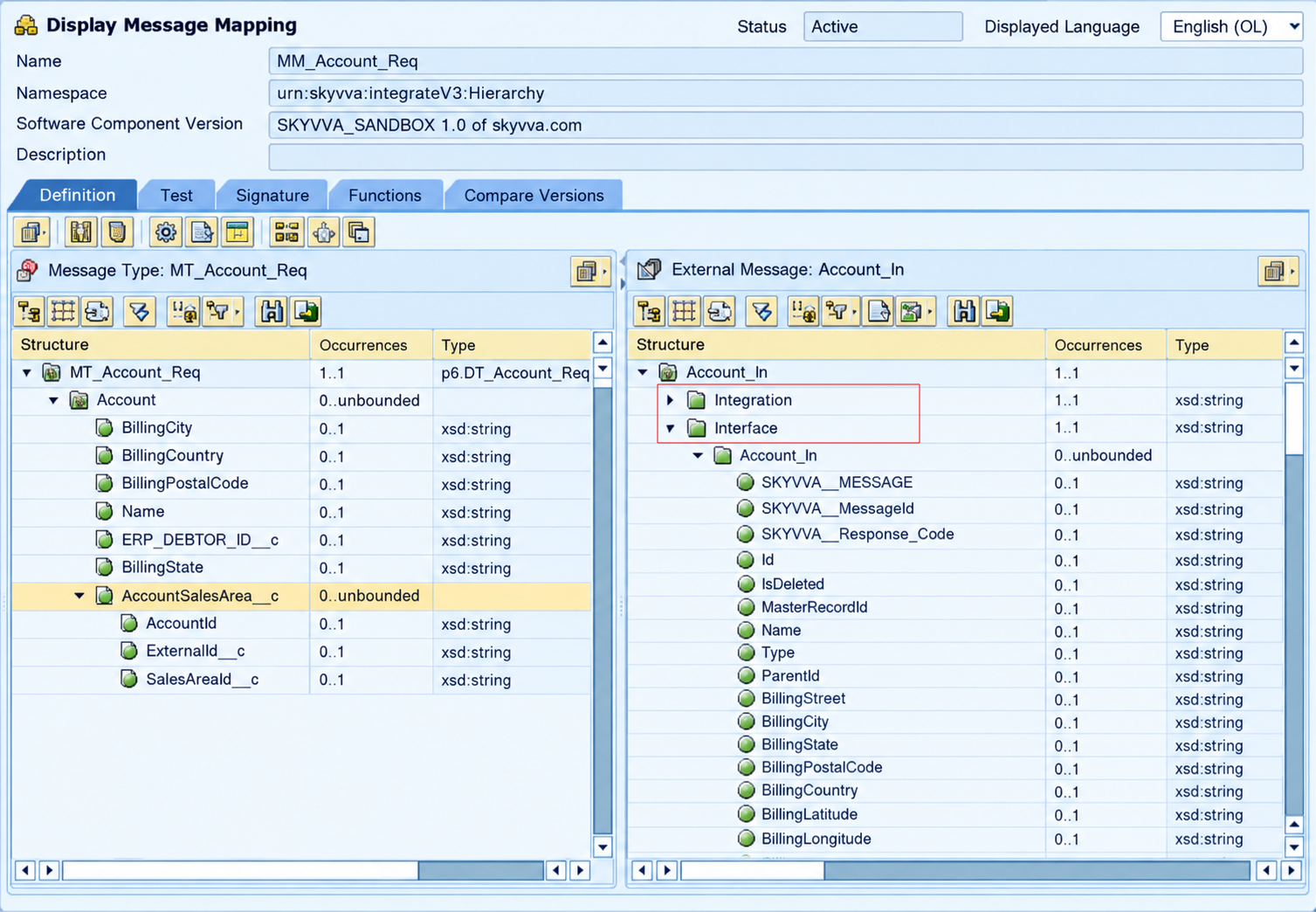
Figure 1. Existing SAP PI/PO mapping with the SKYVVA V3 target fields Integration and Interface.
2. Confirm the Existing SKYVVA Interface
Confirm the sandbox interface is already V3. Preserve its operation, matching key, and required business behavior.
- Reuse PO mapping: retain the existing schema and SKYVVA mappings; prepare equivalent mapping in CPI.
- Forward customer payload: have the SKYVVA owner define/link the source Message Type and mappings described in section 3.1. This is an intentional mapping change, so validate it in an isolated sandbox configuration before cutover. Do not replace a shared working contract while PO still uses it.
Record the destination names and matching field. Examples use Integration ERP_Customer_Migration, Interface Account_ERP_V3_In, and Account External ID ERP_Customer_ID__c; substitute your actual values throughout.
Confirm the integration user has Account/field access and Upsert uses the existing External ID. Upsert creates an Account when the key is new and updates it when the key already exists. Keep ERP numbers as text to preserve leading zeros. Mapped-output examples assume External Mapping accepts Salesforce API field names; customer-payload examples require explicit source-to-target mappings.
[Insert screenshot for Figure 2 here: the existing Account matching field.]
Figure 2. Existing Account field used to match the ERP customer number.
[Insert screenshot for Figure 3 here: the existing SKYVVA V3 interface.]
Figure 3. Existing SKYVVA V3 interface reused by the CPI integration.
3. Choose the Payload and Mapping Approach
Preserve the existing PO business rules in either CPI or SKYVVA. The following table defines the example's expected Account values; choose the payload path in section 3.1.
Source under /DEBMAS06/IDOC/E1KNA1M | Target under /Accounts/Account | Example value |
|---|---|---|
KUNNR | ERP_Customer_ID__c | 0000006000 |
NAME1 | Name | Global Tech Solutions GmbH |
ORT01 | BillingCity | Munich |
TELF1 | Phone | +49-89-1234567 |
For the Account-only example, agree this receiver-input XML with the V3 interface owner:
<Accounts>
  <Account>
    <ERP_Customer_ID__c>0000006000</ERP_Customer_ID__c>
    <Name>Global Tech Solutions GmbH</Name>
    <Phone>+49-89-1234567</Phone>
    <BillingCity>Munich</BillingCity>
  </Account>
</Accounts>
Accounts wraps the Account record. This is an illustrative receiver-input contract, not a universal V3 schema. Keep your actual record paths, namespaces, and any Integration/Interface elements required by the existing schema. Configure destination routing on the receiver as well; the reviewed V3 XML reader does not use those elements as channel overrides.
3.1 Choose Legacy SAP-PO Format or Custom Format
Request Format selects XML or JSON. Structure Format selects the JSON layout; it does not convert payloads. The JSON behavior below requires a compatible adapter, Mode = Asynchronous, and an installed Skyvva App Version ≥ 2.51.18. Have the administrator confirm these prerequisites; entering a newer version in CPI does not upgrade SKYVVA.
| Choice | Request Format | Structure Format | Receiver input | Routing |
|---|---|---|---|---|
| Keep the XML mapping output used above | XML | Leave the existing setting; this JSON selector does not reshape XML | Approved Accounts/Account XML or the validated existing XML structure | Set Integration and Interface on the receiver |
| Retain the legacy PO-style JSON envelope | JSON | Legacy SAP-PO format | JSON object containing routing and named business records | Payload integration/interface can take precedence in the supported reader path; keep them identical to the receiver settings |
| Forward customer JSON without CPI business mapping | JSON | Custom Format | Customer records matching the linked source Message Type and mappings | Integration and Interface must be supplied on the receiver |
| Forward customer XML without CPI business mapping | XML | Leave the existing setting; it does not reshape XML | Original XML matching the linked source Message Type, namespaces, and paths | Set Integration and Interface on the receiver |
Option A — Legacy SAP-PO format
Use this when CPI produces a PO-style JSON object with routing fields and named business records:
{
  "integration": "ERP_Customer_Migration",
  "interface": "Account_ERP_V3_In",
  "Account": [
    {
      "ERP_Customer_ID__c": "0000006000",
      "Name": "Global Tech Solutions GmbH",
      "Phone": "+49-89-1234567",
      "BillingCity": "Munich"
    }
  ]
}
Set Request Format = JSON and Structure Format = Legacy SAP-PO format. Keep payload routing identical to the receiver settings. JSON uses lowercase integration/interface; Figure 1 uses XML Integration/Interface. Preserve the field names and case required by the chosen contract. The Account fields above assume the mapped-output configuration in section 2.
Option B — Forward the Customer Payload
Use this when the customer wants no business Message Mapping in CPI. Forward the supported original payload and maintain its source Message Type and Account mappings in SKYVVA.
For example, if the customer already sends this JSON, retain its field names:
[
  {
    "KUNNR": "0000006000",
    "NAME1": "Global Tech Solutions GmbH",
    "TELF1": "+49-89-1234567",
    "ORT01": "Munich"
  }
]
Have the SKYVVA owner prepare the sandbox configuration:
- Define or reuse a source Message Type matching the complete customer payload: fields, nesting, occurrences, and data types. Link it to the V3 interface.
- Configure the source record path, Account structure mapping, and field rules from section 3, including existing lookups or conditions. Linking a Message Type alone does not create mappings.
- Review External Mapping with the owner so explicit source-to-target rules are used. Retain the Upsert key and automatic processing, save the configuration, and validate the complete request.
Use the four source-to-Account field rules in the table at the start of section 3.
For the array above, select Request Format = JSON, Structure Format = Custom Format, and set Integration/Interface on the receiver. Keep customer field names unchanged; their SKYVVA mappings determine the Account fields.
Custom JSON limitation: local checks found a source-node failure for a bare array with a nested mapped path such as /Accounts/Account, and an extra record for a wrapped object such as {"Account": {...}} in another configuration. Have the owners validate the chosen shape and mappings on the deployed build; resolve failures before using this route.
For customer XML, select Request Format = XML and match its actual namespaces and paths in the Message Type/mappings. For original DEBMAS, the example fields occur under /DEBMAS06/IDOC/E1KNA1M. Structure Format does not remove XML wrappers.
Skip sections 3.2–3.3 and continue at 3.4. If the original payload needs encoding or structure adaptation, document and validate that additional CPI step separately.
3.2 Choose How to Bring the Mapping into CPI
Follow this section and section 3.3 only when reusing the PO mapping in CPI.
| Available material | Action |
|---|---|
| PO mapping with working ESR access | Import it using the steps below, then review dependencies and the V3 target contract |
| CPI mapping artifact already prepared by a developer | Upload the CPI-compatible ZIP, inspect its content, and validate its V3 output |
| Approved schemas, complete rules, and a PO request/result pair | Have a CPI developer recreate the mapping and compare its actual output with PO |
For direct import, open an editable CPI package and choose Artifacts → Add → Message Mapping → ES Repository. Select the configured PO repository, choose Connect, select the actual mapping, then choose Next. Review Dependent Resources, complete applicable dependency steps, and submit the import. The administrator must prepare repository connectivity and read permissions first.
Without ESR permission, request a prepared CPI mapping and its artifact ID. Upload a CPI-compatible ZIP through Artifacts → Add → Message Mapping → Upload; a PO .tpz is not a CPI mapping ZIP.
SAP describes these options in Creating Message Mapping as an Artifact.
3.3 Adapt or Recreate the Mapping
The CPI developer performs these steps if the target requires adjustment or the original mapping cannot be imported:
- Obtain the original source schema, referenced resources, complete PO rules, and the agreed V3 target schema. Schemas describe structure; they do not contain all transformation rules.
- In the package, open the prepared mapping in Edit, or choose Add → Message Mapping → Create. An example artifact ID is
DEBMAS_Account_V3_Mapping. - Load the source and target definitions. For the example above, use source root
DEBMAS06and target rootAccounts. Use your actual roots and namespaces when they differ. - Connect the parent
E1KNA1Moccurrence to targetAccountand reproduce the four field rules above. Map parent-customer values, not similarly named fields inside repeatingE1KNVKMcontact segments. Reproduce any additional original rules required by the agreed scope. - If a second transformation adapts the envelope after an unchanged imported mapping, preserve both steps in order. The output entering the receiver must match the approved V3 contract.
- Use Simulate with the sanitized ERP request and save the actual output. If later steps shape JSON, test that complete sequence too. If simulation is unavailable, request an isolated transformation test before connecting Salesforce.
- Complete the comparison in section 3.4. Save and deploy each required mapping artifact, and record its ID and transformation order for section 4.
[Insert screenshot for Figure 4 here: the prepared CPI mapping for the reuse-PO-mapping approach.]
Figure 4. CPI customer mapping for the approach that reuses PO mapping rules.
3.4 Compare the Mapping Results
No screenshot is required. Use the original request, actual PO output, and expected Account values as the baseline:
- Mapping in CPI: compare final transformation output with PO. Check field values, leading zeros, record counts/grouping, XML namespaces or JSON layout, routing, and empty/null handling. Record intentional contract differences.
- Customer payload forwarded: check that receiver input matches the original source contract. Review SKYVVA paths and field rules against the PO rules. Compare expected business values; raw customer fields intentionally differ from mapped PO output.
- Resolve unexpected differences. Keep the approved input, output, mapping settings, and expected result. Complete runtime verification of the actual receiver body and Account result in sections 6–8.
4. Build the HTTPS Replay Flow
In CPI → Design → Integrations and APIs, open an editable sandbox package. Under Artifacts, choose Add → Integration Flow → Create. Use an agreed name and ID, for example DEBMAS_Accounts_V3_Replay, and open it in Edit.
Keep Start and End. Add Request Reply; name the sender Test Client and receiver Salesforce. For mapping in CPI, also add Message Mapping before Request Reply, as shown below.
flowchart LR
    C[Postman] --> H[HTTPS sender]
    H --> S[Start]
    S --> M[Map ERP customer to V3 Account]
    M --> R[Request Reply]
    R --> E[End]
    R -->|SkyvvaSalesforce V3| SF[SKYVVA V3 interface]
    SF -->|Submission response| R
For forwarding the customer payload, use Start → Request Reply → End, keeping the body unchanged when it already matches the source contract.
Connect the internal steps in the selected order, ending at End. Connect the sender to Start and select HTTPS. Connect Request Reply to Salesforce and select SkyvvaSalesforce.
For the mapping-in-CPI approach, assign the deployed mapping:
- Select the empty canvas and open References → Global → Add References → Message Mapping.
- Select the artifact prepared in section 3 and confirm.
- On the Message Mapping step, choose Assign → Global Resources, select that reference, and confirm.
Add any further approved transformations in their recorded order. SAP documents mapping assignment in Consuming Message Mapping Artifact.
[Insert screenshot for Figure 5 here.]
Figure 5. CPI HTTPS replay flow for the chosen mapping approach, using the SKYVVA V3 receiver.
5. Configure the Sender and Receiver
5.1 HTTPS Sender
Select the sender channel and configure:
| Field | Replay value |
|---|---|
| Address | /migration/debmas/accounts/v3/replay |
| Authorization | User Role |
| User Role | ESBMessaging.send, or the approved inbound role |
| CSRF Protected | Disabled only for the controlled sandbox replay where permitted |
Ask the CPI administrator to provide the tenant-approved caller authentication and assign its inbound role. If CSRF protection remains enabled, use the administrator's token procedure. This authentication is separate from the Salesforce receiver credentials.
5.2 Salesforce Connection
Have the Salesforce administrator prepare the OAuth application's Client Credentials flow and run-as user. In CPI → Monitor → Manage Security → Security Material, have the CPI administrator deploy a User Credentials entry, for example skyvva-v3-client-credentials: User = Salesforce OAuth client ID; Password = Salesforce OAuth client secret. Use this secure-store type for this adapter.
On the SkyvvaSalesforce receiver → Connection tab, set:
| Field | Value |
|---|---|
| Authentication Type | OAuth2 |
| OAuth2 Flow | Client Credential |
| Login Url | Actual sandbox My Domain base URL, without an Apex REST path |
| Client Credential | Deployed alias, for example skyvva-v3-client-credentials |
Confirm the alias exists in the same CPI tenant. Have the administrator verify the run-as user's Account, field, SKYVVA package, and license access without sharing secrets in screenshots or payloads.
5.3 V3 Receiver Processing
Open the receiver's Processing tab and configure:
| Field | Example value |
|---|---|
| Processing Type | Skyvva |
| Skyvva API Version | V3 |
| Integration | ERP_Customer_Migration |
| Interface | Account_ERP_V3_In |
| Mode | Asynchronous |
| Processing Behavior, if shown | None |
| Request Format | XML or JSON, matching the actual body entering the receiver in section 3.1 |
| Response Format | XML; choose JSON only if your caller expects a JSON response |
| Structure Format | For JSON, select Legacy SAP-PO format or Custom Format to match section 3.1 |
| Skyvva App Version | Actual installed Salesforce SKYVVA package version |
| Salesforce API Version, if shown | Version supported by your organization and adapter combination |
Use the destination names confirmed in section 2. For Legacy JSON, keep body routing identical to the receiver. For XML and Custom JSON, routing comes from the receiver. Review dynamic overrides in copied channels.
Processing Behavior = None allows automatic processing for this example; confirm the interface's processing setup with its owner. Use the actual installed App Version and the compatibility requirements in section 3.1.
[Insert screenshot for Figure 6 here.]
Figure 6. V3 receiver routing, request format, and matching Legacy SAP-PO or Custom Format selection.
6. Deploy and Send the Original ERP Request
Confirm the chosen mappings, V3 interface, and credentials are ready. Use an approved sandbox customer key that does not yet exist to test creation, or record its existing Account ID if testing an update. To validate both creation and update, start with an unused key and reuse it in section 8. If inspecting the payload, enable Trace before sending as described in section 10.3.
- For mapping in CPI, save and deploy its required mapping artifacts first. For the customer-payload approach, confirm the source Message Type and SKYVVA mappings are saved and ready. Save and deploy the replay iFlow.
- In Monitor → Manage Integration Content, locate the replay artifact and confirm it is Started. Copy the complete URL from its Endpoints section; do not use the design-time browser URL.
- In Postman, create a POST request to that URL and apply the CPI caller authentication prepared in section 5.1.
- For the CPI mapping approach, set Content-Type: application/xml; charset=UTF-8, choose Body → raw → XML, and paste the complete original DEBMAS request used in the comparison. For the customer-payload approach, paste the complete original payload matching its source Message Type: XML with that same Content-Type, or JSON using application/json and Body → raw → JSON. Do not substitute mapped Account output for the original source request.
- Send once and record the HTTP status, timestamp/timezone, and corresponding CPI message ID. Locate the execution in Monitor → Monitor Message Processing using the artifact and timestamp.
Let mapping and receiver exceptions fail the iFlow. After a timeout or lost response, reconcile the original CPI/SKYVVA result before retrying; some work may already be committed.
7. Verify the Initial Business Result
Check all three stages before sending another change:
- CPI: open the matching execution and inspect its status, errors, and final receiver-input body. For mapping in CPI, check the transformed contract; for forwarding customer data, check the original source structure. Use section 10.3 for tracing.
- SKYVVA: open Message Monitoring, select the destination Integration/Interface, and locate the request by customer key and submission time. Confirm the final processing result; ask the administrator if access is unavailable.
- Salesforce: find the Account by its matching key, verify the values below, and record its Salesforce ID.
The illustrative request should result in one matching Account:
| Field | Expected example value |
|---|---|
| ERP customer ID | 0000006000 |
| Name | Global Tech Solutions GmbH |
| Phone | +49-89-1234567 |
| Billing City | Munich |
Confirm exactly one matching Account and the expected values. A CPI Completed status or submission acknowledgement alone does not prove Account success. Investigate pending or failed SKYVVA work before resubmitting.
[Insert screenshots for Figure 7 here: CPI execution, matching SKYVVA result, and the Account.]
Figure 7. Initial V3 migration test result in CPI, SKYVVA, and the Salesforce Account.
8. Verify an Update to the Same Customer
After the initial result is final, keep its Account ID and prepare an approved change for the same customer:
- With the ERP/PO owner, copy the sanitized original request or obtain a new request for the same test customer.
- Keep the customer key and source XML/JSON structure unchanged. Change only the agreed parent-customer city and phone values for this check. Preserve required control-record values and unrelated segments.
- Replace Postman's body with the complete updated request in the same format and send once to the same replay endpoint.
- Follow section 7 again. Confirm the same Salesforce Account ID, the same matching key, and the new city/phone. No additional Account should be created for that key.
| Parent field | Initial example | Update example |
|---|---|---|
KUNNR | 0000006000 | 0000006000 |
ORT01 | Munich | Hamburg |
TELF1 | +49-89-1234567 | +49-40-5550100 |
If the existing interface handles deletion, blocking, or related records, add acceptance cases for those rules. Actual ERP delivery is checked next.
[Insert screenshot for Figure 8 here.]
Figure 8. Customer update processed through V3 with the original Account identity retained.
9. Rehearse Actual ERP Delivery and Plan Cutover
After replay passes, prepare the actual ERP delivery path using the approved mapping approach and V3 receiver. For DEBMAS, follow the IDoc rehearsal below. For another protocol, rehearse that actual path instead. If forwarding raw IDoc XML, its source Message Type/mappings must accept the delivered XML; a Custom JSON test does not prove this. Validate any required conversion.
- Create a distinct ERP-facing artifact and configure its IDoc sender, authorization, and relative address with the administrators.
- Deploy it and obtain its actual IDoc endpoint/protocol details. Have the ERP owner configure the destination/port, partner routing, authentication, and certificate trust. A PO tRFC destination cannot simply be repointed to the HTTPS replay URL.
- Send one controlled request from non-production ERP using the approved DEBMAS dispatch process. Record the actual IDoc number, dispatch status, and timestamp in the ERP monitor, such as WE02/WE05.
- Locate the CPI execution, follow SKYVVA processing, and compare Account results with the ERP request and agreed PO behavior.
- Verify acknowledgements, failures, recovery, ordering, and any prior PO receiver-module responsibilities. Mapping import alone does not migrate those guarantees.
Obtain owner acceptance for business-rule equivalence, create/update results, empty/invalid values, failures/retries, and actual ERP delivery. Include multiple records if supported. Confirm production credentials, compatible versions, routing, and the approved payload contract.
Agree the cutover and rollback sequence with the owners:
- Record the existing V3 interface configuration and the approved PO/CPI receiver and mapping settings.
- Pause or buffer dispatch and reconcile queued/in-flight PO work before changing the shared interface.
- Keep the production SKYVVA interface at V3. For mapping reuse, retain its existing contract. For forwarding customer data, apply the approved source Message Type/mappings only at the agreed cutover point. Apply the validated CPI steps, format, credentials, and routing configuration.
- Redirect the ERP connection and verify one controlled CPI transaction through to the final Account result before releasing buffered traffic.
- If rollback is required, pause CPI submissions, reconcile submitted or committed work, and restore the agreed PO route configuration. Restore the recorded SKYVVA Message Type/mappings if cutover changed them; keep its API version V3. Resume dispatch only after the original route is verified.
Do not run both routes against the same changes without a duplicate/ordering plan. Switching routes does not undo Salesforce updates already committed.
10. Optional Payload Inspection and Receiver Tests
Use these tests to inspect receiver-input formats separately from the original ERP transformation. They do not replace sections 6–9.
10.1 Compare the Two JSON Options
Build two small sandbox flows using section 4's creation steps and HTTPS → Start → Request Reply → End, with no Message Mapping or converter. Reuse the authentication and receiver settings in section 5, changing only these values:
| Setting | Test A — Legacy SAP-PO | Test B — Custom |
|---|---|---|
| iFlow name/ID | V3_Legacy_Format_Test | V3_Custom_Format_Test |
| HTTPS address | /test/skyvva/v3/legacy | /test/skyvva/v3/custom |
| Request Format | JSON | JSON |
| Structure Format | Legacy SAP-PO format | Custom Format |
| Destination | V3 sandbox interface accepting mapped Account fields | V3 sandbox interface with the customer Message Type/mappings from Option B |
| Request body | Option A JSON in section 3.1 | Option B JSON in section 3.1 |
Use isolated sandbox configurations for the different contracts. Both must Upsert the same Account matching key in the same Salesforce sandbox. Resolve the Custom JSON limitations in section 3.1 before testing; one unchanged interface is not assumed to accept both contracts.
- Save/deploy both flows, confirm Started, and copy their full runtime URLs from Monitor → Manage Integration Content → Endpoints.
- In Postman, POST to Test A with the authorized CPI caller, Content-Type: application/json, and Body → raw → JSON. Paste Option A, substituting actual destination names and the approved sandbox key. Enable Trace first if inspecting the body.
- Send once. Follow section 7 to confirm final processing, one Account, City
Munich, and Phone+49-89-1234567. Record the Account ID. - POST Option B to Test B with the same caller and Content-Type. Keep
KUNNRunchanged; changeORT01toHamburgandTELF1to+49-40-5550100. - Confirm final processing, the same Account ID, City
Hamburg, and Phone+49-40-5550100. Reconcile any unresolved outcome before retrying.
10.2 Inspect XML
For an XML-only receiver check, create the same no-mapping flow with ID V3_XML_Format_Test and HTTPS address /test/skyvva/v3/xml. Reuse section 5's settings, select Request Format = XML, and set the destination that accepts the chosen XML contract. Structure Format does not reshape XML.
- Save/deploy, confirm Started, and copy the full runtime endpoint.
- In Postman, POST with the CPI caller authentication, Content-Type: application/xml; charset=UTF-8, and Body → raw → XML.
- For a mapped-output interface, send the complete approved mapped XML, such as the example in section 3. For a customer-source interface, send the complete original XML matching its Message Type/mappings. Choose the matching destination; raw DEBMAS and mapped Account XML are different contracts.
- Inspect the body using section 10.3 and verify the final result using section 7. Use the expected values from the XML you actually sent.
10.3 View the Body Before Request Reply
This procedure also applies to the main replay flow:
- Before sending the sanitized request, open Monitor → Manage Integration Content, select the iFlow, and temporarily set Log Level = Trace.
- Send the planned request once. Open its execution in Monitor → Monitor Message Processing using the artifact and timestamp.
- In the trace view, select Request Reply and the entry Message before Step, then Message Content → Payload. Labels may vary by tenant.
- Check the body: Legacy JSON contains
integration,interface, andAccount; Custom JSON retains customer fields without that routing envelope; XML retains the agreed elements and namespaces. - Restore the previous log level. If you lack access, ask the CPI owner to capture the same request. Trace enabled after a run cannot recover its earlier payload.
The trace envelope icon identifies a message entry; inspect the actual body to see routing fields. Message before Step shows adapter input, which may differ from the outgoing Salesforce request generated internally by the adapter.
SAP describes the view in Message Processing Log — Adapter Tracing.
11. Troubleshooting
| Symptom | Next check |
|---|---|
| Cannot access ESR | Ask for a prepared CPI artifact or approved schemas and complete rules; use section 3.2 |
| No Account or source-node error | Check actual receiver input, XML/JSON selection, source Message Type, structure/field mappings, source paths, and External Mapping. For Custom JSON, review the reader limitations in section 3.1 |
| Customer fields reach CPI but Account fields stay empty | Custom Format does not create mappings. Check source names such as KUNNR, their configured paths, and their mappings to Account fields in SKYVVA |
| Wrong interface or interface not found | Check receiver names, any dynamic overrides, and payload routing if using Legacy SAP-PO JSON |
| Fields rejected or customer duplicated | Check Salesforce API field names, External Mapping, selected matching key, leading zeros, permissions, and validation/duplicate rules |
| Postman receives 401/403 | Check CPI caller authorization/CSRF first; if there is a receiver execution error, check Salesforce OAuth separately |
| Submission succeeds but no Account appears | Inspect SKYVVA message details and automatic-processing configuration; reconcile earlier work before retrying |
| Response or JSON format behavior differs from another tenant | Compare actual App Version, adapter build, mode, and selected format; verify the supported reader path and final business results |
| Replay passes but ERP delivery fails | Check IDoc protocol, ERP routing/trust/authorization, actual payload structure, and acknowledgements separately |
Keep the sanitized input, PO output, CPI receiver input, mapping settings, message identifiers, and expected/actual Account values with the acceptance result. Record unavailable checks as Not performed; complete them before production acceptance.