3. How to process message type based Interface?
Learning Objectives
After completing this unit, you’ll be able to:
- Describe what is message type based Interface.
- Comfortably use How to process message type based Interface
Introduction
SKYvva functionality for outbound interface processing. Our old interface processing is based on the sObject which we use as the message type. We put in the field "Source/Target Name" the sObject. From the structure of the sObject, we generate the structure and provide them for doing the mapping. Now we will go to use our new logic. we start to use the message type which can be different from a sObject.
What Is Interface processing?
Interface: Interface is the second main object in SKYVVA after the integration. The interface describes the structure of data to exchange between Salesforce and other applications. Interface processing is a job that is processed to exchange data with all connected systems. The property of the interface defines the processing mode.
Purpose:
Interface processing is required for exchanging data with connected systems.
Pre-requisite :
- Create a Message type:
- We have to create an adapter
- We have to create Integration.
- We have to creation Interface.
How to process message type based Interface?
To process the message type-based interface we have to follow the given steps: Step1: We have to Create a Message type. There is some pre-requisite to creating a message type.
- Create a metadata provider.
- Create IStructure repository in metadata provider
- We can manually create a message type or we also can use the upload file feature to create message type.
Step2: We have to create an adapter. We are going to create three adapters as below
- XML adapter
- Rest Adapter
- SAP-R/3 Adapter
Step3: We have to create Integration. Step4: We have to create an outbound interface.
- Select Sobject for a query statement
- Select message type existing for interface
Step 5: We can export data payload as hierarchy base on message type by use adapter type: -
5.1 Export data interface the result as an XML file
- Choose XML adapter type for interface(while creating interface)
- Do mapping on Sobject field with a message type field
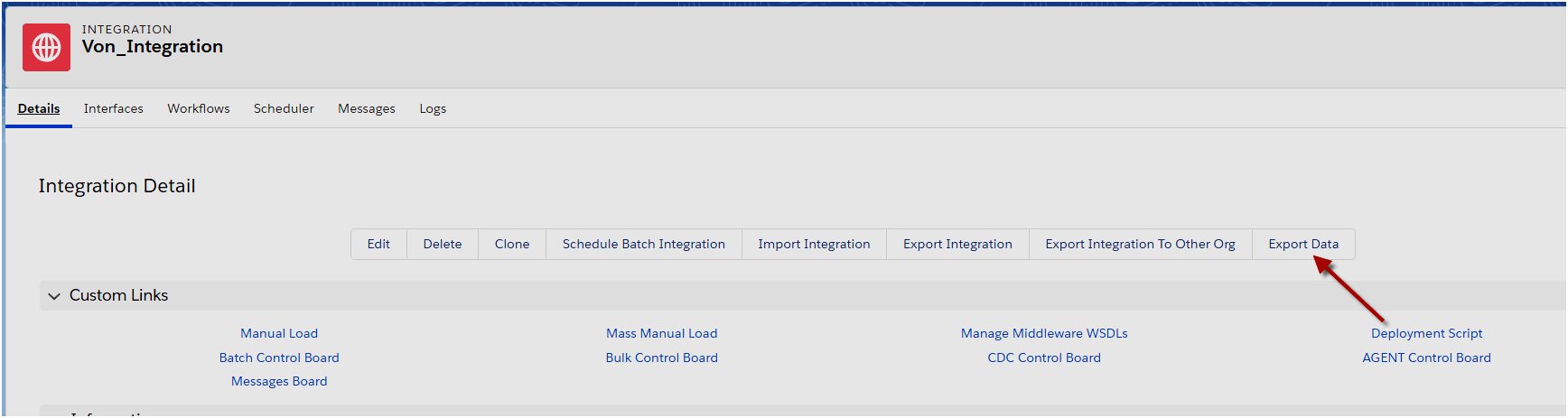
- Now we have to navigate to integration and click the Export Data button on the integration detail page.
- Select an interface and click Start Export button
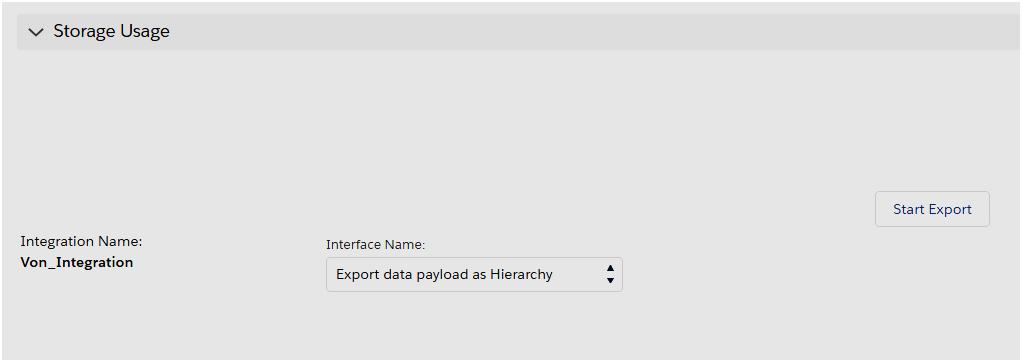
- It will take some time to process. After completing the process you will get exported data.
Here is the result data payload exported [aux_code language="javascript" theme="tomorrow" title="" extra_classes=""]
5.2 Callout data from Skyvva/Salesforce-based message type to SAP by using Rest Adapter
- Select message type existing for interface
- Choose Rest Adapter type for interface
- Do mapping on Sobject field with the message type field
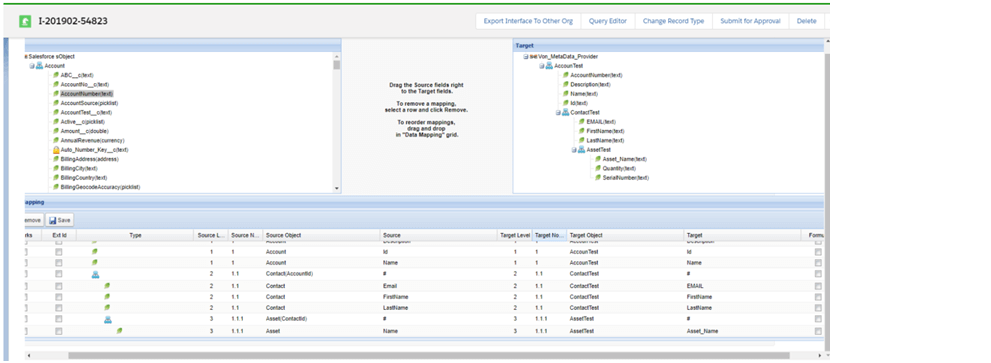
- Navigate to Developer Consult => Debug => Open Execute Anonymous Widow and write Script
Here form script to execute IServices.invokeCallout('InterfaceID', new String[]{'AccountID'}, 'SYNC'); Here is the result data payload as Json string after executed [aux_code language="javascript" theme="tomorrow" title="" extra_classes=""]{ "AccounTests": [ { "ContactTests": [ { "LastName": "TO", "FirstName": "Rin", "EMAIL": "rinto@gmail.com" }, { "AssetTests": [ { "SerialNumber": "1234567", "Quantity": "2.00", "Asset_Name": "Land" } ], "LastName": "Ton", "FirstName": "Jonh", "EMAIL": "jonh@gmail.com" } ], "Name": "CocaCola", "Id": "0011v00001x8jbpAAA", "Description": "Hello world", "AccountNumber": "0001" } ] } [/aux_code]