3. Consume platform event by process builder
Process Builder is a Salesforce’s point-and-click tool that lets you easily automate if/then business processes and see a graphical representation of your process as you build. Every process consists of a trigger, at least one criteria node, and at least one action. You can configure immediate actions or schedule actions to be executed at a specific time. Here we are using process builder to consume platform event. Follow the given steps to show how process builder to consume platform event. Here we are using same Integration and interface. we have to deactivate apex trigger. Step 1: Create process using process builder.
- Go to set up.
- search for Process Builder in quick search box.
- Go to process Builder.
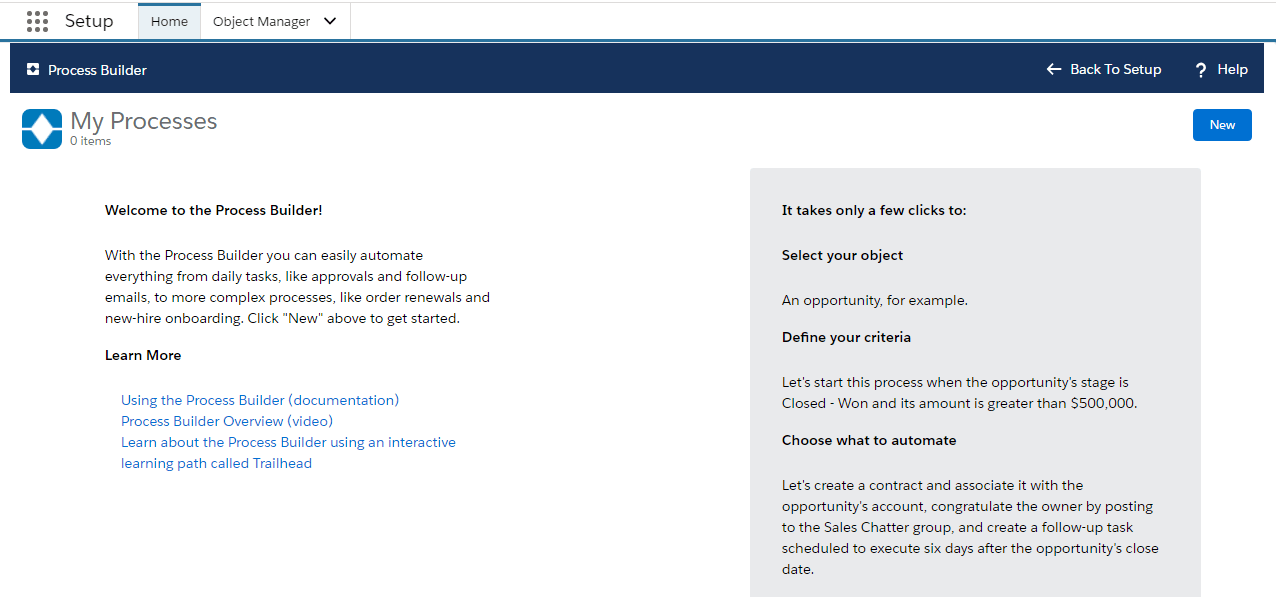
- Click On new button.
- Enter process name which can recognise your process.
- Select Process status as : A platform Event message is received.
- Click on save button.

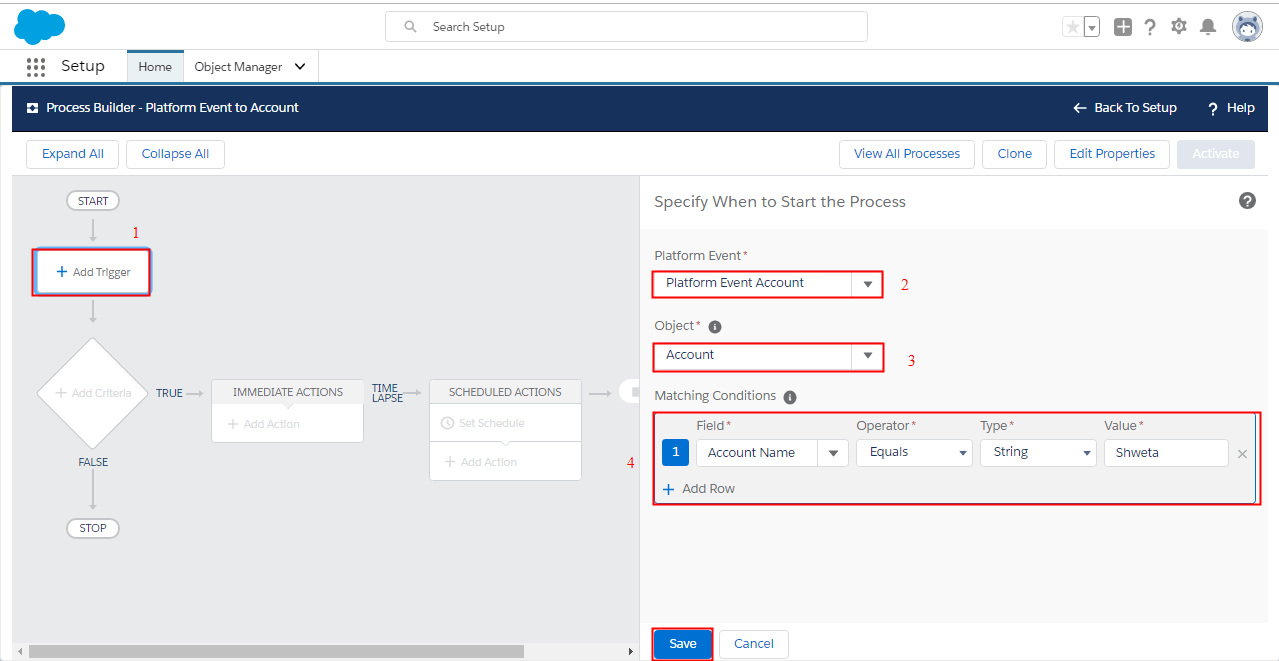
- Add the Object and Specify when to start the Process.
- Select Platform Event
- Choose object as Account
- Add Matching condition where I put this condition on Account name field.;-
- Add the Criteria to define it for Action Group:
- Name the Criteria
- Choose No Criteria option
- click on Save button .

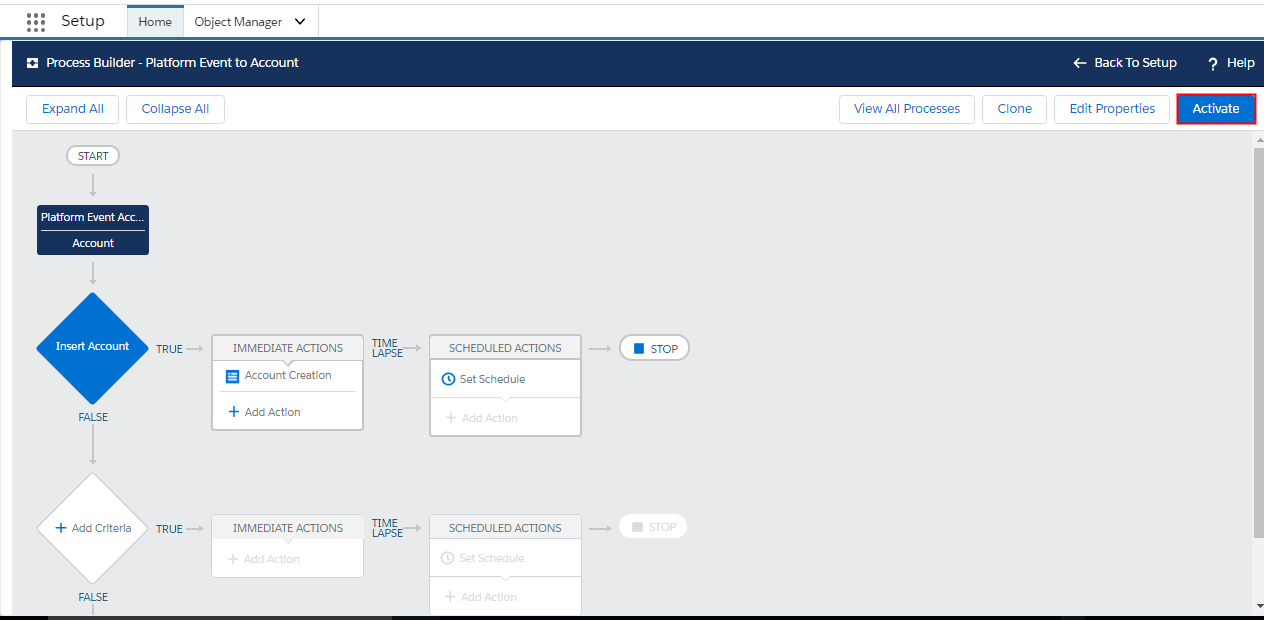
- Add the actions to execute when the criteria are met by:
- Select the Action Type: Create Record
- Give the Action Name: Account Creation
- Select Record type: Account
- Set Field Values as per data and platform event reference

To be able to execute process builder, just click on Activate button.
step2: manually Load data
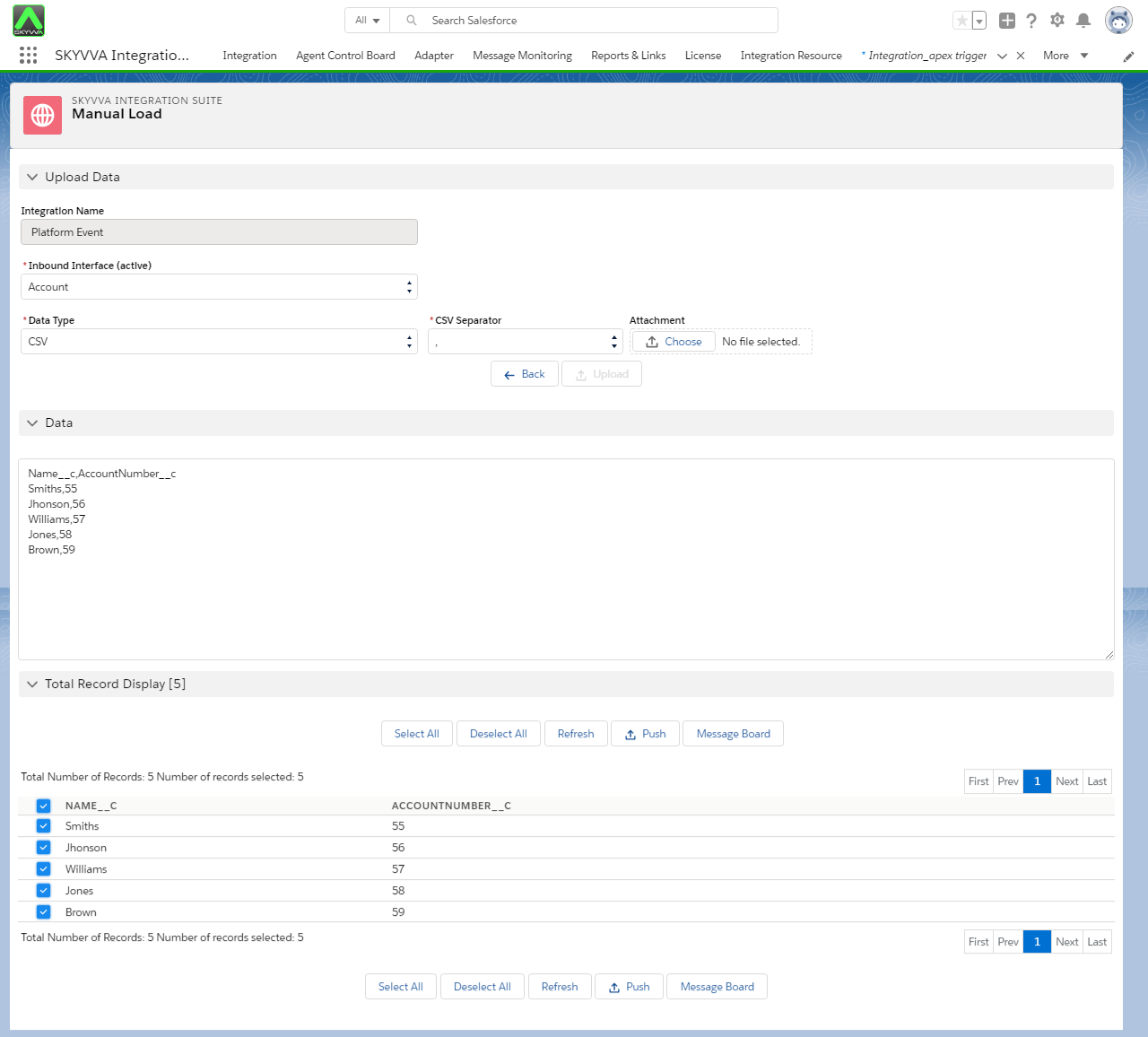
- Go to Integration -> details.
- click on Manual Load.
- Upload data Manually.
- select uploaded record records and push to message board.
Step 3: Monitor the result on message board
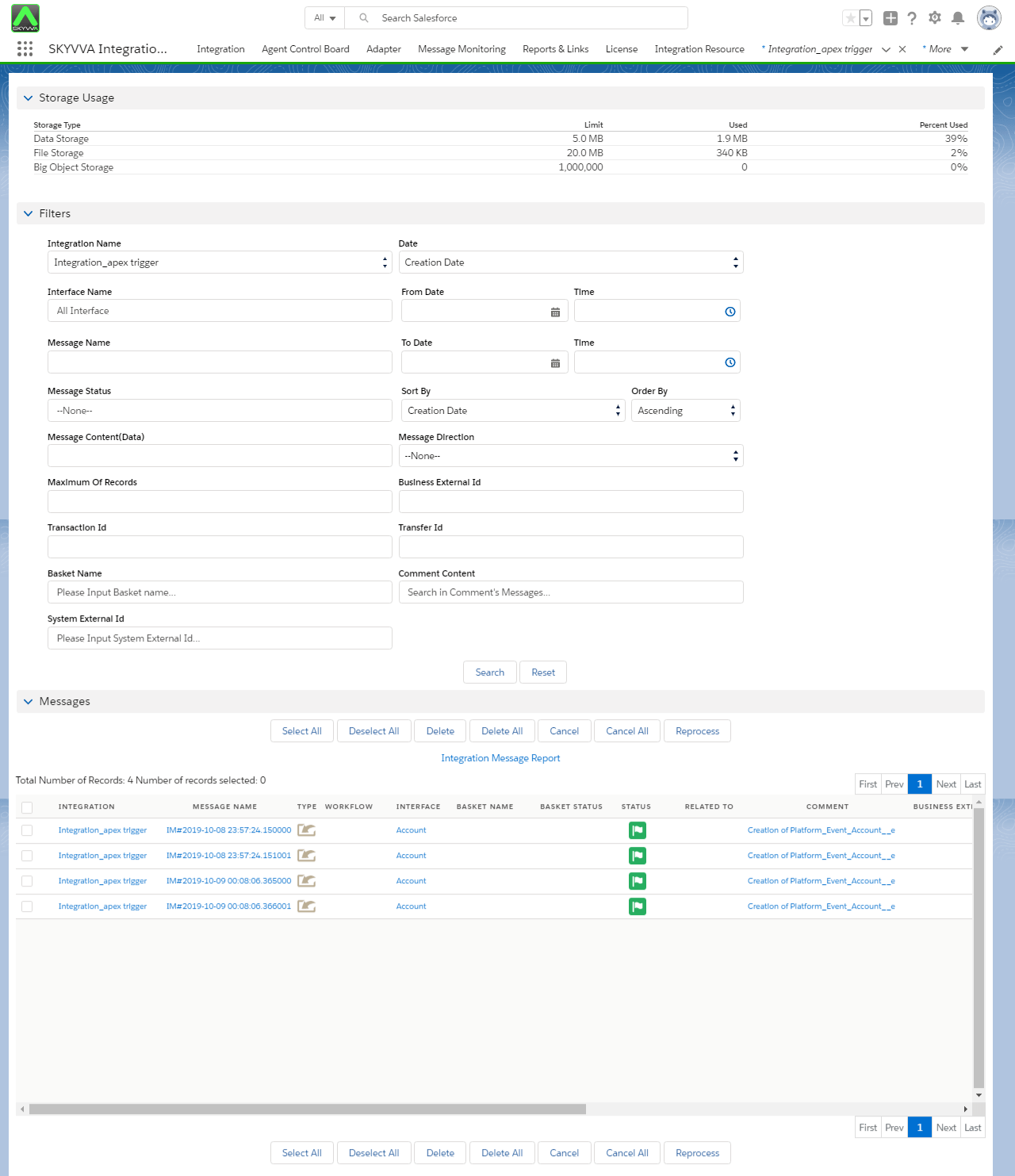
As this record are created by process builder consuming platform event we can't see details of created record. we can't get Related to" link here. we can check data in dev console. Step 4: Search created record in developer console:
- Go to set up
- Open developer Console
- Apply query on Account Object
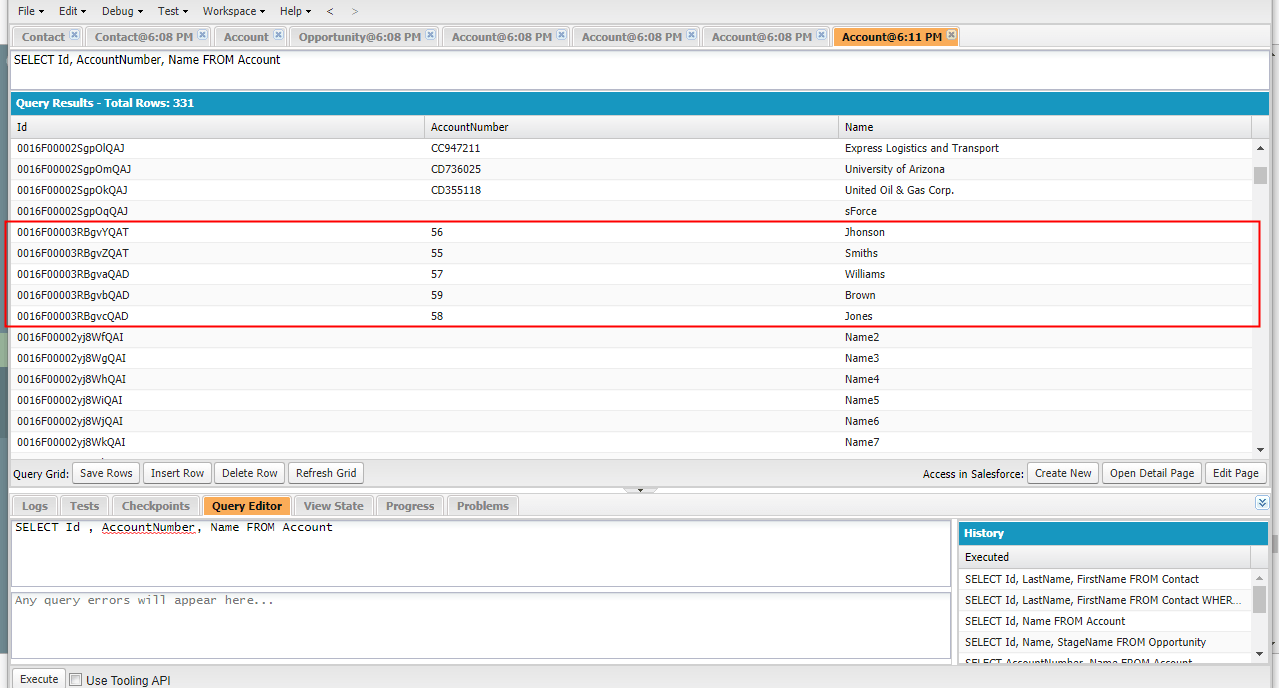
Note: The process runs asynchronously under the Automated Process entity. As a result, there can be a delay between when an event message is published and when the process evaluates the event message