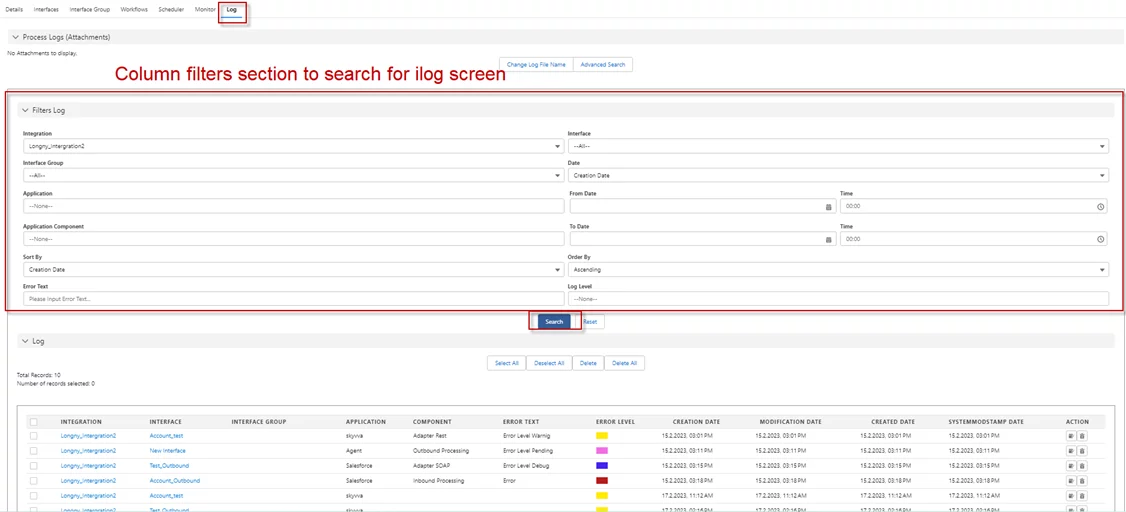
3. Add filter criteria to search in ilog screen
Introduction
SKYVVA Integration App, efficient log management is crucial for tracking and troubleshooting integration processes. In the "ILogs" section, the runtime writes log entries into the ILog2__c table, ensuring all relevant data is captured for each process execution. This table stores log information, which can be used for monitoring and diagnostics.
- However, searching for specific log entries in the ILog2__c table can be challenging when handling large volumes of data. To enhance the user experience, we aim to implement a search functionality similar to the "Process Logs (Attachments)" section, available on the same screen within the Skyvva app. This feature allows users to filter and find relevant log information quickly, streamlining their workflow and reducing time spent navigating logs manually.
- By incorporating a search function in the ILog2__c table, users can perform detailed queries on log entries, helping them monitor integration processes more effectively. This alignment with the "Process Logs (Attachments)" functionality ensures consistency across the platform and enhances the overall user experience, contributing to smoother integrations and faster problem resolution.
- In the SKYVVA Integration App, searching for interfaces and interface groups on the iLog screen is crucial for managing integration processes. To filter for specific interfaces or groups, navigate to the iLog screen and utilize the filtering options available.
- This allows users to quickly locate the relevant interface by entering parameters such as the interface name or group. Once filtered, users can view detailed iLog information, which helps monitor, troubleshoot, and analyze integration activities. The Skyvva app streamlines these tasks, making it easier to ensure smooth data flows between systems with accurate logging and real-time tracking capabilities.
Expectation
- SKYVVA Integration App, users have the option to apply mixed filters in the iLog screen to refine their search results.
- This feature enhances data management by allowing users to narrow down records based on multiple criteria simultaneously. Once filters are applied, the system is expected to indicate that the displayed records are a result of the selected filters.
- This functionality simplifies the search process, enabling users to focus on relevant data without sifting through unnecessary information. With the filters in place, Skyvva ensures that users can efficiently manage, track, and monitor their integrations, improving overall productivity and accuracy in data handling.
- This intuitive interface not only streamlines workflows but also provides users with a clear visual representation of their filtered search, ensuring they are aware of the active filters applied to the iLog screen.
Pre-requisites
To search logs using the Skyvva Integration app, follow these steps:
- Click on Integration.
- Select Log.
- Scroll down to view available logs.
- Use the search function to find specific entries. This ensures easy access to your integration logs.
- Filter on Interface
Select any Interface for Apply Filters to Search in the Ilog Screen. For example, filter Account_test
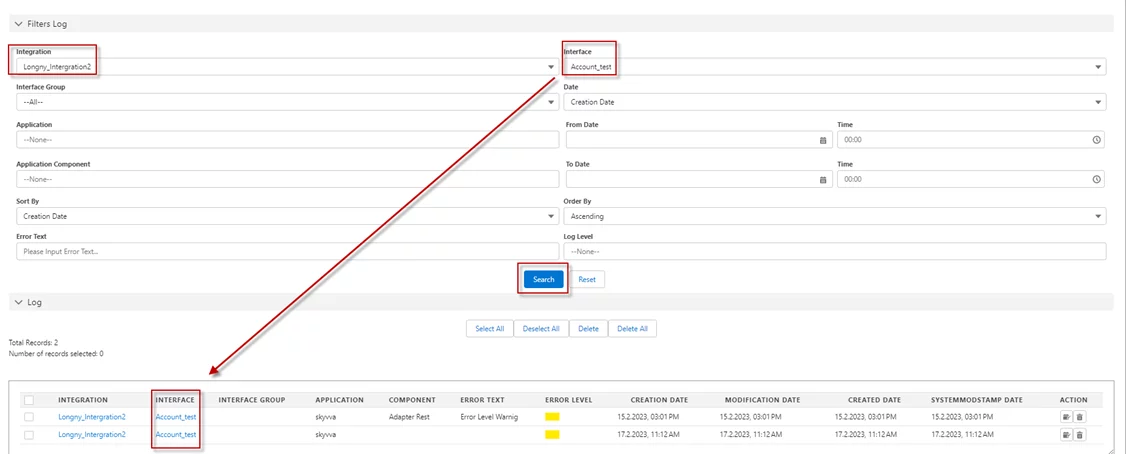
[su_box title="Result" box_color="#2a8af0" title_color="#000000"]After a search, it will display a log for the Account_test interface.[/su_box]
- Filter on some fields
Select some mixed filter Ilog Screen as below
Application = Salesforce
- Application Component = Adapter soap
- Error Text = Error Level Debug
- Log Level = Debug
- Sort by = Creation Date then click the search button
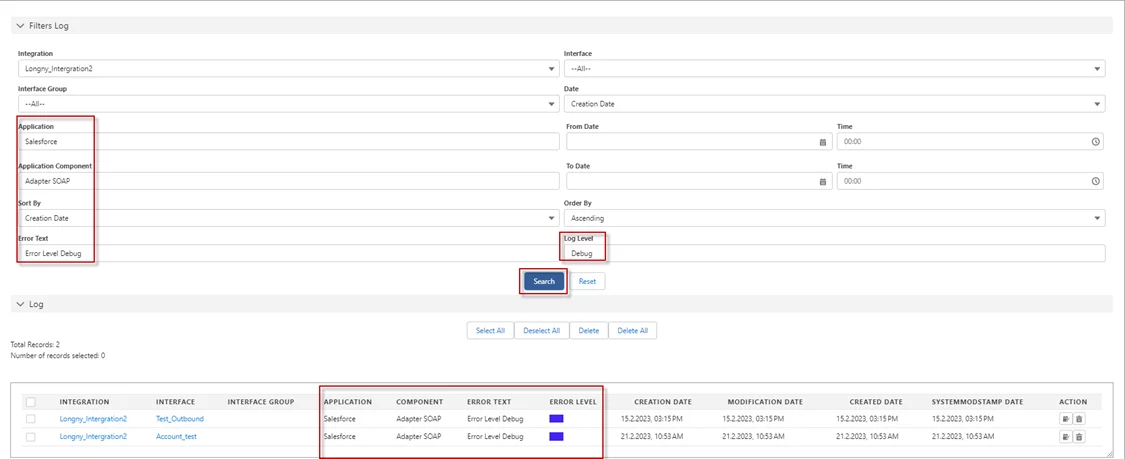
[su_box title="Result" box_color="#2a8af0" title_color="#000000"]After the search, it will display all fields that we filter.[/su_box]
- Search on Date From Date and To Date
Select Date for Apply Filter.
For example, we select the date From Date 15-02-2023 to 21.02.2023, 11:00 AM.
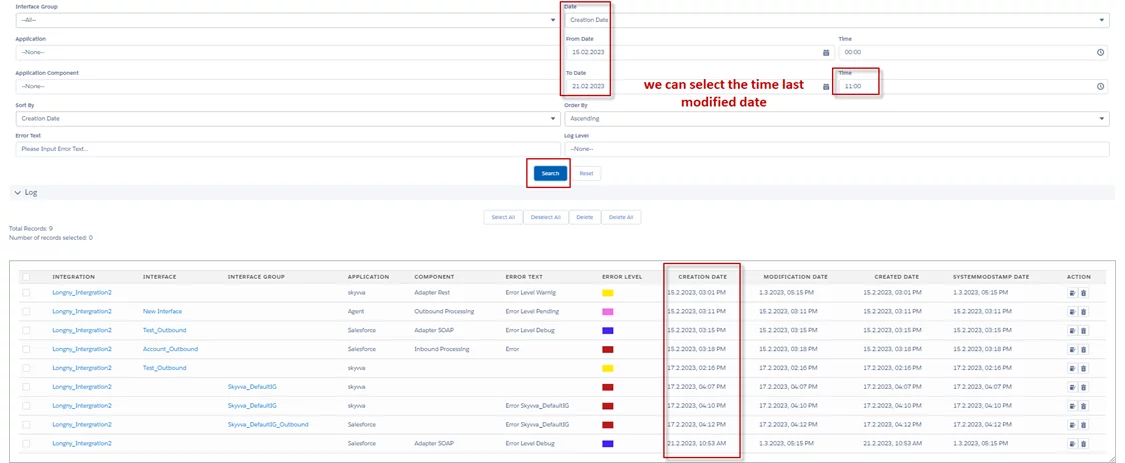
[su_box title="Result" box_color="#2a8af0" title_color="#000000"]It will take a log that has the creation date from 15-02-2023 to 21.02.2023, 11:00 am.[/su_box]
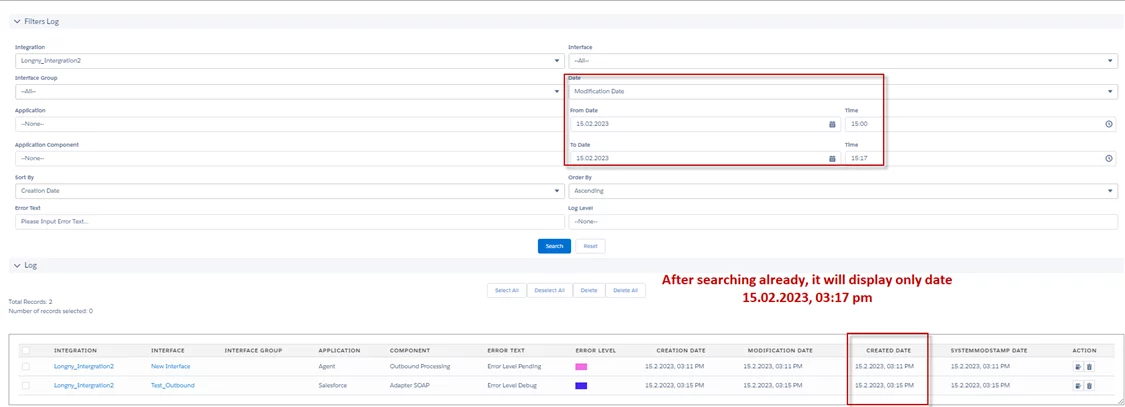
- Select Modification Date for Apply Filter.
For example, we select the date from date 15-02-2023, 03:00 pm to 15.02.2023, 03:17 pm.
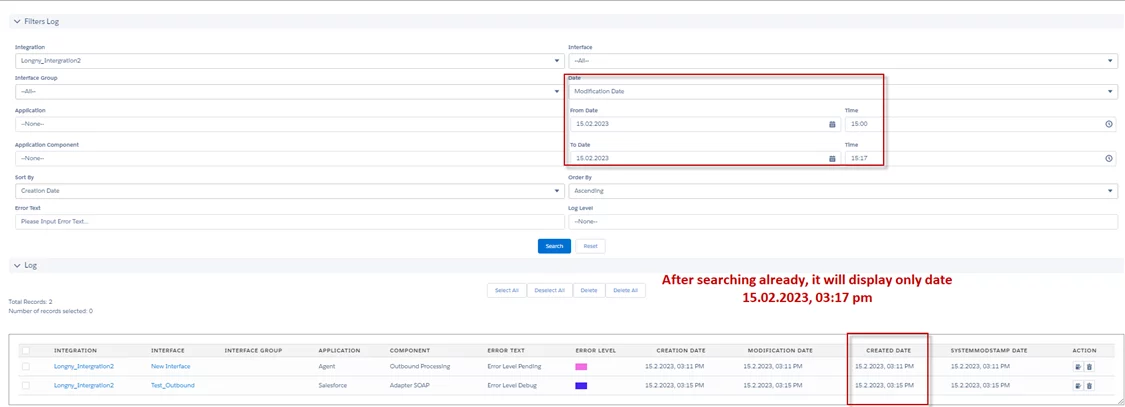
[su_box title="Result" box_color="#2a8af0" title_color="#000000"]It will take a log that has the modification date from 15.02.2023, 03:00 pm to 15.02.2023, 03:17 pm.[/su_box]
- Select CREATED DATE for Apply Filter
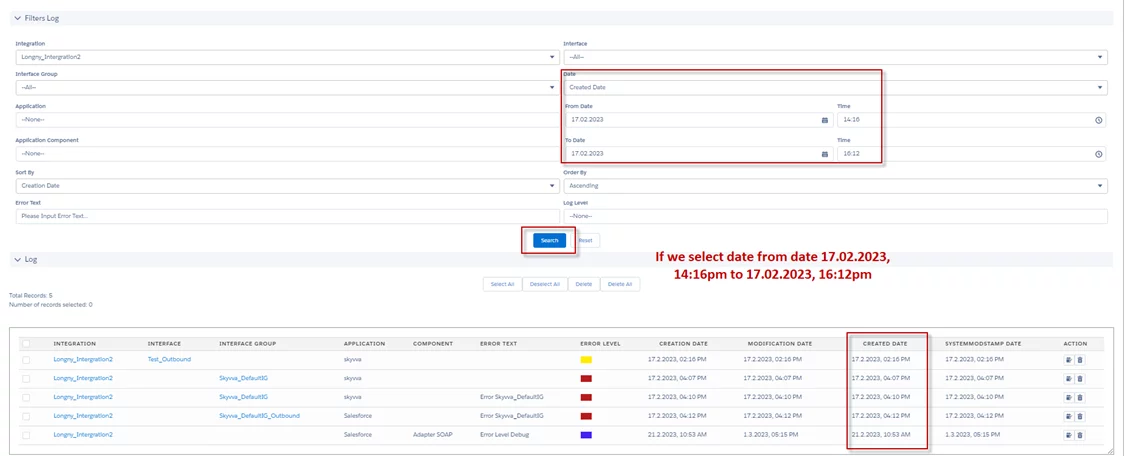
For example, we select the date from date 17-02-2023, 02:16 pm to 17.02.2023, 04:12 pm.
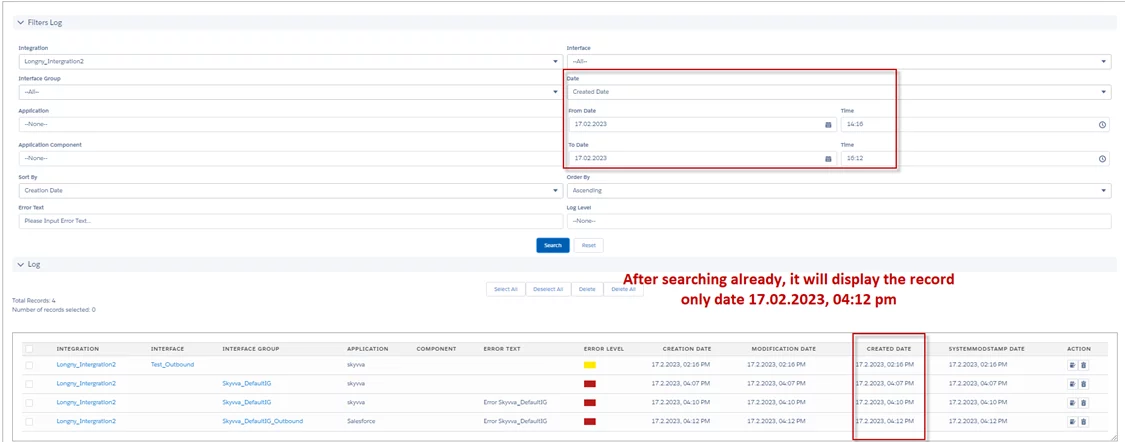
[su_box title="Result:" box_color="#2a8af0" title_color="#000000"]It will take a log that has the modification date from 17.02.2023, 02:16 pm to 17.02.2023, 04:12 pm.[/su_box]
- Select SYSTEMMOSDTAMP DATE for Apply Filter
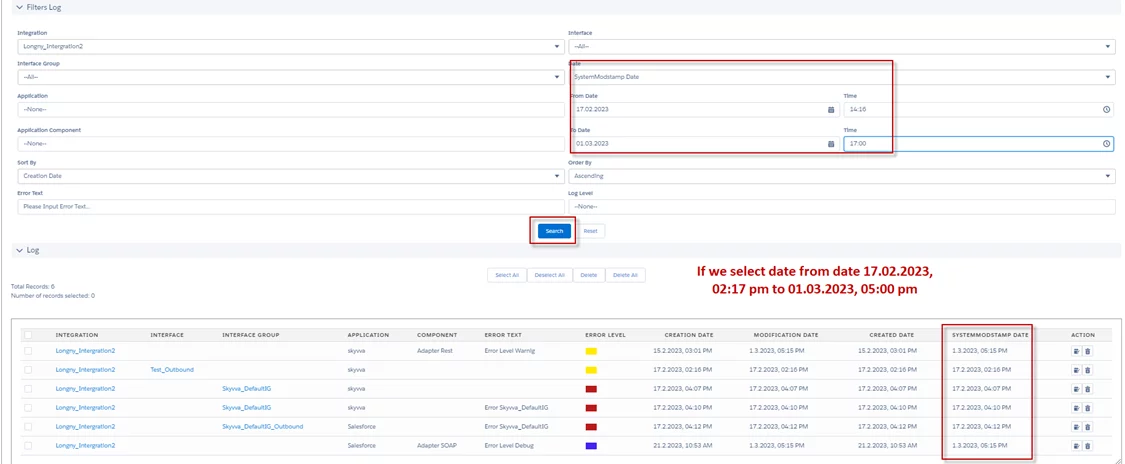
For example, we select the date from date 17-02-2023, 02:16 pm to 01.03.2023, 05:00 pm.
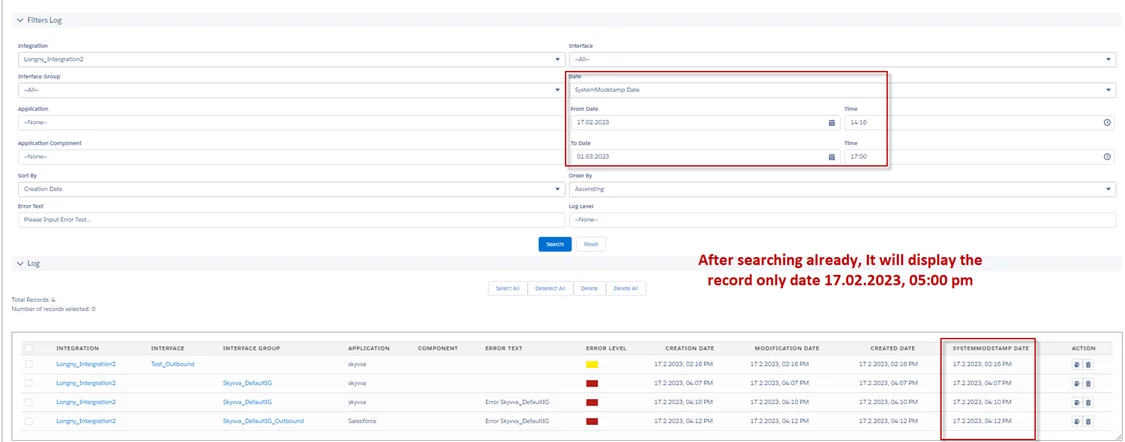
[su_box title="Result:" box_color="#2a8af0" title_color="#000000"]It will take a log that has the systemmodstamp date 17-02-2023, 02:16 pm to 01.03.2023, 05:00 pm.[/su_box]
- Filters on Order By field
Select Descending for filter Ilog Screen as below
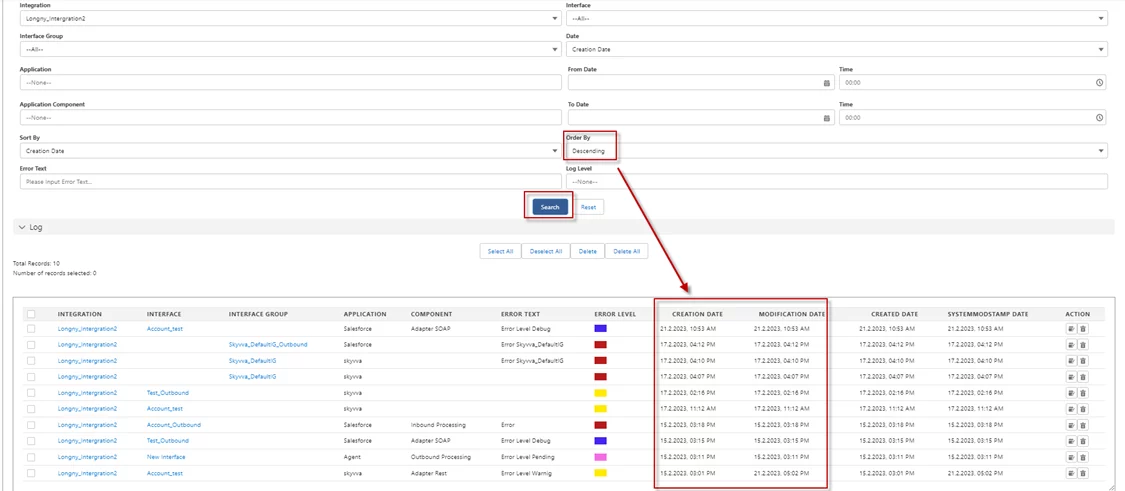
[su_box title="Result:" box_color="#2a8af0" title_color="#000000"]It will display the record's last update under old records.[/su_box]
- Select Ascending for filter Ilog Screen as below
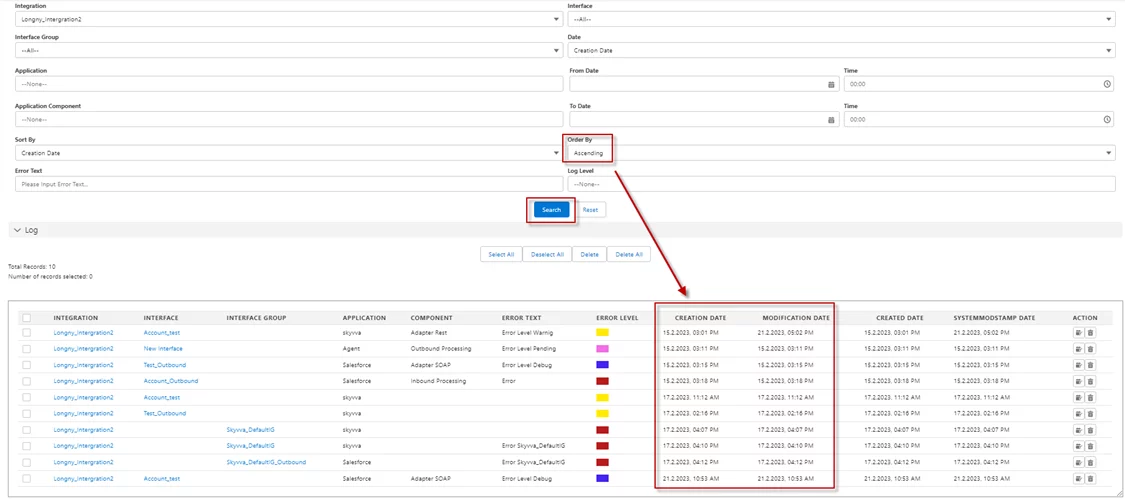
Result: It will display the record's last update on top of old records.
- Filter on Interface Group
Select Interface Group for Apply Filters to Search in the Ilog Screen
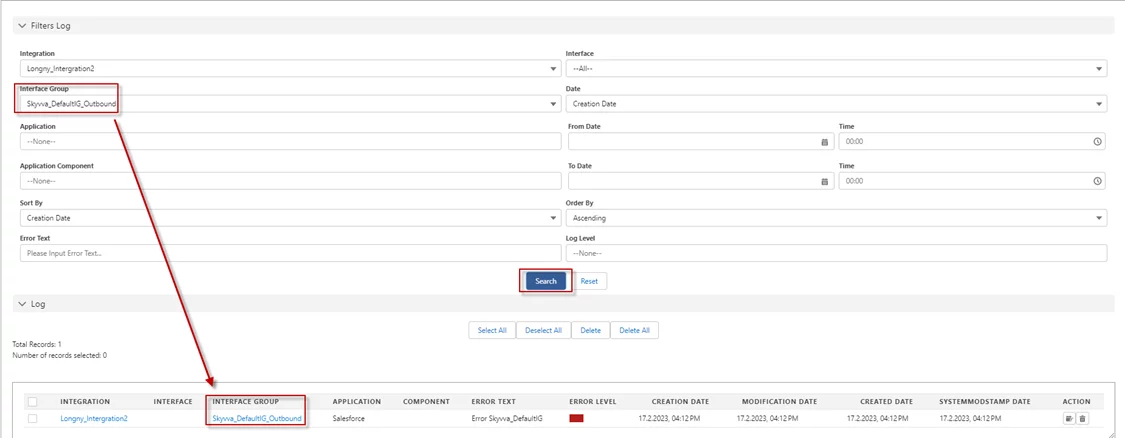
[su_box title="Result" box_color="#2a8af0" title_color="#000000"]After the search, it will display on Log for Skyvva_DefaultIG_Outbound.[/su_box]
- Test on the View Log button
Click search then you will see the View Log button on each ilog record
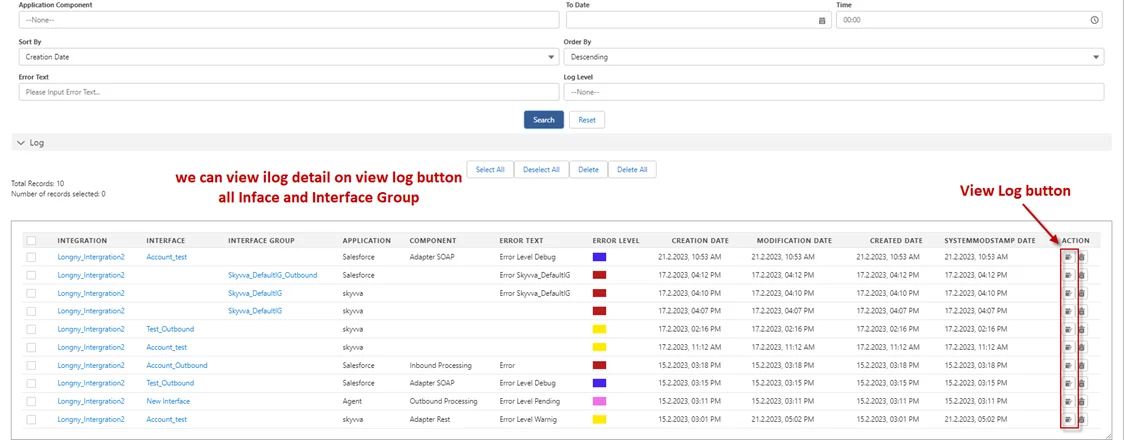
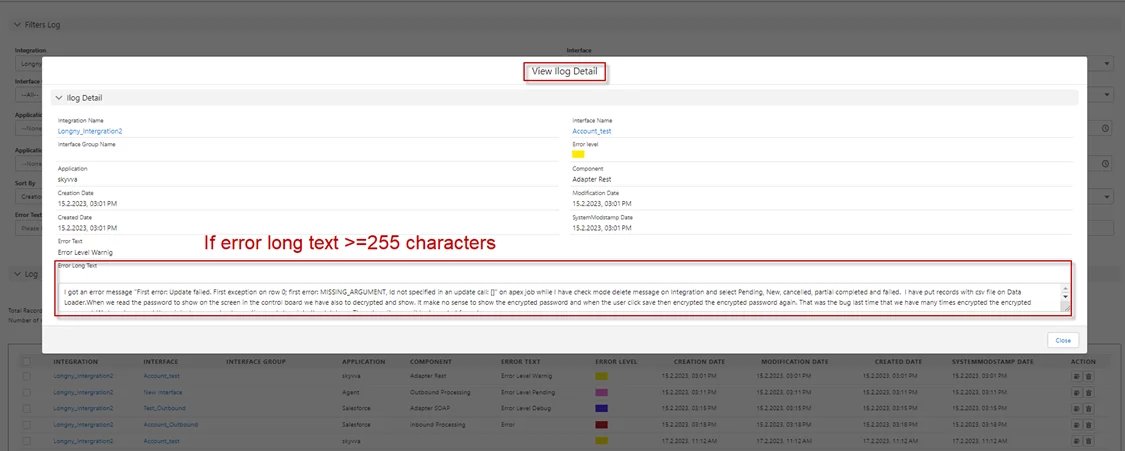
[su_box title="Result:" box_color="#2a8af0" title_color="#000000"]It will display the pop-up screen to View Ilog Details.[/su_box]
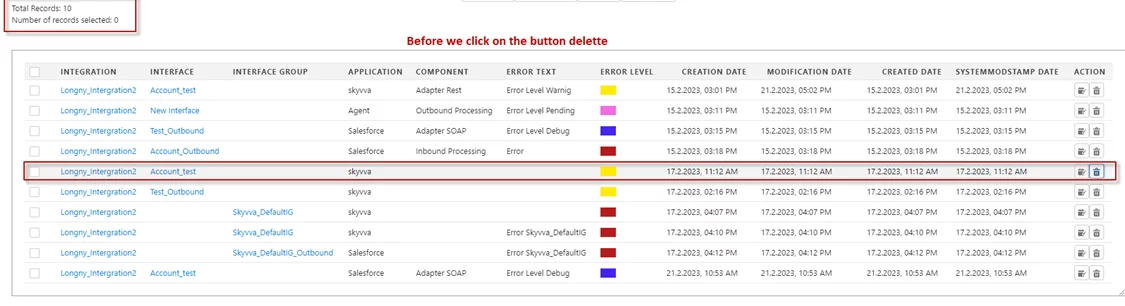
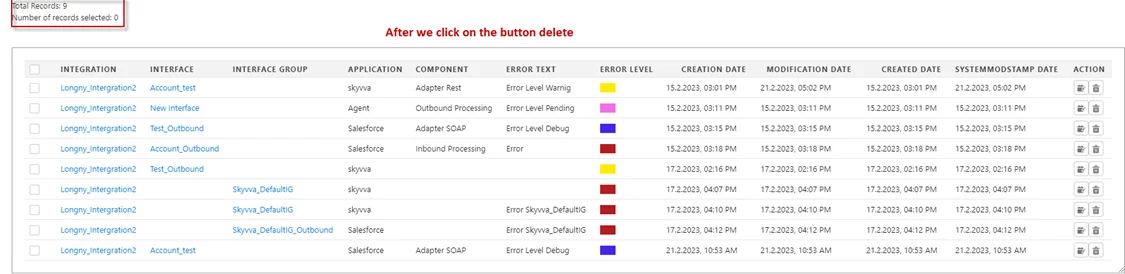
- Test on Delete Button
Click search then you will see the Delete button on each ilog record
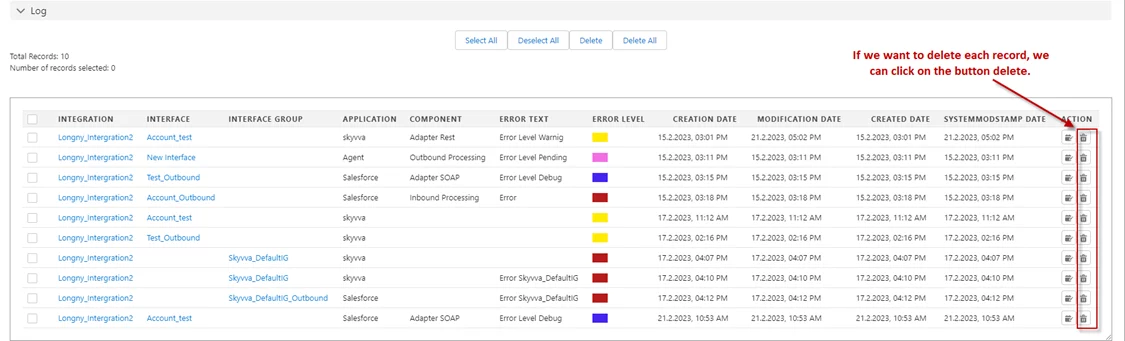
- Before we click on the button delete it has 10 records
- After we click on the button delete it has 9 records
Summary
Now users understand how To refine searches in the iLog screen with the Skyvva integration app and apply specific filter criteria. This allows for targeted data retrieval by setting parameters such as date range, log type, or status, enhancing the efficiency and relevance of search results.