3. How to Create a SKYVVA Inbound Interface Using the Integrate() with the SkyvvaSalesforce Adapter?
Overview
This document explains how to create a SKYVVA Inbound Interface in Salesforce using the Integrate API with the SKYVVA CPI Salesforce Adapter.
It covers the following steps:
- Create and configure a SKYVVA Inbound Interface in Salesforce.
- Create an integration flow in SAP CPI.
- Configure the HTTPS sender channel.
- Configure the SKYVVA Salesforce receiver channel.
- Deploy the integration flow.
- Send a test request from Postman.
- Monitor the message in SAP CPI and Salesforce.
In this example:
| Item | Value |
|---|---|
| Salesforce Object | Account |
| Message Source | Postman |
| Middleware | SAP CPI |
| SKYVVA API Version | V2 |
| SKYVVA API | Integrate |
| Processing Mode | Asynchronous |
| Operation Type | Upsert |
Context Before You Start
In short: this is the simplest way to push data into Salesforce through SAP CPI — a single HTTP call from CPI to the legacy SKYVVA Integrate REST API (Skyvva API Version = V2), landing on one pre-configured SKYVVA Inbound Interface. There's no Integration/Interface routing logic on the CPI adapter side; the target Interface is identified inside the JSON body itself (interfacename), and processing is handled asynchronously on the Salesforce side (queued, not returned in the same call).
Reasons to pick this path:
- It's the fastest route to a working inbound integration — one Interface record, one CPI receiver channel, no SKYVVA Integration Service (V3) setup.
- It matches an existing/legacy
Integratecaller you're migrating to go through CPI instead of hitting Salesforce directly (see SkyvvaSalesforce Receiver Adapter in SAP Cloud Platform Integration §5.1 for guidance on picking this overV3).
Good fit for:
- Pushing one predictable record shape into one known Interface, with no need for CPI-side message transformation, multi-interface routing, or a synchronous response payload.
- Situations where you're not yet sure you need
V3's fuller Integration/Interface/Mode model (Skyvva Batch, Skyvva Bulk, Auto-Switch, etc.) — start here, move toV3only once the scenario needs aV3-only capability.
End-to-end sequence: the steps below — create the Interface in Salesforce, build the CPI iFlow (HTTPS sender → SkyvvaSalesforce receiver), deploy, then send and verify a test request from Postman.
How the Integration Flow Works
The source system sends a request to the SAP CPI endpoint. SAP CPI forwards the request to Salesforce through the SKYVVA Salesforce Adapter, where the SKYVVA Inbound Interface processes the incoming Account data.
The end-to-end flow is:
Postman
   ↓
HTTPS Sender
   ↓
SAP CPI Integration Flow
   ↓
SKYVVA Salesforce Adapter
   ↓
SKYVVA Inbound Interface
   ↓
Salesforce Account
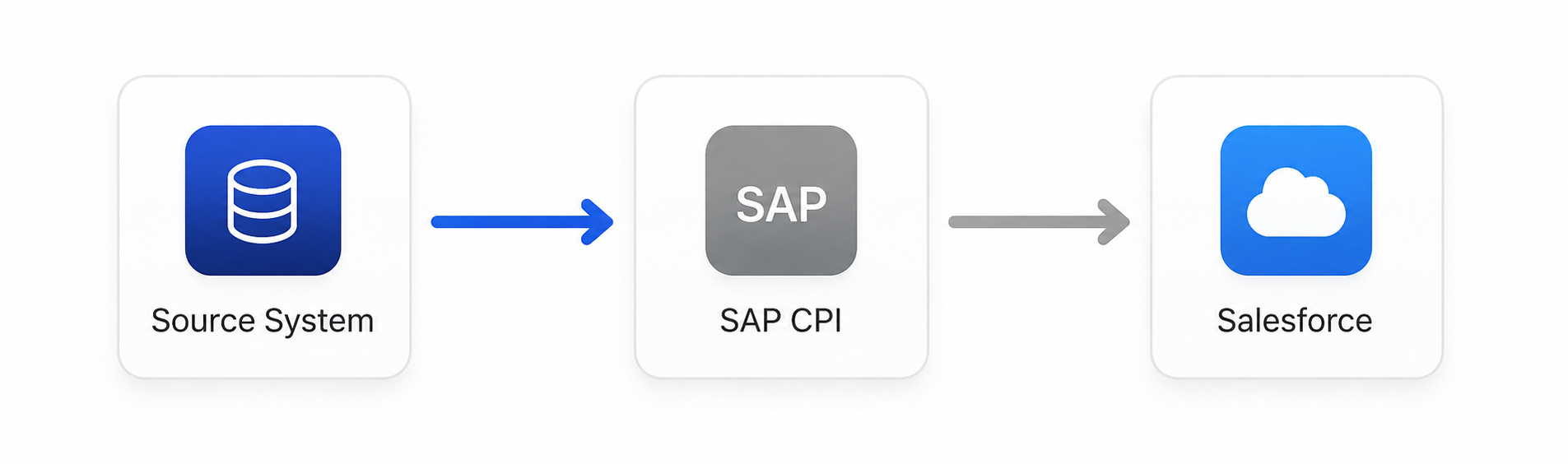
Figure 1. Inbound integration flow from the source system through SAP CPI to Salesforce.
1. Configure the SKYVVA Inbound Interface in Salesforce
Create a SKYVVA Inbound Interface under Integration in Salesforce.
For this example, create the interface: Account_CPI_integrate Configure the interface as follows:
| Setting | Value |
|---|---|
| Interface Name | Account_CPI_integrate |
| Interface Direction | Inbound |
| Processing Mode | Asynchronous |
| Operation Type | Upsert |
| External Mapping | Enabled |
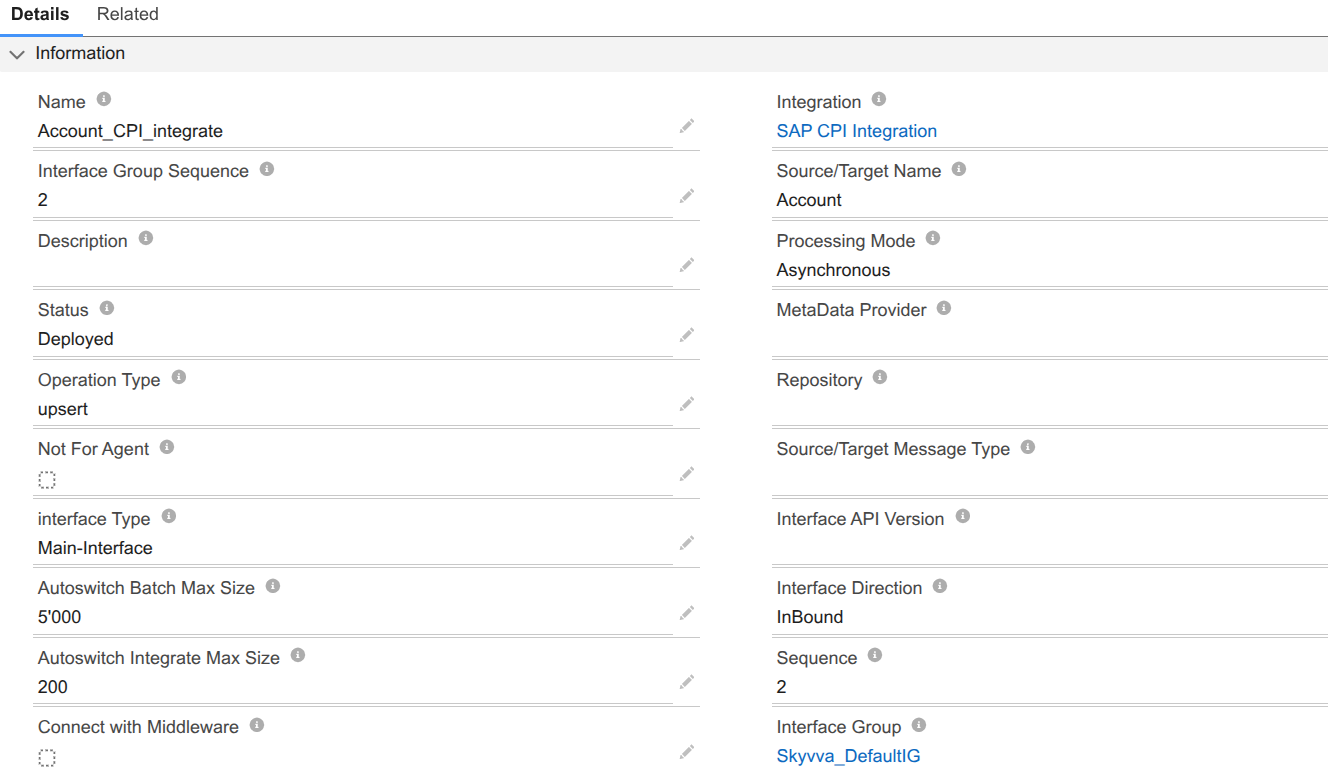
Figure 2. SKYVVA Inbound Interface configured with the required interface information, including Inbound direction, Asynchronous processing, and the Upsert operation.
1.1 Configure the Inbound Setup
In the Inbound Setup section, enable: External Mapping.The External Mapping allows the interface to process incoming data using the SKYVVA-generated inbound mapping for the configured Salesforce object.

Figure 3. SKYVVA Inbound Interface Inbound Setup section with External Mapping enabled and Salesforce External ID set to ERP_DEBTOR_ID__c.
Connect with Middleware is not required for the interface to be reachable through SAP CPI — the interface is called via its Apex REST endpoint regardless of this checkbox. The flag has no runtime message-processing effect; it only unlocks the Parent Interface picklist and, for Inbound interfaces, the External Mapping checkbox on this creation screen.
After completing the interface configuration, click Save.
2. Create the SAP CPI Integration Flow
In SAP CPI, create an integration package under Design, and then create a new integration flow.
Example:
| Item | Example |
|---|---|
| Integration Package | Skyvva Salesforce Adapter Testing |
| Integration Flow | Account Interface to Salesforce_integrate |
The integration flow receives a JSON request from Postman or SOAPUI and forwards it to Salesforce through the SKYVVA Salesforce Adapter.
For this example, a simple integration flow is used because no message transformation is required.
The flow contains:
- HTTPS Sender Adapter
- SKYVVA Salesforce Receiver Adapter
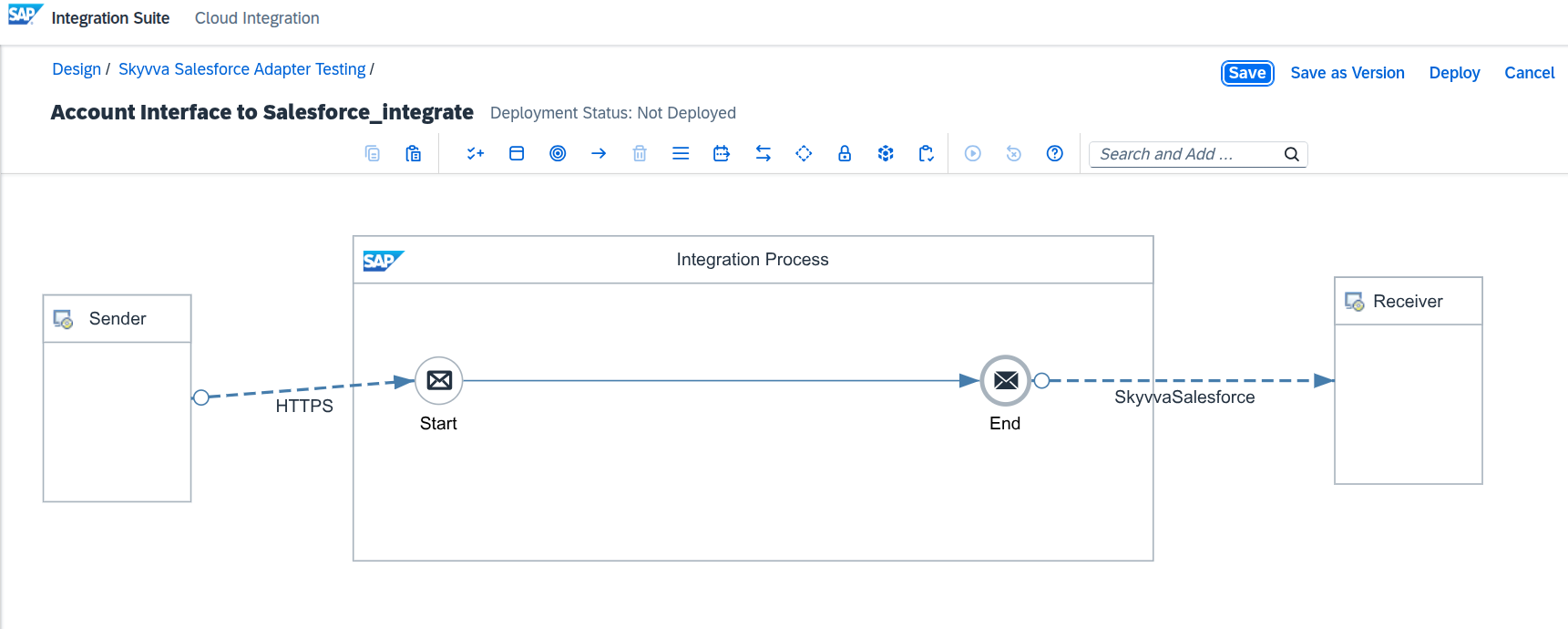
Figure 4. SAP CPI integration flow showing the HTTPS Sender and SKYVVA Salesforce Receiver.
3. Configure the HTTPS Sender Channel
On the sender side, select the standard SAP HTTPS sender adapter and configure the required channel parameters.
3.1 General
Configure the required settings in the General tab.
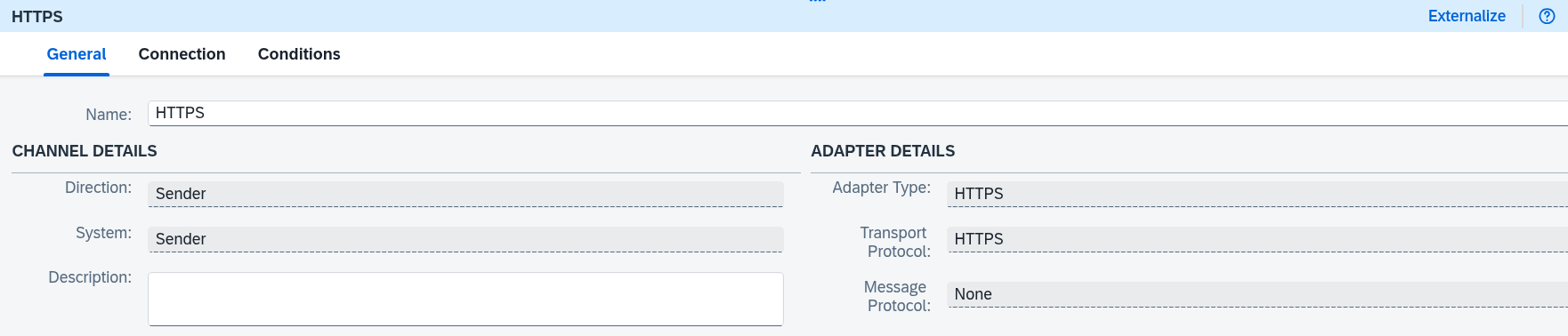
Figure 5. HTTPS sender channel — General tab.
3.2 Connection
Configure the required settings in the Connection tab.

Figure 6. HTTPS sender channel — Connection tab.
The address configured in the sender channel becomes part of the SAP CPI endpoint URL.
Configure the authorization and user role according to your SAP CPI security configuration.
The user used to authenticate the Postman request must have the required role assigned. Otherwise, the HTTPS sender may reject the request.
4. Configure the SKYVVA Salesforce Receiver Channel
On the receiver side, select SkyvvaSalesforce as the receiver adapter.
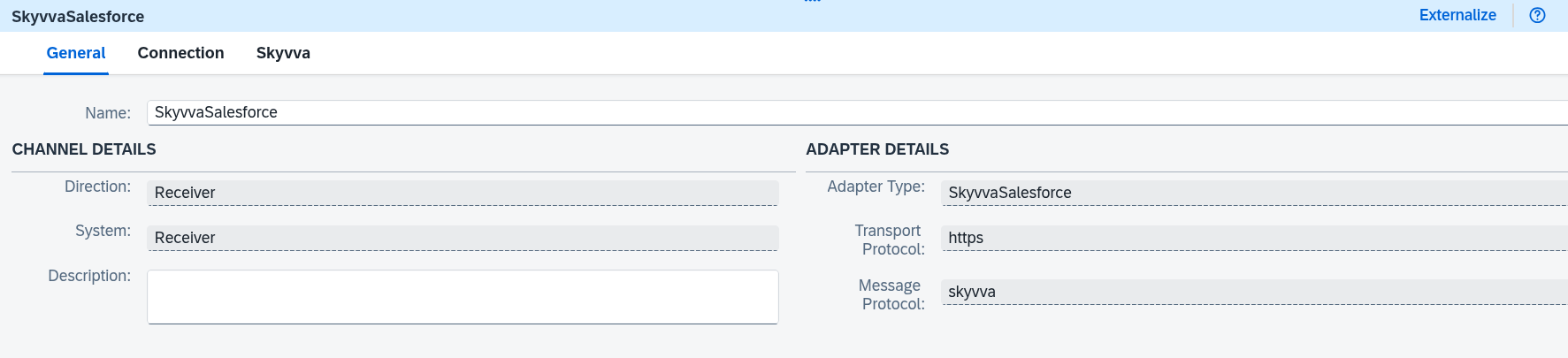
Figure 7. SKYVVA Salesforce receiver channel — General tab.
The receiver channel includes the following configuration areas:
- General
- Connection
- Skyvva
4.1 Configure the Connection
Configure the connection settings according to your Salesforce authentication setup.
The required settings include the Salesforce login URL and authentication credentials.
| Parameter | Description |
|---|---|
| Authentication Type | OAuth2 — the only supported value. |
| OAuth2 Flow | Username-Password Credential or Client Credential. |
| Login URL | The URL of your Salesforce organization. |
| User Credential | Required for the Username-Password Credential flow; credential deployed in the SAP CPI keystore. |
| Client Credential | Required for the Client Credential flow; the consolidated client id/secret credential deployed in the SAP CPI keystore. |
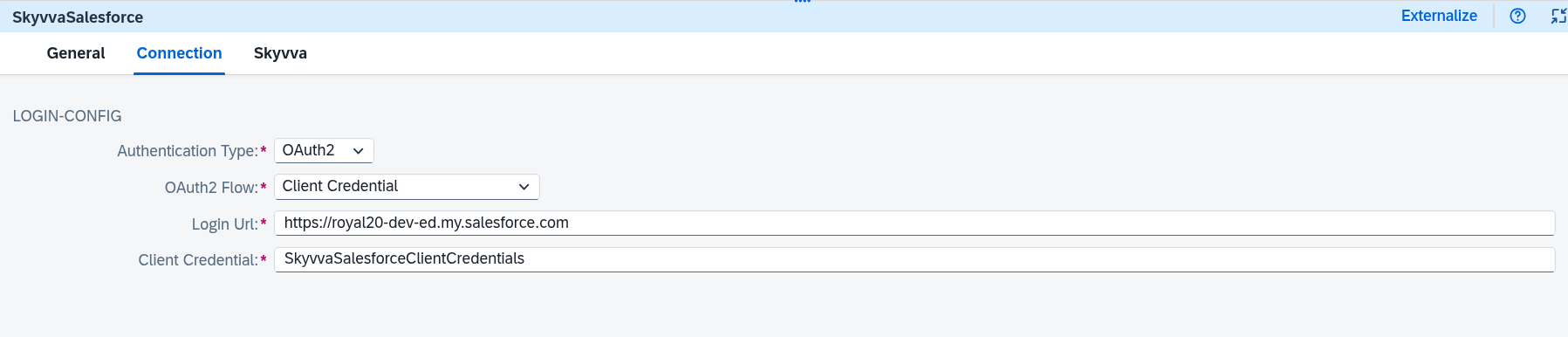
Figure 8. SKYVVA Salesforce receiver channel — Connection tab showing the Salesforce login and authentication configuration.
5. Configure the SKYVVA API
Open the Skyvva tab and configure the required API settings:
| Parameter | Value | Description |
|---|---|---|
| Skyvva API Version | V2 | Specifies the SKYVVA API version. |
| Skyvva API | Integrate | Sends the incoming data to the SKYVVA Inbound Interface for processing. |
| Apex Method | POST | Specifies the HTTP method used to call the SKYVVA API. |
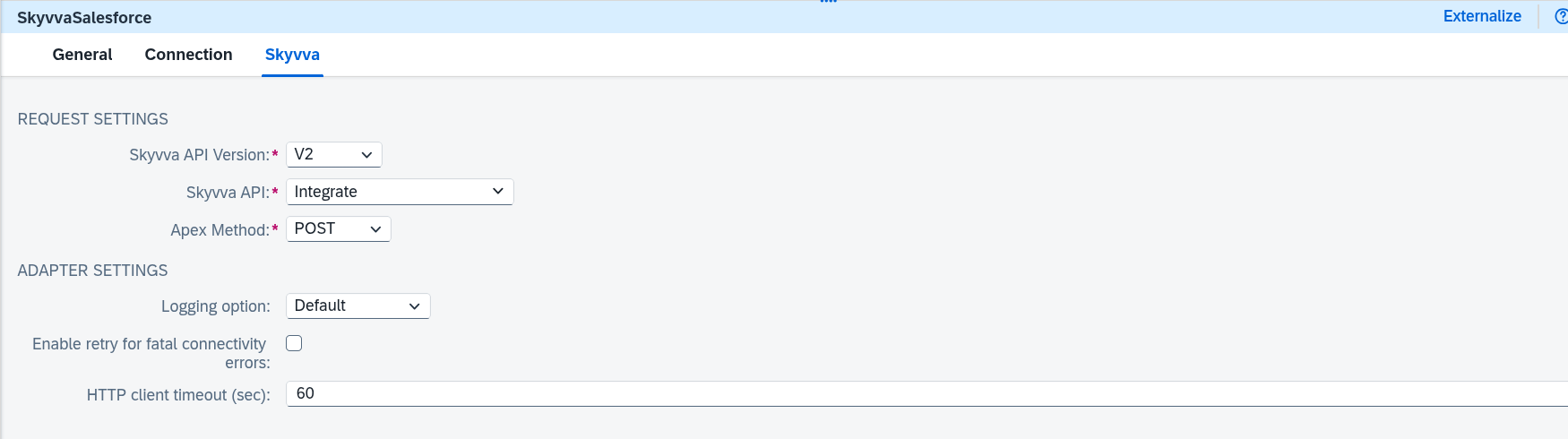
Figure 9. SKYVVA Salesforce receiver channel — Skyvva tab showing the request settings for the Integrate API.
After completing the channel configuration, save and deploy the integration flow.
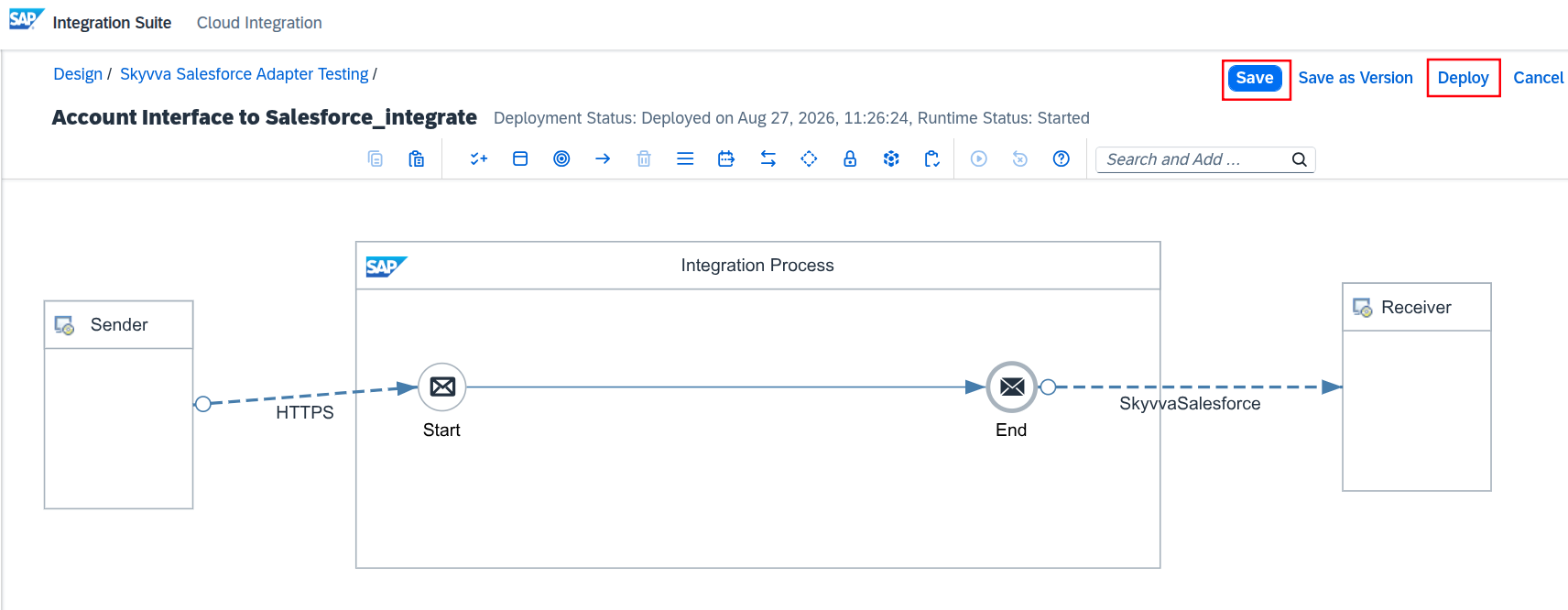
Figure 10. SAP CPI integration flow successfully deployed and started.
6. Get the SAP CPI Endpoint URL
After deploying the integration flow, navigate to: Monitoring > Manage Integration Content Locate the deployed integration flow and copy its endpoint URL.
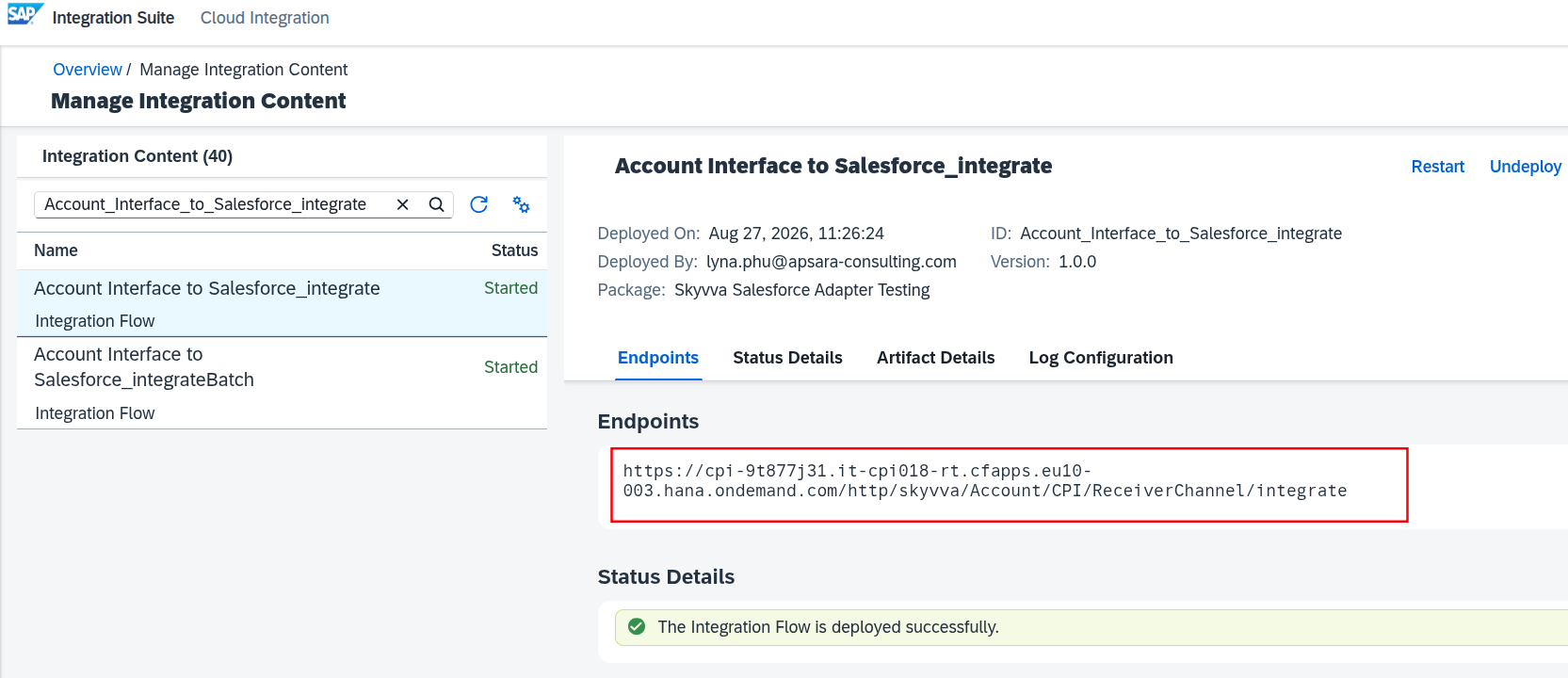
Figure 11. SAP CPI Manage Integration Content showing the endpoint URL of the deployed integration flow.
Example:
https://cpi-9t877j31.it-cpi018-rt.cfapps.eu10-003.hana.ondemand.com/http/skyvva/Account/CPI/ReceiverChannel/integrate
Important: Always copy the exact endpoint URL displayed by your SAP CPI tenant instead of manually constructing the URL.
7. Test the Integration with Postman
In this scenario, Postman is used as the client to send Account data to the SAP CPI endpoint.
SAP CPI receives the request and forwards it to Salesforce through the SKYVVA Salesforce Adapter.
Because this example does not include transformation logic in SAP CPI, the JSON payload is sent directly from Postman.
7.1 Request Payload
Use the following JSON payload:
{
  "integrationid": "a0Wg5000000UJq1EAG",
  "interfacename": "Account_CPI_integrate",
  "batchmode": "false",
  "messages": [
    {
      "Name": "CPI Test Account",
      "BillingStreet": "CPI Test Street",
      "BillingCity": "Ismaning",
      "BillingPostalCode": "82140",
      "BillingCountry": "DE",
      "ERP_DEBTOR_ID__c": "0000301557"
    }
  ]
}
The payload parameters are:
| Parameter | Description |
|---|---|
integrationid | The ID or name of the SKYVVA Integration in Salesforce. |
interfacename | The name of the SKYVVA Inbound Interface in Salesforce. |
batchmode | Required by the Integrate API itself, regardless of which SKYVVA API you picked — it selects between Integrate's own single-record and batch-style internal processing, and is unrelated to the separate integrateBatch API. Set to false here because this example sends one record and wants single-record processing. |
messages | An array containing the Account records to process. |
The interfacename value must match the configured SKYVVA Inbound Interface:Account_CPI_integrate
7.2 Send the Request
Configure the Postman request as follows:
| Setting | Value |
|---|---|
| Method | POST |
| URL | Your deployed SAP CPI endpoint URL |
| Authorization | According to the HTTPS sender configuration |
| Content-Type | application/json |
| Body | Raw JSON |
Send the request using the SAP CPI endpoint URL and the payload shown above.
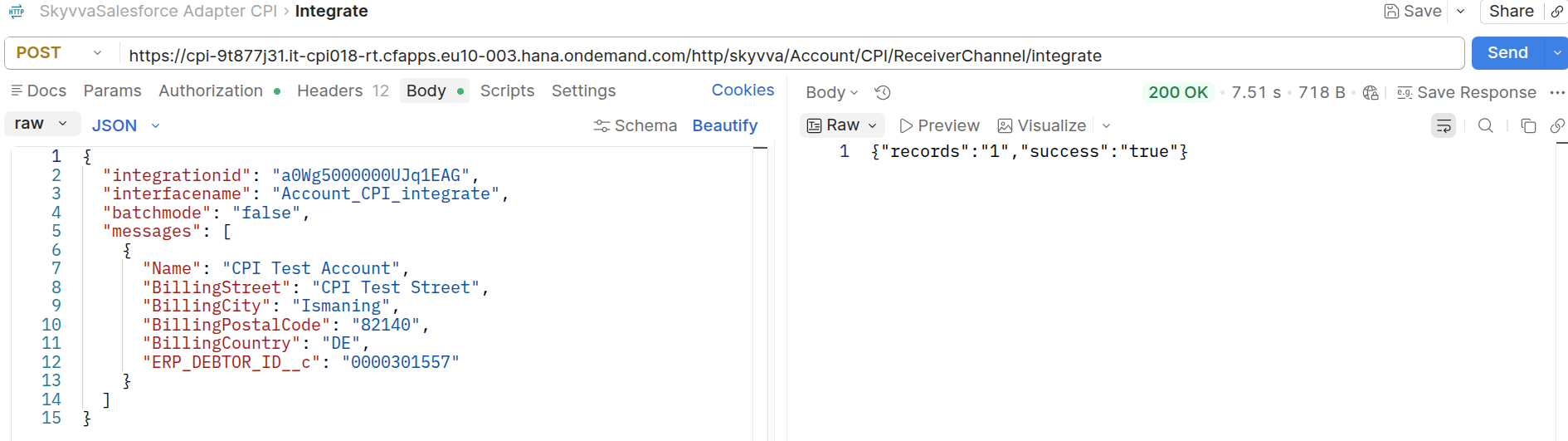
Figure 12. Postman showing a POST request sent to the SAP CPI endpoint and a successful response.
8. Monitor the Message in SAP CPI
After sending the request, navigate to: Monitor > Monitor Message Processing Verify that the message was processed successfully.
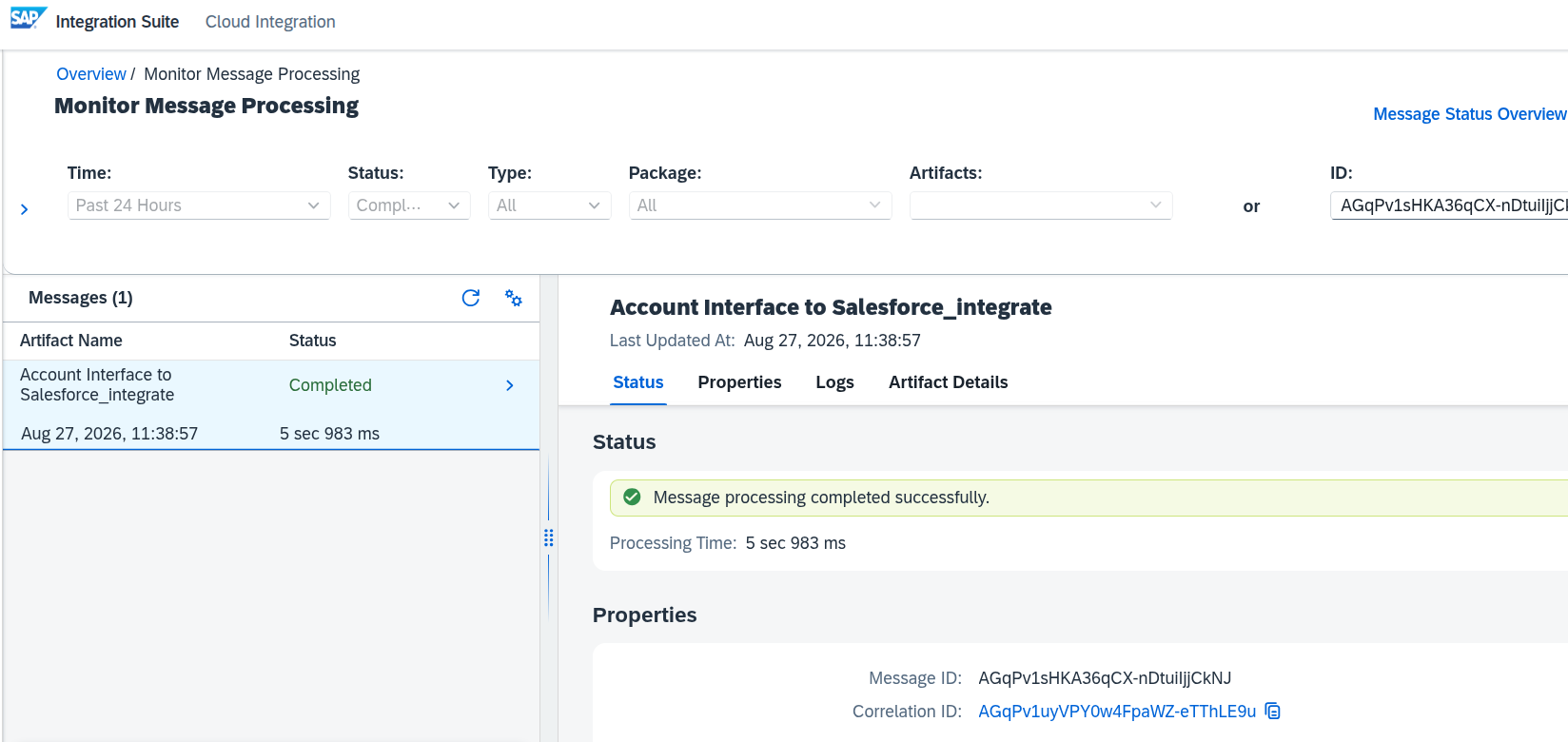
Figure 13. SAP CPI Monitor Message Processing showing a successfully completed message.
9. Monitor the Message in Salesforce
To monitor the message in Salesforce, navigate to SKYVVA Integration Suite → Message Monitoring:
Locate the message for the configured interface: Account_CPI_integrate Verify that the message was processed successfully.

Figure 14. SKYVVA Message Monitoring showing the successfully processed Account message.
Summary
The complete integration flow is:
Postman
   ↓
HTTPS Sender
   ↓
SAP CPI Integration Flow
   ↓
SKYVVA Salesforce Adapter
   ↓
SKYVVA Inbound Interface
   ↓
Salesforce Account
The key configuration is:
| Component | Configuration |
|---|---|
| SKYVVA Interface | Inbound |
| Processing Mode | Asynchronous |
| Operation Type | Upsert |
| External Mapping | Enabled |
| SKYVVA API Version | V2 |
| SKYVVA API | Integrate |
| Apex Method | POST |
The Account data is sent from Postman to SAP CPI, forwarded to Salesforce through the SKYVVA CPI Salesforce Adapter, and processed by the configured SKYVVA Inbound Interface.