3. How to Disable workflow ?
Introduction
In managing workflows within the SKYVVA integration application, flexibility in controlling when these workflows are active is crucial for efficient system management and testing. Currently, the application does not allow users to disable a workflow or rule directly. Instead, users must deactivate the specific conditions associated with different target interfaces to stop the workflow from triggering. This method can be bulky, especially in complex systems where workflows are critical for day-to-day operations.
The alternative to deactivation—deleting the workflow rule—is even less user-friendly. Deletion removes the rule entirely, which is not practical if there is a possibility of needing the same workflow for future testing or re-implementation. This approach disrupts the ability to revert system changes through iterative testing quickly.
A more user-friendly solution would be introducing a feature within the SKYVVA integration application that allows users to disable and enable workflow rules as needed. This capability would provide users with greater flexibility, allowing them to maintain the integrity and utility of their workflows without permanent deletion. By simply disabling a workflow, users could effectively halt its operation without impacting the underlying configuration, making it easy to reactivate when needed for further testing or operational purposes. This feature would significantly enhance usability and adaptability in managing integration workflows.
Prerequisite
To effectively set up and manage data integrations using the SKYVVA integration application, following a structured process is essential to ensure all necessary components and configurations are correctly implemented.
The user can ensure a comprehensive and error-free setup for handling data integrations using the SKYVVA application by following these steps. This structured approach enhances data integrity and process efficiency and provides a scalable framework that can adapt to evolving integration requirements.
1: Active and Deactivate on Workflow V3 processing
We have enhanced the functionality that allows users to activate and deactivate workflows.
- When ‘Active’ is set, the workflow will trigger the workflow rule.
- If the ‘Deactivate’ option is set, your workflow will not run.
[su_box title="Note" box_color="#2a8af0" title_color="#000000"]This feature is beneficial because it enables users to keep the workflow for future use without the need to delete it when they’re not using the workflow rule.[/su_box]
Steps:
- Create Integration
- Create Metadata Provider, Repository, and MessageType
- Create an Inbound interface and link MessageType
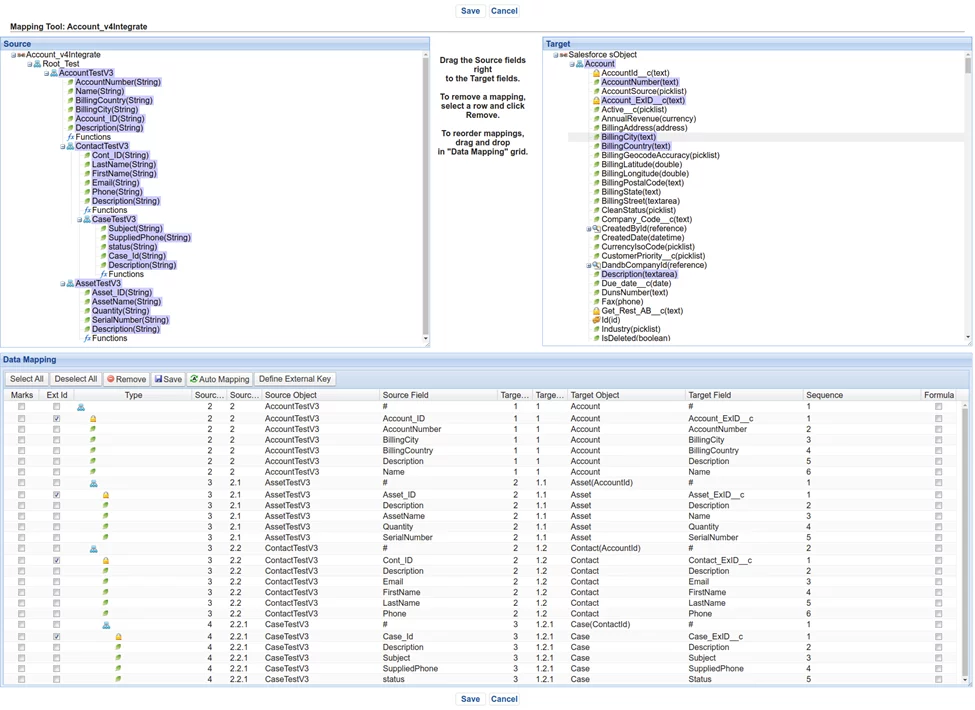
- Do the mapping
- Assign IWorkflow on the main interface
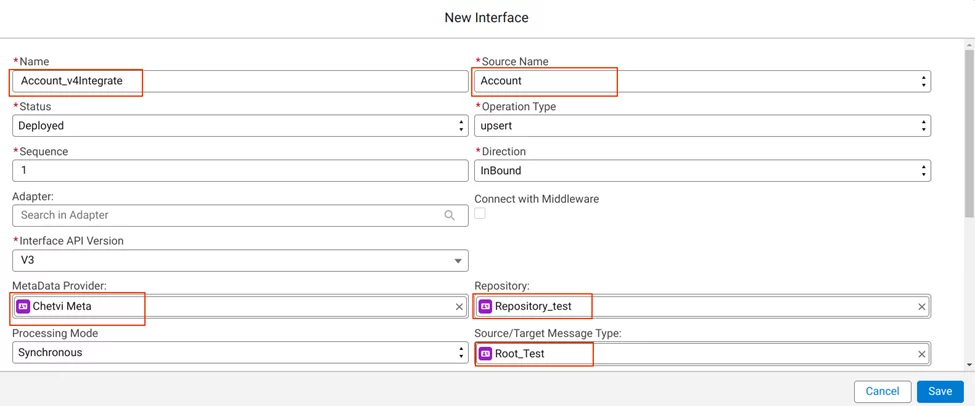
Create a new Inbound Interface and link with MessageType
- Do the mapping
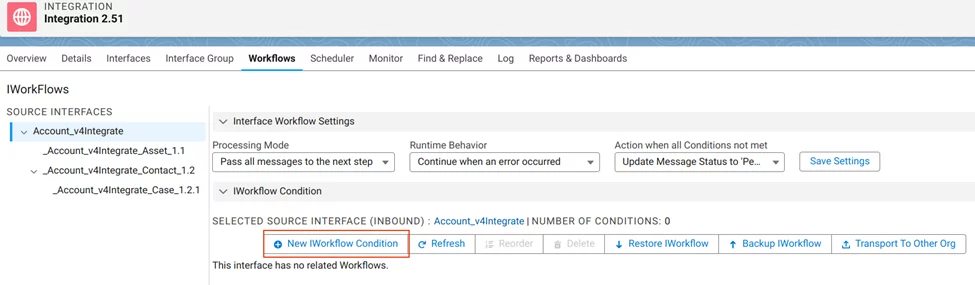
- Assign Workflow on the Main Interface
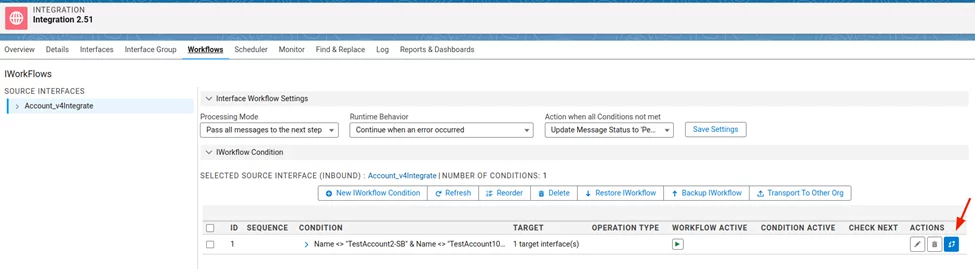
Navigate to Workflows tab => Account_v4Integrate => New IWorkflow Condition
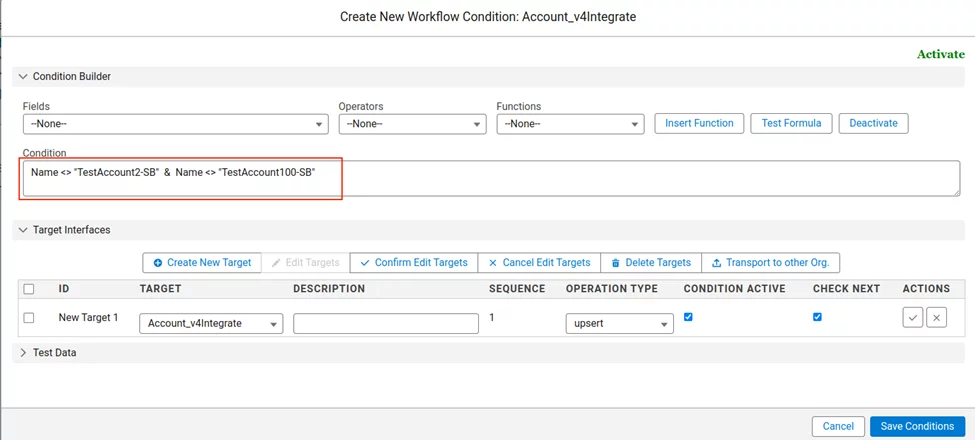
Enter the condition: Name <> "TestAccount2-SB" & Name <> "TestAccount100-SB"
1. Active workflow status(default setting)
Expectation Pending Status: In SKYVVA, a "pending" status indicates that the message has been received but has not yet been processed through the integration flow. This can be due to several reasons, such as delays in processing, a backlog of messages, or simply waiting in the queue to be picked up by the processing apex job (i.e. set status in workflow and after workflow is triggered)
Steps to Achieve and Verify:
- Post Data via Postman:
Ensure that Postman is configured with the correct API endpoints and authentication details required by the SKYVVA interface.
- Send the data payload designed according to the MessageType linked with your Inbound Interface.
- Ensure headers, method (POST), and other configurations align with what SKYVVA expects.
- Monitor Message Status:
Navigate to the Message Monitoring section of the SKYVVA application.
- Look for the new message entry corresponding to your recent API call from Postman.
- Check the status column to confirm if it's marked as "pending."
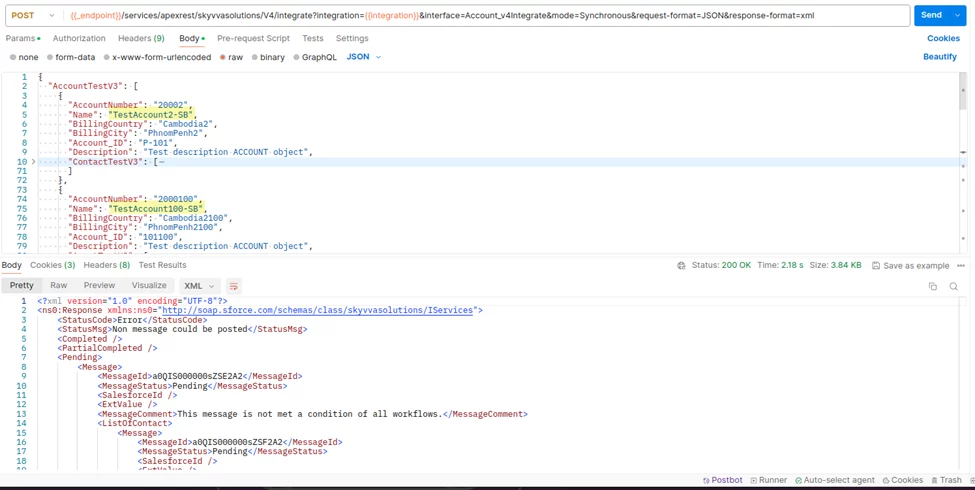
- Post data from Postman and calling SKYVVA V4/integrate
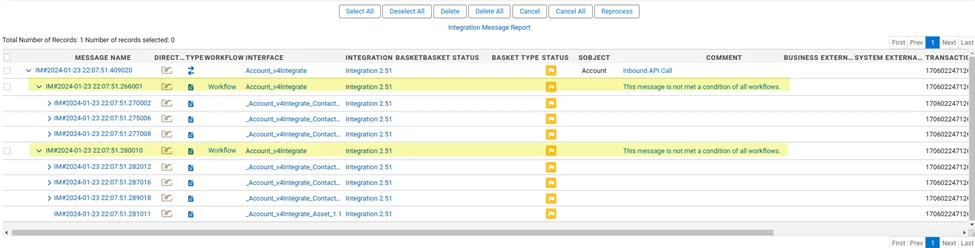
[su_box title="Result:" box_color="#2a8af0" title_color="#000000"]The message on Message Monitoring is contained with "Pending" status when the data posting does not meet the condition of workflow:[/su_box]
2. Disable workflow status
Navigate to Workflows tab => Account_v4Integrate => Actions
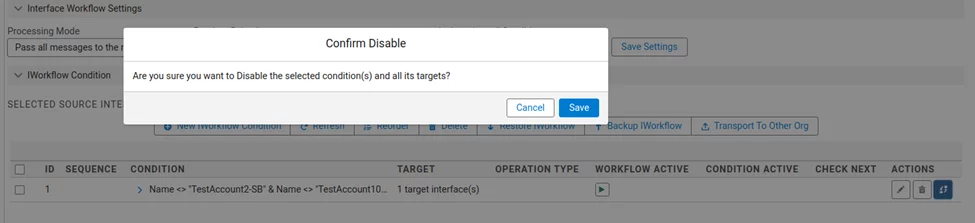
- Click Save
When using the SKYVVA integration, the expectation of seeing a "Green Status" in the Message Monitoring dashboard after posting data by the client indicates that the message has been successfully processed. A green status typically represents a successful execution of the integration flow, meaning the data has been received, and processed correctly, and no errors were encountered during the transaction. Here’s how to ensure and verify this outcome:
Steps to Ensure a Successful Message Transmission:
- Configuration Check:
Before posting data, ensure that all configurations in SKYVVA are properly set up. This includes the integration, inbound interface, MessageType, and any necessary mappings.
- Confirm that the IWorkflow assigned to the main interface is active and correctly configured to handle incoming messages.
- Prepare and Send Data via Postman:
Configure Postman with the correct API endpoint URL provided by the SKYVVA inbound interface.
- Set the appropriate HTTP method (usually POST) and include any required headers, such as Content-Type and authentication tokens.
- Ensure that the body of your request matches the structure required by the MessageType linked to your inbound interface.
- Check Message Monitoring Dashboard:
After posting, go to the Message Monitoring section within SKYVVA.
- Refresh the view to see the latest messages. Look for your message based on the timestamp and source identifiers.
- The message status should show as green, indicating a successful processing.
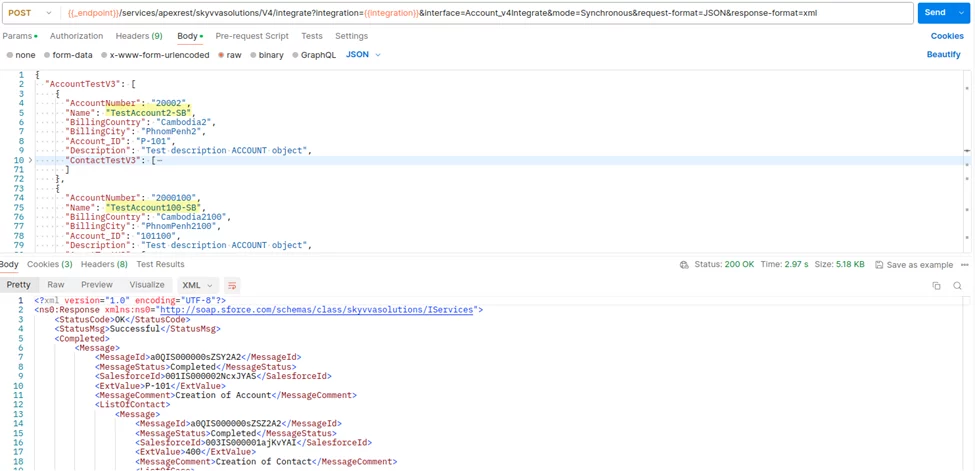
- Post data from Postman and calling SKYVVA V4/integrate
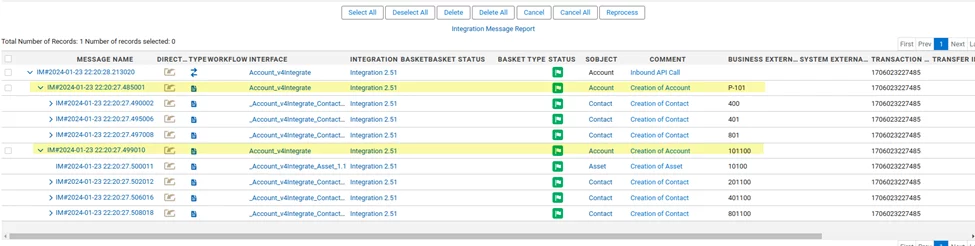
[su_box title="Result:" box_color="#00d9a6;" title_color="#000000"]The message on Message Monitoring is contained with Completed status and the workflow rule is not run.[/su_box]
2: Active and Deactivate on Workflow calling integrate() API of an old processing
Prerequire:
- Import Integration of old version (e. v2.40.15) into SKYVVA v2.51
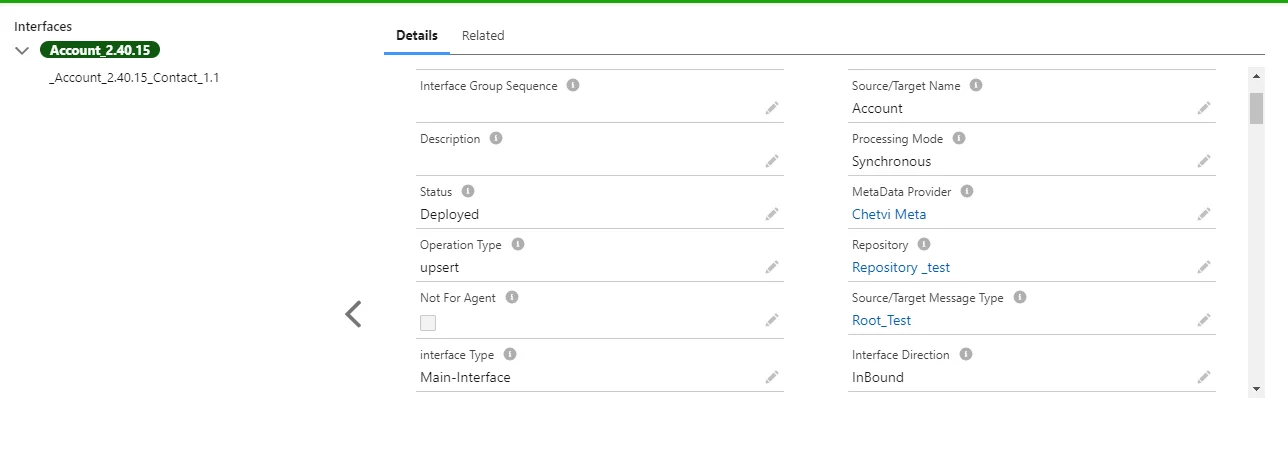
➤ Navigate to Workflows tab
The status of the old workflow is Enabled
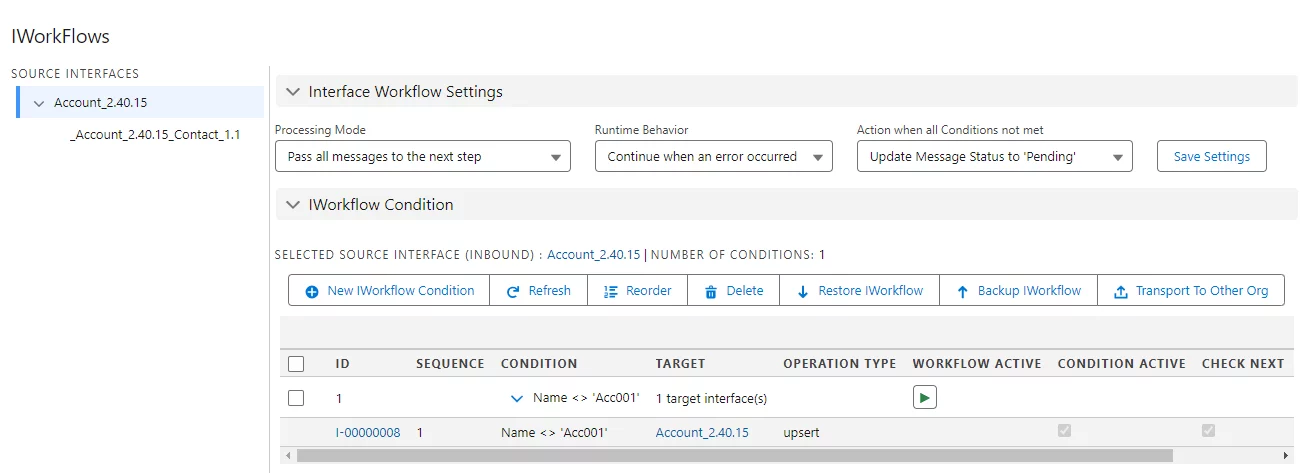
I- Enable workflow status(Default setting when import or upgrade of old Integration)
Expectation: After posting data via Soap UI, the message status on Message Monitoring will be 'Pending' in the SKYVVA integration application. This status indicates that the data has been successfully sent but is awaiting processing by the integration application. The 'Pending' status serves as a transitional state, allowing users to monitor the message flow and ensure it progresses as expected. It indicates that the message is in the queue and will be processed according to the predefined integration workflows and schedules.
➤ Post data from Soap UI and calling integrate() API
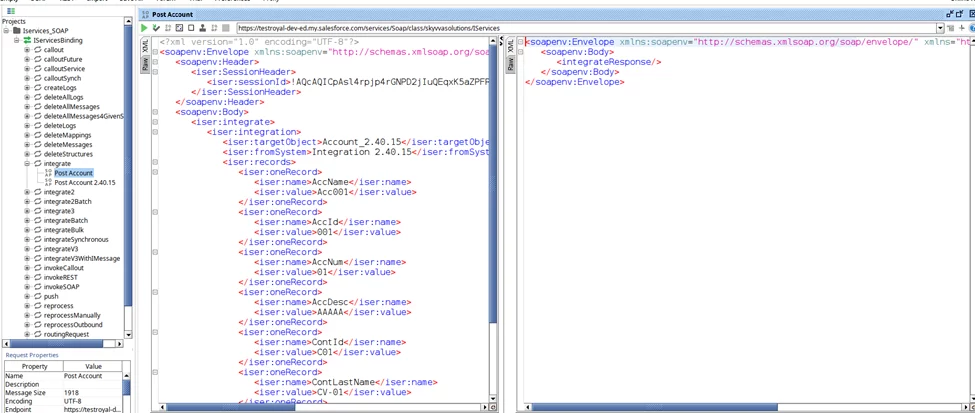
[su_box title="Result" box_color="#00d9a6;" title_color="#000000"]The message on Message Monitoring is contained with Pending status when the data posting does not meet the condition of workflow[/su_box]

II - Disable workflow status
- Navigate to Workflows tab => Account_2.40.15 => Actions
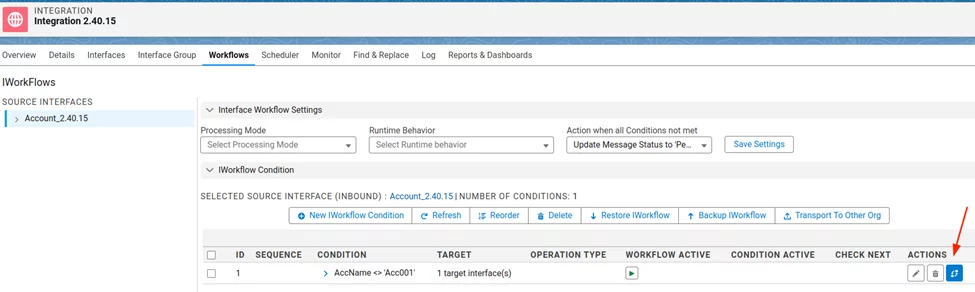
- Click Save
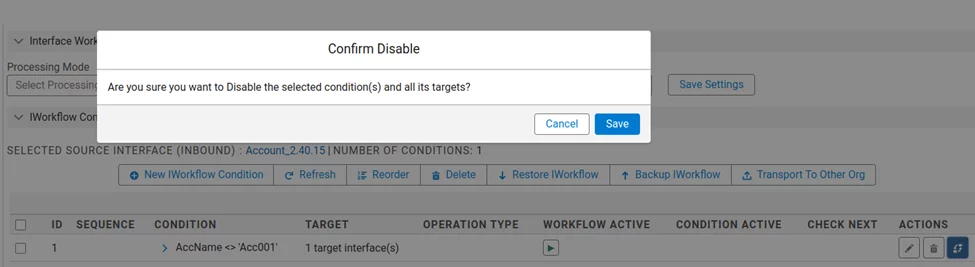
Expectation: After posting data via Soap UI, the message status on Message Monitoring within the SKYVVA integration application is expected to show as 'Completed.' This indicates that the data has been successfully processed and integrated without any issues. The seamless transition from data posting to status updates ensures that users can quickly verify the success of their operations and proceed. This streamlined process is crucial for maintaining efficient data management and monitoring within the integration workflow.
➤ Post data from Soap UI and calling integrate() API
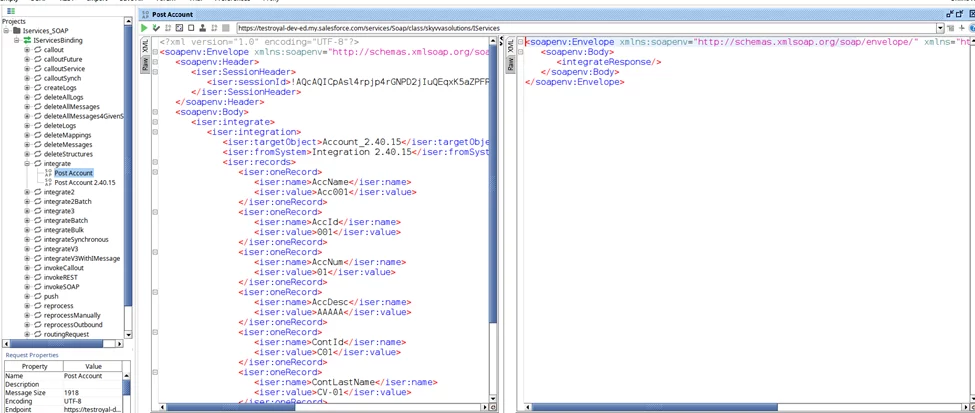
[su_box title="Result" box_color="#00d9a6;" title_color="#000000"]The message on Message Monitoring is Completed status and the workflow is not run.[/su_box]

Summary
Now the user can understand that Disabling a workflow within an integration platform temporarily halts its execution without deleting it, allowing for easy reactivation. This user-friendly feature ensures workflow availability for future testing or reimplementation while maintaining system integrity and flexibility.