3. How to do real-time data synchronization to Salesforce ?
You can achieve real time data synchronization using Skyvva Integrate and Integrate Synchronous feature. The same can be achieved using Mule operation. You need to create your Integration and Interface through Salesforce Skyvva adapter to be used on these operation.
- Integrate:
It is used to call the Integrate method call of Skyvva application.When you use this operation you will find the bellow configuration in your mule Anypoint Studio.
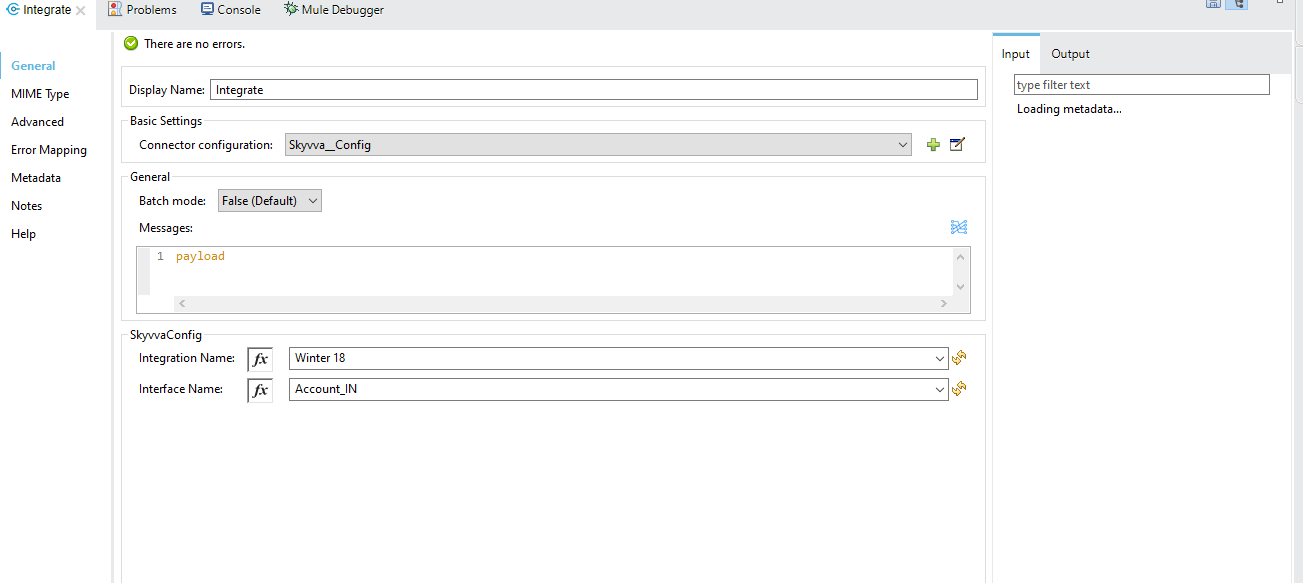
You need to select the Integration name that you have created through Skyvva app from Integration Name dropdown (if data not shown in that dropdown list click on the refresh icon beside that to load the data). Then base on your selection of Integration Name, the corresponding interfaces will be shownn in Interface Name dorpdown (if data not shown then click on the refresh icon to load data). When you use a Transform Message before this connector then base on your integration and interface name you will find the respective meta data in the data sense as bellow:
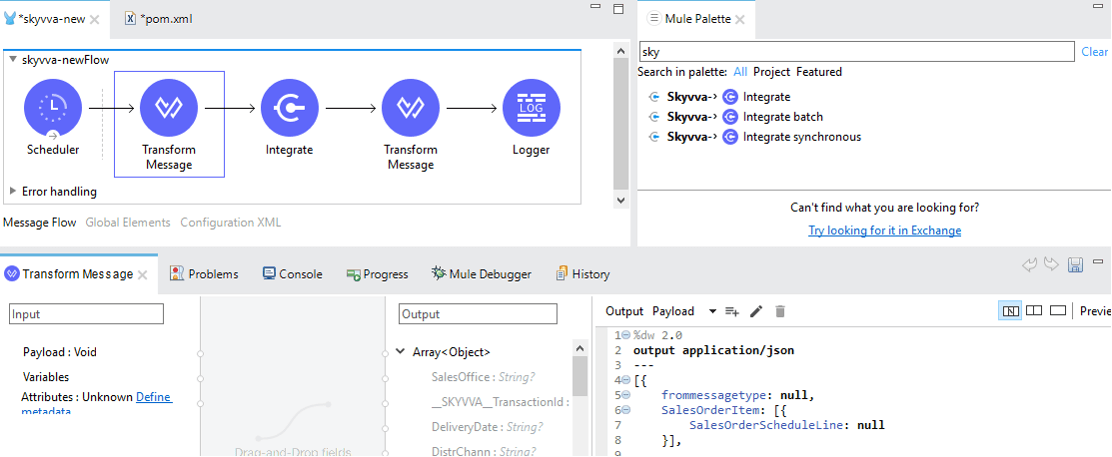

When you use a transform message after the skyvva connector then based on the response type from the integrate request you will find the meta data as bellow:
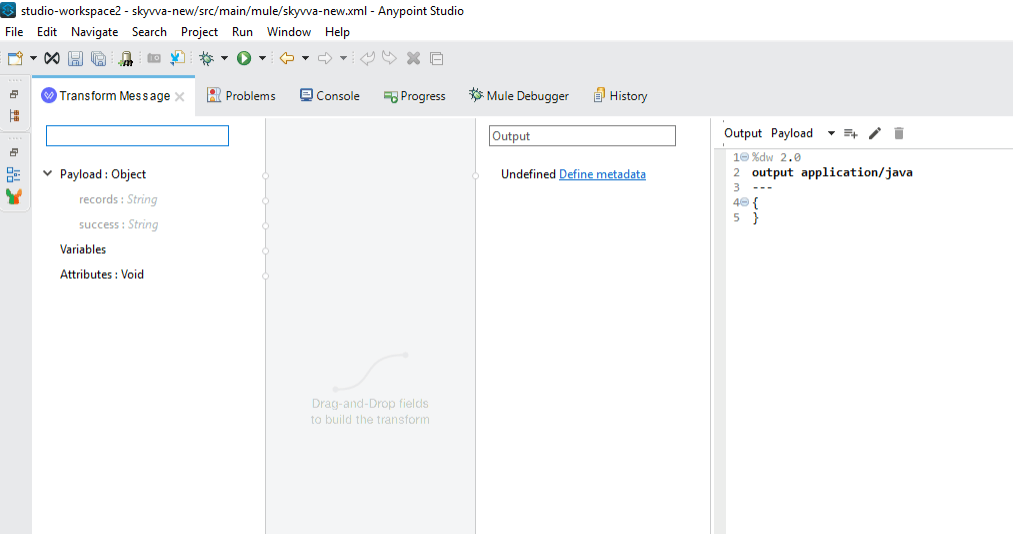
The bellow is an example application to use Integrate method. Use-case :
- Postman will send one message.
- The message will be received by Mule HTTP listener.
- Mule will convert the message to required format for Integrate operation.
- Skyvva Integrate operation will be used to make REST call to salesforce.
- The response will be formatted into json and return to postman.



You can monitor your message in Salesforce Skyvva once you got the success message. In Skyvva go to your Integration then click on the Messages tab to monitor your messages. You can select your Interface name with various filter criteria then click on search but to find your messages. 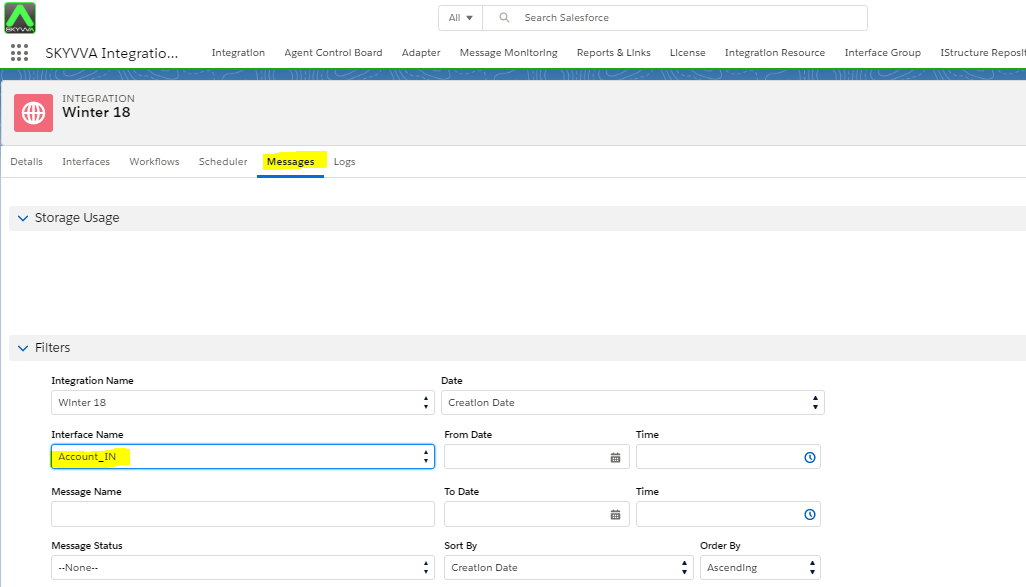
- Integrate Synchronous
It is used to call the Integrate Synchronous method of Skyvva application. When you configure this operation you will able to find the data sense capability (meta data) as it is for Integrate operation.

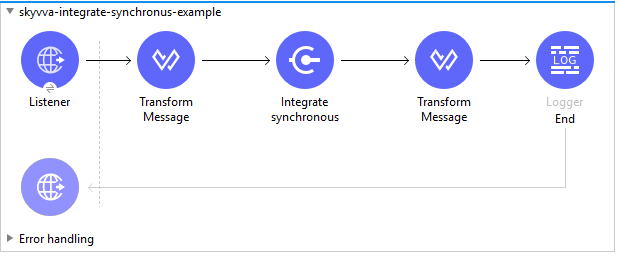
You need to select the Integration name that you have created through Skyvva app from Integration Name dropdown (if data not shown in that dropdown list click on the refresh icon beside that to load the data). Then base on your selection of Integration Name, the corresponding interfaces will be shownn in Interface Name dorpdown (if data not shown then click on the refresh icon to load data). The bellow is an example application to use Integrate method. Use-case :
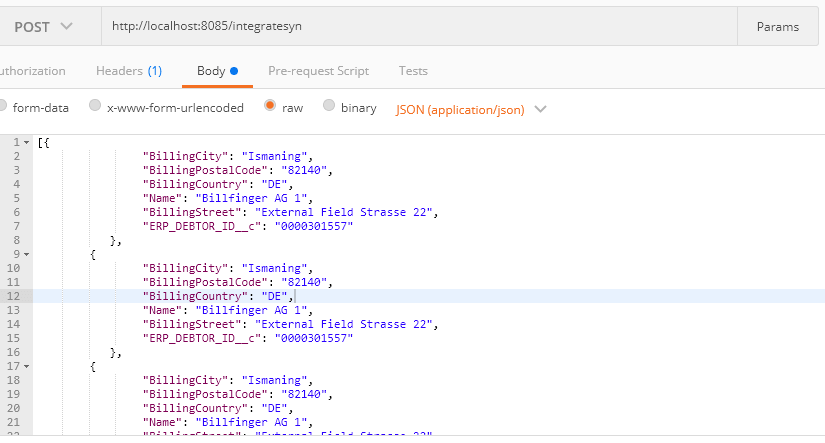
- Postman will send one message.
- The message will be received by Mule HTTP listener.
- Mule will convert the message to required format for Integrate Synchronous operation.
- Skyvva Integrate Synchronous operation will be used to make REST call to salesforce.
- The response will be formatted into json and return to postman.