3. SKYVVA Bulk Dataloader – Import Data Phase (Inbound)
Introduction
The Import Phase focuses exclusively on Inbound data flow—moving information from your local environment into Salesforce. Because Skyvva leverages the Salesforce Bulk API 2.0, this process is asynchronous, meaning the data is uploaded in high-speed batches and processed by Salesforce in the background.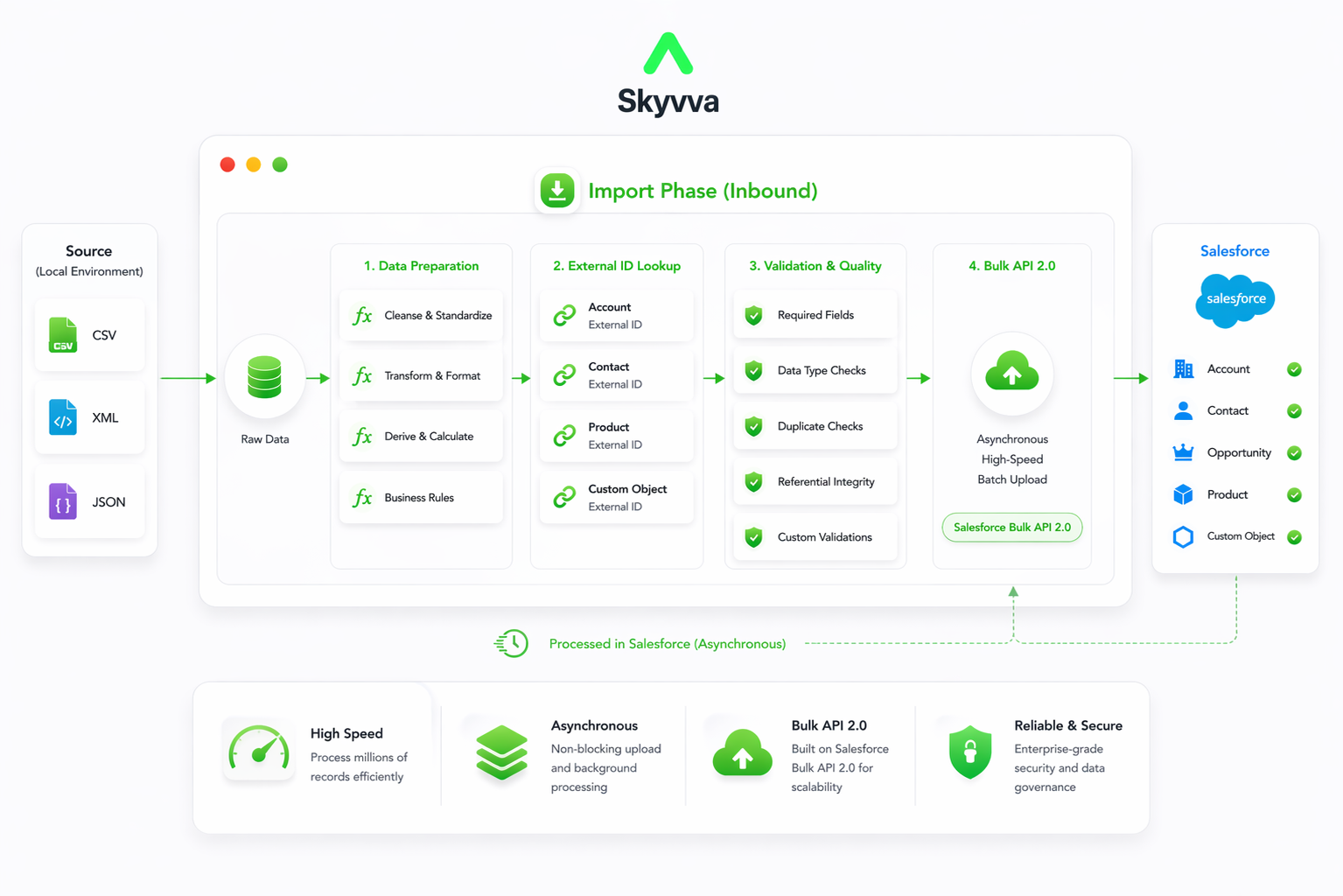
Step-by-Step Configuration
Step 1: Authentication (Secure API Connection)
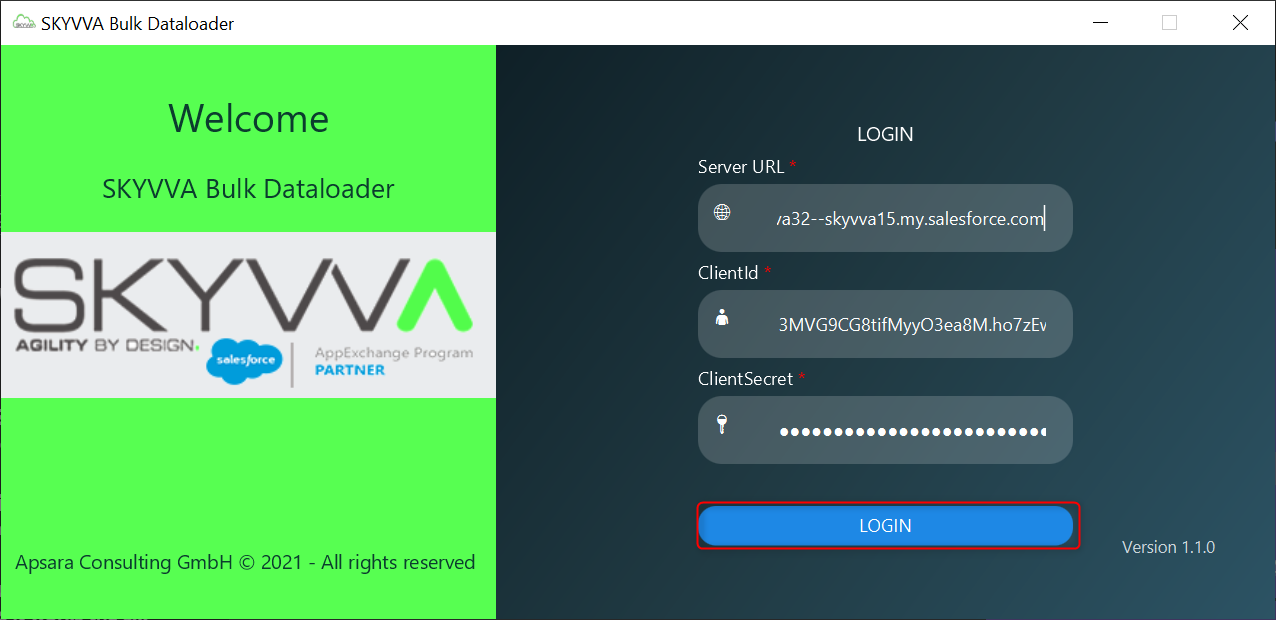
Instead of using your personal Salesforce password, the Skyvva Bulk Dataloader requires credentials from a Salesforce Connected App. This ensures the highest level of security for high-volume data transfers.- Server URL: Enter your domain URL in format: https://{YourDomainName}.my.salesforce.com
- ClientId & ClientSecret: Paste the unique keys generated from your Salesforce Connected App.
Step 2: Selecting Integration & Interface
This step links the local tool to your cloud configuration.- Integration: Select your integration name.
- Direction: Select Import Data. (Note: This is mandatory to see your import interfaces).
- Interface: Choose the specific interface you created for this data (e.g., AccountCsv).
- Click Next to choose the file format

Step 3: File Loading (CSV)
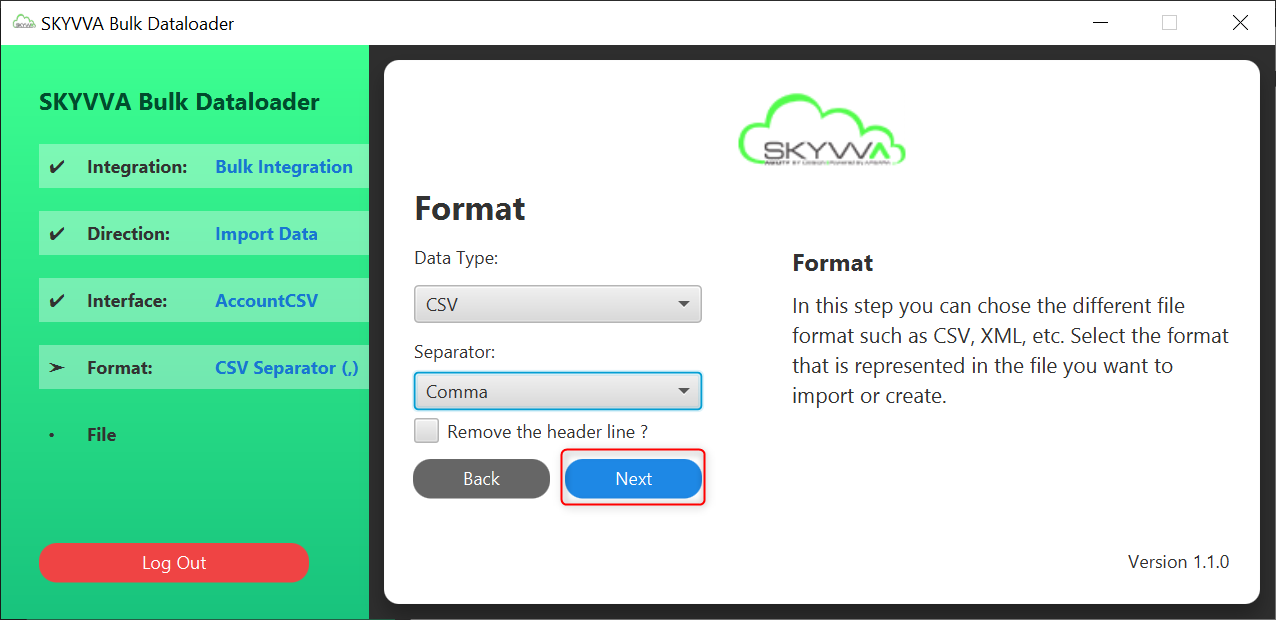
In this stage, you define how the Dataloader should read your file. For this specific tutorial, we are configuring the tool to process a standard CSV file using a Comma separator.- Data Type: Select CSV from the dropdown menu.
- Separator: Choose Comma. This tells the engine that each data field in your file is separated by comma (,)
- Remove the header line?: checking this ensures Skyvva only imports the actual data rows.
Step 4: File Selection & Execution
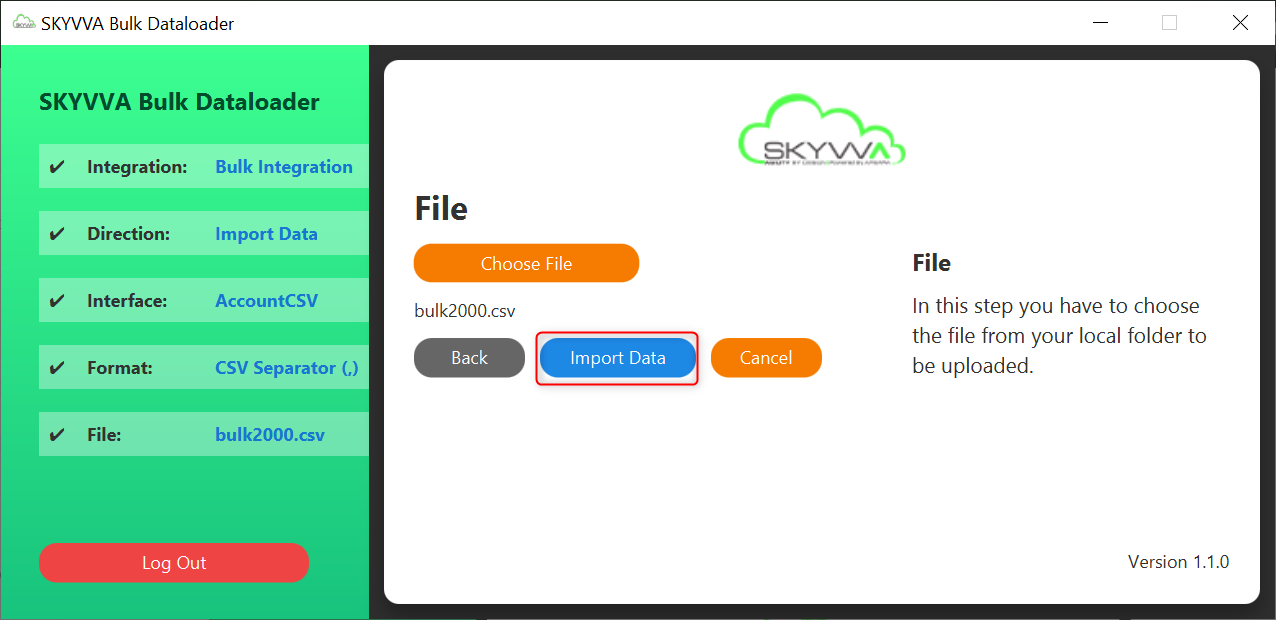
Now the format is configured, you must identify the source file on your local machine to begin the data transfer.- Choose File: Click the orange button to browse your local folders.
- Select File: Once chosen, the filename (e.g., bulk2000.csv) will appear below the button. Ensure this is the correct file before proceeding.
- Import Data: Click this button to initiate the transfer. The tool will begin chunking your data and sending it to the Salesforce Bulk API Queue.
- Cancel/Back: Use these options if you need to re-verify your Interface or Format settings.
Step 5: Execution & Background Processing
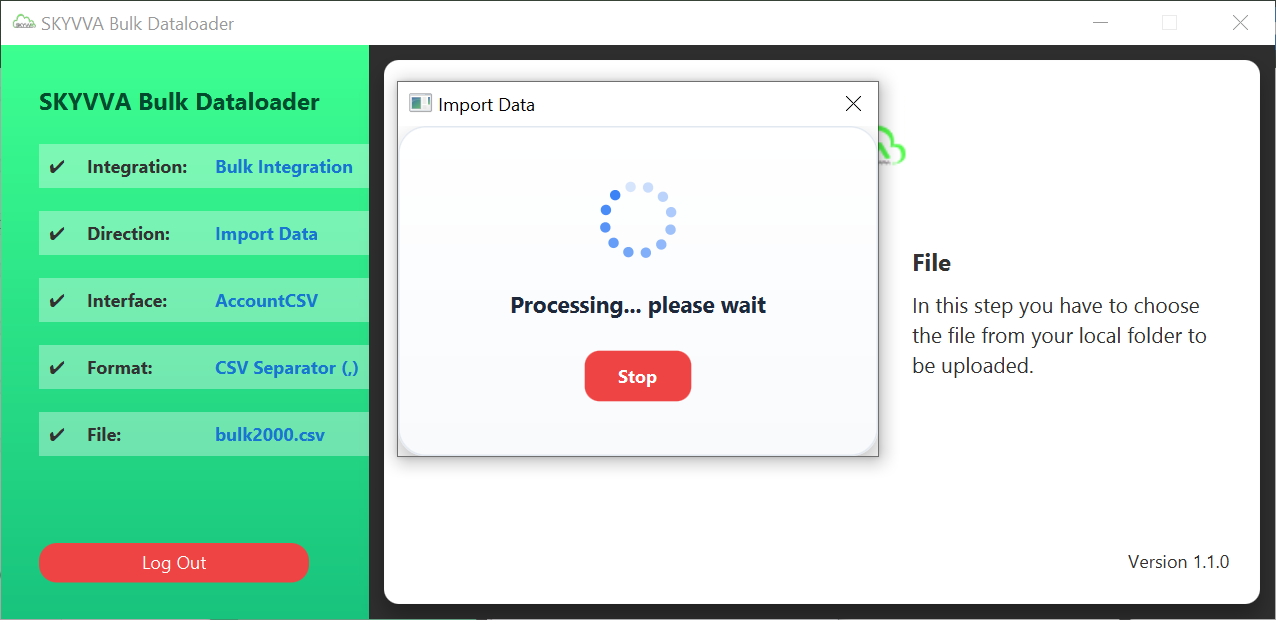
Once you click the Import Data button, the tool begins the secure transmission of your local file to the Salesforce cloud environment.- Processing Window: A pop-up will appear with a loading indicator and the message "Loading Integration..." -> "Running Integration..." -> "Processing... please wait."
- Asynchronous Upload: Because the tool is optimized for millions of records, it uses an asynchronous process. This means it uploads the data in high-speed batches directly into the Salesforce Bulk Queue.
- Stop Button: Use the red Stop button only if you need to abort the transfer immediately (e.g., if you realized the wrong file was selected).
Step 6: Upload Completion
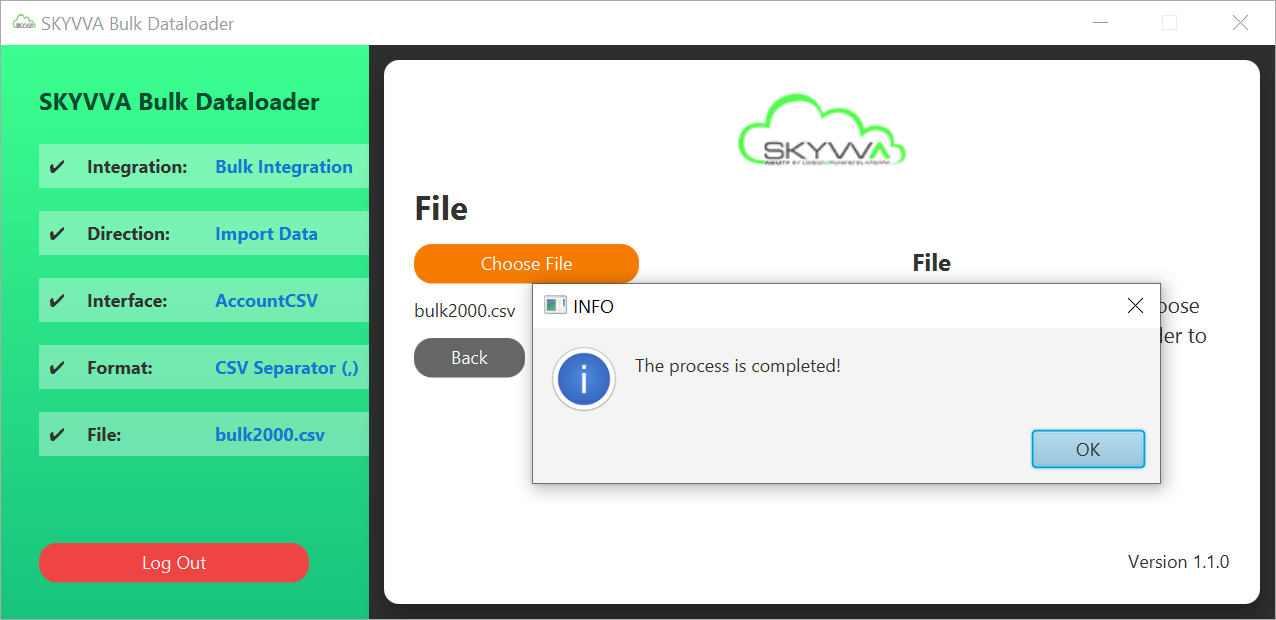
When the progress bar finishes, an INFO dialogue box will appear with the message: "The process is completed!"- Local Confirmation: This means 100% of your data has been successfully transmitted from your computer to the Salesforce Bulk API.
- Click OK to close the dialogue box.
 You may now safely close the Skyvva Bulk Dataloader application. Your local workstation's task is officially finished.
Step 7: Result Validation via Message Monitoring
Once the asynchronous processing is finished, the Skyvva Message Board provides a transparent audit trail of your data load. This interface allows you to see the functional outcome of every single record, enabling you to distinguish between successful imports and those requiring data correction. As seen in the results, Skyvva categorizes every record using visual status icons and a hierarchical message structure: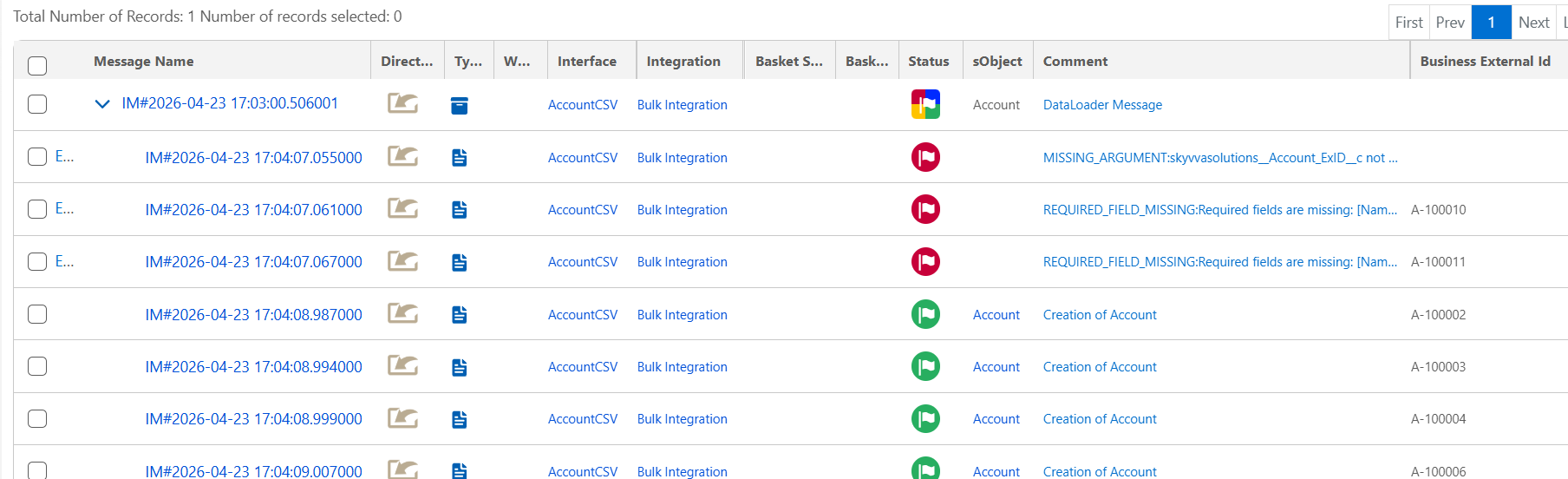 The Root Message
The top row is the Root Message. It acts as a container for your entire batch of records.
- Partial Status: If the Root Message shows a Partial status, it means the batch contains at least one failed record.
- Action: You must expand the Root Message to see the specific successful and failed records inside.
- Status: Marked with a Green Flag.
- Comment: Displays "Creation of Account" or "Update of Account."
- Meaning: These records passed all mapping logic and Salesforce validation rules. They are now live in your Salesforce Org (e.g., Account A-100002).
- Status: Marked with a Red Flag.
- Comment: Provides the exact error reason from Salesforce.
- Common Observed Errors:
- MISSING_ARGUMENT: The External ID or a required link field is empty.
- REQUIRED_FIELD_MISSING: A mandatory Salesforce field (like "Name") was not provided in the source file.
Summary
By completing these steps, you have mastered the Inbound Import Workflow for CSV data:- Local Hand-off: The Dataloader successfully uploaded the CSV rows to the Salesforce Bulk Queue.
- Asynchronous Processing: Salesforce processed the records in the background using your pre-defined mapping.
- Root Status Logic: You understand that a Partial root message is a "warning light" signaling that your batch contains failed records.
- Final Audit: You know that a Green Flag is the only definitive proof that your CSV data is now a live Salesforce record.