17. Dropbox
This adapter will be used to create CSV, EXCEL, XML, and JSON files inside the dropbox drive folder. Dropbox Configuration: We need to configure dropbox to use an adapter. Here is a link from where you can configure dropbox: https://www.dropbox.com/developers/documentation/http/documentation
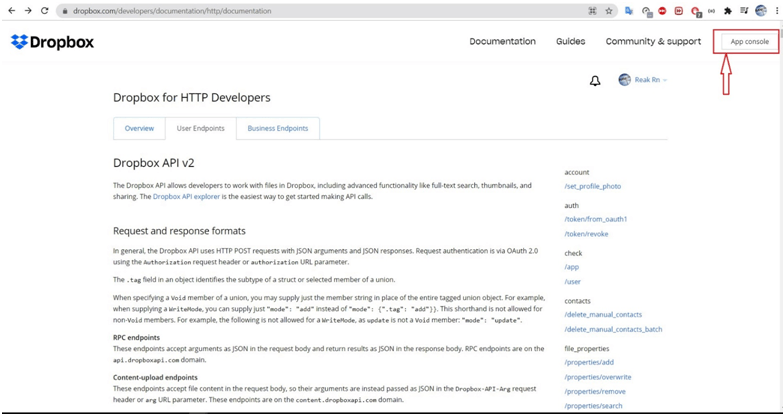
how to create app? Create app as follwing:
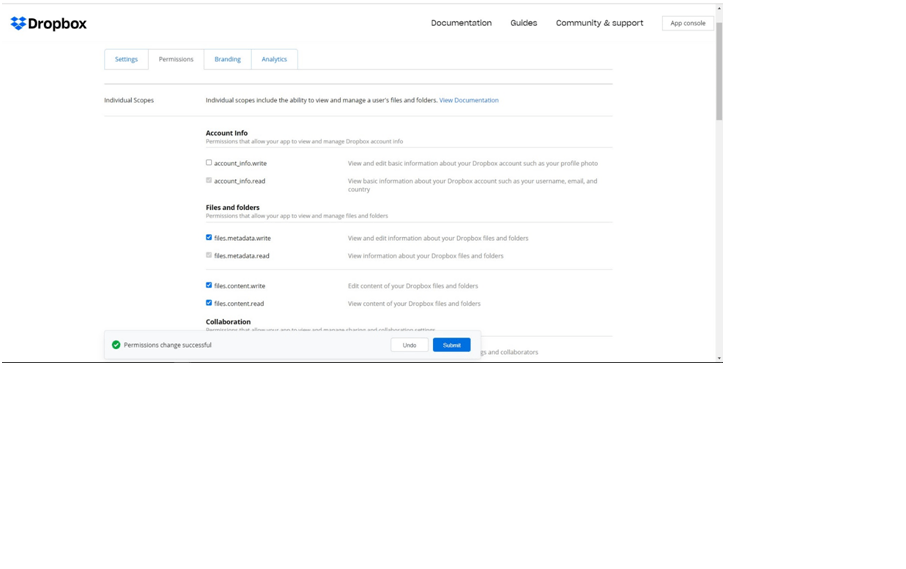
Check some permission scopes and submit Generate access_token Recommend:long-live access_token (no expire)
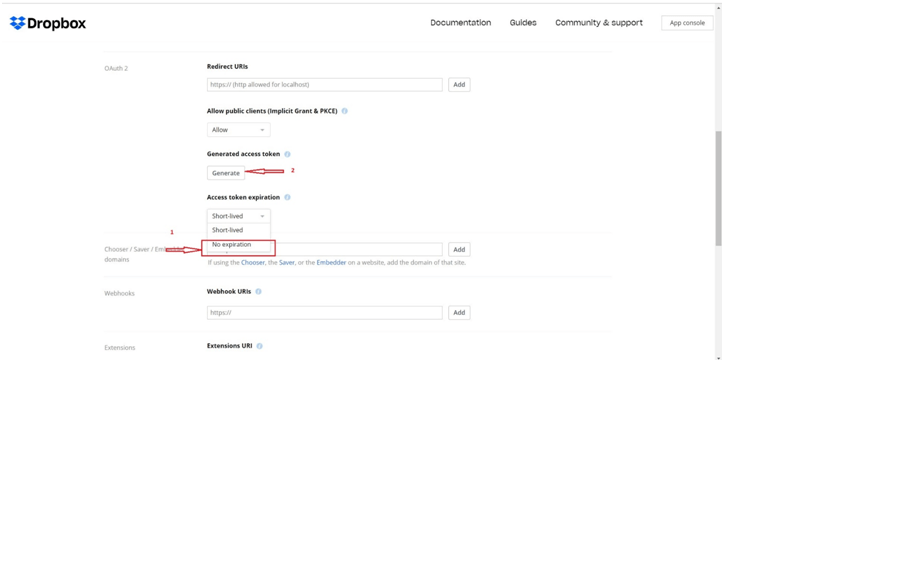
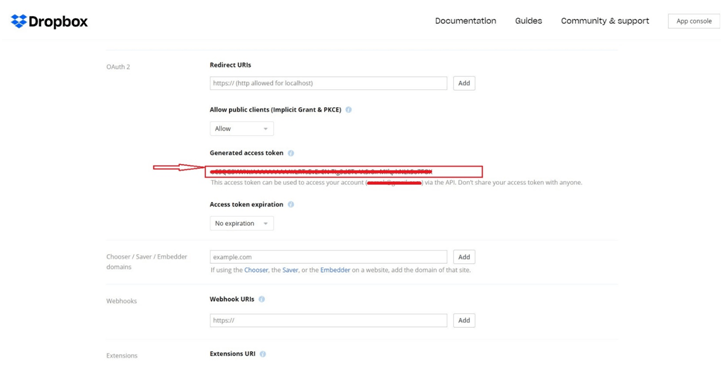
Copy access_token
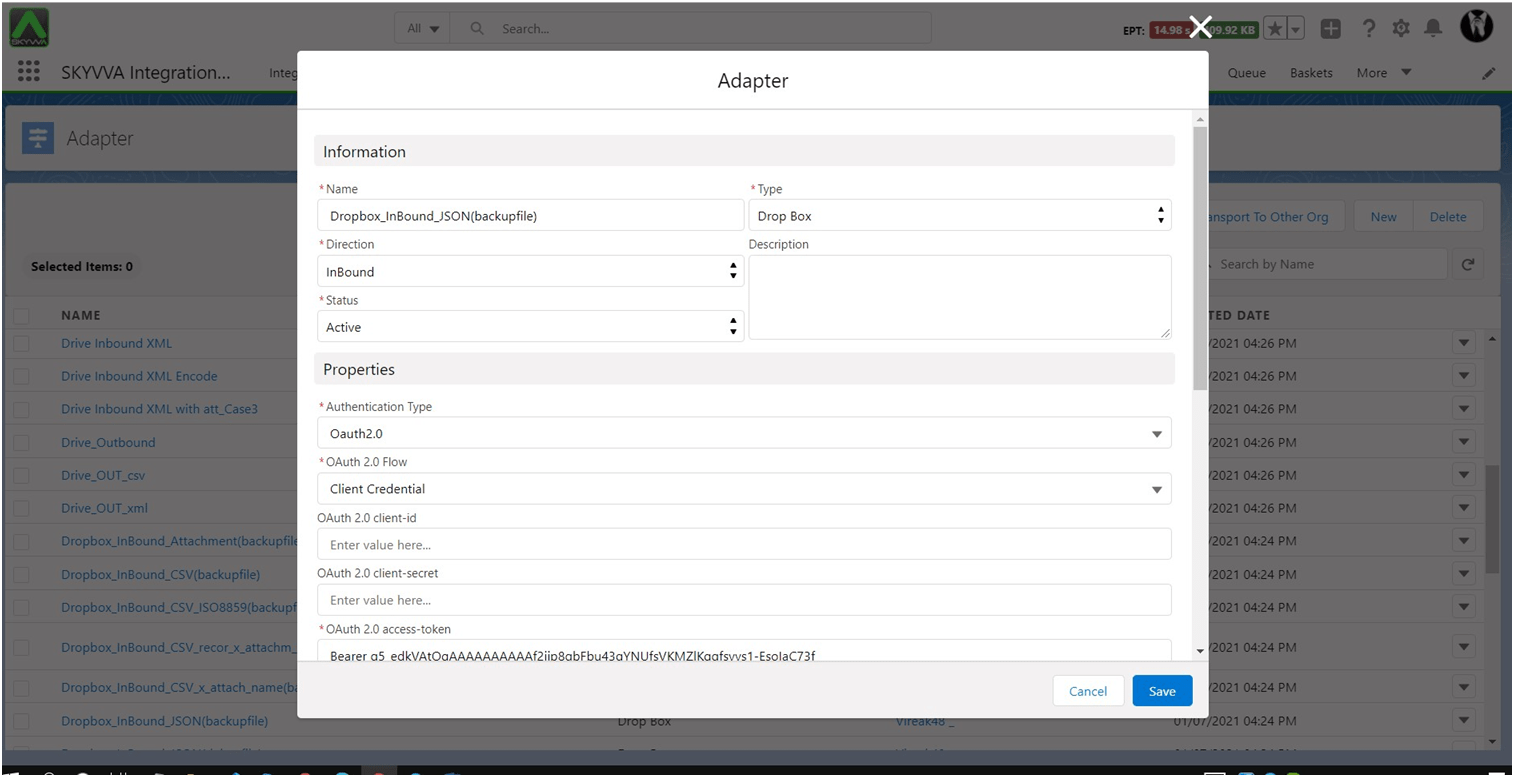
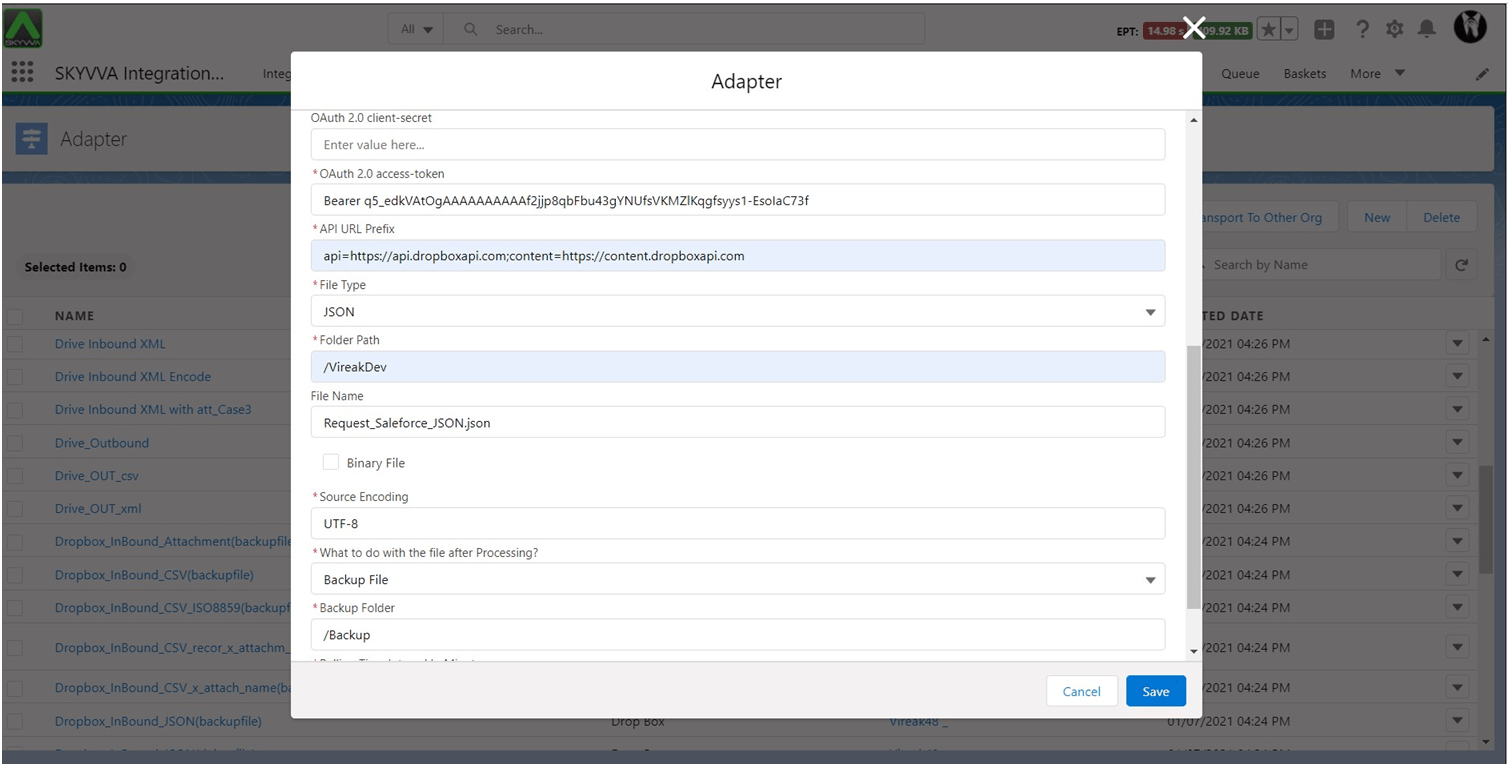
Inbound Interface: This adapter will be used to create CSV, EXCEL, XML, and JSON files inside the dropbox drive folder. Here we will go to see an example for JSON file. Dropbox InBound Adapter configure Example create JSON adapter :
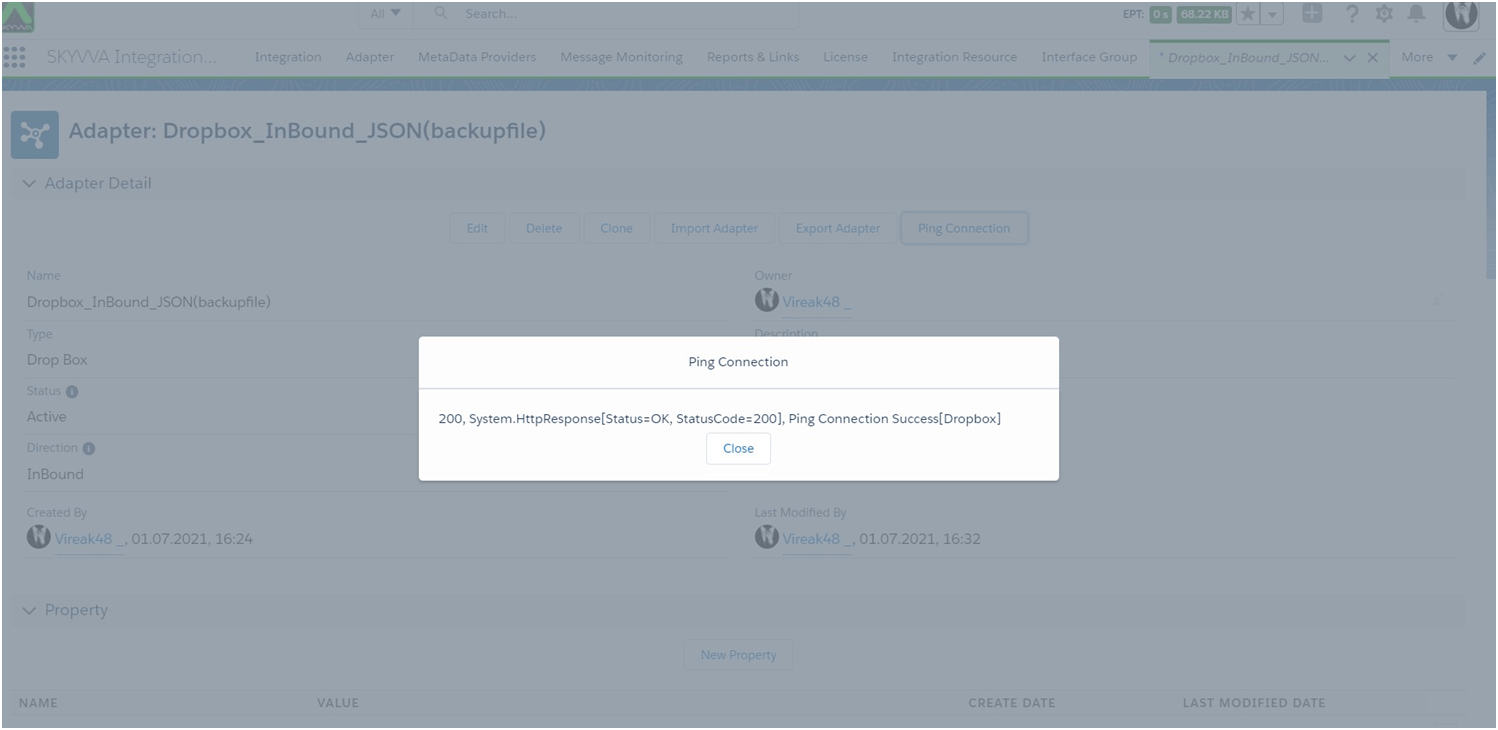
Check the Ping Connection:
We have to create the following data for inbound processing:
- Create Metadata for message type -> Create I structure Repository in it -> Create appropriate message type.
- The next step is to create Integration.
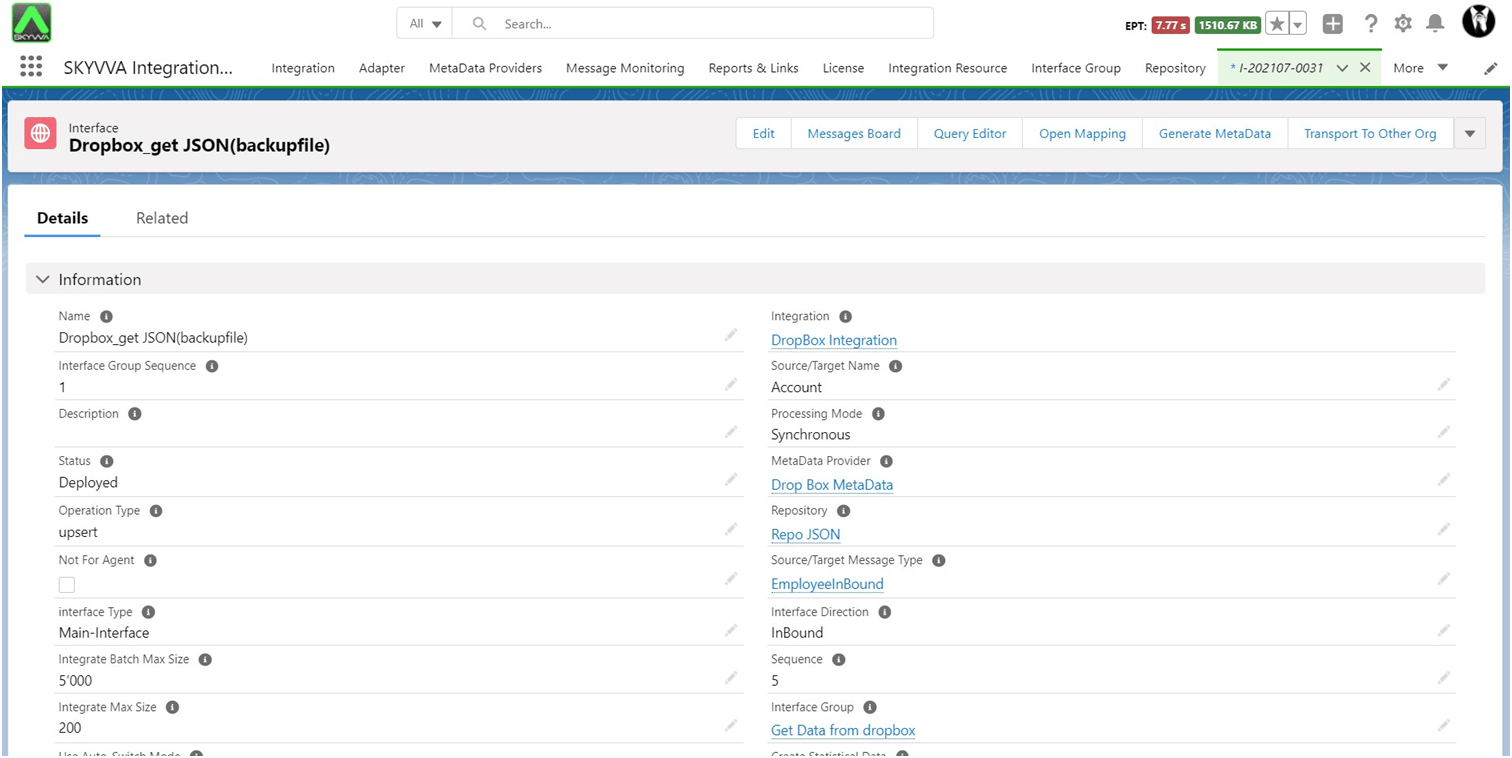
- Then Create an Inbound Interface where we have to select your Metadata, Repository, and message type. Then Select your adapter.
Mapping: Open mapping tool. and Do mapping using tool.
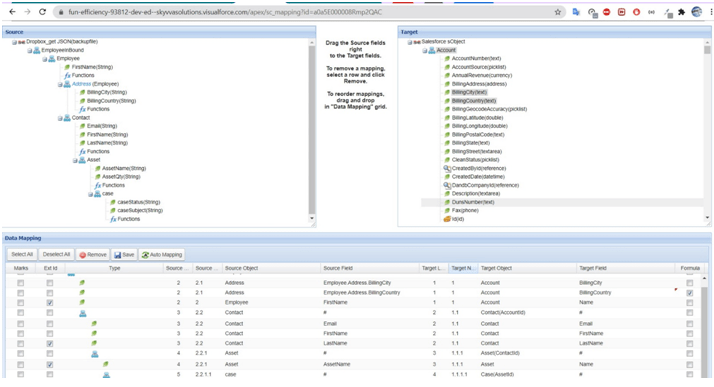
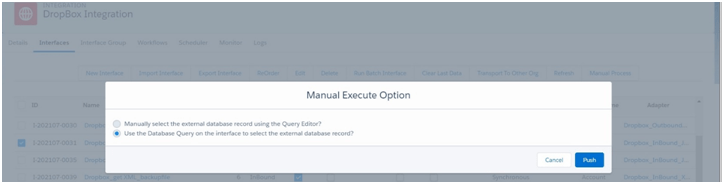
The next step is to Execute inbound processing. There is two way to execute Inbound processing:
- Manual Process on integration,
- or scheduler.
Here, I’m using a manual process as shown in the picture:
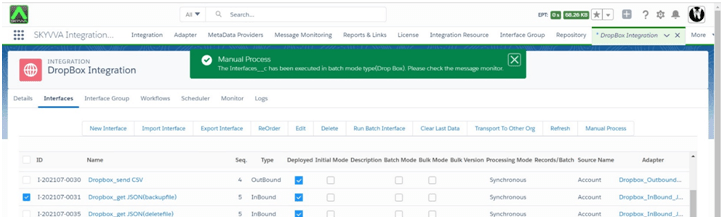
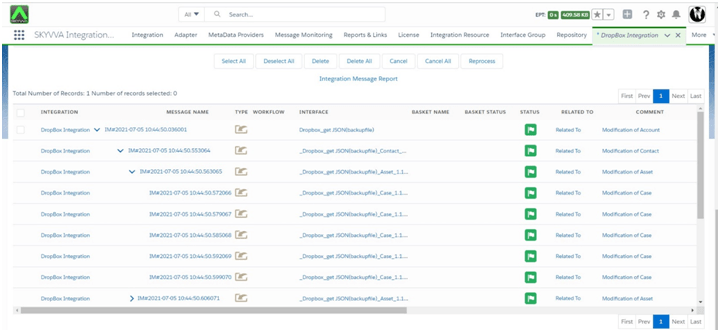
We can check result on message monitor. Go to message monitor and search for your Interface.
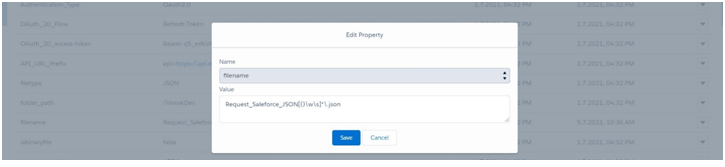
Adapter configuration for all For all file format configuration is same just select your file format. NOTE File name for InBound can use with regular expression Apex: https://developer.salesforce.com/docs/atlas.en-us.apexcode.meta/apexcode/apex_classes_pattern_and_matcher_using.htm regular expression: https://www.w3schools.com/java/java_regex.asp For example, will match the file with a name that starts with Request_Saleforce_JSONxxxxxxx and end with .json
Execute with the same example interface JSON Here is my dropbox file :

Check the result on the message monitor:

You can see dropbox folder is empty as all the files are moved to back up folder.