4.2 Batch processing.
Introduction
A job runs to process batches that use API Dynamic Switch where incoming data goes automatically to be processed as synchronous, batch or bulk. All processed batches are managed on the batch control board. Batch Control Board is a dashboard where we can monitor Inbound Processing, Interfaces, Queues, and Schedulers. Each tab holds a different function. The board offers us to facilely monitor the batch processing. This document will guide us How to utilize the Batch Control board in detail. Batch Control Board is utilized for mass data which is more than 5000.
Batch Control Board
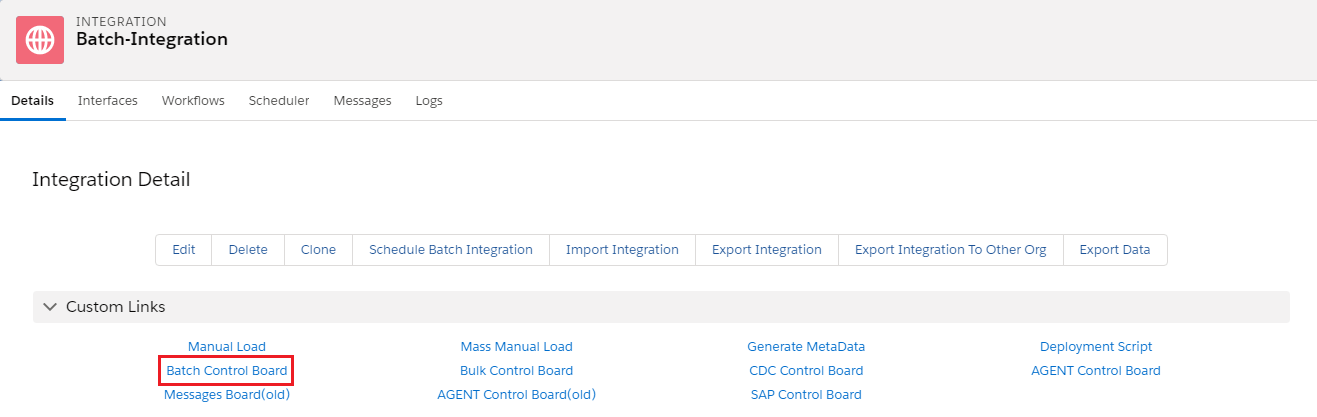
Batch Control Board is located at the 'Detail' tab of Integration and exists in the 'Custom Links' section. We use the Batch Control Board to store data temporarily.
- Create Integration & Interface
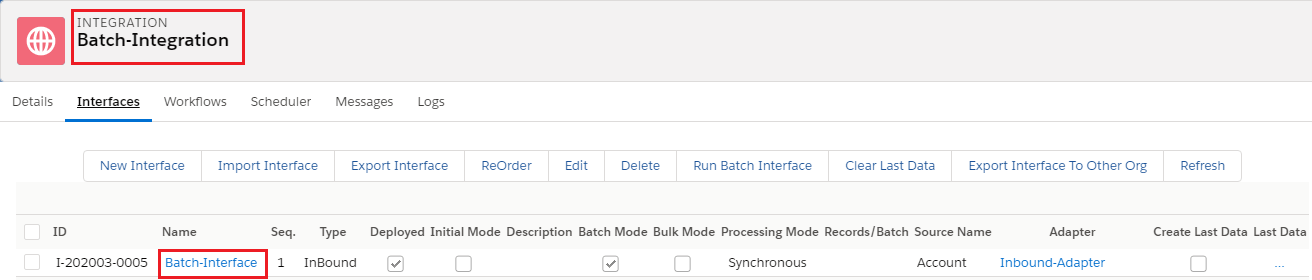
- Click on Interface & Scroll down to Detail page
- Change Package Size

- Again Scroll down to Basket Setting section & Enable Batch mode

Go to SKYVVA Agent configure with your Salesforce Org. Which is obvious
- Select Integration Name & Select Batch Interface
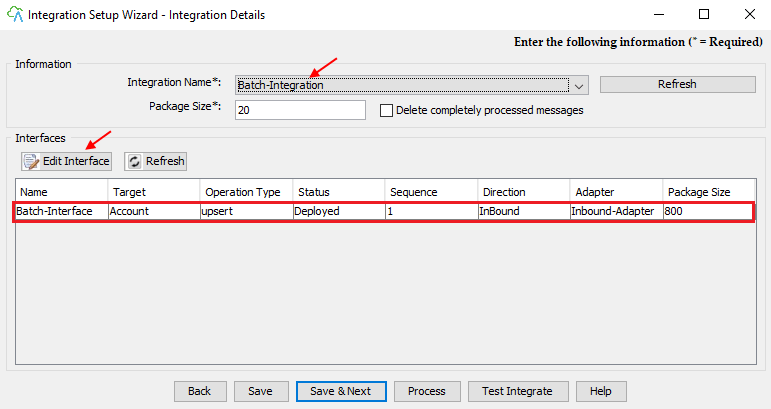
- Click on Edit Interface
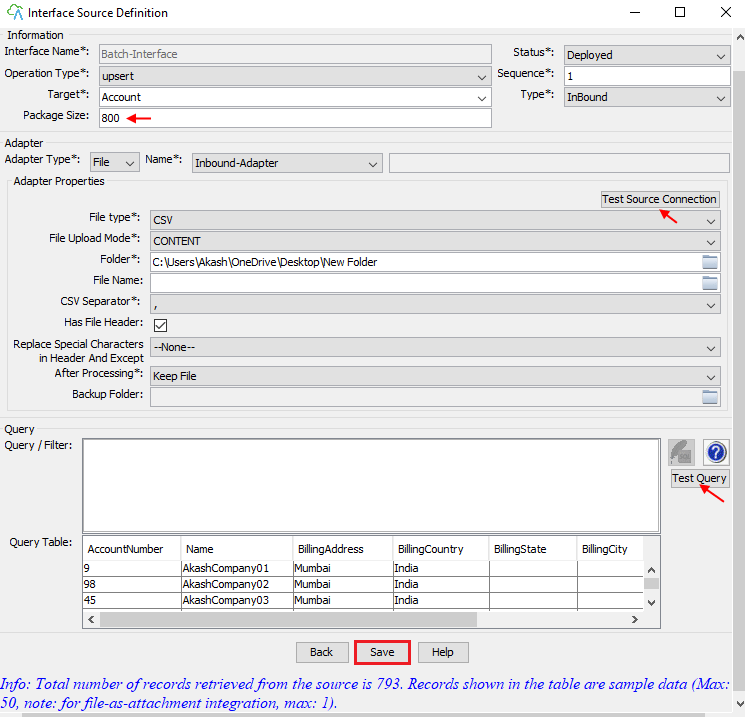
- Select File Folder
- Click on Test Query
- Save
Go to your Salesforce Org.
- Click on Open Mapping Button
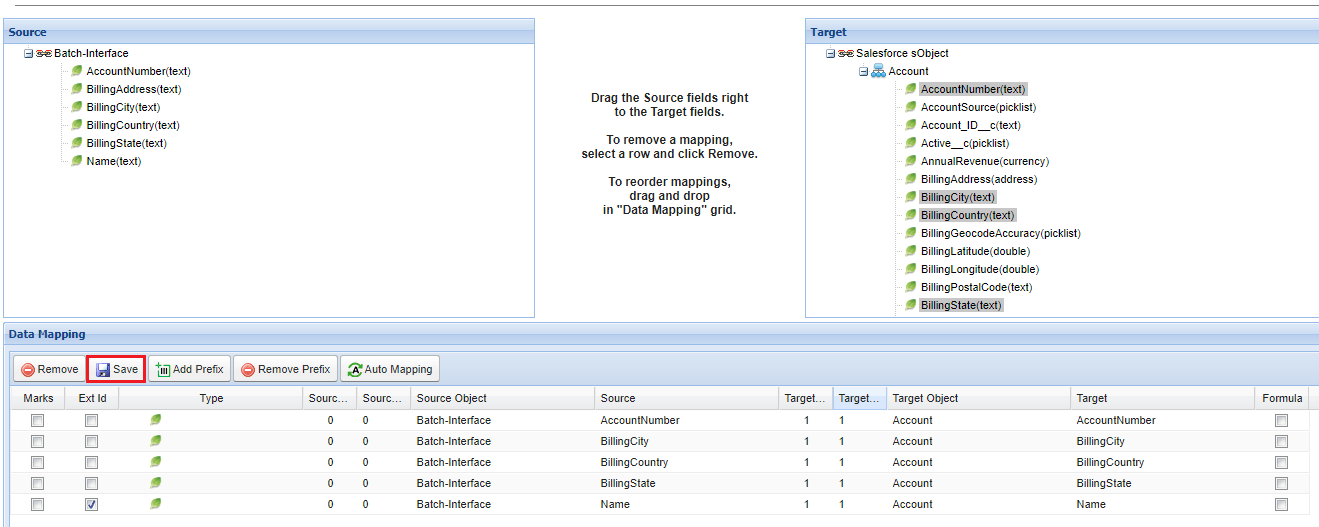
- Select Ext Id
- Save
Go to Agent - How to use the Agent Control Board? Since the user now completely understand; How to use the Agent Control Board, by hitting the upper link, now we understand the Architect of the Agent Control Board now follows below on Salesforce org.
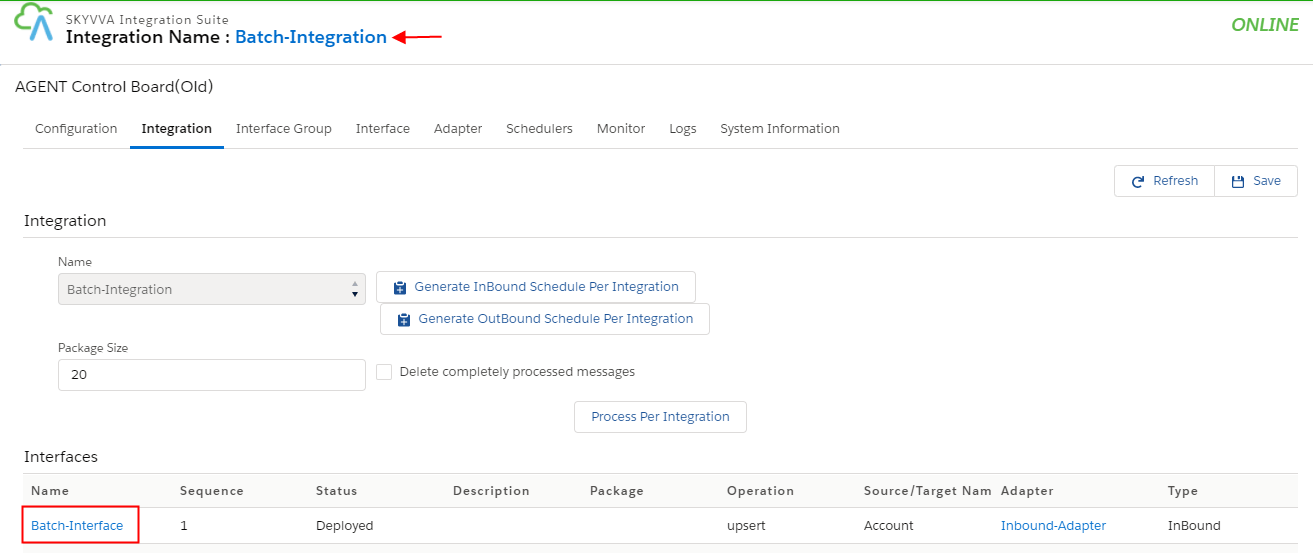
- Select your Interface Batch-Interface
- Click on the Process button
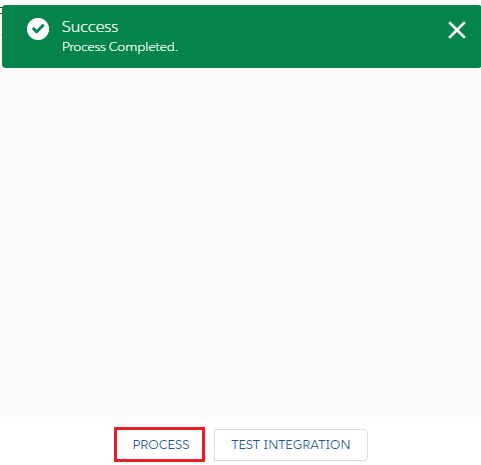
- Process Completed
- Click ok button
Go back to your Salesforce Org.
- Go to Integration Detail page
- Click on Batch Control Board
Status:
Status Description
Init Basket is created.
Worker Basket is a pass to the worker.
Processing Basket currently processes by the worker.
Completed The Basket has been successfully processed.
Failed Basket processing gets failed.
Canceled The Basket was canceled by the Administrator.
Monitoring Batch Control Board
When you open the Batch Control board we will find four tabs available which are Inbound Processing, Interfaces, Queues, and Scheduler. Each tab has different functions and displays things relatable with Batch processing. The following steps will show you how to monitor each tab:
Inbound Processing
Inbound Processing is a tab which stores baskets that have inbound direction. There are three sections available in this tab. That section includes Filter, Working Baskets and History Basket. All the incoming basket will store in Working Basket until you set the schedule to run or manually process them. When the baskets are done processing they will move to the History Basket section automatically.
Filter
The filter is a screen where we can search the baskets. We can filter the baskets based on:
- Created Date
- Modified Date.
- The result will reflect as below
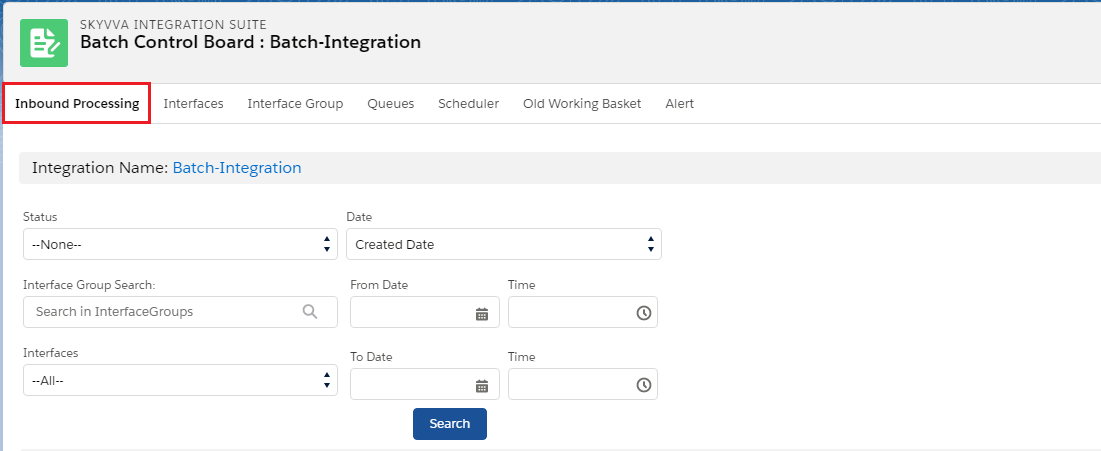
- Scroll down to Working Basket Section
- See Status Inhit
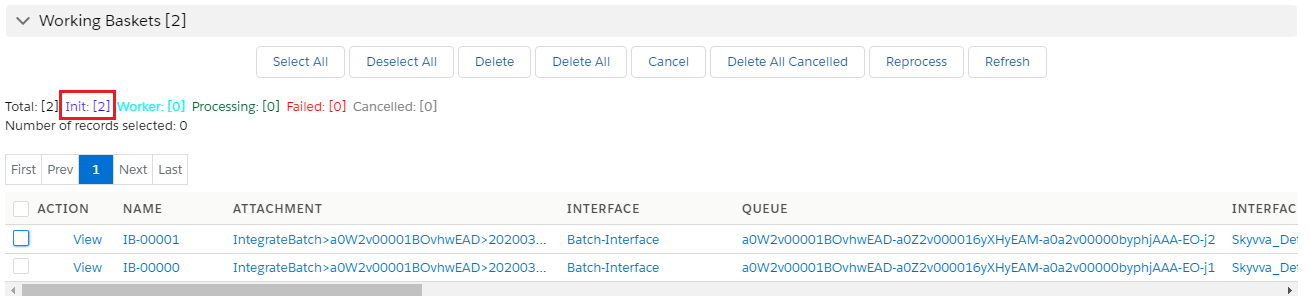
Status Init
This is the first status when the attachment is created. When a message is sent utilizing batch mode an affixment gets engendered in the working basket and the status is set to "Init". The Annexation Processing Scheduler will only cull ingresses to be processed which has this status. From this status, the append can become the status "Worker".
Scheduler
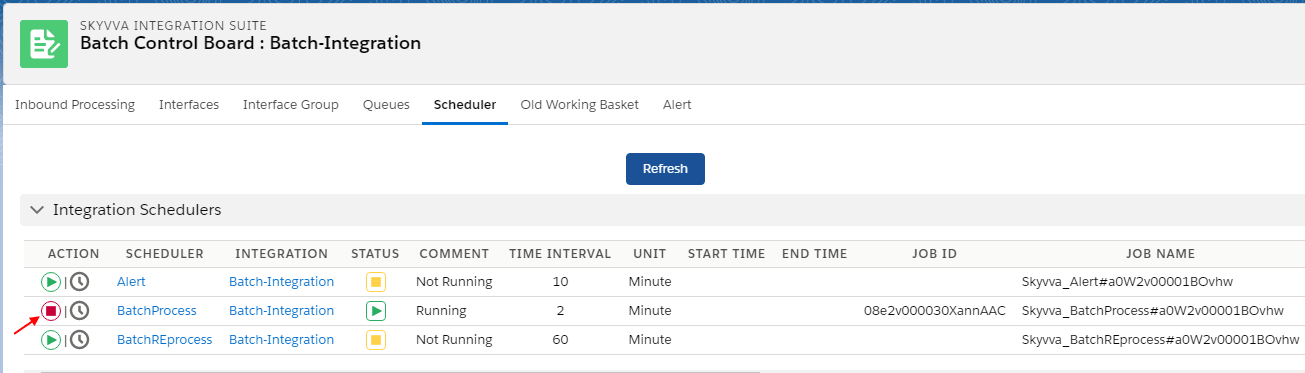
There are two schedulers available in the Scheduler tab which are 'Attachment Process' and 'Attachment Reprocess '(reprocess the fail annexation). These schedules are for categorical integration. You can set the time and commence the schedule or refresh it.
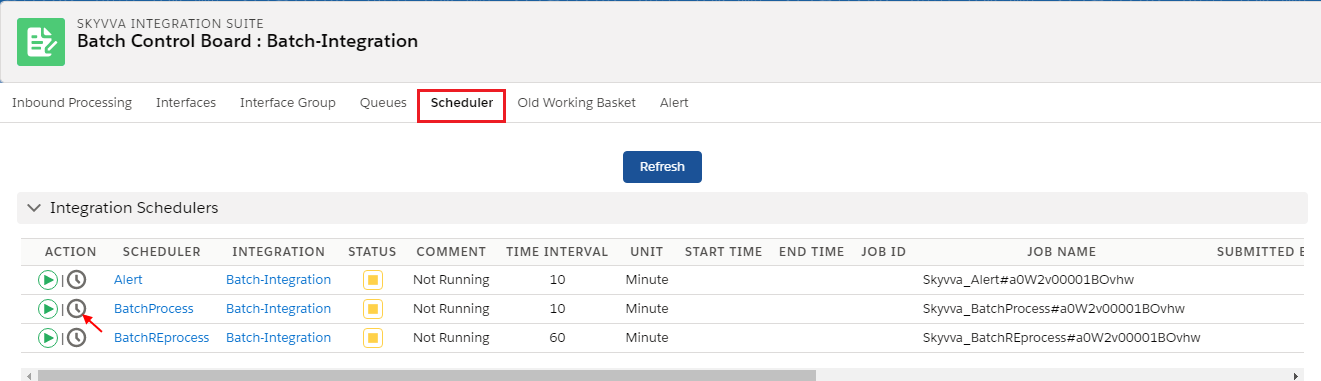
- Set Scheduler Time for 2 min. Time Interval
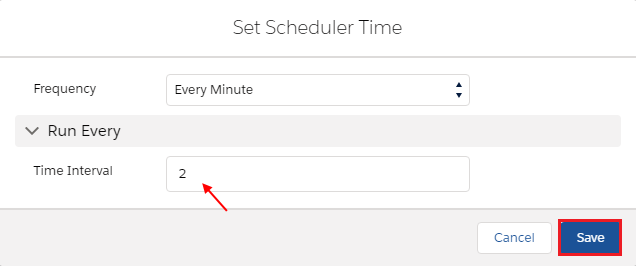
- Click on start button
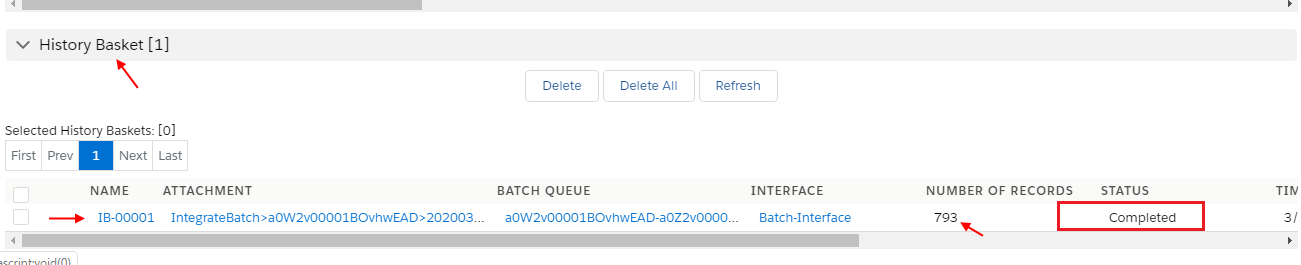
- See History Basket
- Number of records 793
- Status completed
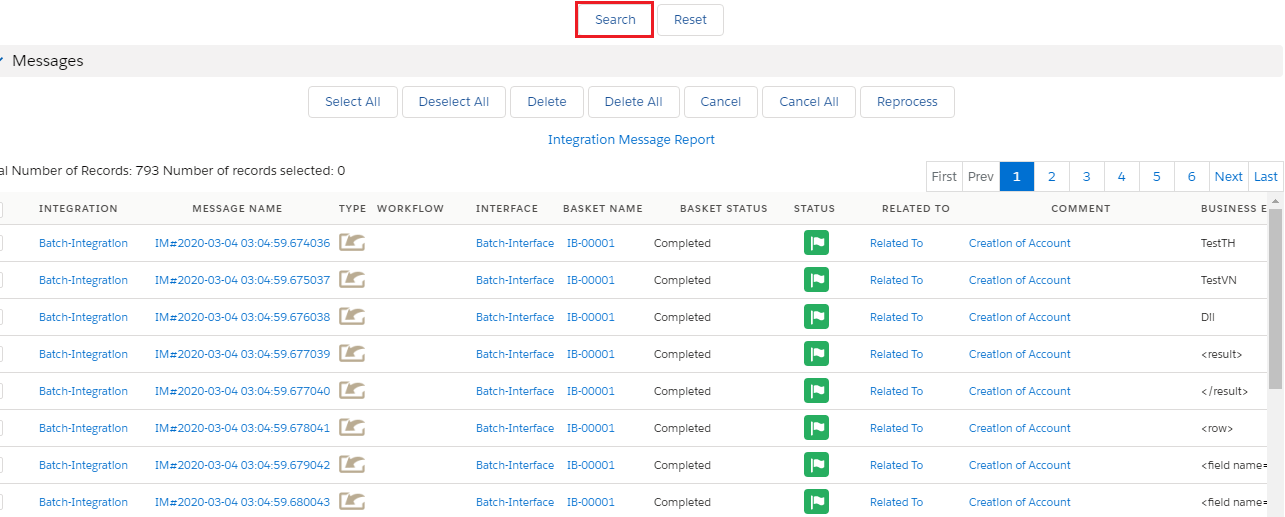
Go to message Monitoring Tab
- Select Integration & Interface name
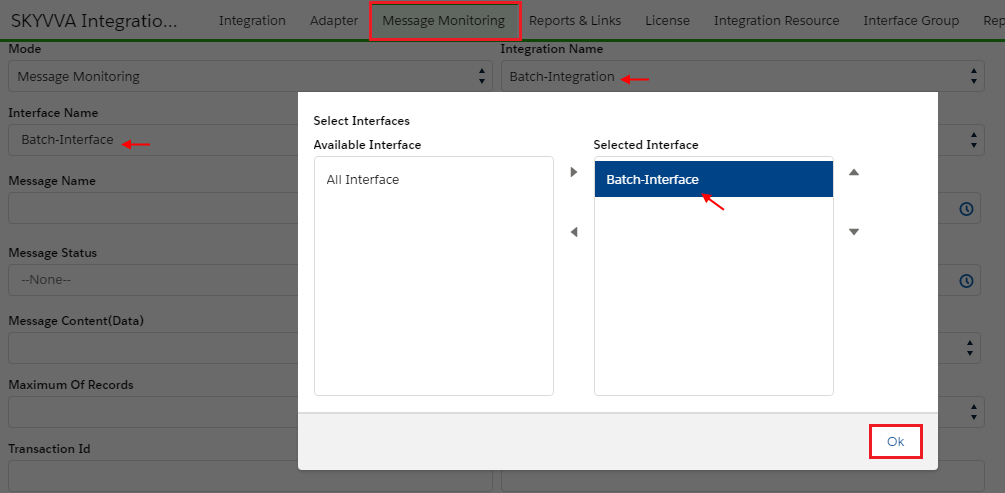
- Click search button
- 793 records integrated successfully