4.4 Auto-Switch mode.
Introduction
SKYVVA providing different data processing modes like immediately processing, Batch processing, Bulk processing modes. where Auto-Switch mode is a combination of all three modes. When data processing is in the auto-switch mode it means processing is based on the number of records and IntegrateMaxSize, IntegrateBatchMaxSize.
What is Auto-Switch mode?
Auto Switch Mode will push record to the correct API depend on the amount of record, this Auto SwithMode is a dependency with "Integrate Batch Max Size" and "Integrate Max Size" Auto-switch mode is a data processing mode provided by SKYVVA. When the auto-switch mode flag checked, It means that Agent automatic switch SKYVVA API based on the number of record and IntegrateMaxSize, IntegrateBatchMaxSize. And when the flag is unchecked it means that data is integrated into normal mode (no batch or bulk) no matter what is the size of records. Before configuring Auto-Switch Mode, you have to know about the parameters:
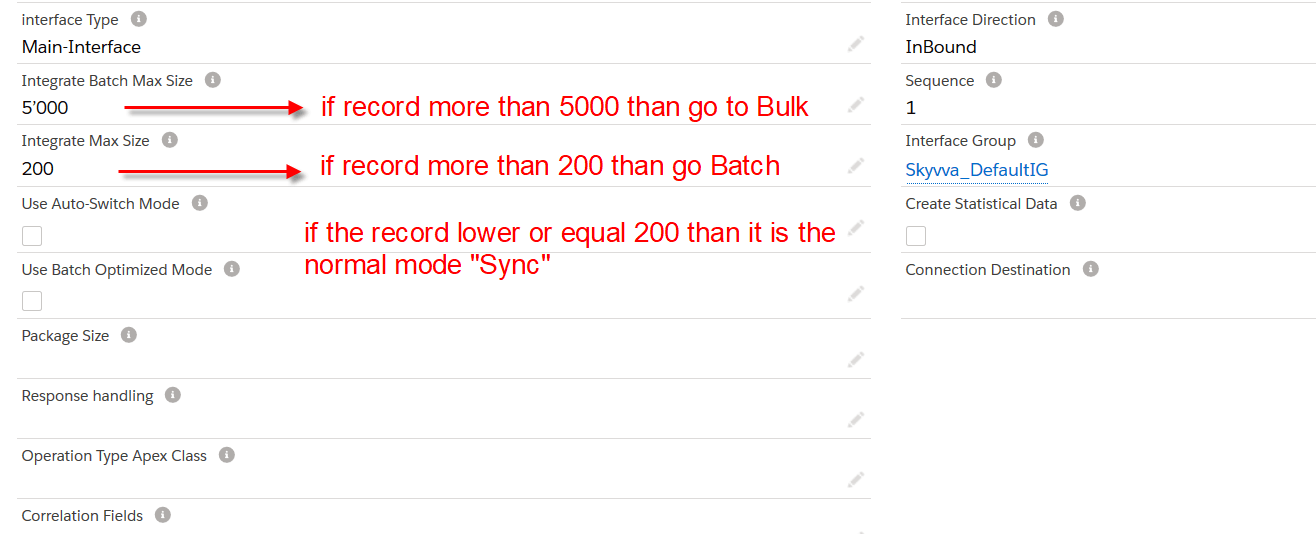
- Integrate Max Size → Maximum number of records that SKYVVA Integration Agent can integrate using method integrate. The default value is 200. If the number of records to be integrated is more than 200 value, Agent will switch to use the Batch API method automatically.
- Integrate Batch Max Size → Maximum number of records that the SKYVVA Integration using method integrates Batch. The default value is 5000. If the number of records to be integrated is more than 5000 values, Agent will switch to use the Bulk API method automatically.
If the number of records (Data) <= Integrate Max Size(200), Interface will run in Normal Mode.
If the number of records (Data) > Integrate Max Size(5000) and the number of records (Data) <= Integrate Batch Max Size, Interface will run in Batch Mode.
If the number of records (Data) > Integrate Batch Max Size(5000), Interface will run in BULK Mode.
Pre-requisite
- We have to create Integration
- Creating integration next step is to create Interface
#### Configuration→How to use Auto-Switch mode?
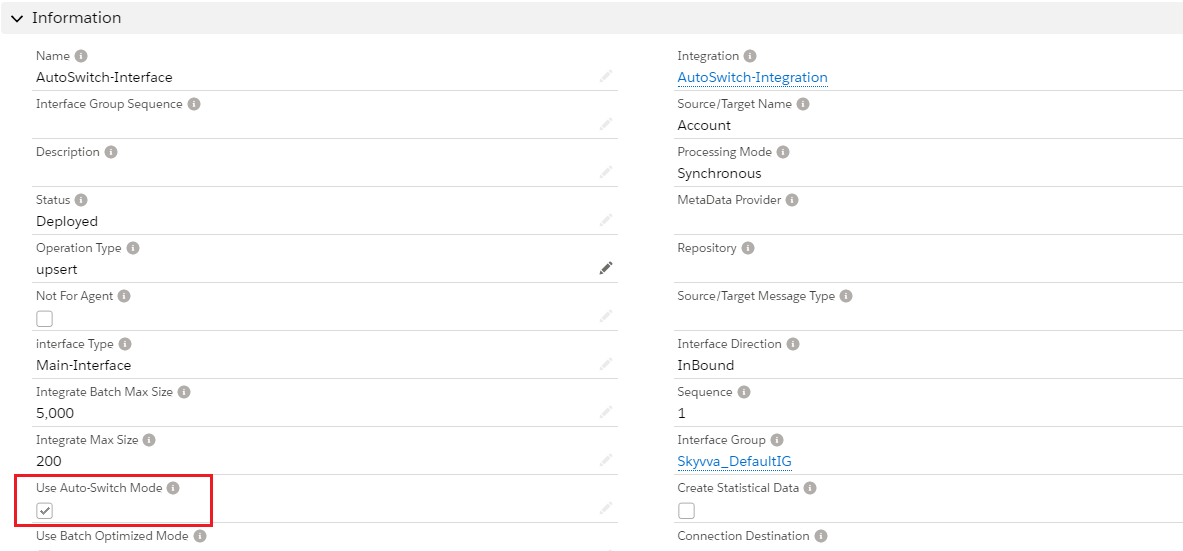
We click on the 'Account Interface' link and see the Interface Details and scroll down to Runtime Configuration-Inbound section then checkbox on Use Auto-Switch Mode.
How to use Auto-Switch mode?
Assuming you already have created interface since this part will be the focus on integrating from Agent as an example. To integrate from Agent, please run Agent-UI and more steps as following:
- After running the Agent-UI, the Integration Control Board will popup then you have to click on Integration Wizard.
- Select your agent the Property File.
- We have to select the existing integration and interface on which we have to process data.
Go to SKYVVA Agent configure with your Salesforce Org. Which is obvious
- Select Integration Name & Select AutoSwitch Interface
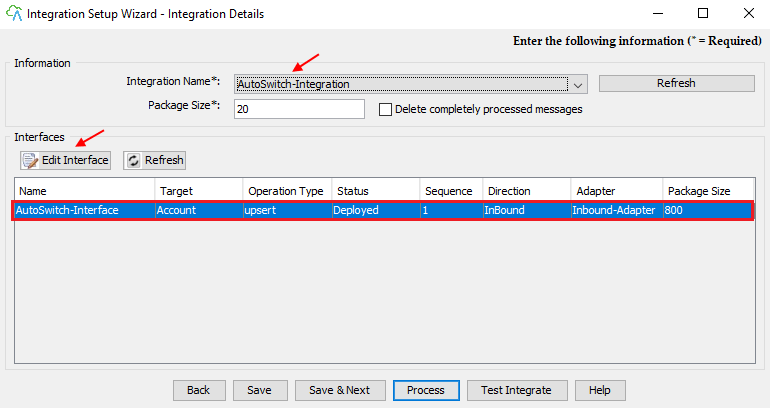
- Click on Edit Interface
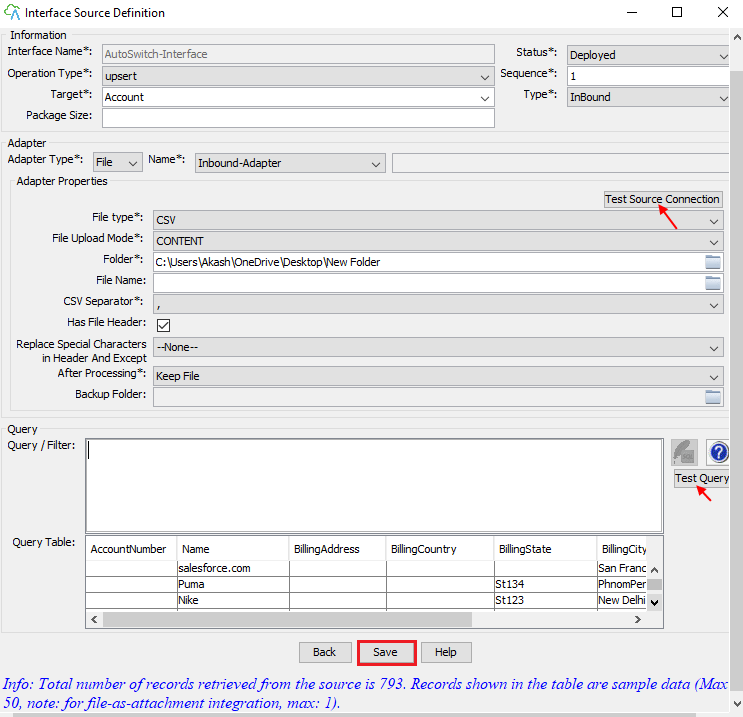
- Select File Folder
- Click on Test Query
- Save
Go to your Salesforce Org.
- Click on Open Mapping Button
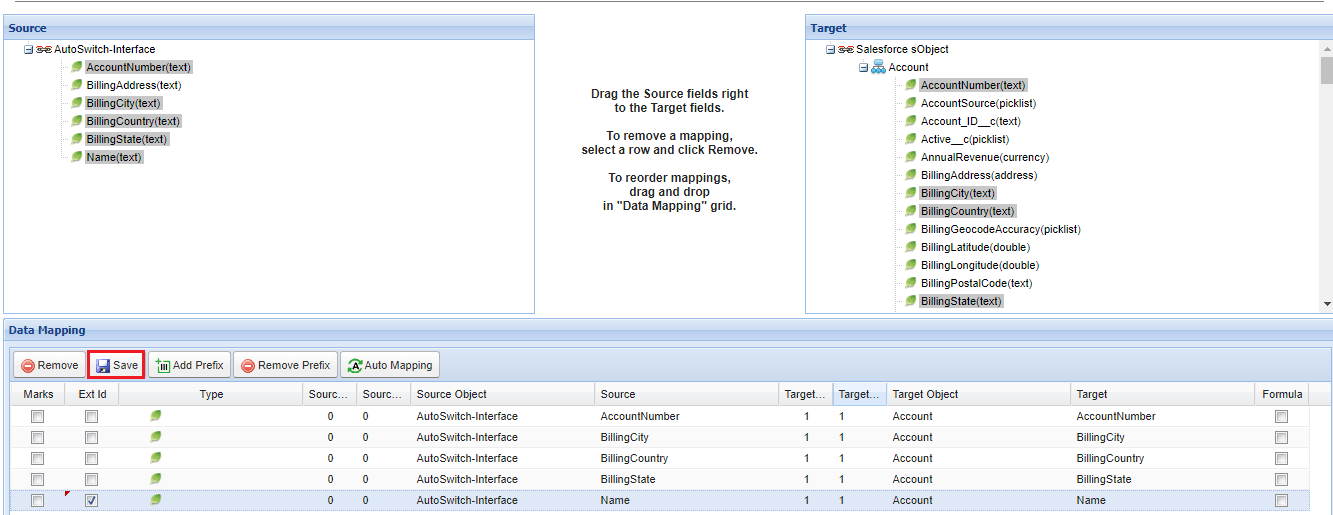
- Select Ext Id
- Save
Go to Agent
- Select your Interface AutoSwitch-Interface
- Click on the Process button
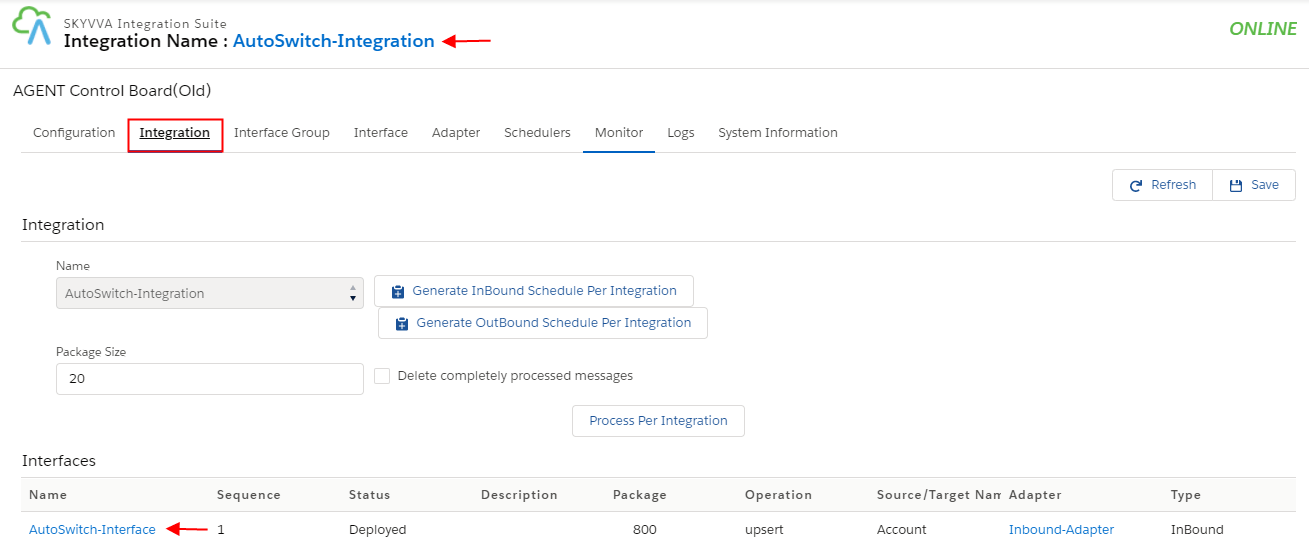
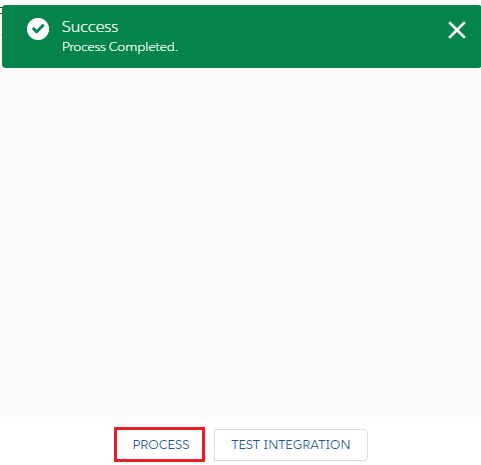
- Process Completed
- Click ok button
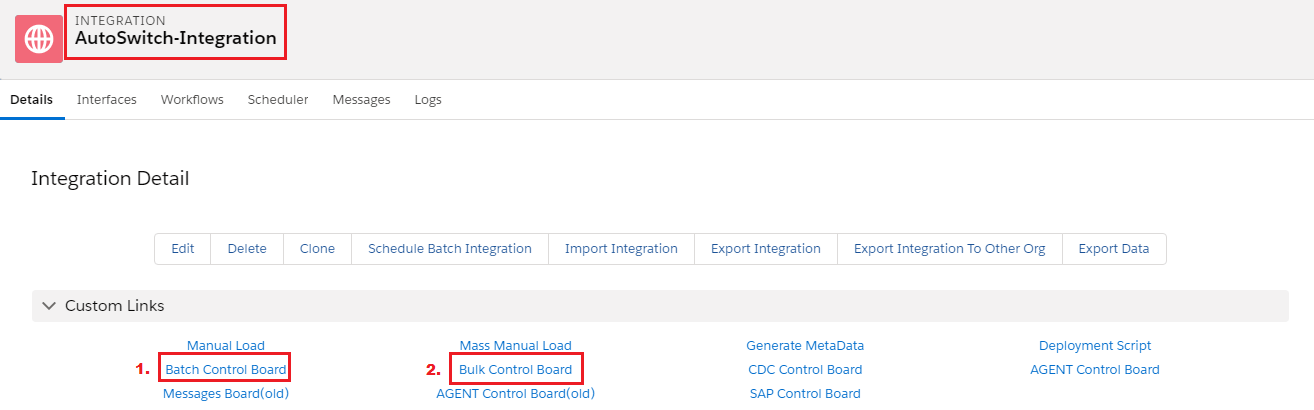
Go back to your Salesforce Org. Go to Integration Detail page
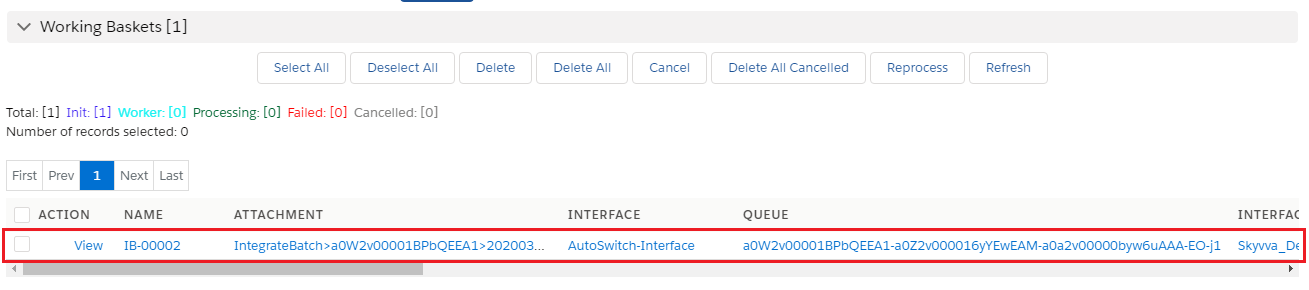
- Click on Batch Control Board
How to use Batch Control Board ?
- Click on Bulk Control Board
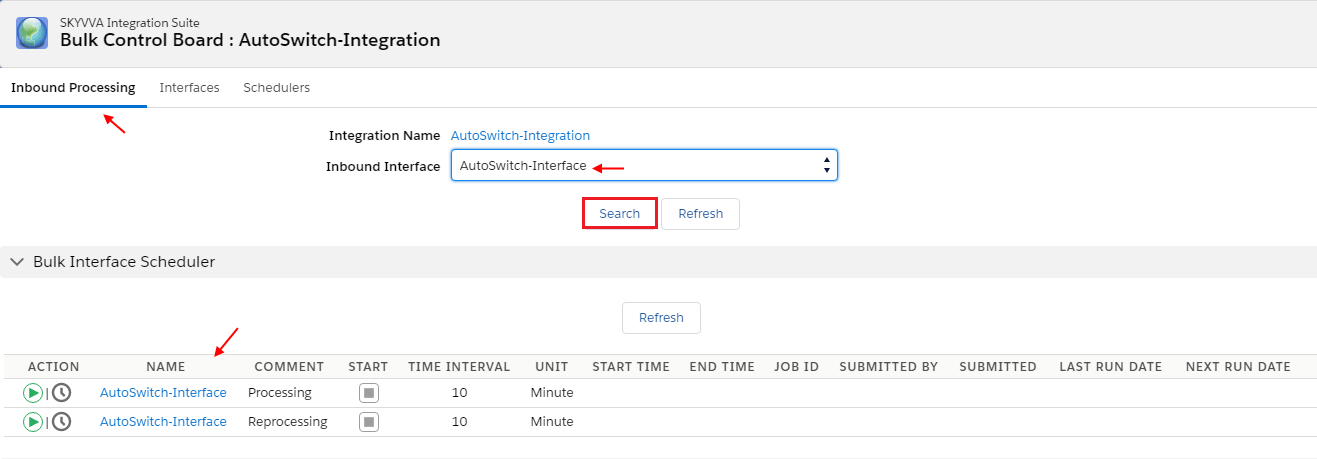
[su_box title="Note" box_color="#2a8af0" title_color="#000000"]Similarly, user can use both the Batch Control Board & Bulk Control Board feature[/su_box]