4. Alerting Setup
Introduction
- The alert setting on the integration level uses a global setting in case the user forgets to set up an alerting rule on the interface level. If the user sets the alerting rule on the interface level then this should be valid and overwrite the setting on integration if any exist.
- Here if on interface level user sets a value this will overwrite the value on the integration level. If the user has not set anything on the interface level then take the value from the integration level.
- Therefore, the value on the integration level is like a default value for all interfaces, which do not have any alert rule set.
- We have currently 4 different alert rules on the integration level.
Alerting Rules
Description
Send Email SFDC User If you want to have a task created for a user when a message or log gets an error. Select the user from the Salesforce user list.
Send Email External Mail The recipients’ email addresses (Comma-Separated List.) For example: john@yahoo.com,george@gmail.com,etc
Chatter Group Name Chatter Group for alert error when integrating data.
Create a Task for the User If you want to have a task created for a user when a message or log gets an error. Select the user from the Salesforce user list.
- This screenshot displays the Alerting Setup on the integration Level.

Send Email SFDC User
- You can set up the alerting function to get an alert whenever an Interface runs into error status.
- You can specify an email address where the alert will be sent. To set up one or more email addresses, open the integration or the Interface and edit the part "Alerting Setup". Here you choose the User and specify the email addresses.
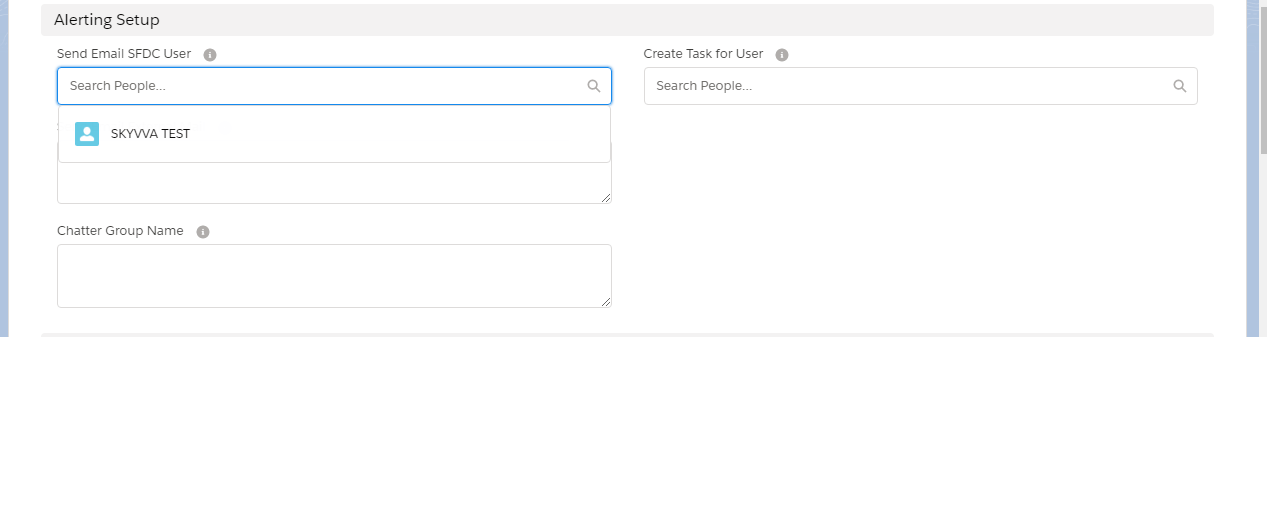
- The Alert mail then will be sent to this recipient.
- Here is an example of an alert mail.

Chatter group
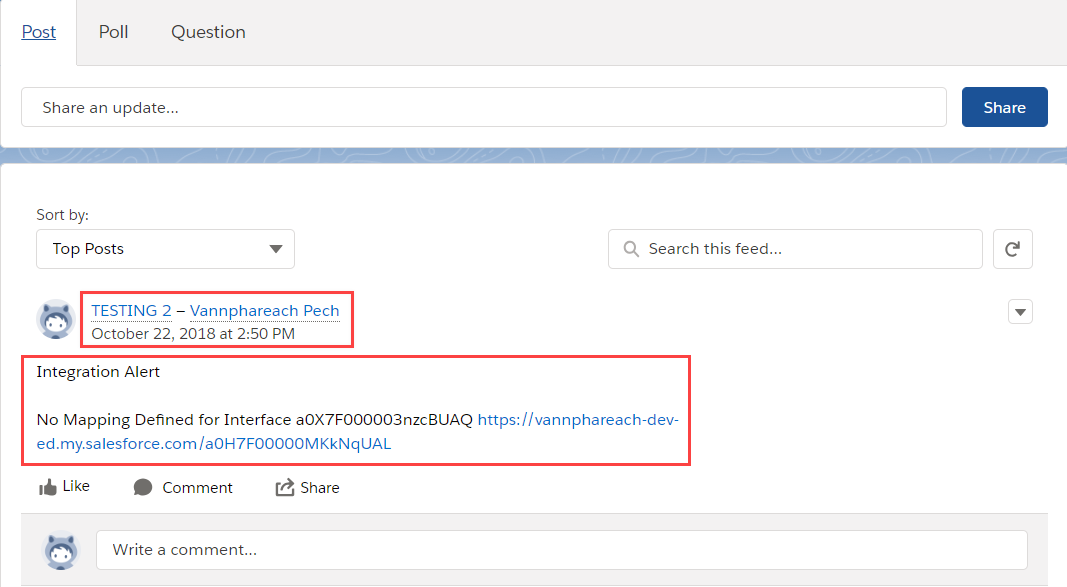
- The Chatter is used to notify the user by posting the failed message to the Chatter Group in addition to the email alert. Users can specify the chatter group on Integration as well as the Interface level.
- Let us say we have 3 interfaces related to Logistics and 4 interfaces related to Order then the user creates 2 different chatter groups related to Logistics and Order. The user needs to specify the chatter group on the interface and if any error occurs, apparently the error message is posted to the corresponding chatter group.
- At first, you have to create a Chatter Group
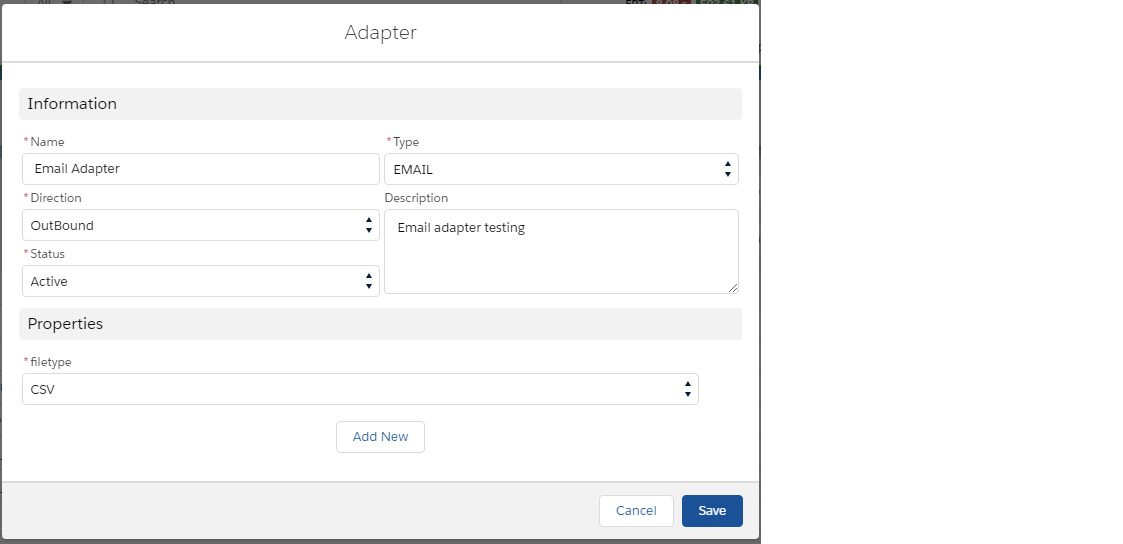


- After creating the new chatter group, we need now to specify the chatter group name on the interface as well as the Interface level and if any error occurs, apparently the error message is posted to the corresponding chatter group.

- Here we see the error message in the corresponding chatter group
If the interface level user sets a value this will overwrite the value on the integration level. If the user has not set anything on the interface level then take the value from the integration level. Therefore, the value on the integration level is like a default value for all interfaces, which do not have any alert ruleset.
Send Email External Mails
In the section "Alerting Setup". Here we specify an external email address. We set the external mail on the interface and integration. The flag is not set. Then only the mail is sent to the email, which was set on the interface. The setting on the interface has higher priority and the alert is only sent to the mail on the interface. Now we set the flag and the alert sent to the mail settings on the integration and to the mail settings on the integration. This flag allows the alert is also sent to both levels e.g. to the mail which is set on the integration and set on the interface.

- Then the alert mail will be sent to this recipient.
- Here is an example of an alert mail:

Create Task
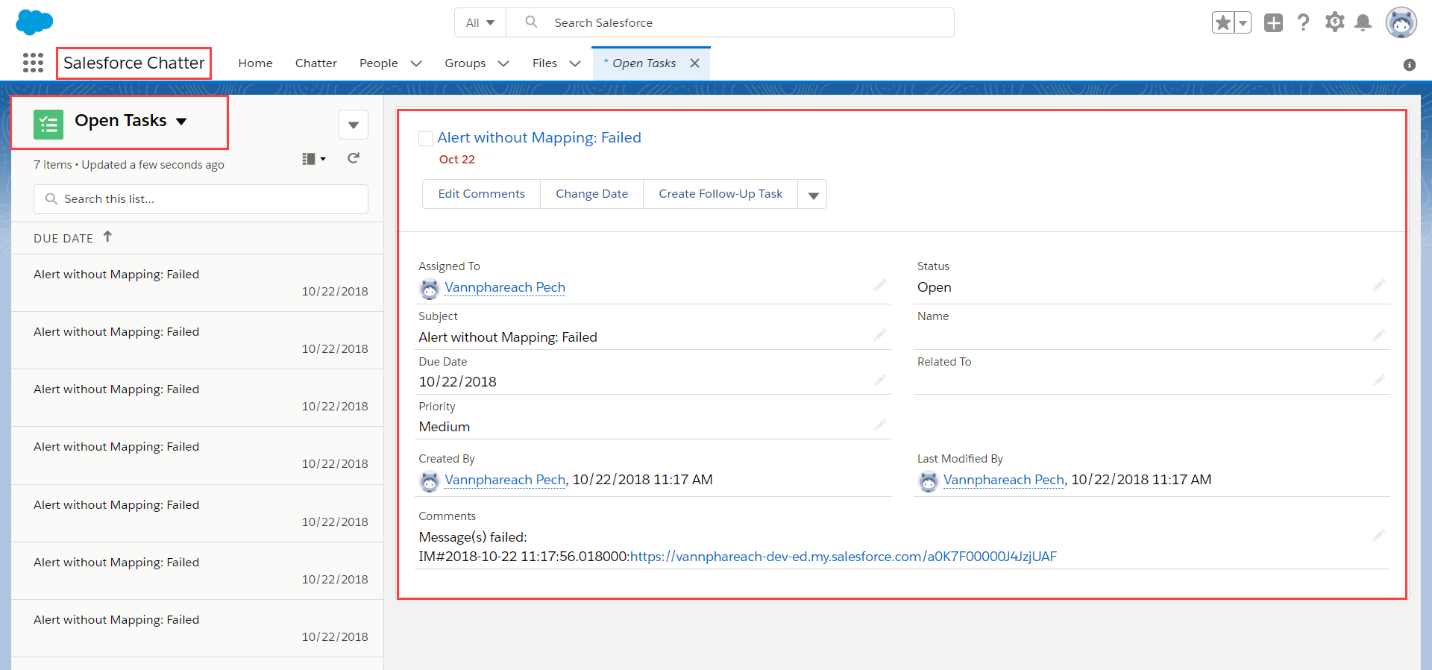
- You can Create Tasks for Users if there is an error. Like before, you have just to specify the User.

- We can see some Tasks, which were created for this User “Vannphareach Pech”

Redesign of alerting feature
Description: We need to redesign the current alerting function and introduce a new flag field called 'Non-Realtime Alert.' This flag will allow the alert mail to be sent asynchronously rather than in real-time. Therefore, we require a new flag to be added to the interface, interface group, and integration settings where users can configure it.
#Case1: None-realtime Alert creation in the category Message-Based Alert
=>Expectation: When we use the 'Non-realtime Alert creation' option with the 'Message-Based Alert' alert category, it will specifically check for failed business messages. Instead of alerting in real-time, it will be alerted by the scheduler 'DoAlert' and then send a notification to the email.
Note: Users can set the option for non-real-time alert creation on the interface, interface group, and integration.
- Message-Based Alert: means that it checks only the root business message for failures, triggering an alert.
- Object-Based Alert: this means that it checks only the root business message for failed or partially completed messages.
- Create the Integration, then navigate to the integration details to find the Alerting Setup for Message Processing and Alert Channel Configuration section
- Tick None-realtime Alert creation
- Select Alert Category: Object-Based Alert
- Create a Task for the User
- Input Chatter Group Name
- Send Email SFDC User or Send Email External Mail

- Start the 'DoAlert' scheduler to receive notifications.

- When a message fails, it will check. Subsequently, an email will be sent.

- Here's the message failed alert to email.
- After the email alert, the field 'Is Alerted' will be checked.

- Here’s the Task that was created.

- Here’s the Task that was created.

Case2: None-realtime Alert creation in the category Object-Based Alert
Expectation: When we use the 'Non-realtime Alert creation' option with the 'Object-Based Alert' alert category, it will specifically check for business root messages that have failed or are partially completed. However, the alert does not happen in real-time; instead, it will be triggered by the scheduler 'DoAlert' and then send a notification to the email.
- Setting the Alerting Setup for Message Processing and Alert Channel Configuration.
- Tick None-realtime Alert creation
- Select Alert Category: Object-Based Alert
- Create a Task for the User
- Input Chatter Group Name
- Send Email SFDC User or Send Email External Mail

- Start the 'DoAlert' scheduler to receive notifications

- When a message fails, it will check. Subsequently, an email will be sent.

- Here's the message failed alert to email.

- After the email alert, the field 'Is Alerted' will be checked.

- Here’s the Task that was created.

- Here’s the Group that was created.

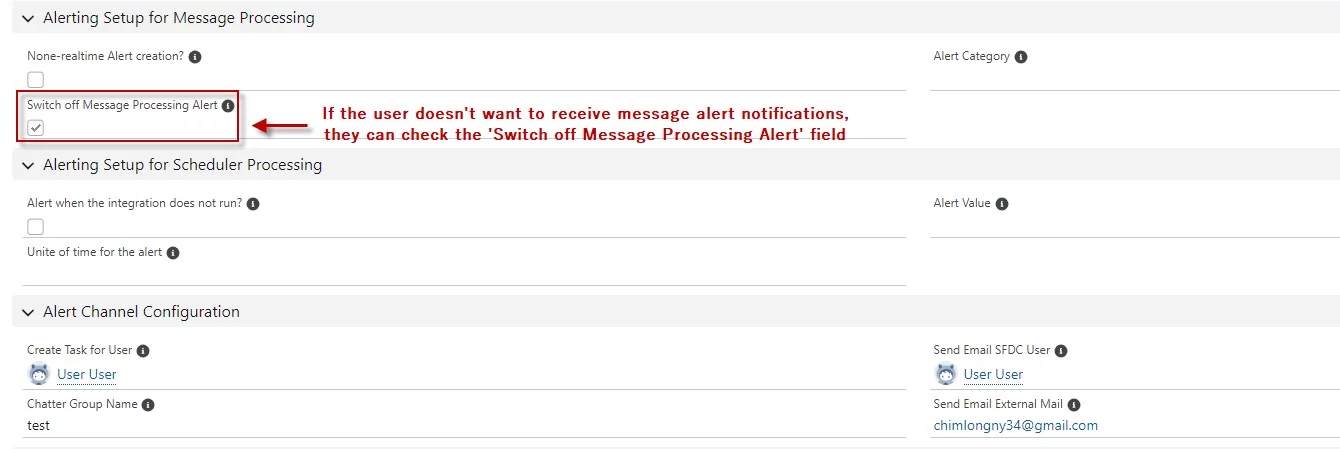
Case3: Switch off Message Processing Alert
Expectation: When we check the 'Switch off Message Processing Alert' field, the message will not trigger a notification.
- Setting the Alerting Setup for Message Processing and Alert Channel Configuration.

- Start the 'DoAlert' scheduler to receive notifications.

- Here's the scheduler executed.
- Result: The Task is empty after executing the 'DoAlert' scheduler.
