4. SKYVVA Bulk Dataloader – Export Data Phase (Outbound)
Introduction
The Export Phase focuses on the Outbound data flow—retrieving large volumes of records from Salesforce and saving them to your local environment. By leveraging the Salesforce Bulk API 2.0, the SKYVVA Bulk Dataloader can extract up to 100 million records per day asynchronously. This ensures high-speed data retrieval without impacting your organization’s real-time performance or exceeding standard synchronous governor limits.

Step-by-Step Configuration
Step 1: Authentication (Secure API Connection)
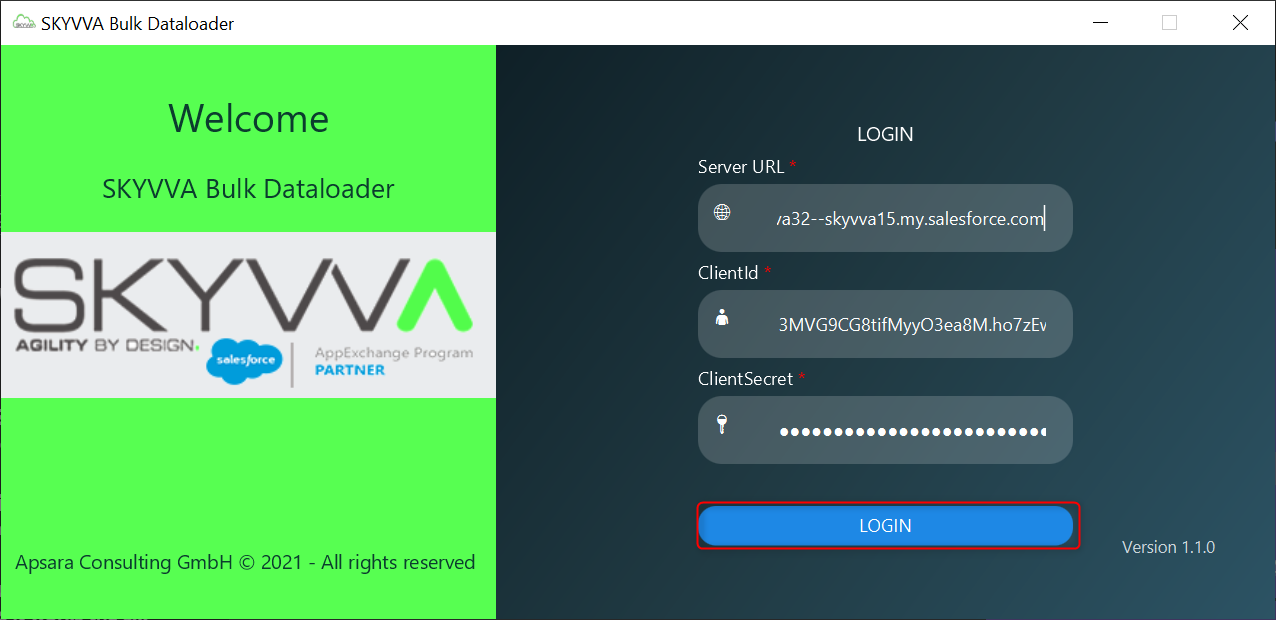
Instead of using your personal Salesforce password, the SKYVVA Bulk Dataloader requires credentials from a Salesforce Connected App. This ensures the highest level of security for high-volume data transfers.
- Server URL: Enter your domain URL in format: https://{YourDomainName}.my.salesforce.com
- ClientId & ClientSecret: Paste the unique keys generated from your Salesforce Connected App.
Once all three fields are populated, click the LOGIN button to establish a secure handshake between your computer and your Salesforce Org.
Step 2: Defining the Outbound Path
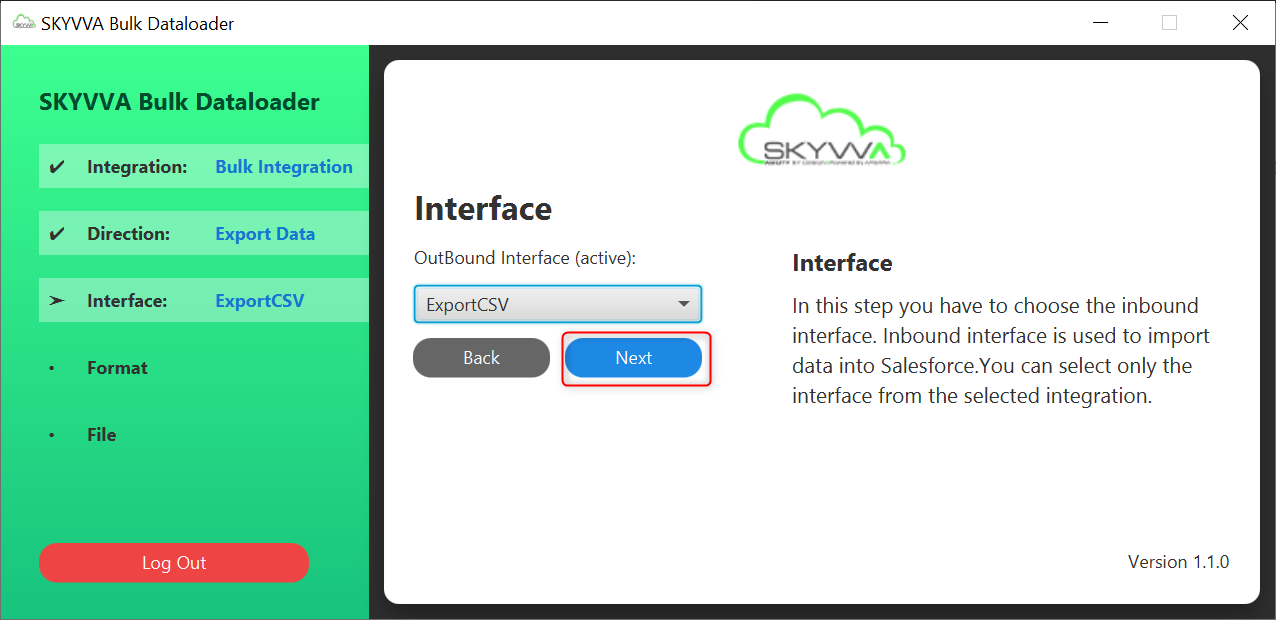
This stage ensures the SKYVVA Bulk Dataloader uses the correct Interface and Mapping logic for your data export.
- Integration: Select your Integration name.
- Direction: Select Export Data. (This is mandatory to see your export interfaces).
- Interface: Choose the specific interface created for data extraction.
Click the Next button to move to the file format selection.
Step 3: Data Format & Execution
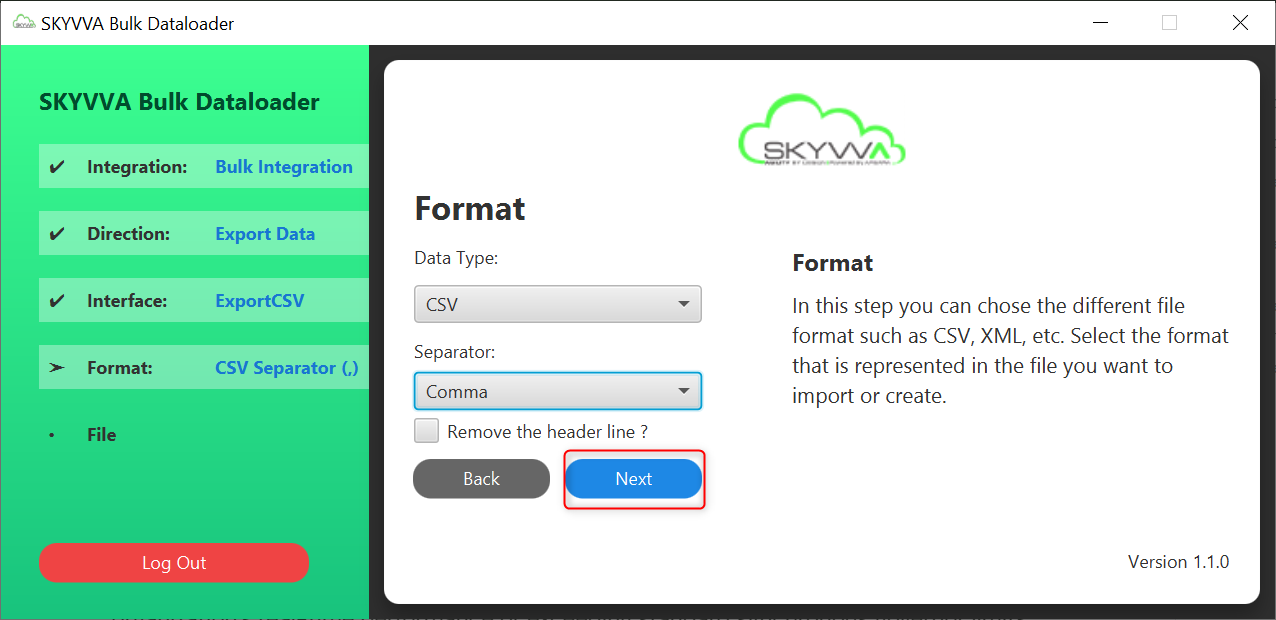
While Skyvva natively supports XML and JSON for complex hierarchical needs, this process focuses on CSV configuration:
- Data Type: Select CSV from the dropdown menu.
- Separator: Choose Comma. This tells the engine that each data field in your file is separated by comma (,)
- Remove the header line?: checking this ensures Skyvva only export the actual data rows.
Step 4: File Configuration
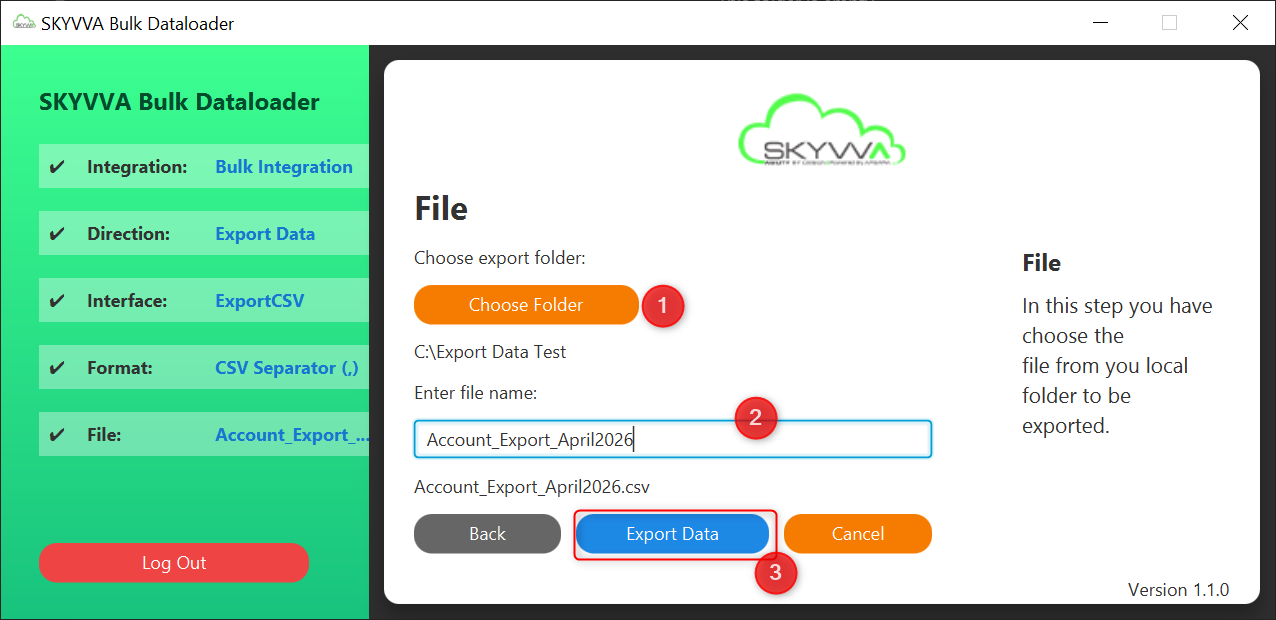
This stage is where you define where the exported CSV file will be saved on your computer and what it will be named.
- Choose Export Folder
- Click the Choose Folder button (A file explorer window will open. Select the local directory on your computer where you want the exported data to be stored.)
- Once selected, the text "No folder selected" will change to display your chosen file path.
- Enter File Name
- Enter output file name (e.g., Account_Export_April2026).
- Note: You do not need to add the .csv extension; it typically handles the format based on your previous "ExportCSV" selection in Step 3.
- Finalize the Step
- Once both fields are filled, the Export Data button at the bottom will become active.
- Click Export Data to begin the actual extraction of data from Salesforce to your local folder.
Step 5: Execution & Monitoring
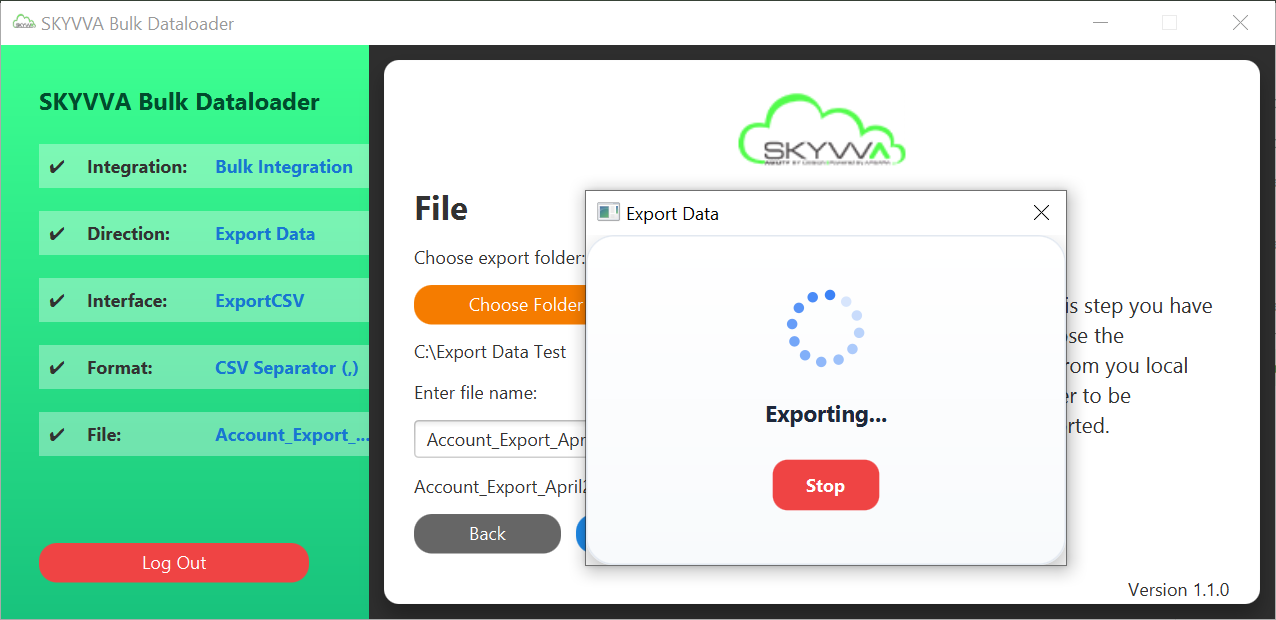
During the active processing stage, Skyvva provides real-time status updates until the final confirmation is reached.
- The "Exporting…" message and loading spinner indicate that Skyvva is retrieving records from Salesforce and writing them to your local drive.
- Once complete, a confirmation alert will appear indicating a successful export.
Step 6: Final Phase
This stage signifies that the integration process has moved from "Processing" to "Completed."
- A pop-up confirms "Export Data Successful," indicating all records were retrieved without critical errors.
- The file Account_Export_April2026.csv is now available in your local directory (C:\Export Data Test).

Step 7: Completion & Verification
1. Status & File Confirmation
- A pop-up message confirms "Export Data Successful." indicating that all records were retrieved and processed without critical errors.
- The file "AccountExportApril2026.csv" is now available in the configured local directory: C:\Export Data Test.
- The export follows the defined MessageType mapping and Field Entries in the ExportCSV interface.
2. Post-Export Verification Steps
To ensure complete data accuracy, perform the following checks:
- Skyvva Message Monitoring:

- Verify the file exists local directory and check the file size to ensure it matches your expectations for the volume of data exported.
Summary
The Export Data Phase confirms the successful journey of your data from Salesforce to your local environment.
- Message Monitoring: the Green Status Flag in Skyvva Message Monitoring is your definitive proof of success. It validates that the ExportCSV interface processed the records without errors, ensuring 100% data integrity and providing a traceable audit trail for the job.
- Multi-Format Support :the final output is a physical file saved to your configured directory (e.g., C:\Export Data Test). While this process used CSV, Skyvva natively supports XML and JSON formats as well. This ensures your data—whether flat or hierarchical—is perfectly formatted for any external system.
- The process is complete when the Success Notification matches the Green Message in Salesforce and the verified file on your drive. Your data is now synchronized, validated, and ready for use.