2. Different mode of the inbound message processing
Skyvva supports three different categories of interface technology. Synchronous and real-time (synchronous) batch (asynchronous) bulk (asynchronous) When the interface is run messages will be created.
How to create Interface with diff processing mode?
We will show you how to create an interface to use in a different use case. Following are the different use cases:
- Do real-time interface using synchronous mode
- Do batch processing using batch mode
- Do Bulk processing using bulk mode
- Do manual processing using Agent Control Board or SAP control Board.
- Do Scheduler processing using Agent Control Board or SAP Control Board
Synchronous and real-time (Synchronous)
- Go to your Integration page.
- Click on Interface tab (near to detail tab)
- Click On New Interface button.

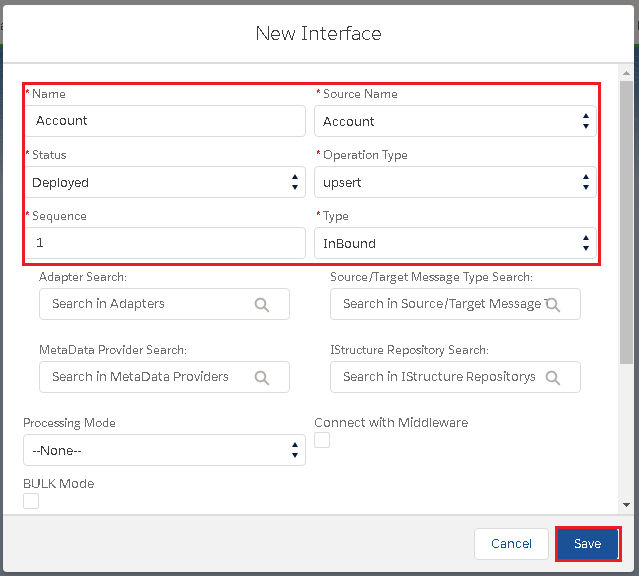
Name: It can be Account, Contact or Case.. etc to notify your Interfaces Statue: Deployed (It can be used) Sequence: Ranking number (1) Adapter: It is the connector Source Name: Salesforce Objects (Account, Contact or Case.. etc.) Operation Type: There are 4 types:
- Upsert: To update on existed data and insert new data that doesn't exist yet in Message Monitoring.
- Update: Only update on data that is already existed in Message Monitoring.
- Insert: Add all data in the Message Monitoring.
- Delete: Delete all data in Message Monitoring
Type: There are two types of interfaces:
- Inbound: Import data into Salesforce
- Outbound: Export data outside SalesforceNote: Upsert is usually used since it can update on the existed data and add new data into Message Monitoring then Save.
Batch (Asynchronous)
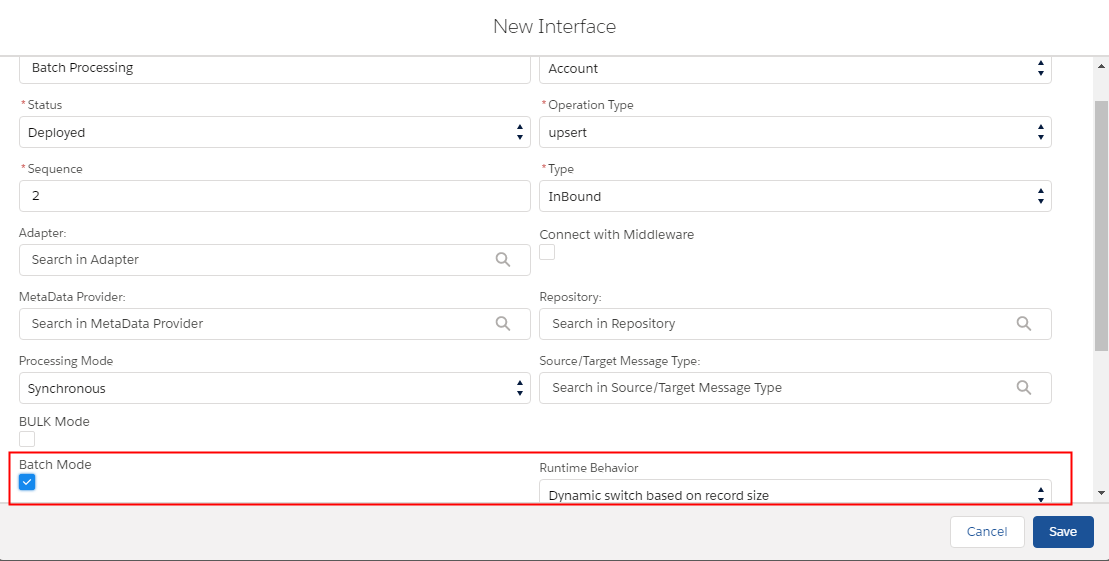
Batch Mode has been used when there are big amount of data you would like to upload. It is bigger than Synchronous and real-time. When you prefer to use Batch Mode
- Clicks on Interface
- Click on Edit
- Checks on Batch Mode.

The bulk (Asynchronous)
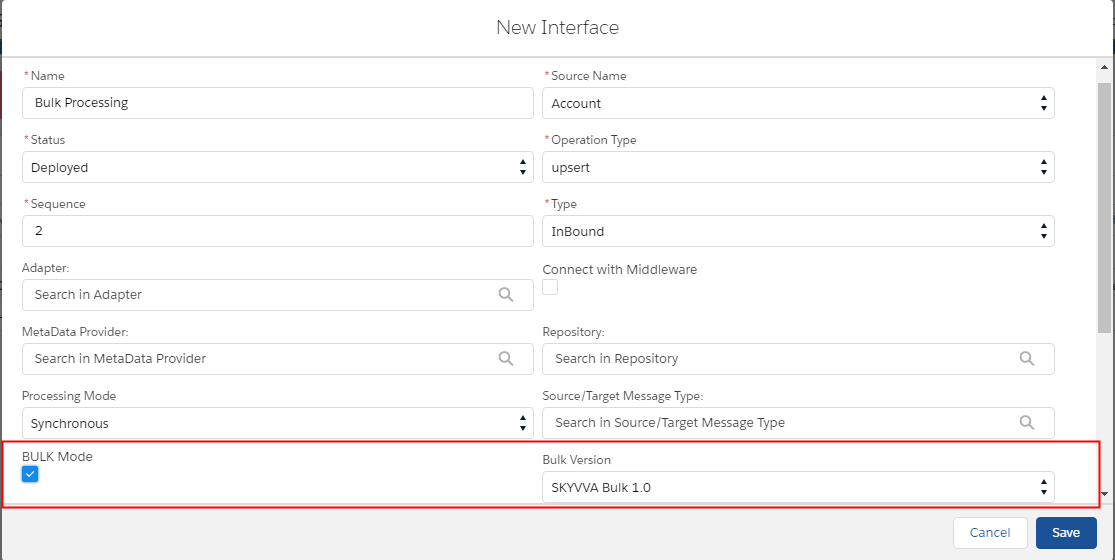
Bulk Mode has been used when there are a mass amount of data you would like to upload. It is larger than the Batch mode. how to configure bulk mode: - We have to checks on Bulk Mode
The Manual processing on Agent Control Board and SAP Control Board
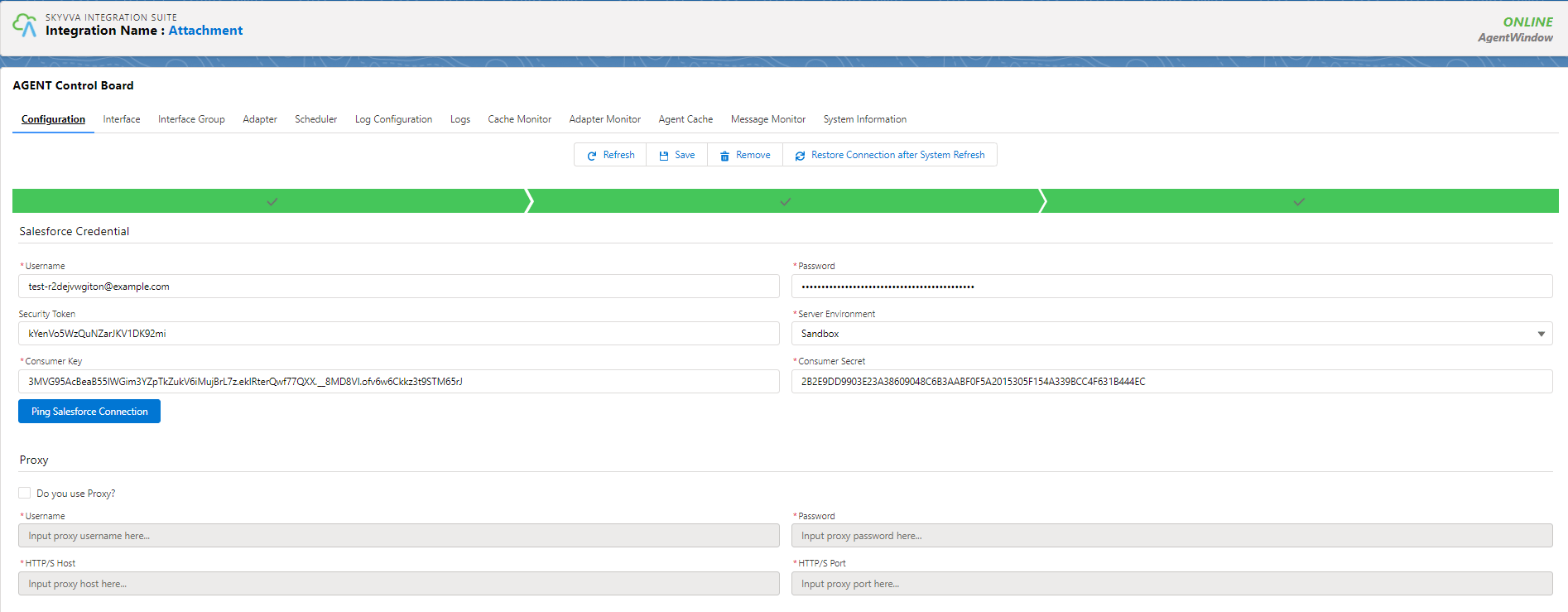
We using Manual Processing to execute data in real-time which is useful when user configuration already with Interface and adapter. Manual Processing is working on the Agent control board and SAP Control Board. To use manual processing to execute Inbound we need to linked Interface with Agent Adapter or SAP adapter. How to use Manual processing: - We have to connect destination on Agent control board or SAP Control Board
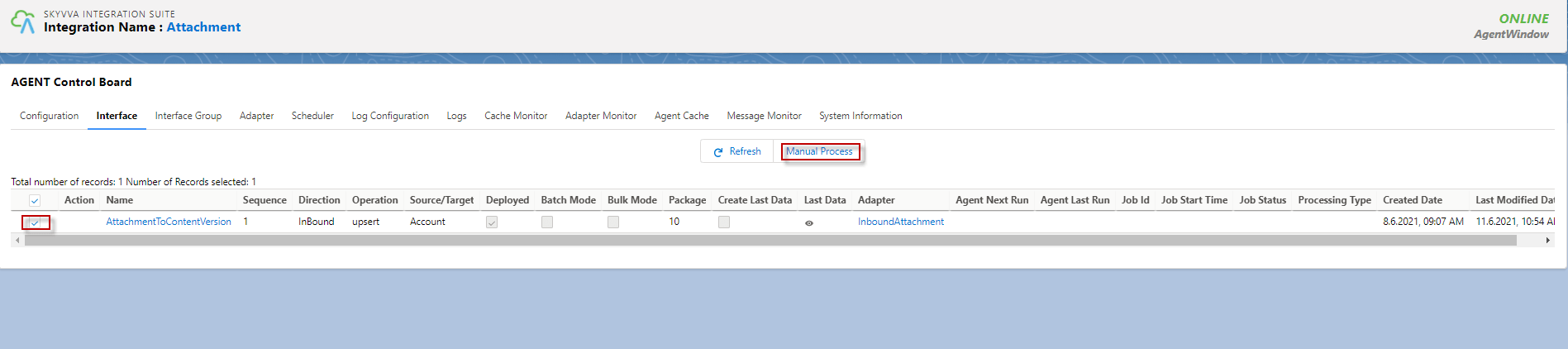
- Go to tap Interface select Interface and click the manual process button.
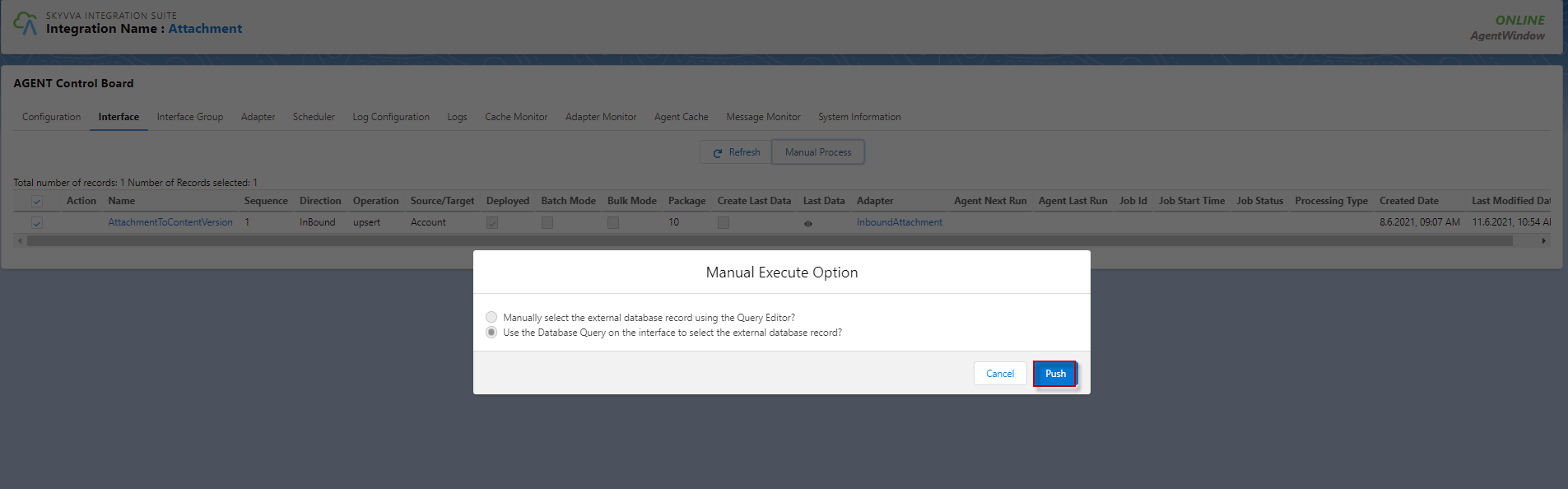
- After we click the Manual Process button we need to click the push button.
The Interface Execution Scheduler.
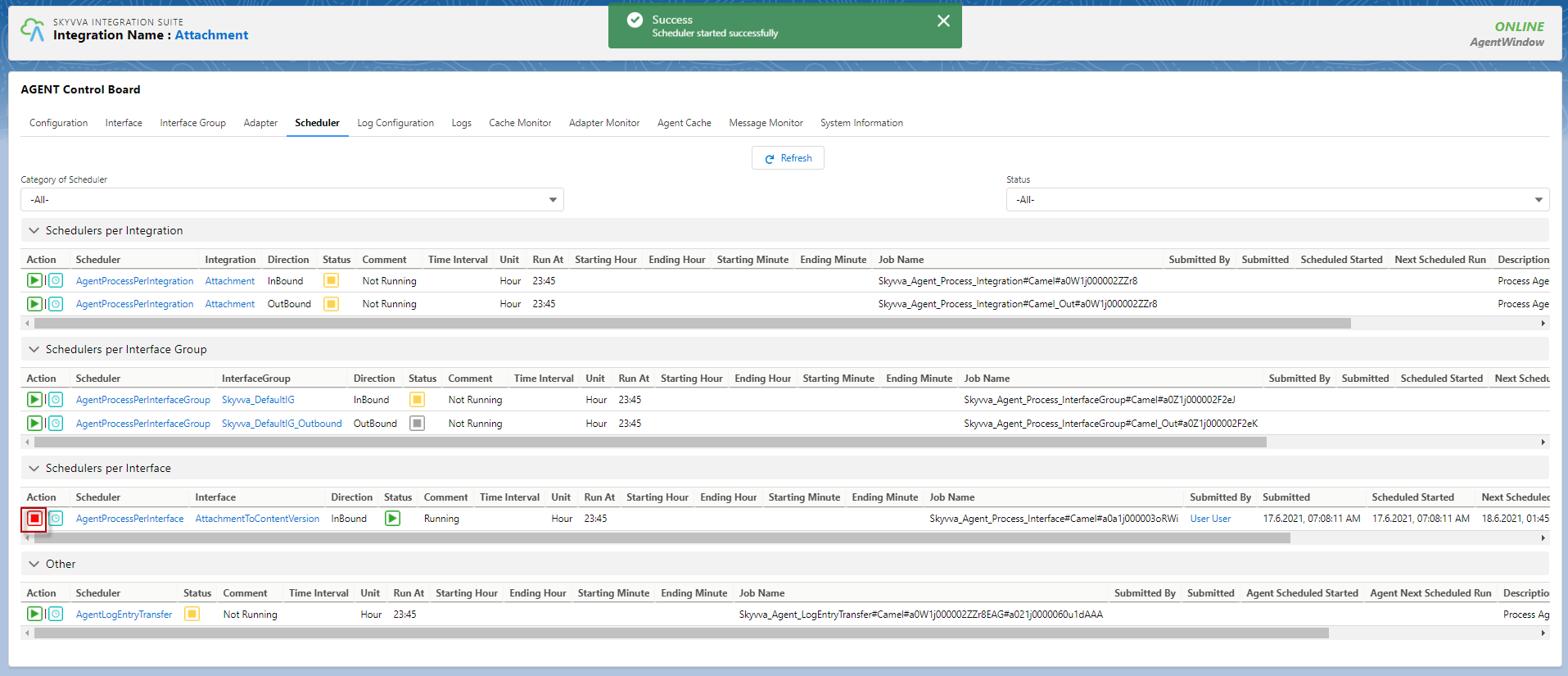
We can use Scheduler for execution data on the Agent control board or SAP Control Board. This function is helpful for user who needs to processing by set time that they want. To use scheduler we need to configuration Interface with agent adapter or SAP Adapter then we need to connect the destination on the Agent Control board or SAP Control board depend on which adapter we are using. How to use Scheduler for executing data. - We have to connect destination on Agent control board or SAP Control Board
- Go to Scheduler tap and set the time that we want to process on Scheduler per Interface by clicking Clock.
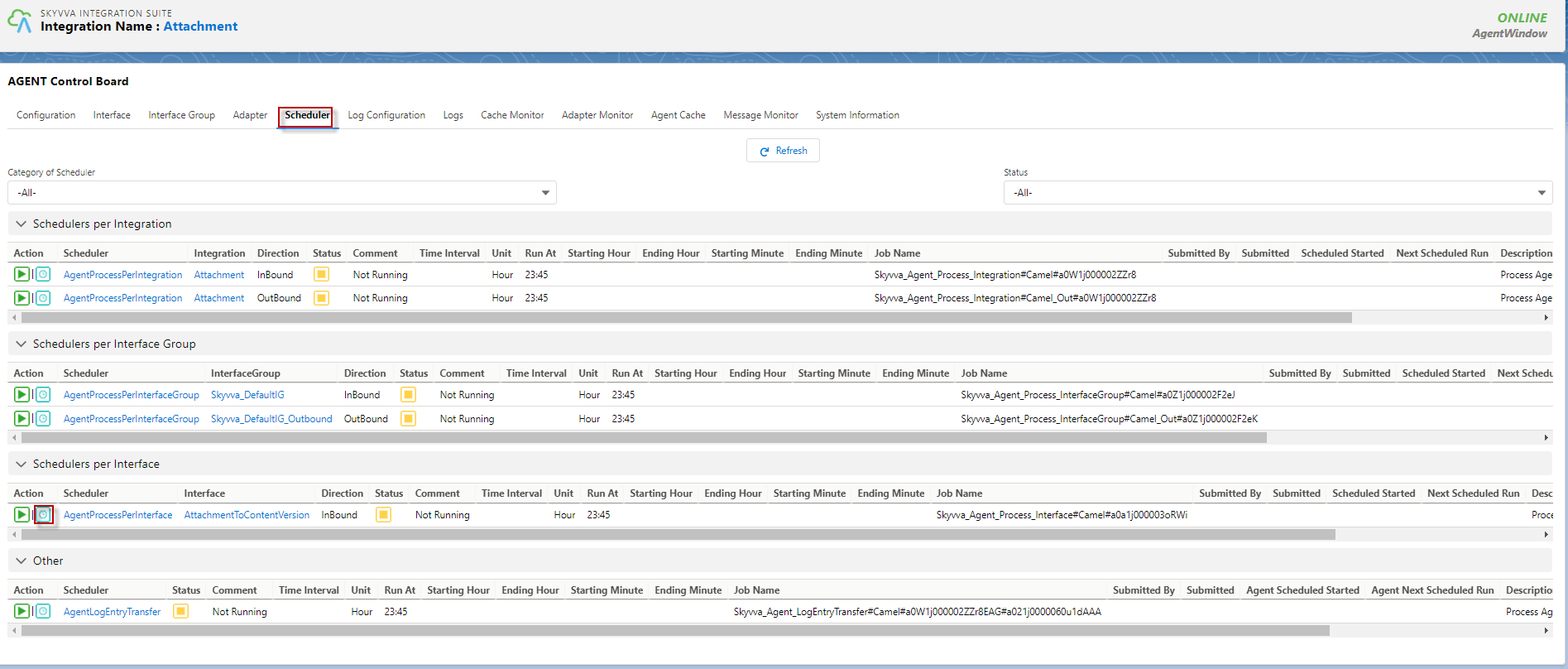
- Then we can choose to run for every minute, every hour or set a specific time for running.
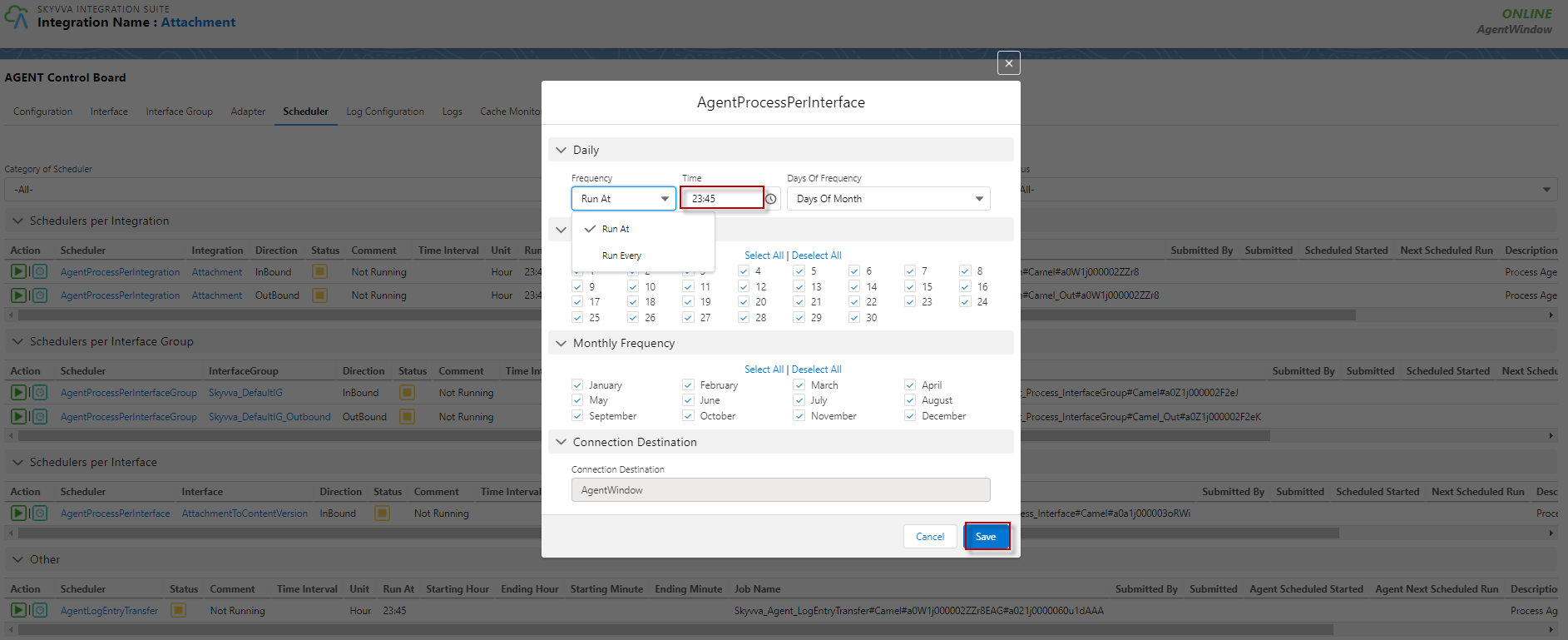
- Then we can click Start Scheduler