6. How to processing Headerless CSV Payloads with SKYVVA V4/integrate API
Overview
This tutorial walks you through the full process of sending a headerless CSV payload to Salesforce using the SKYVVA V4/integrate API. Because the CSV has no header row, the integration layer parses and maps field values by column position rather than by header names.

Prerequisites
Before starting, make sure the following are available:
- Access to the SKYVVA V4/integrate API endpoint
- Postman (or equivalent HTTP client) installed and configured
- A Salesforce org with the SKYVVA package installed and appropriate permissions
- A SKYVVA Repository and Metadata Provider already configured
Part 1: Configuration
Complete the following three steps once to set up the integration. If the MessageType, Inbound Interface, and mapping are already configured, you can skip directly to Part 2.
Step 1: Create the MessageType
Use the Open Editor to generate the MessageType and its FieldEntry definitions. The column headers you enter must match the order of the data columns in your payload.
- Go to the Repository details page and click Open Editor.
- Choose file type: CSV.
- Set CSV Separator: , (comma). The API also supports semicolon ( ; ), tab ( \t ), and pipe ( | ) delimiters. To use a different delimiter, simply select the corresponding separator here and update your payload format accordingly.
- Click Next.
- Enter the column headers in the order they correspond to the data columns. The separator used here must match the CSV Separator selected in step 3 (e.g. use comma if your payload uses comma):
Accnumber,accname,accbillingcity,accbillingcountry,accdescription,acccreatedate,accdatetime,accamount,accquantity,accpercentage
- Click Next.
- Set Root MessageType Name: AccountCSV.
- Set Data Structure: flat.
- Click Save.

Step 2: Create the Inbound Interface
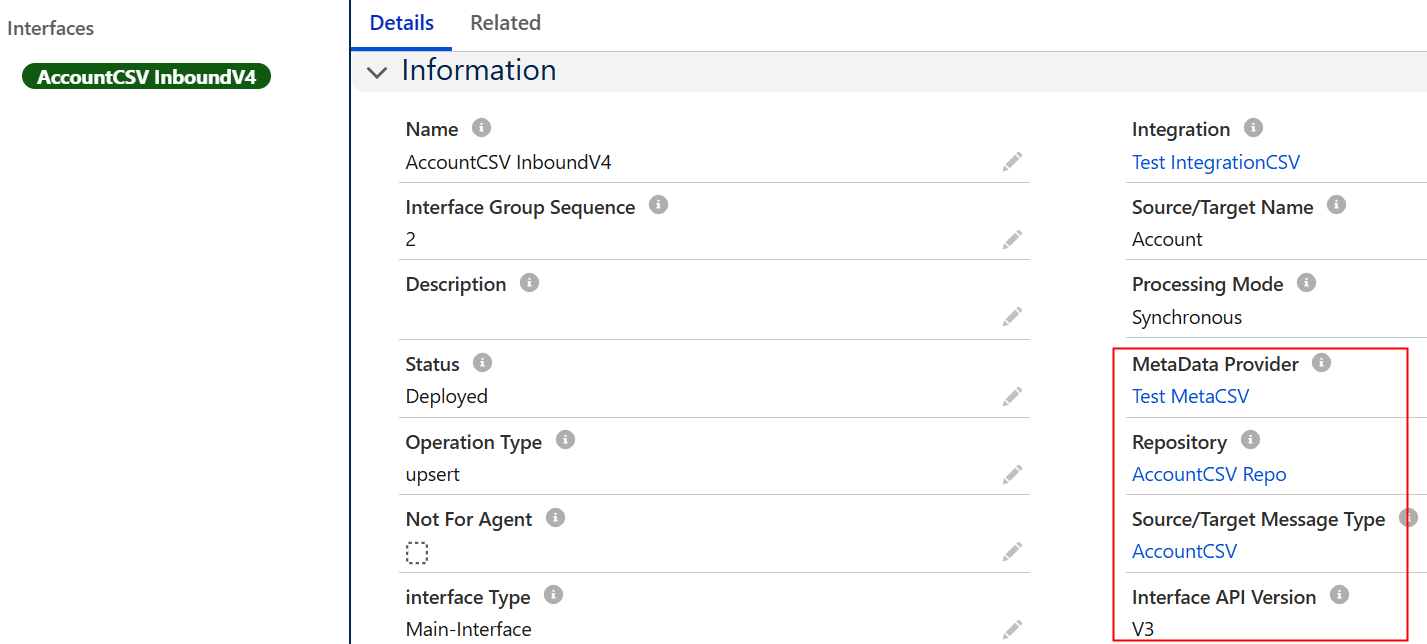
Create an Inbound Interface and link it to the Metadata Provider, Repository, and the MessageType created in Step 1.
Step 3: Configure the Field Mapping
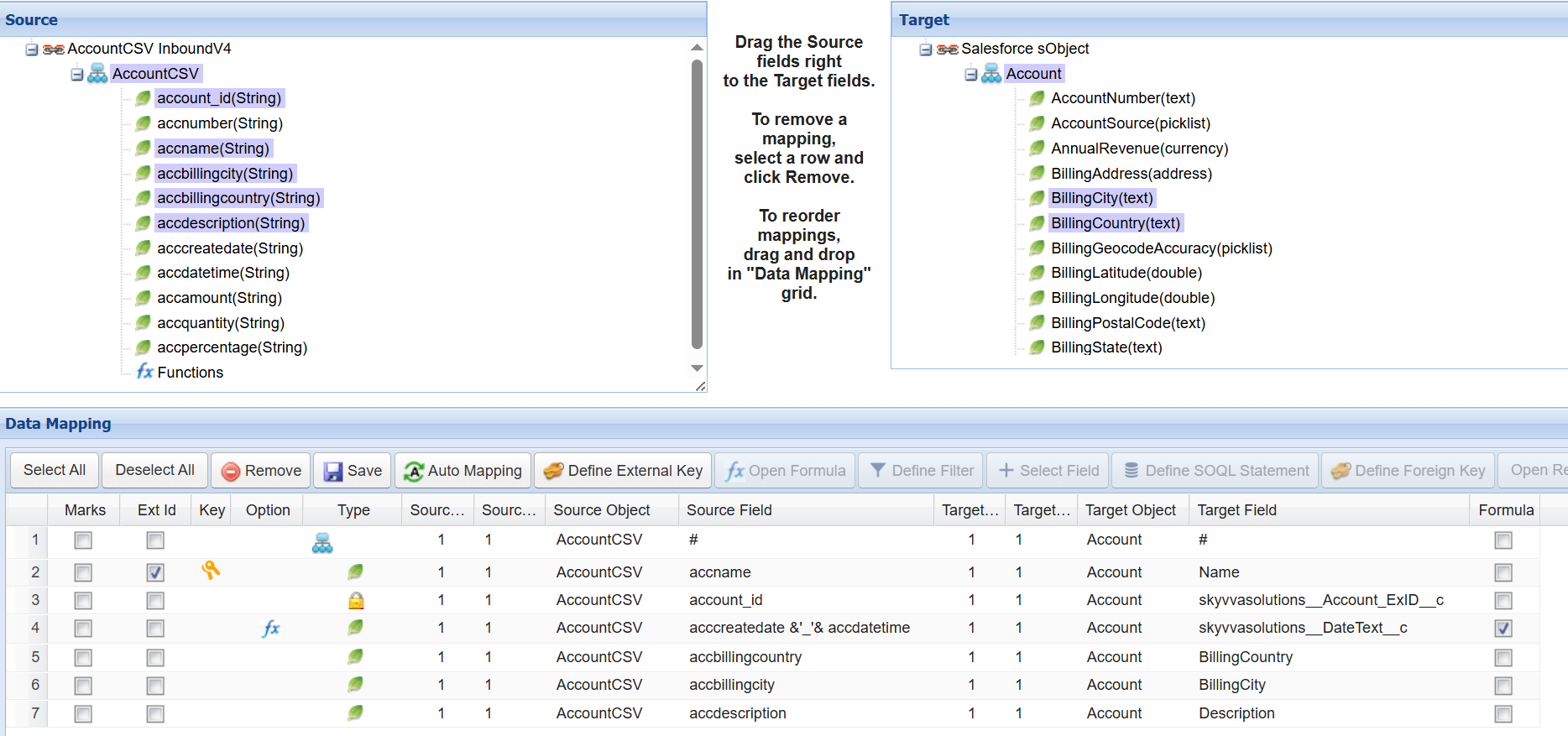
Open the Mapping tool and map each FieldEntry (source column) to its corresponding Salesforce object field (target). Each column position in the CSV must be mapped to the correct Salesforce field.
Part 2: Sending the Payload and Verifying Results
With the configuration in place, follow these steps to send the CSV payload and confirm it is processed correctly.
Step 4: Send the CSV Payload via Postman
In Postman, send the CSV payload to the SKYVVA V4/integrate API endpoint. Set the query parameter csvHasNoHeader=true to instruct the integration layer to process the file without a header row. The screenshot below shows a comma delimiter; if you are using a different delimiter, ensure your payload matches the separator configured in Step 1.

Use the following comma-delimited payload (3 sample records). If using a different delimiter, update the payload format to match the separator configured in Step 1:

Step 5: Verify in Message Monitoring
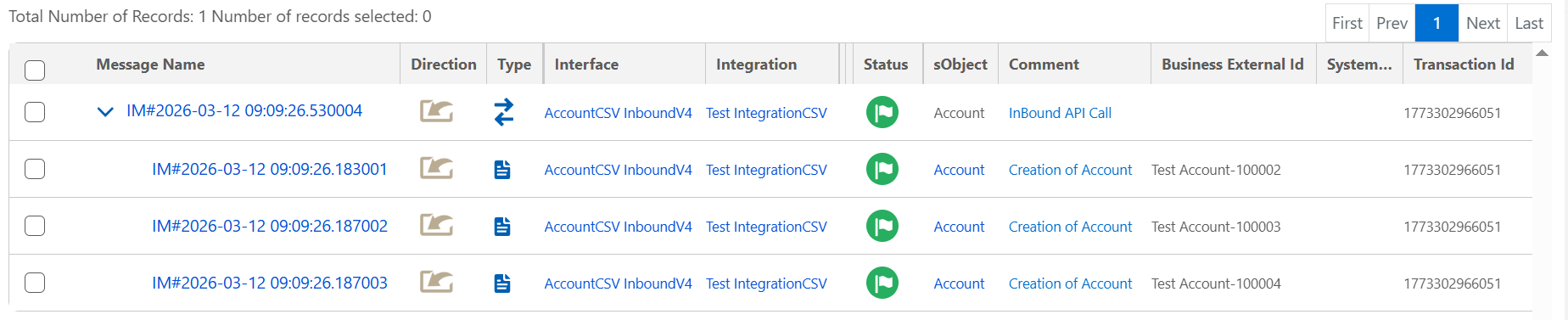
After sending the payload, open Message Monitoring in SKYVVA and confirm that the message status is green. A green status means the payload was received and processed without errors
Step 6: Verify Salesforce Field Values
Navigate to the Salesforce records created by the integration. Confirm that all field values are populated correctly and match the data in the CSV payload, following the column order defined in the mapping.

Summary
In this tutorial, you configured the SKYVVA V4/integrate API to process a headerless CSV payload using a comma delimiter. The integration layer parsed the data by column position and mapped it to Salesforce fields according to your mapping configuration. Always set csvHasNoHeader=true when your CSV has no header row, and ensure the column headers in the MessageType match the exact order of your data columns. A green status in Message Monitoring confirms successful processing. The same configuration pattern applies to semicolon, tab, and pipe delimiters — simply update the CSV Separator in Step 1 .