12. Pass data from screens or apex class to the outbound processing.
We can pass data from the screen and apex class where the data is going into the mapping instead coming from the database through the select statement in the interface. The caller is an apex class and use the class method invokeCallout2(). Inside this method we have a map parameter where the user can pass name/value pair to the method. The map with the key/value he has to build in the apex caller program.
Why and when to use Screen and apex class to pass data?
We always need to pass the sObject Id to select the data from the database. Here requirement is that user doesn't want to select data from the database. The data is coming from a screen and they want to make a call to SAP with that data. We have to pass the data which user enters into a screen to invokeCallout2() They don't want to have the data to be written into a table in Salesforce. Just whatevere user enters in the screen need to be put a request for the HTTP callout through the SFDC2SAPPI or other adapters. They would use customer class in the outbound interface, so they can extract data themselves. [su_box title="Note" box_color="#2a8af0" title_color="#000000"]“The callout is done in mode SYNC only. Future and batch are not needed in this scenario[/su_box] The data which he build into the map can come from screen or just a constant or data he select himself with select statement. The data is not coming through the select statement in our outbound interface. There is different way to build the map and fill with data.
- From Screen:from screen means that you have to write apex code to read data from screen first and then put into the map.
- From Apex: from apex means that you can set the map with constant value or read from the table or call first google API get the response and put the response into the map.
Steps to use the API invokeCallout3() to pass data from the apex class:
When user executes callout api to pass data They can use invokeCallout2() or invokeCallout23() API. Here we are using SOAP adapter for outbound processing. Step1: Create Adapter
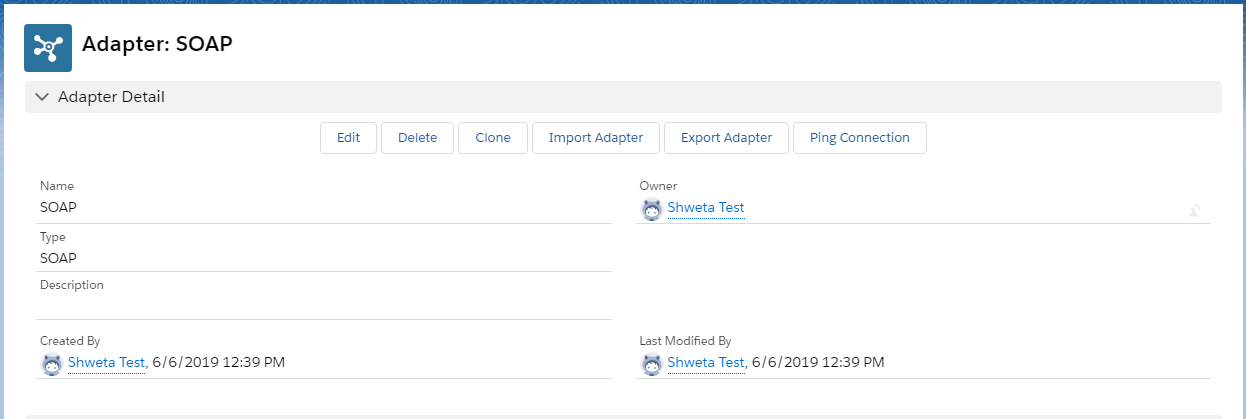
- First Insert Adaptor Record By giving prefer Name and select Type = SOAP
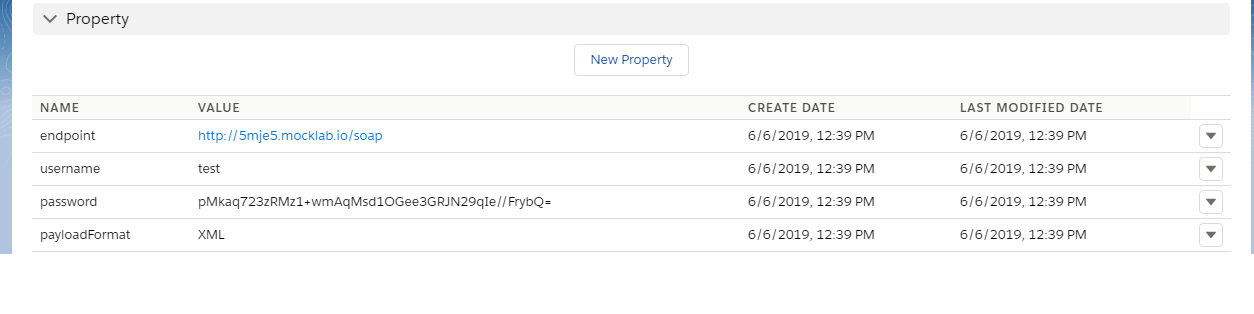
- Now Insert Properties: If Need Authorization
- Endpoint: “” , Insert Endpoint URL where Request will direct
- Username: “”, Your Endservice UserName
- Password: “”, Your Endservice Password
- Authentication: “BASIC”
Example: : [aux_code language="javascript" theme="tomorrow" title="" extra_classes=""]
- Type: SOAP
- Endpoint : e http://110.74.222.147:9292/xml
- Authentication : Basic
- Operation : Post
- Username: e … admin
- Password : e … 12345 [/aux_code]
We can handle if the business has URL Query Parameter and HTTP Header [aux_code language="javascript" theme="tomorrow" title="" extra_classes=""] URL Query Parameter : ?pCity={!City}&pCountry={!Country} HTTP Header : Content-Type:Application/xml|{!LastName}:{!FirstName} [/aux_code]
Step2: Create Message Type
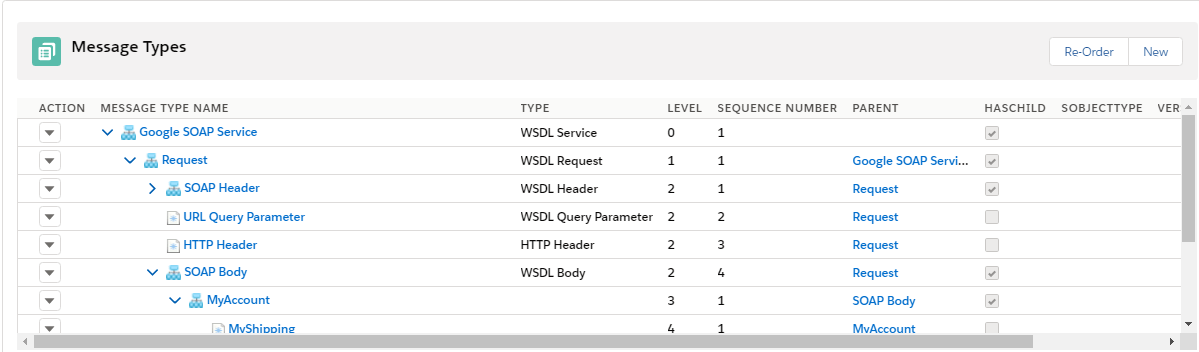
For the Message Type , you have to use our defined Structure Defined Structure . Here is SOAP tamplate created by Message Type for build xml payload:
Step3. Create Integration. Refer tutorial (How to create integration.)
- Link adaptor we created earlier
- Max Number of Retry (This means a number of times should we retry if the request fails the first time).
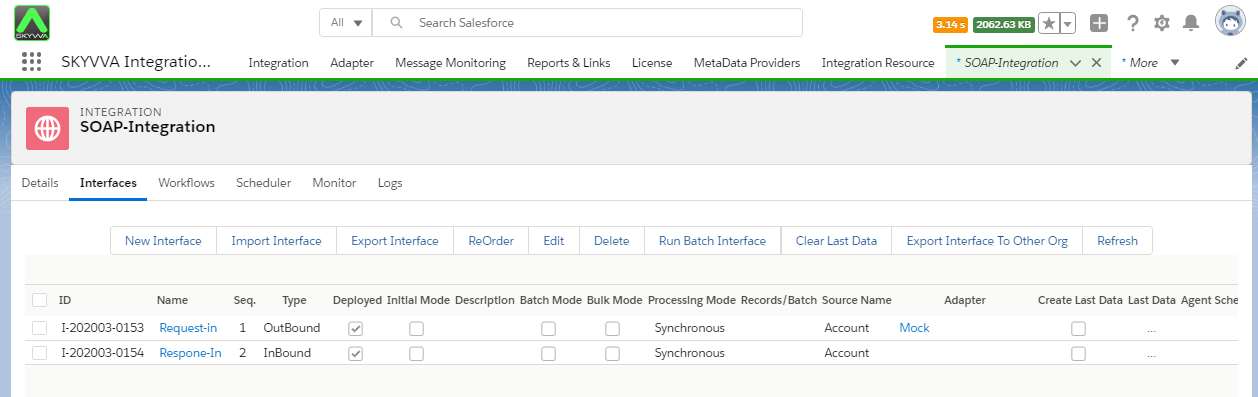
Step4. Create Interface (Inbound/Outbound). Refer tutorial to create Interface. (How to create Interface?) Create outbound Interface for request Must fill this fields of Outbound Interface : 1. Outbound Adapter: Select we created earlier
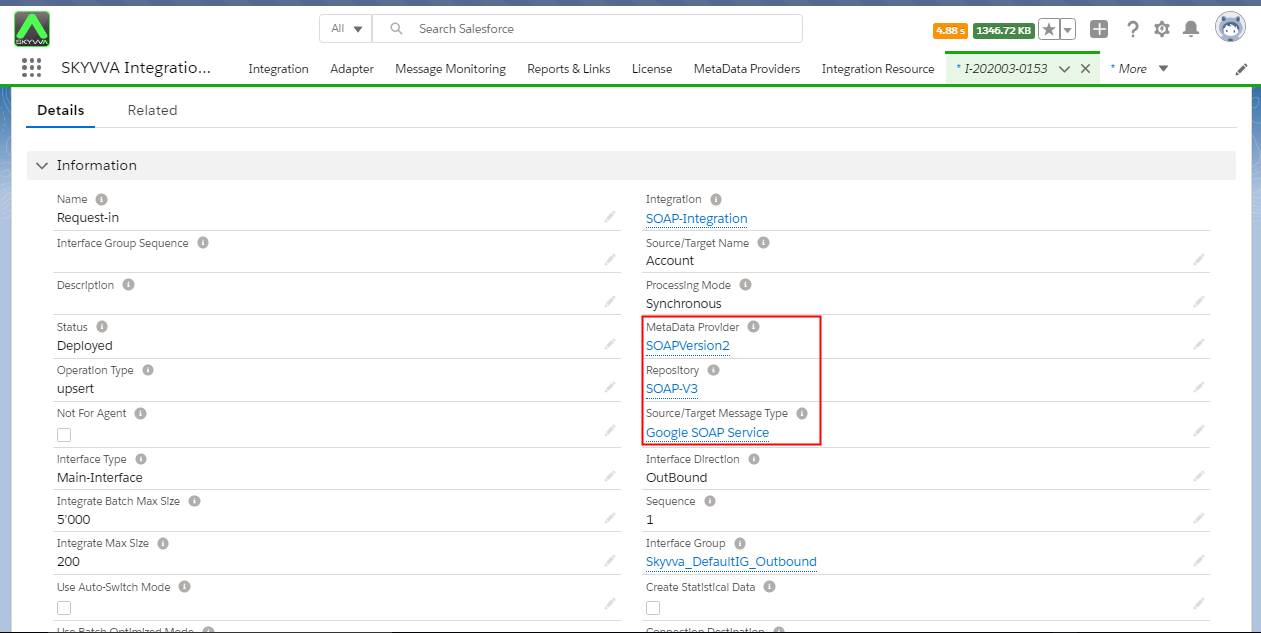
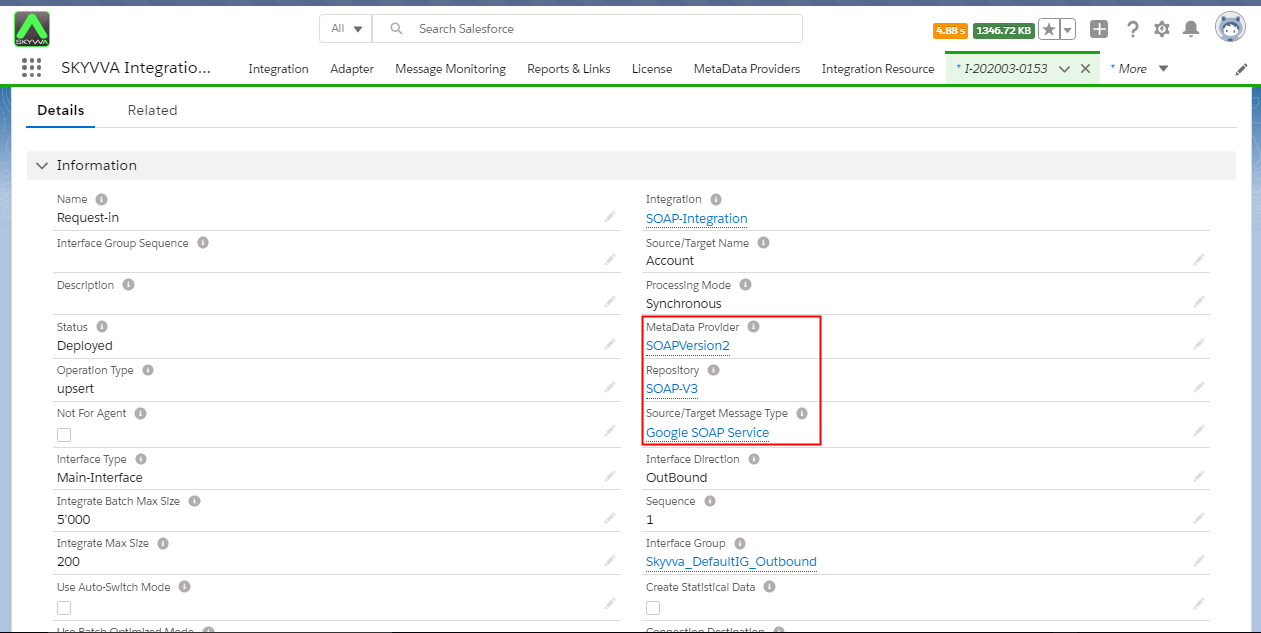
2. Metadata Provider: Select we created earlier
3. IStructure Repository: Select created iStructure Repo.
4. MessageTypes: Select MessageType (Selected MsgType TYPE should always be WSDL REQUEST)
5. Source/Target Name: Select Any Object
6. Query: Query needs to be inserted and the query should always include all fields we have mapped or going to map.
7. Map Fields
Scroll down the page to the mapping section. when we get the response and we will get both header and body so based on mapping we will perform DML operation for the data we got in response
Now callout the data with a developer console. Go to developer console and enter this code to Execute Anonymous window. [aux_code language="javascript" theme="tomorrow" title="" extra_classes=""] skyvvasolutions.CallOutControl c = new skyvvasolutions.CallOutControl(); c.returnXML=true; c.returnListRecord=true; c.isCreateMessage=true; String[] ids= new String[]{'0016F000033uIHKQA2'}; skyvvasolutions.CallOutResponse r = skyvvasolutions.Iservices.invokeCallout2('SOAP INTEGRATION','SOAP REQUEST',ids,'SYNC',c); [/aux_code] You can check result on message monitoring

Steps to use the API invokeCallout3() to pass data from the Screen:
User wants to pass the data of account or any hierarchical objects from the screen then they have to write apex code to read data from screen first and then put into the map. And for it they have to create screen in salesforce.
- Create Screen
Let's take example of screen.

2. Enter the value in the UI. When ever any field value is upadted, upsert from UI or screen back end trigger executed automatically. So enter the value in fields of your screens and click on Submit button. Here we are taking example of above screen. For example: [aux_code language="javascript" theme="tomorrow" title="" extra_classes=""] apiKey-> /rest/get/mock/service clientSecret-> 'Account1' privateToken-> 'All' [/aux_code] Read data by apex code When Value is change from UI it read by apex code. When trigger executed it will read updated value. [aux_code language="javascript" theme="tomorrow" title="" extra_classes=""] public class EventBriteConnectionController { Public EventBriteConnectionController(){ } @AuraEnabled Public static Map
Call invokeCalloutV3() We have to call invoke callout3() to pass the data we entered into a screen.
skyvvasolutions.CallOutControl c = new skyvvasolutions.CallOutControl(); c.returnJSONComplete=true; c.actionDoIntegrate=true; c.isCreateMessage=true; c.pathParam = pathParam; c.queryParam = queryParam; c.headerParam = headerParam; String[] ids= new String[]{'0011X00000U5ryeQAB'}; //List