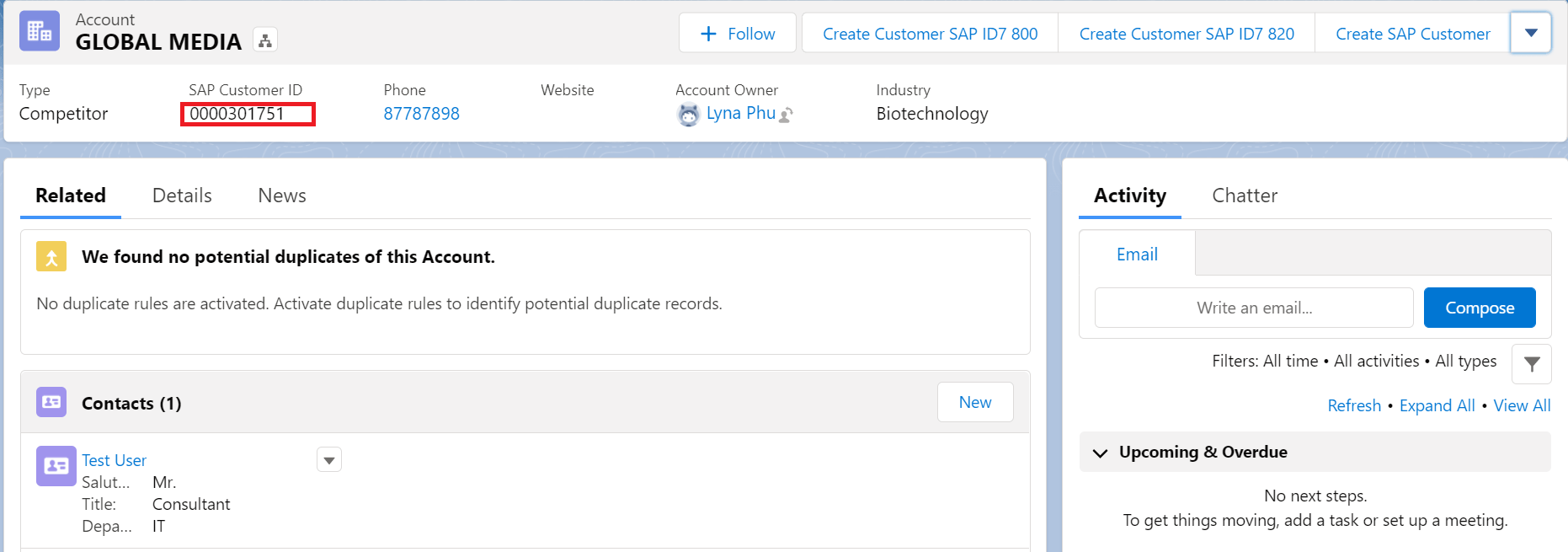
7.4 HOW TO CALL SAP S/4 HANA BAPI FROM SALESFORCE
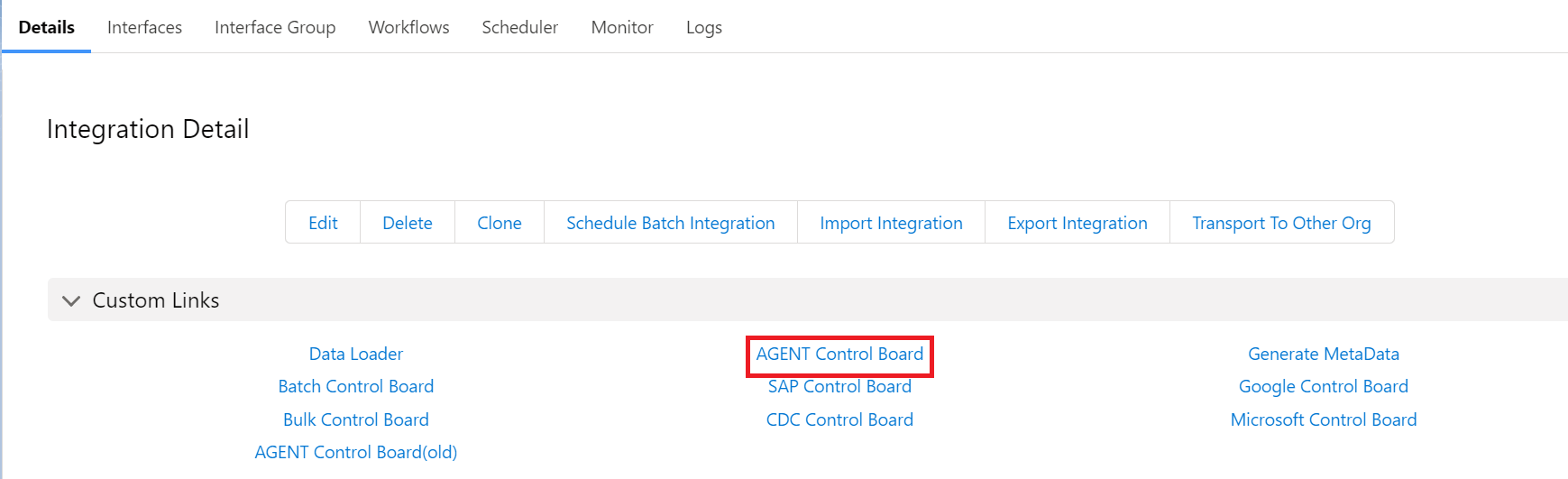
Posting BAPI to SAP S/4 HANA From Salesforce using Skyvva Agent S/4 HANA Adapter Importing BAPI/RFC's from Import SAP metadata To Import SAP metadata first we need to create Agent Connection in skyvva as shown below Go to Integration details tab and then select Agent Control Board
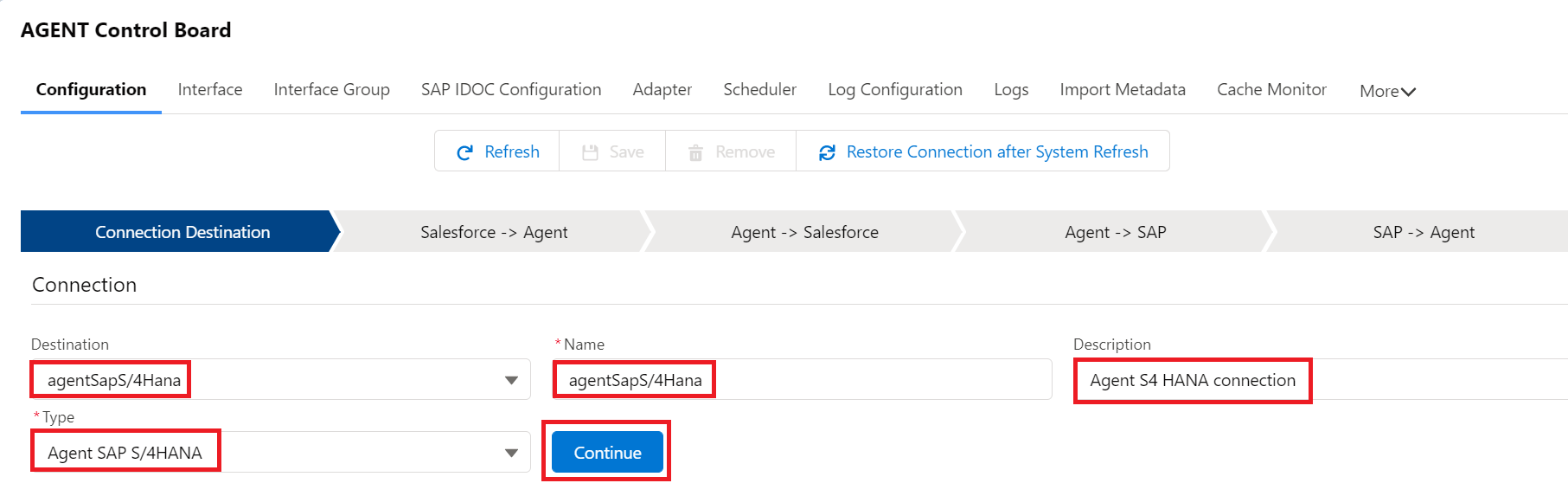
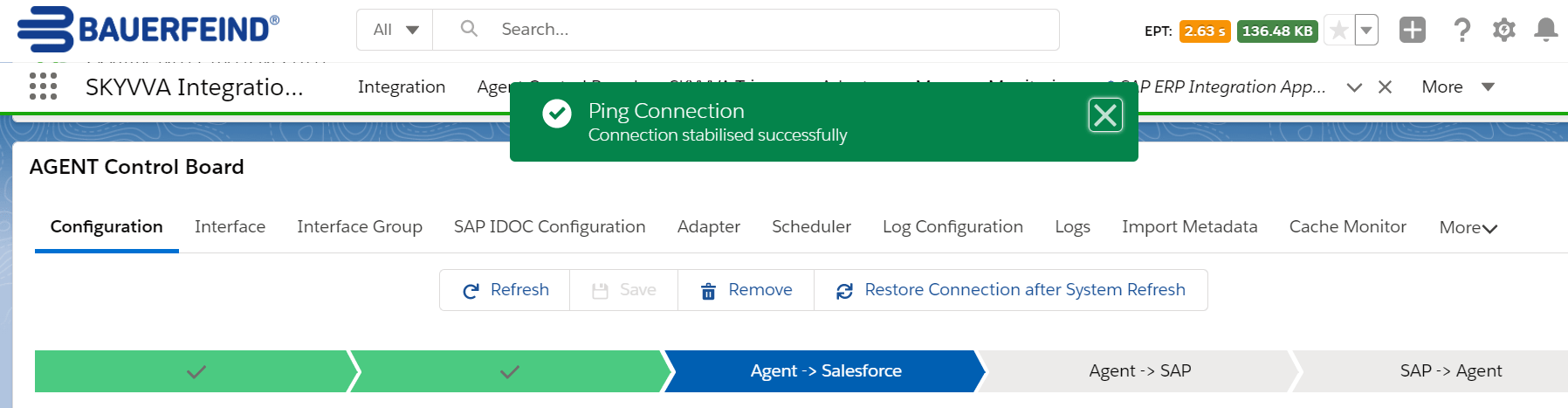
Provide the details as shown for the Agent and the SAP system In the Configuration tab. Provide the details
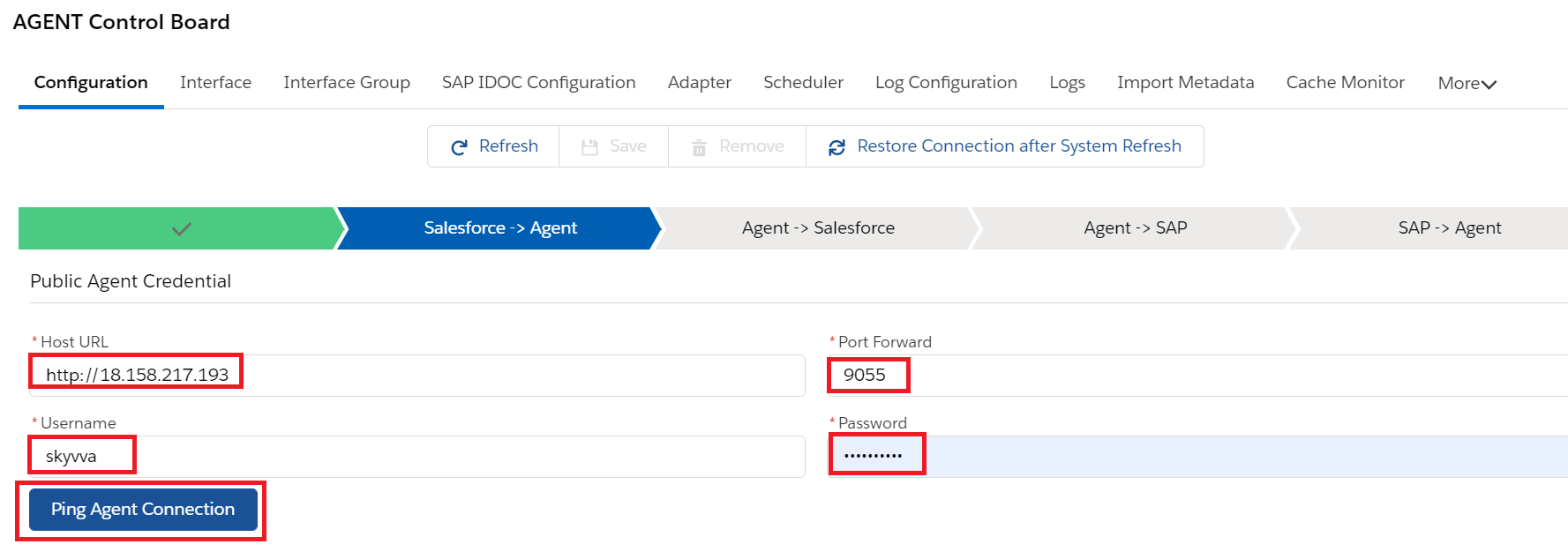
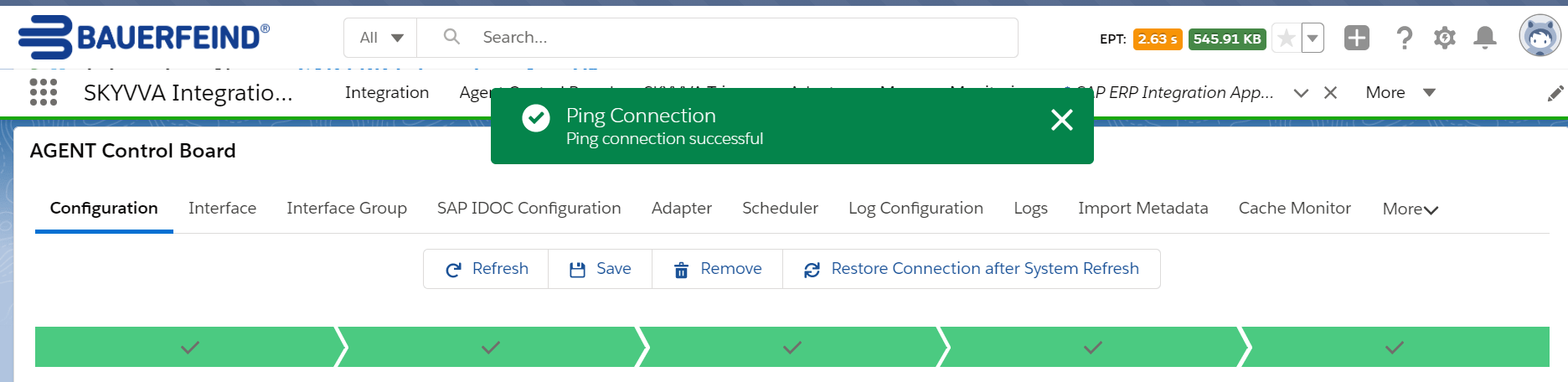
Once we provide the details we need to ping the Agent Connection. Then we can see the pop-up like its successfully connected to Agent.
Now we have to provide the salesforce details as shown below. Consumer Key and Consumer Secret we can get from the connected App.
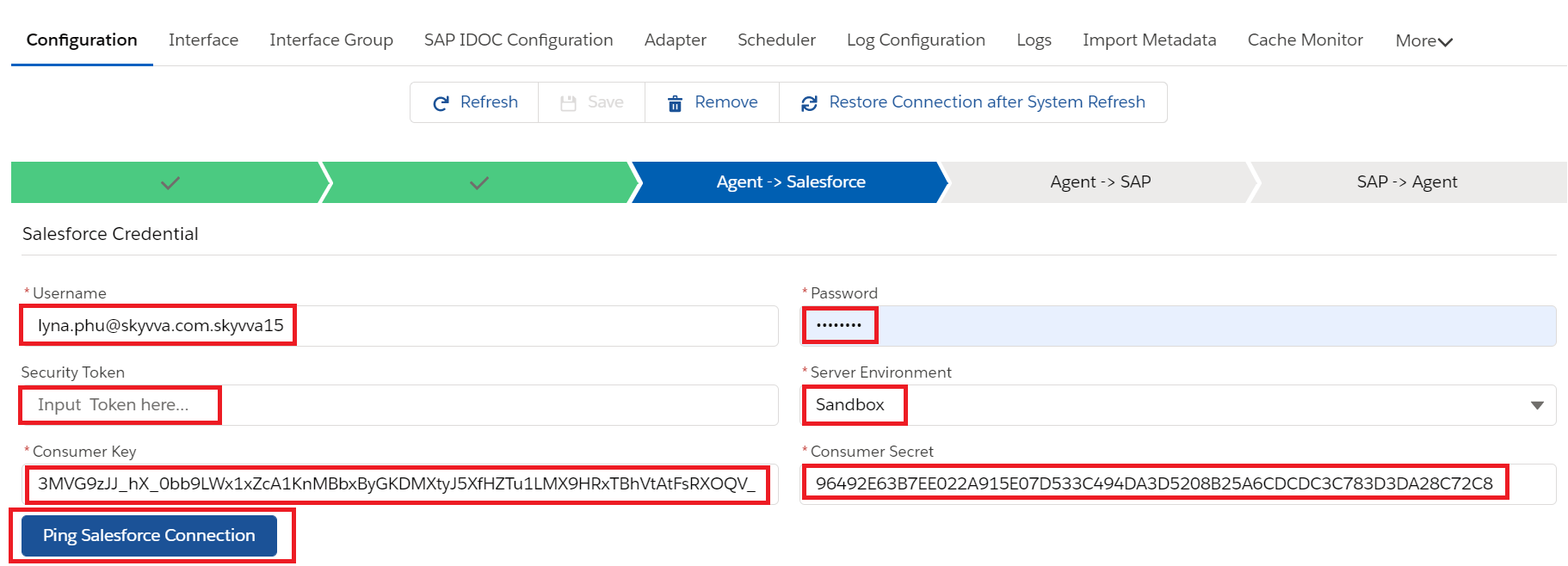
Click on Ping Connection of Salesforce to check if its connected successfully.

Next provide the SAP details like Host URL, Port, Username, Password, the reverse proxy path, SAP system client and the logical system name as shown below. Here we need to provide the sap configuration details as below Type: Agent S/4 HANA Logical System: tr5 Host Url: http://xxxx.com Port: 16xxx Username: xxxx Password: SAPID: System Id Client: 820
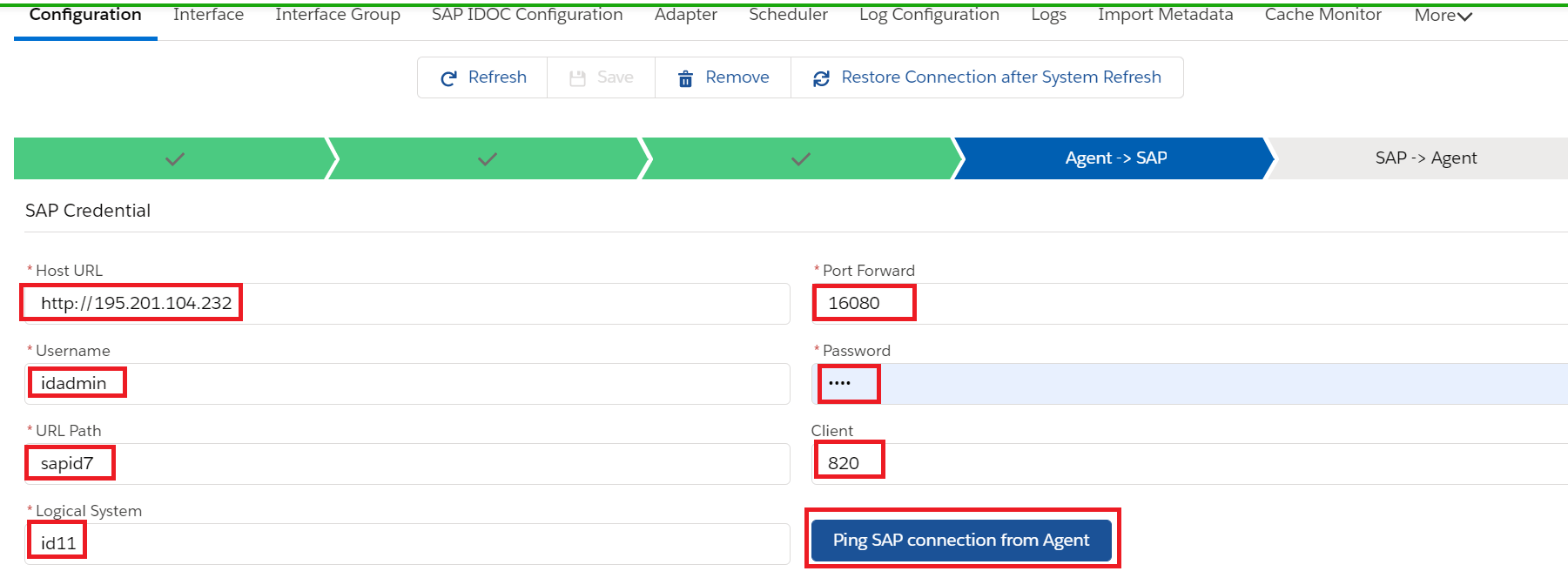
Click on Ping SAP connection from Agent if its connected successfully or not
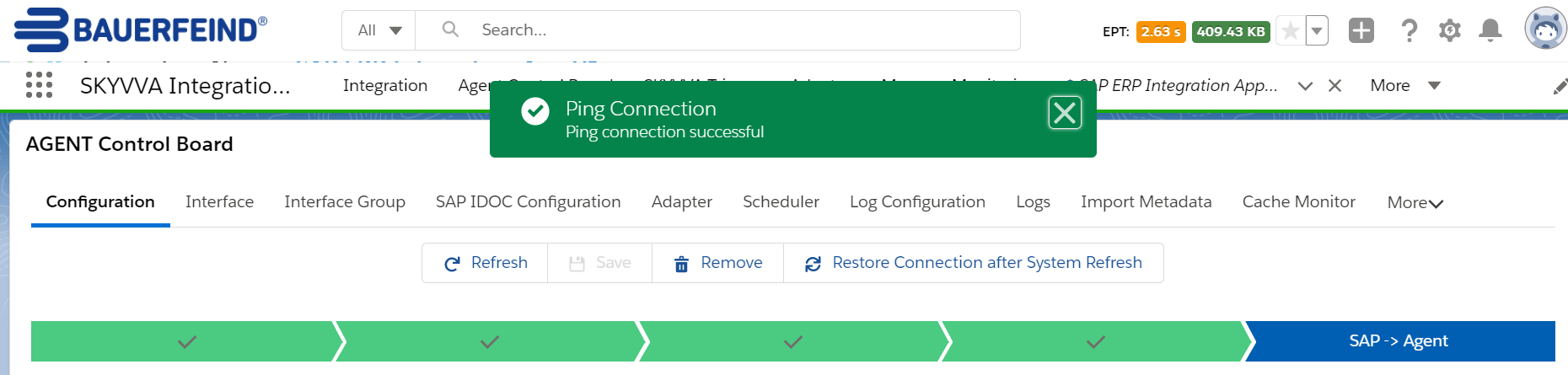
Again provide the details of Agent
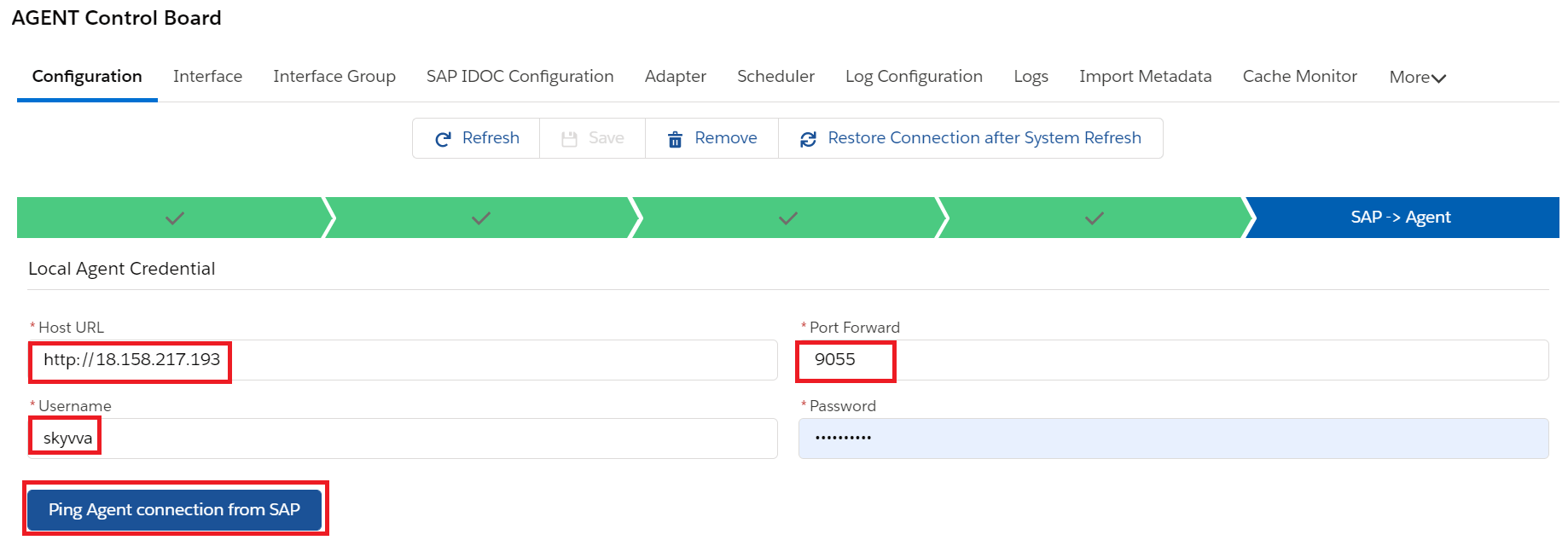
Click on ping connection of Agent
Save the connection after entering all the required details

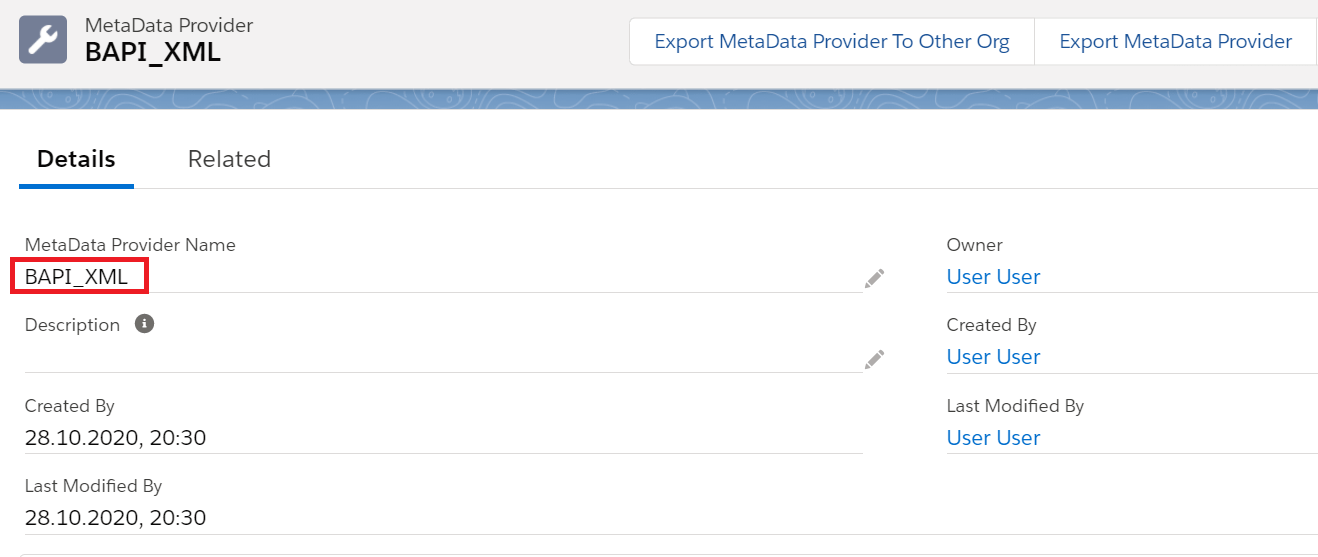
Create Metadata Provider
Create Repository

From the Repository Click on Import SAP Metadata Tab

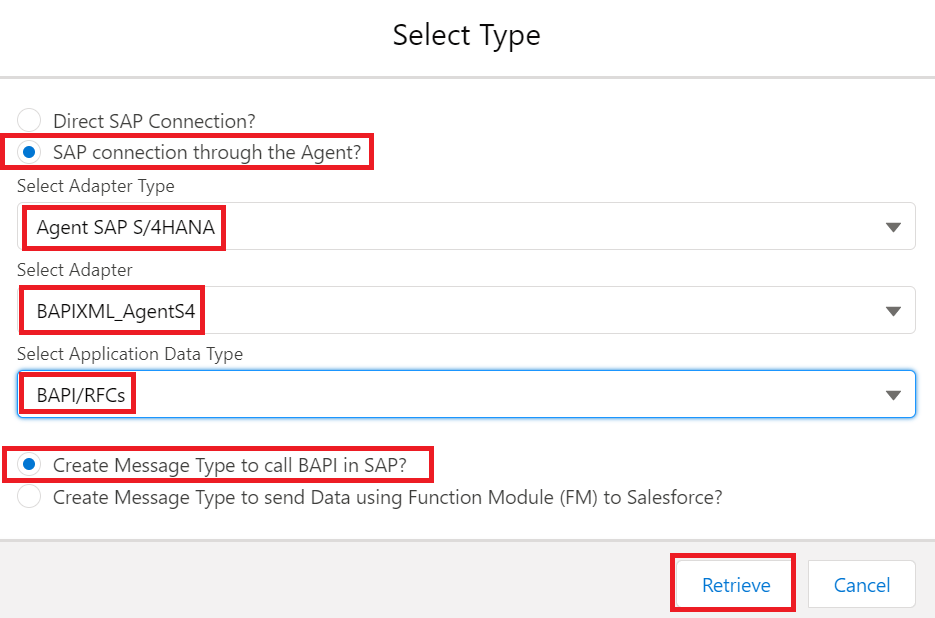
Here we need to select the SAP Connection through the Agent and select Adapter type which we created earlier in the Agent Control Board and Select the Application Data type BAPI/RFC's and then Select create message type to call in BAPI in SAP S/4 HANA Click on Retrieve after selecting all the above details as shown in the screenshot.
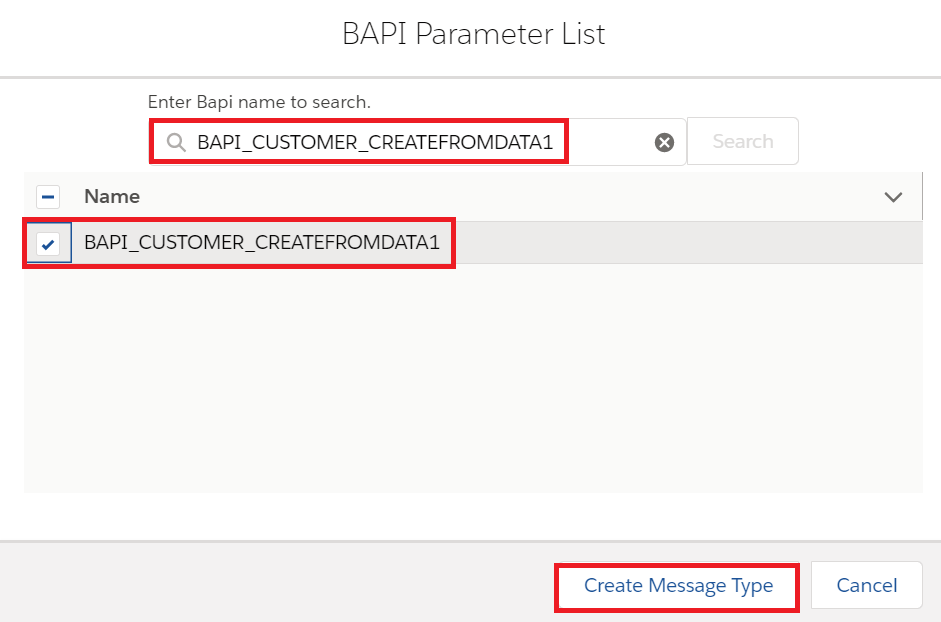
Select the BAPI name to create message type
Below is the message type template for BAPI
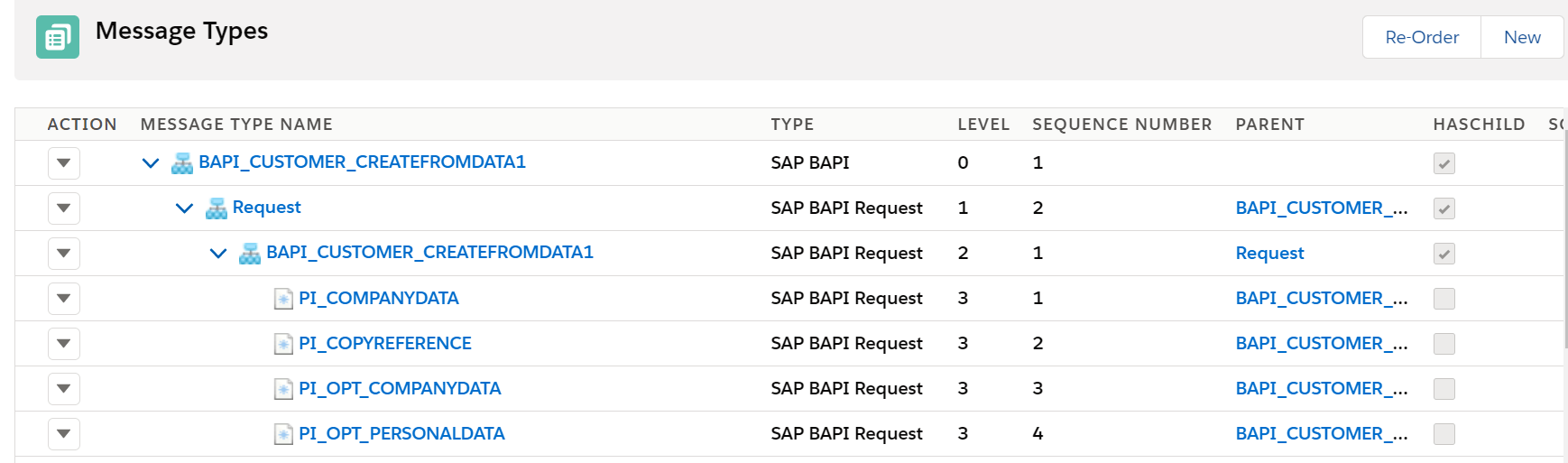

This message type we use in the outbound interface and inbound interface
Creating the Agent SAP ERP Adapter in Skyvva We need to provide the following details to create the Agent SAP ERP adapter Name - Name of the adapter Type - Agent SAP S/4 HANA Description - Agent S4 test Adapter Direction - Outbound Status - Active objectFormat - BAPI Connection Destination: agentSapS/4Hana
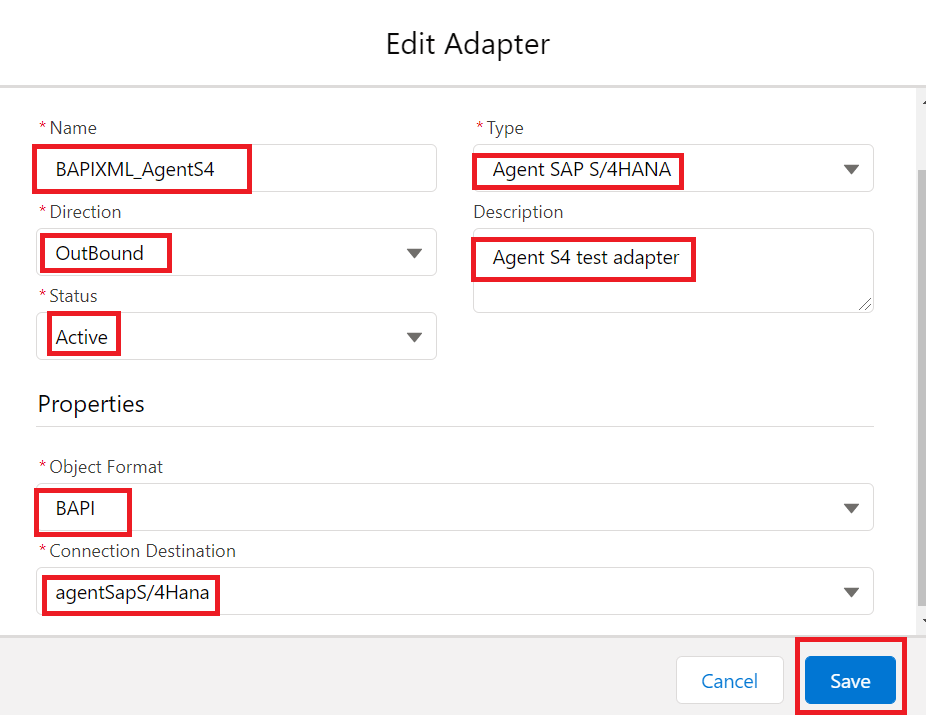
Now click on save button to create the adapter. Creating an Outbound Request interface: Provide the Name, sObject type, Description, Processing mode, Status, Metadata provider, Repository, Message type, outbound adapter and the SQL statement as shown in the screenshots below In the message type we have to select the root message type then it will automatically point to Request in the request interface and point to Response in the response interface. In our example BAPI_CUSTOMER_CREATEFROMDATA1 is the root message type as shown below.


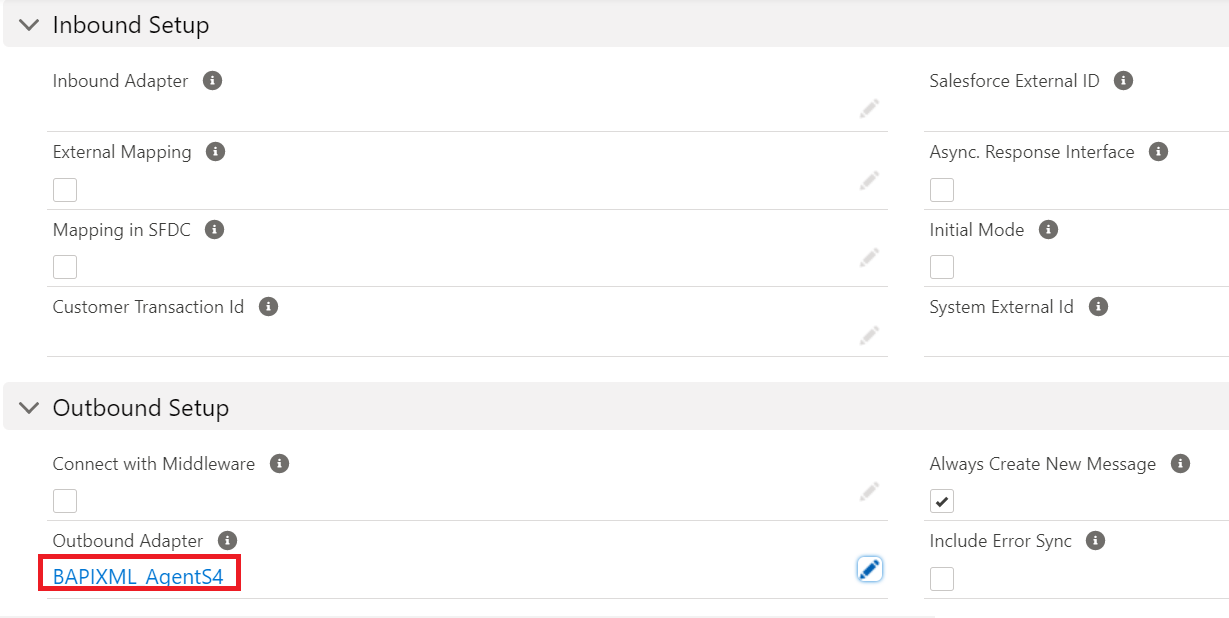

Add the response interface in the request interface.

For outbound interface we have to do mapping in Skyvva as shown.

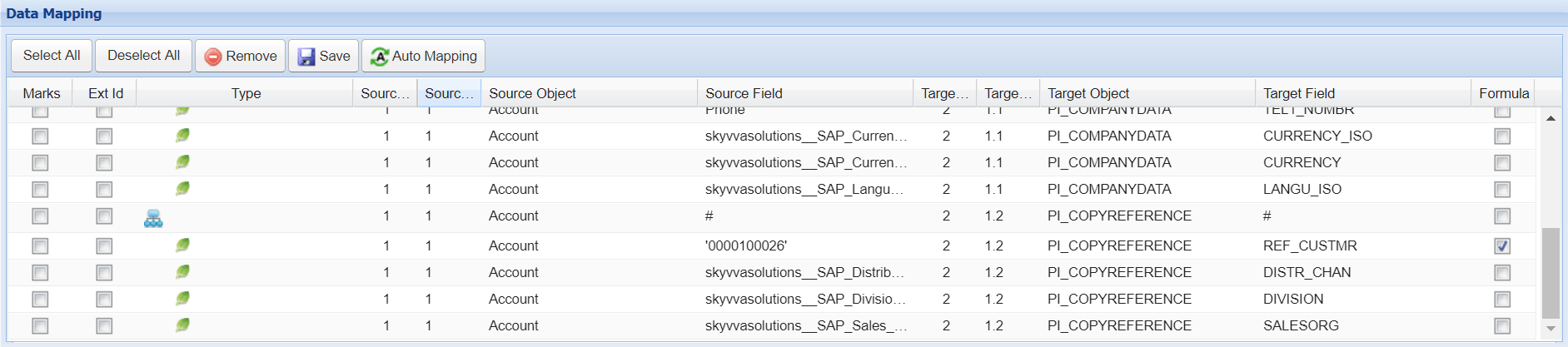
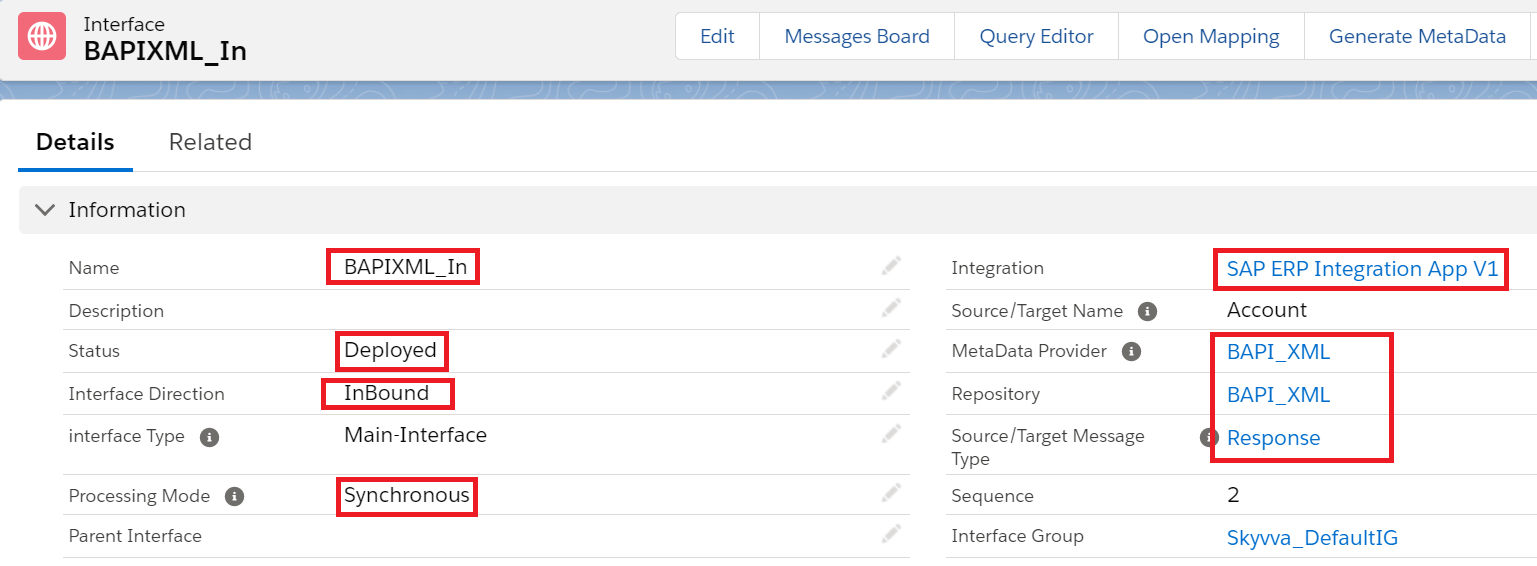
Save the interface once provide all the necessary details. Creating an Inbound Response Interface: Provide the Name, sObject type, Description, Processing mode, Status, Operation Type, Metadata provider, Repository, Message type as shown in the screenshots below
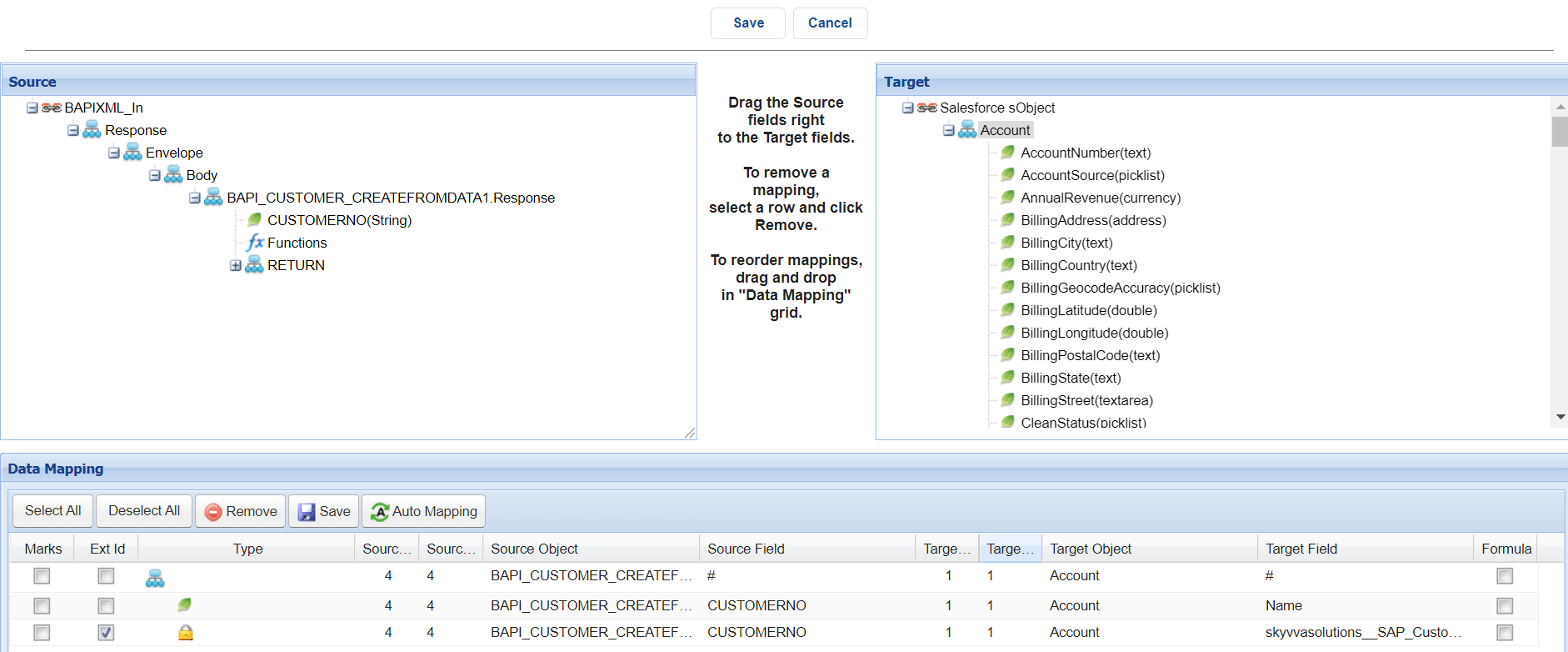
Do the inbound mapping as shown below.
Now we have to synchronize the cache to push the Integration, Interface, Adapter and Mapping to Agent H2 table. For that we have to go to cache Monitor in that select Object Name and Integration Name and Status and then click on Synchronize Cache.

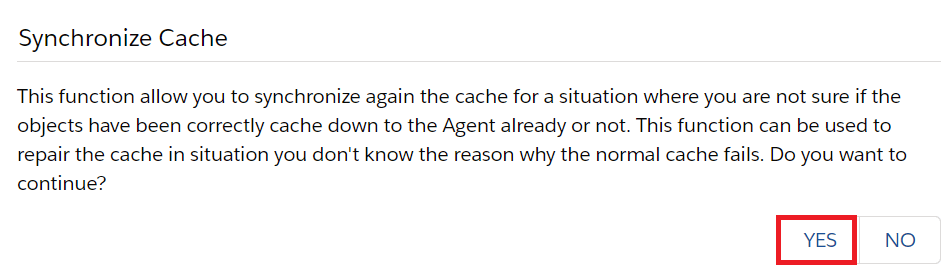
Now click on Yes to Synchronize the Cache
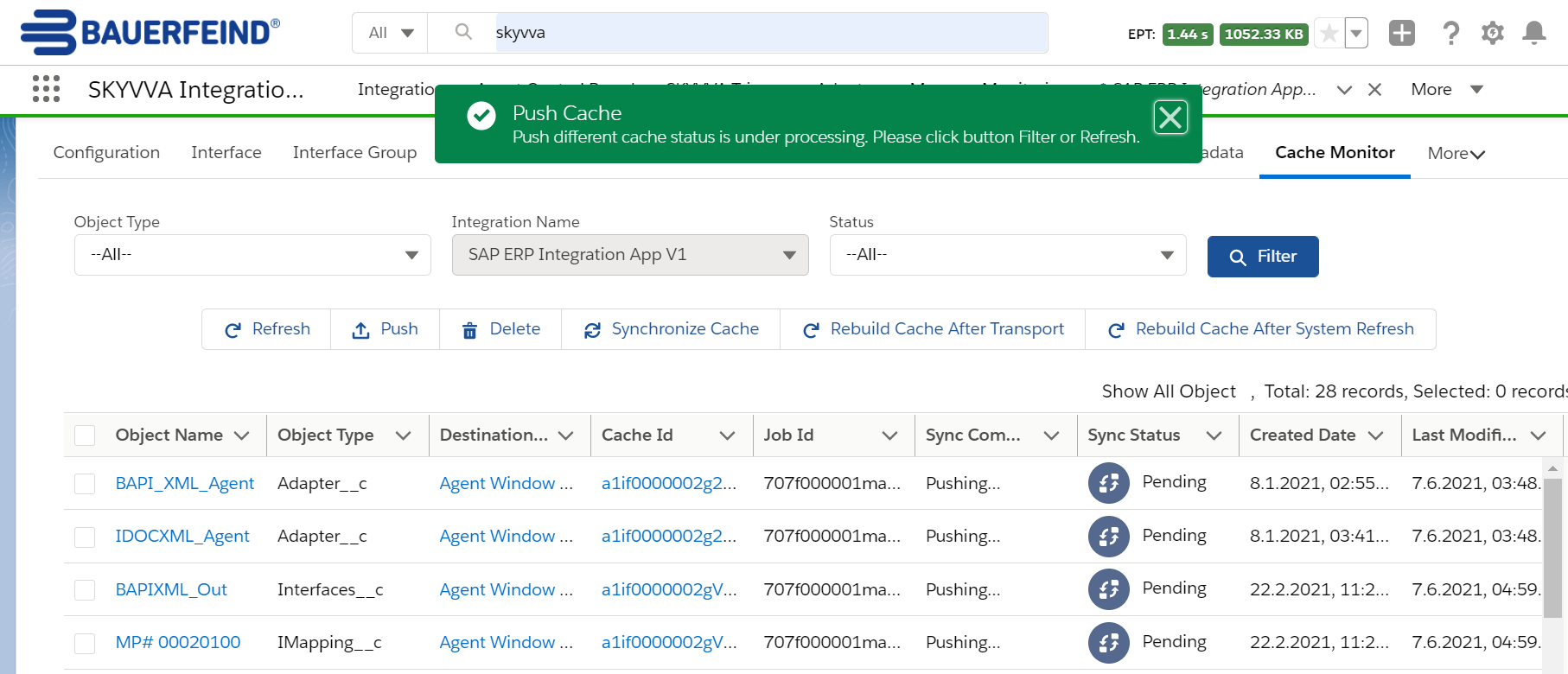
Now click on Refresh
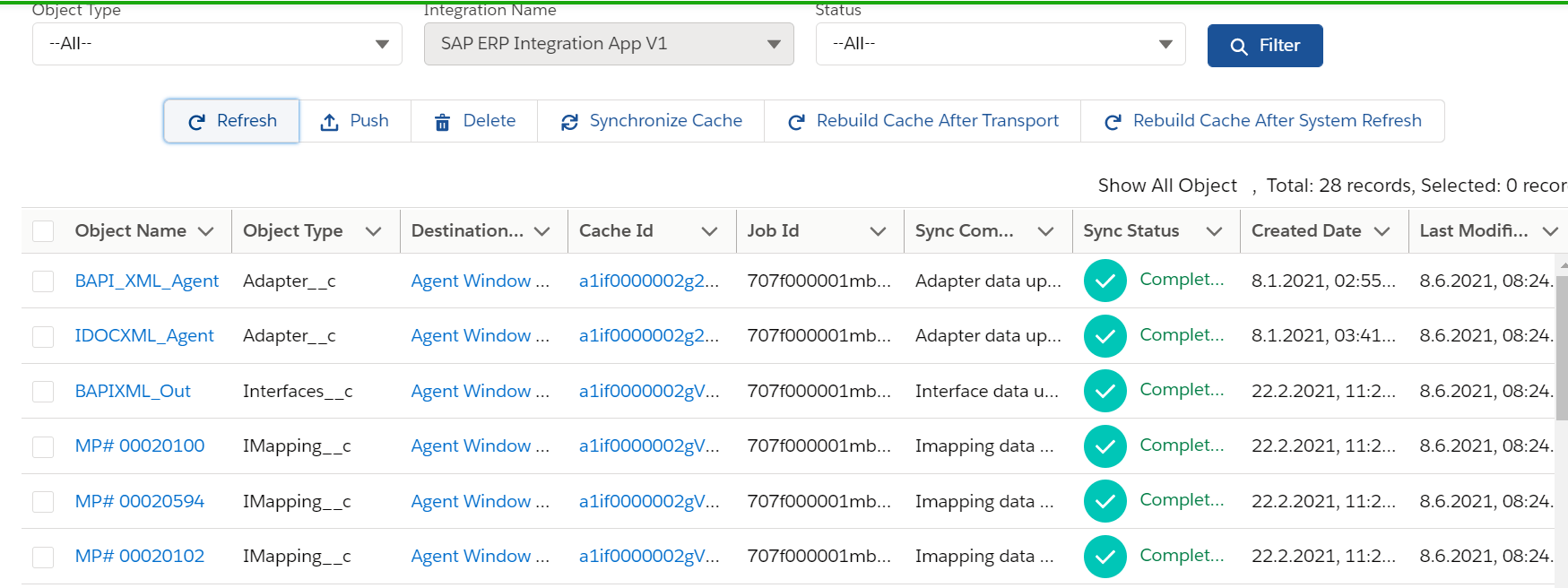
Now do the callout using below apex code: skyvvasolutions.CallOutControl c=new skyvvasolutions.CallOutControl(); c.returnXml=true; c.returnListRecord=true; c.isCreateMessage=true; c.actionDoIntegrate=true; String[] ids=new String[]{'001f000001bN527AAC'}; skyvvasolutions.Iservices.invokeCalloutV3('SAP ERP Integration App V1','BAPIXML_Out',ids,'SYNC', c);
Now we can see the message in the message monitor:

Click on Related to as shown in below screenshot

Then we can see the updated customer ID in SKYVVA as shown below