7.6 How to call SAP SOAP API using Skyvva SOAP Adapter?
Posting SAP BAPI to SAP ERP over Skyvva SOAP Adapter In SAP ERP we have to do the following settings How to Activate the Skyvva service in SAP using Tcode SICF.
Introduction:-
In this chapter, you will learn about the “Activation of Skyvva service in sap”. The service is used to send & receive data from SAP <> salesforce .
Activation of Skyvva service in Tcode SICF
Once you have installed the Skyvva package(TR) all Internet Communication Framework (ICF) services are available in an inactive state for security reasons. After the installation you have to decide which services must be activated for the applications you want to use. Since multiple services can be executed when you call a URL, all service nodes must be activated in the SICF tree. The URL path is mapped in ICF subnodes (services). For example, if you want to activate the services for URL /default_host/sap/bc/skyvva/, you have to activate the service tree default_host in transaction SICF. Then you have to activate services sap, bc and skyvva separately. You activate an ICF service as follows:
- Select the required ICF service in the ICF tree in transaction SICF.
- Activate the ICF service in one of the following ways:
- Using menu option Service/Host -> Activate
- Using the context menu and choosing Activate Service.
Services for Skyvva
For skyvva ABAP the following services must be activated in the system.
Using skyvva Applications
/default_host/sap/public/ping This node itself must be activated, for ping service. /default_host/sap/bc/skyvva/ Here only the node itself must be activated, and not the subnodes. /default_host/sap/bc/skyvva/v3/
This node is activated automatically when the subnodes described below are activated. Likewise, here only the node itself must be activated, as well as the following subnodes:
/default_host/sap/bc/skyvva/v3/cache /default_host/sap/bc/skyvva/v3/ GetBapiDetail /default_host/sap/bc/skyvva/v3/ GetIdocSegField /default_host/sap/bc/skyvva/v3/ GetIdocSegList /default_host/sap/bc/skyvva/v3/ GetObjCount /default_host/sap/bc/skyvva/v3/ GetObjectList /default_host/sap/bc/skyvva/v3/ GetPartnProfile /default_host/sap/bc/skyvva/v3/ GetQualifier /default_host/sap/bc/skyvva/v3/ GetTabFieldList /default_host/sap/bc/skyvva/v3/ restoreendpoint
- Activate All the service as shown below.

Also we will get the soap wsdl from SOAMANAGER. We use the SOAP WSDL to create the message type in Skyvva.
Creating the SOAP Adapter in Skyvva We need to provide the following details to create the SOAP adapter Name - Name of the adapter Type - SOAP Description - BAPI SOAP Adapter Direction - Outbound Status - Active
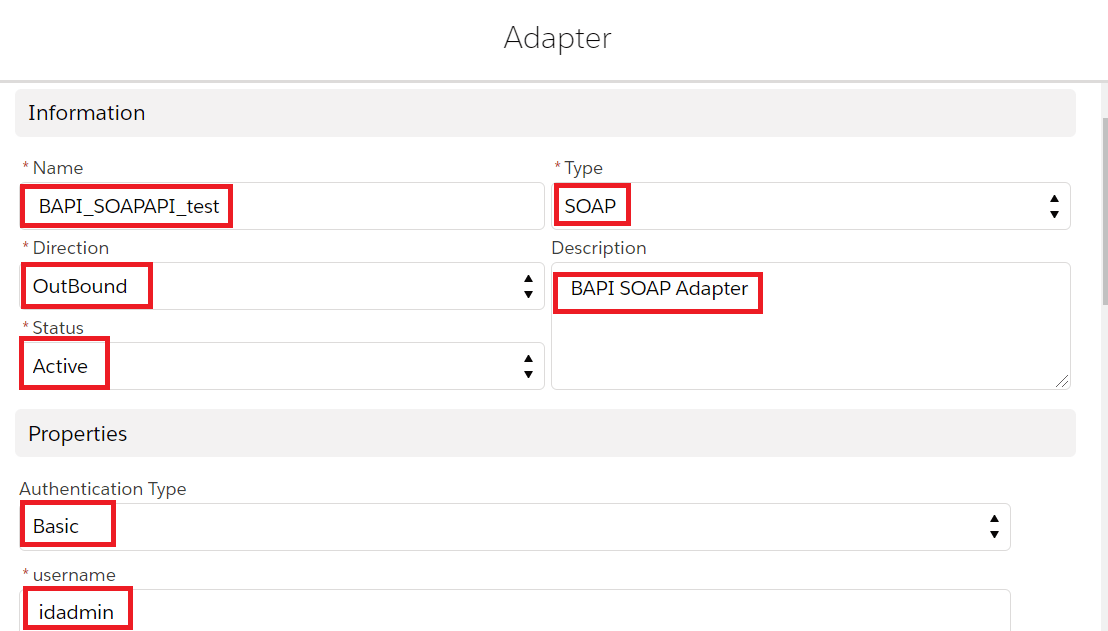
Authentication - Basic endpoint - http://195.201.104.232:16080/sapid7/sap/bc/srt/rfc/sap/zget_po_detail/820/zget_po_detail/zget_po_detail Operation - POST Request and Response Format - application/xml

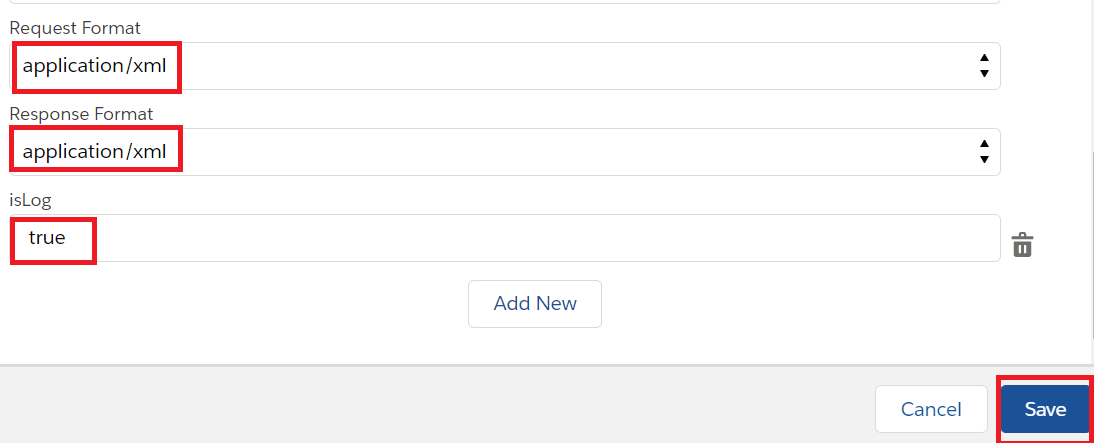
Username - idadmin Password - Now click on save button to create the adapter. Create Metadata Provider -
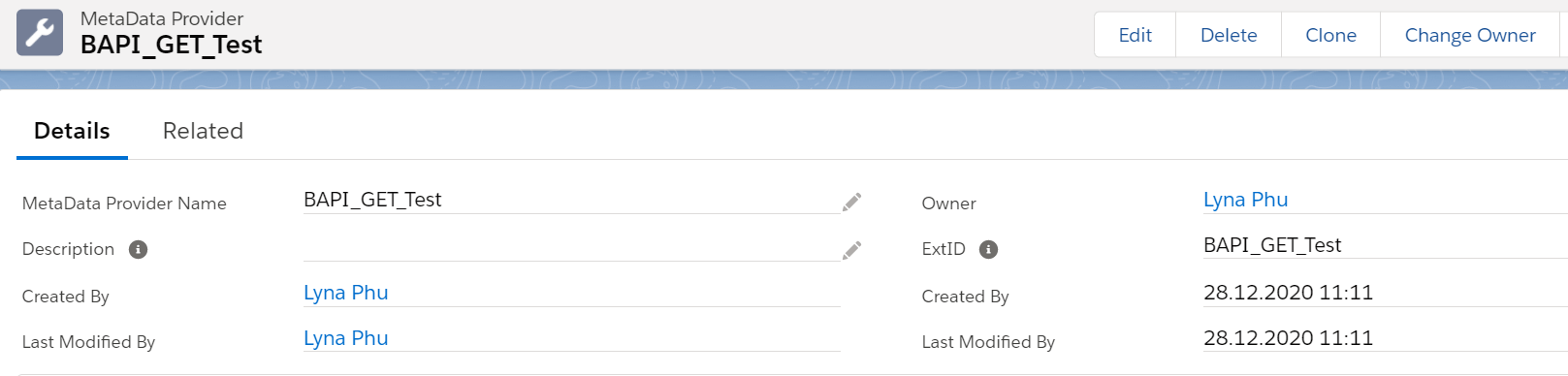
Create Repository -

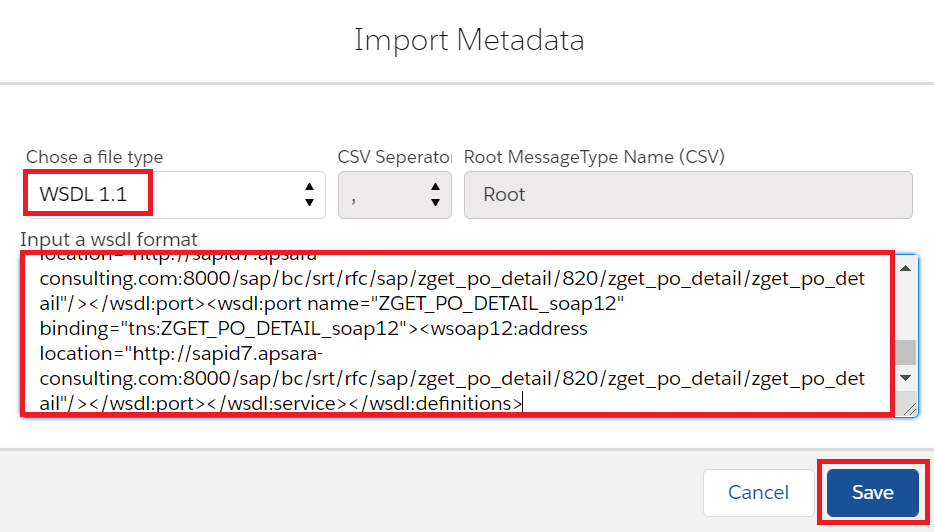
Create Message type - Creating the message type using the provided WSDL from SAP
To import the WSDL Click on Open editor

Choose the file type as WSDL 1.1 and Copy the WSDL and click on save to create the message type.
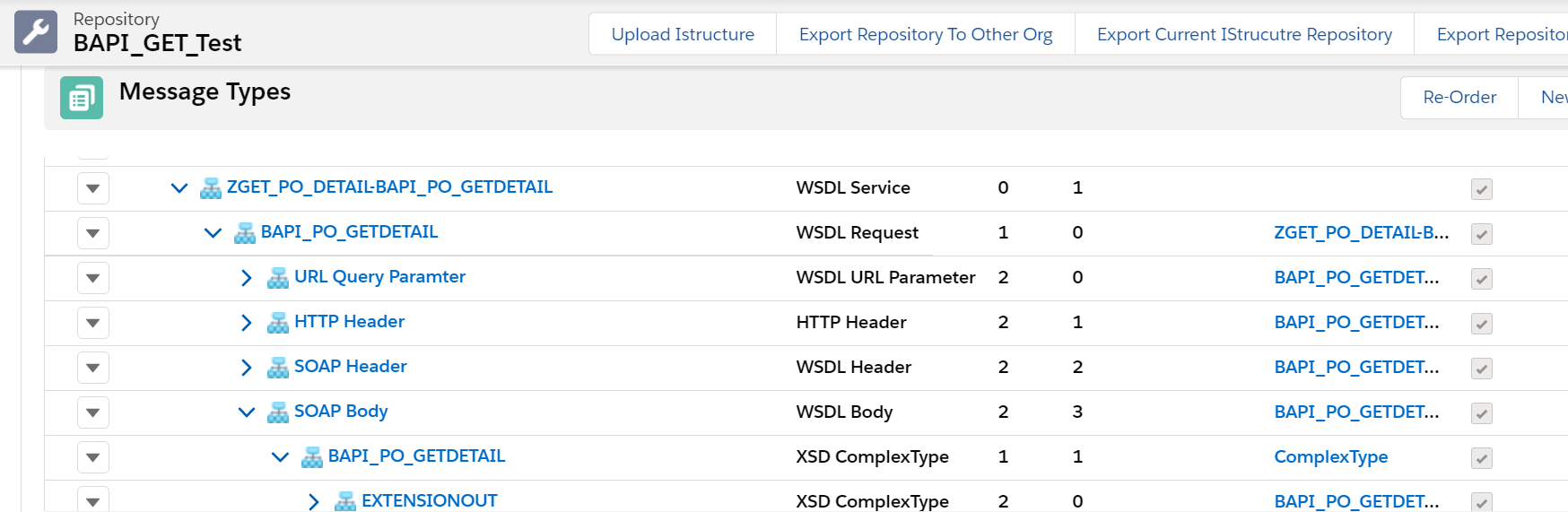

Use the above messagetype while creating the outbound and inbound interface.
Creating an Outbound interface: Provide the Name, sObject type, Description, Processing mode, Status, Metadata provider, Repository, Message type, outbound adapter and the SQL statement as shown in the screenshots below
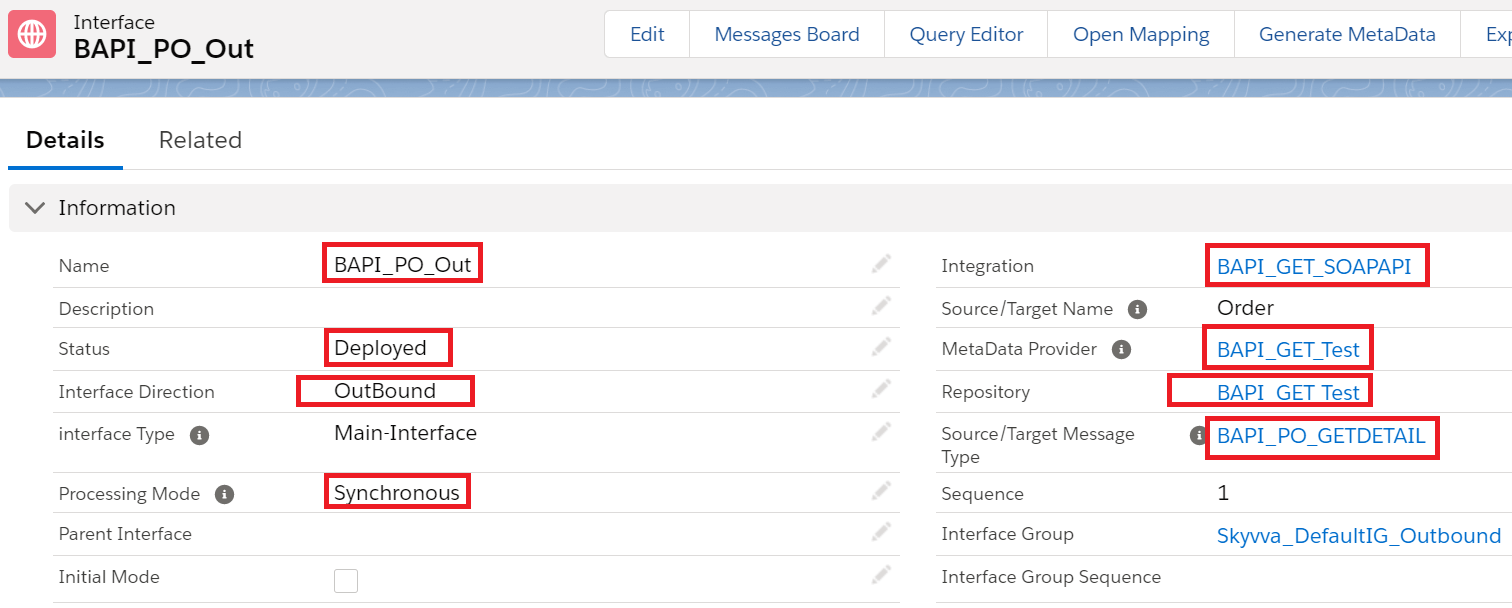

For outbound interface we have to do mapping in Skyvva as shown.

Save the interface once provide all the necessary details.
Create Inbound response interface: Provide the Name, sObject type, Description, Processing mode, Status, Metadata provider, Repository, Message type, outbound adapter and the SQL statement as shown in the screenshots below

Do the mapping as shown
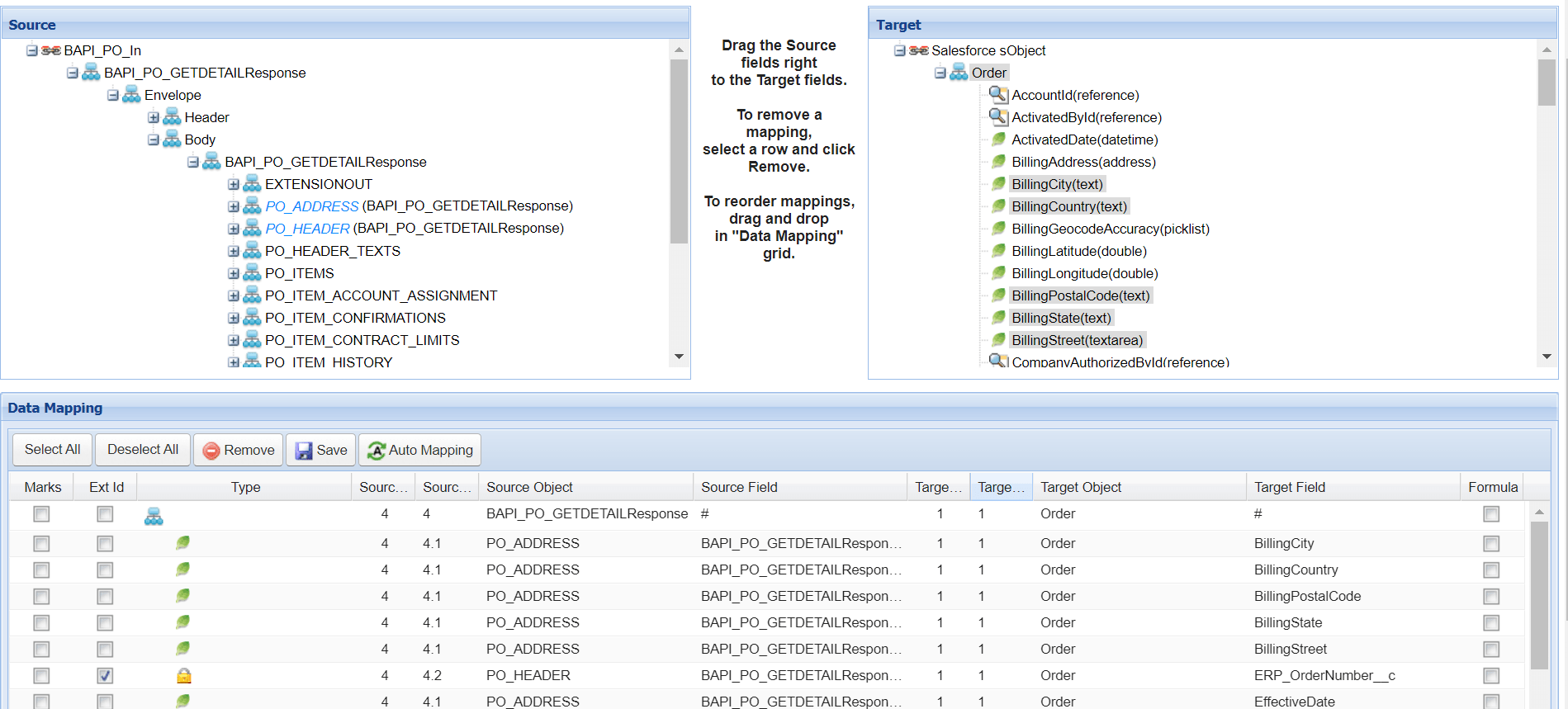

Now do the callout using below apex code: skyvvasolutions.CallOutControl c=new skyvvasolutions.CallOutControl(); Map
Now we can see the message in the message monitor:
