7. Using Salesforce like Process Builder and Flow to trigger the data change in real-time
What is process builder?
Process builder is a powerful implement. we can use to automate business processes. It has a simple interface that sanctions us to point and click to cull objects and fields while establishing immediate and time-predicated actions. We use process builder to engender change pointer. It help you to easy automate your business processes by providing a powerful and user friendly visual representation of your process. The Process Builder’s simple and powerful design allow us to build customize the automated process. Actions Available In Process Builder for outbound processing: Trigger Apex code: You can use Salesforce process builder to invoke Apex code you have written within Salesforce. Apex can be anything from custom logic to save a record to complex business processes. Create a record: This will allow you to create new records and set certain field values for the new record. Update records: Update one or more records that are related to the record that started the process. You can update the record with manually entered values or by using the values from related records. We can update records of parent or child Here we will going to use Create Change pointer I,e CP record for outbound processing.
Pre-requisite:
- Create Integration.
- Create Outbound Interface
- To be able to execute callout, you have enter interface page detail and scroll down to Runtime Configuration- Outbound section then check flag “Use Skyvva Outbound Scheduler”.
*

- Interface Control Runtimes: Interface Control Runtime could be used for another purpose. for CDD, it is used where the user can set LastRun DateTime that CDD finds the record change which is record’s LastModifiedDate>that date.
[su_box title="Note" box_color="#2a8af0" title_color="#000000"]
- If you want to execute callout, the flag could be blank.
- If you want to create CP Record, the flag is required. [/su_box]
- The interface could be set creating change pointer by process builder or trigger. You have to select SKYVVA API.
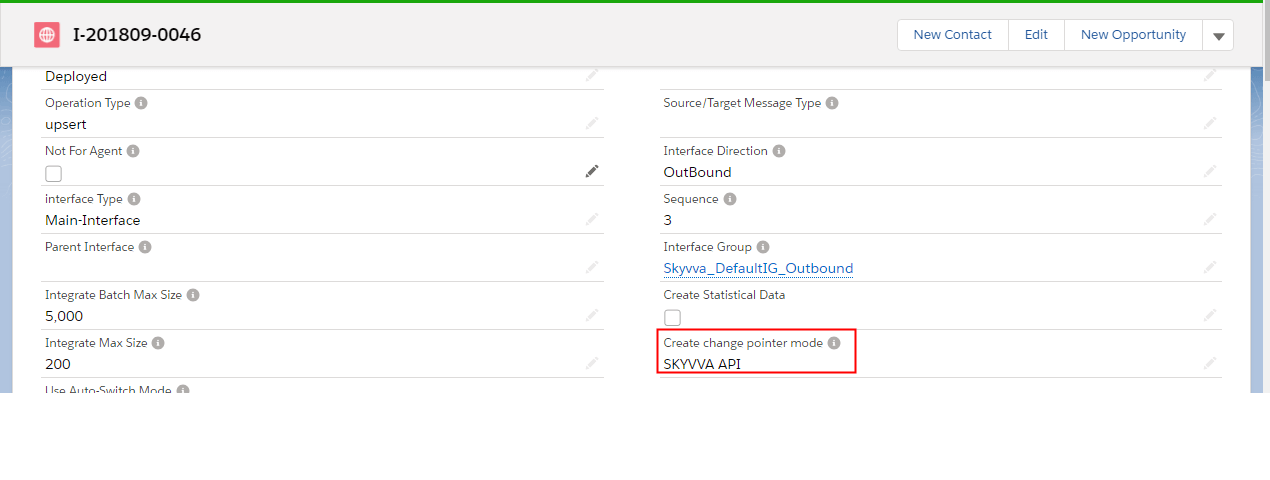 Create Change pointer mode:
You can create change pointer using:
Create Change pointer mode:
You can create change pointer using:
- The CDD job
- Process Builder
Why process builder?
Process builder is more flexible in comparison to workflow. In workflow rule can’t update child record where as in process builder we can CDD Job
- CDC is made up of two components, the CDD and the CDT. CDC is stand for Change Data Detection and CDT is stand for Change Data Transfer.
- These two components has different functionality. CDD is a scheduler which is running to call batch Apex in order to collect data change and save all those data into Change Pointer Object.
- To create change pointer, Scheduled CDD.(Integration Admin Tap -> Scheduler Tap. Then start the scheduler on an outbound section and set the time as you prefer.)
- To monitor CDD, Go to Integration Admin Tap -> CDC Tap -> Integration name -> Interface Name -> Status -> Search
Process Builder
Here We will going to create process with process builder in order to get Change pointer records. Scheduler CDD will skip this interface if value is specified. To create process using process builder follow the given steps: Setup =>Create =>Build=>Process builder=>New*
- From Setup, enter Process Builder in the Quick Find Box, click Process Builder
- Then click New button.
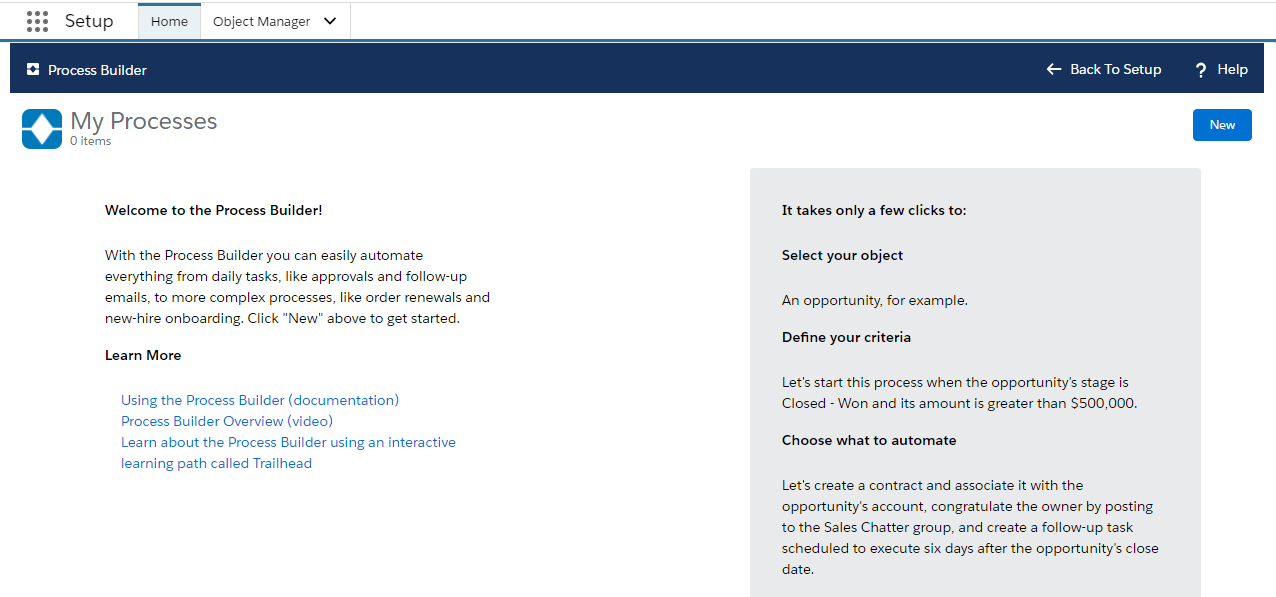
- Enter process Name.
- Enter a description of the process.
- Finally, choose process type
- Click on save

- Choose object name on which you want to perform the task.
- Choose start process type.

- Add the Criteria to define it for Action Group:
- Enter criteria name.
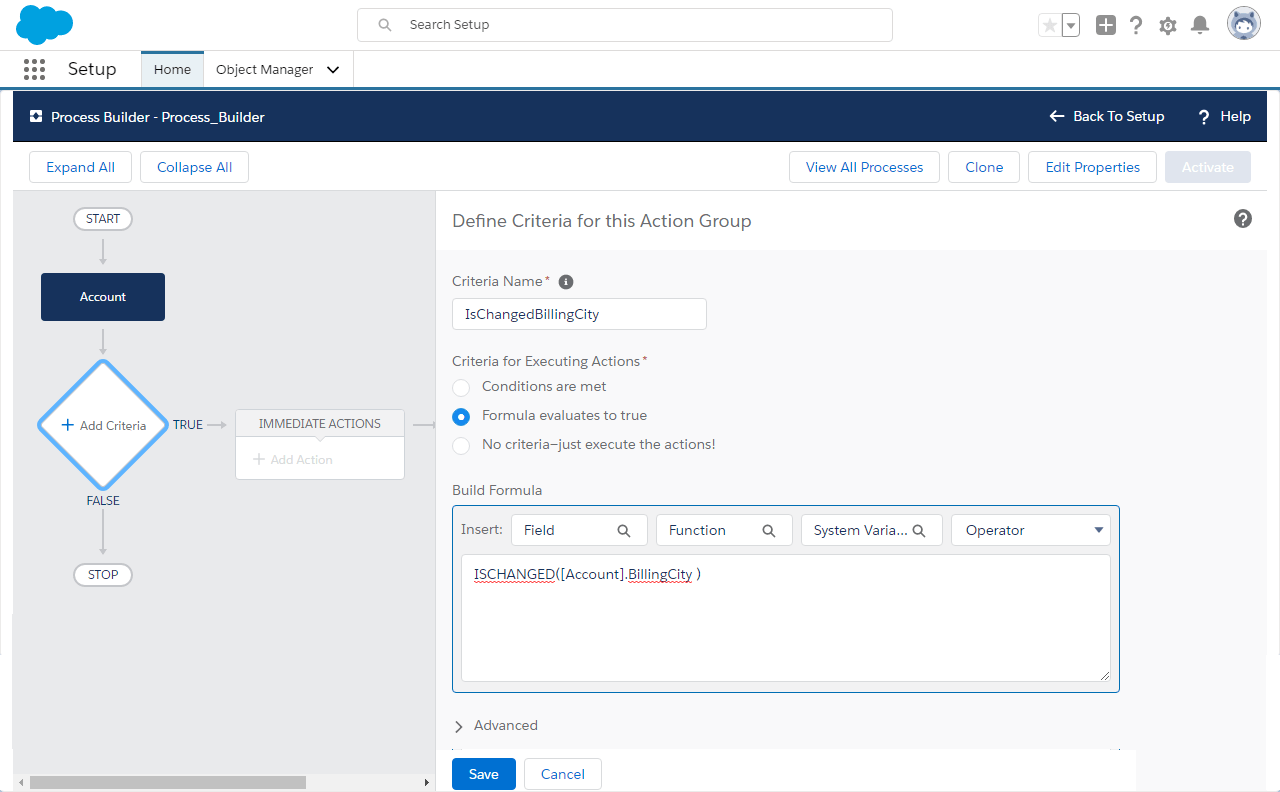
- Add the actions to execute when the criteria are met by:
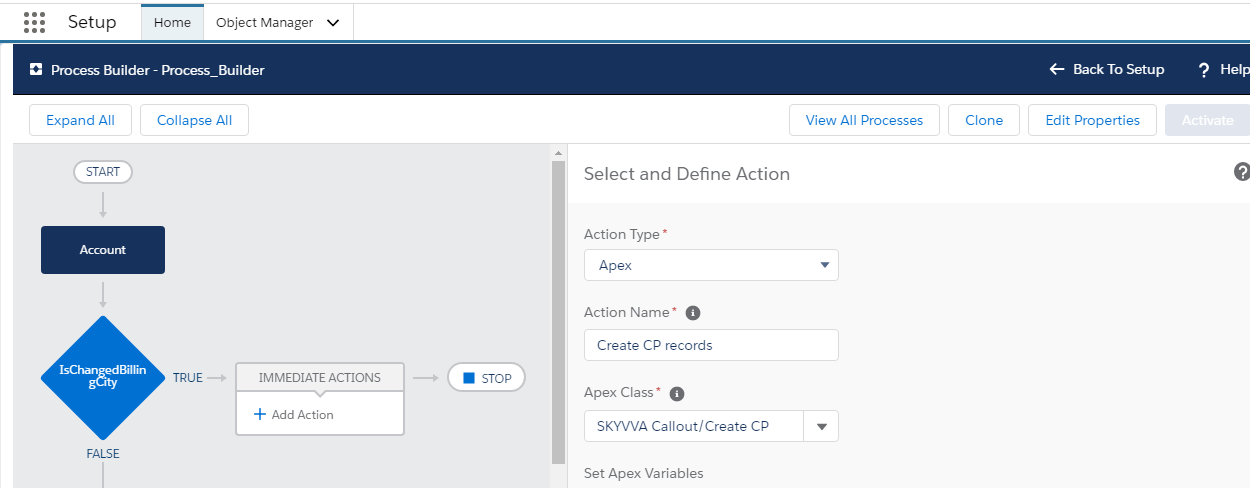
- Select the Action Type: Apex
- Select the Action Name: Create CP Record
- Select Apex Class: SKYVVA Callout/Create CP. When you section it, some of dropdown list will appear for you to choose. Then click Add Row to add 2 more.
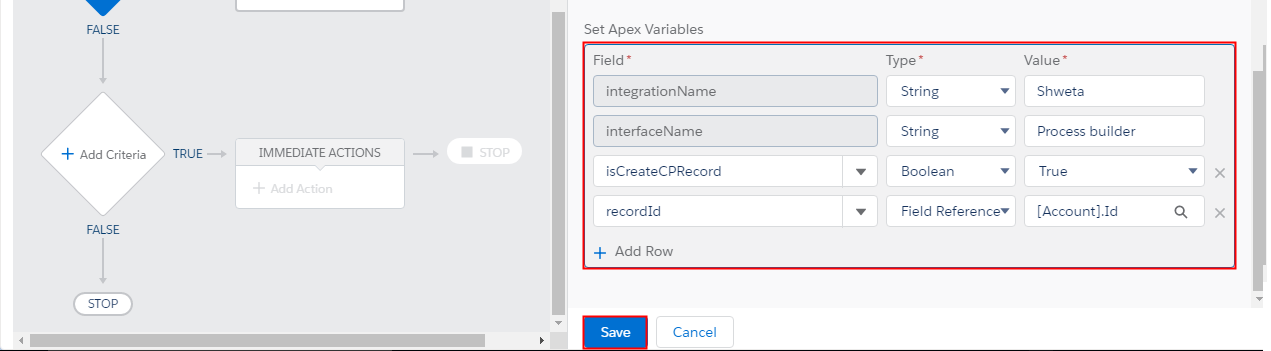
To be able to execute process builder, just click on Activate button.
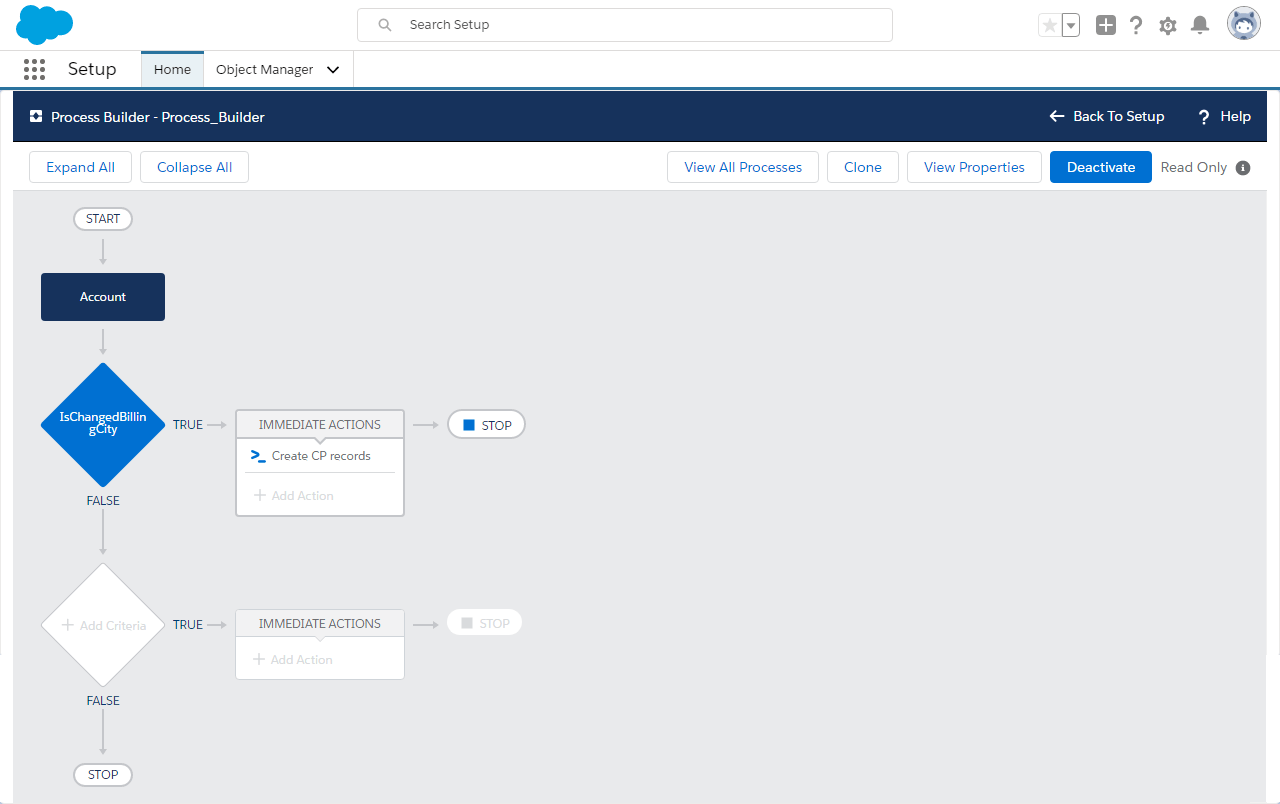
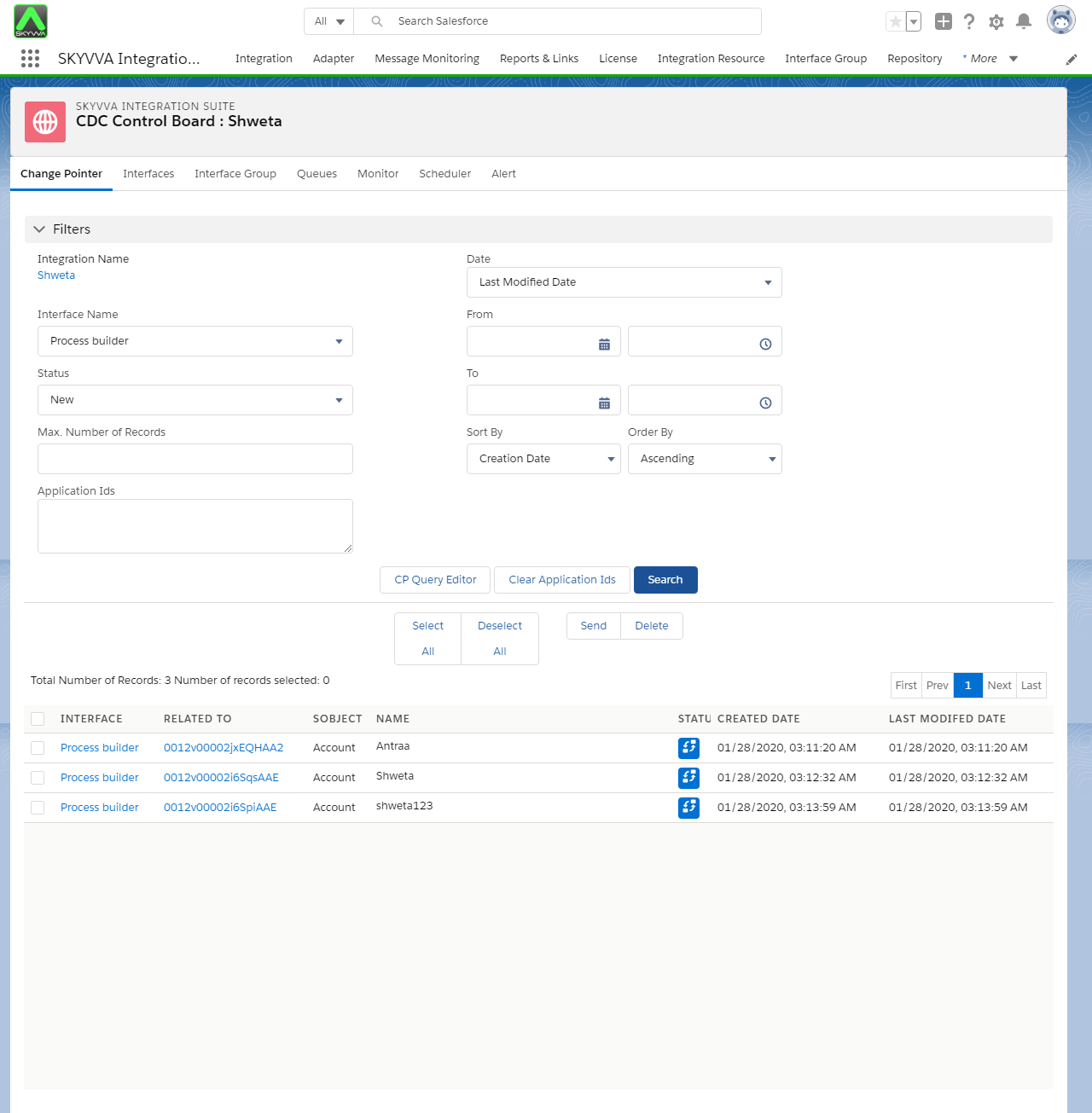
To monitor change pointer records
You can check the change pointer records in CDC Control Board.