7. How to use Copy Node in Skyvva Inbound Integration
Introduction
In some integration scenarios, a single source record may need to be transformed into multiple records in Salesforce. The Copy Node function (also referred to as Duplicate Node) in the Skyvva graphical Mapping Tool allows a single target object node to be duplicated, enabling one inbound payload — from flat source data such as CSV, JSON, or XML — to create multiple Salesforce records, each mapped independently.
When applied, Skyvva duplicates the node and auto-generates a child interface for each copy — no manual interface creation or custom logic required.

This tutorial walks through the complete setup and test flow for the Copy Node feature:
- Generate a Message Type from the JSON payload.
- Create an Inbound Interface and link it to the Message Type.
- Map Case and CaseComment nodes and fields in the Mapping Tool — apply Copy Node on CaseComment to duplicate it.
- Save the mapping — child interfaces are auto-generated.
- Change each child interface operation from Upsert to Insert.
- Post JSON data from Postman to the Skyvva API v4/integrate endpoint.
- Verify the result in Message Monitoring and Salesforce.
Step-by-Step Guide
Follow these steps in order. Each step maps directly to the overview flow above:
Step 1: Initial Setup
- Generate a Message Type — Go to Metadata Provider → Repository, upload the source payload (in this example, a JSON file) to auto-generate the Message Type.
- Create an Inbound Interface for the Case object with an Upsert operation and link the Metadata Provider, Repository, and Message Type generated above. This establishes the entry point for your source data.
Step 2: Mapping
Go to the Interface details and open the Mapping tool. Perform the following mappings for both target objects:
- Case (Parent Node) — map the source node to the Case target node first, then map the fields.
- CaseComment (Original Node and Copy Node) — the CaseComment node already exists in the Mapping. Map the source node to the CaseComment target node, then map the fields (this becomes the Original node). Then right-click the CaseComment node and select Copy Node — a form will appear allowing you to keep the same node name or rename it. Map the fields of the duplicated node (CaseComment Copy) separately.

Configure the field mappings for each node as follows:

Step 3: Save Mapping
Interfaces are created automatically after saving the mapping, Skyvva automatically creates the corresponding interfaces:
- Main Interface — handles the Case (parent) record upsert
- Child Interface (1) — handles CaseComment (Original) record upsert (to be changed to Insert in Step 4)
- Child Interface (2) — handles CaseComment (Copy) record upsert (to be changed to Insert in Step 4)
No manual interface creation is needed for the child objects — Skyvva generates them from the Copy Node.
Step 4: Change Child Interface Operation from Upsert to Insert
After saving, Skyvva auto-generates a child interface for each CaseComment node, inheriting the Upsert operation from the parent interface by default. However, CaseComment does not have an External ID field — it is always a new record created as a child of a Case, so Insert.
To do this for each child interface (CaseComment Original and CaseComment Copy):
- Navigate to the child interface.
- Locate the Operation field and change it from Upsert to Insert.
- Save the interface. Repeat for the second child interface.
Note: This applies specifically to objects like CaseComment that do not support External IDs. For objects that do support External IDs (such as Case), Upsert remains valid and should be kept.
Step 5: Post Data from Postman
With all interfaces configured, send your JSON data to the Skyvva API V4/integrate endpoint using Postman.
Ensure your payload includes all required fields for both Case and CaseComment. Example payload structure (JSON):
{
    "caseExternalId": "C-10045",
    "subject": "Login Issue",
    "description": "User unable to login to portal",
    "priority": "High",
    "comment1_text": "User reported issue at 9 AM",
    "comment1_author": "Support Agent A",
    "comment2_text": "Support team has started working on this case.",
    "comment2_author": "Support Agent B"
}
The response returns 200 OK with three completed operations:
- Case created — confirmed by "Creation of Case" with ExtValue: "C-10045"
- CaseComments inserted — both entries in ListOfCaseComment show "MessageStatus": "Completed" with a Salesforce record ID each
A single POST to the Skyvva API V4/integrate endpoint successfully produced all three records.

Step 6: Verify in Message Monitoring and Navigate to Salesforce Records
After posting, open Message Monitoring in Skyvva to verify the records were processed successfully. From the monitoring record, you can navigate directly to the created records in Salesforce to confirm the data is correct.
- A MessageStatus: Completed on all interfaces confirms the records were successfully inserted into Salesforce.
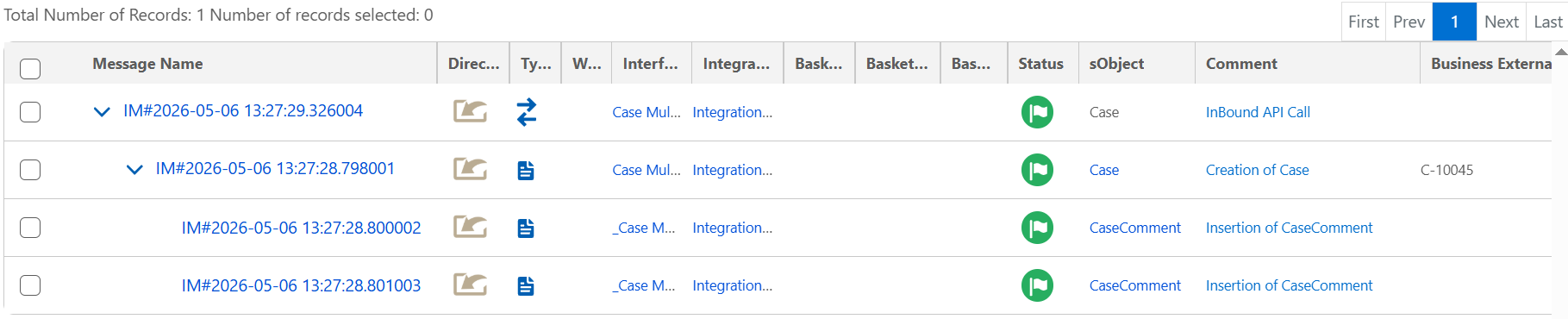
In Message Monitoring, the sObject column displays the Salesforce object for each processed record. Click on Case to navigate directly to the Case record in Salesforce. The following confirms the integration worked correctly:
- Case record created — the case title, Subject, and Description reflect the values sent in the payload.
- External ID mapped correctly — the Case_ExID field shows the value from the payload (e.g., C-10045), confirming the upsert key was applied correctly.
- Two CaseComments created — the Feed section on the Case record shows both comments as separate entries, confirming that Copy Node successfully duplicated the CaseComment and inserted each one independently.

Summary
The Copy Node function in Skyvva allows a single inbound payload to generate multiple Salesforce records within a single interface — child interfaces are auto-generated, no manual creation required. In this guide, one JSON payload produced a Case and two linked CaseComment records via the Skyvva API V4/integrate. The same approach can be extended to any target object that requires multiple record inserts from a single payload.