7. InvokeCallout V3 based on the interface setting ?
Introduction
Currently, the callout mode—such as SYNC, AUTO, FUTURE, QUEUEABLE, or BATCH—is specified using the mode parameter in the invokeCalloutV3() method. However, confusion arises when the mode is defined as 'Synchronous' on the interface, but the method call specifies 'FUTURE'. Since 'FUTURE' inherently denotes an asynchronous process, this creates a discrepancy between the interface definition and the actual runtime behavior. To clarify, the mode specified invokeCalloutV3() takes precedence over the interface settings. While this is not a problem per se, it does lead to a mismatch that can confuse users.
To address this, we propose making the mode parameter optional. By doing so, we can default to the settings defined on the interface itself. The settings for the outbound interface would then be as follows:
- Synchronous -> SYNC
- Asynchronous -> QUEUEABLE (Queueable is provides better tracking and management due to the availability of job IDs)
- Batch -> BATCH
- Bulk -> This setting remains exclusive to the inbound interface.
- Auto-Switch -> This could correspond to the AUTO mode, allowing a switch between Future, Queueable, and Batch modes only. The Bulk mode does not apply to the outbound interface.
If the user still specifies the mode parameter, it will function as it currently does. However, if the mode parameter is not set, the system will default to using the defined mode on the interface. This approach simplifies configuration and aligns runtime behavior with user expectations, leveraging the capabilities of the SKYVVA integration application for streamlined, effective integrations.
Case: InvokeCalloutV3 based on the interface setting
- Creating an Interface outbound for callout data without mode as a parameter based on the interface setting.
To effectively manage the expectations for parameter usage in Skyvva's V3 integration application, specifically concerning the outbound interface settings, users are calculated making certain parameters optional. This change reflects a flexible approach that can accommodate diverse integration needs, allowing users to either specify a mode or proceed without specifying one, depending on the configuration of the interface. Here's an outline of how this can be configured:
Current Approach
You might be required to specify a mode when calling the invokeCalloutV3() method. This requires pre-defining how the callout should behave, which can be restrictive depending on the integration business scenario. The enhancement is to make the 'mode' parameter optional. This allows the system to adapt based on settings predefined at the interface level, which can be more dynamic and tailored to specific use cases. Here's how the method signatures would look based on this new setup:
- No mode as a parameter
IServices.invokeCalloutV3('integrationName', 'interfaceName',ids, new CallOutControl());
- Mode as parameter
IServices.invokeCalloutV3('integrationName', 'interfaceName',ids,null, new CallOutControl());
IServices.invokeCalloutV3('integrationName', 'interfaceName',ids, '', new CallOutControl());
[su_box title="Note" box_color="#F81B1B" title_color="#000000"]
- If the interface Use_Auto_Switch_Mode__c = true, mode = 'AUTO'
- If the interface Batch_Mode__c = true, mode = 'BATCH'
- If the interface Interface_Mode__c = 'Synchronous, mode = 'SYNC'
- If the interface Interface_Mode__c = 'Asynchronous', mode = 'QUEUEABLE'[/su_box]
Required step:
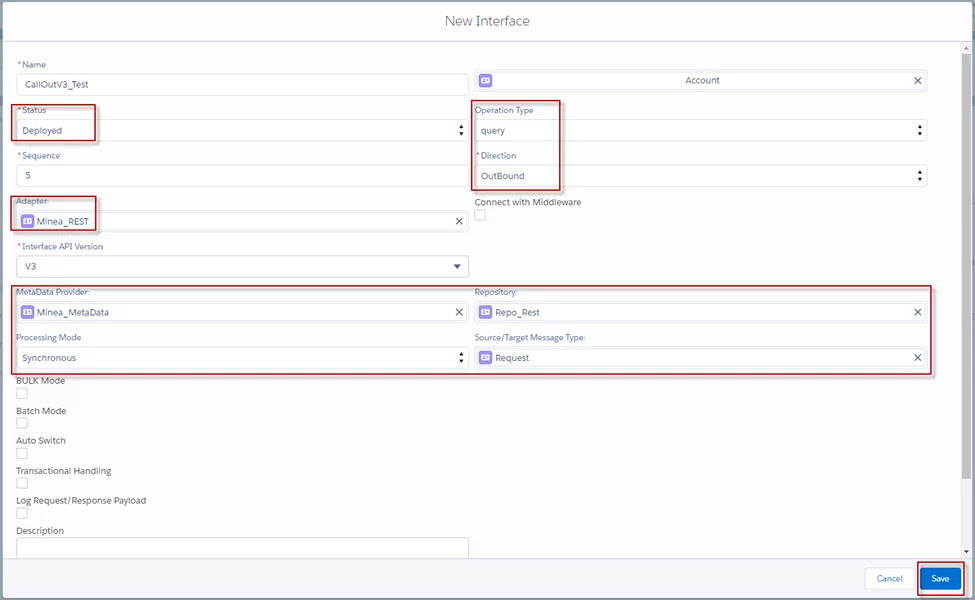
- Create a new Interface Outbound as screenshot below
- Click the Save button
- Go to Interface
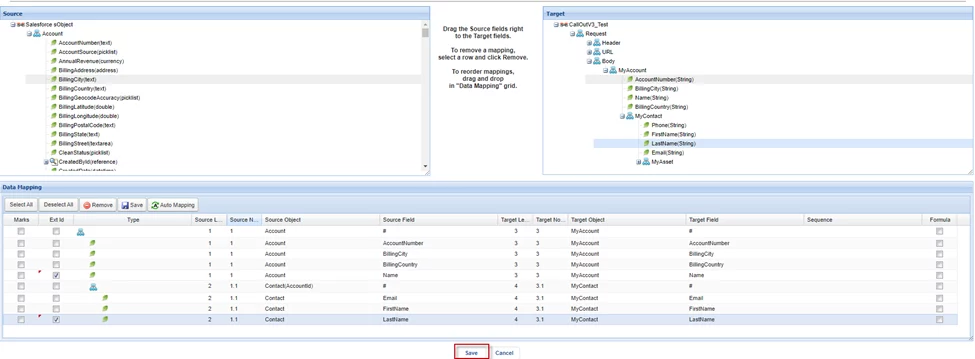
- Click Open Mapping
- Mapping node and file
- Save
- After mapping, it will get SOQL Query
- Go to interface
- Scroll down we can see SOQL Query to select the sObject data section


1. Invoke Callout Data Use Auto-Switch Mode on the interface
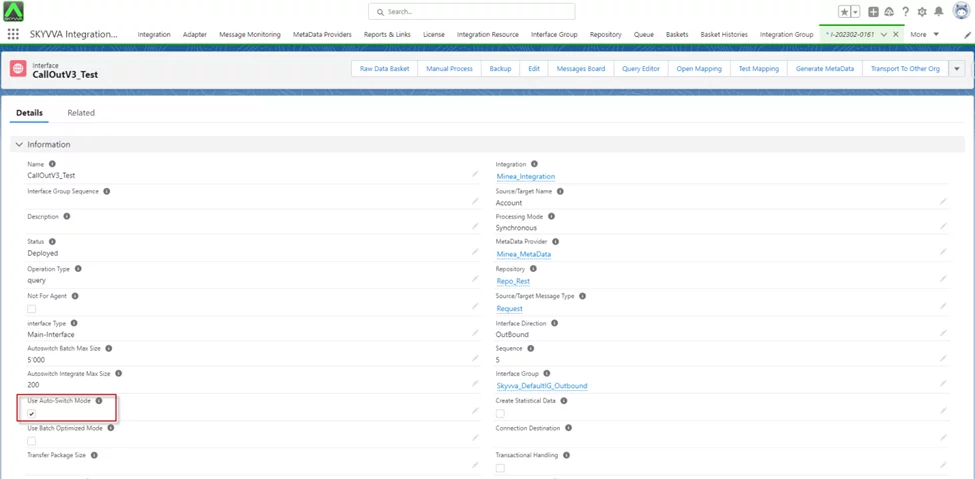
- Go to interface
- Check Use Auto-Switch Mode
- Save

- The user can copy this code to pass developer consoles to be executed.
- It will send all records from the Account out
[su_box title="Note" box_color="#F81B1B" title_color="#000000"] Make sure to replace on integration with your integration name and interface to your interface name.[/su_box] String[] ids = newString[]{}; For(Accounta: [select id from account]) ids.add(a.Id); IServices.invokeCalloutV3('integrationName', 'interfaceName',ids, newCallOutControl());
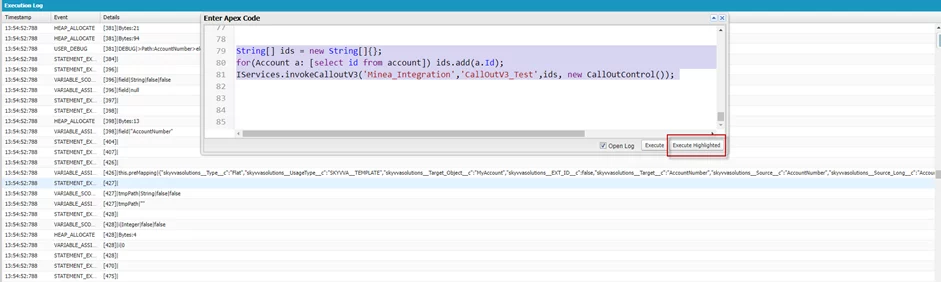

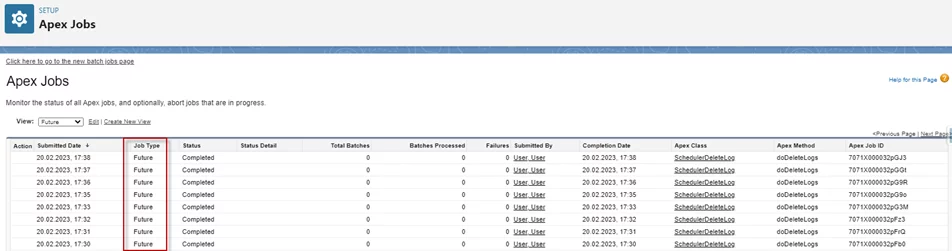
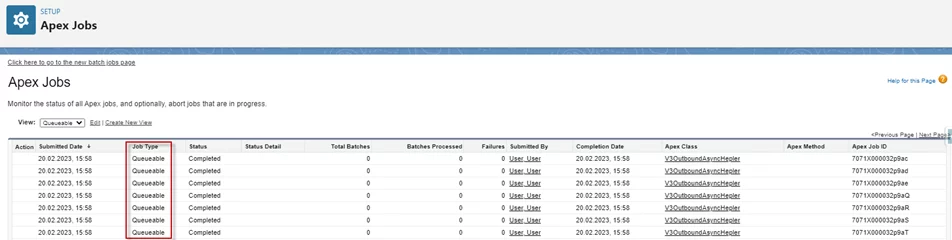
- After Executing Apex Code, it will check all records in the Account to the processing Job Type with Future, Queueable, and Batch Apex.
- Future process 50 records
- Queueable process 50 records
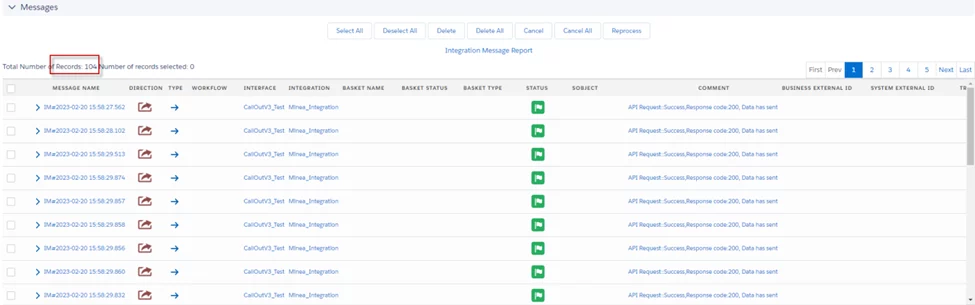
- Other records will be processed with Batch Apex.

[su_box title="Result:" box_color="#2a8af0" title_color="#000000"]After processing the apex job completed, it will send all records out with Feature, Queueable, and Batch Apex Mode. The Auto mode will switch based on the salesforce resource limit. First, it will check the Future work. If the Future reaches the limit, then it will take the Queueable. Then remaining, it will do on Batch apex mode.[/su_box]
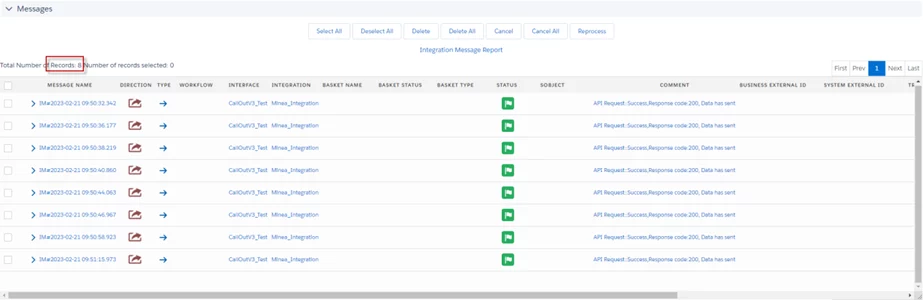
2. Invoke Callout Data uses Batch Mode on the interface
- Go to interface
- Scroll down we can see the Batch Setting
- Check on Batch Mode
- Save
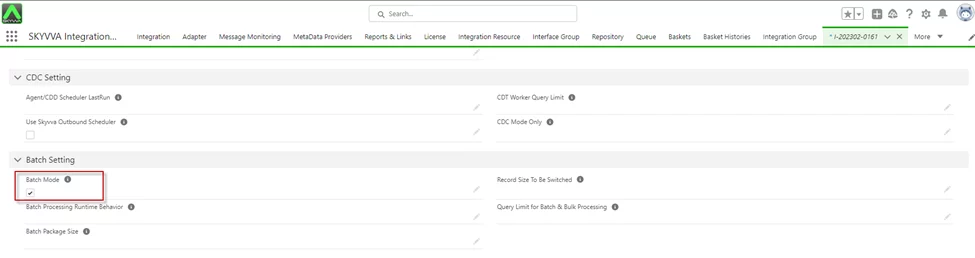
- The user can copy this code to pass developer consoles to be executed. It will send all records from the Account out
[su_box title="Note" box_color="#F81B1B" title_color="#000000"]Make sure to replace on integration with your integration name and interface to your interface name.[/su_box]
String[] ids = newString[]{}; For(Accounta: [select id from account]) ids.add(a.Id); IServices.invokeCalloutV3('integrationName', 'interfaceName',ids, newCallOutControl());
- After Executing Apex Code, it will check all records in the Account to the processing Job Type with Batch Apex.

[su_box title="Result:" box_color="#2a8af0" title_color="#000000"]After processing the apex job completed, it will send all records out with Batch Apex Mode.[/su_box]
3. Invoke Callout Data uses Asynchronous processing mode on the interface
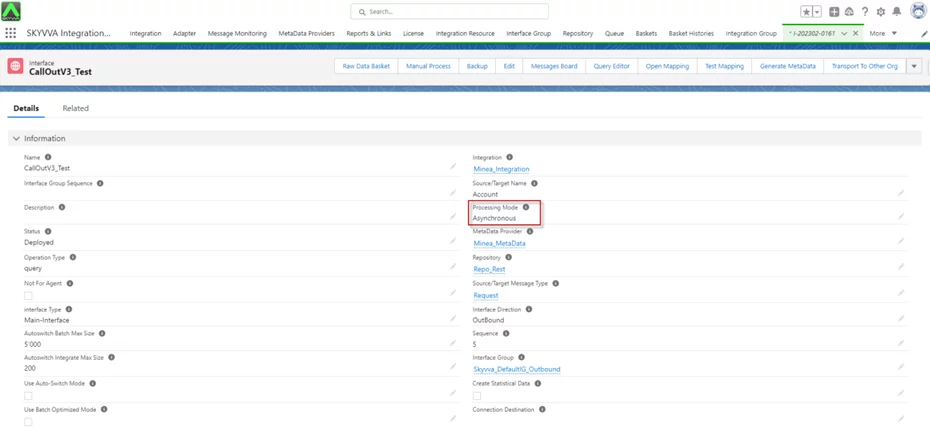
- Go to interface
- Processing Mode: Asynchronous
- Save
- The user can copy this code to pass developer consoles to be executed. It will send all records from the Account out
[su_box title="Note" box_color="#F81B1B " title_color="#000000"]Make sure to replace on integration with your integration name and interface to your interface name.[/su_box]
String[] ids = newString[]{}; For(Accounta: [select id from account]) ids.add(a.Id); IServices.invokeCalloutV3('integrationName', 'interfaceName',ids, newCallOutControl());
- After Executing Apex Code, it will check all records in the Account to the processing Job Type with Queueable.
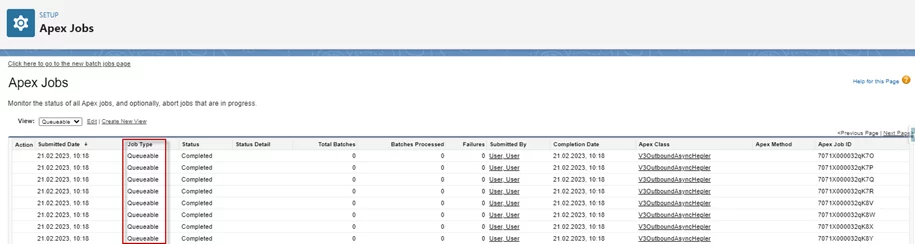
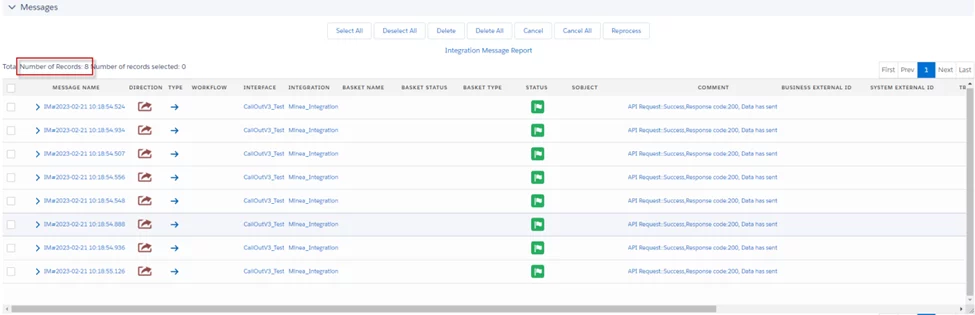
[su_box title="Result:" box_color="#2a8af0" title_color="#000000"]After processing the apex job completed, it will send all records out with Asynchronous (Queueable) Mode.[/su_box]
4. Invoke Callout Data uses Synchronous processing mode on the interface
- Go to interface
- Processing Mode: Synchronous
- Save
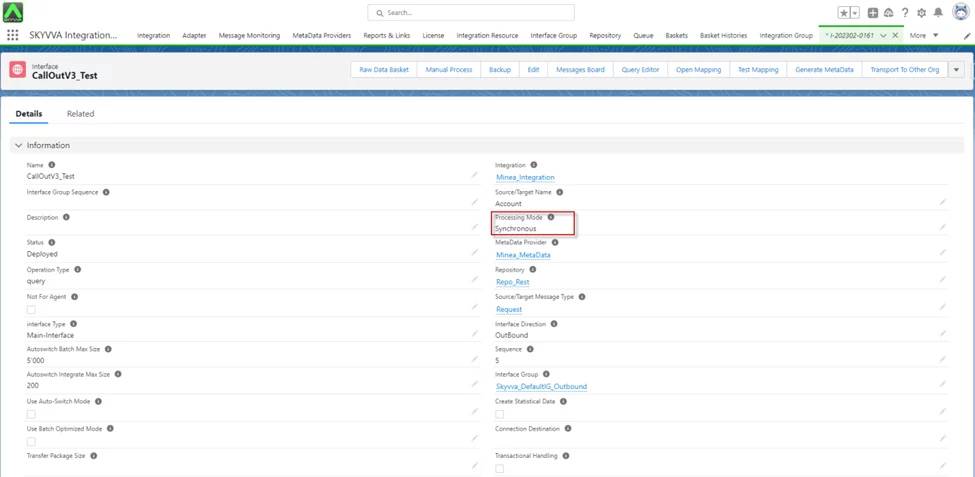
- The user can copy this code to pass developer consoles to be executed. It will send all records from the Account out
[su_box title="Note" box_color="#F81B1B" title_color="#000000"]Make sure to replace on integration with your integration name and interface to your interface name.[/su_box]
String[] ids = newString[]{}; For(Accounta: [select id from account]) ids.add(a.Id); IServices.invokeCalloutV3('integrationName', 'interfaceName',ids, newCallOutControl());
[su_box title="Result:" box_color="#2a8af0" title_color="#000000"]After Executing Apex Code, it will check all records in the Account to send data out and create a root message API to store all Business records.[/su_box]
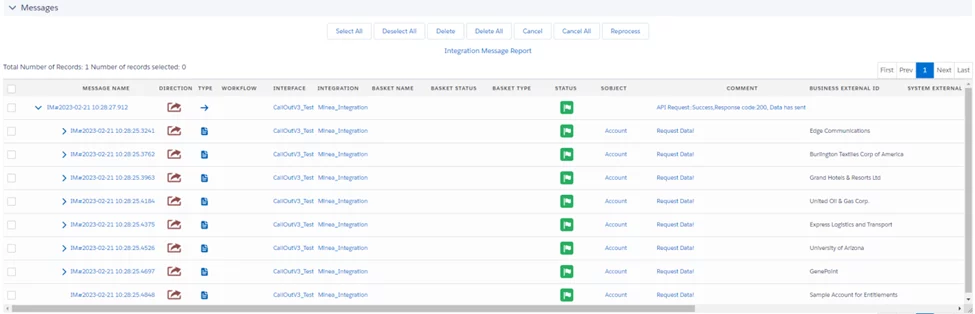
[su_box title="Note" box_color="#F81B1B" title_color="#000000"]If we use mode 'SYNC' means we process real-time, so it doesn’t show processing in the Apex Job[/su_box]
Summary
Now user understands making the 'mode' parameter optional in SKYVVA V3 allows dynamic, flexible callouts based on interface settings.