70. How to create message type from the Database table, view, and stored procedure?
Learning Objectives:- This unit describes:-
- Creation of Message types from the Database table, view, and stored procedure.
Introduction:-
In this tutorial, we will learn to create the message type from the database table, view, and stored procedure through the new Agent.
- Table
- View
- Stored Procedure
We can browse through the list of tables, views or stored procedures and can search for the name of the object. We can select one or multiple objects and click on the button 'Create Message Type'. The three databases we have in the option are MySQL, Oracle, and MS SQL Server. Here we will show the use case by using the MySQL database.
MySQL Database:-
MySQL is an Oracle-backed open-source relational database management system (RDBMS) based on Structured Query Language (SQL). Although it can be used in a wide range of applications, MySQL is most often associated with web applications and online publishing.
Message Type:-
Applications that use Service Broker communicate by sending messages to each other as part of a conversation. The participants in a conversation must agree on the name and content of each message. A message type object defines a name for a message type and defines the type of data that the message contains. Message types persist in the database where the message type is created. You create an identical message type in each database that participates in a conversation.
How to create message type using Database:-
We have an option of the database in the repository detail page. From where we will see three fields. The three fields are:-
- Agent instance:-
This will show all the connection which we will create in the agent control board.
- Adapter type:-
This will show all the adapters which we will create.
- Object type:-
We have 3 object types:-
- Table.
- View.
- Stored Procedure.
Process of creating message type by using MySQL database:-
Pre-Requisite:-
- Create Integration.
- Create Interface.
Steps to create message type:- 1. MySQL Database:-
- Open MySQL workbench.
- Create New Schema.
- Open database file and execute it.
- We can see three objects Tables, Views and stored procedures as shown in the picture below.

2. Agent Configuration:-
- Open Agent Control Board.
- Fill all the required fields in the Configuration tab.
- Click on the Ping Agent Connection.


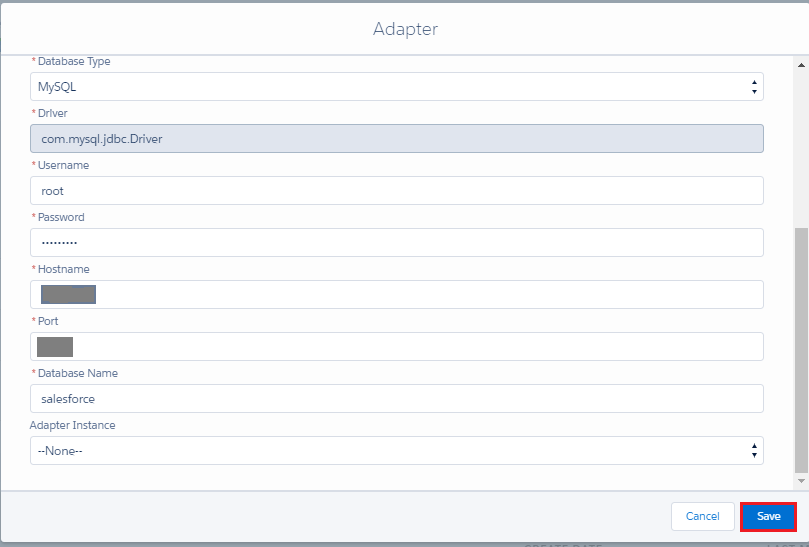
3. Create Adapter:-
- Click on the Adapter tab.
- Fille all the required fields as shown in the picture given below:-

4. Add Remote site settings:-
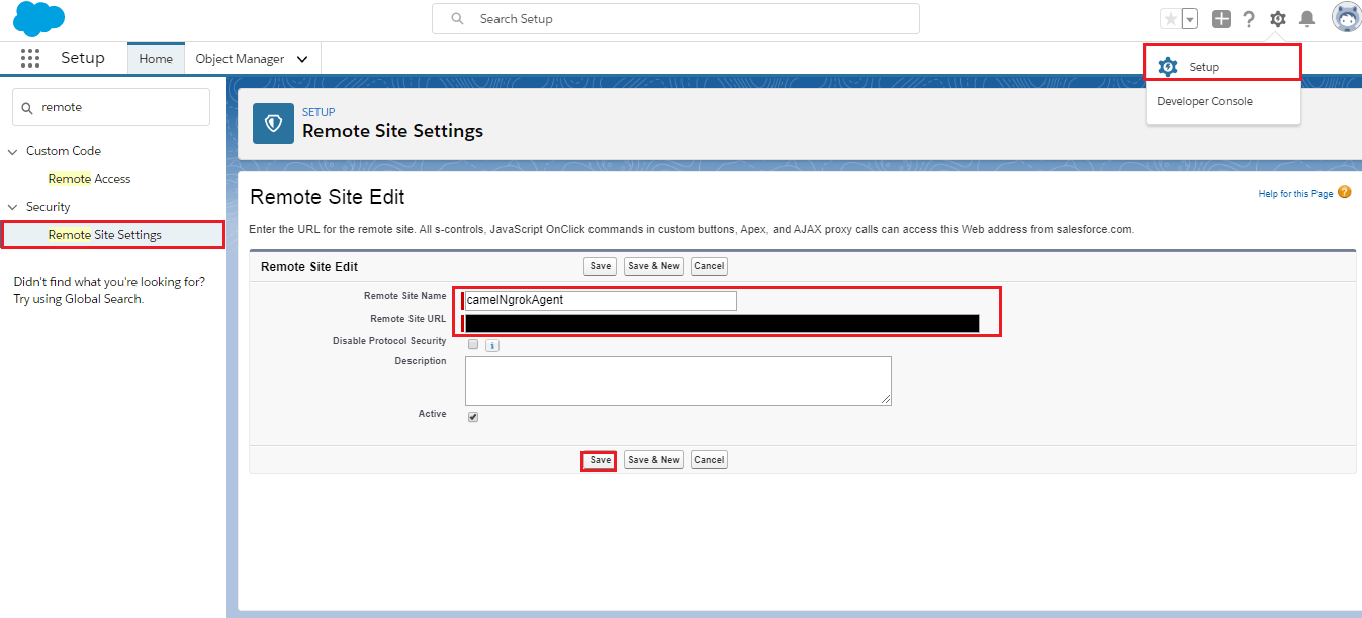
- Click on setup.
- Search Remote site settings in the Quick Find box.
- Fill fields as shown in the picture given below.
5. Create metadata provider:- 6. Create Repository:- 7. On Detail repository page:-
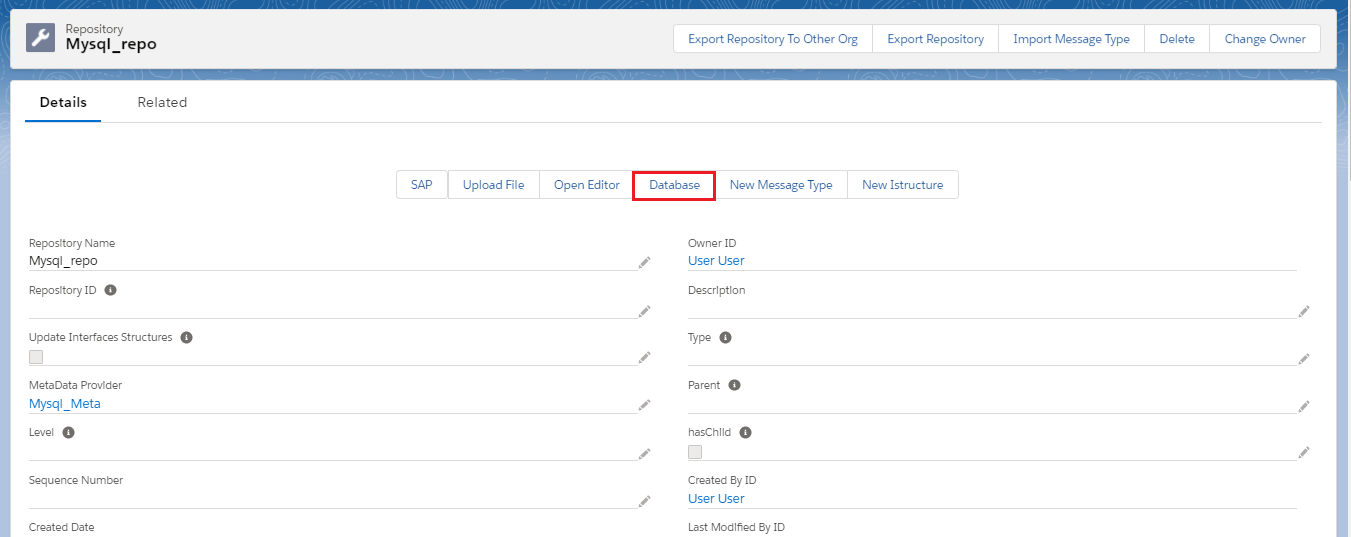
- Click on the Database button.
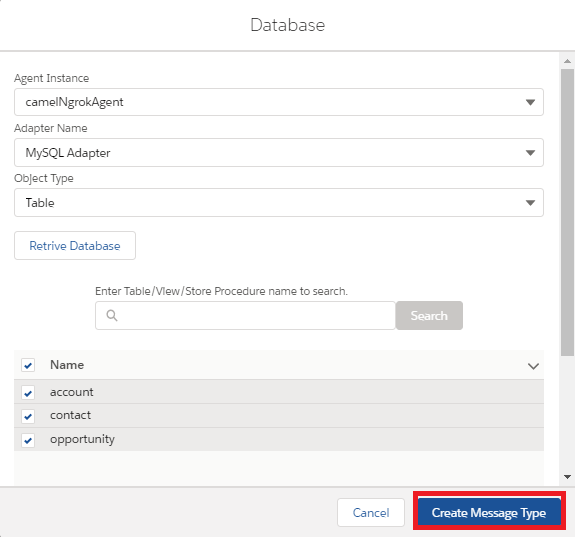
- The new popup screen will display.
- Select your agent.
- Select your adapter.
- If you want to create a message type from Table then select Table.
If you want to create a message type from View then select View. If you want to create a message type from Stored Procedure then select Store Procedure.
- Click on the Create Message Type button.
- As shown in the picture given below.
- On Repository related page we can check Message type and Istructure. As shown in the picture given below.


[su_box title="Note" box_color="#2a8af0" title_color="#000000"]In the same way we can create message type for the Object type View and for Stored Procedure.[/su_box]