5. V3 Integrate API Service
How to create tree hold in hierarchical message type?
Since the user now completely understand; How to create tree hold in the hierarchical message type, by hitting upper link now we guide to follow below: How to Use SKYVVA V3 Integrate Inbound API Services
- Now Create an Integration
- Create Inbound Interface
Search
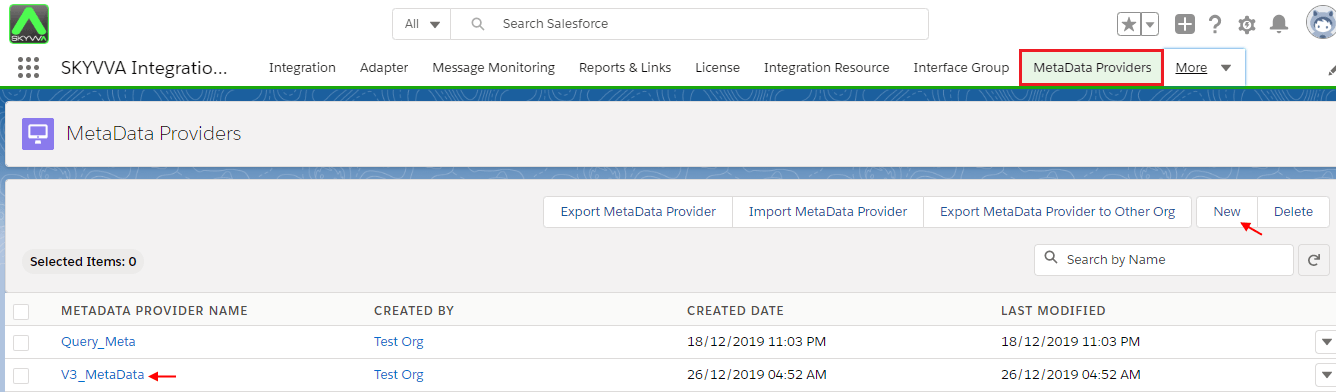
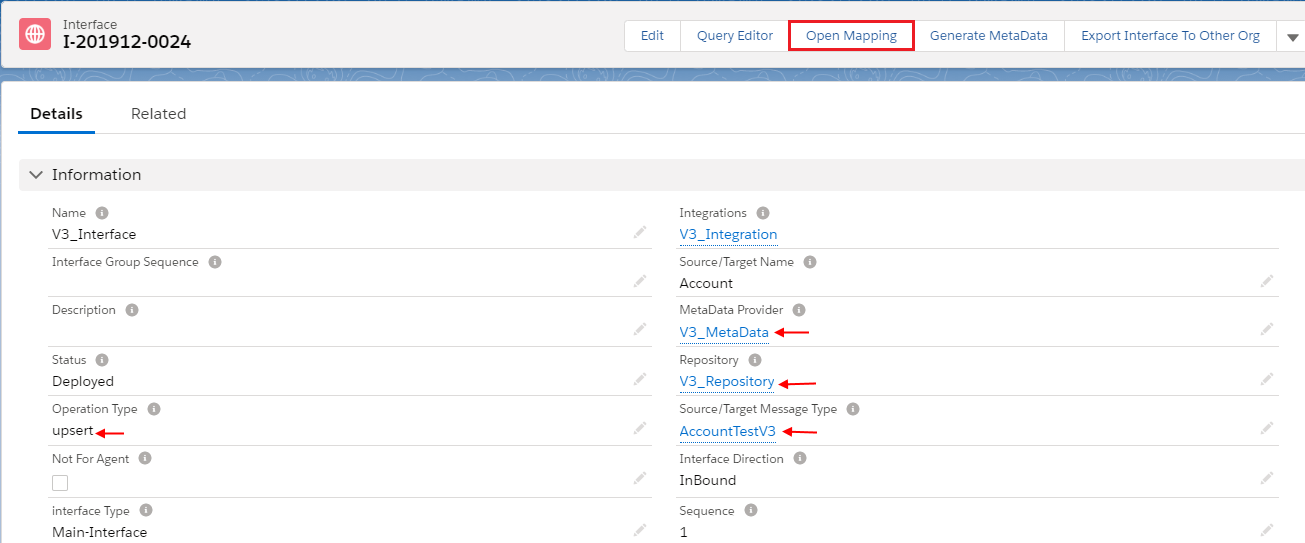
- MetaData Provider
- Repository
- Source/Target Message Type
- Click on Open Mapping Button
- Map the target fields according to AccountTestV3, ContactTestV3, CaseTestV3 to the Salesforce Source sObject
- Save
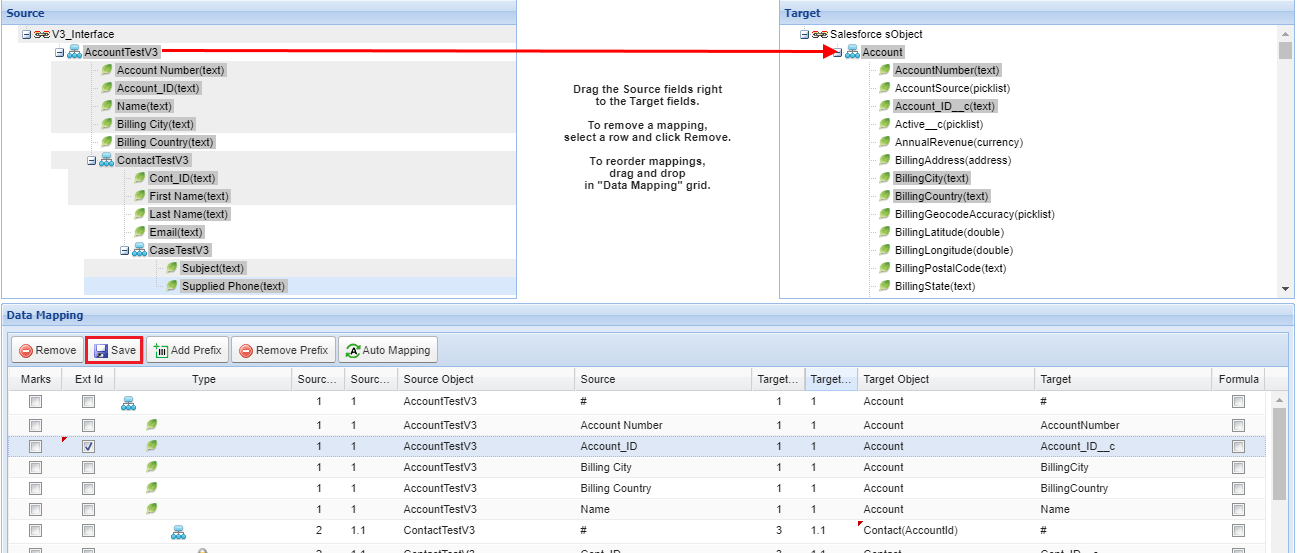
[su_box title="Note" box_color="#2a8af0" title_color="#000000"]User need to map node to node first Example: AccountTestV3 to Account[/su_box] Switch to the Classic Mode and copy URL, currently, we are supporting Classic URL and again Switch to classic mode.

Go to Soup UI
- Click on REST
- Create a New Project
- End point https://skyvva-test-dev-ed.my.salesforce.com
- REST Project 3
- Provide Name Authorization
- Method POST
Now follow the fig. Which is shown below URL : https://skyvva-test-dev-ed.my.salesforce.com Resource : /services/apexrest/skyvvasolutions/V3/integrate [aux_code language="javascript" theme="tomorrow" title="" extra_classes=""]{ "dtoRequestBody": { "mode":"Synchronous", "integration":"a0W2v000019f2zPEAQ", "iinterface":"V3_Interface", "transferId":"1234", "runtimeParameter":"", "responsePayloadFormat":"json", "payloadFormat":"json", "payload":"{\"AccountTestV3\":{\"Account_ID\":\"A-002\",\"BillingCity\":\"Phnom Penh2\",\"BillingCountry\":\"Cambodia2\",\"Description\":\"Testing request payload\",\"name\":\"testaccount2\",\"contacttestv3\":[{\"cont_id\":\"c-002\",\"email\":\"test.2019_2222@gmail.com\",\"firstname\":\"contact2\",\"last name\":\"dara2\",\"phone\":\"2222\"},{\"cont_id\":\"c-003\",\"email\":\"test.2019_3333@gmail.com\",\"FirstName\":\"Contact3\",\"Last Name\":\"Dara3\",\"Phone\":\"3333\",\"CaseTestV3\":[{\"Status\":\"Complete\",\"Subject\":\"ErrorCase2\",\"SuppliedPhone\":\"2222\"},{\"Status\":\"Complete\",\"Subject\":\"ErrorCase3\",\"SuppliedPhone\":\"2222\"}]}]}}" } } [/aux_code]
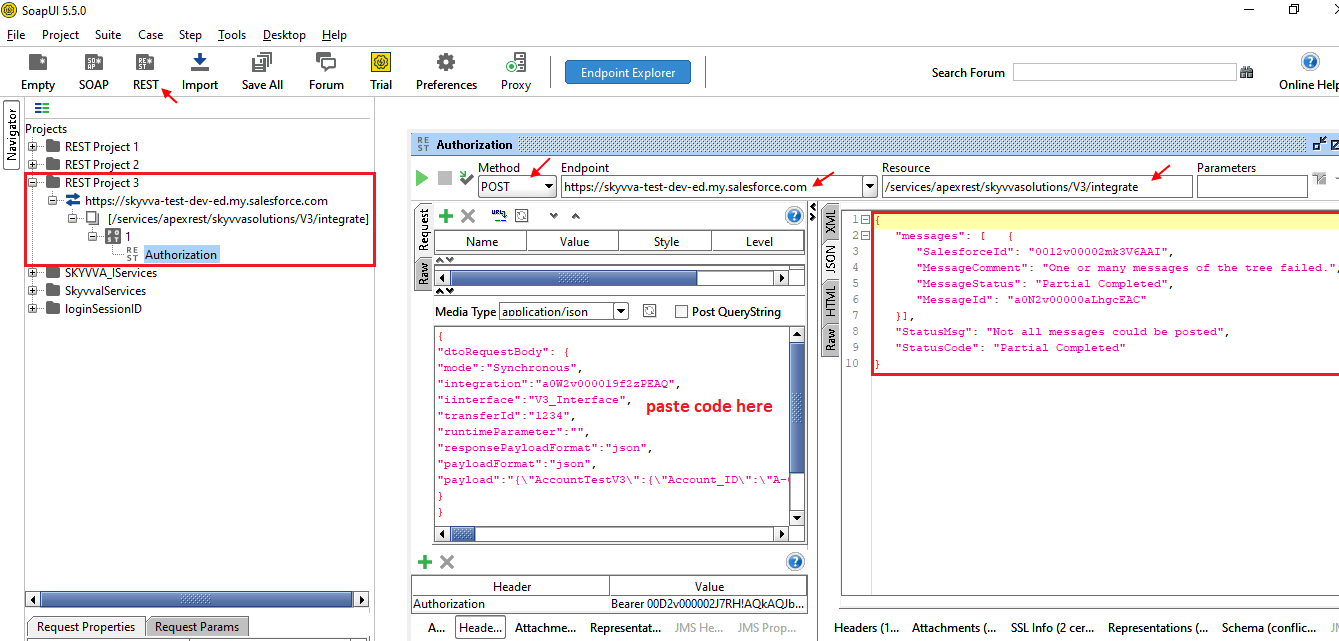
Go back to Salesforce Click on Message Monitoring Tab
- Select your Integration Name
- Select Interface Name
- OK
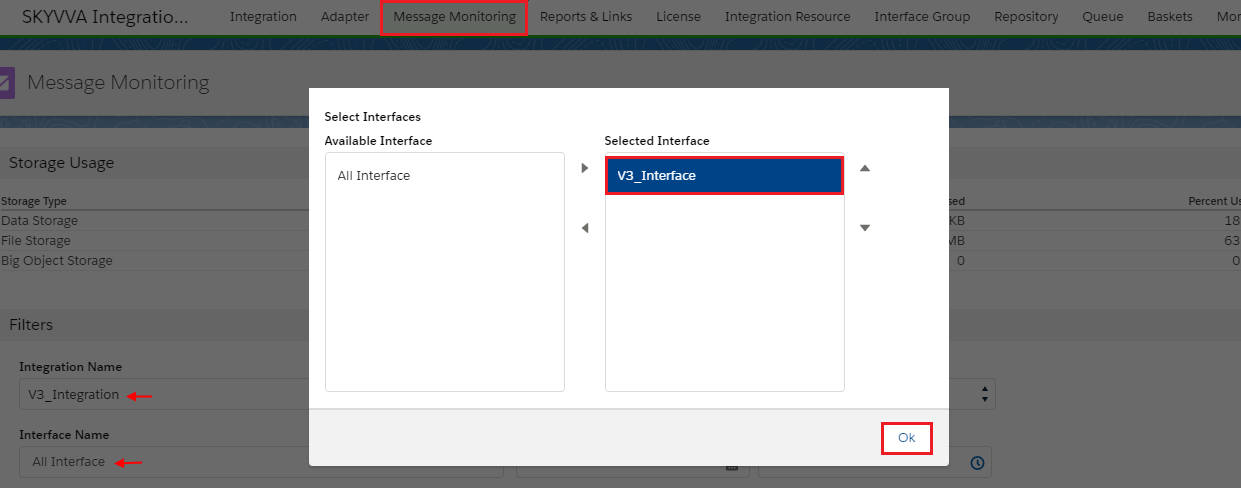
- Scroll down to Message section
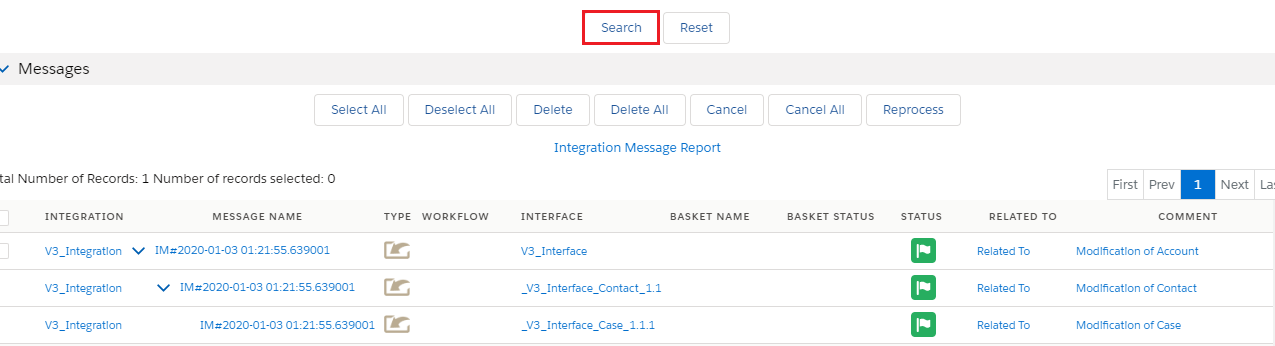
- Click on Search Button
- See record Create Successfully