90. How to add filter condition on "Set context" in mapping?
Introduction
This tutorial explains how to add filter condition on "Set Context" in mapping and how to configure it.
What is "Set Context" in Mapping?
“Set context” in mapping to enable you to map the child node to the same level as you do for the parent. For example, if you have an invoice where you want to map the items to the same target node sObject like the invoice header we just take the first one of the items. The filter function you can add a condition to exactly fetch the item which you really need. E.g. the item with the amount of 25 USD. The condition is used to filter the child records which is to be used to map to the target object along with its parent. Pre-required Firstly, you need to have some required step before you can add filter condition on set context:
- Create MetaData Provider
- Create Integration and inbound interface
- Do mapping
- Push data payload from SoapUI with API:..../V3/Integrate
Configuration
Step-1:Create MetaData Provider, Repository and Message Type ( i.e. AccountMT,ContactMT,AssetMT) In this case, we use Open Editor on Repository to create Message Type [aux_code language="javascript" theme="tomorrow" title="Here is the XML for creating Message Type " extra_classes=""]

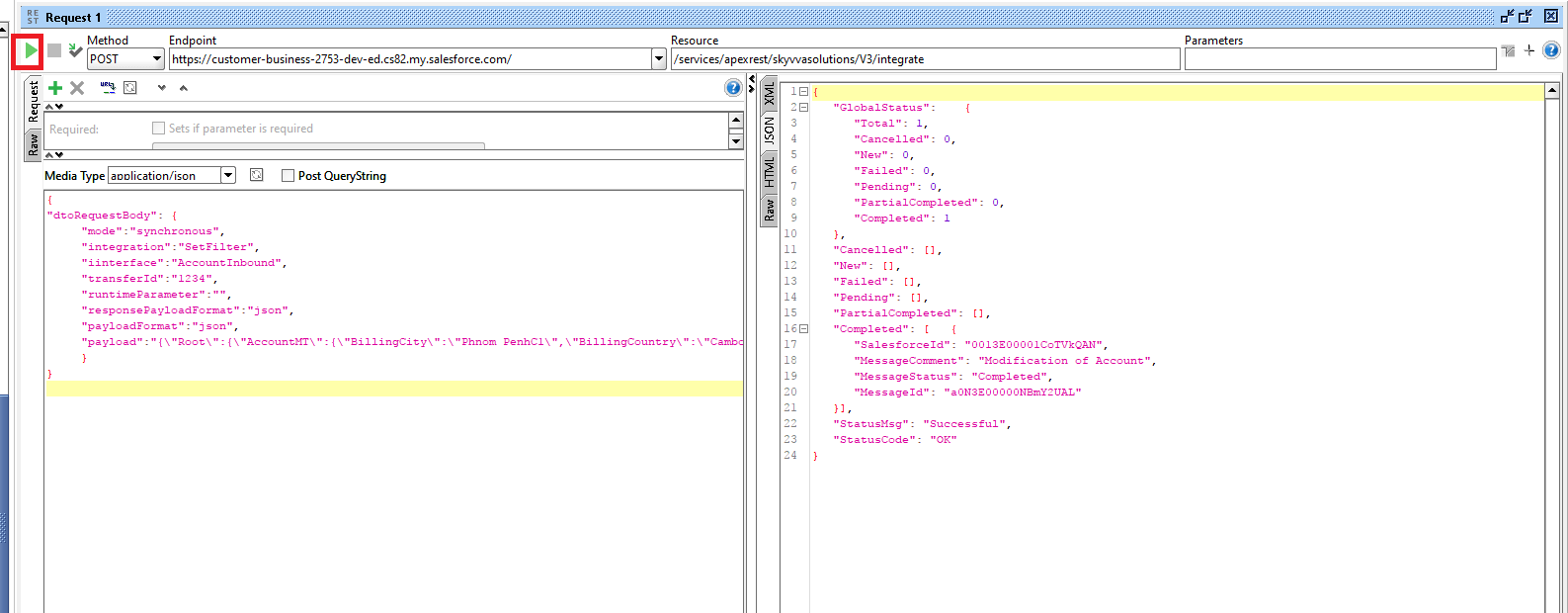
[aux_code language="javascript" theme="tomorrow" title="Here is the request payload " extra_classes=""] { "dtoRequestBody": { "mode":"synchronous", "integration":"SetFilter", "iinterface":"AccountInbound", "transferId":"1234", "runtimeParameter":"", "responsePayloadFormat":"json", "payloadFormat":"json", "payload":"{\"Root\":{\"AccountMT\":{\"BillingCity\":\"Phnom PenhC1\",\"BillingCountry\":\"CambodiaC1\",\"Description\":\"\",\"AccountName\":\"VonTestC01\",\"ContactMT\":[{\"EMAIL\":\"jonhc1@test.com\",\"FirstName\":\"Jonh01\",\"LastName\":\"Smeet01\"},{\"EMAIL\":\"jonhc123@test.com\",\"FirstName\":\"Jonh02\",\"LastName\":\"Smeet02\"}]}}}" } } [/aux_code] Step-2: Create Integration and interface
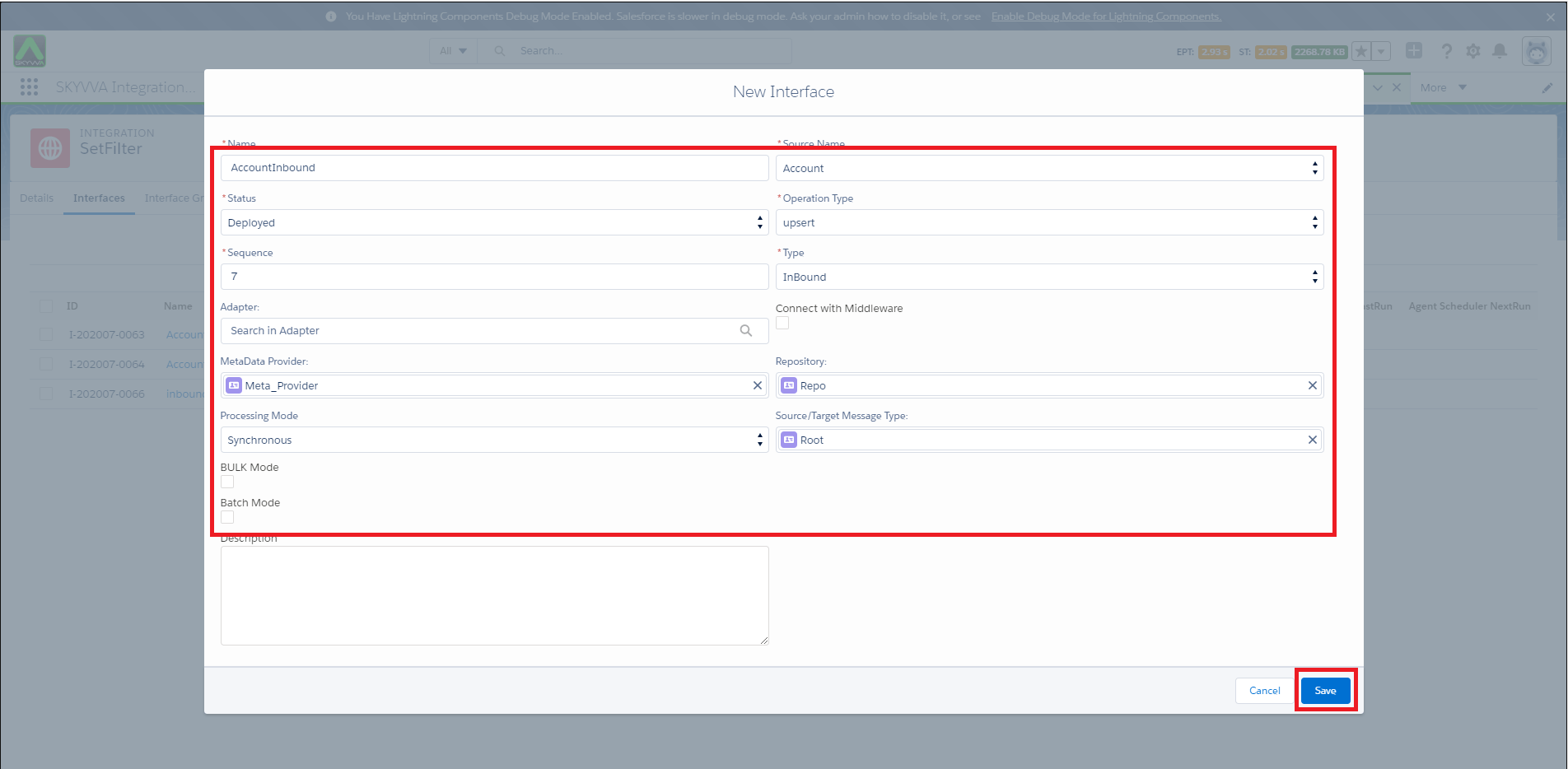
- Inbound interface for Account object, Status: Deploy, Operation type: Upsert and Choose MetaData Provider name, Repository and Message Type
Step-3: Mapping Configuration on mapping
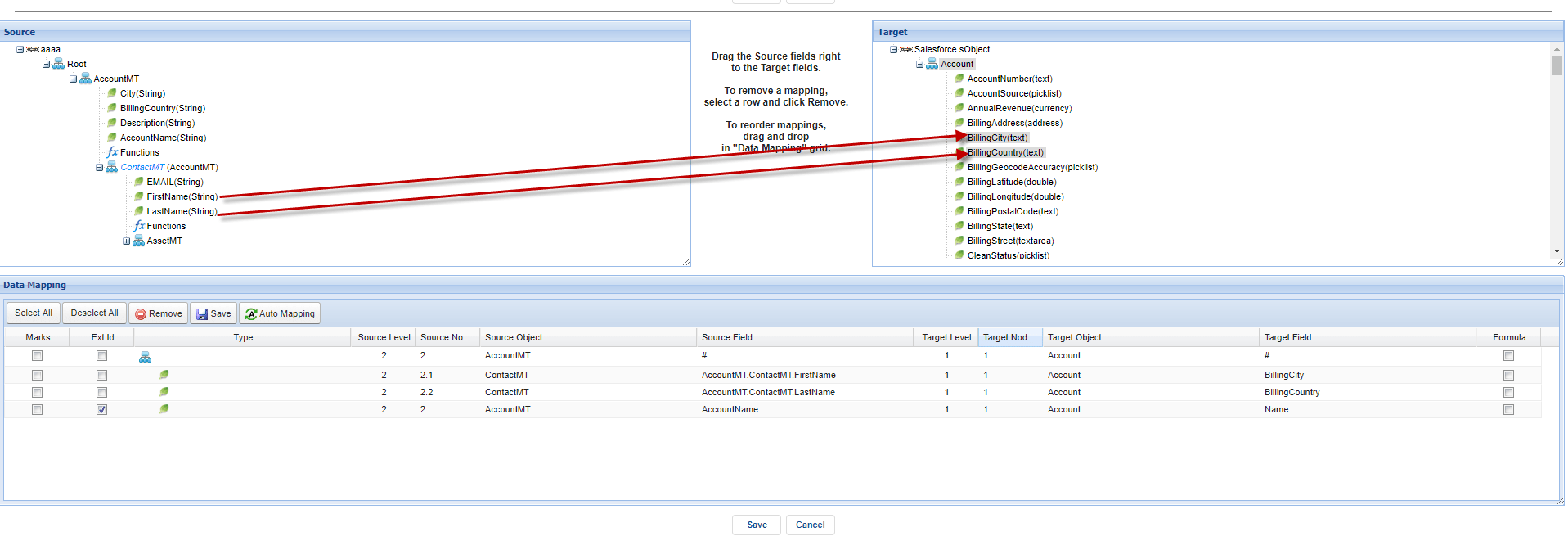
- Level1: “AccountMT“
- Map AccountName of “AccountMT“ to Name of Account on the target side
- Set “ ContactMT“ to equal “ AccountMT“
- Map FirstName of “ContactMT“ to BillingCity of Account on the target side
- Map LastName of “ContactMT“ to BillingCountry of Account on Target side
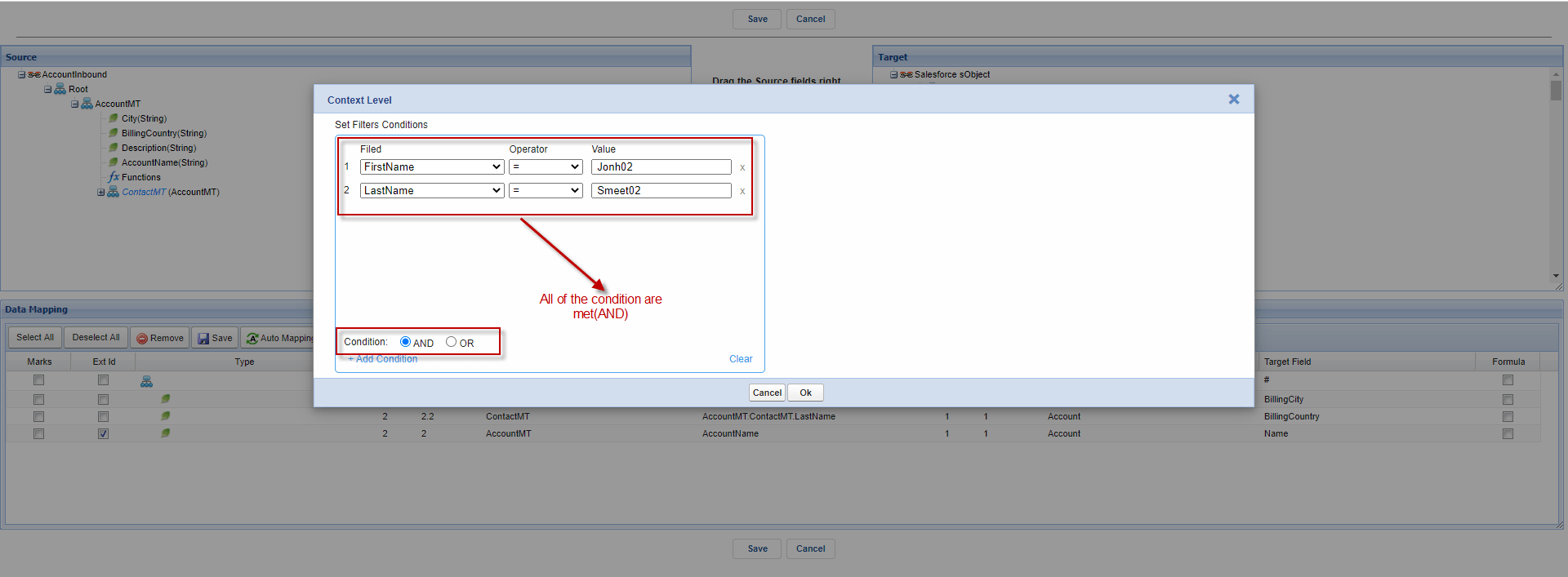
This section will show you how to set filter condition "AND" in mapping. go to interface details page then click button open Mapping
- Right-click on ContactMT -> Click on Set Context Level
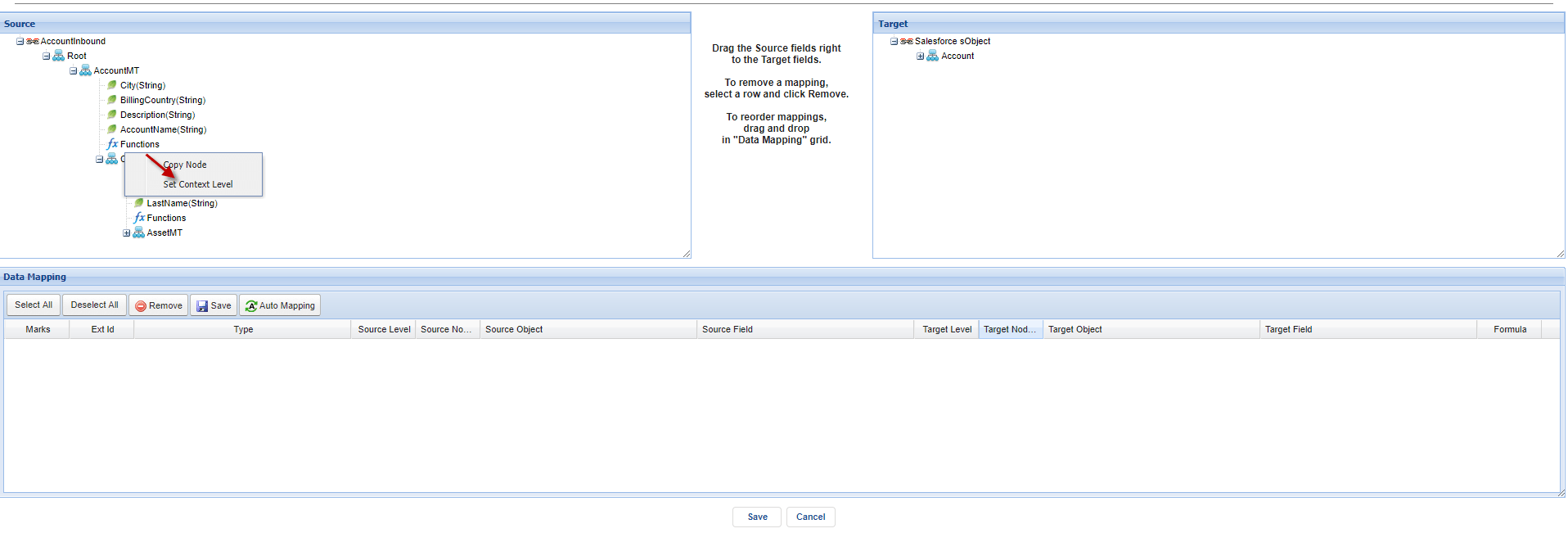
- After Click on Set Context level -> We Set “ContactMT“ to equal “AccountMT“
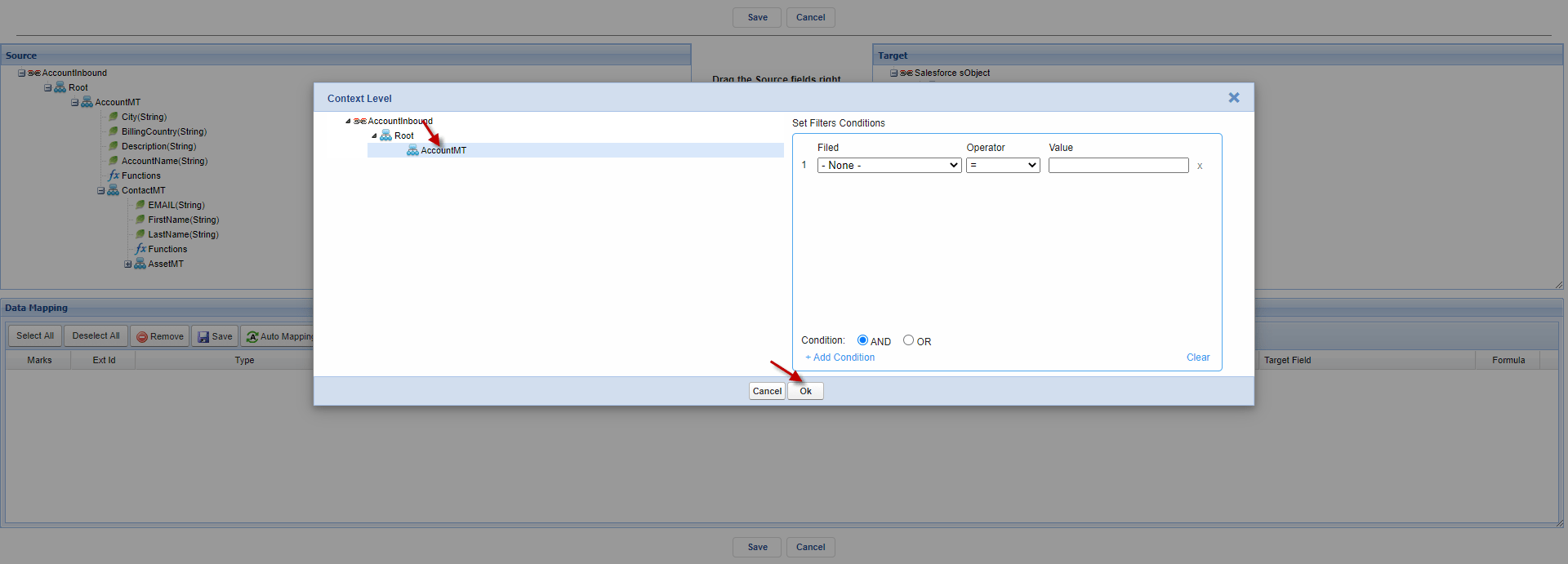
- Do mapping
- Set filter condition of Context Level (Right-click on “ContactMT“ -> Click on Set/Remove Filter)
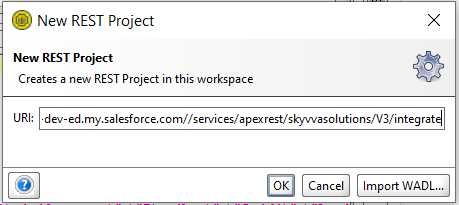
Step-4: Create Rest Project on SoapUI for V3 Integrate
- Past org: instance and API name
Instance name: https://sreymai-dev-ed.my.salesforce.com
- API name: /services/apexrest/skyvvasolutions/V3/integrate
Example:
Step-5: Push data payload from Soap UI to Salesforce
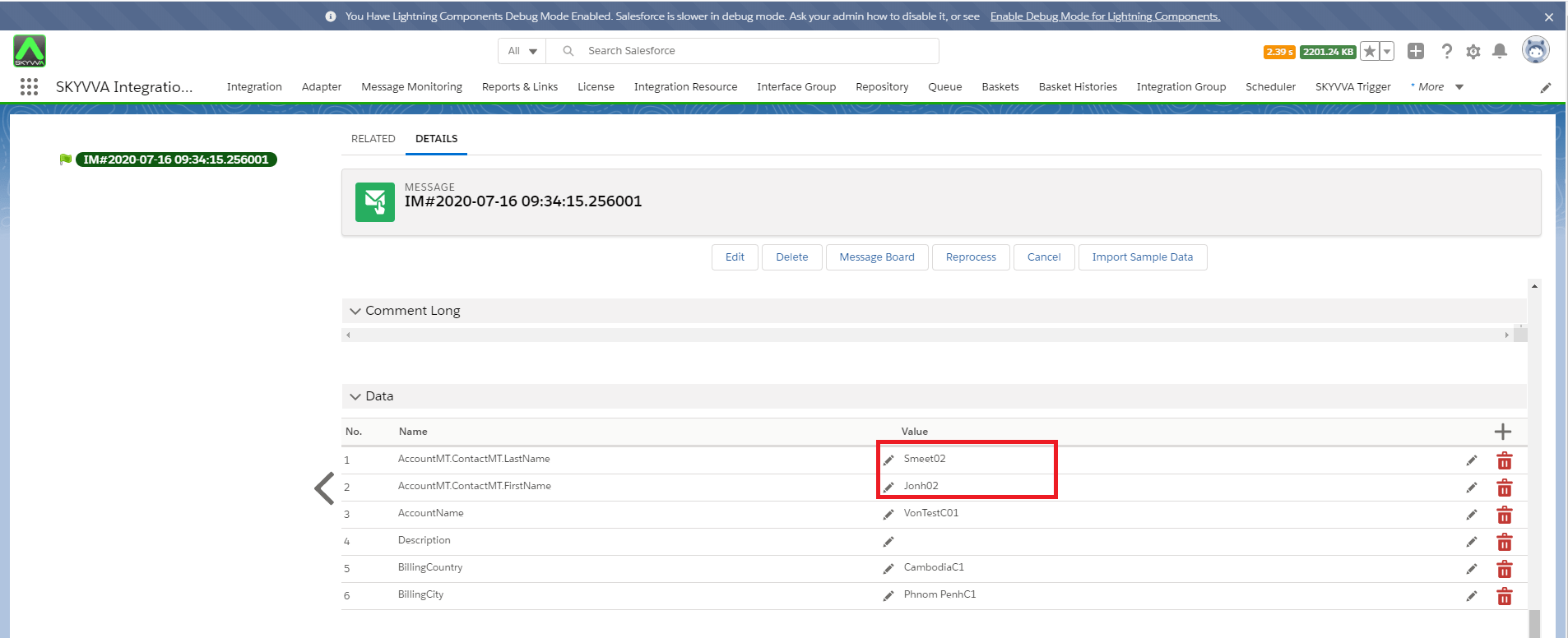
- Check the result on Message Detail
After push data, we get the records based on the filter on set context(FirstName = “Jonh02“, and LastName=“Smeet02“)
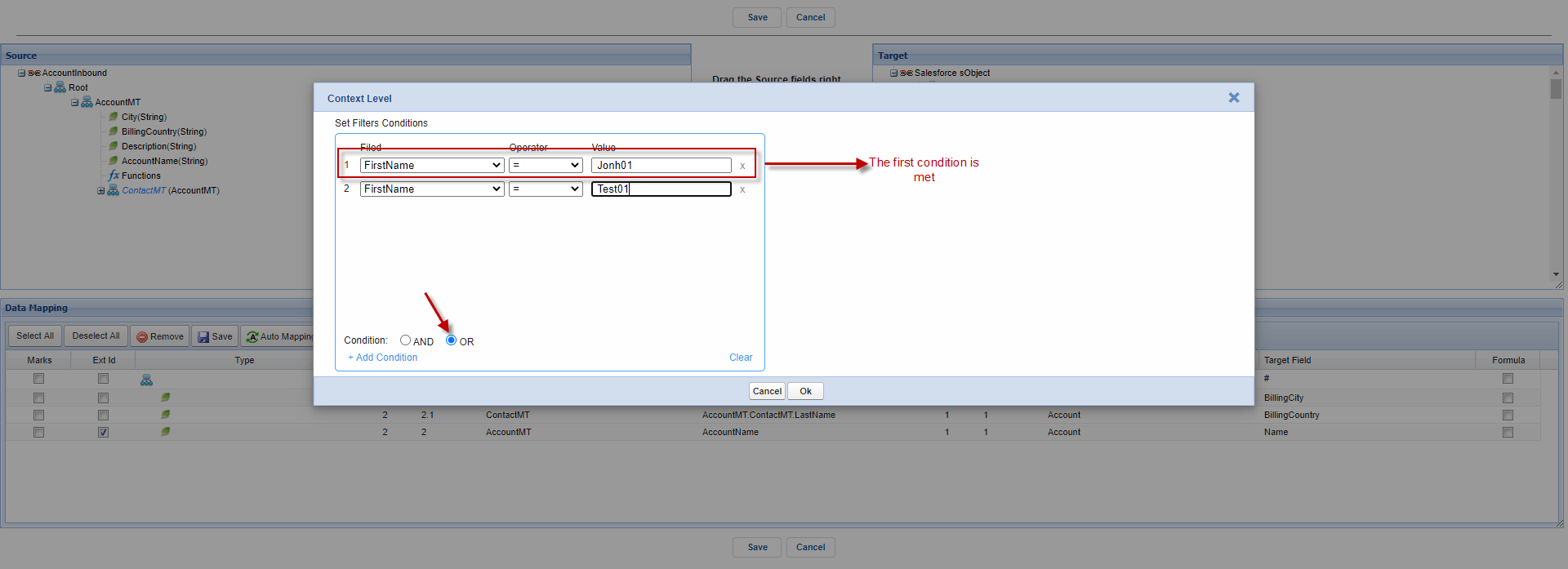
This section will show you how to set a filter condition "OR" in mapping. Step-6: Mapping

- Set Filter Condition of Context Level (Right-click on “ContactMT“ -> Click on Set/Remove Filter)
Step-7: Push data payload from Soap UI to Salesforce
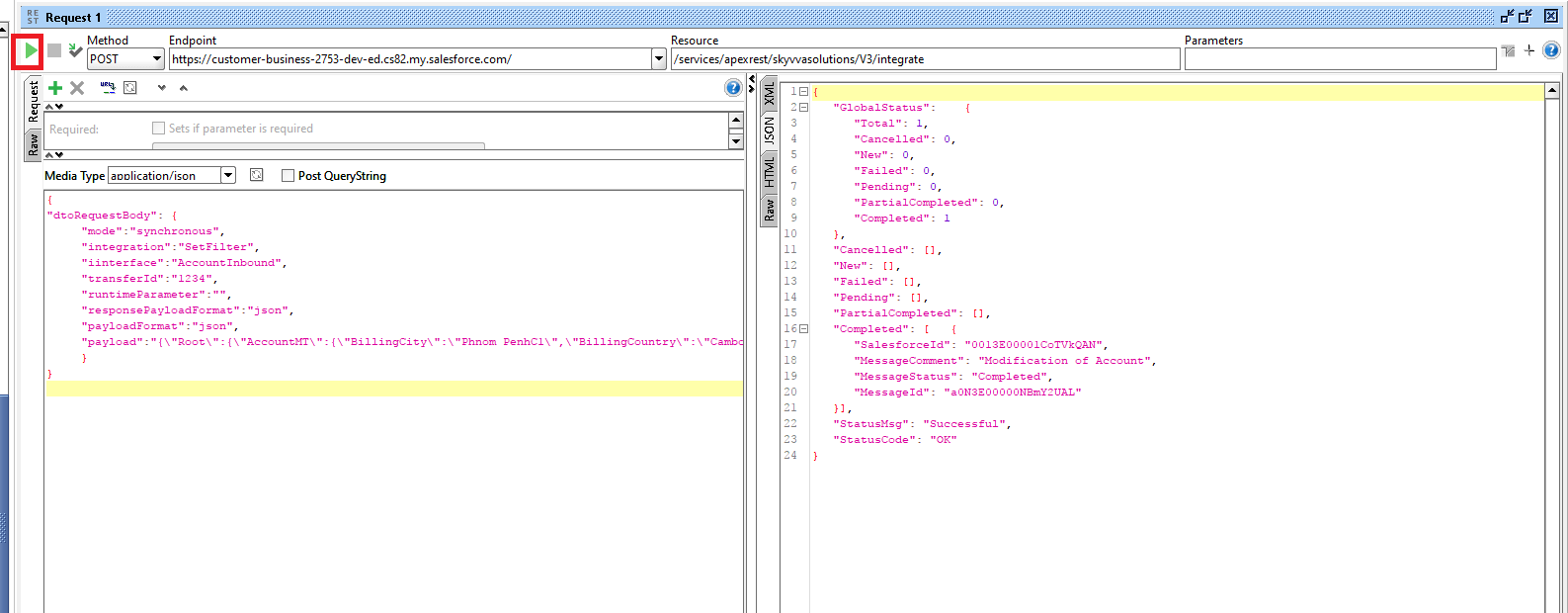
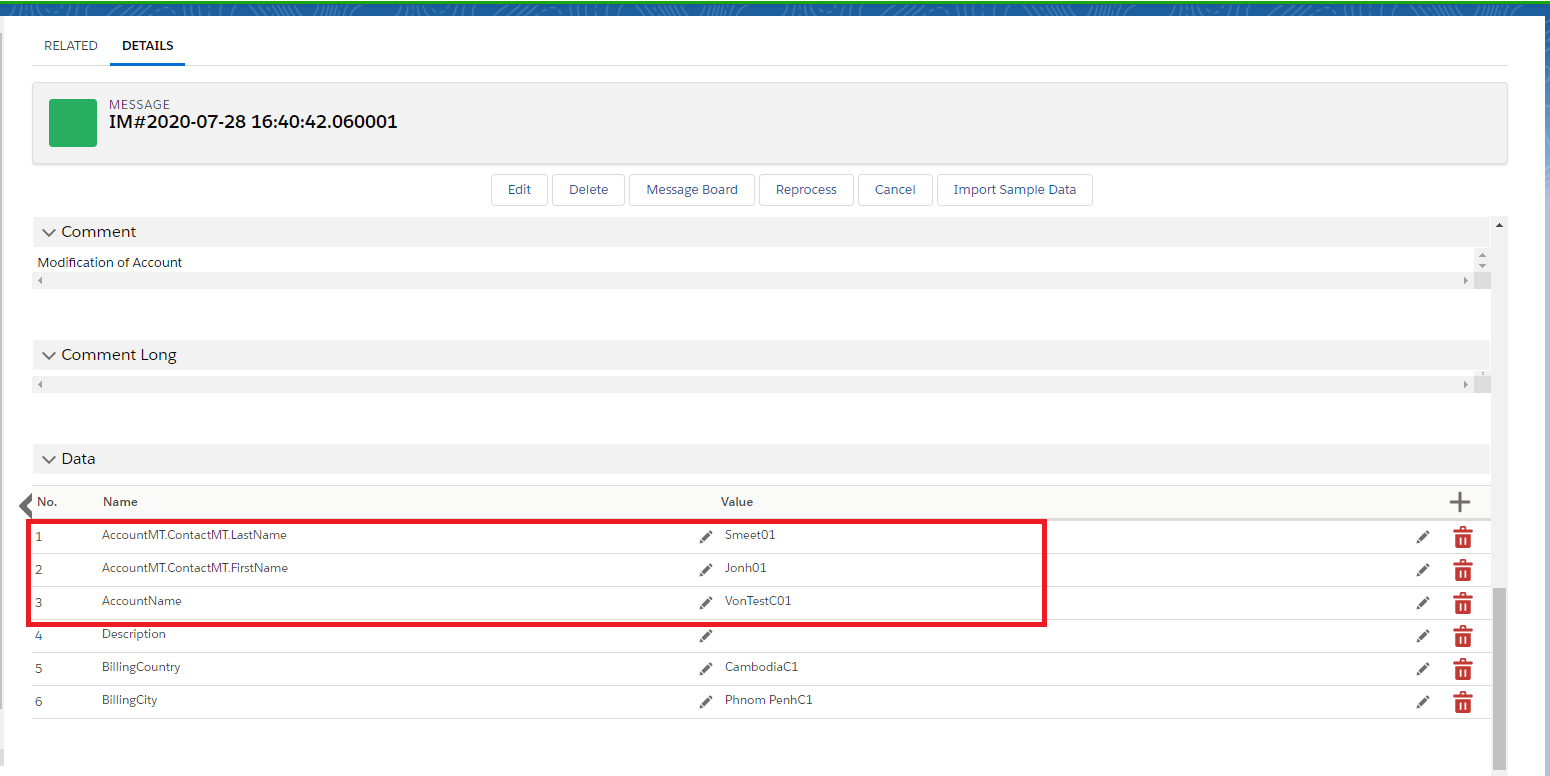
- Check the result on Message Detail
After push data, we get the records based on the filter on set context(FirstName =“Jonh01“)
Summary Finally, we have learned about how to add filter conditions on "set context" in mapping. We have understood how to set the filter, filter function we can add a condition to exactly fetch the item which we really need, and the condition is used to filter the records which are to be used to map to the target object along with its parent.