1. Administration of the Agent using the Agent Control Board
Introduction
The new agent control board is a component which can connect different application system. Besides the component connect that we build on salesforce already. But some protocol we cannot build on salesforce which technically not possible. That’s why we build a new component called “Any Connect” which is based on apache camel is open source around the world.
Screen Configuration:
Kanban TAB Salesforce -> Agent This is the second Kanban tab. On this tab, we define a new connection for the direction Salesforce -> Agent. If the user selects an existing connection then we will display the configuration and the user can, for example, do a ping test. In a new creation mode, he will enter the properties needed for the connection from Salesforce to Agent.
- Host
- Port
- Endpoint
- Username
- Password
- Reverse Proxy setting:
- Proxy Host HTTP
- Proxy Port HTTP
- Proxy Host HTTPS
- Proxy PortHTTPS
- Proxy User
- Proxy Password
After entering the data the user can click on the button 'ping' to make a ping test. If success he can save the setting to the table 'adapterInstance__c' where the field direction is set to 'SF2A'. The record is only saved into the Salesforce table and not to the H2 database on the agent. Caching this record is not needed. In this screen, the user can create the connection to different agent instances and for each instance, we will create a record in the table 'adapterInstance__c'. Screen Configuration: Kanban TAB Agent -> Salesforce This is the third kanban tab. This tab is the 'Agent -> Salesforce' tab where we can display the connection entry for the direction Agent -> Salesforce and do the ping test or create a new connection. We need to specify the credential to log in to Salesforce from the Agent. We need different fields for authentication. For the basic authentication, we need the following fields are
- Username
- Password
- Instance URL
- Security Token
- Server Environment e.g. Sandbox or Production/Development
- Proxy setting:
- Proxy Host HTTP
- Proxy Port HTTP
- Proxy Host HTTPS
- Proxy PortHTTPS
- Proxy User
- Proxy Password
- OAuth 2.0 setting:
- Client-Id
- Client-Secret
These Articles provide users a cosmetic overview of the Administration part to maintain our SKYVVA Any Connect. Articles also explain to the user, How to install SKYVVA Any Connect, features, and working. Follow the Reference link for more understanding - How to use the Agent Control Board?
Since the user now completely understand; How to use the Agent Control Board, by hitting the upper link, now we understand the Architect of the Agent Control Board to follow below:

Connections save successfully
To ensure that your system's cache after performing a system refresh. It appears that the cache was up-to-date after using the "Save" button, which uses an updated connection that includes the correct client-id and client-secret.
To ensure that the cache remains synchronized with the SKYVVA Integration Agent app, it is necessary to perform the "Save" step after every system refresh. This is important because the new object Id’s need to be synced to the agent again. If user skip this step, the cache will continue to contain the old object Ids from before the system refresh.
By following this process consistently, user can maintain an accurate and updated cache that reflects the current state of the system.
If the connected app was deleted after a system refresh and user are unable to restore the connection using the function on the configuration tab, updating the connection manually would indeed be the correct way to proceed. Since the connected app is no longer available, user cannot rely on automated restoration methods.
To update the connection manually in Salesforce, user will need to follow these general steps:
- Recreate the connected app: First, user need to recreate the connected app in Salesforce. This involves defining the necessary OAuth settings, permissions, and any other configurations required for the app to connect with SKYVVA Integration Agent .
- Update the connection settings: Once the connected app is recreated, user need to update the connection settings in your Salesforce configuration. This typically involves providing the new client ID, client secret, and any other authentication or authorization details associated with the connected app.
- Test the connection: After updating the connection settings, it's important to test the connection to ensure it's functioning as expected. User may need to perform some manual steps or run specific tests to verify that the connection is established successfully.
By updating the connection manually, user can reestablish the integration between your Salesforce instance and the SKYVVA Integration Agent app that was previously connected.
[su_box title="Note" box_color="#2a8af0" title_color="#000000"]Once user have completed these steps, the SKYVVA Integration Agent app should be ready to use the new client-id and client-secret for the updated connection. The cache should be rebuilt with the updated data, and all adapters should be linked to the correct connection. [/su_box]
To carry out the steps you provided after a system refresh, follow these instructions:
- Change the Connection:
Obtain the new client-id and client-secret required for the updated connection.
- Identify the configuration file or settings where the client-id and client-secret are stored.
- Update the client-id and client-secret with the new values in the appropriate configuration file or settings. Ensure user use the correct format and syntax for the configuration file.
- Save the changes to the configuration file.
- Rebuild the Cache:
Identify the cache or caching mechanism used in your system.
- Determine the process or commands needed to rebuild or refresh the cache. This could involve running specific scripts or commands in backend.
- Execute the necessary commands or scripts to rebuild the cache in backend.
- Monitor the process to ensure it completes successfully.
- Verify Adapters:
Review the adapters in user system that rely on the connection you updated in step 1.
- Locate the configuration files or settings for each adapter.
- Update the connection details for each adapter, replacing the old connection with the updated one.
- Save the changes to the adapter configuration files.
[su_box title="Note" box_color="#2a8af0" title_color="#000000"]During setup, the SKYVVA Integration Agent will establish a connection destination, which refers to the target location where it will send the updated cache record. This connection destination could be an API endpoint. The agent will configure the necessary parameters such as the endpoint URL. [/su_box]
- Additionally, the SKYVVA Integration Agent will create a cache record, which contains the relevant information that needs to be stored and shared. This record may include data such as the event status. The agent will update this cache record with the latest information before publishing it to the connection destination.
- Once the cache record is updated and ready, the agent will publish an event to notify the UI. This event serves as a signal to stop the spinner, indicating that the relevant task or process has been completed. The UI can then react accordingly based on the received event and update its display to reflect the current status.
- Salesforce update the agent setting and agent property in the Salesforce database. Once the update is done, an event is published to the SKYVVA Integration Agent.
- The SKYVVA Integration Agent performs a task and publishes an event back to the UI. During this process, the UI needs to show a spinner to block user actions for a maximum of 120 seconds. When the UI receives the event from the agent, it should stop the spinner and update the current action status.
[su_box title="Note" box_color="#2a8af0" title_color="#000000"]
- Scheduler, Log Configuration, Logs, Cache Monitor, Adapter Monitor, Agent Cache, System Information tabs are dependent on Integration.
- Interface, Interface Group, Adapter, Import Metadata tabs are not dependent on Integration.
[/su_box]
Agent Control Board has these Tabs Configuration Tab — In which user has to Provide all information under the : PROPERTIES FILE Tab
- Name
- Property File Name, Example: integration.properties
AGENT Server Credential under Salesforce–> AGENT Tab user has to provide the info.
- Username
- Hostname/Public IP
- Password
- Port/Port forwarding
- Ping Agent Connection
Salesforce Credential under Agent-> Salesforce Tab user has to provide the info.
- Username
- Security Token
- Password
- Server Environment
- Client Id
- Client Secret
- Ping Salesforce Connection
User has to provide all such information then the only user has to play with Agent Control Board Interface Tab — Through which the user has to select Interface which is already linked (child) of Integration and further process into Salesforce respectively

Interface Group — There are two types are Interface Group
- Skyvva_DefaultIG_Outbound — Through which the user can get all related Outbound Integration Name
- Skyvva_DefaultIG — Through which the user can see all related Inbound Integration Name
Users can easily Edit, Delete, and create new information on Interface Group Name with the help of radio button options.

Adapter Tab — Through which the user can get all Inbound and Outbound Adapter type which is already linked with the related list on Interface detail page called Inbound Setup & Outbound Setup. Users can easily create, edit update and delete Adapter.

[su_box title="Note" box_color="#2a8af0" title_color="#000000"]
- This is a must to the user always create Adapter inside Agent Control Board
[/su_box] Schedulers — Through which the user can get all Inbound and Outbound Schedulers related to Integration Schedulers is a type of scheduled job which runs regularly bases on-time setting.

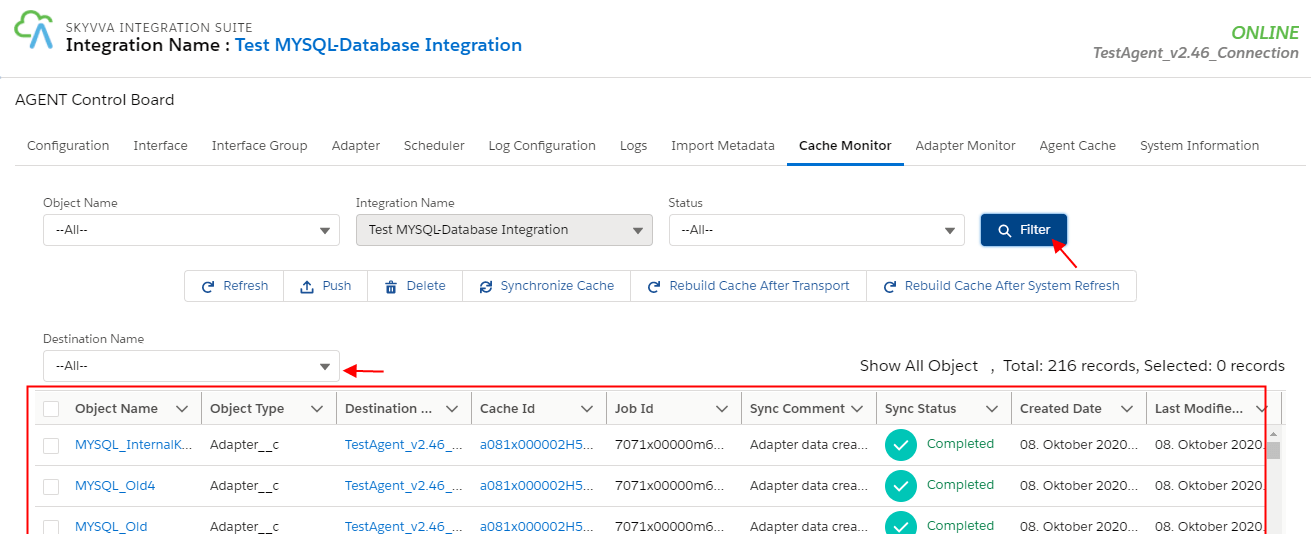
Cache Monitor — Monitor is used to checking the integration result after processing the Inbound or Outbound interface. The integration result includes Pending, Failed, Completed, Cancelled status, and the reason why it failed. Additionally, we can know the real sObject is integrated successfully with completed status. – How to use Cache Monitoring?
Logs — The log tab is used to show the log file from the Agent. The physical log file is created and kept in the local folder of the Agent and we need to view the file in Salesforce because we don't want to get into the Agent Server. Sometimes we don't have any access from the customer to access the Agent-Server and thus it is not possible to read the log file to analyze the error. Therefore we want to have the possibility to get the log file and show it on the Log tab in Salesforce.
- Log file— In the section Logs, we store the error line from the log file into the ilog2 table. The button Refresh means that we re-read the data from the table to see the new entries which were pushed from the Agent on a regularly based through a scheduler. The Agent push using the REST api to insert new entries into the table ilog2__c and thus we need to do the Refresh to see new content. The button 'Re-read from Agent' is to actively read the new log entries without waiting for the scheduler. This is needed when we urgently need to see the latest log entries and cannot or don't want to wait until the scheduler push the new entries into the table ilog2__c.

Log Configuration — We're using Logback as the controlling framework for Logs. Logs will be segregated in mainly 2 categories are
- System Logs — Log file name is going to be SYSTEM-LOG.txt and it will include all the system maintenance API, framework logs.
- Business API Logs — Log file name would be formed with this format
- .txt. These logs will include the details about the Business APIs.
At any point in time, we can update the Logging configuration through the APIs build in the system. There will be a default Logging setting which will remain active in case of any starts or restarts of the Agent service. This Logging is not present in the DB rather in the logback.xml. At any point, if we want to create a logging profile, we can do so using the APIs built and described below. Then to activate we need to use activate API. – How to use Log and Log Configuration Tab on Agent Control Board?

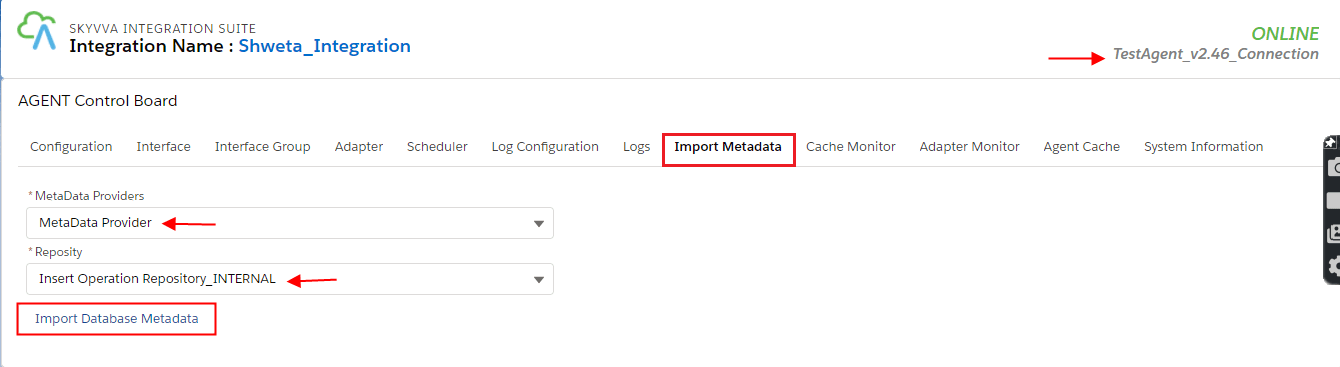
Import MetaData— The new agent control board is a component which can connect different application system. Besides the component connect that we build on salesforce already. But some protocols we cannot build on salesforce which technically not possible. That’s why we build a new component called “Any Connect” which is based on apache camel is open source around the world. – How to Import Metadata from Agent Control Board?
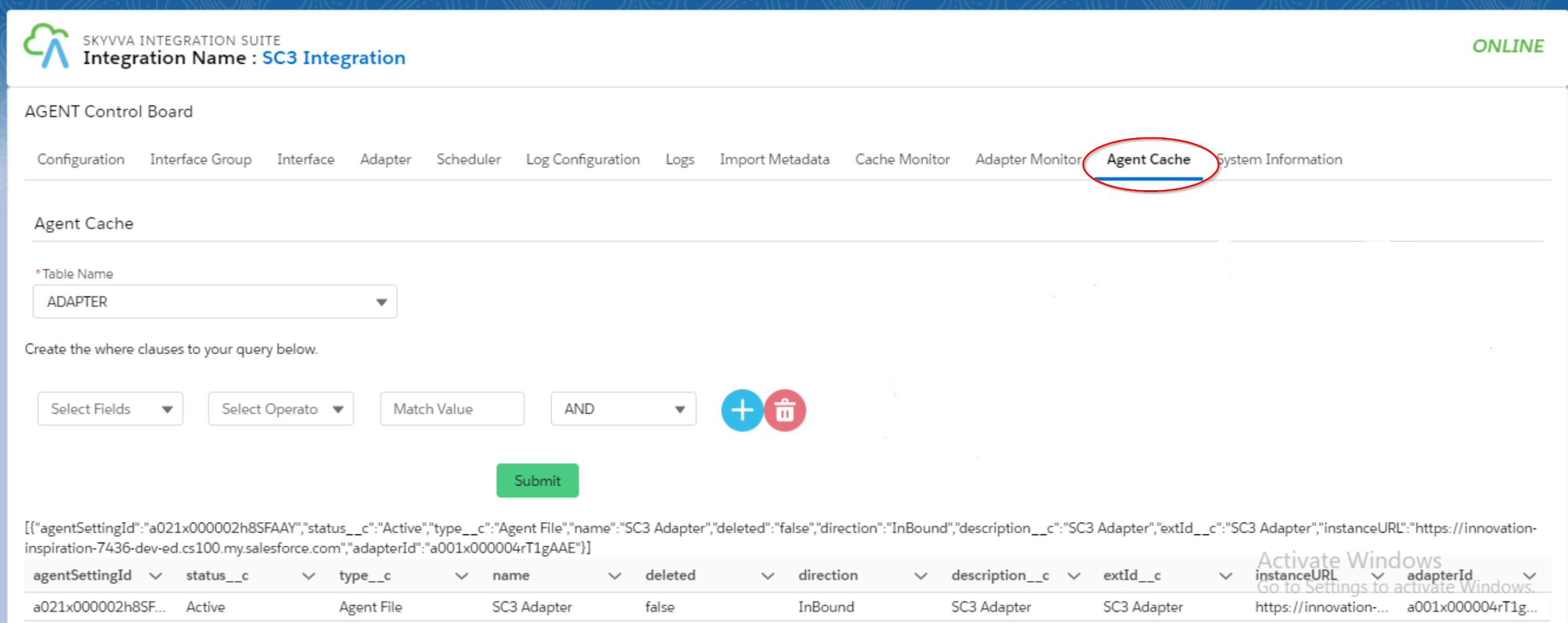
Agent Cache— This tab shows us the table content e.g the cache on the h2 database in the Agent. We have to control and verify the content if it is caching down to the Agent and if the content is correct. Getting this possibility we do not need to ask the customer for the access to h2 database on their installation. We can do it the right way as SKYVVA support to find the inconsistency regarding the cache in between Salesforce and Agent. This simplifies our support life later in production use to the Agent.
- Currently, we are using the h2 database browser we need the user and password to the database browser to verify the content.
- We can look directly to the h2 cache table using the username and password which is configured with the 'Configuration' tab.
– How to use Agent Cache on Agent Control Board?
Adapter Monitor— This function allows the user to monitor the adapter. We provide only the monitor the file adapter to see files in the folder that users have to specify in the adapter property at the moment. This helps user to see, if we have too many files and thus it reaches a critical situation eg. we have stuck. Kafka and pulsar adapter could make sense to see the message in the queue/topic. But we have not found any function which allows user to look into the queue without consuming the content and thus remove it automatically after the view. Therefore it makes sense from the business requirement but technically we cannot do that.

System Information
- Through which the user can get all information about System Information
AGENT
Operating System
Memory


- AGENT RuntimeAgent Instance Version : 3.0.0Instance Timezone: UTCHost Country Code: USInstance Home Directory : /home/ec2-userHost Language Code: enHost Username: ec2-userInstance Installation Directory : /home/ec2-userInstance Process ID: 3846System Hostname : ip-172-20-63-98.eu-central-1.compute.internal
- DATABASE_RUNTIMEDatabase Status: RunningDatabase URL : jdbc:h2:~/skyvvaDatabase Schema: PUBLICDatabase Vendor Name: H2Database Product Version: 1.4.200 (2019-10-14)Database Driver Name: H2 JDBC DriverDatabase Driver Version: 1.4.200 (2019-10-14)Database Username: SKYVVA@12Database Max Connections : 0
- JAVA_RUNTIMEJava Version : 14Java Encoding : UTF-8Java Vendor: Azul Systems, Inc.Java Vendor Url: http://www.azulsystems.com/Java Specification Vendor: Oracle CorporationJava Home Path : /usr/lib/jvm/zulu-14JDK Vendor Version: Zulu14.29+23-CAJava Runtime Version : 14.0.2+12Java Runtime Name: OpenJDK Runtime EnvironmentJava VM Name : OpenJDK 64-Bit Server VMJava Vendor Url Bug: http://www.azulsystems.com/support/Java VM Version : 14.0.2+12Java Compiler Version: 58.0JVM Free Memory: 30 MBTotal JVM Memory: 85 MB
- OS_RUNTIME :Operating System Name: LinuxSystem File Separator: /System Line Separator :System Path Separator: :Operating System Version : 4.14.186-146.268.amzn2.x86_64System File Encoding: UTF-8Operating System Architecture: amd64Available Processor Cores: 1Total System Memory: 2088 MBFile System Root Path: /Total Disk Space: 21462 MBTotal Free Disk Space: 10232MBTotal Usable Disk Space: 10232 MB
- Init:134217728(131072K)
- Used:22849712(22314K)
- Committed:128974848(125952K)
- Max:1908932608(1864192K)

