11. Agent SAP ERP Adapter
Overview
Any Connect integration with your SAP ERP system is becoming a lot easier with the Agent SAP ERP Adapter for SAP PI/PO. The Agent SAP ERP Adapter enables the user to read data from Any Connect and to update your Agent SAP ERP data with information from your SAP backend systems. The Agent SAP ERP Adapter is tightly integrated with the Any Connect API and Security Framework, freeing users from these basic tasks like schema generation, code integration, and authentication. Agent SAP ERP Adapter supports BULK, SOAP, and Streaming API for fast and real-time data retrieval and upload.
Key features
- Full integration with SAP PI Adapter Framework, Alert Framework, and Monitoring.
- The Adapter manages sessionid for authentication purposes.
- Supports Read/Create/Update/Delete operations to Salesforce objects
- Insert or Update (Upsert) a Record Using an External ID
- Supports subscription to Salesforce push topics (Streaming API)
- Supports custom objects/fields
- XML/CSV data format supported for data updates
- Multiple parameters provided in queries for precise data selection
- Support Relationship Queries (joins of related objects)
- Handle QueryLocator to create one single PI message
- Deleting objects based on External ID or field value.
- Adjust communication method dynamically based on data volume to achieve the best performance
- Workbench for Schema generation and Query validation.
- SAP Certified Adapter for SAP PI/PO
- Available for SAP PI 7.10, 7,11, 7.30, 7.31, 7.4
- Support TLS 1.1 and TLS 1.2
Key advantages
- Significantly reduces implementation effort for integration with Salesforce.
- Easy configuration and setup Fully integrated with SAP PI/PO without need for external tools.
- Easy configuration and setup Fully integrated with SAP PI/PO without need for external tools.
– [How to invoke IDOC XML using Agent SAP ERP Adapter?]((link not available))
Posting IDOC XML to SAP ERP over Skyvva SAP ERP Adapter Agent SAP ERP Adapter supports both Linux and Windows Server. In SAP ERP we have to do the following settings Transaction: SRTIDOC
- Execute with the default values in the transaction with the option “Register Service” selected
- Registration should be successful with the message “Registration Successful”
- If this service has already been registered, you may get the error message – “Access Address already used for Web service”.
In such a case, this step can be ignored as the SOAP Service is already registered and running.
Transaction: SICF Hierarchy Type: SERVICE & Execute Navigate to Default Host –> sap –> bc –> srt –> IDoc. Right Click & Test Service Note the URL that comes in your browser.
- This is the generic endpoint for idoc XML posting to SAP.
- [aux_code language="javascript" theme="tomorrow" title="" extra_classes=""]http://host:port/sap/bc/srt/idoc?sap-client=.[/aux_code]
- The following is the endpoint for our SAP system ID7 with client 800
- [aux_code language="javascript" theme="tomorrow" title="" extra_classes=""]"http://195.201.104.232:16080/sapid7/sap/bc/srt/idoc?sap-client=800"[/aux_code]
- This endpoint we will use while creating the SAP ERP adapter in SKYVVA
- Importing IDOC from Import SAP metadata
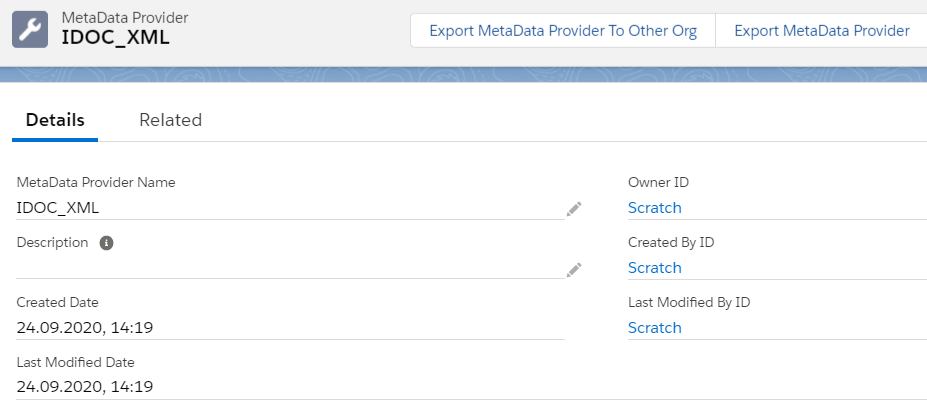
Here we need to select the SAP Connection through the Agent and select the Adapter type which we created earlier in the Agent Control Board and Select the Application Data type IDOC and then Select create message type to call IDOC in SAP. Creating an Outbound interface:
- Provide the Name, sObject type, Description, Processing mode, Status, Metadata provider, Repository, Message type, outbound adapter, and the SQL statement
- Mapping to the Agent H2 table.
- We have also a Copy node function in SKYVVA. Copy node is used to duplicate the segment if needed.
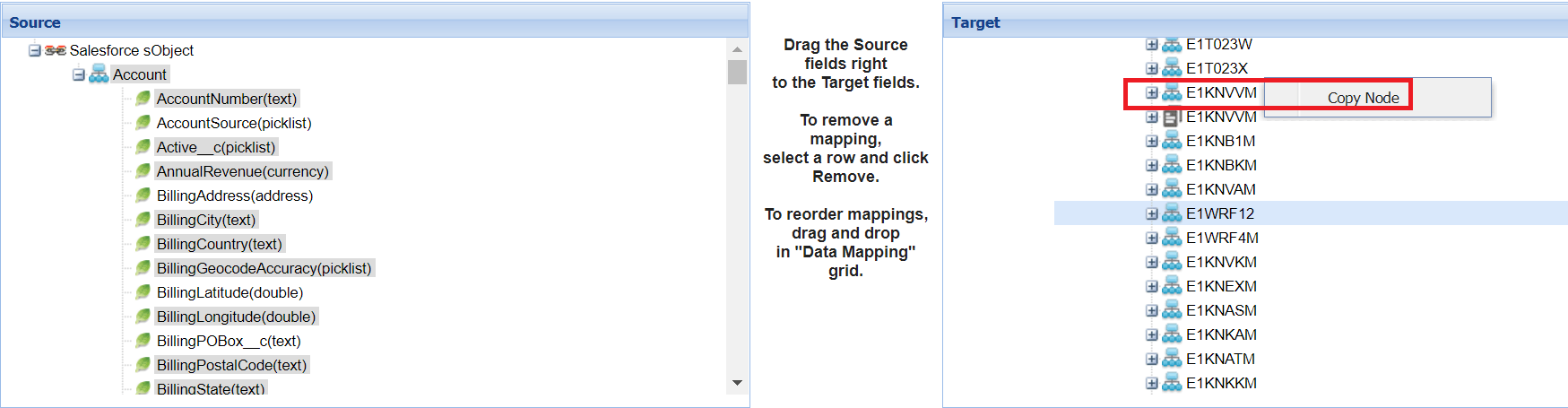
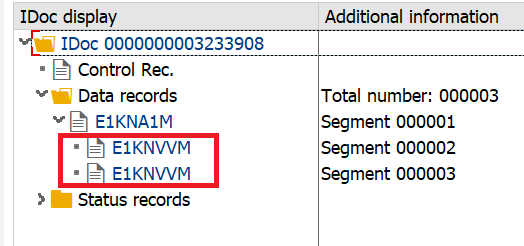
This is the functionality of the SKYVVA copy node. –[ How to invoke BAPI XML using Agent SAP ERP Adapter?]((link not available))
Posting BAPI XML to SAP ERP over Skyvva Agent SAP ERP Adapter In SAP ERP we have to do the following settings Calling RFC-enabled Function Modules over HTTP from external application As a prerequisite, go to transaction SICF and locate the following service: sap -> bc -> soap -> rfc. Its description gives you some more details about the functionality: SOAP HTTP HANDLER FOR RFC-CAPABLE FUNCTION MODULES. Now, right-click on that service and choose Test Service, and make sure that you allow SAP to open your web browser (in a popup that appears). Make note of the URL that is opened in the browser. Generally, this URL would look as follows: [aux_code language="javascript" theme="tomorrow" title="" extra_classes=""]http://[hostname]:[SICF port]/sap/bc/soap/rfc?sap-client=[client][/aux_code] It’s a central endpoint for all BAPI’s. Now that we know the communication URL use an HTTP client to communicate with SAP. In this example, I will use the SOAP UI tool for this purpose, but it can be any application. Importing BAPI/RFC's from Import SAP metadata To Import SAP metadata first, we need to create SAP Connection in skyvva as shown below
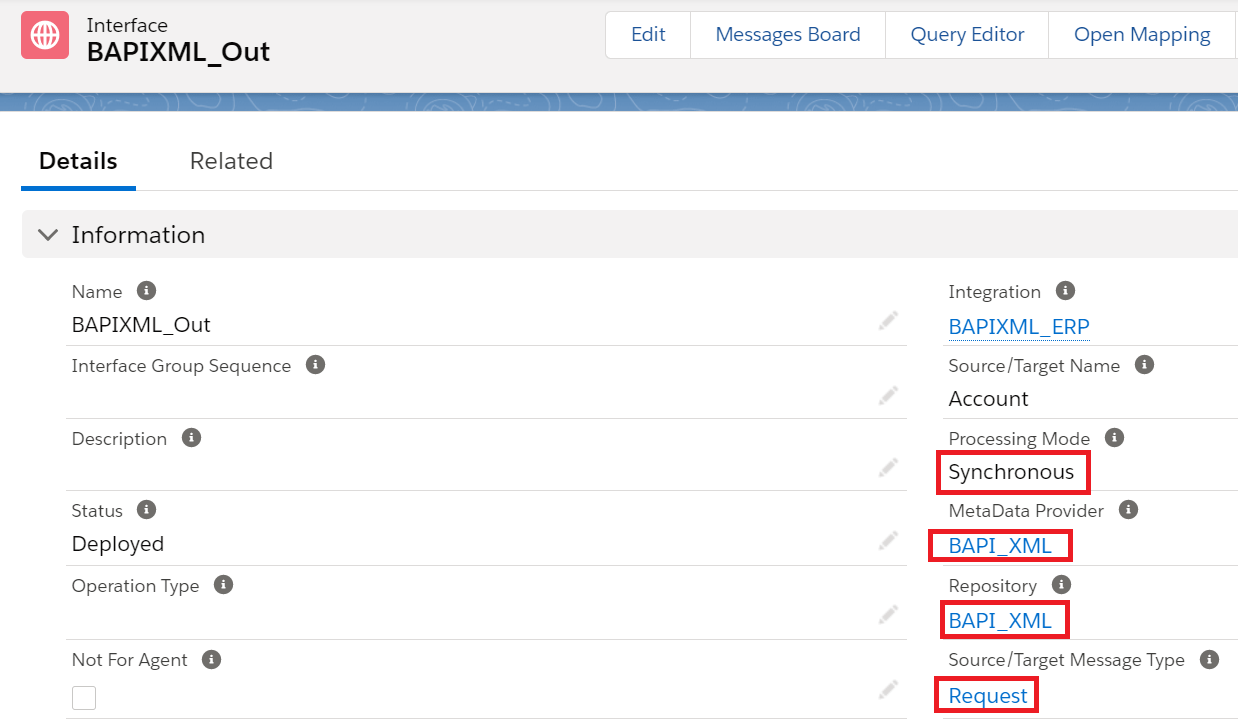
Creating an Outbound Request interface: Provide the Name, sObject type, Description, Processing mode, Status, Metadata provider, Repository, Message type, outbound adapter, and the SQL statement as shown in the screenshots below In the message type, we have to select the root message type then it will automatically point to Request in the request interface and point to Response in the response interface. Now we can see the message in the message monitor:
