1.6 Create Connection Destination & SAP Adapter in Salesforce
This unit describes:- How to Create Connection Destination & SAP Adapter in Salesforce
Introduction:-
In this chapter, you will learn about the “Create Connection Destination & SAP Adapter in Salesforce”. This is used to send & receive data from SAP <> salesforce . Prerequisite Create integration in Salesforce Create Connection Destination & SAP Adapter in Salesforce. To connect SAP<=> SALESFORCE We have two Option.
- Connect SAP<=> SALESFORCE through AGENT
- Connect SAP<=> SALESFORCE Direct
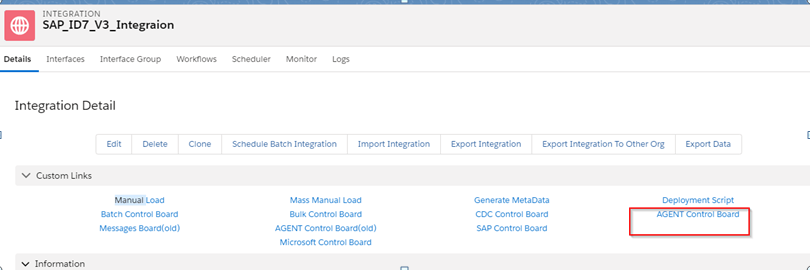
1. Connect SAP<=> SALESFORCE through AGENT a. Create Connection Destination Go to Integration details tab and then select AGENT Control Board
Provide the details for connection details as shown below and click on continue button Note : Always select Type: "AGENT SAP ERP"

Here we need to provide the agent connection details as below Host Url: http://xxxx.com Port: 16xxx Username: xxxx Password: Provide the details of Agent as shown
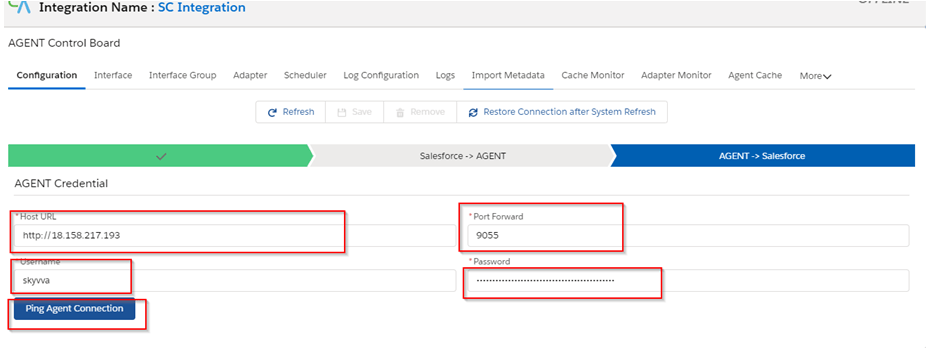
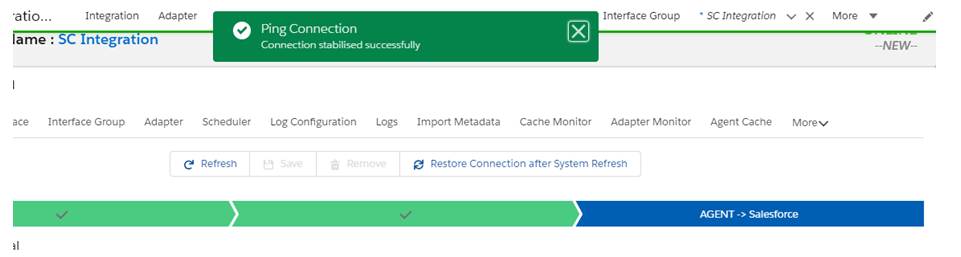
Once we provide the details we need to ping the agent Connection. Then we can see the pop-up as below
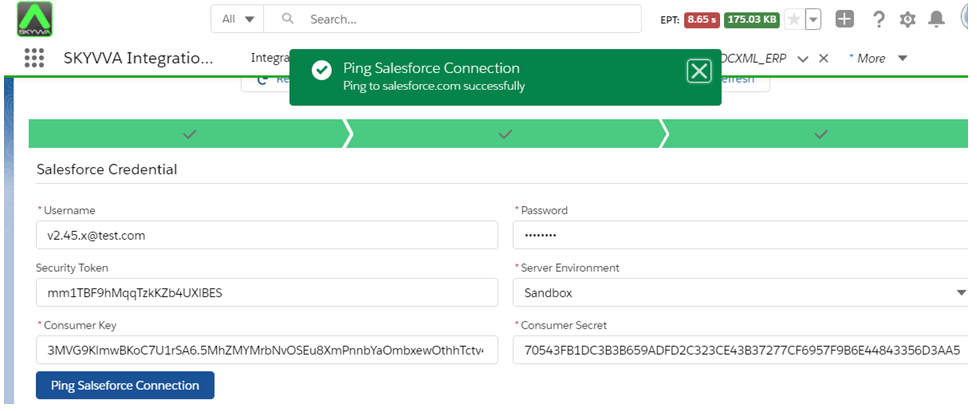
Now we have to provide the salesforce details as shown below. Consumer Key and Consumer Secret we can get from the connected App.

Click on Ping Connection of Salesforce to check if its connected successfully.
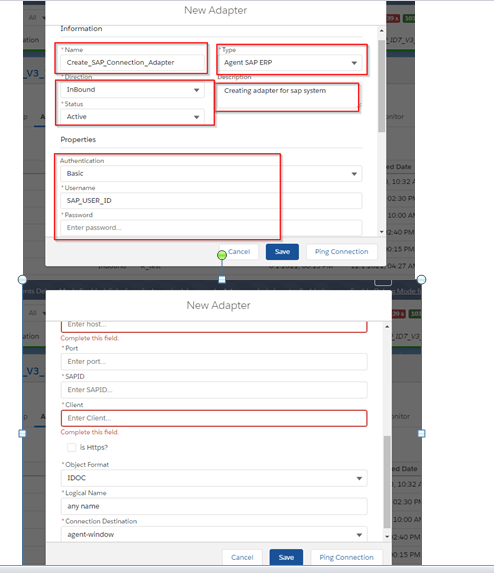
b. Create Adapter To create adapter goto integration->agent control board then select adapter tab and click on new button and fill the details as below.

Here we need to provide the sap details as below Name : Any meaning full name Type : Always “Agent SAP ERP” for agent Host Url : http://xxxx.com Direction : Inbound/outbound Port : 16xxx (sap port) Username : xxxx(sap user id) Password : (sap user id pass) Authentication : always (basic) SAPID : ID7 (Sap system id ) Client : (sap client ) Is Https : select if using Object format : Idoc, BAPI, Table Logical name : any unique name Connection destination : select one create for agent
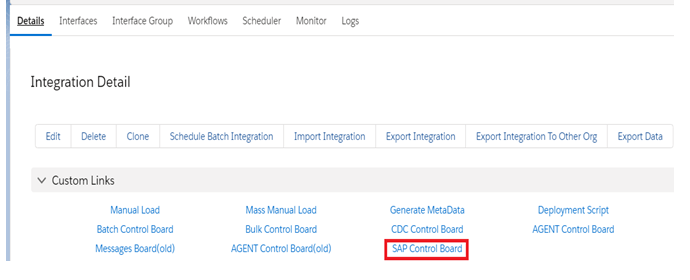
2. Connect SAP<=> SALESFORCE Direct a. Create Connection Destination Go to Integration details tab and then select SAP Control Board as Below
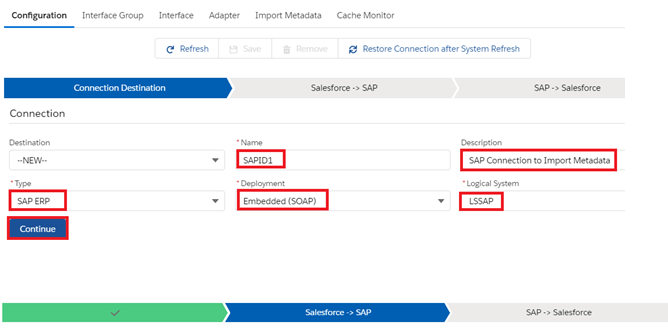
Provide the details for connection details as shown below and click on continue button Type: SAP ERP Deployment: Embedded Logical System: LSSAP
Here we need to provide the SAP connection details as below Host Url: http://xxxx.com Port: 16xxx Username: xxxx Password: SAPID: System Id Client: *

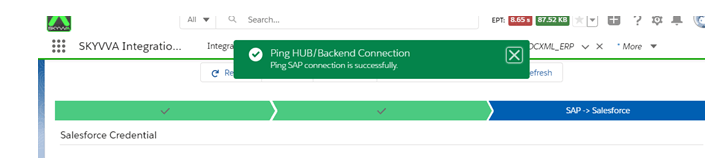
Once we provide the details we need to ping the SAP Connection. Then we can see the pop-up as below
Now we have to provide the salesforce details as shown below. Consumer Key and Consumer Secret we can get from the connected App.
Click on Ping Connection of Salesforce to check if its connected successfully.
b. Create Adapter To create adapter goto integration->SAP control board then select adapter tab and click on new button and fill the details as below.
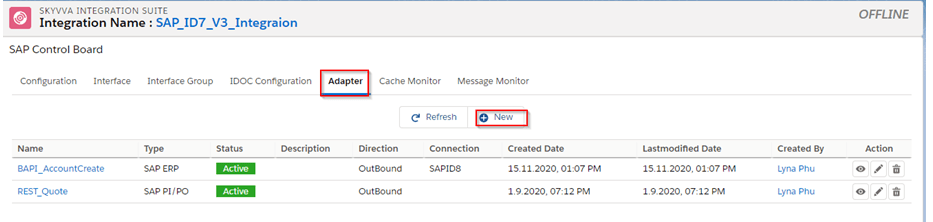
Click on new and fill the required details as below and save the adapter Type : SAP ERP Connection destination select which we have create in step (2.a)
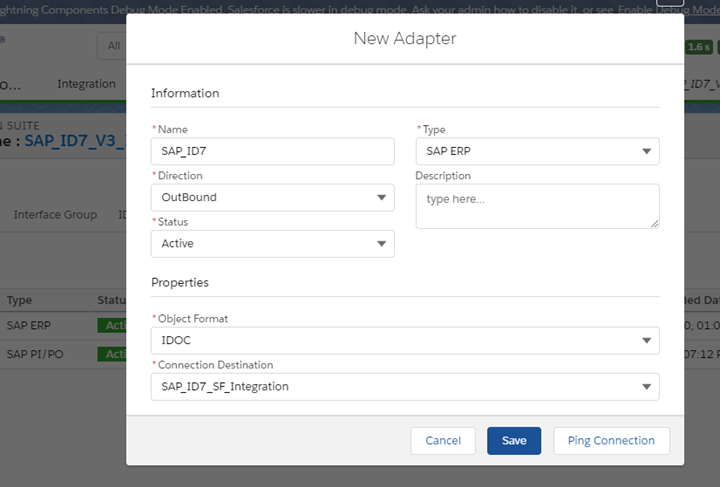
Click on ping connection for test adapter is working or not