2. Create and delete an Interface
Create an inbound interface
There are three different categories of interface technology we support: Synchronous and real-time (synchronous), batch (asynchronous), bulk (asynchronous). When the interface is running, messages will be created. Here we will see how to create an interface for different use cases. The different use case we support are:
- Do real-time interface using synchronous mode
- Do batch processing using batch mode
- Do Bulk processing using bulk mode
- Use our standard CDC feature to create an interface to push data out
Synchronous and real-time synchronous
To create the synchronous and real-time synchronous interface, you have to follow the following steps:
- Click on Integration Tab.
- Select Interfaces to create a new interface.
- Click on New Interface.

- Fill in and choose as the screenshot below
- We can see 6 mandatory fields Name, Source Name, Status, Operation Type, Sequence, Type.
- The default value of Processing Mode is "Synchronous".
- Save it.

Batch (Asynchronous)
We can use Batch Mode when we want to upload more amount of data. Records should be more than 200 but less than 5000, Its capacity is more than Synchronous and real-time. Then we can prefer to use Batch Mode.
- Open Interface
- Scroll down to the basket setting section.
- Check batch mode flag. (As shown in the picture given below)

The bulk (Asynchronous)
Bulk Mode is using when there is a mass amount of data you would like to upload. It should be larger than the Batch mode. Then we can prefer to use Bulk Mode.
- Open Interface.
- Scroll down to the Bulk setting section.
- Check batch mode flag. (As shown in the picture given below)

Creating an outbound interface
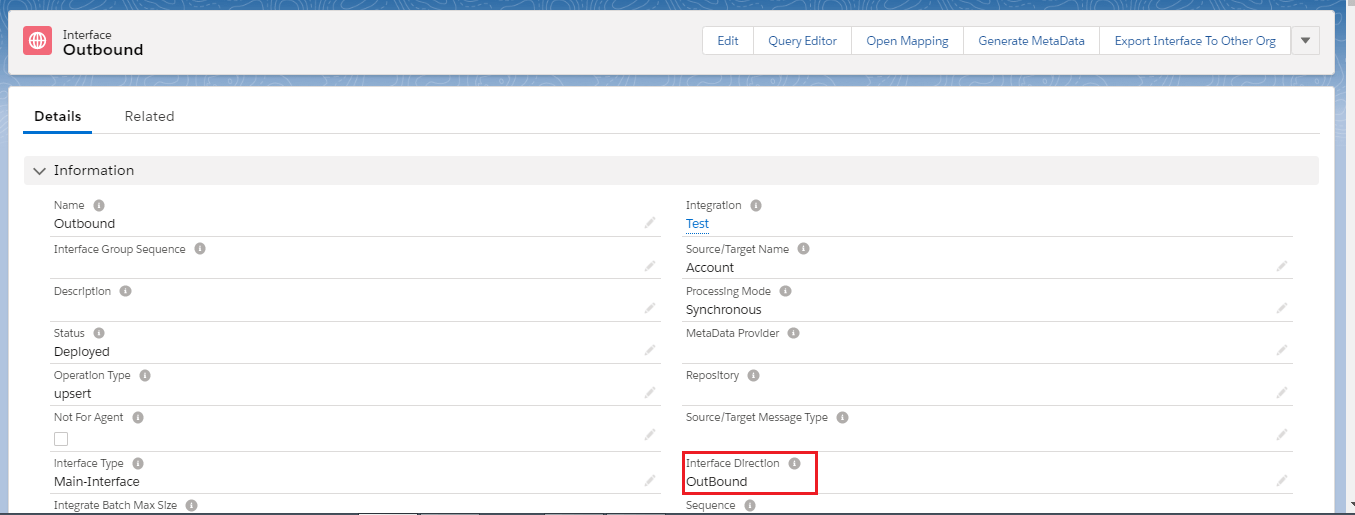
The process of creating an outbound interface is similar to an inbound interface, except the direction type that is supposed to be Outbound. To create an outbound interface, there some steps to be the following:
- Click on Integration Tab and select on Interfaces to create a new interface.
- Fill in and choose as the screenshot below:
CDC
CDC can provide an ability to record all data changes you create on any business object. It will be automatically pushed to your external system at any time you scheduled. When you checkbox the flag it's mean that you activate CDC. This flag is used to activate both CDT and CDD “Use SKYVVA Outbound Scheduler”.
- Open Interface.
- Scroll down to the CDC setting section.
- Check the Use Skyvva Outbound-Scheduler flag. (As shown in the picture given below)

- This field is used by the Agent and CDC. The agent sets the time when it has process the data. CDD set this field after it has detected new changes. This field is set automatically by both processes. Change this field only in emergency cases for CDD only.
Creating and linking the hierarchical interface
The hierarchical interface is interface arrange in order. Interfaces rank according to levels of importance in structure. For example, the Account interface is the parent’s contact interface because of Contact inherited External ID from Account. One more thing, one Account can store many Contacts, but one Contact cannot store many Accounts. To create the hierarchical interface you must have two single interfaces. Link 2 interfaces each other so we need to create a formula on interface contact. Please click Integration Tab->integration name->click interface Name on integration level->Cross down to Mapping Section->Tick on Formula->Click on field that tick Formula. The formula on Contact:

Write Expression: VLOOKUP (Account, id, Name, Name) The Expression means we find Account that has External id on Target Account name is Name and mapping on Source Account name is Name.

- Manual Load to Account Interface.
[su_box title="Note" box_color="#2a8af0" title_color="#000000"]You need to load data Account first because Contact need to check External ID on Account. If you do not do this, it cannot link to Account[/su_box]
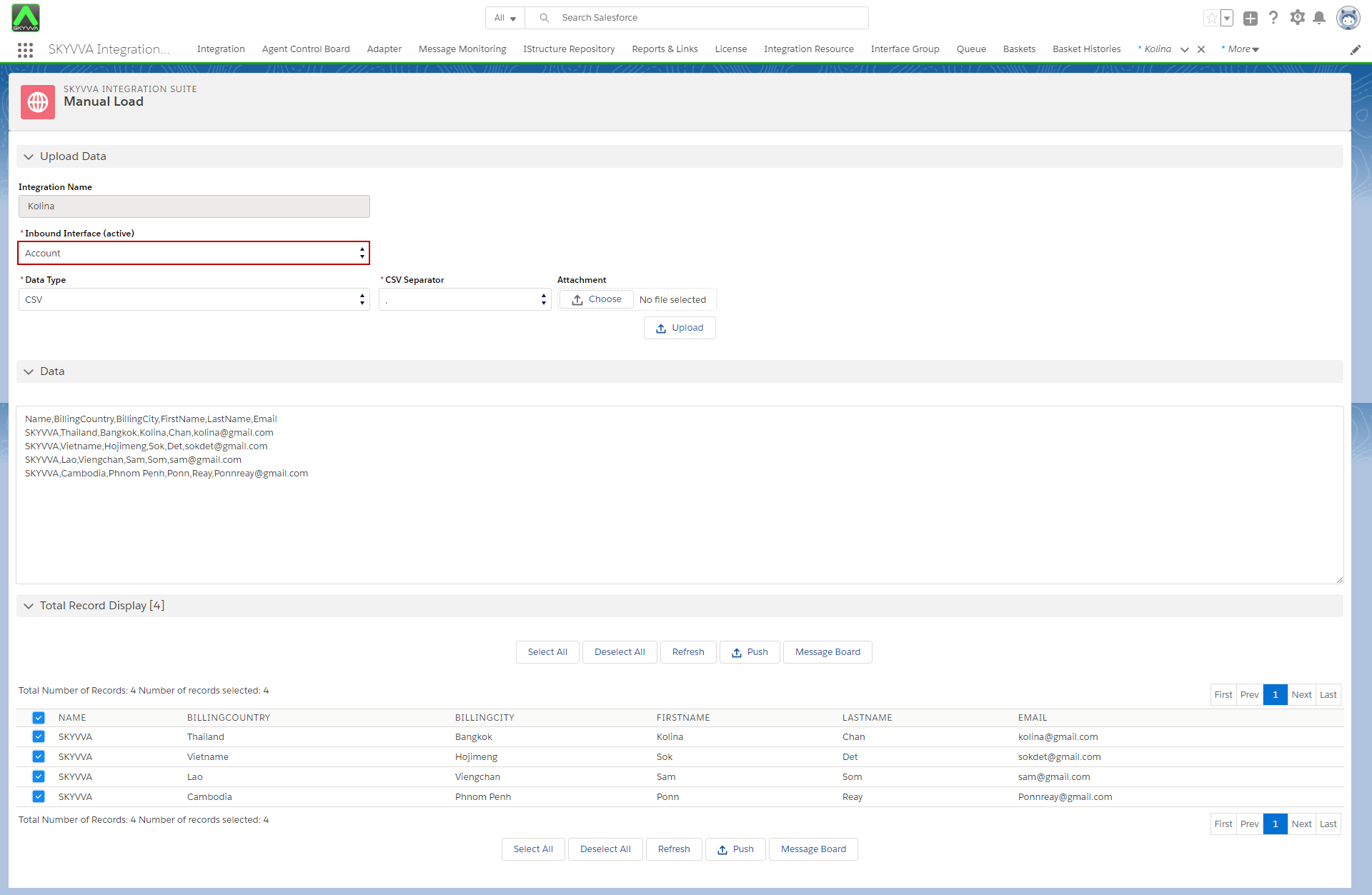
- Account Records successfully created.

- Manual Load to Contact Interface

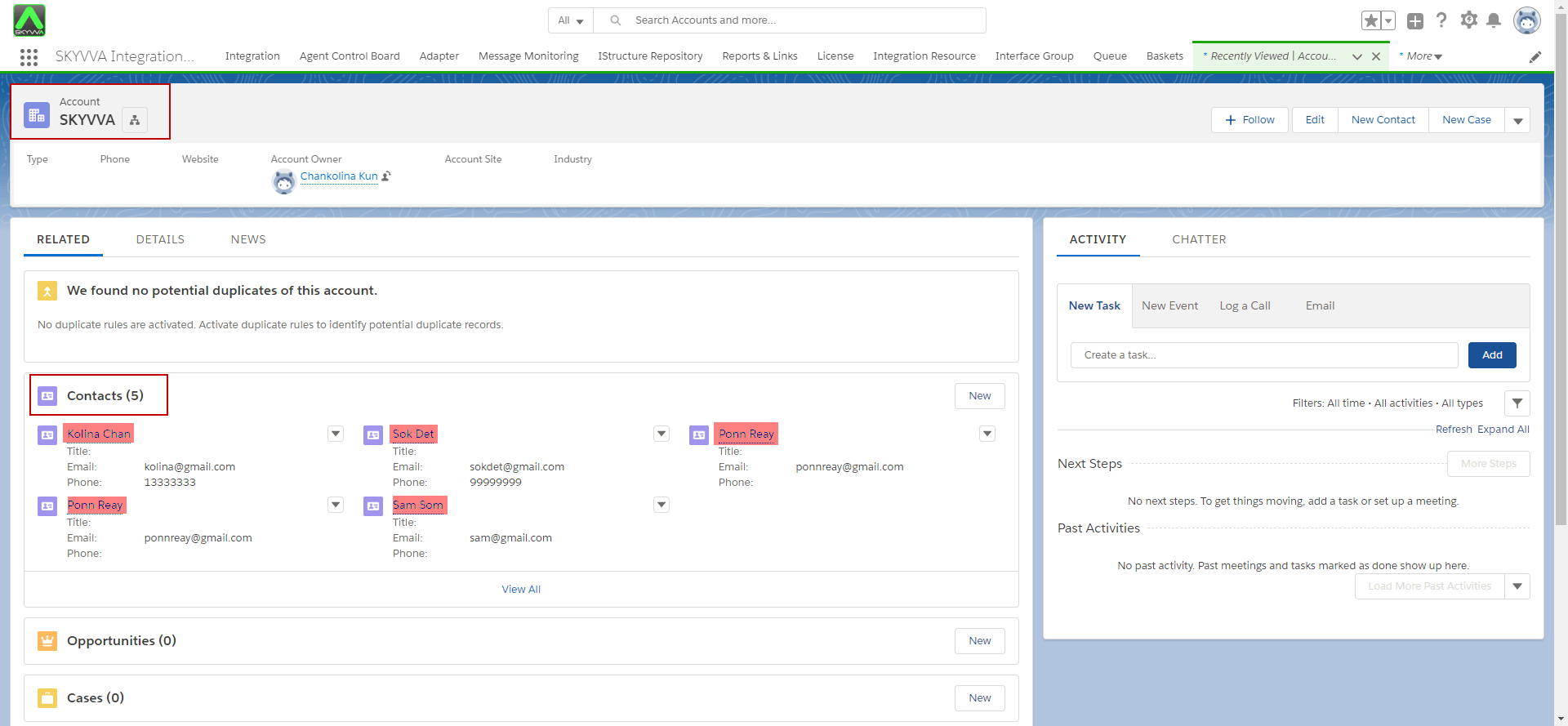
- Contact Records successfully created.

- The result is shown in the picture given below.
Delete an interface
Delete an interface is not hard at all, you just need to click on Delete, which located beside each interface.