Create New Messages Using Asynchronous Processing
Overview
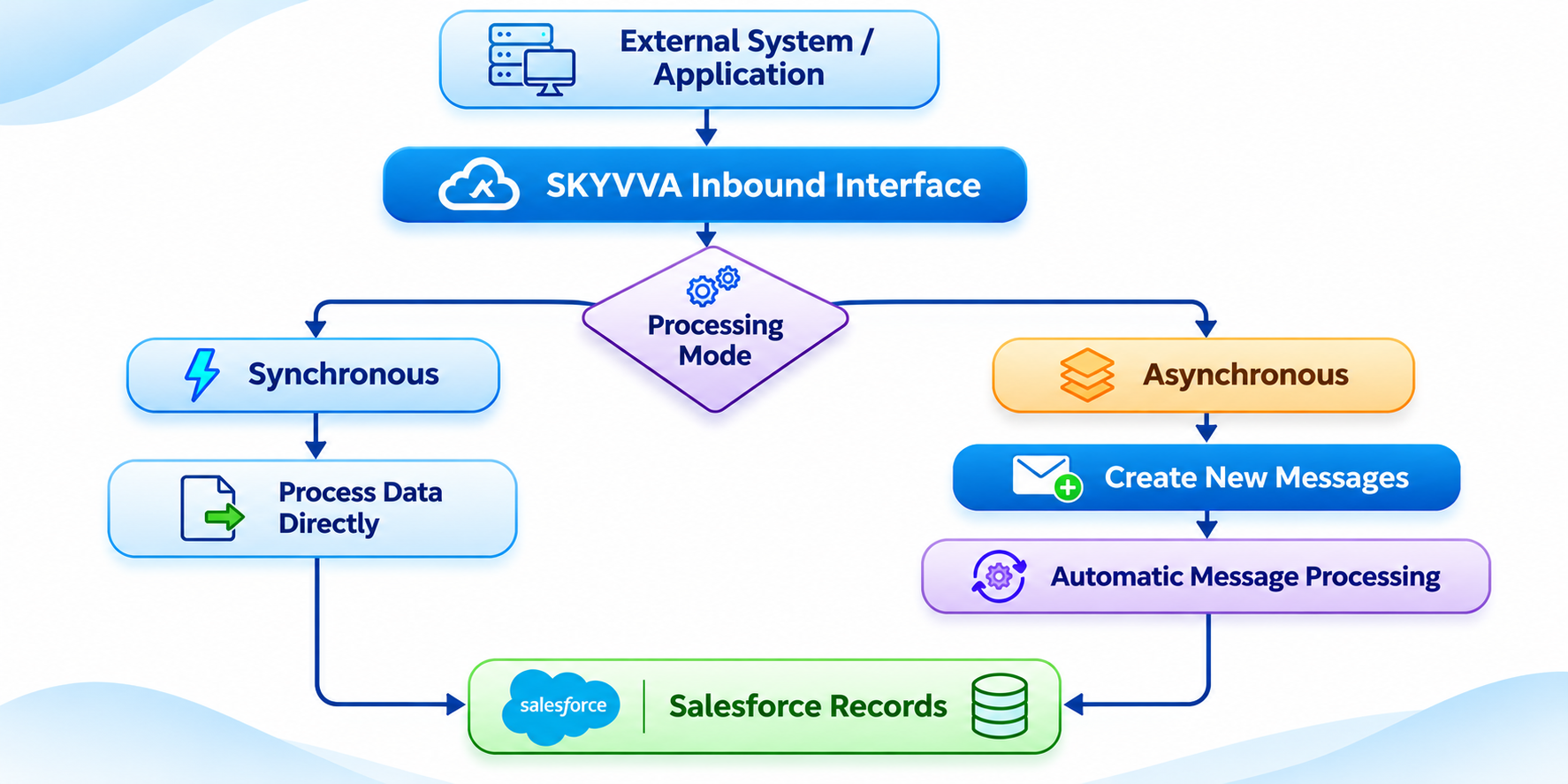
SKYVVA supports two Processing Modes for inbound interfaces: Synchronous and Asynchronous.
The Processing Mode determines whether incoming business data from external systems or applications is processed directly into Salesforce or first stored as New messages in SKYVVA.
- Synchronous: Incoming data is sent to SKYVVA for direct processing into Salesforce.
- Asynchronous: Incoming data is sent to SKYVVA to create messages with status New, without immediately processing the business records into Salesforce.
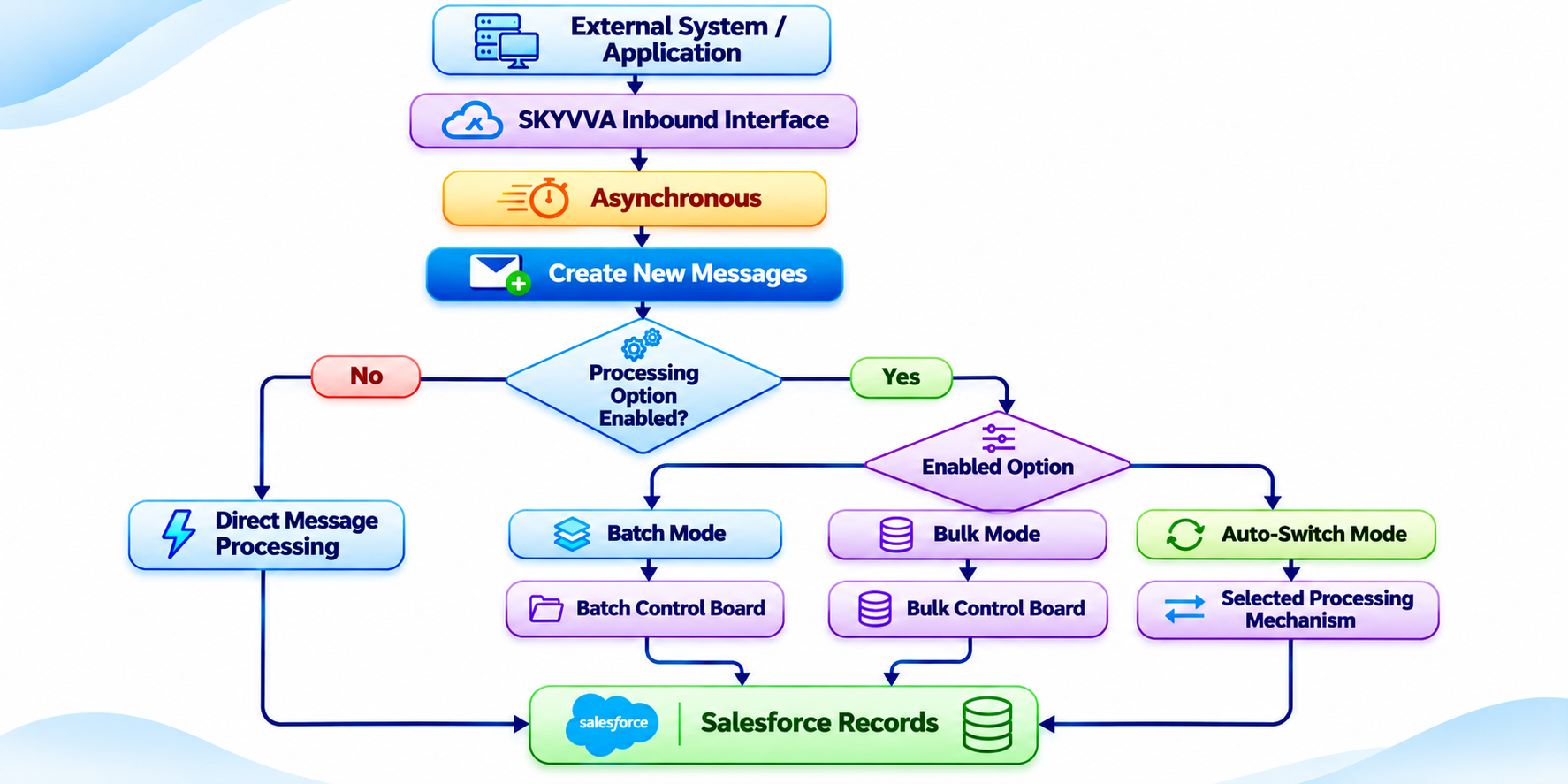
After the New messages are created, SKYVVA automatically processes them. The processing can be performed directly into Salesforce or through an enabled Batch, Bulk, or Auto-Switch option.
This feature can be used by supported external systems or applications that send business data through SKYVVA inbound interfaces.
In this guide, SKYVVA Agent with SQL Server is used as a testing example to demonstrate how to configure Asynchronous Processing Mode, create New messages, and verify the processing results.
1. Why Use Asynchronous Processing to Create New Messages?
Asynchronous Processing Mode allows users to create New messages in SKYVVA before processing the business data into Salesforce.
This is useful when users want to separate the initial data transfer from Salesforce business record processing.
With Asynchronous Processing Mode:
- External systems or applications send incoming business data to SKYVVA.
- SKYVVA creates messages with status New.
- Business records are not processed into Salesforce during initial message creation.
- SKYVVA subsequently processes the New messages automatically.
- If Batch, Bulk, or Auto-Switch is enabled, SKYVVA uses the corresponding processing mechanism.
- Users can monitor message creation and processing results in SKYVVA Message Monitor.
For example, when SKYVVA Agent reads Contact records from an external database, Asynchronous mode allows SKYVVA to create New messages first. These messages are subsequently processed directly into Salesforce, or through Batch, Bulk, or Auto-Switch processing if the corresponding option is enabled.
2. Difference Between Asynchronous and Synchronous Processing
SKYVVA provides two processing modes with different behaviors.
Synchronous Processing
When Synchronous mode is selected, incoming business data is sent to SKYVVA for direct processing into Salesforce.
Processing Flow:
External System → SKYVVA Inbound Interface → Direct Processing → Salesforce Records
When using SKYVVA Agent, the configured Transfer Package Size determines how many records are sent in each transfer package.
Asynchronous Processing
When Asynchronous mode is selected, incoming business data is sent to SKYVVA to create messages with status New.
After message creation, SKYVVA automatically processes the New messages into Salesforce.
If Batch, Bulk, or Auto-Switch is enabled, the subsequent processing follows the enabled option.
Processing Flow:
External System → SKYVVA Inbound Interface → Create New Messages → Automatic Processing → Salesforce Records
Processing Mode Comparison
| Feature | Synchronous | Asynchronous |
|---|---|---|
| Main purpose | Process data directly into Salesforce | Create New messages first |
| Initial processing | Direct business data processing | Message creation |
| New-message stage before processing | No | Yes |
| Salesforce processing | During the direct request | After message creation |
| Transfer Package Size (Agent example) | Applied | Skipped during initial message creation |
| Processing Package Size | Not used for initial Agent transfer | Skipped during initial message creation |
| Batch/Bulk/Auto-Switch | Not required for direct processing | Used when the corresponding option is enabled |
Note: The main difference is whether SKYVVA processes the business records immediately or creates New messages first for subsequent processing.
3. How to Configure Processing Mode
Follow these steps to configure Asynchronous Processing Mode on a SKYVVA Inbound Interface.
- Log in to Salesforce and open SKYVVA.
- Open the required Integration.
- Select the Inbound Interface used to receive data from the external system or application.
- Locate the Processing Mode field.
- Select Asynchronous.
- If required, enable Batch, Bulk, or Auto-Switch processing.
- Save the interface configuration.
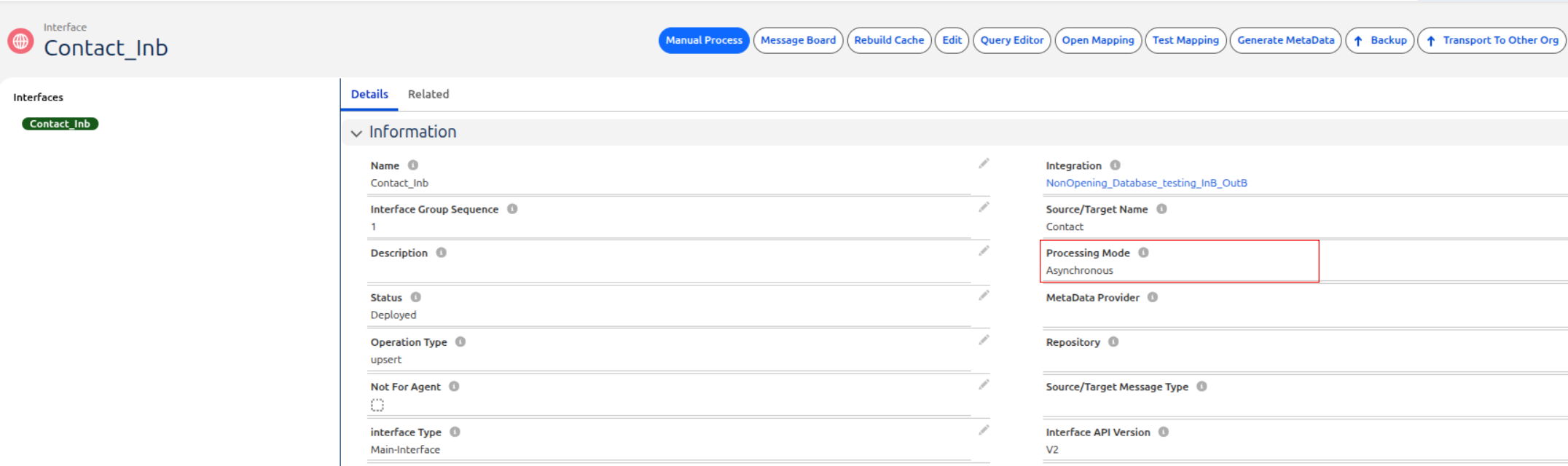
After saving the configuration, incoming data processed through the configured Asynchronous path will create New messages before subsequent Salesforce processing.
To process business data directly into Salesforce during the initial request, select Synchronous.
4. How Asynchronous Message Creation Works
When an external system or application sends data through an Inbound Interface configured with Asynchronous Processing Mode, the following steps occur:
- Prepare Source Data: The external system or application prepares the business data to be sent to SKYVVA.
- Send Data to SKYVVA: The external system sends the data through the configured SKYVVA Inbound Interface.
- Create New Messages: SKYVVA creates inbound messages with status New, without immediately processing the business records into Salesforce.
- Start Automatic Processing: SKYVVA automatically starts processing the New messages.
- Process Business Records: SKYVVA processes the messages directly into Salesforce or through the enabled Batch, Bulk, or Auto-Switch processing option.
- Review Results: Users can verify message statuses and Salesforce records after processing.
Processing Options
| Processing option | Behavior |
|---|---|
| Direct Processing | SKYVVA processes New messages directly into Salesforce. |
| Batch Mode | When enabled, SKYVVA uses Batch processing through the Batch Control Board. |
| Bulk Mode | When enabled, SKYVVA uses Bulk processing through the Bulk Control Board. |
| Auto-Switch Mode | When enabled, SKYVVA selects the appropriate processing mechanism according to its configuration. |
Important: Asynchronous Processing Mode determines that New messages are created first. The enabled processing option determines how these messages are subsequently processed into Salesforce.
5. Example: Create New Messages Using SKYVVA Agent
This example demonstrates how to create New messages using SKYVVA Agent with SQL Server as the external data source.
The same Processing Mode concept applies to other supported external systems or applications, although their connection and transfer settings may differ.
Example Configuration
| Setting | Value |
|---|---|
| External System | SQL Server |
| Integration Tool | SKYVVA Agent |
| Source Table | Contact_Inb |
| Salesforce Object | Contact |
| Processing Mode | Asynchronous |
| Processing Option | Direct Processing |
| Source Records | 1,000 Contacts |
Step 1: Prepare Source Data
Prepare 1,000 Contact records in the SQL Server source table.
Ensure that the required source fields are mapped to the Salesforce Contact object in the SKYVVA Inbound Interface.
Step 2: Configure Asynchronous Processing
Open the Inbound Interface and select:
- Processing Mode: Asynchronous
- Processing Option: Direct Processing (without enabling Batch, Bulk, or Auto-Switch)
Save the configuration.
Step 3: Execute SKYVVA Agent
Execute the configured inbound operation using SKYVVA Agent.
The Agent reads the Contact records from SQL Server and sends them to SKYVVA.
Step 4: Create New Messages
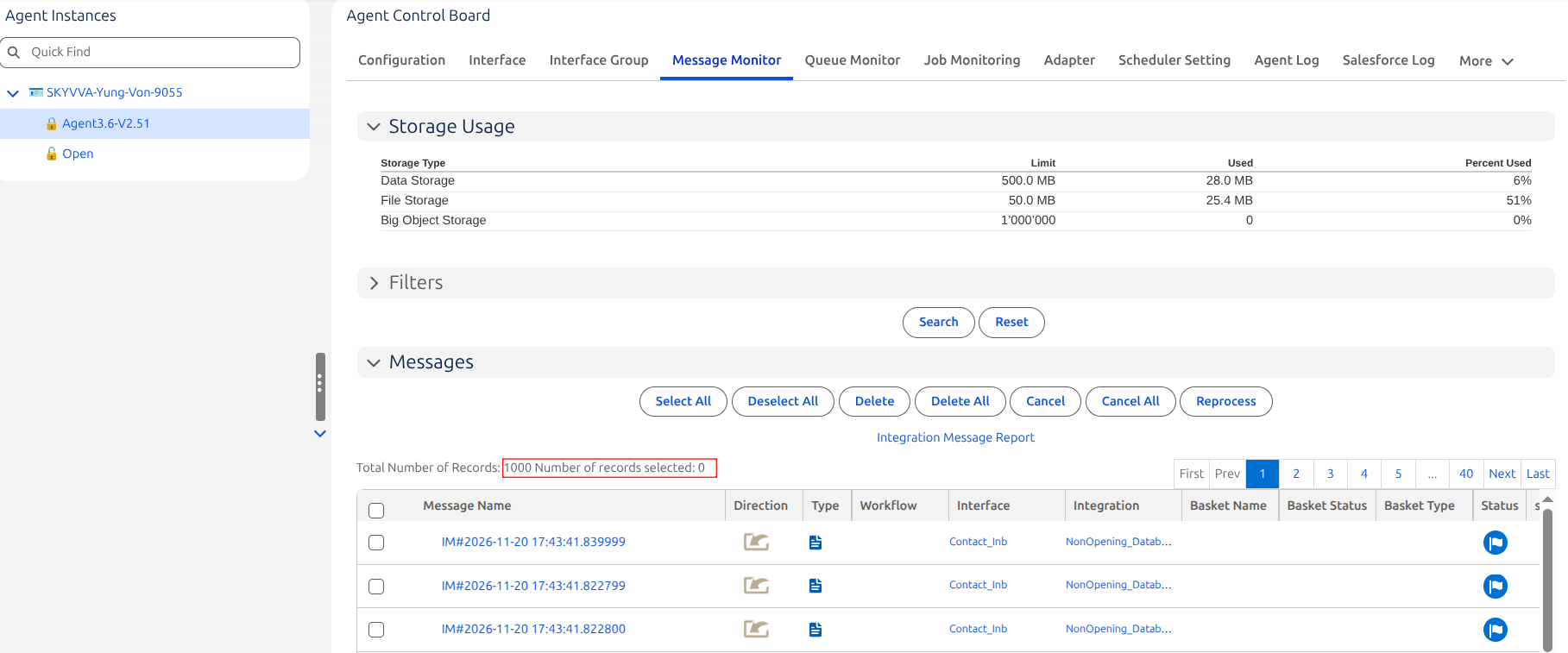
SKYVVA receives the data and creates inbound messages with status New.
For a flat Contact interface that creates one message per source record, 1,000 Contact records result in 1,000 New messages.
At this stage, the business records have not yet been processed into Salesforce.
Step 5: Automatically Process New Messages
After message creation, SKYVVA automatically processes the New messages directly into Salesforce.
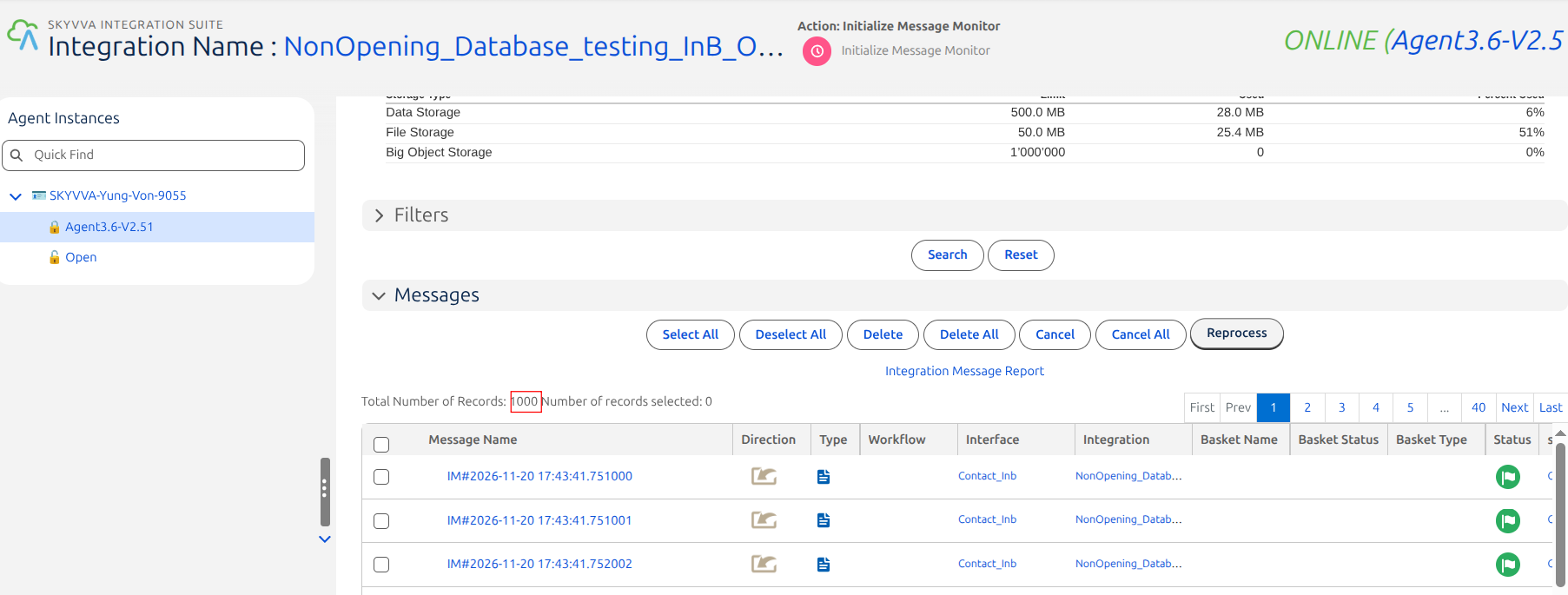
If Batch, Bulk, or Auto-Switch processing is enabled instead, SKYVVA uses the corresponding processing mechanism.
Step 6: Verify Salesforce Records
After processing completes, open Salesforce and verify that the expected Contact records were created or updated.
Expected Result:
- SKYVVA Agent successfully sends the source data.
- SKYVVA creates New messages.
- SKYVVA automatically processes the New messages into Salesforce.
- Users can review the processing results in SKYVVA Message Monitor.
6. Important Notes About Package Size
SKYVVA provides two package size settings relevant to this example: Transfer Package Size and Processing Package Size.
These settings have different purposes.
Transfer Package Size
When using SKYVVA Agent with Synchronous processing, Transfer Package Size determines how many records the Agent sends in each transfer package.
Example:
- Total records: 1,000
- Transfer Package Size: 100
- Total transfer packages: 10
The Agent sends 10 transfer packages, each containing 100 records, for direct processing into Salesforce.
Processing Package Size
Processing Package Size controls the number of eligible messages processed per chunk during applicable manual or scheduler reprocessing.
Example:
- Total eligible messages: 1,000
- Processing Package Size: 200
- Total processing chunks: 5
Behavior in Asynchronous Mode
When using SKYVVA Agent with Asynchronous Processing Mode, Transfer Package Size and Processing Package Size checks are skipped during the initial creation of New messages.
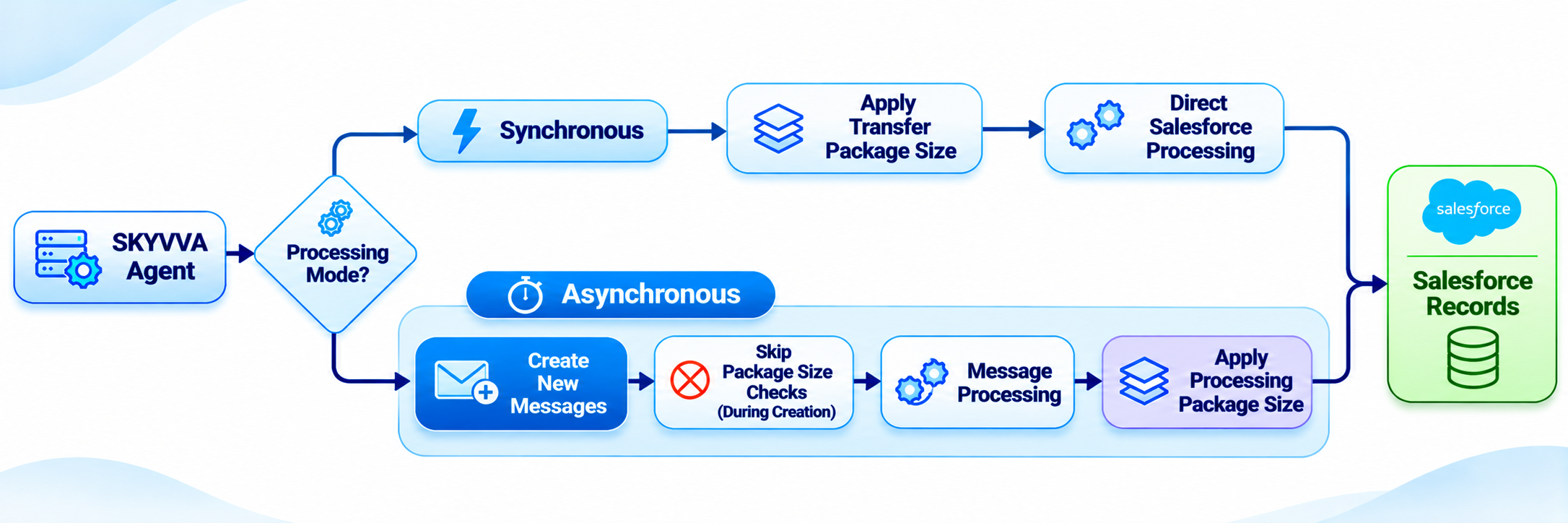
This means the initial message-creation step is not divided into processing chunks based on these two settings.
Note: Processing Package Size is used when messages are reprocessed manually or through a scheduler. It should not be confused with the initial creation of New messages.
Package transfer settings may differ depending on the external system or integration tool used.
7. Verify New Messages in SKYVVA Message Monitor
After sending data through an Inbound Interface configured with Asynchronous Processing Mode, users can verify the created messages and their processing results in SKYVVA Message Monitor.
Initially, SKYVVA creates inbound messages with status New, without immediately processing the business records into Salesforce.
After the New messages are automatically processed, their status changes to Completed when processing is successful. Users can verify the final processing results in SKYVVA Message Monitor.
Note: Automatic processing may begin shortly after message creation. Therefore, some messages may already be Completed when users open SKYVVA Message Monitor.
Summary
The Processing Mode setting determines how incoming business data is handled by SKYVVA.
- Synchronous: Processes incoming business data directly into Salesforce.
- Asynchronous: Creates New messages first, then automatically processes them into Salesforce.
With Asynchronous mode, New messages can be processed directly into Salesforce or through Batch, Bulk, or Auto-Switch when the corresponding processing option is enabled.
When using SKYVVA Agent with Asynchronous Processing Mode, Transfer Package Size and Processing Package Size checks are skipped during initial New message creation.
Asynchronous Processing Mode is useful when users want to separate incoming message creation from Salesforce business record processing.