3. Database Adapter
Introduction
The conceptualization of a new Database Adapter on Agent V3 is the same as JDBC Adapter on the old Agent. It used as a connector to transfer data from Salesforce to Database and from Database to Salesforce. Any Connect or Agent V3 currently supports many types of Databases such as Oracle, Ms Access, SQL Server, MySQL, and PostgreSQL.
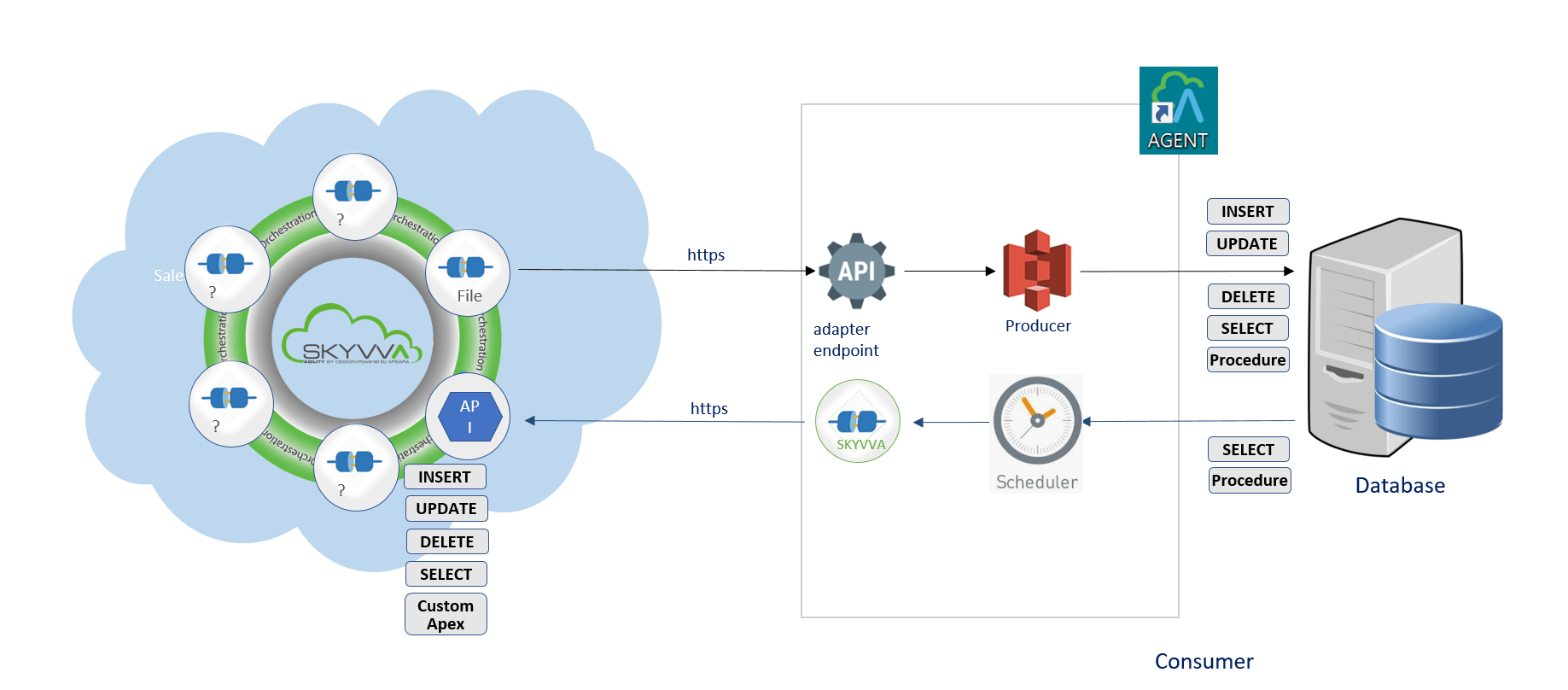
The user will learn how to send data in multiple objects from Salesforce to the multi-table in the database synchronously and asynchronously through Agent V3 or Any Connect. The user will know about Transactional and Non-Transaction mode during processing. Creating an adapter, called Database Adapter within Internal Key Management for insert a record to the database. MYSQL Database is used for example below to Insert a record to the database and it located on EC2 instance. Pre-required
- Create Integration and configuration on the new Agent Control Board
- Create database adapter (for outbound and inbound) on new Agent Control Board
- Create Metadata Provider, Repository and generate Message Type from the database
- Create outbound Interface (Request) and inbound Interface (Response)
- Checking Cache monitoring status
- Callout V3 to new Agent
- Transactional and None-Transactional mode
Case1
– How to do insert operation using a Synchronous and Asynchronous outbound interface?
Since the user now completely understand; How to use the Insert Operation, by hitting the upper link. – What is an Integration and How to create it? Since the user now completely understand; How to create Integration, by hitting the upper link. Step2: Click on Agent Control Board Tab –How to use the Agent Control Board?
Since the user now completely understand; How to use the Agent Control Board, by hitting the upper link, now we understand the Architect of the Agent Control Board now follows below on Salesforce org. Step-3: Create an outbound Database Adapter on the new Agent Control Board
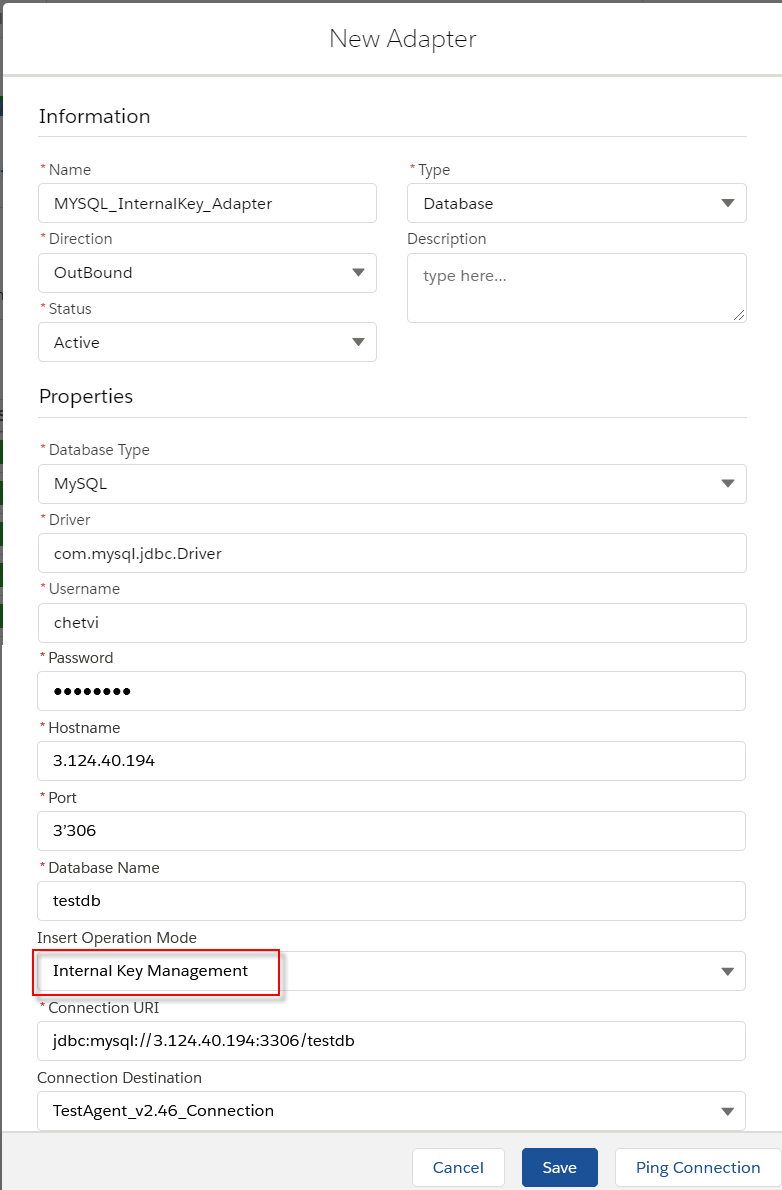
- Fill all required field
Name: any name
- Type: Agent Database
- Direction: Outbound
- Status: Active
- Database Type: MySQL
- Driver: mysql.jdbc.Driver
- Username: (your user name on database)
- Password: (your password on the database)
- Hostname: 124.40.1949 (public ipv4 on EC2 AWS)
- Port: 3306(default)
- Database Name: your database name
- Insert Operation Mode: Internal Key Management
- Connection URI: jdbc:mysql://3.124.40.194:3306/testdb (connection URL format is protocol//[hosts][/database])
- Connection Destination: your destination name
* on EC2, make sure you have allowed MYSQL port 3306 on Group Policy for connectivity from other systems.
[su_box title="Note" box_color="#2a8af0" title_color="#000000"]
- There are two kinds of Insert Operation mode. Internal Key management, it will ignore the value for the field Primary Key and Foreign Key send from Salesforce. This key-value is generated automatically base on the Auto-Increment field define inside the database. In this case, Agent will return the value that it is the Primary key generated by the database to Salesforce.
- For External Key management, the field Primary Key and Foreign Key in the database will use the value sent from Salesforce. In this case, we no need to define a response Interface because the Primary Key has been known.
- Internal Key or External Key management is designed to work for database INSERT operation only. For other operations, this mode is no functionality.
Since the user now completely understand; How to create a message type, by hitting the upper link.
- Fill all required field then click Retrieve Database to get the Table’s record
Agent Instance: your instance name
- Adapter Name: your adapter name
- Object Type: Table, View, Procedure
- Database Operation: Select (database’s template will be generated based on operation)
- Choose Table’s name for creating Message Type
- After that, we got the Message Type generated from the database
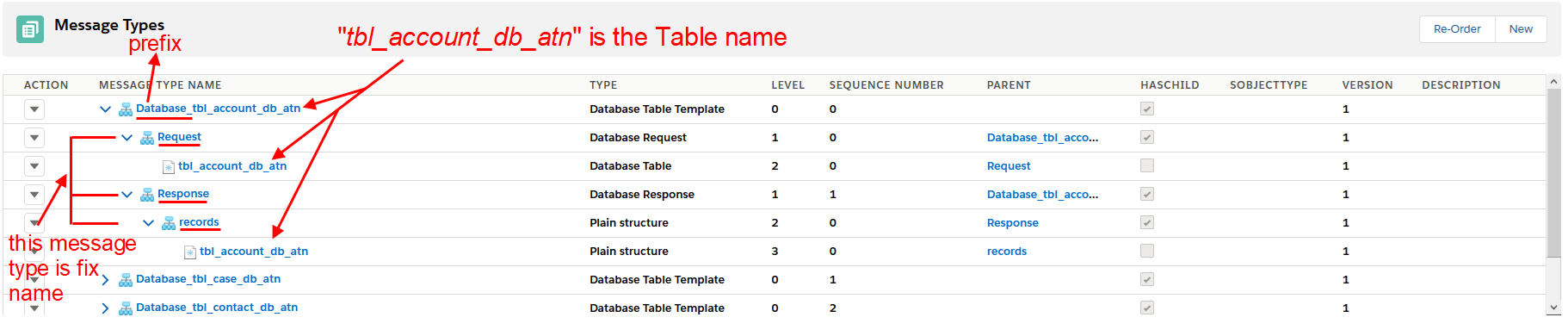
- Here the example for the Table called: “tbl_account_db_atn”
- Create a root Message Type with the prefix “Database_” + “Table’s name” within type as “Database Table Template”
- Create two Message Type as a child of the root with the fixed name. The first one is “Request”, type as “Database Request”. And the other one is “Response”, type as “Database Response”
- Under “Request”, create a Message Type as the child. The Table’s name is used for this Message Type within type as “Database Table”. i.e: tbl_account_db_atn. In this Message Type, was generated the field name like on Table
- Under “Response”, create a Message Type as the child with the fixed name “records” within type as “Plain structure”
- Under “records”, create a Message Type as the child. The Table’s name is used for this Message Type within type as “Plain structure”. In this Message Type, was generated the fixed field name: “Id” and “databaseRecordId”
 [su_box title="Note" box_color="#2a8af0" title_color="#000000"]
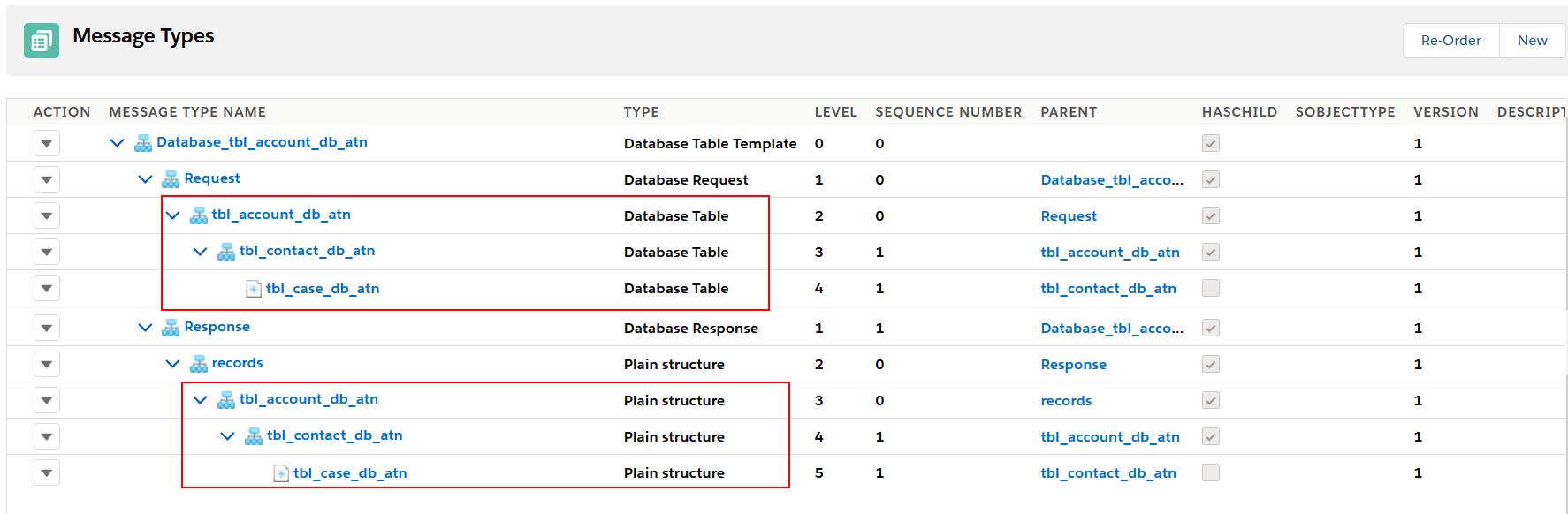
- Currently, we need to manually re-order Message Type as the parent and child following to Request and Response. As the example below, we have three Message Type refer to three Tables on the database.
- Under “Request” we take “tbl_account_db_atn” as the parent of “tbl_contact_db_atn” and “tbl_case_db_atn” as the child of “tbl_contact_db_atn”, these Message Type are Database Table type. On “Response”, and under “records” we take “tbl_account_db_atn” as the parent of “tbl_contact_db_atn” and “tbl_case_db_atn” as the child of “tbl_contact_db_atn”, these Message Type are Plain structure type.
 Step-5 Setup Interface
- For creating the Interface need to follow this guide.
Since the user now completely understand; How to create an Interface, by hitting the upper link.
- Define the request Interface
- Define the response Interface
- Create inbound Interface with Synchronous mode, operation(update), choose Metadata Provider, Repository, and Message Type (Response)
- In the example below, we use the response from Agent to update the existing sObject
- Mapping
- Go to the Request Interface details page then add Response Interface on-field Response Interface. In this example, the Request interface was named “MYSQL_Database_InternalKEY_Insert_SYNC_multiple table” and the Response interface is “Response Insert SYNC”

Since the user now completely understand; How to use Cache Monitoring , by hitting the upper link.
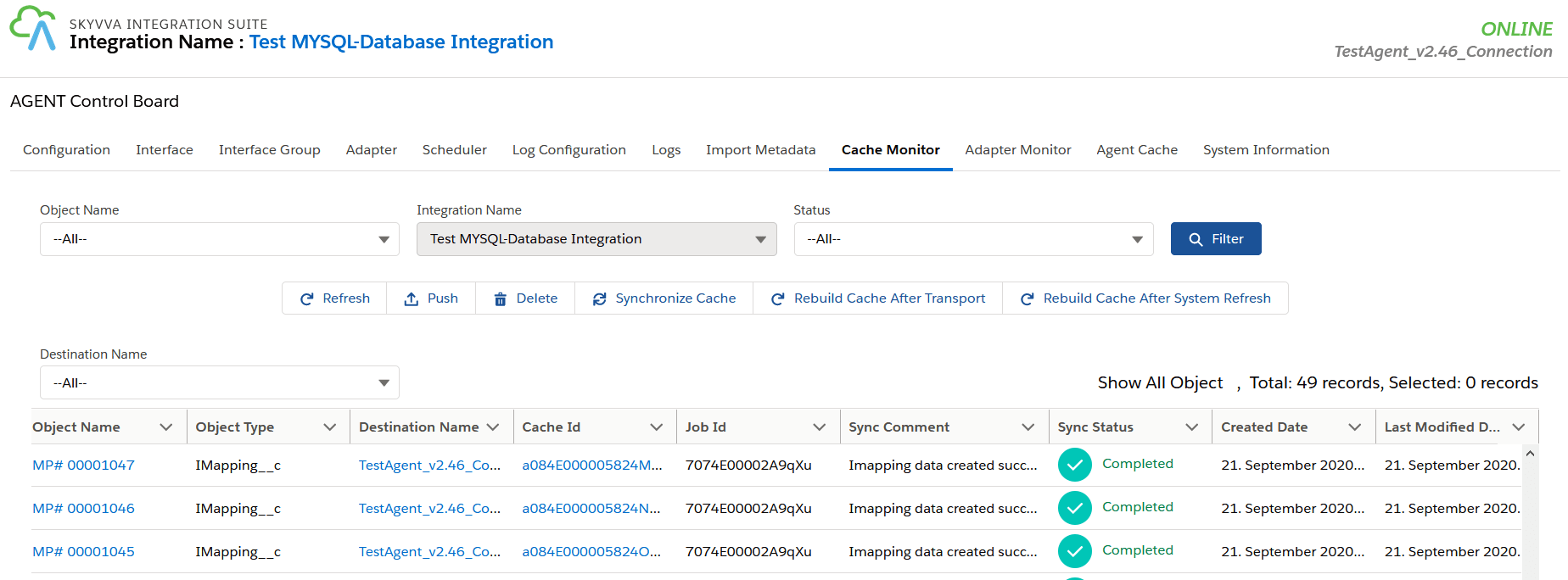
[su_box title="Note" box_color="#2a8af0" title_color="#000000"]We are using Cache on a new Agent for storing the SKYVVA object and its setting, so the new Agent will be looking to Cache record on its local database (H2 Database) to get the SKYVVA object’s setting before transfer data. It is different from the old Agent that is always read the SKYVVA object’s setting from Salesforce again and again that it makes too much time before transfer data. The Cache is built automatically when the Interface has linked to which Adapter has a connection destination. [/su_box] Step-7: Callout v3
- Navigate to Setup gear icon => Developer Console => Debug menu => Open Execute Anonymous Window then put sample code below and click the Execute button.
- After callout, the record is inserted into the database then its response back to update the relevant object. As shown the result on Message Monitoring below:
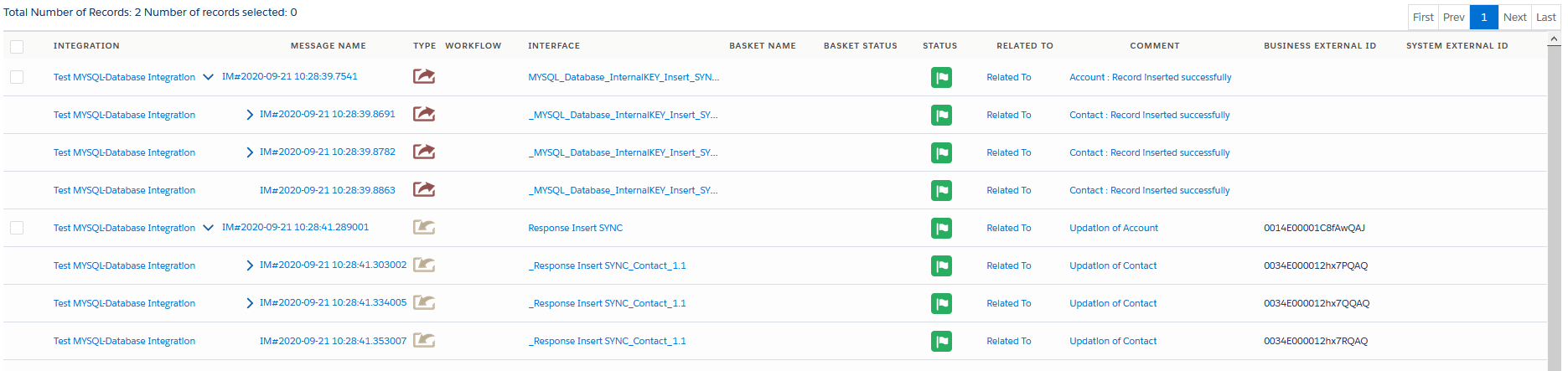
- Checking the result on the database, the record has been inserted correctly on the MYSQL database

- field “DB_ContactId” is primary key of Table “tbl_contact_db_atn”

- field “DB_CaseId” is primary key of Table “tbl_case_db_atn”

How to do insert operation using an Asynchronous outbound interface?
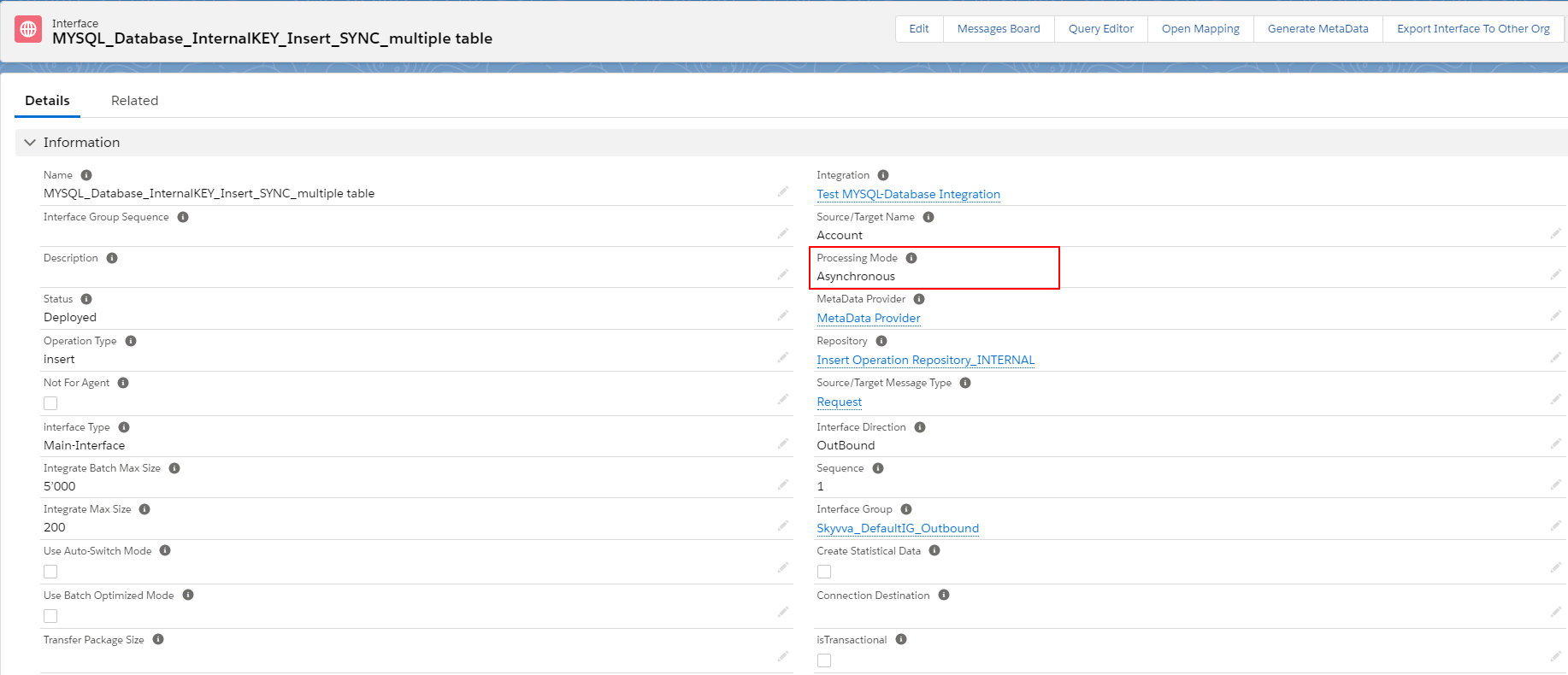
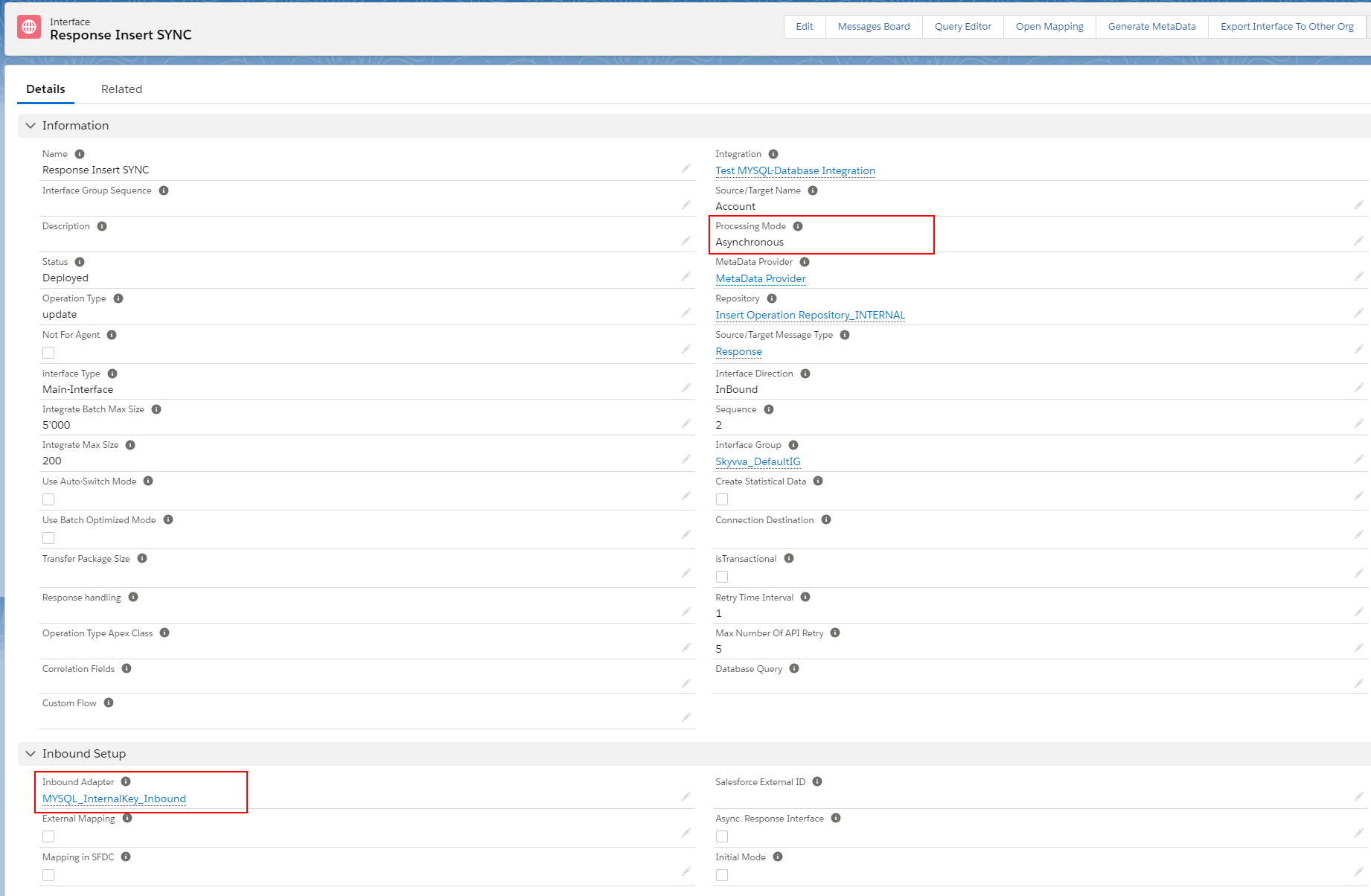
In this example, we use the same Interface as we have practiced for the Synchronous scenario, just change the processing mode to Asynchronous on Interface then Callout v3.
- Request Interface
 [su_box title="Note" box_color="#2a8af0" title_color="#000000"]
For Asynchronous mode with Outbound Interface is a dependency on the field “Transfer Package Size” on the Interface. By default, this field is blank mean that the value “1”. The calculation of API call is depending on this field.
For example, in case we are sending 3 records Account’s id:
[su_box title="Note" box_color="#2a8af0" title_color="#000000"]
For Asynchronous mode with Outbound Interface is a dependency on the field “Transfer Package Size” on the Interface. By default, this field is blank mean that the value “1”. The calculation of API call is depending on this field.
For example, in case we are sending 3 records Account’s id:
- If “Transfer Package Size=2”, it will execute 2 API call.
- If “Transfer Package Size=1”, it will execute 3 API call.
- Response Interface
- Callout v3
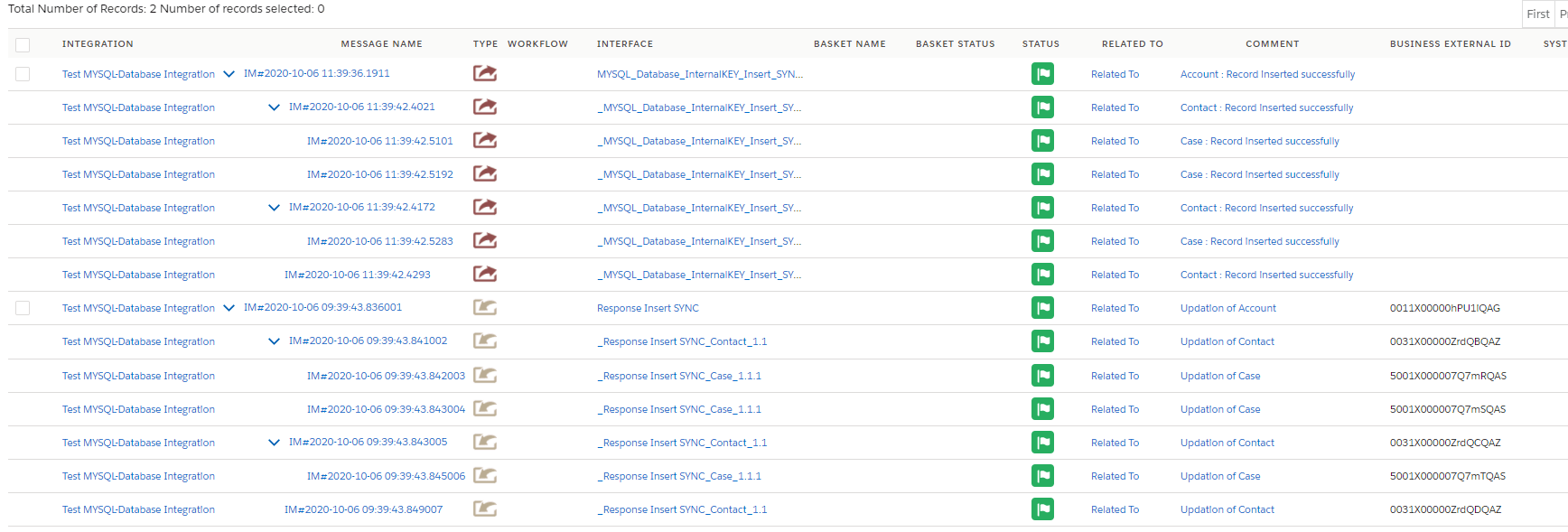
Insert operation and Transactional mode
Normally, when we creating a new Interface the field “isTransactional” is unchecked it means that Non- Transactional Mode. If that field is checked then it is Transactional mode.
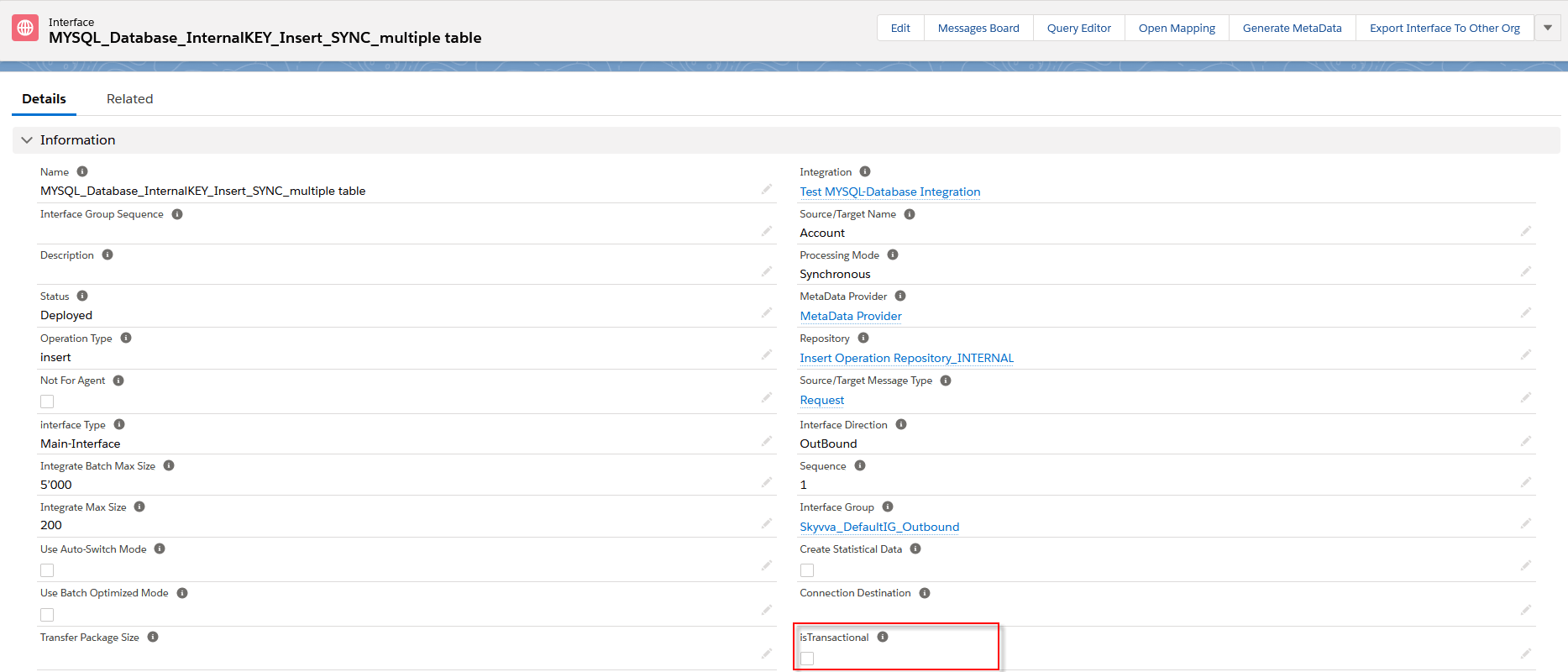
[su_box title="Note" box_color="#2a8af0" title_color="#000000"]
- Transactional Mode: If any error while insert of one message then the whole tree will be marked as Failed status.
- Non-transactional Mode: If any error while insert of one message then the respective message will be marked as Failed status
- These two modes are support both Interface processing Synchronous and Asynchronous.[/su_box]
 The example below is used the same message scenario for non-transactional Mode, it just switching to Transactional Mode. In Transactional Mode, when one message is unable to do any database operation then it makes another message which is complete to rollback and marked the whole tree as Failed status.
- For Synchronous mode, the Agent will return only the root message status.

- For Asynchronous mode, the Agent will return the whole tree message status.

Case2
-How to do update operation using an Asynchronous / Synchronous outbound interface?
Since the user now completely understand; How to use the Update operation, by hitting the upper link. Users can use the same Database Adapter in the previous section as it used for INSERT operation. Now we use that Adapter for UPDATE operation.
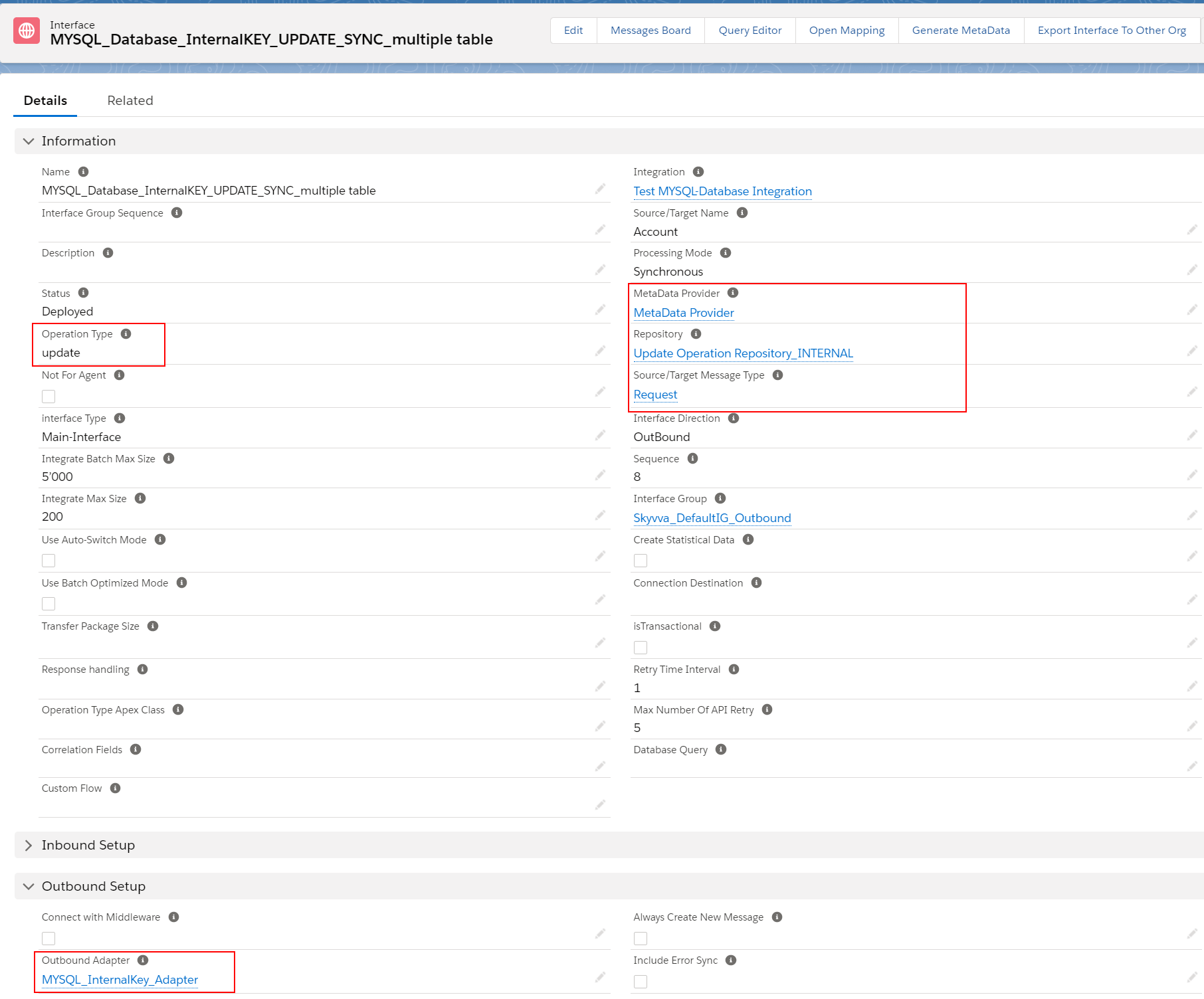

We explain here how to do UPDATE operation using a Synchronous and Asynchronous outbound interface. We have understood about Message Type in WHERE-Clause, knowing about putting value in WHERE-Clause on mapping tool, and callout V3 to Agent. And we also have known about Transactional Mode.
Case3
-How to do delete operation using an Asynchronous / Synchronous outbound interface?
Since the user now completely understand; How to use Delete operation, by hitting the upper link. Users can use the same Database Adapter in the previous section as it used for INSERT operation. Now we use that Adapter for DELETE operation.
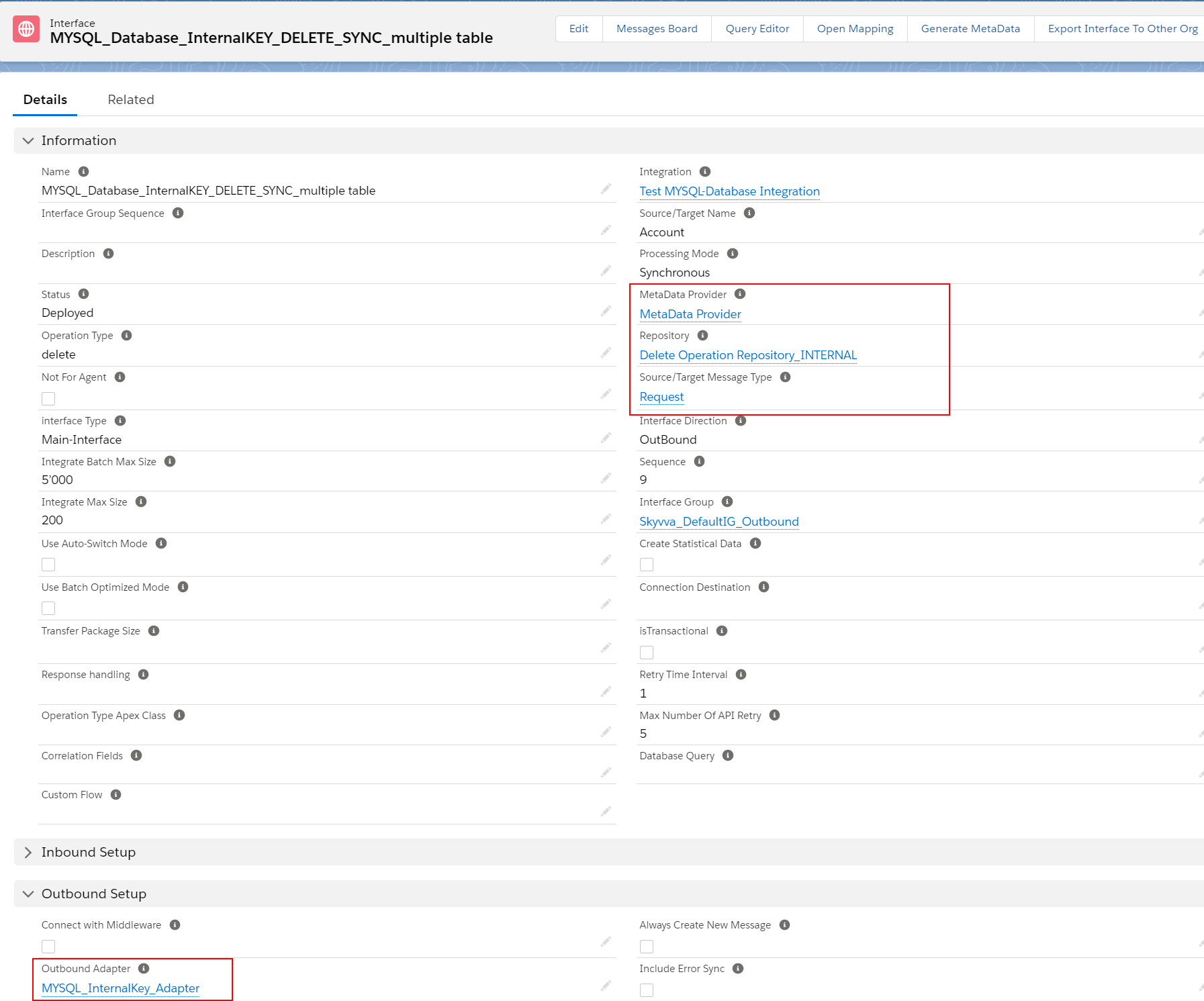

We explain here how to do UPDATE operation using a Synchronous and Asynchronous outbound interface. We have understood about message type in WHERE-Clause, knowing about putting value in WHERE-Clause on mapping tool, and callout V3 to Agent. And we also have known about Transactional Mode.
Case4
-How to do Select operation using an Asynchronous / Synchronous outbound interface?
Since the user now completely understand; How to use Select opertaion, by hitting the upper link. Users can use the same Database Adapter in the previous section as it used for INSERT operation. Now we use that Adapter for QUERY operation.


We explain here how to do select operation QUERY using Synchronous and Asynchronous outbound interface. We have understood about Message Type in WHERE-Clause, knowing about putting value in WHERE condition in mapping tool, Database Query’s field, and callout V3 to Agent.
Case5
– How to call Stored Procedure on a new Agent?
Since the user now completely understand; How to call Stored Procedure, by hitting the upper link. Users can use the same Database Adapter in the previous section as it used for call INSERT Procedure. Now we use that Adapter for Stored operation.
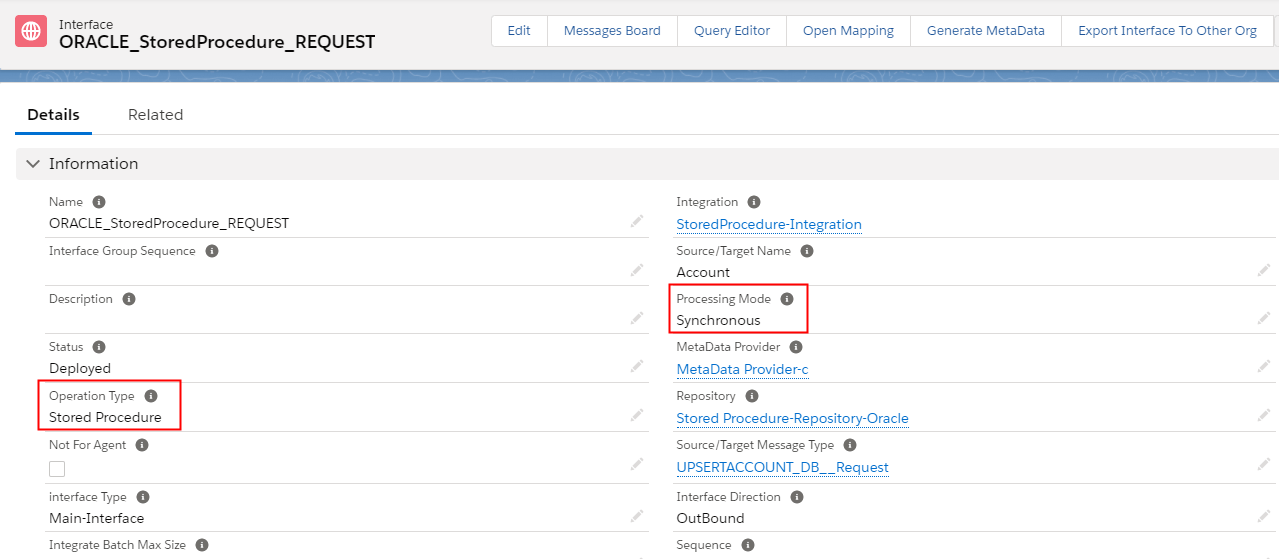

A stored procedure is a set of SQL statements with an assigned name, which are stored in an RDBMS as a group, so it can be reused and shared by multiple programs. Stored procedures can access or modify data in a database, but it is not tied to a specific database or object, which offers a number of advantages. Users can use the ORACLE database as an example. In here, when we call the Stored Procedure to the Database to do any database operation, we have expected it will respond back the result to the Salesforce. In this case, we need to have the INPUT and OUTPUT parameters in the Stored Procedure and create a Request and Response Interface corresponding to those parameter types. The ORACLE database located on an EC2 instance and the Stored Procedure was written to Insert new data if no record present on the Database and update data if the record exists. Check the result on Message Monitoring The Stored Procedure has been executed and response to Salesforce correctly

We call how to call Stored Procedure from Salesforce to the database, and respond to the Salesforce, we have known how the Message type structure generated from the Database.
Case6
Ms Access database
The users can create databases to store and organize large amounts of data in a structured manner. It offers various features such as tables, forms, queries, reports, and macros to facilitate data entry, manipulation, and analysis. Users can define relational and tween tables, enforce data integrity rules, and create user-friendly interfaces to interact with the data.
The Ms Access adapter detail
The MS Access adapter is a software component that facilitates the integration and communication between Microsoft Access with SKYVVA Agent databases. It acts as a bridge, allowing Access to connect with SKYVVA Agent, such as SQL servers, Oracle databases etc. The Ms Access Adapter provides a set of tools and functionality that enables users to import, export, and manipulate data between Access with SKYVVA Agent. It allows Access users to establish connections, retrieve data, perform queries, and update records in SKYVVA Agent. By using the MS Access adapter, users can leverage the features and capabilities of Access while seamlessly working with data from SKYVVA Agent. It simplifies data management tasks, enhances data sharing and collaboration, and expands the possibilities of Access by enabling integration with SKYVVA Agent.
Ms Access is a relational database management system (RDBMS) developed by Microsoft. It allows users to store, manage, and manipulate data using a graphical user interface. SKYVVA Agent, on the other hand, is a data integration tool that enables seamless communication and integration between different systems.
Inbound Adapter
- In the context of integration SKYVVA, an inbound adapter is a component that allows data to be received from an external system and passed to the integration platform. The adapter acts as a bridge between the SKYVVA integration app and the Salesforce platform, ensuring seamless data flow.
- Ms Access is a relational database management system (RDBMS) developed by Microsoft. It provides a user-friendly interface and SKYVVA integration app to manage and manipulate databases. Access is often used for smaller-scale projects, single-user or small team applications, and departmental solutions. It's commonly used to create desktop databases for handling data, queries, forms, and reports.
- Configure target system integration define the integration settings for the target system where you want to send the data from Ms Access. This can include connection details, authentication, and any specific requirements or protocols supported by the target system.
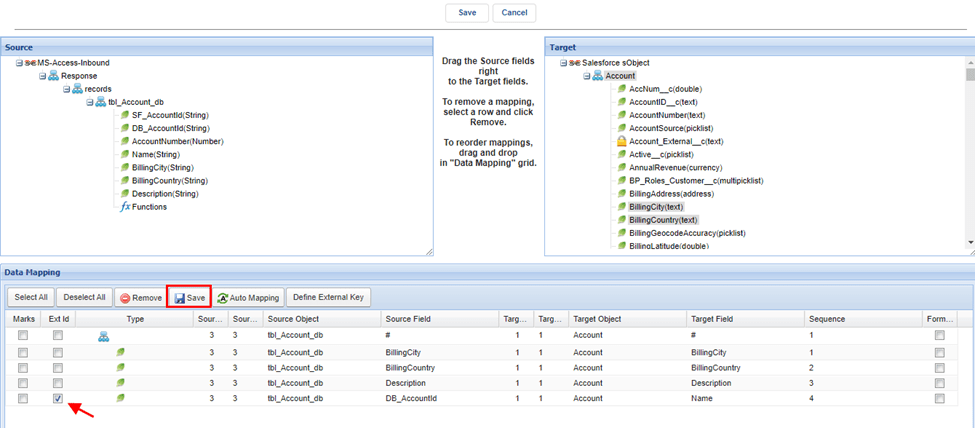
- How to use Ms Access inbound adapter with operation type—INSERT ?
- How to use Ms Access inbound adapter with operation type—UPSERT?
- How to use Ms Access inbound adapter with operation type—UPDATE?
- How to use Ms Access inbound adapter with operation type—DELETE?
Outbound Adapter
- Outbound adapters are components or connectors used to send data from one SKYVVA integration app to Salesforce. SKYVVA integration app an integration platform or middleware that facilitates communication between different applications. The purpose of an outbound adapter is to format and transmit data in a way that the receiving system can understand and process it correctly.
- Microsoft Access is a database management system (DBMS) that provides a simple and easy-to-use platform for creating and managing databases. It's often used for small-scale applications or data storage needs. Access databases can store structured data and support SQL queries.
If you want to integrate Ms Access with SKYVVA integration app, user have a few options:
- Direct Integration: If the other system you want to connect to supports ODBC DB (Object Linking and Embedding Database) connections, user can use those drivers to directly access the data in the Ms Access database.
- User can use middleware or integration platforms SKYVVA integration app if it supports Access to facilitate communication between Ms Access and other systems. These platforms often provide pre-built connectors or adapters for popular databases and applications, making it easier to establish the integration.
