2. Email Adapter
An email adapter a support sending email to Salesforce using an attachment (source file) to carry the business data. The functionality is to pass parameters to the email subject and body. You can pass business data with the subject and body. As soon as the Email arrives, the data import is initiated automatically.
The configuring of email service on Salesforce
This section will explain the process of configuring the Service on Salesforce. You can follow the steps below: Log in to Salesforce and go to Setup then click on Custom Code
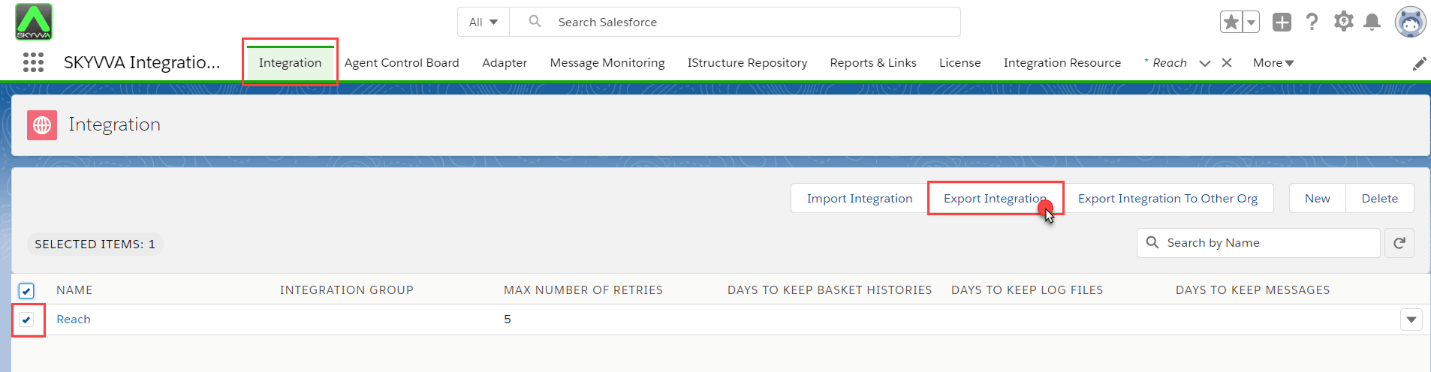
Click the button 'new Email service'


There are some fields you must know on the Email Service Information Page:
- Email Service Name: E.g. E-mail Adapter
- Apex Class: search for “IAdapterEmailDataLoader”
- Accept Attachments: All
- Check icon ‘Active’
- On Failure Response Setting: Click on the Dropbox field and configure how Salesforce response when an attempt to access this email service falls for the reason shown below.
- Click on “Save and New Email Address”
[su_box title="Note" box_color="#2a8af0" title_color="#000000"]If you did not Check icon 'Active' the Email Service is created deactivated in this case you can of the active manually, You will see under Setup -> App Setup -> Custom Code-> Email Service -> Click on your Email Service Name[/su_box]
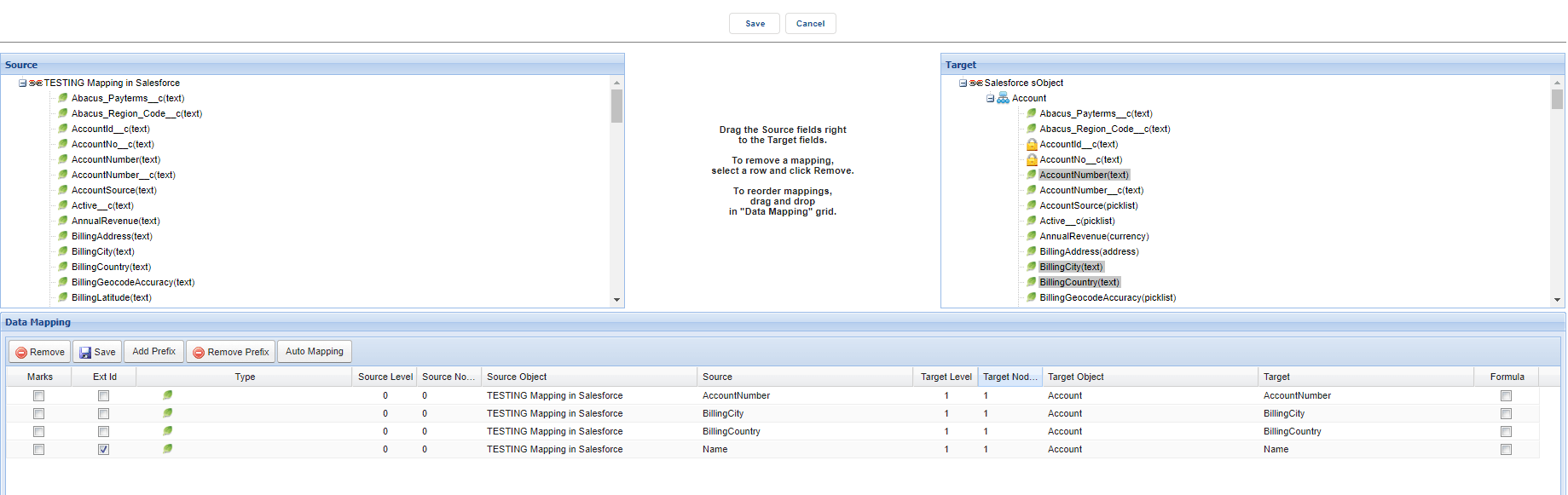
- Email Service activation.
- Create a new Email Address :

Email Address: e.g. e-mail_adapter@k-v7q9ktay1frsnh00m0qwgvne3gsfpkhbzk9qdrz5vnwzdp75y.28-bakieae.ap6.apex.salesforce.com Creating an Email adapter For this part, the explanation will focus on creating an email adapter. To create an adapter you can follow the steps below:
- Click on the TAB “Adapter” then “New” and input the information in the required field:
- Name: E.g. E-Mail Adapter
- Type: Select from the Dropbox=> Email => Click Save
Property1: Name: select from Dropbox -> filetype Value: e.g. CSV Adapter: e.g. E-Mail Adapter. Property2: Name: select from Dropbox -> Separator Value: e.g., Adapter: e.g. E-Mail Adapter.


Editing on Interface You can enter your existing interface and edit by choosing an adapter. E.g. E-mail Adapter.

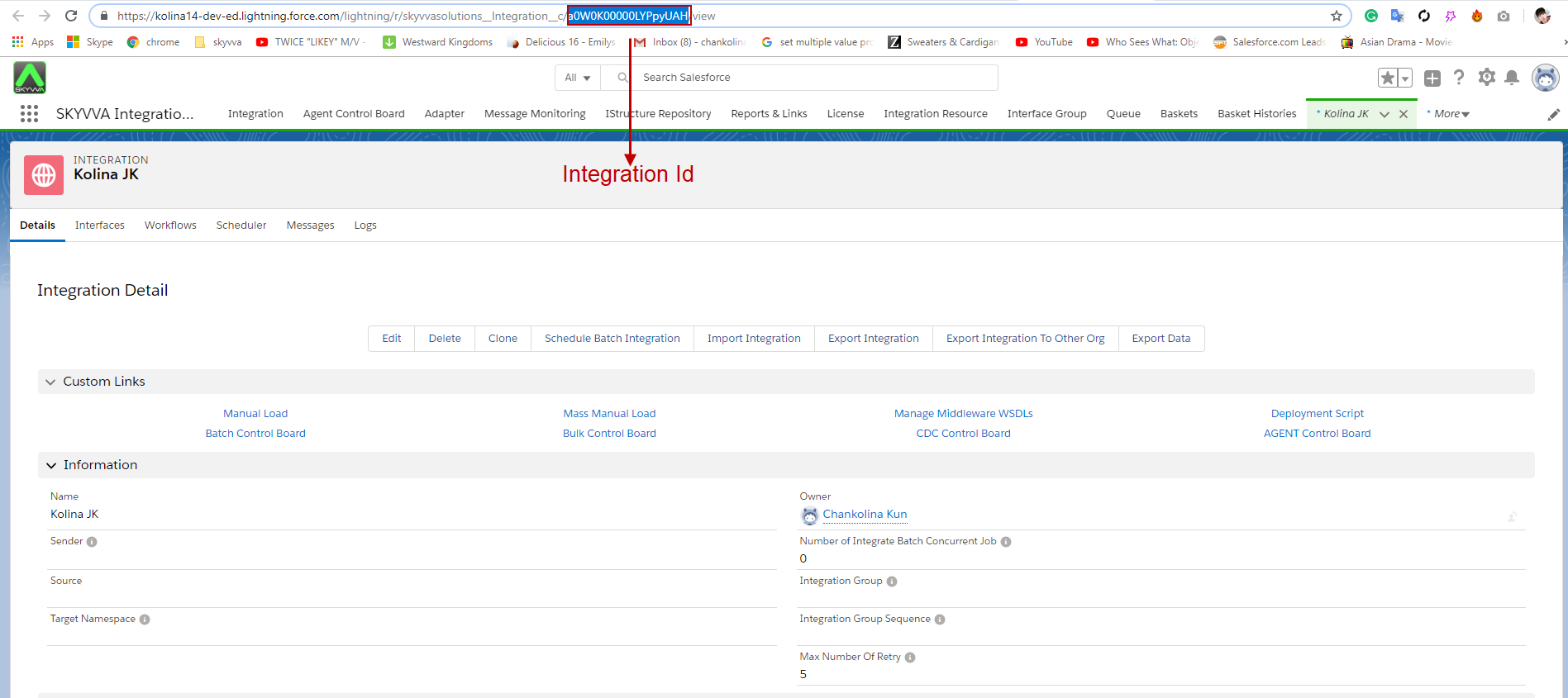
Subject Line of your Email Accept the email address from salesforce.com by email. The subject line of the email should read as follows: integration=your_IntegrationID;interface=Name_of_the_Interface Note: Provide the IntegrationID and the name of the Interfaces. The IntegrationID is found in the URL of the actual Integration. When you are there, search for a 15-digit ID (id= ....)
Attach the record that you want to import and send the email.

- E-mail address generated by Salesforce.
- Integration=your_IntegrationID;interface=Name_of_the_Interface.
- The record you want to import (must be the same in the structure that implements our interface).
In addition, send the email. [su_box title="Tip" box_color="#2a8af0" title_color="#000000"]Be sure to test the mapping of your integration first (manual upload). If this works, then get to work with the mail import.[/su_box]